Managing API Workflows
As a portal admin, you can create, edit, publish, and control the visibility of API Workflows. This page covers the full workflow lifecycle from an admin perspective.
Creating a Workflow
- In the Developer Portal, navigate to Admin - Settings and select the portal.
- Open the API Workflows section.
- Click Create.
- Fill in the workflow details:
| Field | Description |
|---|---|
| Name | A short, task-oriented name (e.g., "Place an Order", "Register a Webhook") |
| Description | One to two sentences explaining the goal of the workflow and when to use it |
| Arazzo Specification | The machine readable workflow definition in Arazzo format |
| Agent Prompt | Natural language guidance for AI agents on when and how to invoke the workflow |
| Agent Visibility | Controls whether the workflow is surfaced to AI agents. Set to Visible to include it in llms.txt and api-workflows.md, or Hidden to exclude it from agent facing surfaces while keeping it accessible to human users in the portal |
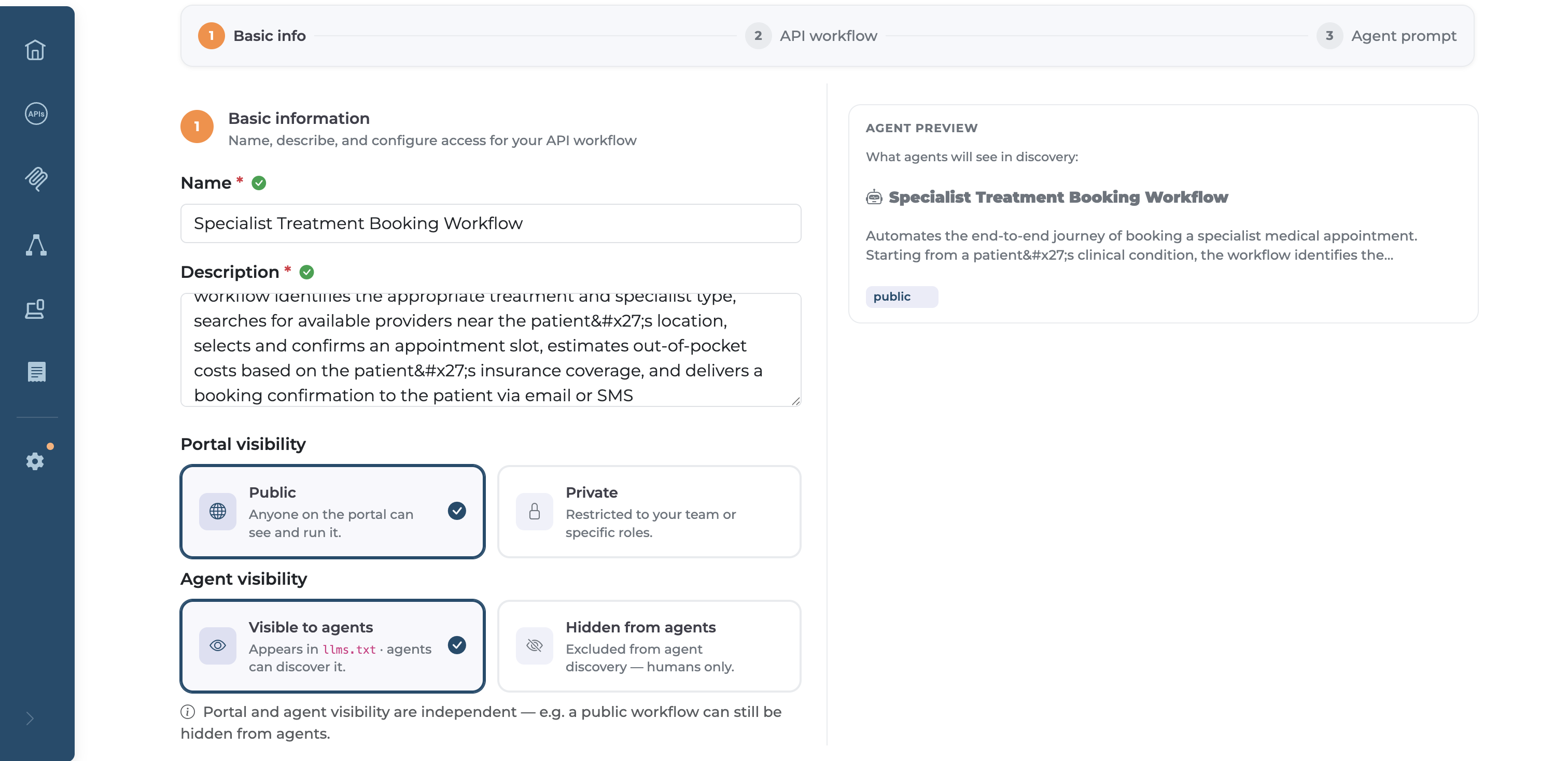
- Click Save as Draft to save without publishing, or Publish to make the workflow live immediately.
Editing a Workflow
- Navigate to API Workflows in the admin settings.
- Select the workflow you want to edit.
- Make your changes in the editor.
- Click Save to update a published workflow, or Save as Draft to unpublish it while editing.
Publishing and Unpublishing
Workflows must be explicitly published to become visible to consumers. Draft workflows are only visible within the admin console.
To publish a workflow:
- Open the workflow in the admin settings console.
- Click Publish.
To unpublish:
- Open the workflow.
- Click Unpublish (or Save as Draft). The workflow is removed from the portal and from
llms.txt/api-workflows.mdimmediately.
Controlling Visibility
Visibility is controlled independently for human users and AI agents.
Portal UI Visibility
Determines whether the workflow appears in the developer portal for human users.
- Visible — appears in the portal's API Workflows section and in search results
- Hidden — not shown in the portal UI; still accessible via direct URL if the consumer has the handle
Agent Visibility
Determines whether the workflow is exposed to AI agents via machine readable surfaces.
- Visible — included in
llms.txtandapi-workflows.md - Hidden — excluded from agent-facing surfaces; human users can still see it in the portal UI