Sample WS-Federation web app
By following this guide, you will be able to deploy a WS-Federation-based web application and enable login for it using the Passive Security Token Service (Passive STS) of Asgardeo.
Info
Asgardeo uses its passive security token service (Passive STS) as its WS-Federation implementation.
Passive STS is capable of issuing SAML 1.1 and 2.0 security tokens. To request a SAML 2.0 security token, the Request Security Token (RST) should be sent to the passive STS endpoint with the token type, SAMLV2.0. If no RST is specified, Asgardeo issued a SAML 1.1 token by default.
Prerequisites
-
Download Apache Tomcat 8.x and install it. Tomcat server installation location will later be referred to as
<TOMCAT_HOME>in this guide. -
It is recommended that you use a hostname that is not
localhostto avoid browser errors. Modify your machine's/etc/hostsentry to reflect this. -
Download the Passive STS Sample application from the latest release assets.
Deploy the sample app
To deploy the sample web app on a web container:
-
Copy the application's downloaded
.warfile into thewebappsdirectory of the Tomcat folder. -
Start the Tomcat server.
Configure sample properties
To configure additional properties for the sample application:
-
Add the following configurations to the
web.xmlfile in<TOMCAT_HOME>/apache-tomcat-<version>/webapps/PassiveSTSSampleApp/WEB-INF.-
Specify Asgardeo Passive STS URL as
idpUrl. -
Specify the
replyURLas the URL of the web app. -
Specify the
realmas a unique identifier for the web app.
-
-
Restart the tomcat server.
Configure the application in Asgardeo
-
On the Asgardeo Console, go to Applications.
-
Click New Application and select Standard-Based Application.
-
Enter the following details:
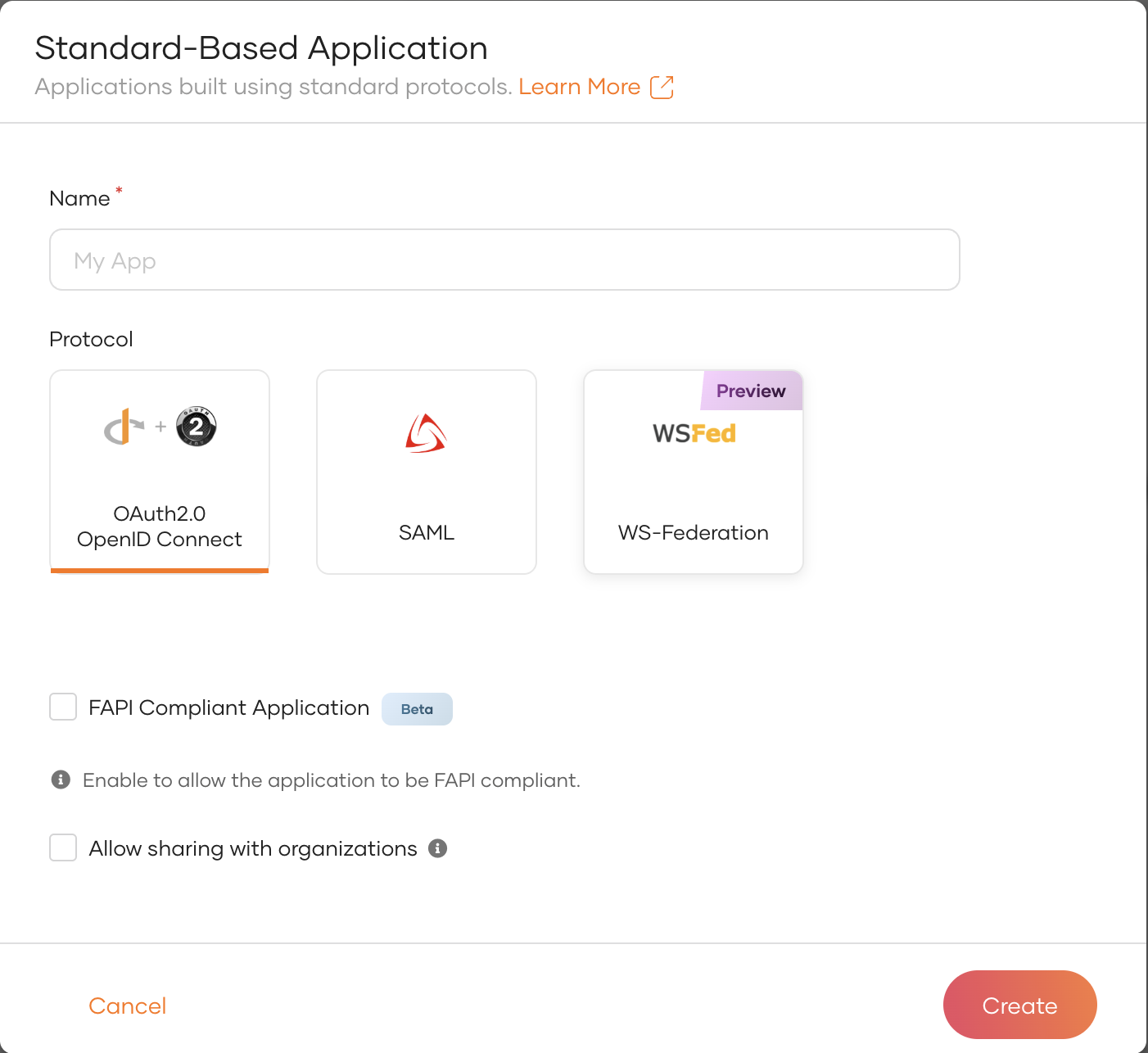
Name An unique name to identify your application. e.g.:
PassiveSTSSampleAppProtocol WS-Federation. Realm An unique identifier for the web app. Provide the same realm name given to the web app you are configuring WS-Federation for. e.g.:
PassiveSTSSampleAppReply URL URL of the web app you are configuring WS-Federation for. This endpoint URL will handle the token response. http://localhost:8080/PassiveSTSSampleApp/index.jsp -
Click Register to complete the registration.
-
Go to the Protocol section of the application, configure the following and click Update to save the changes.
Reply Logout URL This endpoint in your application handles the logout response from Asgardeo. http://localhost:8080/PassiveSTSSampleApp/index.jsp -
Go to the User Attributes tab and click Add User Attribute, and add the following attributes:
http://wso2.org/claims/usernamehttp://wso2.org/claims/emailaddress
-
Select
http://wso2.org/claims/emailaddressas the Subject attribute. -
Click Update to save your configurations.
Try it out
Info
When redirecting your users to Asgardeo Passive STS endpoint, the following (optional) parameters are sent in the request from the sample application.
- wa=wsignin1.0: specifies whether Asgardeo should issue a token for the relying party (this is the default action).
- wa=wsignout1.0: specifies whether Asgardeo should log the user out.
- wreply={replyUrl}: specifies where the response should be sent.
Using a Network tracer such as a SAML tracer is recommended to analyze the HTTP request and responses in this scenario. With a tracer, you will be able to view the parameters mentioned above and also see the SAML token that is issued from Asgardeo.
-
Access one of the following links on your browser and click Login.
- To get a SAML 1.1 token: http://localhost:8080/PassiveSTSSampleApp/index.jsp
- To get a SAML 2.0 token: http://localhost:8080/PassiveSTSSampleApp?samlv=2-0
-
Login using your credentials.
-
Provide the required consent. You will be redirected to the Asgardeo WS-Federation Service and then redirected back to the configured
replyUrl.
You will see the WS-Federation response with the requested claims on the screen.