Invite user to set password
Allow administrator to invite users to set their own passwords during the onboarding process in Asgardeo.
Configuration instructions
For inviting users to set their password, follow these instructions:
- On the Asgardeo Console, go to Login & Registration > User Onboarding > Invite User to Set Password.
- Enable the Invite User to Set Password feature to invite user to set the password after user creation.
- From Choose invitation method, select Email Link to send an invitation link. Alternatively, select OTP (delivered via Email or SMS) to start the invitation flow.
- Set the Invitation link/OTP expiry time in minutes.
This defines how long the password setup invitation email or OTP remains valid.
- For infinite validity, set -1
- Setting 0 causes immediate expiry
- If you want to send an account activation confirmation notification, enable the Send account activation notification.
- Select the Lock account until password is set to lock the user account during user creation.
-
Configure the OTP code options from OTP Code Configuration: enable uppercase, lowercase, and numeric characters, then set the desired OTP code length.
Note
When using OTP invitation method, users can use the received OTP as a temporary password to log in. The system redirects users to the password setup page after login to create their permanent password.
-
Click Update to save the changes.
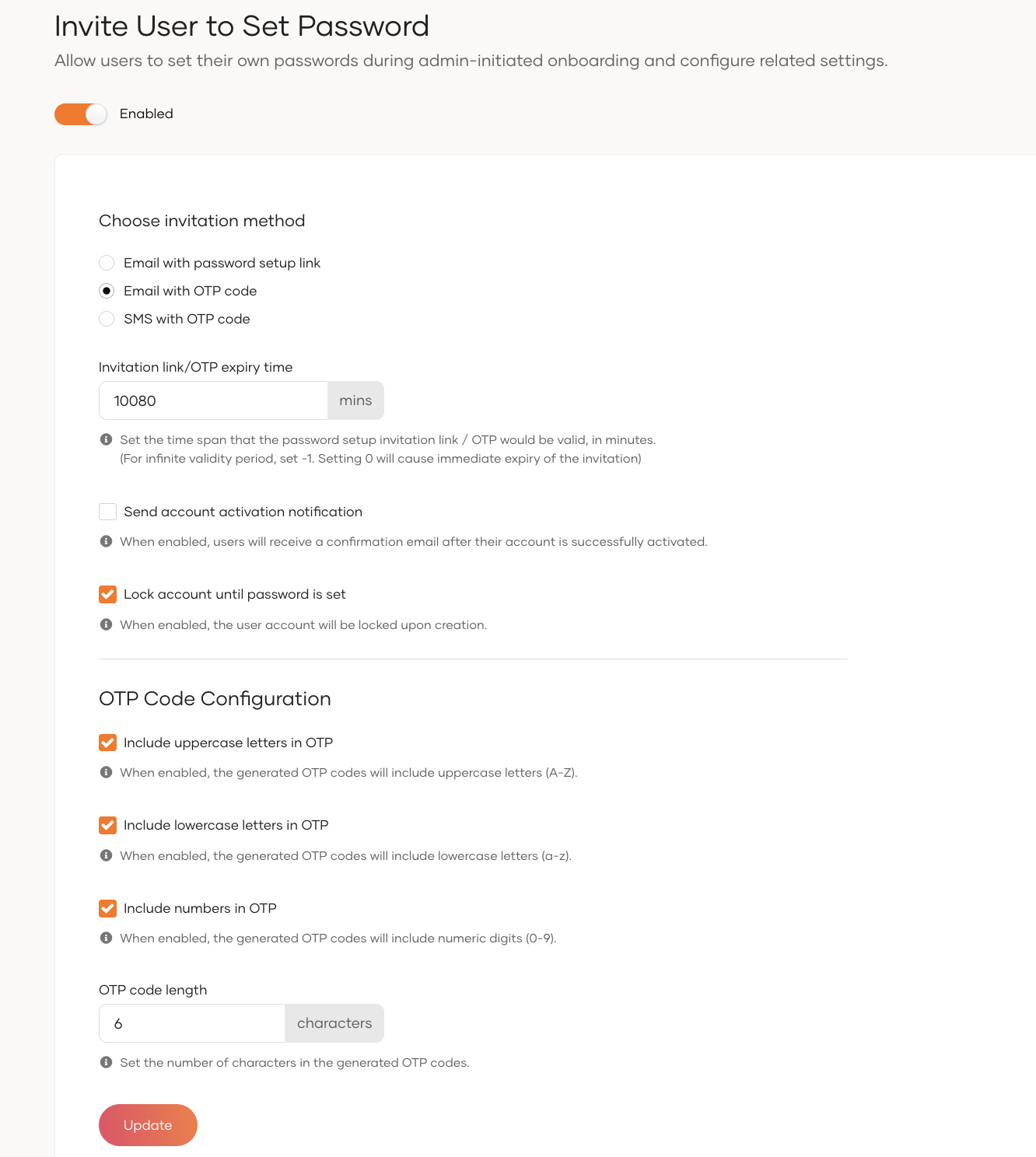
Parameters
| Parameter | Description |
|---|---|
Choose invitation method |
Select the method for sending password setup invitations: • Email with password setup link • Email with OTP code • SMS with OTP code |
Invitation link/OTP expiry time |
Defines the validity period in minutes for the password setup invitation link or OTP. • Set -1 for infinite validity • Set 0 for immediate expiry |
Send account activation notification |
When enabled, users receive a confirmation notification after activating their account. |
Lock account until password is set |
When enabled, the system locks the user account upon creation until the user creates their password. |
Include uppercase letters in OTP |
When enabled, the generated OTP codes will include uppercase letters (A-Z). |
Include lowercase letters in OTP |
When enabled, the generated OTP codes will include lowercase letters (a-z). |
Include numbers in OTP |
When enabled, the generated OTP codes will include numeric digits (0-9). |
OTP code length |
Set the number of characters in the generated OTP codes. |
Try out Invite user to set password
-
On the Asgardeo Console, go to User Management.
-
Go to Users.
-
Click Add User > Single User.
-
Fill in the user's details.
-
Select the Invite the user to set their own password option.
-
Click Next and Finish.
-
You will receive an email link, email OTP, or SMS OTP based on your configuration.
-
Click the email link to start the password setup flow.
- If you receive an OTP, enter it to begin the password setup flow.
This step verifies the user's identity and starts the password creation process.
Tip:
-
You can redirect users to the password recovery endpoint with the OTP to initiate setup.
-
Otherwise you can try your application's basic authentication with the username and OTP as the password. This triggers the password setup flow if the OTP is valid.