Back-channel logout
This guide explains SAML back-channel logout and how to implement it with Asgardeo.
Overview
SAML logout enables a user to log out of an application and automatically log out of other applications without needing to manually log out from each application. You can implement log out in two ways:
- Asynchronous binding (front-channel logout) - Propagates logout requests through the browser and redirects. Simpler but less reliable, as it depends on user having an active browser session.
- Synchronous binding (back-channel logout) - Uses direct server-to-server communication to log out users from all connected applications reliably.
Back-channel logout provides a reliable and consistent logout across all applications as it depends on direct server-to-server communication rather than relying on the user's browser. The following diagrams explain the two use cases for which you can use back-channel logout.
SP-initiated logout occurs when the user starts the logout process from a Service Provider (SP).
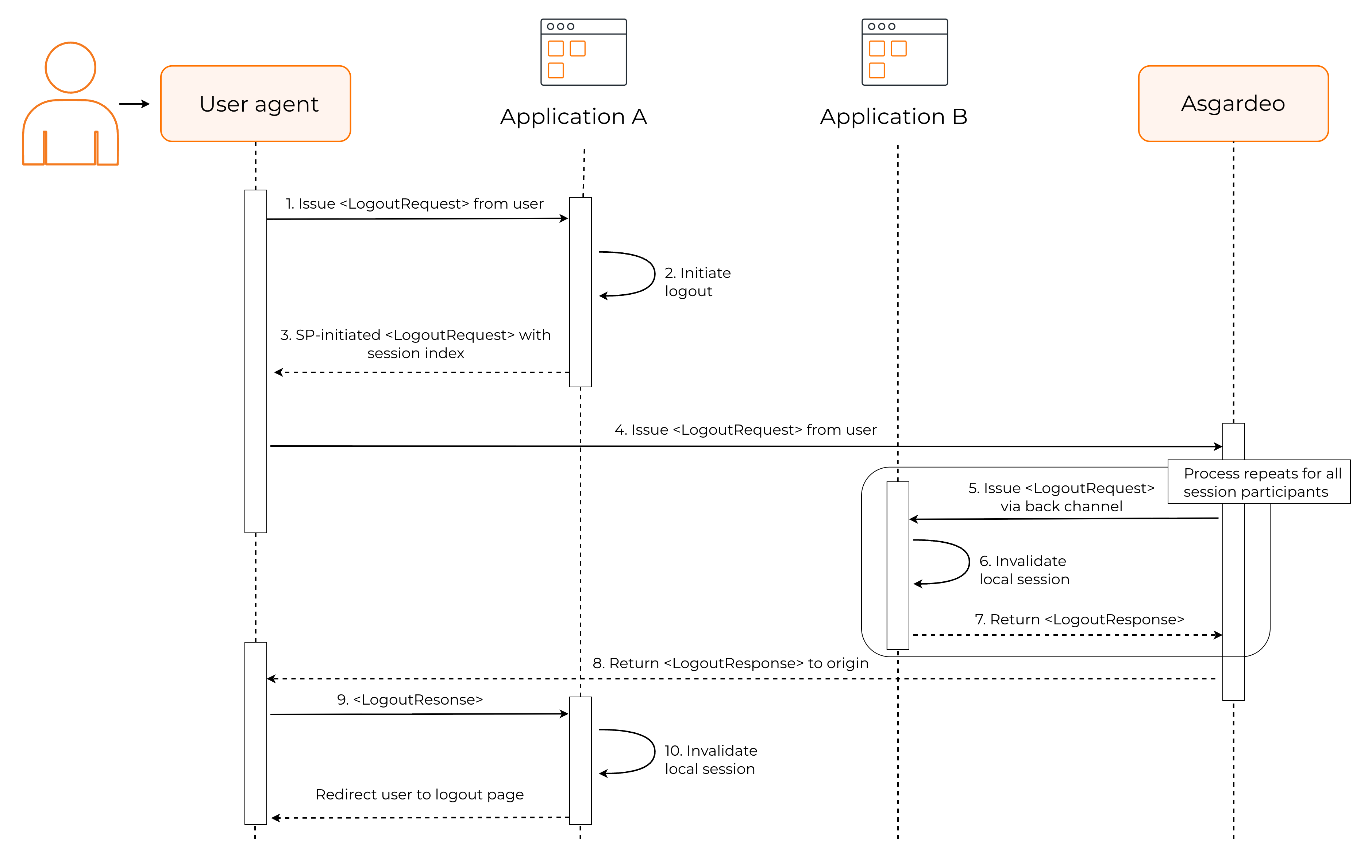
During this flow,
-
Application A (Primary SP) generates a logout request with the session index ID and sends it to the Identity Provider (IdP).
-
IdP sends logout requests to all other SPs that have enabled Single Logout (SLO) and are sharing the same session identified by the session index ID. For example, to Application B.
-
Application B and all other SPs teminate the local sessions associated with the session index ID.
-
Once all other applications send back their logout responses, the IdP sends a logout response to the primary SP (Application A) that initiated the request.
-
Application A invalidates the user session associated with the session index ID and redirects the user to the logout page.
IdP-initiated logout occurs when the user triggers the logout process directly from the Identity Provider (IdP).
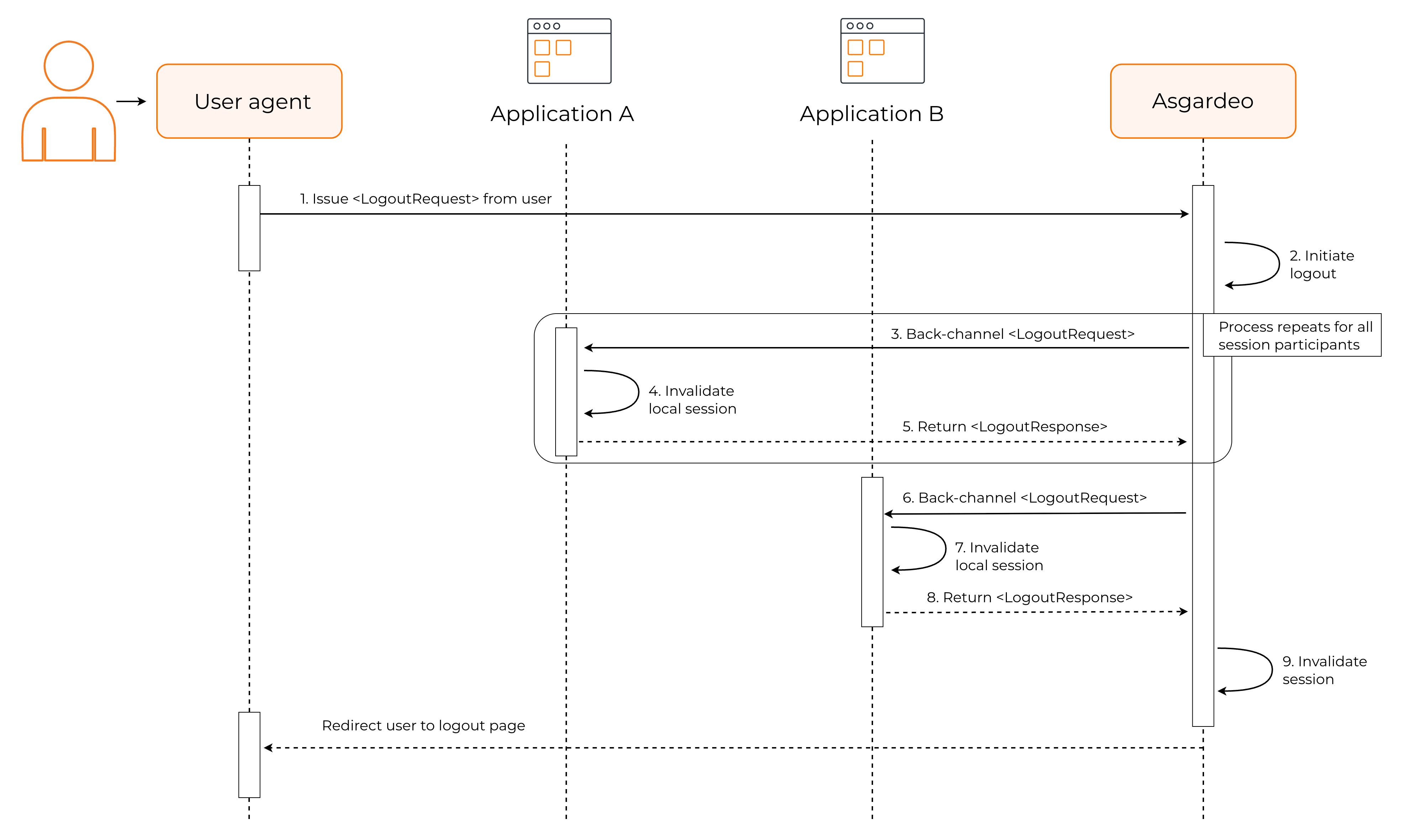
During this flow,
-
The user triggers a logout directly from the IdP.
-
IdP sends logout requests to all the SPs in the same SAML SSO session (Application A and Application B).
-
All SPs invalidate their local user sessions and send back logout responses.
-
Once all other applications send back their logout responses, IdP invalidates the user session and redirects the user to a pre-configured logout page.
Enable and configure Back channel logout
To enable back-channel logout for your applicaions, follow the steps below:
-
On the Asgardeo Console, go to Applications and select your registered SAML application.
-
In the Protocol tab of your application, under Single Logout Profile,
-
select the Enable SLO checkbox.
-
select the Logout method as Back Channel.
-
enter a Single logout response URL. During SP-initiated logout, after Asgardeo receives the initial LogoutRequest from your application and completes the logout process, it sends the corresponding LogoutResponse to this URL. This defaults to your application's Assertion Consumer Service (ACS).
-
enter a Single logout request URL. When a user initiates logout from another service provider or from Asgardeo directly, Asgardeo will notify your application by sending a logout request to this URL. This defaults to your application's Assertion Consumer Service (ACS).
-
Under IdP initiated single logout,
-
select the checkbox to enable it.
-
enter the Return to URLs to set up a URL in your application that the user should be redirected after logout. This defaults to your application's Assertion Consumer Service (ACS).
-
Note
Learn more about SAML 2.0 application configurations.
-
-
Click Update to save the changes.
Try it out
The following guide walks you through setting up sample applications to see SAML back-channel logout in action.
Set up the samples
-
Download and install Apache Tomcat version 8.X.
-
Download the pickup dispatch and the pickup manager sample applications.
-
Copy the
saml2-web-app-pickup-dispatch.com.warand thesaml2-web-app-pickup-manager.com.warfiles into the/webappsfolder of your Tomcat installation. -
Start the Tomcat server.
Note
Learn more about the /webapps directory location and Tomcat commands in the Tomcat documentation.
Integrate application with Asgardeo
To integrate the sample applications,
-
Register your SAML applications in Asgardeo with the following information.
-
Pickup dispatch:
- Issuer - saml2-web-app-pickup-dispatch.com
- Assertion Consumer URL - http://localhost.com:8080/saml2-web-app-pickup-dispatch.com/home.jsp
-
Pickup manager:
- Issuer - saml2-web-app-pickup-manager.com
- Assertion Consumer URL - http://localhost.com:8080/saml2-web-app-pickup-manager.com/home.jsp
-
-
On the Protocol tab of the created applications, configure back-channel logout settings.
-
Click Update to save the changes.
Note
-
The sample applications have request and response signing enabled by default. If you want to try the flow without dealing with certificates, open the
<APP_HOME>/WEB-INF/classes/sso.propertiesfile and set all signing-related properties to false: -
If you prefer to keep the default signing behavior, extract each application's public certificate from
<APP_HOME>/WEB-INF/classes/wso2carbon.p12, and upload it to Asgardeo under the Certificate section of your registered application's Protocol tab. -
If you enable response signing, make sure that in Asgardeo Console, you go to your registered application's Protocol section and under Response Signing, enable Sign SAML responses. Also from the Info tab of your registered application, download the IdP certificate and add it to your installed application as a trusted certificate.
Try back-channel logout
Now that you have set the sample applications, follow the steps to try out back-channel logout.
-
Open both applications in separate browser tabs.
-
Log into the pickup dispatch application using your credentials.
-
Log into the pickup manager application. Since you already have an active session in Pickup Dispatch, you will be automatically signed in through SSO.
-
Log out of the pickup dispatch application. You will automatically be logged out of the pickup manager application.