Password recovery
Password recovery allows users to securely reset their password if they forget it. The flow involves verifying user identity through a secure method, such as an email or SMS code, before letting them set a new password.
In the Flow Builder, you can create the password recovery journey in two ways:
-
Use a starter template – Load a ready made flow and customize it to your needs.
-
Build from scratch – Take full control by designing every step yourself.
Sample use case
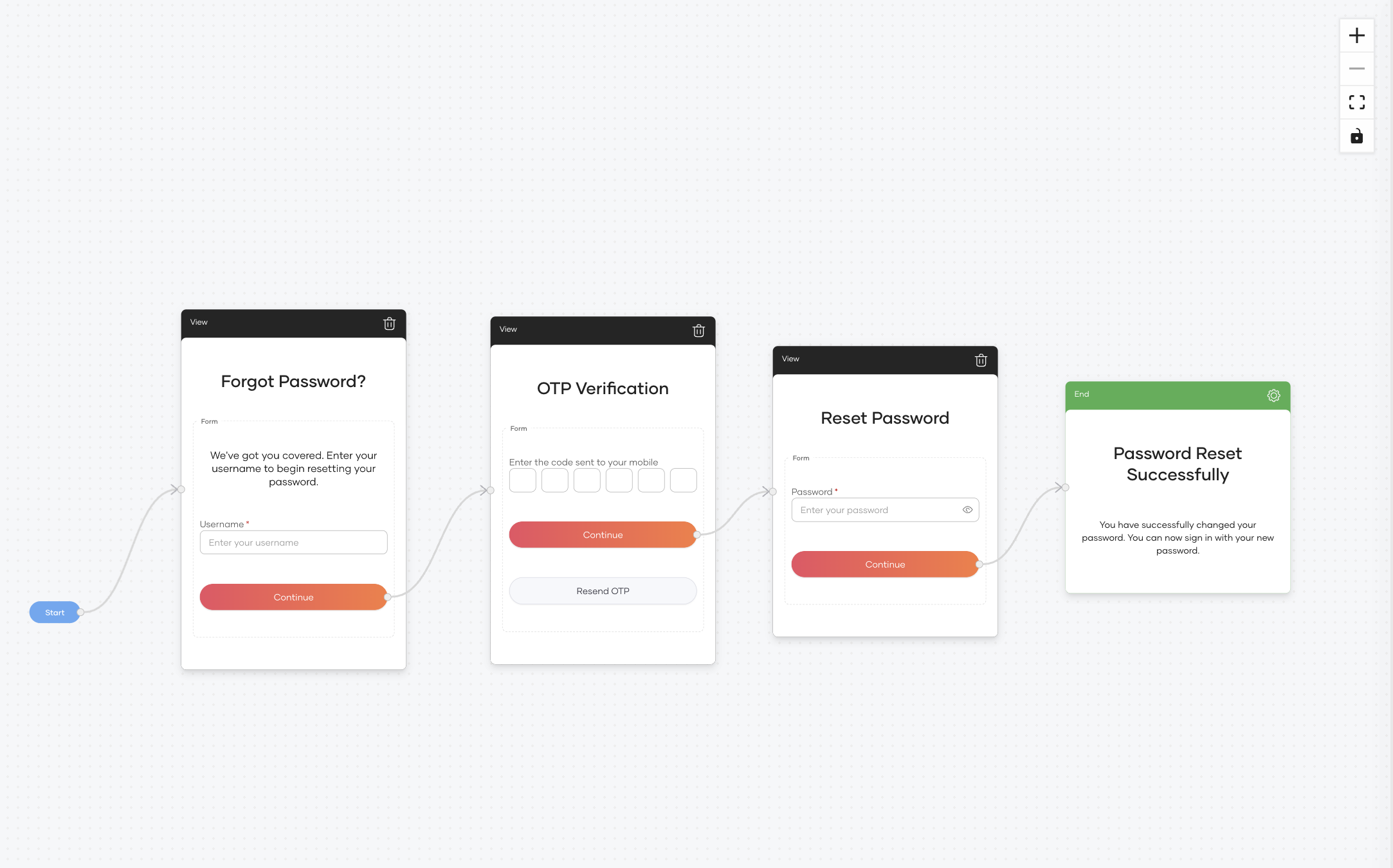
Imagine you want to verify the user’s identity via SMS OTP before allowing them to reset their password. The flow works as follows:
- The user enters the username.
- Asgardeo sends a one-time code to the user's registered mobile number.
- The user verifies the email address by entering the code.
- The user resets their password.
This ensures that only users with access to the registered mobile number can reset the password, enhancing security.
Build the flow
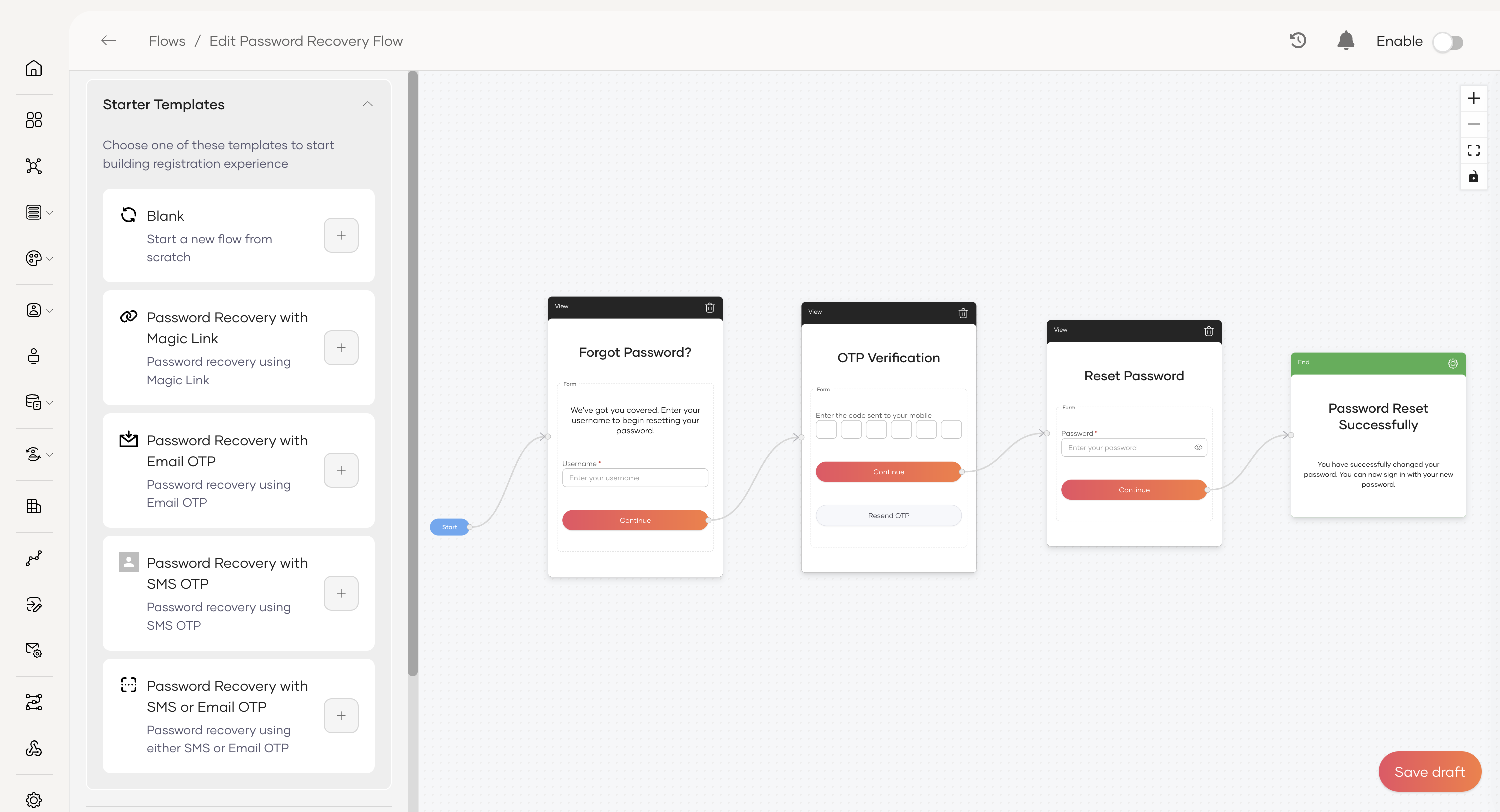
To build the sample use case, you can start from the Password Recovery with SMS OTP template and adjust it.
Follow the steps below to configure this flow.
Step 1 – Load the template
To load the template,
-
On the Asgardeo console, navigate to Flows.
-
Click on the password recovery card.
-
Click the
+button next to the Password Recovery with SMS OTP template to load it onto the canvas.
Step 2 – Configure the flow completion
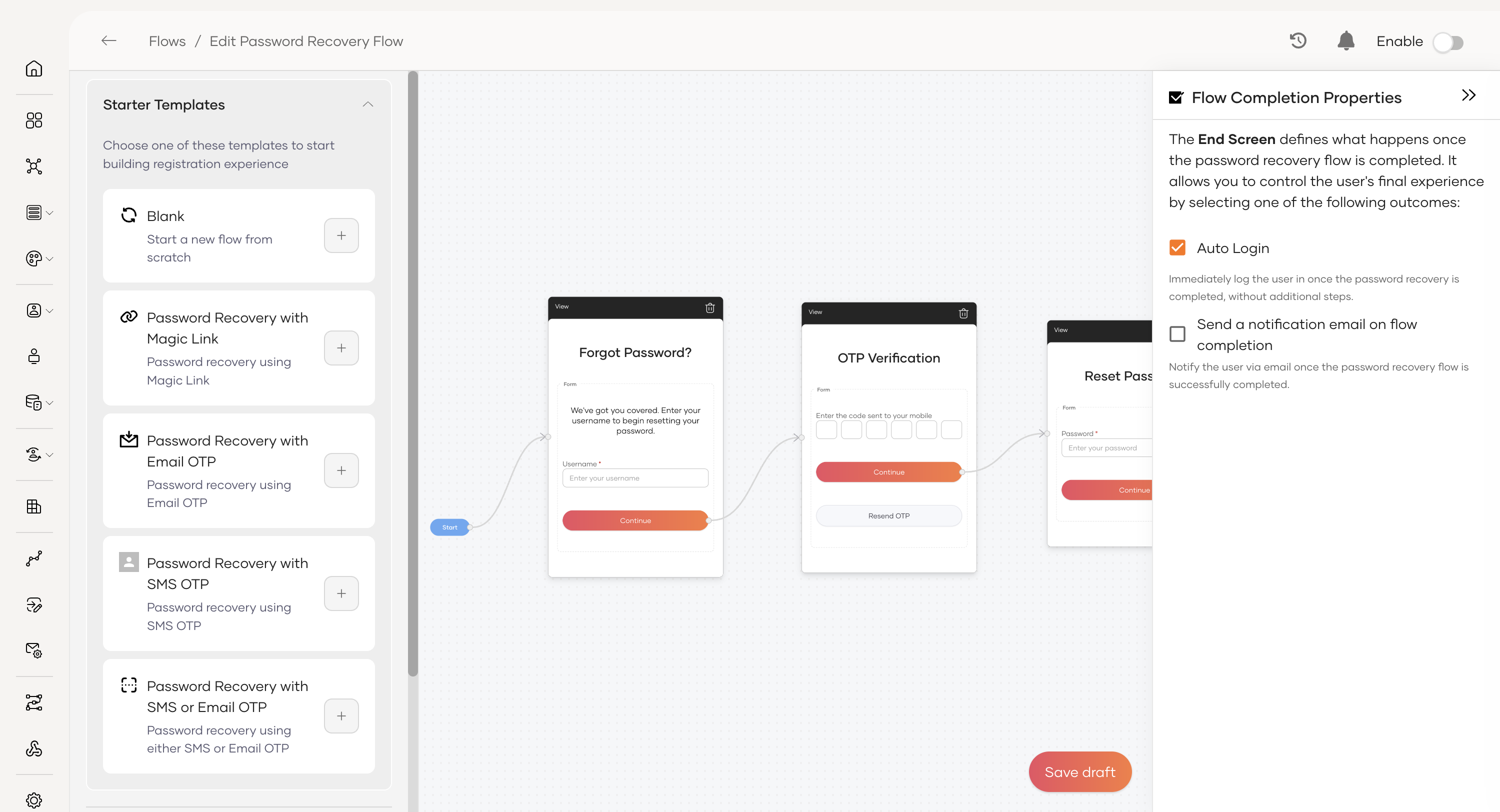
The End node determines what the user experiences after successfully resetting their password. You can configure actions like auto login or sending a notification email.
-
Click on the green End node on the canvas (labeled "Password Reset Successfully").
-
With the End node selected, click the gear icon (⚙️) on the top-right to open the Flow Completion Properties.
-
Configure the desired outcomes:
-
Auto Login: Immediately logs the user in once the flow is completed.
-
Send a notification email on flow completion: Notifies the user via email that their password has been successfully reset.
-
-
Click Save Draft to keep your progress.
Step 3 – Enable the flow
Once the flow has been fully configured and is ready for users:
- On the top-right corner of the Flow Builder, turn the toggle ON to publish the flow.
Now that these changes are in place, you have built a secure and user-friendly password recovery flow using SMS OTP.
Reference
This section provides details on the configuration options available in the Password Recovery Flow.
Flow completion properties
The Flow Completion Properties, configured on the End node, define the final actions that occur after a user successfully sets their password.
- Auto Login: If enabled, the user is automatically logged into their account immediately after successfully completing the registration flow.
- Send a notification email on flow completion: When enabled, the user will receive an email confirming that their password recovery is complete and their account is ready to use.