Troubleshooting
Flow Builder uses validation rules to help you build logical, working flows. If a rule fails, an error appears. Fix all errors before publishing the flow.
How to find errors
-
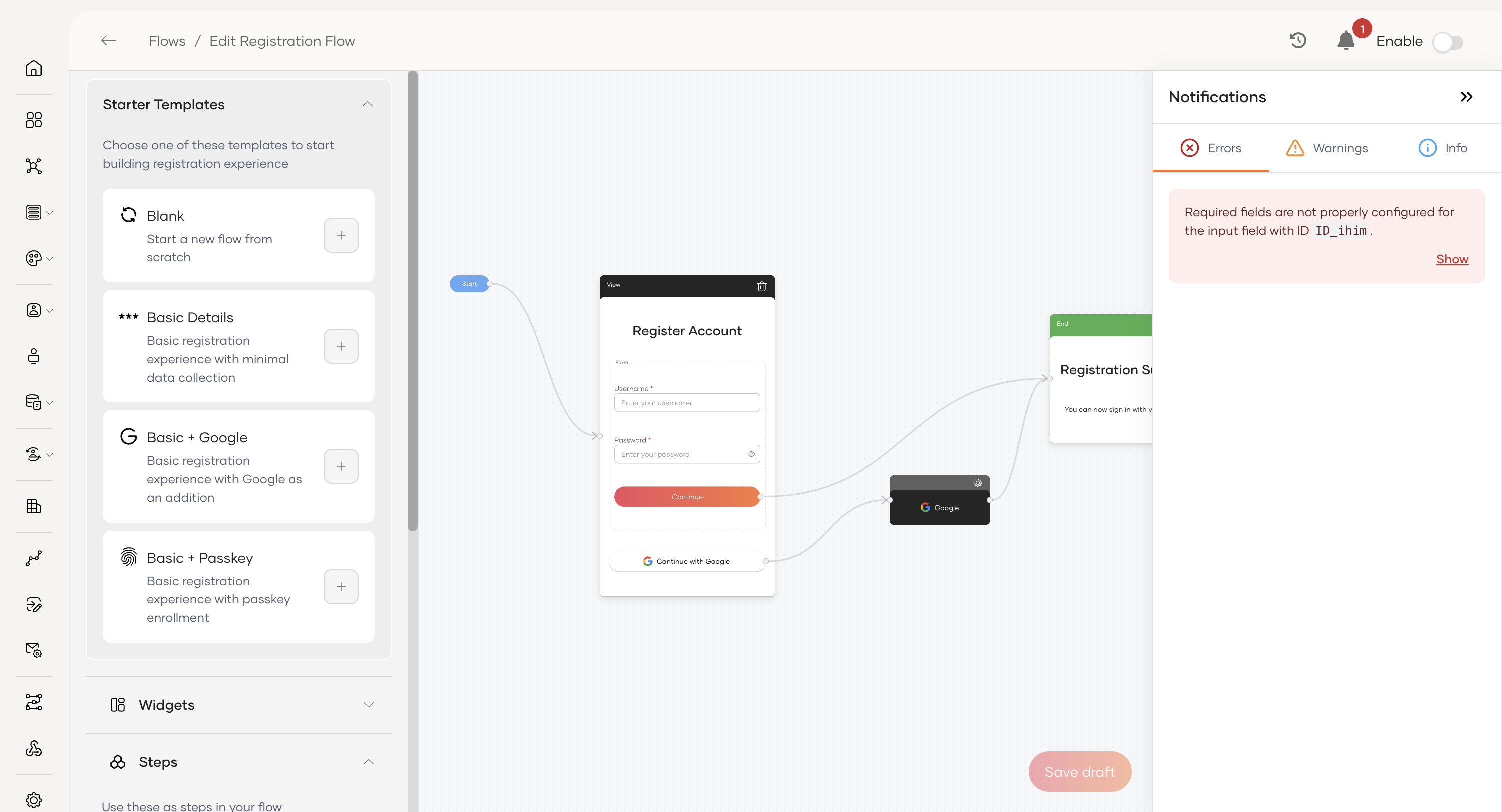
Click the bell icon in the top-right corner of the builder. A red indicator will appear if there are any active errors.
-
Then, click the Show button (as shown in the screenshot above) to highlight the component that contains the error.
Common error messages
The following table lists common error messages you may encounter while building flows, along with their recommended solutions.
| Error Message | Context / Flow Type | Cause | Solution |
|---|---|---|---|
| A preceding step must include an email address to use the Email OTP verification. | Self-Registration | The flow has an Email OTP step, but no preceding step collects the user's email address. | Add an Email Input field to a form before the verification step. |
| A preceding step must include a mobile number to use the SMS OTP verification. | Self-Registration | The flow has an SMS OTP step, but no preceding step collects the user's mobile number. | Add a Phone Input component to a form before the verification step. |
| The password recovery flow must contain at least one verification method. | Password Recovery | The flow doesn't include a secure method to verify the user's identity before allowing a password reset. | Add an Email OTP View, SMS OTP View, or a Magic Link step after the initial screen. |
| Forms with a Password field require a Provision Password Action to be configured for the button. | Common (All flows) | A button on a “Set Password” form hasn't been configured to save the new password. | Select the button and in its properties, add the Provision Password action. |
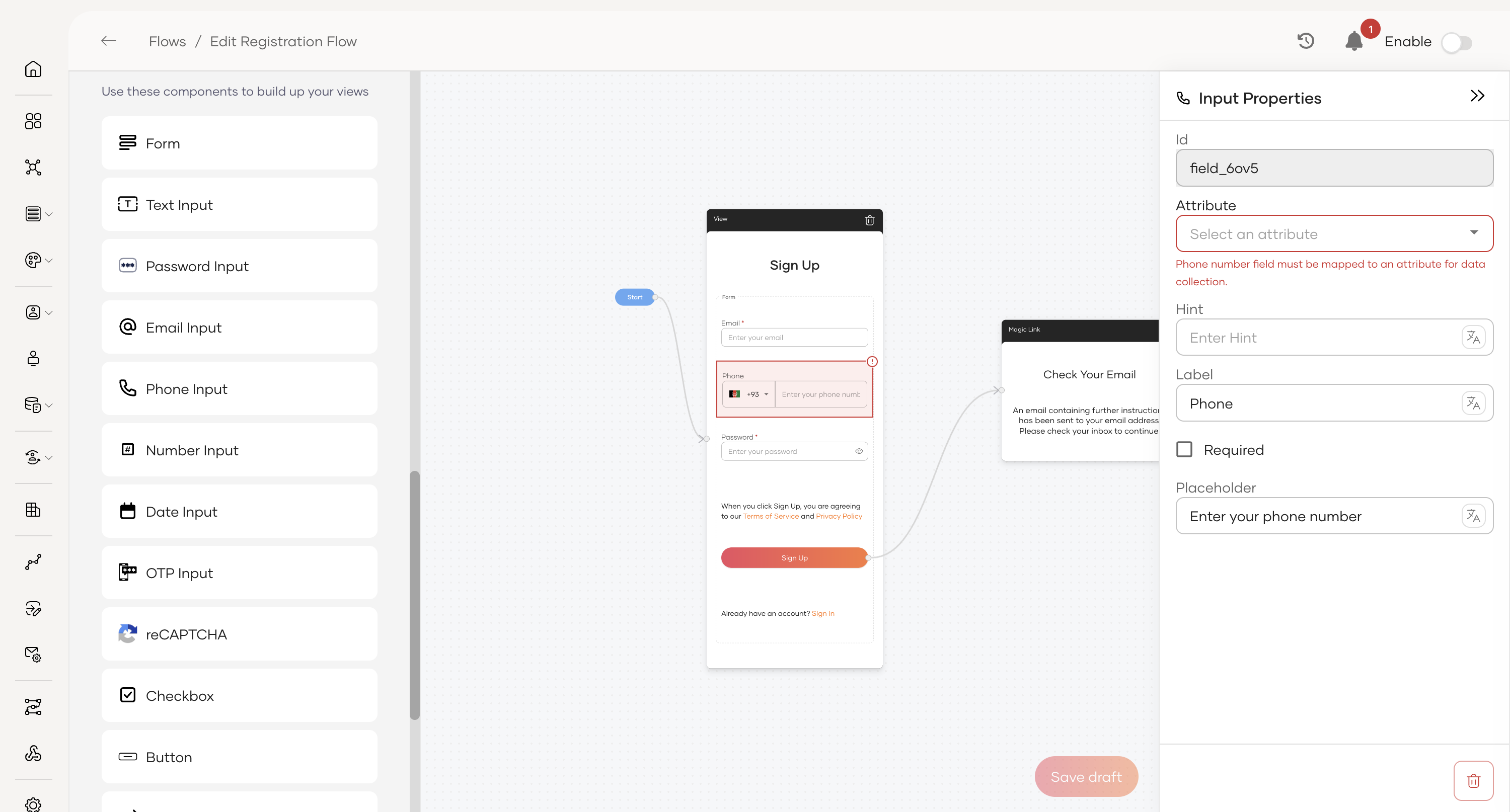
| Required fields aren't properly configured for the [input/phone number] field with ID [Component ID] | Common (All flows) | A form input component (like Text or Phone Input) is missing a mandatory configuration — often the Attribute mapping linking the field to a user profile attribute (for example, Username, Mobile). | Select the highlighted component. In its properties panel, locate the required field (usually Attribute) and select the correct value from the dropdown. |