Manage approvals
To view the approvals, you can navigate to the Approvals section from the My Account Portal side menu.
Depending on the type of administrator, approvals can be handled as follows:
- Privileged user – These administrators have business user accounts and can manage approvals through the organization’s MyAccount portal.
- Organization owners and invited administrators – These administrators do not have business user accounts and therefore cannot access the organization-specific MyAccount portal. They can manage approvals directly from the Console.
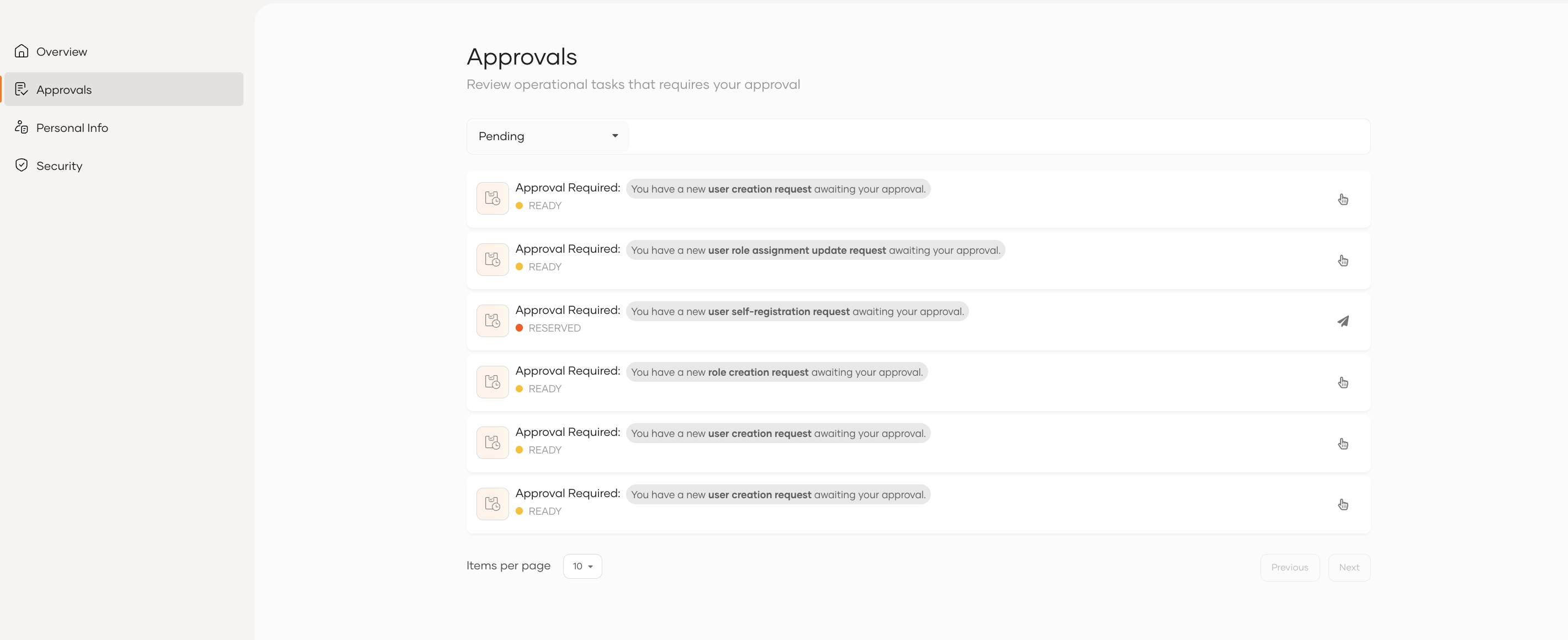
This page displays all approval requests that you are eligible to act on.
Approval states
Each approval request can be in one of the following states:
- Ready: The approval request is available for assignment. You can either approve it immediately or reserve it for review later.
- Reserved: You have assigned yourself this approval for review. Other approvers can't act on it until you unassign it.
- Blocked: Another approver has already reserved this request, so you can't act on it.
- Approved: You have approved the request.
- Rejected: You have rejected the request.
Note
Once you reserve (assign yourself) an approval, no one else can approve it. However, you can unassign a reserved approval back to the shared pool at any time, allowing other eligible approvers to act on it.
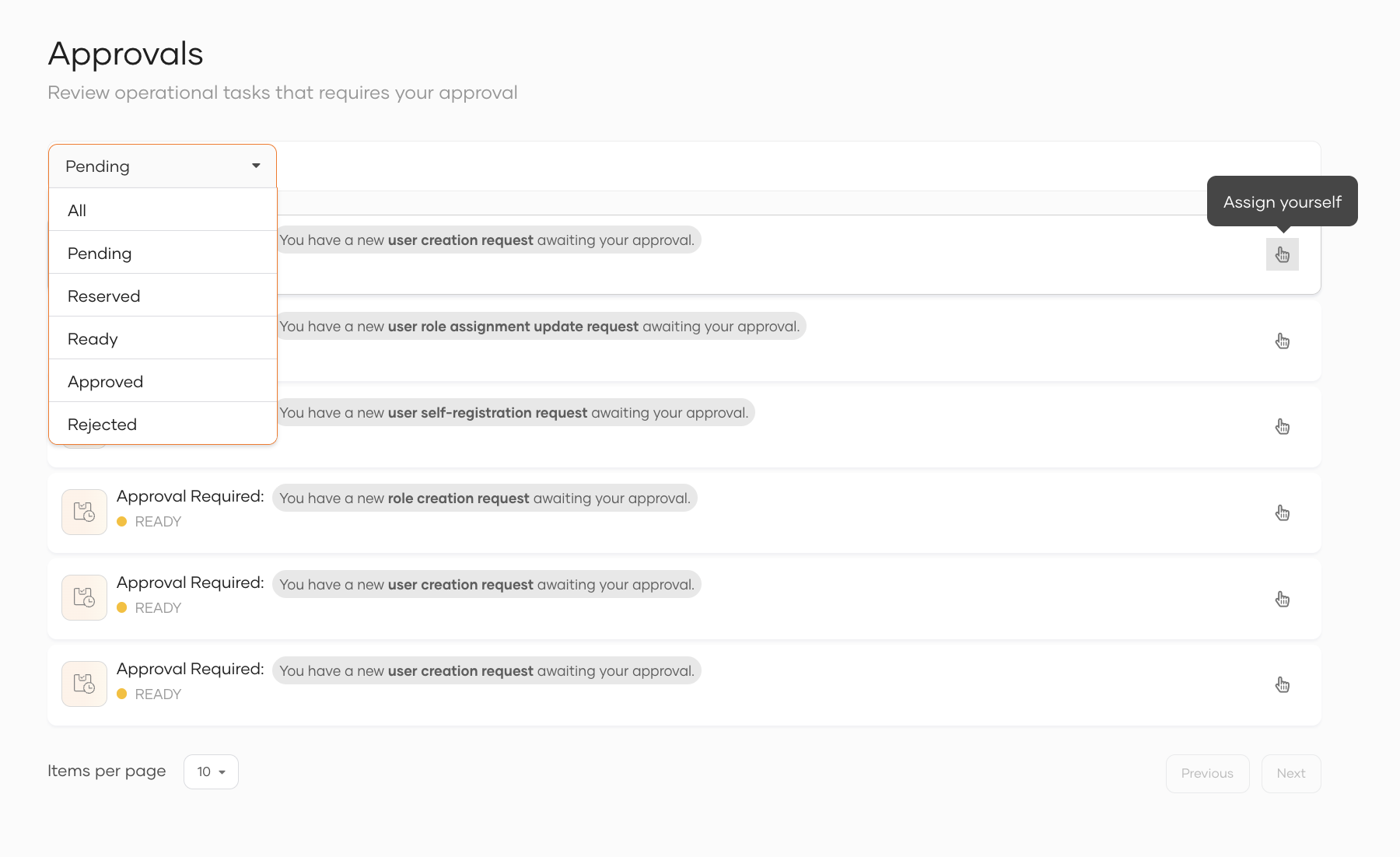
You can filter approval requests based on their state, as shown below.
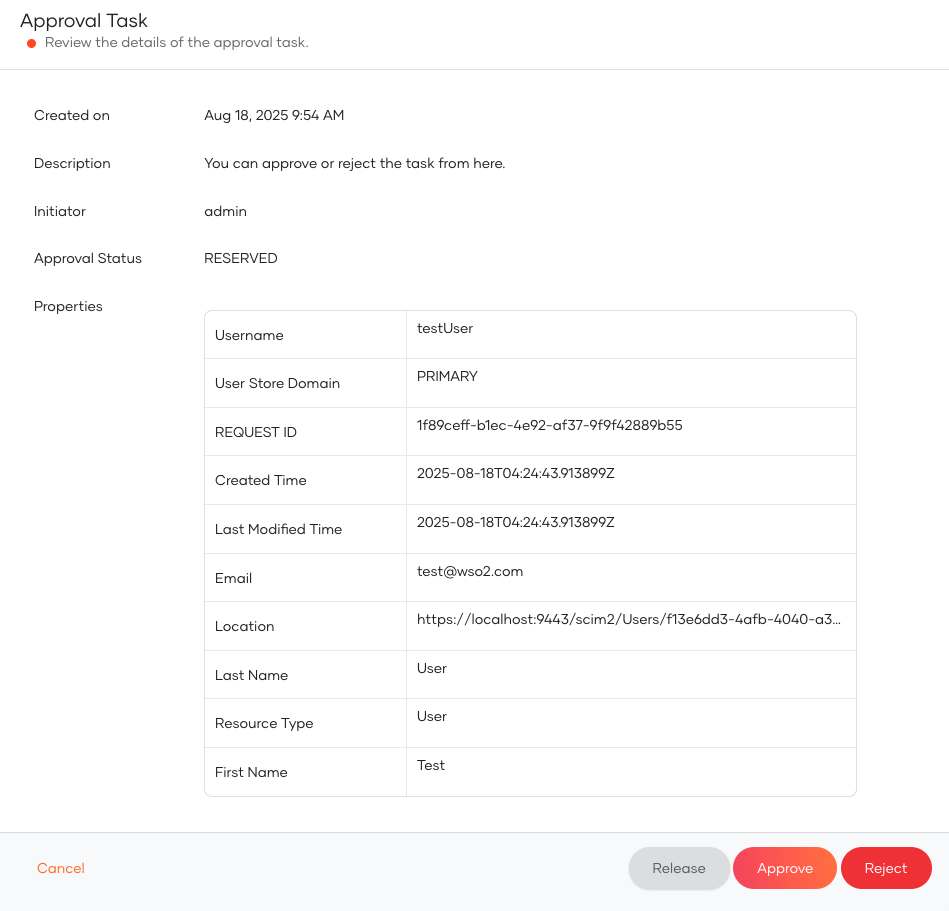
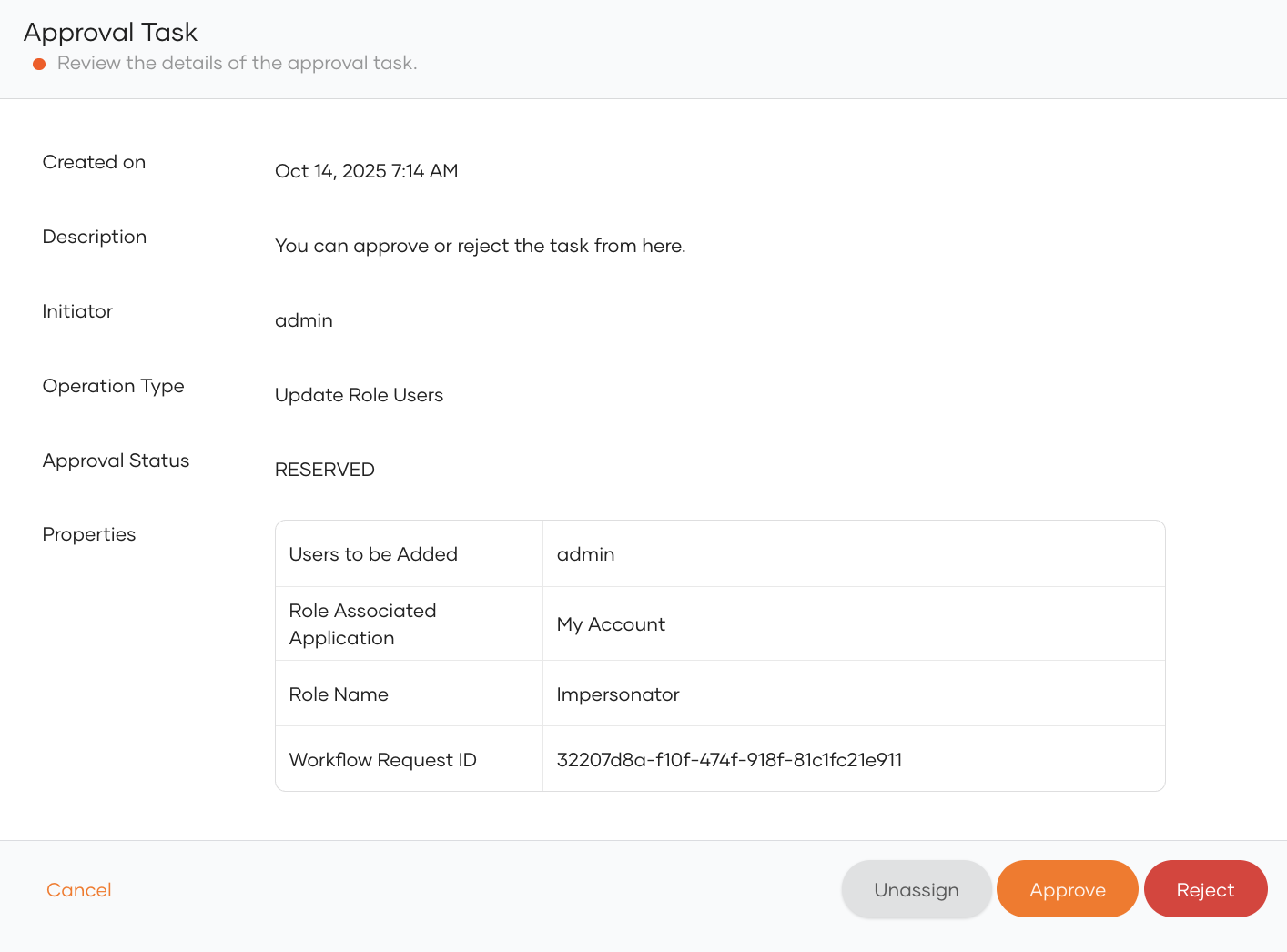
View approval details
To view more information about a specific approval, click on the approval entry in the list. This opens the Approval Details page, which displays all relevant information about the associated operation.