Approval workflow rules
Approval workflow rules let you conditionally trigger approval workflows based on runtime data associated with an operation. Instead of enforcing approvals for every request, rules ensure that approval workflows engage only when specific conditions are met. This helps reduce unnecessary approvals while still enforcing governance where required.
How rules work
When an operation triggers:
- The system checks whether a rule exists for the operation.
- If a rule exists, the system evaluates the rule against the request data.
- If the rule evaluates to true, the request proceeds to the approval workflow.
- If the rule evaluates to false, the operation completes without approval.
Note
If no rule is configured, the operation will always trigger the approval workflow.
Configure a rule for an operation
To configure a rule:
- On the WSO2 Identity Server Console, go to Workflows > Approval Workflows.
- Select an existing workflow or create a new one.
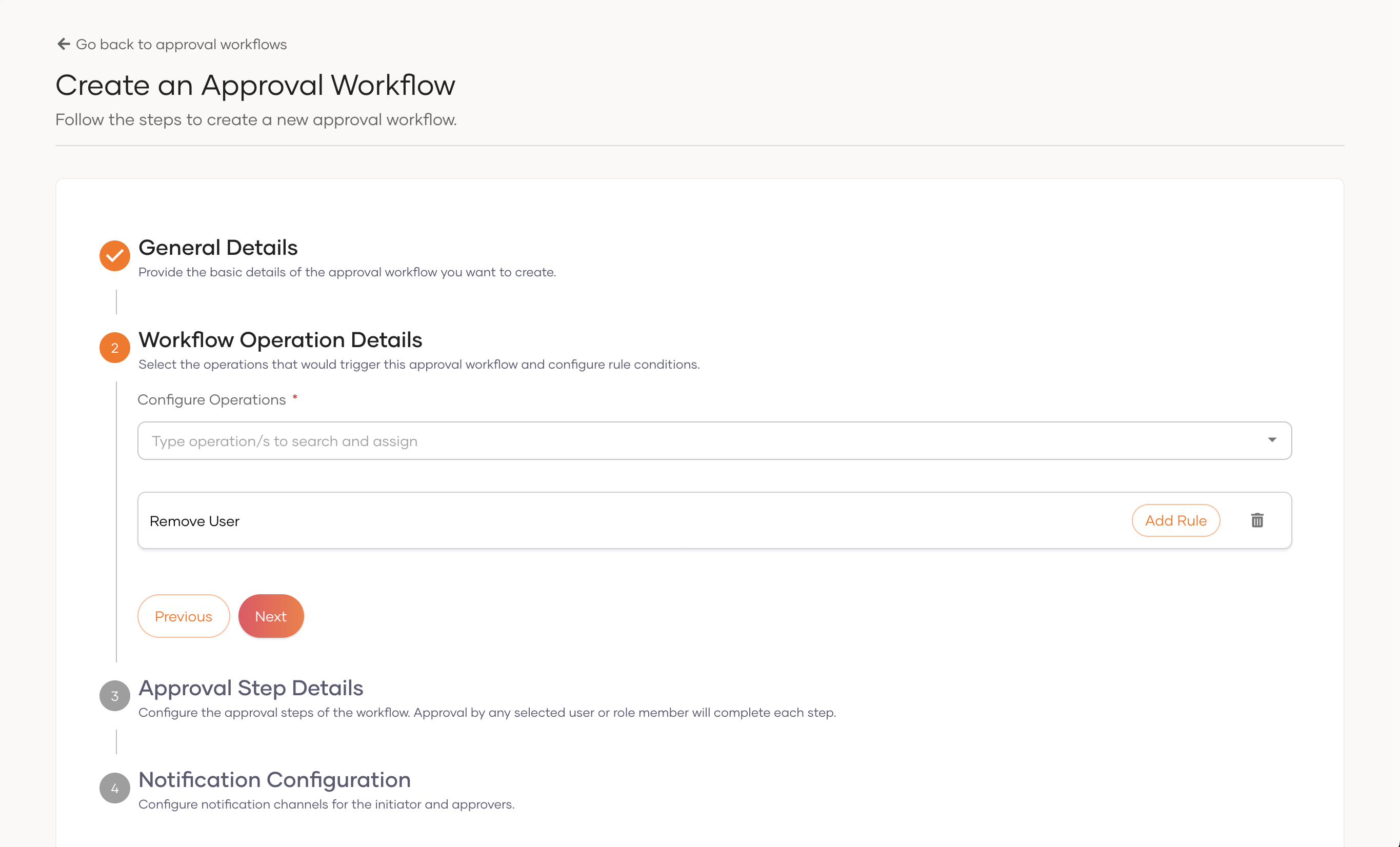
- In the Workflow Operation Details step, add the operations that require approval.
-
Click Add Rule next to the operation you want to configure.
-
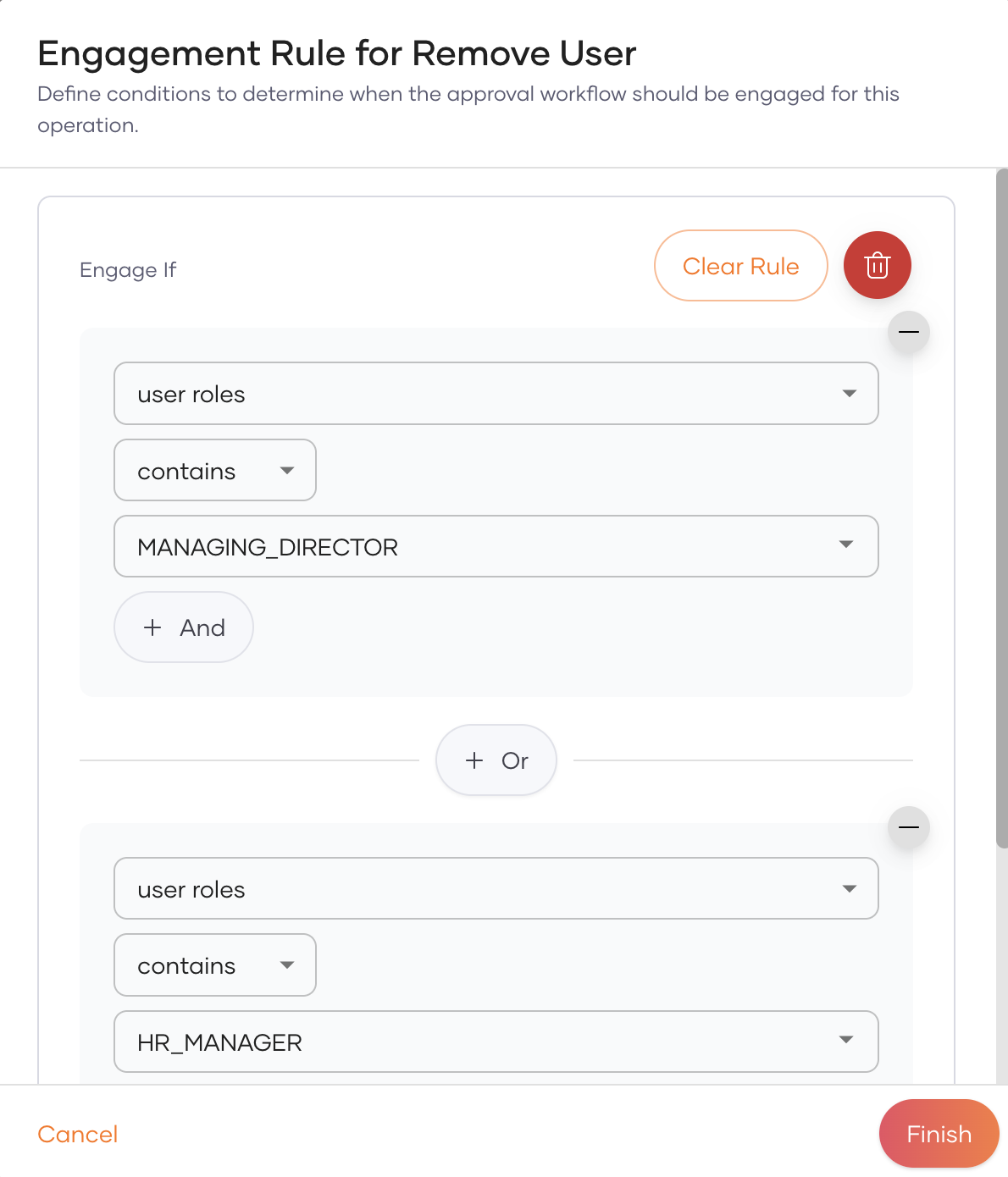
In the Engagement Rule dialog, define the conditions that determine when the approval workflow should engage.
-
Click Finish to save the rule.
Combine conditions
You can combine multiple conditions using logical operators:
- And: All conditions must be true for the rule to match.
- Or: At least one condition must be true for the rule to match.
Example: require approval only for users with a specific role
Consider an organization that requires approval for user removal only if the user belongs to the HR_MANAGER or MANAGING_DIRECTOR roles. To configure this:
- Open the approval workflow and navigate to the Workflow Operation Details step.
- Click Add Rule next to the Remove User operation.
-
In the Engagement Rule dialog, set the following conditions:
Field Operator Value user roles contains MANAGING_DIRECTOR Or
Field Operator Value user roles contains HR_MANAGER -
Click Finish to save.
With this rule in place:
- Removing a user who belongs to the HR_MANAGER or MANAGING_DIRECTOR roles sends the request for approval.
- Removing a user who does not belong to either role completes without approval.