WS-Federation settings for apps
You can find the WS-Federation protocol related settings under Protocol section of the selected WS-Federation application.
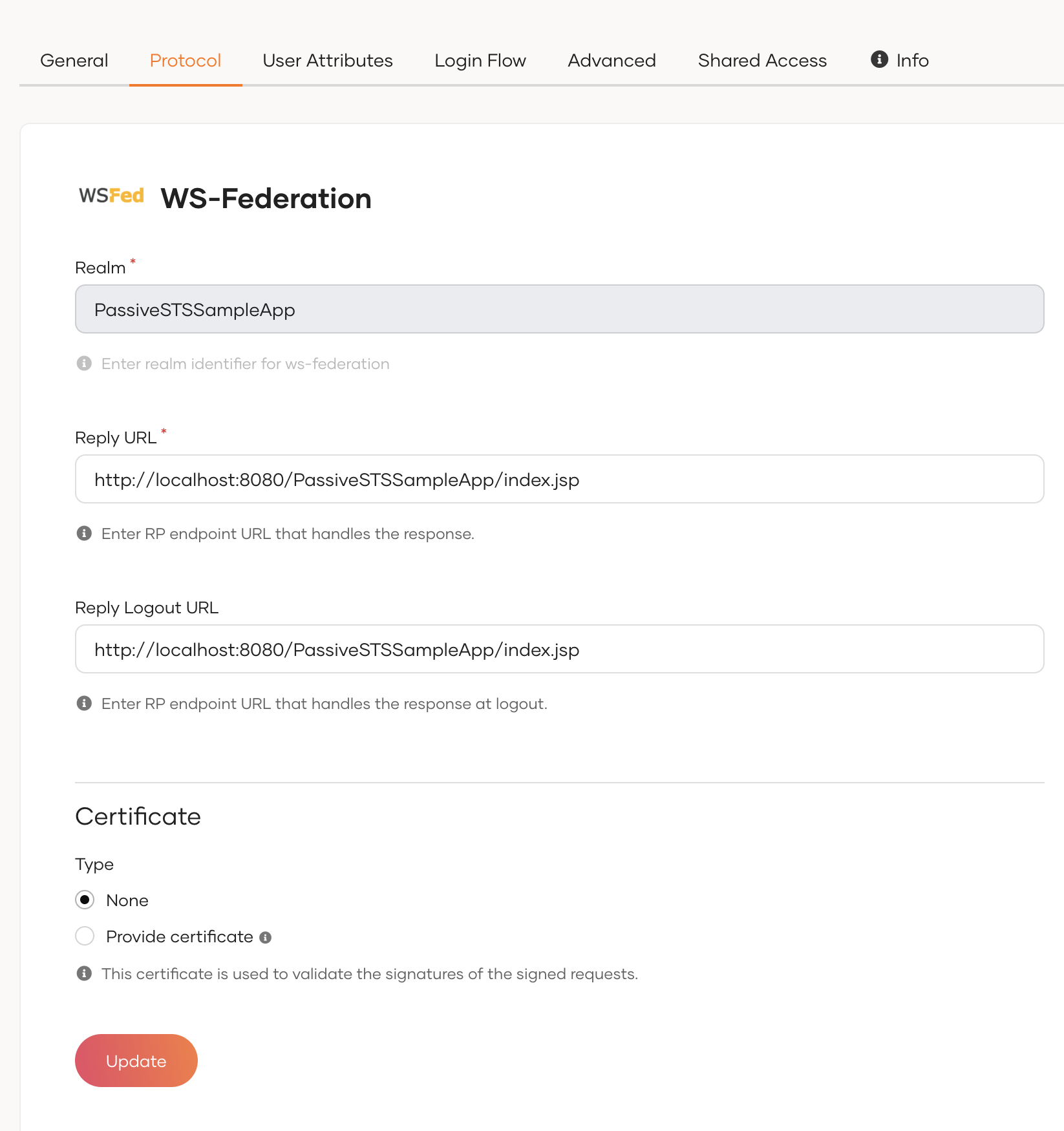
Basic settings
To enable WS-Federation-based single sign-on (SSO), you need to configure the following key identifiers and endpoints.
Realm
The Realm is a unique identifier for your application. It tells WSO2 Identity Platform which application is requesting authentication. This must match the wtrealm parameter in the WS-Federation request.
Reply URL
The Reply URL is the endpoint in your application where WSO2 Identity Platform sends the authentication response after a successful login. This should match the wreply parameter in the WS-Federation request and must be configured to handle the security token.
Reply Logout URL
The Reply Logout URL is the endpoint in your application that receives the logout response from WSO2 Identity Platform.
Advanced settings
Use the following advanced settings to enhance the security and behavior of your WS-Federation integration.
Certificate
If your application signs authentication or logout requests, WSO2 Identity Platform uses this certificate to verify their authenticity.
You can either upload a certificate or use a JWKS endpoint to add a certificate.
To upload a certificate:
-
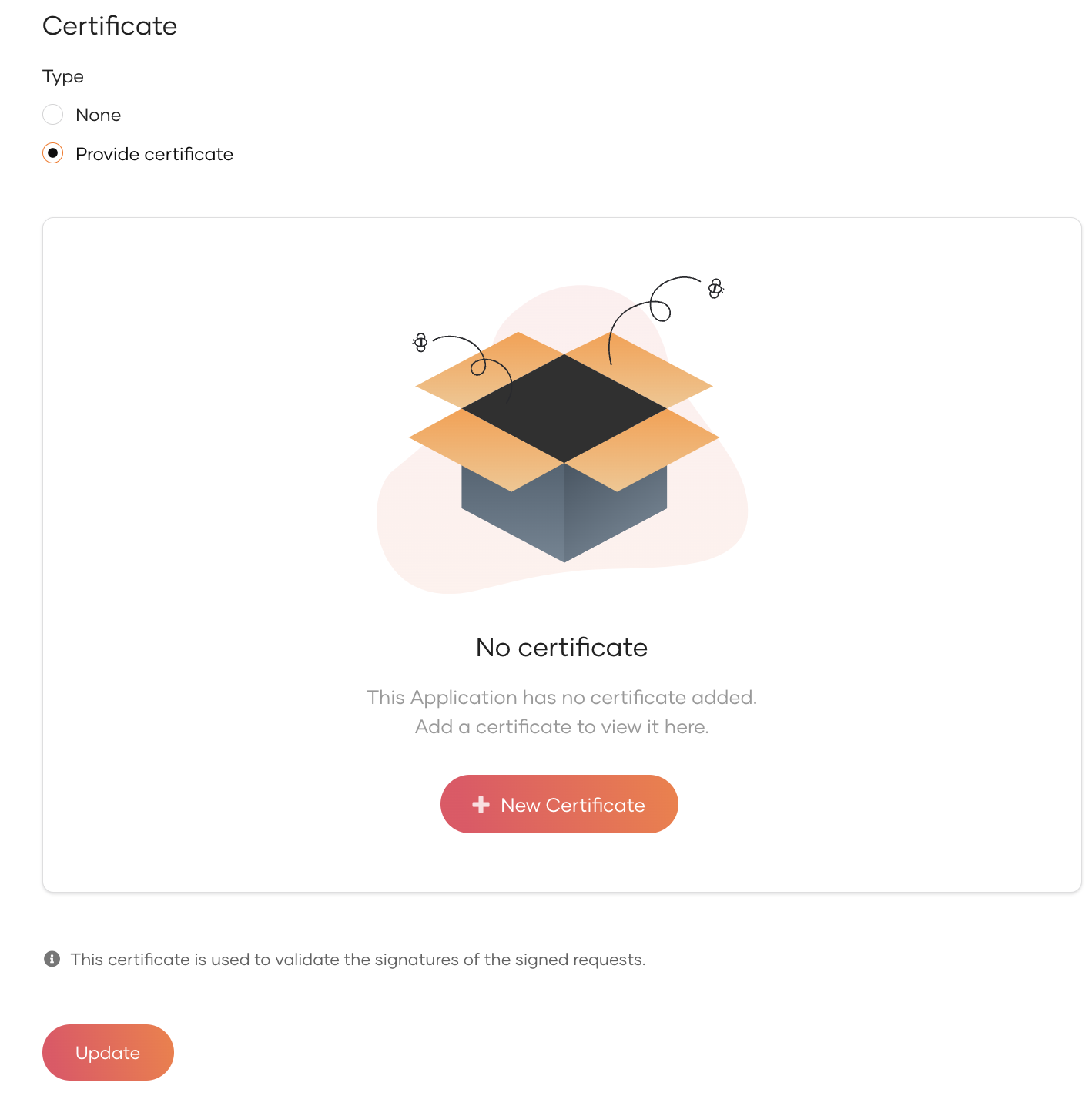
Select Provide Certificate and click New Certificate.
Convert
.crt,.ceror.dercertificates to.penusing OpenSSLWSO2 Identity Platform only accepts certificates in the
.pemformat. To convert other certificates topem, use one of the following commands.-
Convert CRT to PEM
-
Convert CER to PEM:
-
Convert DER to PEM:
-
-
Upload the certificate file or copy the certificate contents.