Asgardeo user roles
Roles assigned to a group or user determine their permissions for accessing resources in the organization. Asgardeo offers a set of default roles that tailor the Console experience to privileged users. As the organization administrator/owner, you can assign these roles to privileged users.
Note
The roles described here are only for the Asgardeo Console. To learn more about roles that govern access to REST APIs, refer to manage roles.
| Administrator | This role provides all administrative permissions in the organization. An administrator has full access to the organization as a privileged user. |
| Auditor | This role provides list and view permissions to Asgardeo resources. With read-only access to all resources in the Asgardeo Console, this role suits troubleshooting issues and supporting other users within the organization. |
| Editor - Applications | This role provides permissions for registering and managing applications, ideal for privileged users who can integrate applications with Asgardeo. |
| Viewer - Applications | This role provides permissions for viewing applications and their settings. Users with this role get read-only access to applications and their integration settings. |
| Editor - Users | This role provides permissions for managing users and groups within the organization. |
| Viewer - Users | This role provides permissions required for viewing users and groups. |
| Editor - Connections | This role provides permissions for managing connections, ideal for a privileged user who can manage enterprise logins, social logins and MFA options available within the organization. |
The following sections outline the permissions for each role. Resources not explicitly specified for a role remain inaccessible to users and groups assigned to it.
Administrator
Administrator has read/write access to all the resources in the Asgardeo Console.
Auditor
Auditor has read-only access to all the resources in the Asgardeo Console.
Editor - Applications
| Resources | Sub-section | Read/Write access | Read access only |
|---|---|---|---|
| Applications | ️ | ✔ | ️ |
| Connections | ️ | ️ | ✔ |
| API Resources | ️ | ✔ | |
| Branding | ️ | ✔ | ️ |
| User Management | Users️ | ️ | ✔ |
| User Management | Groups️ | ️ | ✔ |
| User Management | Roles | ️✔ | ️ |
| User Management | Role Assignments | ️✔ | ️ |
| User Attributes & Stores | Attributes | ️ | ️✔ |
| User Attributes & Stores | Attributes > Scopes | ️️✔ | |
| Organizations | ️ | ️ | ✔ |
| Login & Registration | ️ | ️✔ | ️ |
| Actions | ️ | ️✔ | ️ |
| Events | ️ | ️✔ | ️ |
| Logs | ️Diagnostic logs | ️✔ |
Viewer - Applications
| Resources | Sub-section | Read/Write access | Read access only |
|---|---|---|---|
| Applications | ️ | ️ | ✔ |
| Connections | ️ | ️ | ✔ |
| API Resources | ️ | ️ | ✔ |
| Branding | ️ | ️ | ️✔ |
| User Management | Users️ | ️ | ✔ |
| User Management | Groups️ | ️ | ✔ |
| User Management | Roles | ️️✔ | |
| User Attributes & Stores | Attributes | ️ | ️✔ |
| User Attributes & Stores | Attributes > Scopes | ️️ | ✔ |
| Organizations | ️ | ️ | ✔ |
| Login & Registration | ️ | ️ | ️✔ |
| Actions | ️ | ️ | ️✔ |
| Events | ️ | ️ | ️✔ |
| Logs | ️Diagnostic logs | ️✔ |
Editor - Users
| Resources | Sub-section | Read/Write access | Read access only |
|---|---|---|---|
| User Management | Users️ | ️✔ | ️ |
| User Management | Groups️ | ✔ | ️ |
| User Management | Roles | ️✔ | ️ |
| User Management | Role Assignments | ️✔ | ️ |
Viewer - Users
| Resources | Sub-section | Read/Write access | Read access only |
|---|---|---|---|
| User Management | Users️ | ️️✔ | |
| User Management | Groups️ | ️️✔ | |
| User Management | Roles | ️ | ️️✔ |
Editor - Connections
| Resources | Sub-section | Read/Write access | Read access only |
|---|---|---|---|
| Connections | ✔ | ️️ | |
| User Attributes & Stores | Attributes | ️️✔ |
⚠️ Change in Role Permissions
Effective October 2, 2025 at 00:00 UTC, permissions of the Editor - Users and Editor - Applications will change as follows:
- Editor - Users: No longer able to edit role metadata or change permissions.
- Editor - Applications: No longer able to assign roles to users or groups.
This change ensures that roles follow the principle of least privilege, granting only the permissions necessary to perform their tasks.
In line with the updated permissions,
-
Make sure to assign tasks only to users who have the necessary permissions.
-
If a user affected by this change needs the lost permissions, you can assign a different role to that user. When doing so, review all permissions in that role before making the assignment.
The following tables show the updated permissions.
Editor - Applications
| Resources | Sub-section | Read/Write access | Read access only |
|---|---|---|---|
| Applications | ️ | ✔ | ️ |
| Connections | ️ | ️ | ✔ |
| API Resources | ️ | ✔ | |
| Branding | ️ | ✔ | ️ |
| User Management | Users️ | ️ | ✔ |
| User Management | Groups️ | ️ | ✔ |
| User Management | Roles | ️ | ️✔ |
| User Management | Role Assignments | ️✔ | ️ |
| User Attributes & Stores | Attributes | ️ | ️✔ |
| User Attributes & Stores | Attributes > Scopes | ️️✔ | |
| Organizations | ️ | ️ | ✔ |
| Login & Registration | ️ | ️✔ | ️ |
| Actions | ️ | ️✔ | ️ |
| Events | ️ | ️✔ | ️ |
| Logs | ️Diagnostic logs | ️✔ |
Editor - Users
| Resources | Sub-section | Read/Write access | Read access only |
|---|---|---|---|
| User Management | Users️ | ️✔ | ️ |
| User Management | Groups️ | ✔ | ️ |
| User Management | Roles | ️✔ | ️ |
| User Management | Role Assignments | ️ | ️✔ |
Create custom console roles
Asgardeo allows you to create custom roles with specific permissions to tailor the Console experience to privileged users in your organization.
Follow the steps below to configure a custom console role in Asgardeo.
- On the Asgardeo Console, go to Console Settings > Roles.
-
Click on New Role and provide the following details:
- Role Name: Provide a name for the role.
- Permissions: Select the required permissions for the role.
Note
You can select either View or Edit permission for each resource. Selecting Edit will automatically inherit the View permission for that resource.
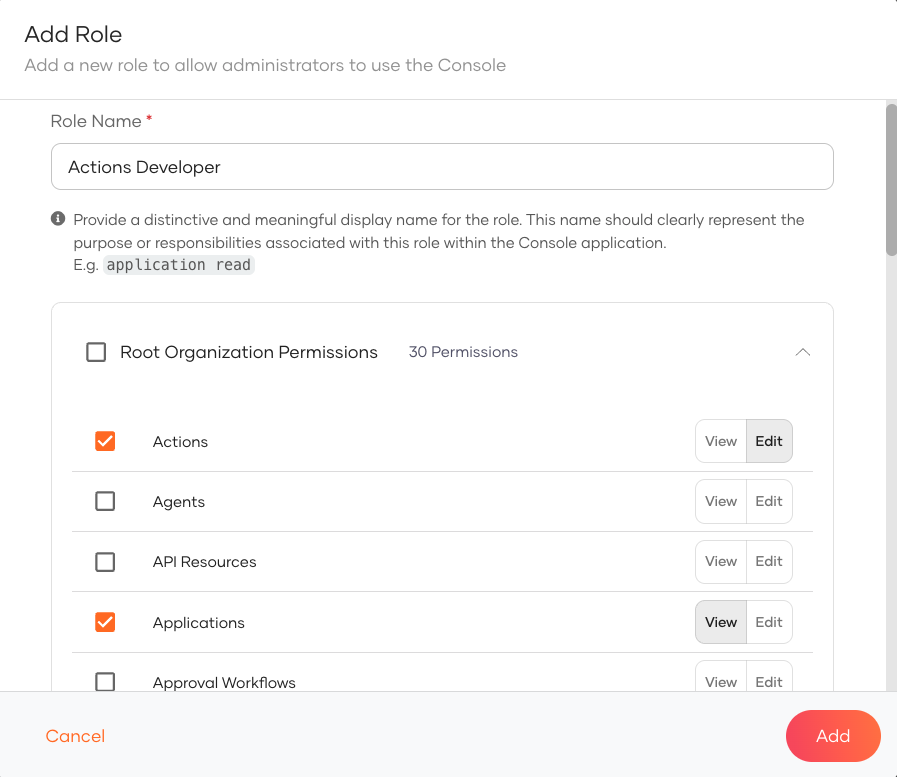 3. Click Add to create the custom role.
Assign users to console role
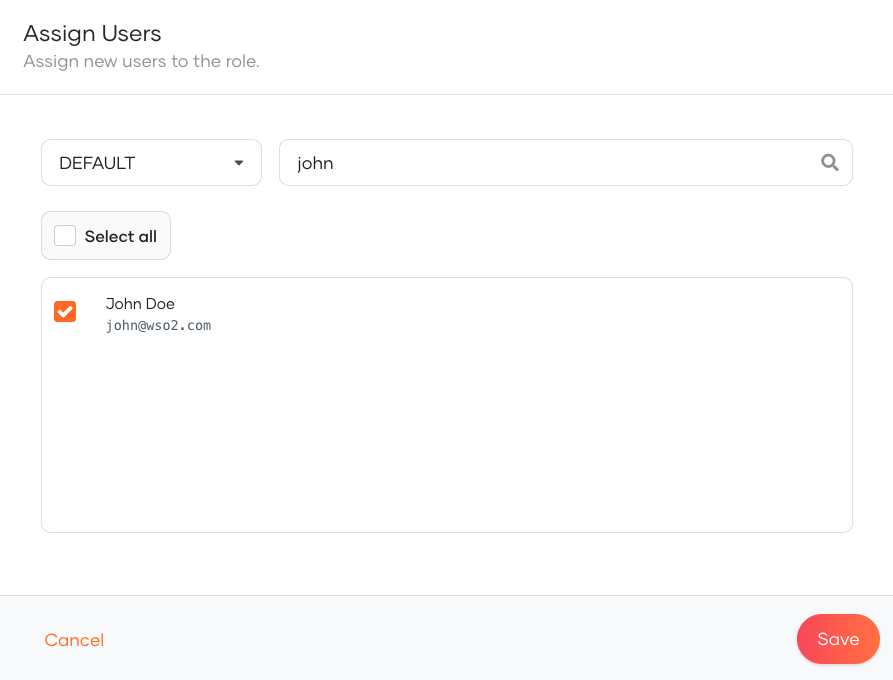
You can assign users to roles using either of the following methods:
- On the Console Settings > Administrators tab, click Add Administrator, then select the user and the role to assign.
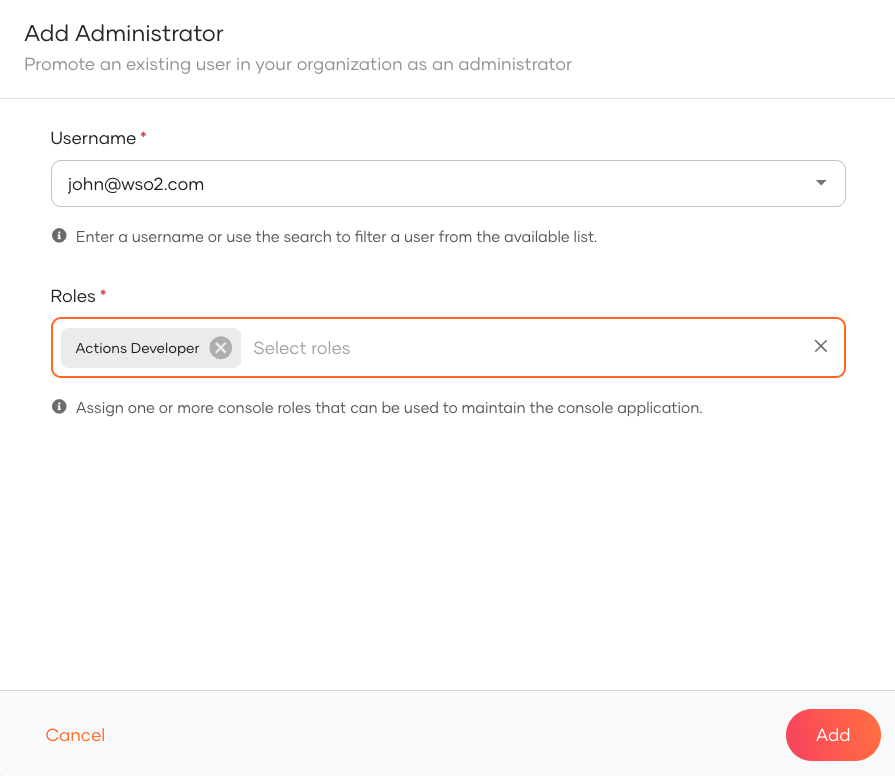
- On the Console Settings > Roles tab, click on the role you want to assign. In the Role Settings page, go to the Users tab and click Assign User to assign users to the role.
Note
To assign users within the organization, enable the Enable users to manage the organization from Console Settings > Administrators tab by clicking on the Settings icon.
Try it out
- Copy the console url from Console Settings page.
- Share it with the assigned users to log in to the Asgardeo Console.