Add MFA with TOTP
The Time-based One-Time Password (TOTP) is a temporary passcode, generated by an algorithm that can be used only once. The algorithm that generates each password uses the current time of the day, which ensures that each password is unique. TOTP is considered more secure because the passcode is valid only for a short window of time. The TOTP generated by Asgardeo is valid for 30 seconds.
To use TOTP as a multi-factor authentication(MFA) option, application users need to have an authenticator app that can scan the QR code and generate a one-time password. Some authenticator apps are:
Note
TOTP authenticators use the TOTP specification to calculate access tokens based on the current time and the secret key shared between the user and the identity provider.
Prerequisites
-
To get started, you need to register an application with Asgardeo. You can register your own application or use one of the sample applications provided.
-
Download and install one of the authenticator apps mentioned above.
Note
- You can use TOTP for multi-factor authentication only if a previous authentication step is configured with username and password or another factor that can validate user credentials.
- TOTP cannot be used as the first step of your login flow.
- Federated users (users who are authenticated using external IdPs) can log in with TOTP MFA option.
Enable TOTP for an app
Follow the steps given below to enable TOTP as the second factor in the login flow of your application.
-
On the Asgardeo Console, go to Applications.
-
Select the application for which TOTP needs to be added.
-
Go to the Login Flow tab of the application and add the TOTP authenticator as follows:
-
If you don't have a customized login flow, you can click Add TOTP as a second factor.
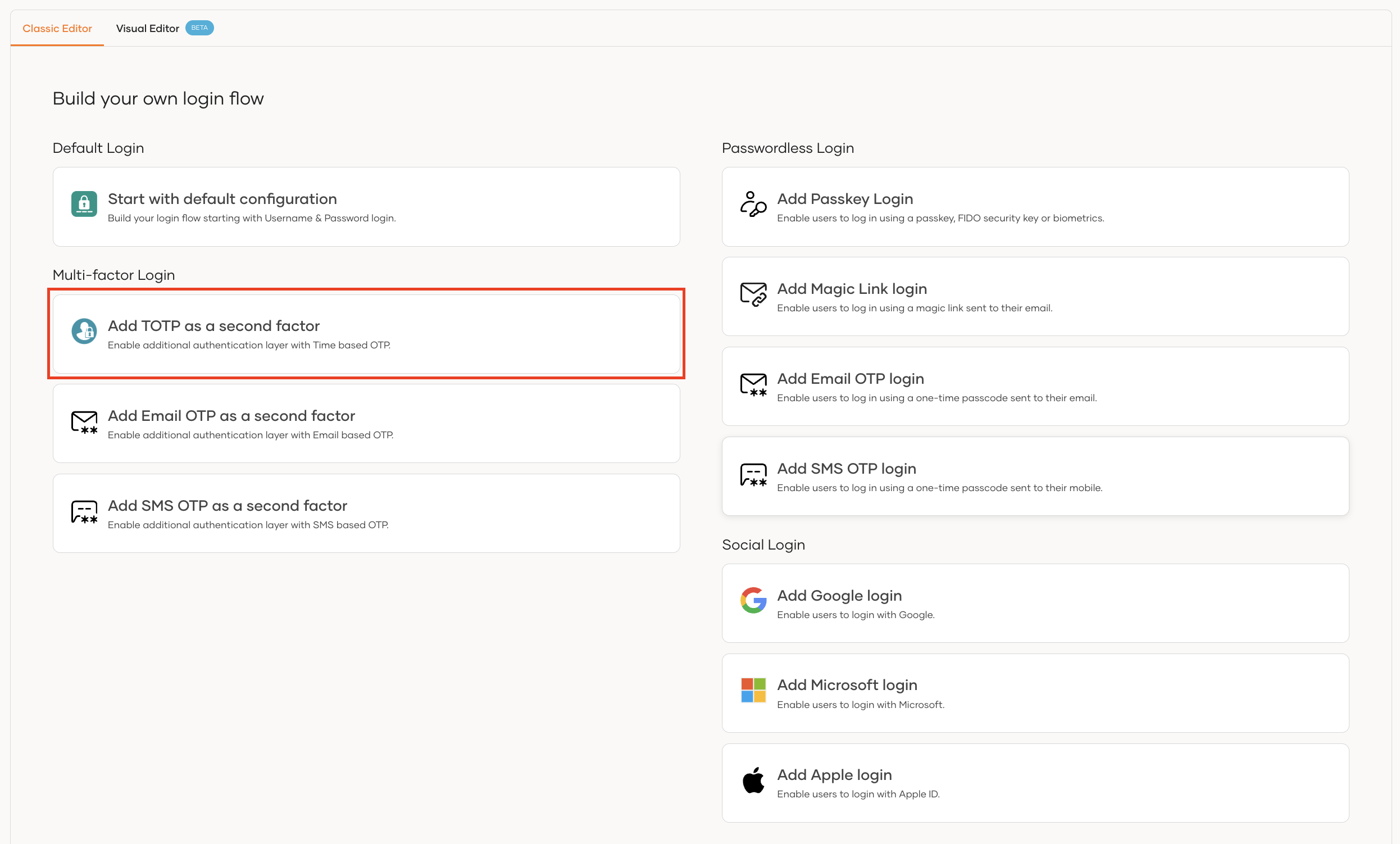
This opens the customized login flow with TOTP as a second-factor authenticator:
-
If you have an already customized login flow, you can add a second step and add TOTP as the authenticator.
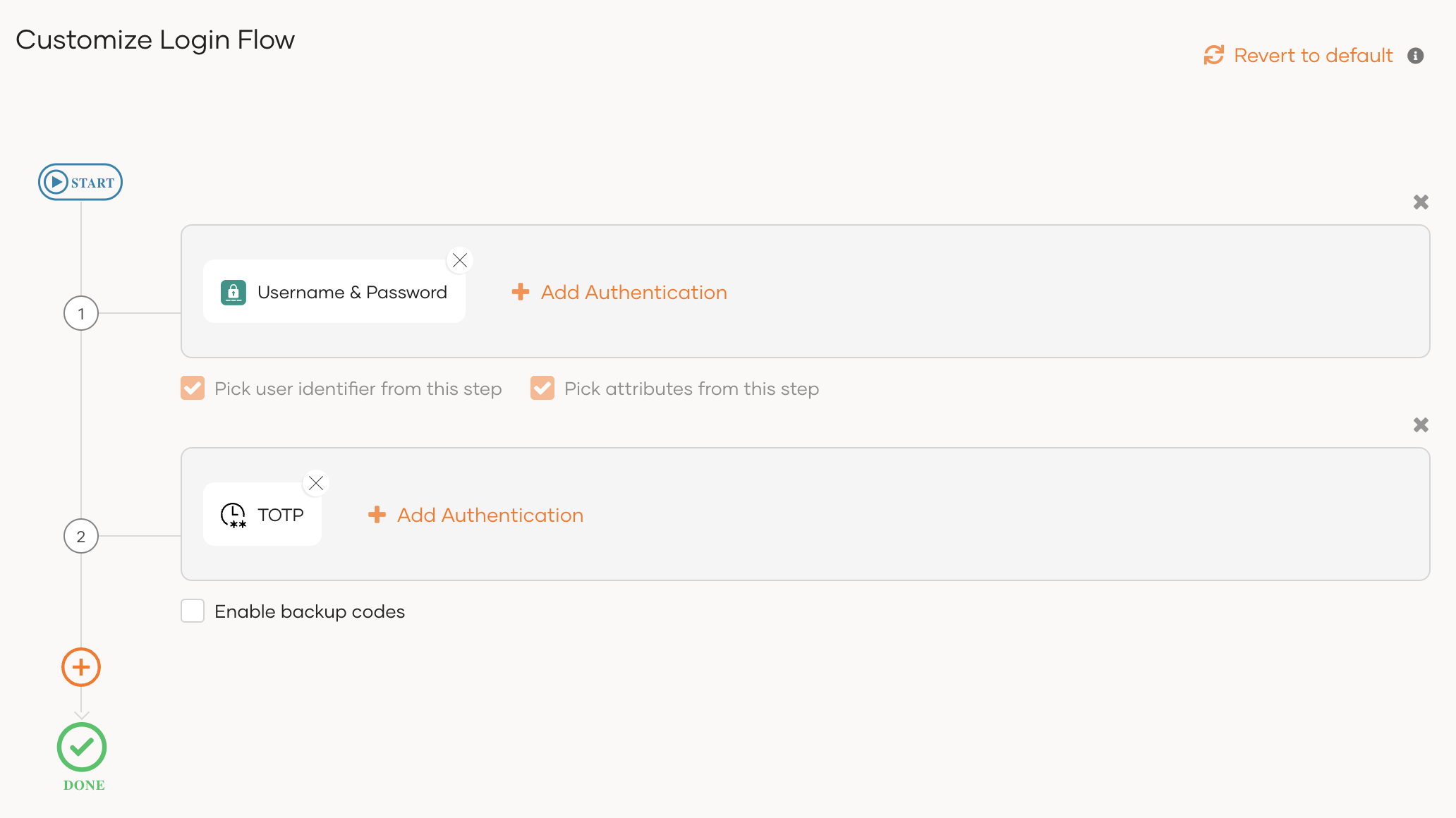
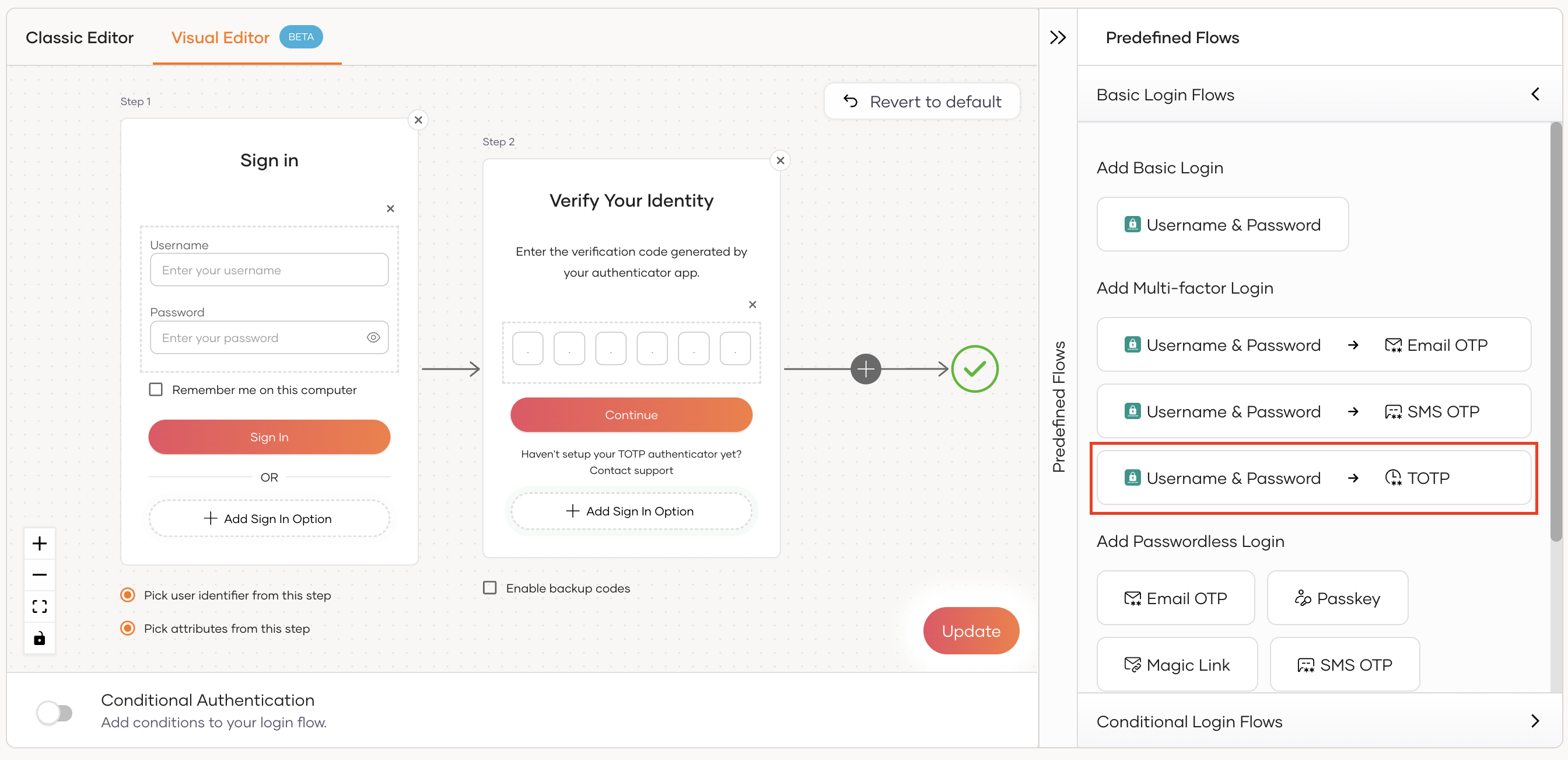
To add TOTP as a second-factor authenticator using the Visual Editor:
-
Switch to the Visual Editor tab and go to Predefined Flows > Basic Flows > Add Multi-factor login.
-
Select
Username + Password -> TOTP. -
Click Confirm to add TOTP as a second factor to the sign-in flow.
-
-
Click Update to save your changes.
Disable enrolling in TOTP during first login
TOTP enrollment during the first login is enabled by default for all applications.
Asgardeo provides two ways to control this enrollment behavior:
- Organization-level configuration: Define a default policy that applies across all applications in the organization.
- Application-level configuration: Override the organization-level setting for specific applications using conditional authentication scripts.
Configure at organization level
This configuration allows you to define a default policy for TOTP enrollment that applies to all applications in your organization. It applies to both root organizations and child organizations.
To configure TOTP enrollment for all applications in your organization:
-
On the Asgardeo Console, go to Connections.
-
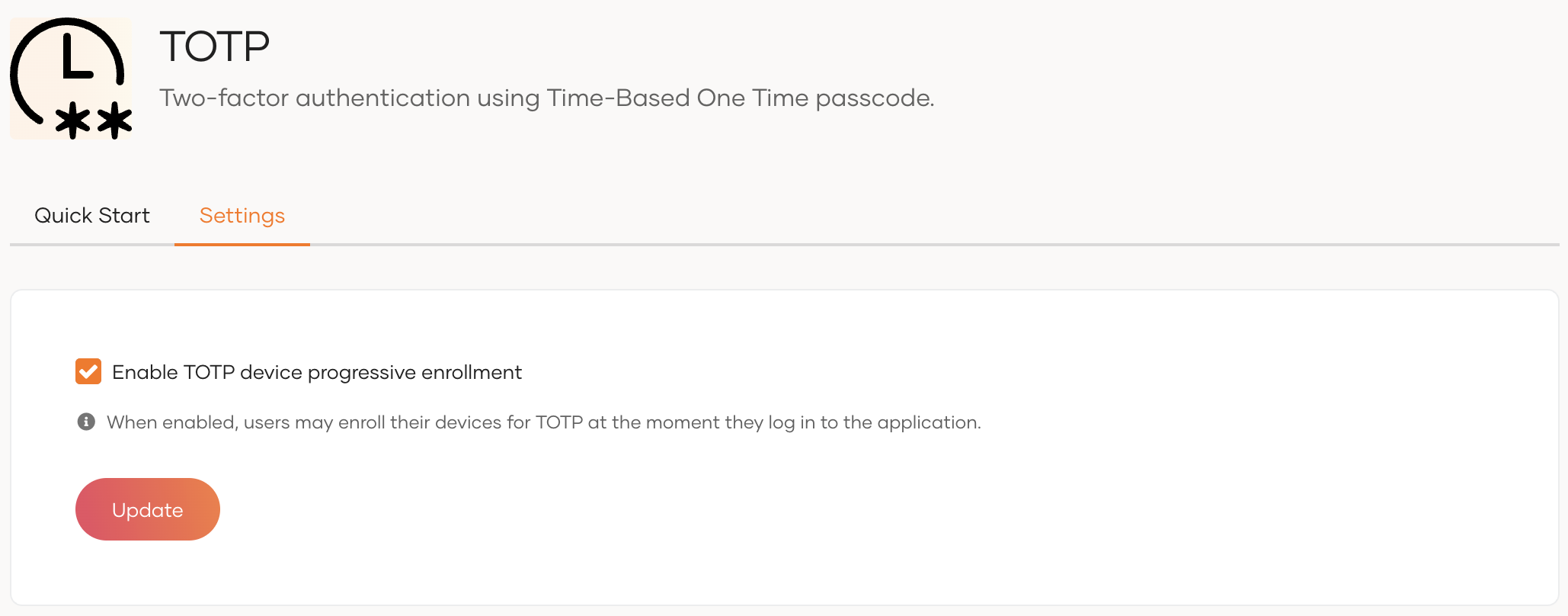
Click on TOTP and go to the Settings tab.
-
Use the Enable TOTP progressive enrollment toggle to control the enrollment behavior:
- Enabled (default): Prompt users who haven't configured TOTP to enroll during login for all applications, unless overridden by Conditional Authentication.
- Disabled: Asgardeo won't prompt users to enroll in TOTP during login for any application in the organization.
-
Click Update to save your changes.
Configure at application level
To override the organization-level setting for a specific application:
- On the Asgardeo Console, enable TOTP for a selected application.
- Turn on Conditional Authentication by switching the toggle.
-
Add the following authentication script.
Note
The
authenticatorParamsmethod has been added toexecutestep(2), assuming that TOTP is configured in step 2 of the authentication process. If you have configured TOTP in a different step, add theauthenticatorParamsmethod to the relevant step.var enrolUserInAuthenticationFlow = "false"; var onLoginRequest = function (context) { executeStep(1); executeStep(2, { authenticatorParams: { common: { 'enrolUserInAuthenticationFlow': enrolUserInAuthenticationFlow } } }, { onSuccess: function (context) { Log.info("Successfully managed login flow"); } }); };Enable enrolling in TOTP at first login
To enable enrolling in TOTP the first time a user logs in, use any of the following approaches:
- Update the value of
enrolUserInAuthenticationFlowparameter totrue. - Turn off Conditional Authentication by switching the toggle.
- Update the value of
-
Click Update to save your changes.
Try it out
Application users can enroll for TOTP authentication when they login to the business application for the first time. Given below are the steps that a user will follow:
- Download an authenticator app to a mobile device.
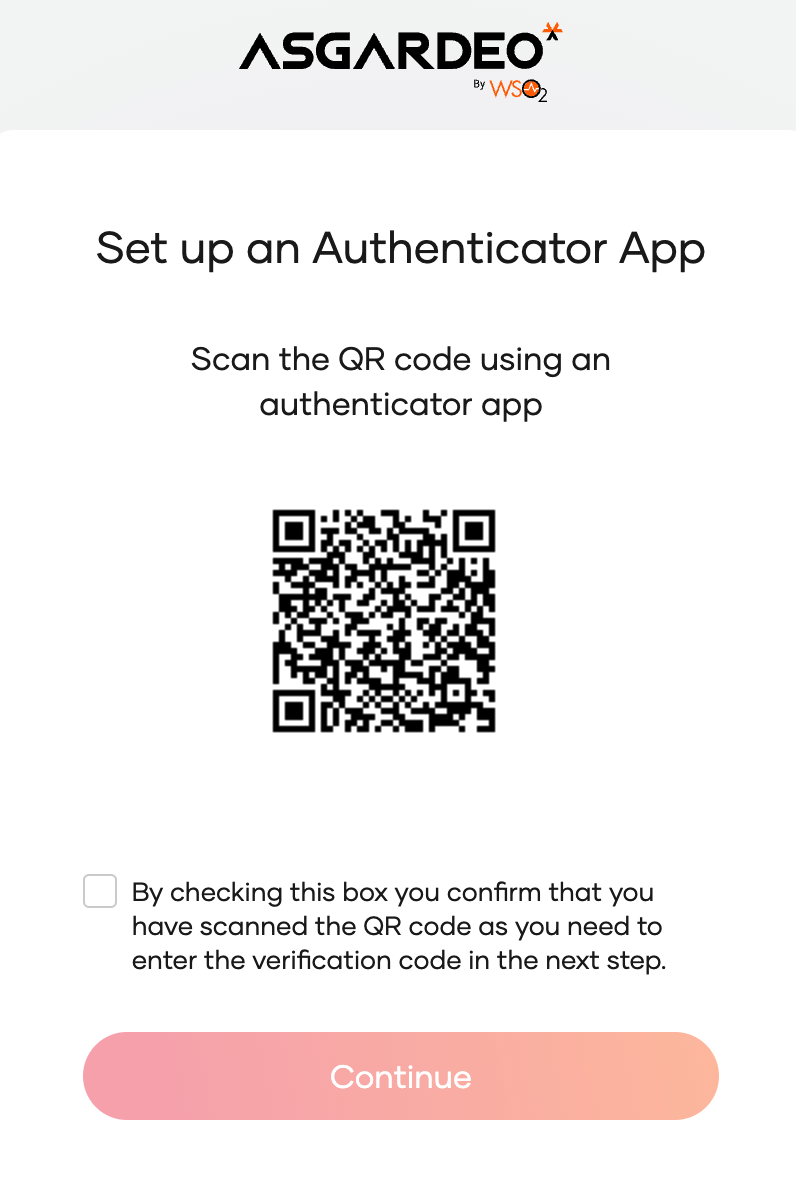
- Try to log in to the application by providing credentials. The user is prompted with a QR code.
-
Scan the QR code using the authenticator app, select the checkbox, and click Continue.
Note
- This step is prompted only when the user attempts to log in for the first time.
- This step will not be prompted if you have disabled enrolling in TOTP during first login.
-
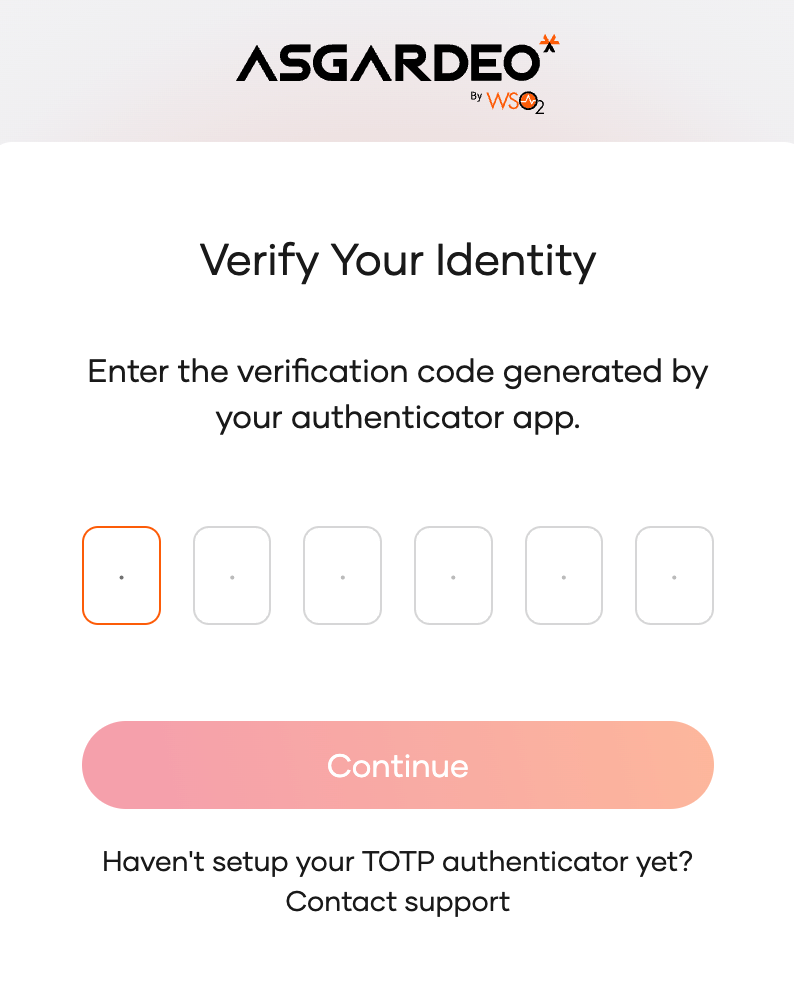
Check the authenticator app and see that the TOTP is generated.
-
Enter the TOTP:
-
Click Continue to continue login.
Note
If the QR code is deleted from the authenticator app, there is no way to recover it from the application. In such a scenario, the user should re-enroll for TOTP through the Multi Factor Authentication option in the My Account portal.
Learn more about enrolling TOTP from My Account.