Get started with flows
A flow defines the step by step journey a user takes during a specific interaction with your application, like signing up or resetting a password. This guide introduces the Flow Builder, a visual canvas where you can design and customize these journeys to meet your security and user experience goals without writing complex code.
The Flow Builder allows full customization of the following user journeys. Click on a flow to view a sample scenario built using the flow builder.
Create and enable a flow
The following sections outline the process for creating and publishing a custom flow.
Step 1: Access the flow builder
To access the flow builder:
-
On the Asgardeo Console, go to Flows.
-
Click on the corresponding flow you want to build. This opens the Flow Builder canvas for that specific flow.
Step 2: Build the flow
The Flow builder provides all the building blocks you need to create user journeys. To start building, you can choose one of the following methods and use flow elements to customize it.
-
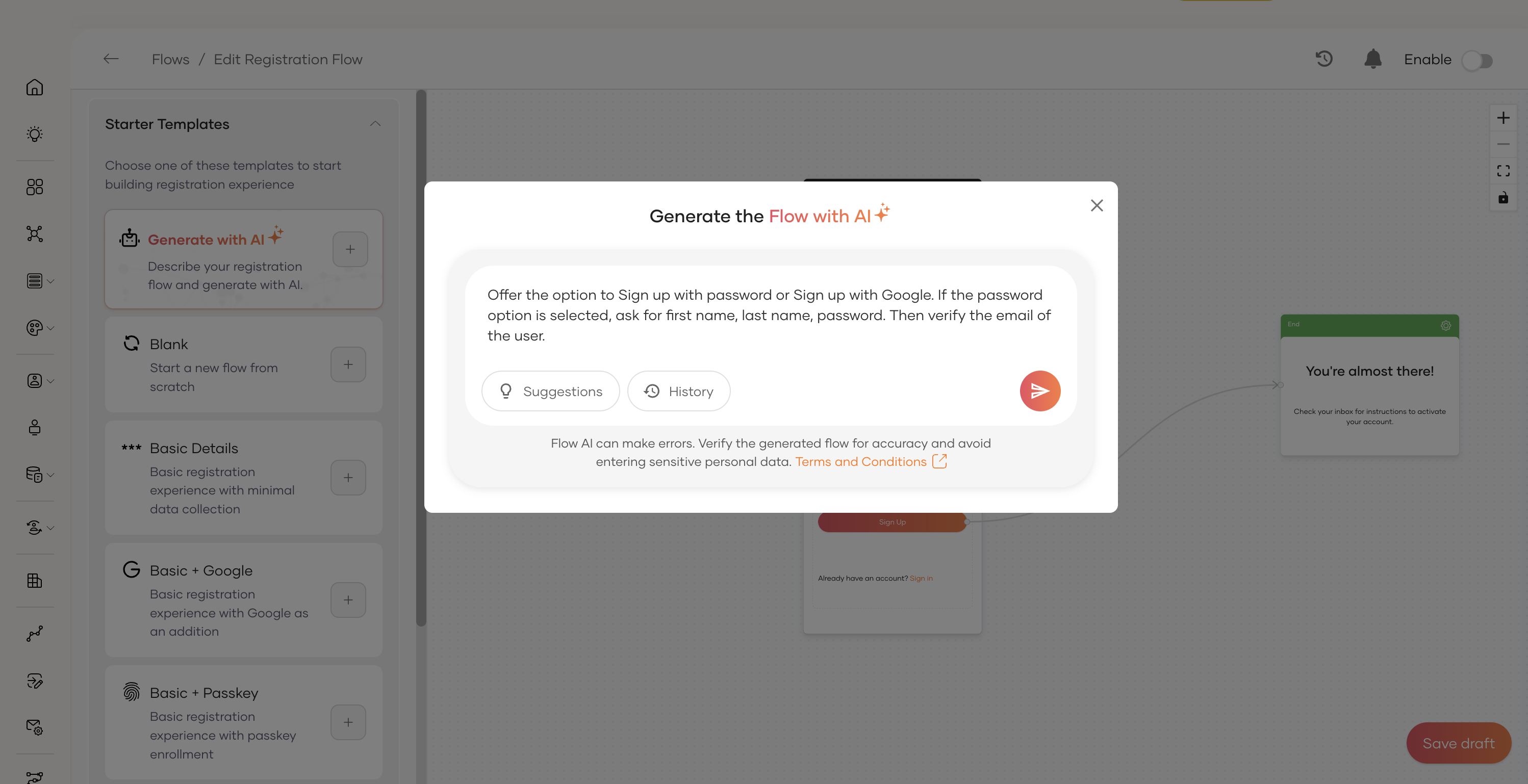
Generate with AI
Describe your flow in plain language, and let the generative AI engine automatically build it for you. You can then customize and refine the components as needed.
-
Use a starter template
Select from a list of pre-built templates for common use cases to avoid starting from scratch. Click the
+icon next to a template to add it to the canvas.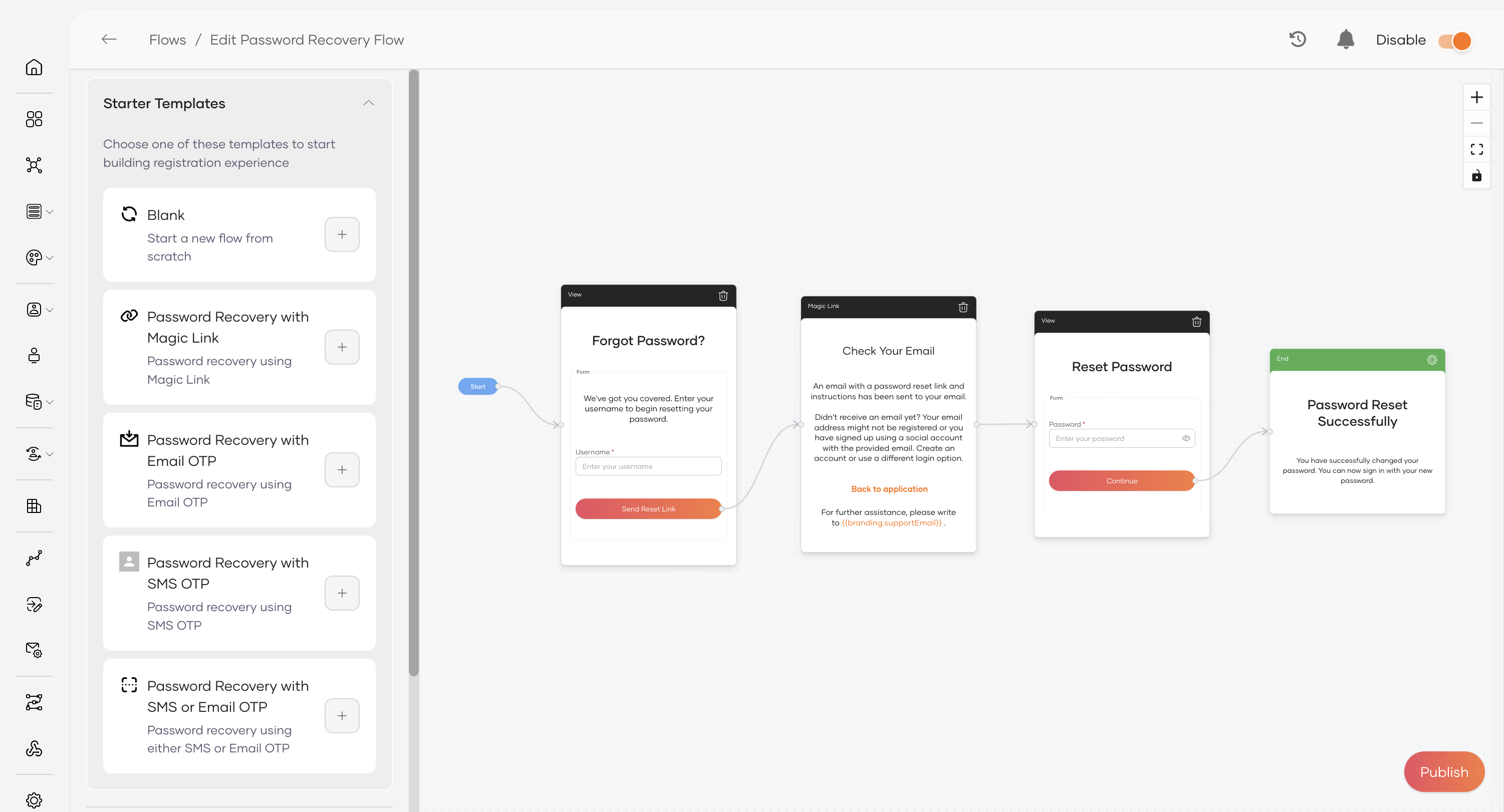
-
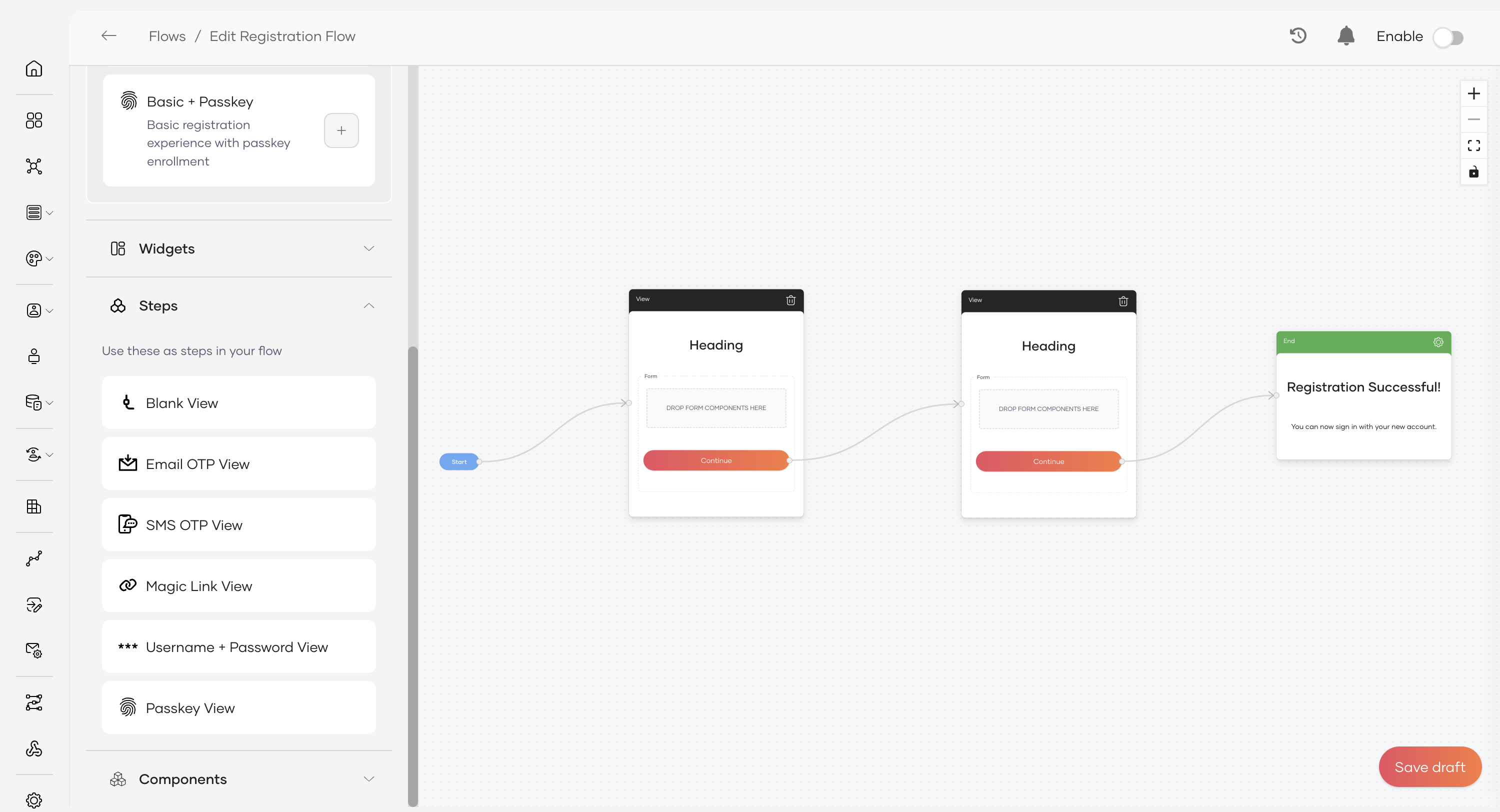
Build from scratch
For complete control, start with a blank canvas and build the flow by dragging and dropping the required flow elements.
Step 3: Enable the flow
You can enable a flow using the toggle on the top right corner of the Flow Builder. Your flows behave as follows based on their state:
-
If disabled,
- You can build your flow and save it as a draft. The flow won't be active for users until you enable it.
- This is the default state for any new flow.
-
If enabled,
- The flow becomes immediately available for users.
- You can continue to make changes and improvements to the flow even after enabling it. Until you publish those changes, users will continue to experience the last published version.
- You can disable the flow at any time to remove it from user access temporarily.
Flow elements
The Flow Builder provides a library of reusable, no-code elements to create user journeys. The following sections describe the key flow elements.
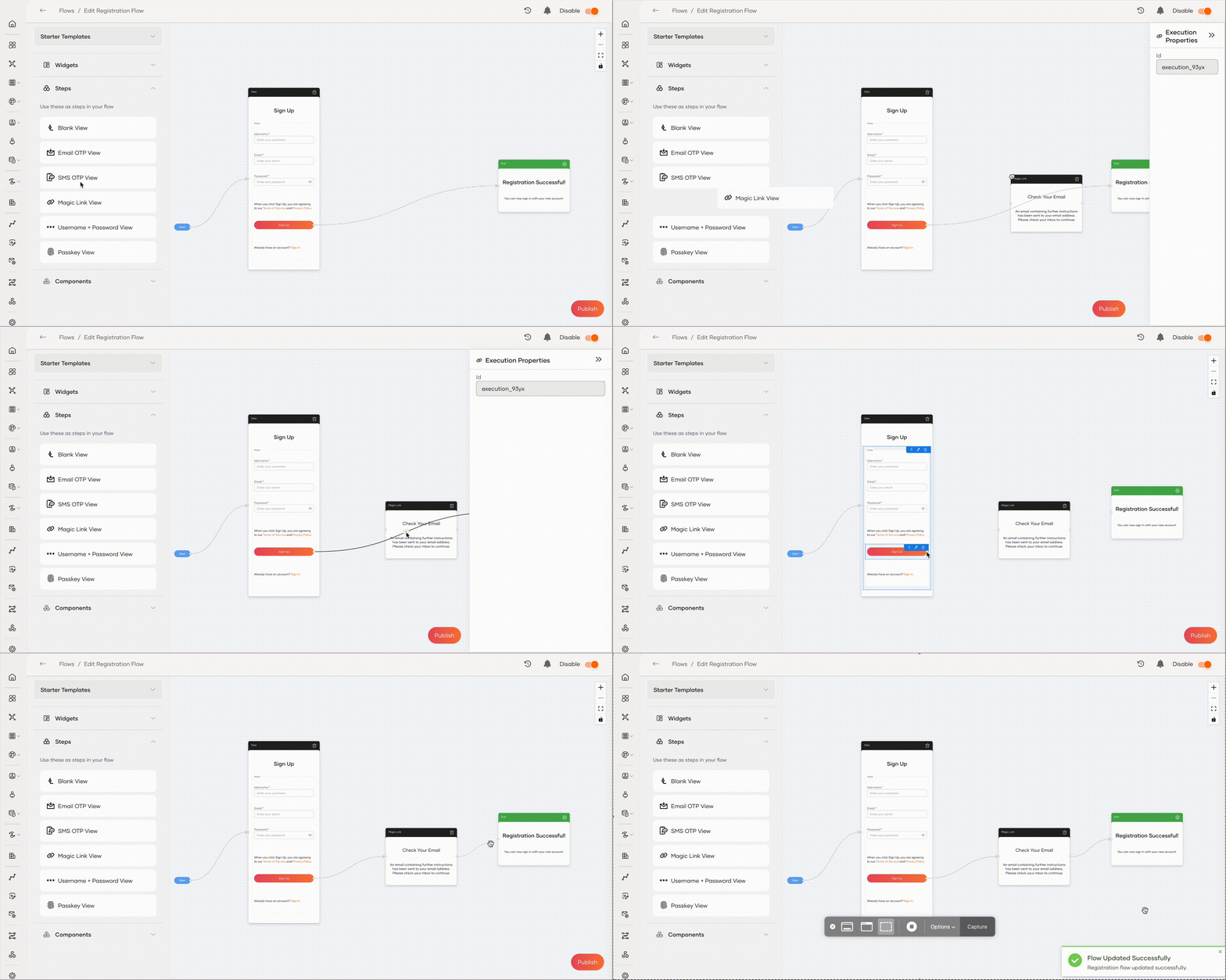
Steps
Steps function as the core building block and represent a distinct part of the login process. A flow can contain one or more steps.
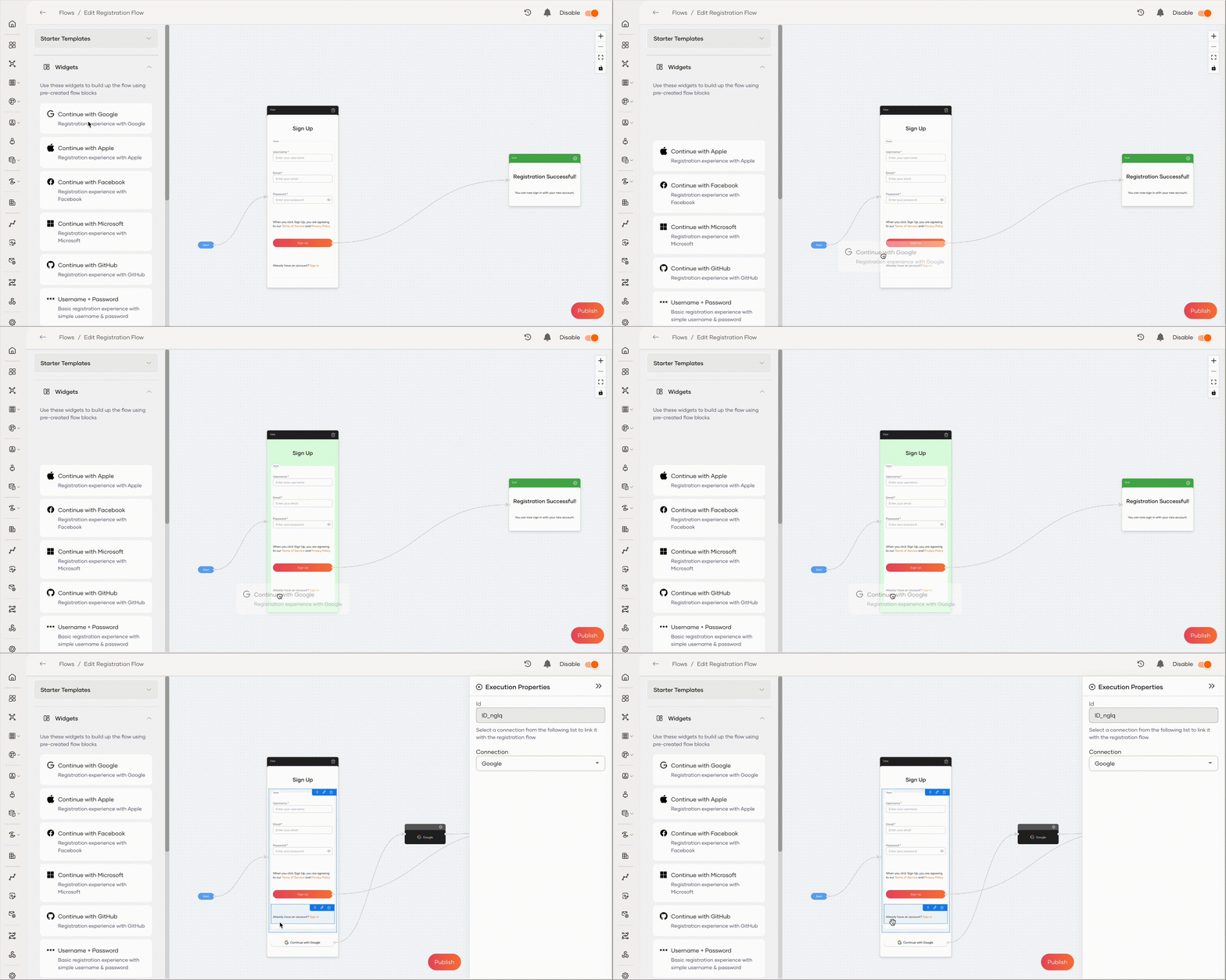
Widgets
Pre-built login and identity verification components that you can drag and drop into a step.
Components
Components are the individual UI elements placed inside a step, such as input fields, buttons, and paragraphs.
Note
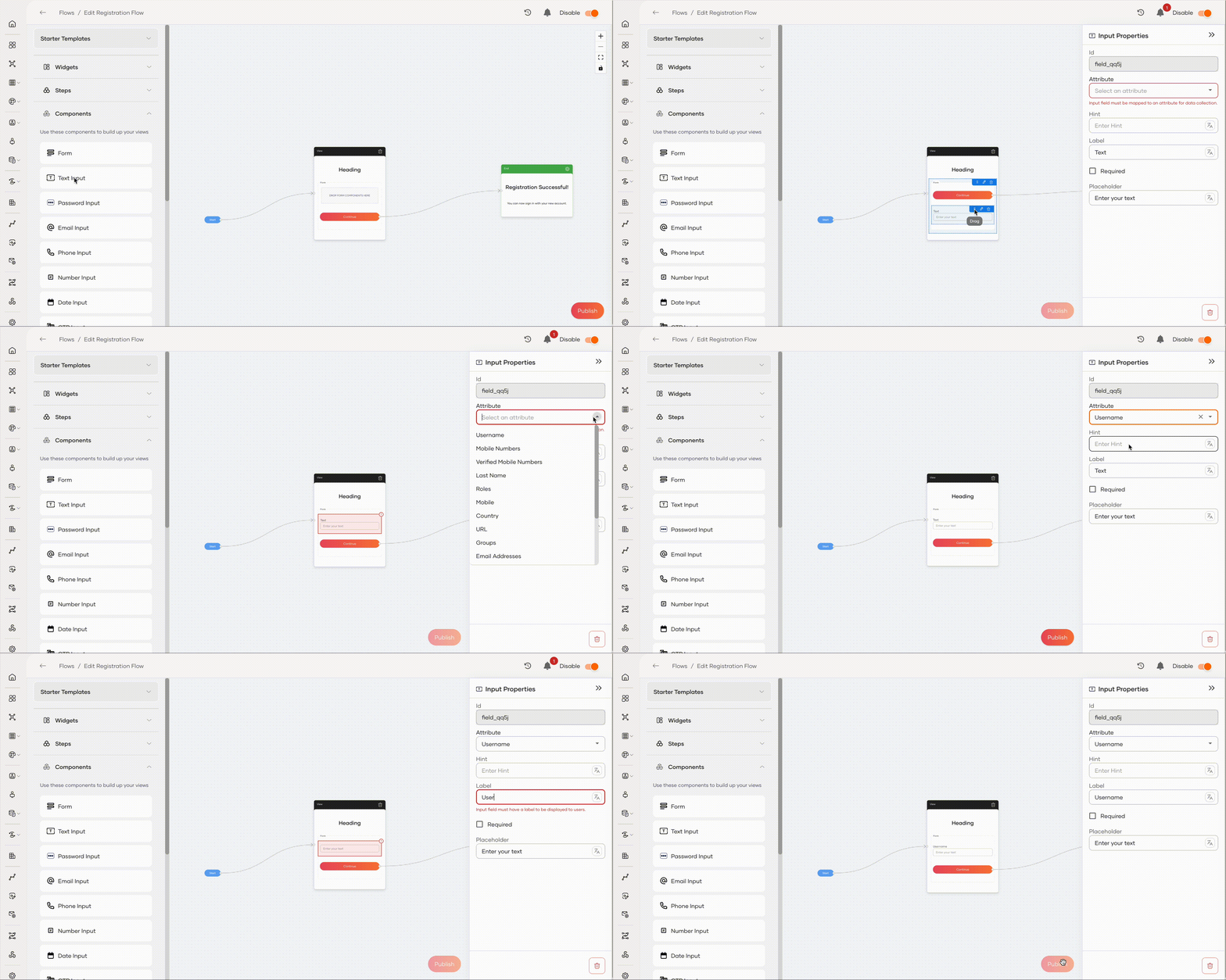
Field components such as Text Input and Email Input etc. have the following constraints:
-
Only a Form component can contain them.
-
Must map to a user attribute. To do so,
-
Click the pencil icon on the element action panel.
-
From the Attribute dropdown, select the relevant attribute. Only attributes displayed in user profiles are available for mapping. Learn how to display attributes in user profiles.
-