Disable or delete an organization
When you no longer need an organization—or need to temporarily restrict access to it—you can disable or permanently delete it from the Asgardeo Console. Both actions are performed from the parent organization.
Disable an organization
Disabling an organization temporarily blocks all user access to that organization's applications and resources, without permanently removing any data.
To disable an organization:
- Sign in to the parent organization on the Asgardeo Console.
- Go to Organizations to view the list of organizations.
- Select the organization you want to disable.
-
In the Danger Zone, turn the Disable Organization toggle on to disable the organization. Turn it off to re-enable the organization.
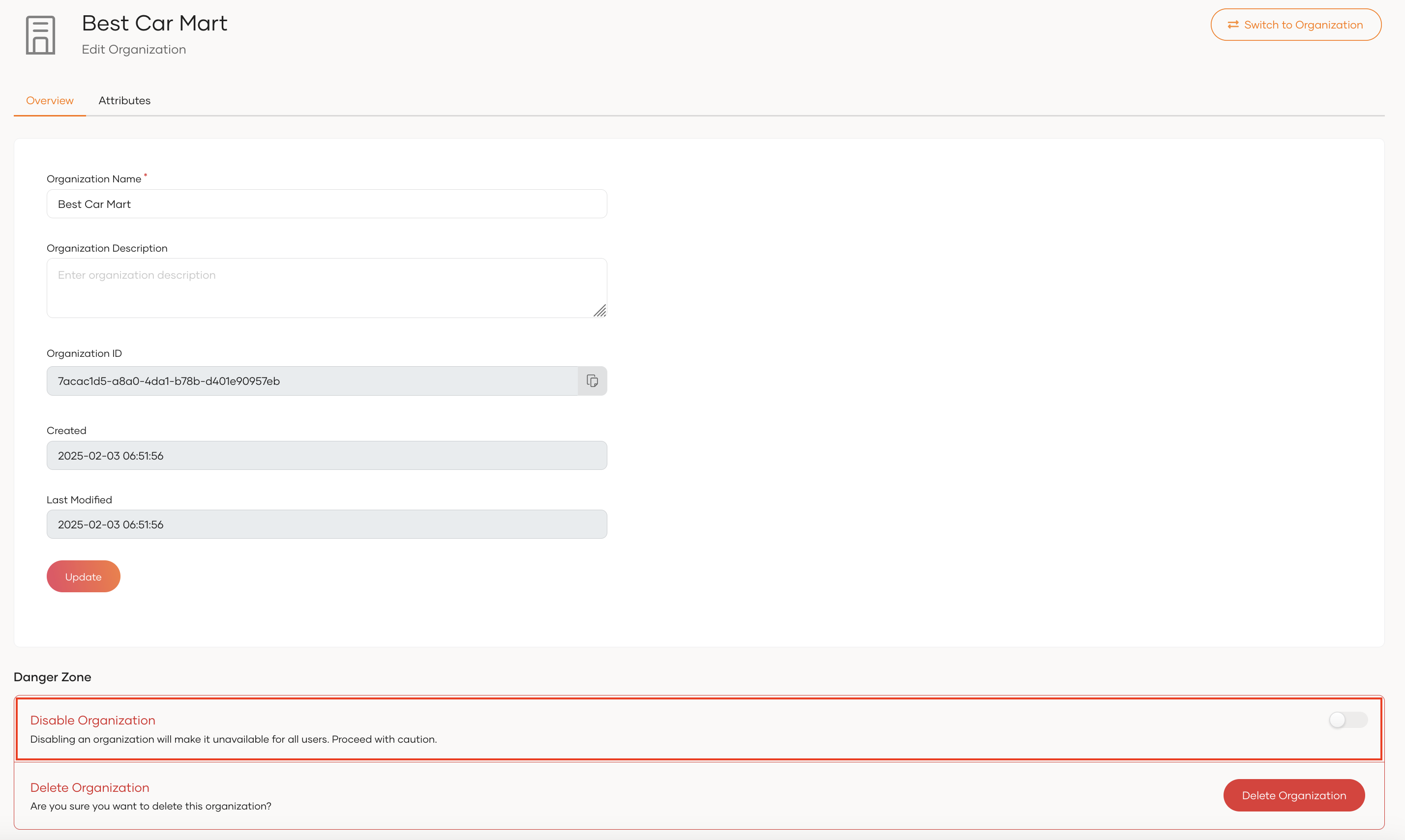
Note
- If the organization you want to disable has active child organizations, you must disable those child organizations first.
- Once an organization is disabled, users lose access to all applications and resources associated with that organization.
Delete an organization
Deleting an organization permanently removes it from the Asgardeo Console and blocks access to all of its resources.
To delete an organization:
- Sign in to the parent organization on the Asgardeo Console.
- Go to Organizations to view the list of organizations.
-
Click the delete icon next to the organization you want to delete.
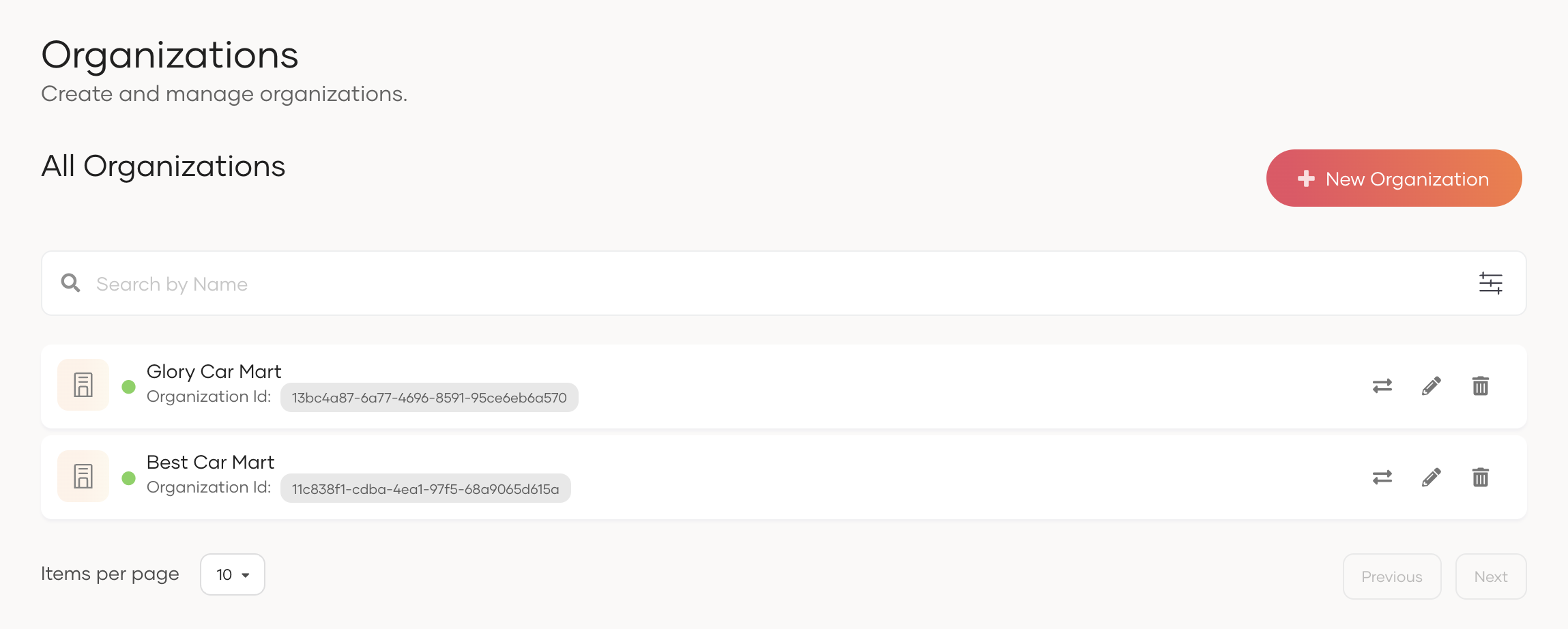
-
Select the checkbox and confirm your action.
Note
- If the organization you want to delete has child organizations, you must delete those child organizations first.