Manage attributes
An attribute encapsulates a single, identifiable characteristic of a user. They may range from basic identifiers such as first name, last name, home address to dynamic properties like membership status.
Attributes play a crucial role in managing user information within an organization and enables applications to access the required data seamlessly. Additionally, attributes are used to manage and display user information in user profiles.
The following guides explain how you may manage attributes of an organization.
View attributes
To view attributes available for your organization:
-
On the Asgardeo Console, go to User Attributes & Stores > Attributes.
-
Under Manage Attributes, click Attributes.
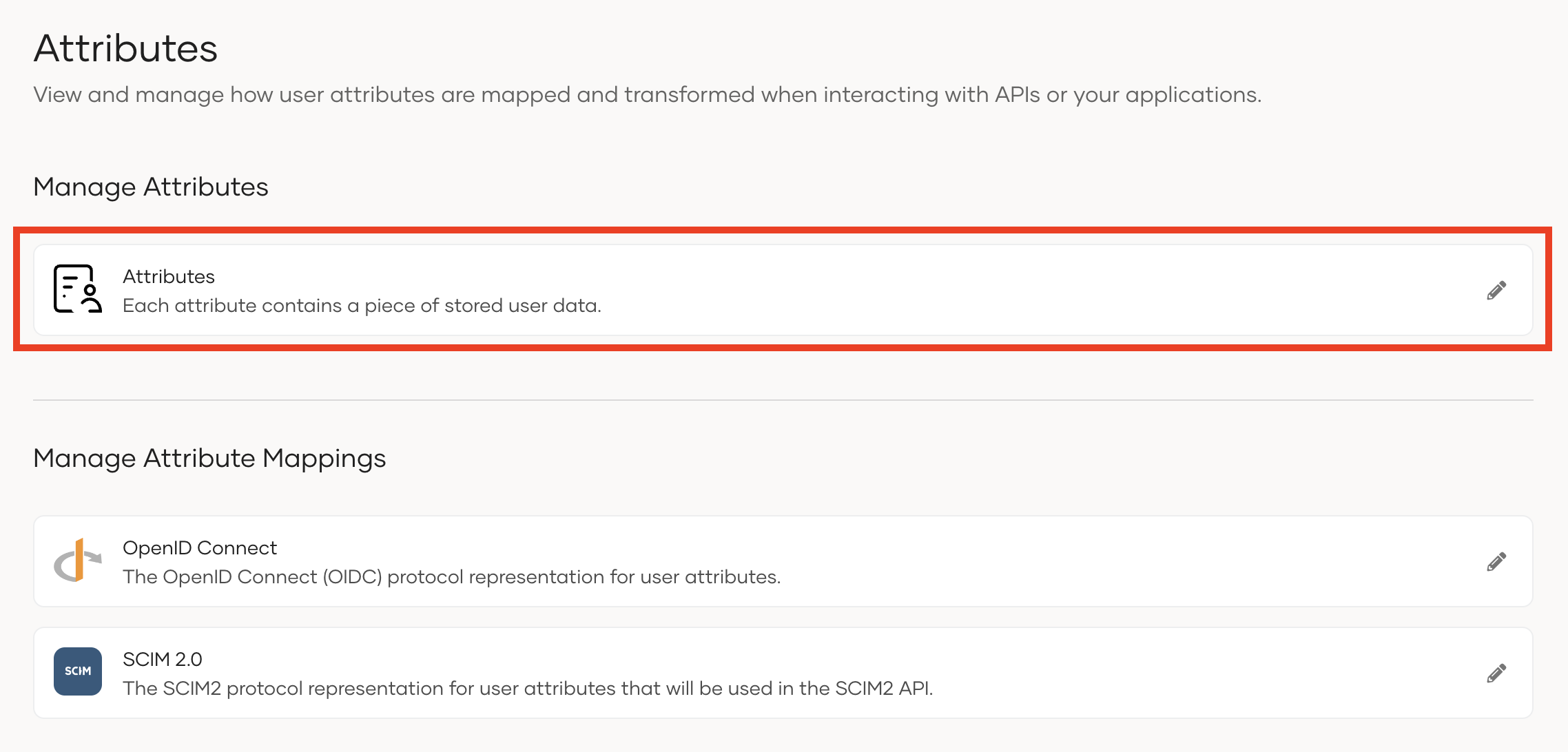
This page displays all the attributes available in your organization.
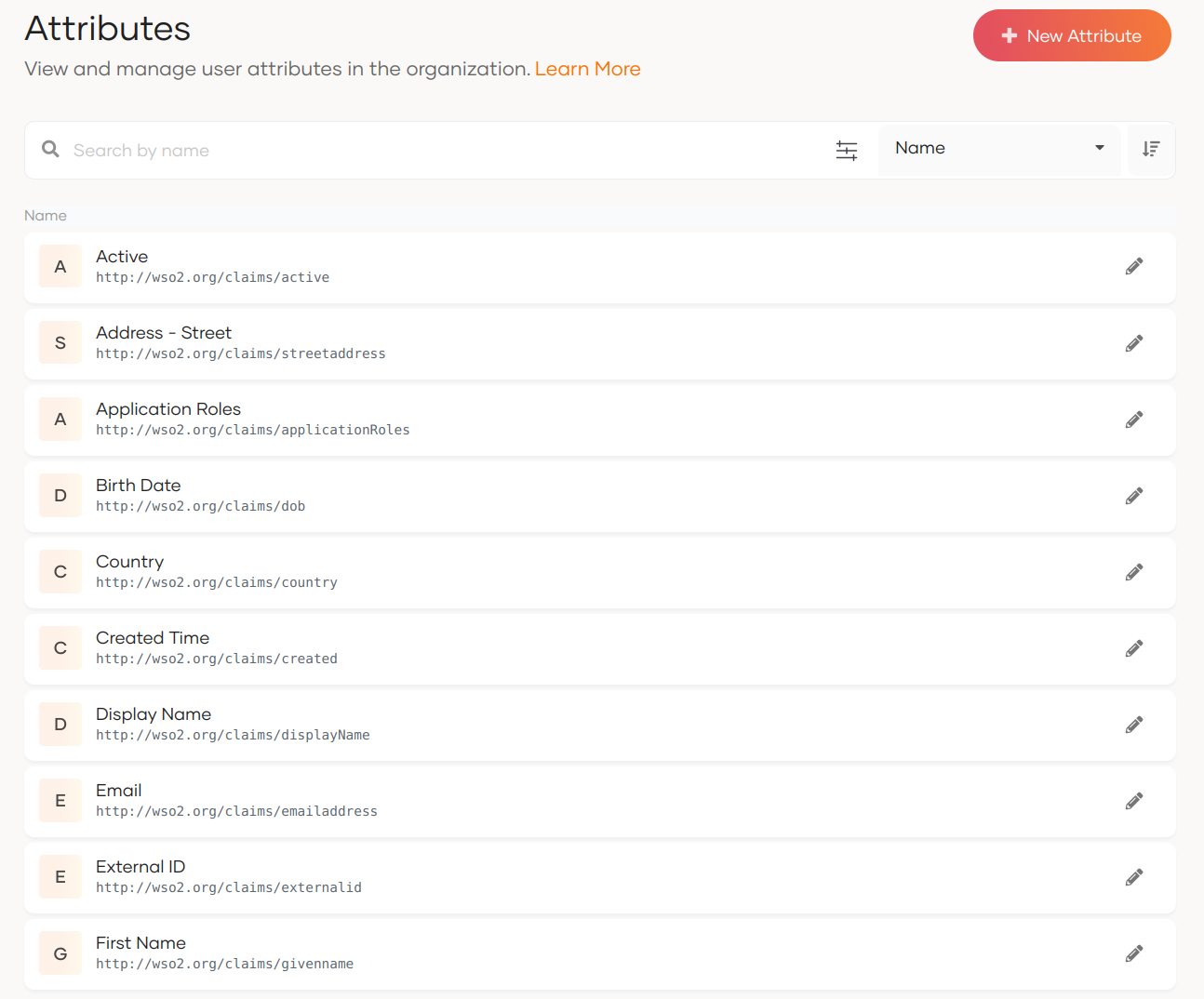
Add custom attributes
Apart from the default attributes, you may define your own custom attributes by following the steps below:
- On the Asgardeo Console, go to User Attributes & Stores > Attributes.
- Under Manage Attributes, click Attributes to view the list of all attributes
-
Click New Attribute and enter values for the following properties:
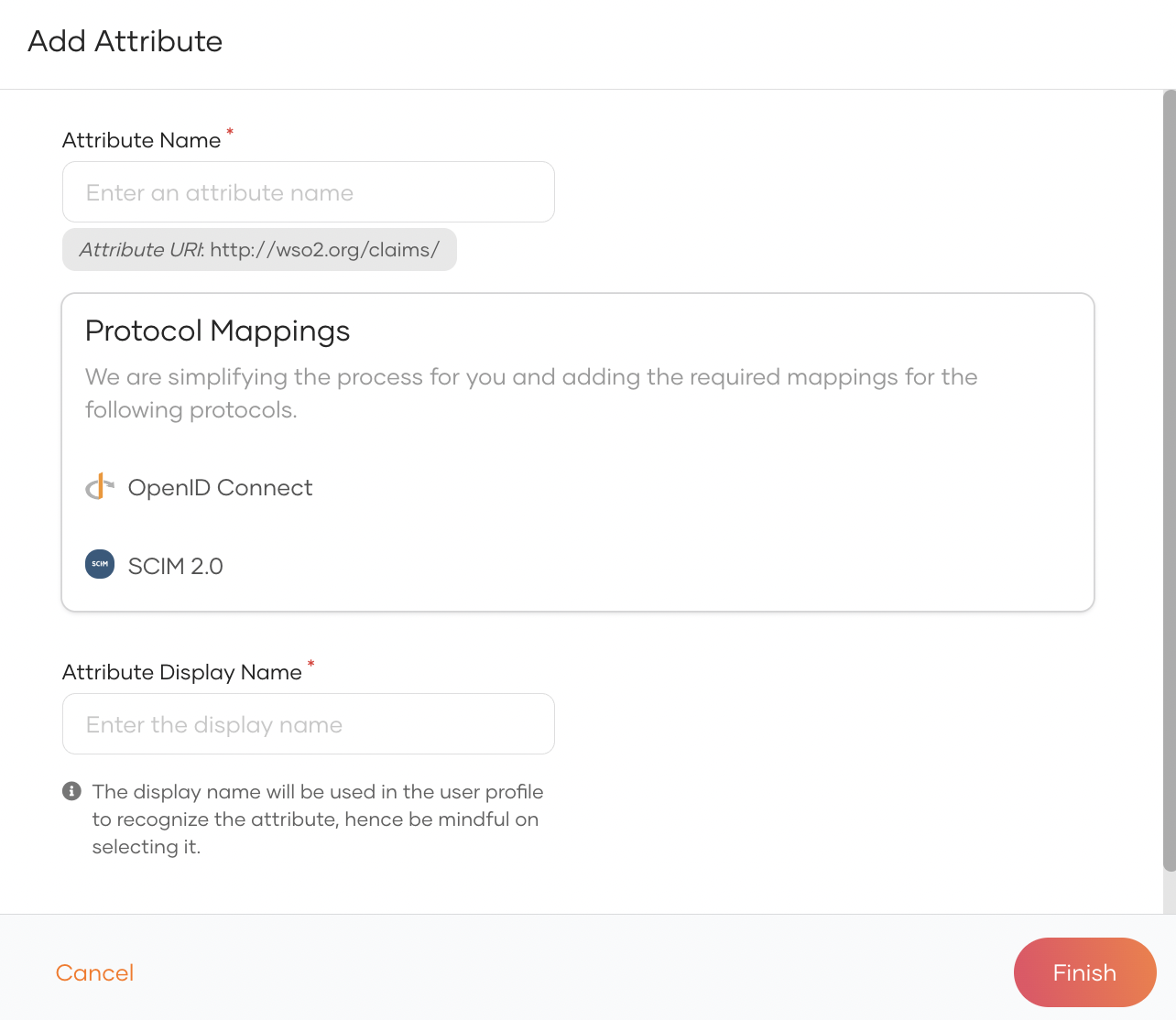
Attribute Name The name that will be shared with applications. Protocol Mappings Mappings for each protocol are generated automatically based on the attribute name. You may also customize them here. Attribute Display Name The name of the attribute that will be displayed in users' profiles. Regular expression The value of the attribute will be validated against the regex pattern specified here. -
Click Finish.
Configure attributes
Default attributes and custom attributes come with a range of properties that you can configure to meet your requirements. To discover these properties,
-
On the WSO2 Identity Server Console, go to User Attributes & Stores > Attributes.
-
Under Manage Attributes, click Attributes to view the list of all attributes.
-
Click Edit for the attribute you want to update.
For a comprehensive guide on configuring attributes, refer to the configure attributes documentation.
Delete attributes
Before you proceed
Attributes can't be deleted if it has any associations with external schema. If you have attribute mappings, make sure you delete these associations before attempting to delete an attribute.
Refer to Delete an OpenID Connect attribute and Delete a SCIM2 attribute to delete any existing associations.
To delete an attribute:
- On the Asgardeo Console, navigate to User Attributes and Stores > Attributes.
- Under Manage Attributes, click Attributes to view the list of all attributes.
- Select the attribute you wish to delete.
- Click Delete attribute within the Danger Zone.
- Select the checkbox to confirm your action.
- Click Confirm.
Note
Only custom attributes can be deleted.