Audit Logs in Choreo
Audit logs, also called audit trails, enhance security, ensure compliance, provide operational insights, and help manage risks.
In Choreo, an audit log records organization-level user-specific operations performed via the Choreo Console. It also captures the timestamp and the outcome of the action.
As of now, Choreo captures the following user-specific operations as audit logs:
- Project creation, update, and deletion.
- Component creation, update, and deletion.
- Component promotion initiation.
- Component version creation.
- Component deployment, redeployment, and undeployment initiation for all components other than REST API Proxy components.
- Component API access mode update.
- Enabling and disabling component auto-deployment on commit.
- Component build configuration update.
- Component endpoint creation, update, and deletion.
- Organization user management.
- On-premises key management.
- Project-level configuration management.
In Choreo, organization administrators and platform engineers are allowed to view audit logs by default. If other members need to access organization-specific audit logs, the administrator or the platform engineer can create a role with the relevant permission and assign it to members. For step-by-step instructions on how to create and assign a role with relevant permission, see Manage audit log access.
To view audit logs, follow these steps:
- Sign in to Choreo.
-
In the top navigation menu, click the Organization list and select your organization.
Tip
As of now, you can only view organization-level audit logs.
-
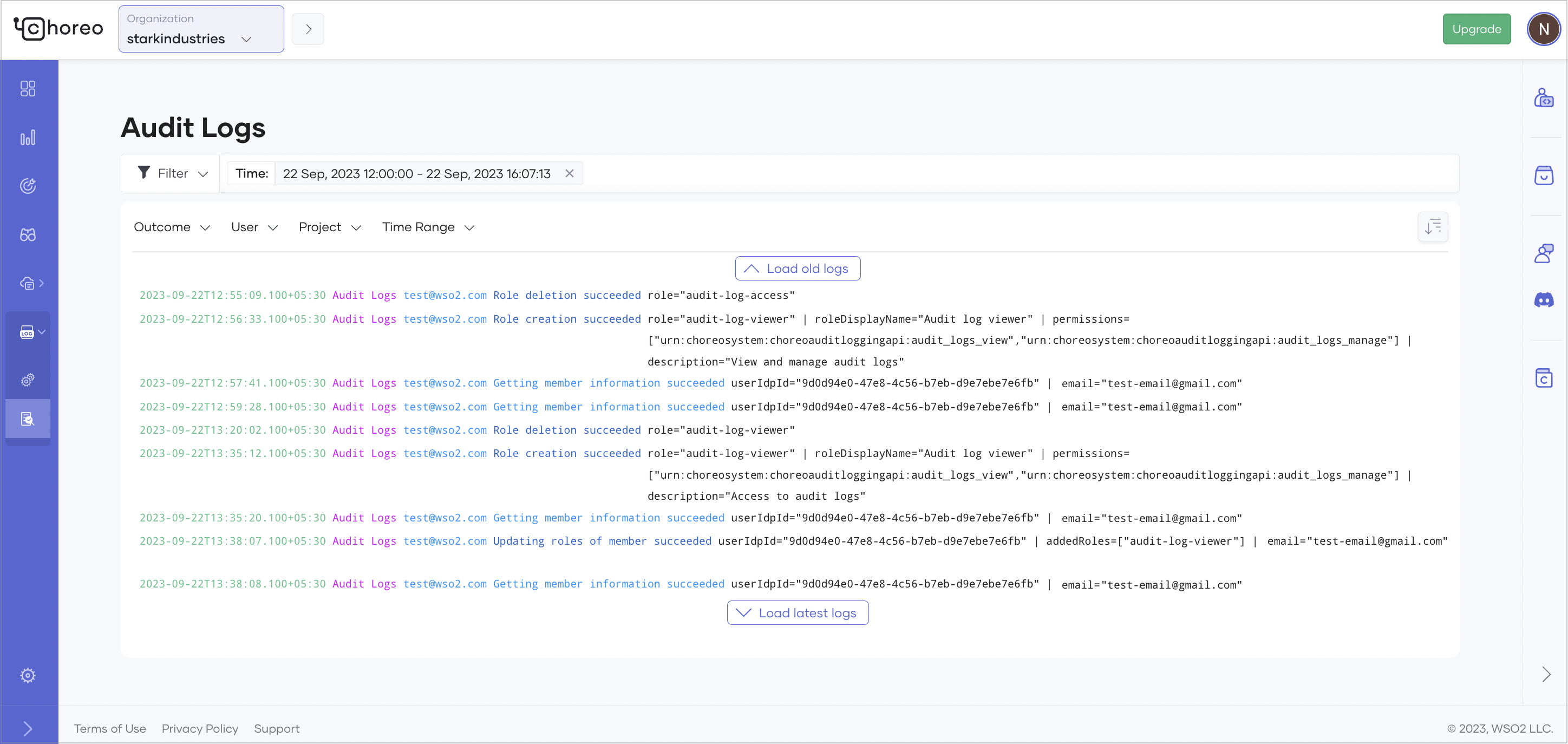
In the left navigation menu, click Observability and then click Audit Logs. This displays audit logs for the past 24 hours by default.
To view audit logs based on a specific time range and other requirements, you can apply the necessary filter criteria.
Audit log retention
Choreo retains audit logs for one year and archives them for an additional year. Therefore, the total retention period for audit logs is two years.
Manage audit log access
Follow the steps given below to create a role with audit log access permission and assign it to organization members who need access to audit logs:
Note
You must be the organization administrator or a platform engineer to perform this action.
Step 1: Create a role with audit log access permission
- In the top navigation menu, click the Organization list and select your organization.
- In the left navigation menu, click User Management and then click Roles.
- On the Roles page, click + Create Role.
- Enter a name and description for the role.
- In the Permissions section, select LOG-MANAGEMENT to grant permission to view audit logs.
- Click Create.
Step 2: Assign the created role to a group and organization member
- In the left navigation menu, click User Management and then click Groups.
- On the Groups page, click + Create Group.
- Enter a name and description for the group and then click Create.
- Locate and click on the newly created group in the list.
- Navigate to the Roles tab, click + Add Role, and choose the role you created in Step 1.
- In the Users tab, click + Add User and select the users to assign the role to.