Develop Components Using VS Code
The WSO2 Developer Platform VS Code extension provides comprehensive component management capabilities to streamline local development within WSO2 Developer Platform.
Key Features
- Manage Projects: Work with WSO2 Developer Platform projects directly in your VS Code workspace.
- Create Components: Generate components linked to your application source.
- Trigger Builds: Initiate builds in the cloud and view detailed build logs.
- Deploy Builds: Deploy builds to your preferred WSO2 Developer Platform environments.
- Test Services: Verify functionality of publicly exposed service endpoints.
- Monitor Components: Access runtime logs and monitor your deployed components.
- Connect Locally to Dependencies: Link your app to dependent connections while developing. See guide.
Prerequisites
To ensure a smooth development experience with the WSO2 Developer Platform extension, make sure you have the following:
-
Visual Studio Code installed with the WSO2 Developer Platform extension version 2.0.0 or later.
-
A locally cloned GitHub repository to create new components or link to existing WSO2 Developer Platform components.
-
Git version 2.0.0 or later.
Get started
To use the capabilities of the WSO2 Developer Platform extension in the VS Code editor, you need an active WSO2 Developer Platform account. If you already have an account, follow these steps to set up the extension:
- Install the WSO2 Developer Platform VS Code extension and wait for activation. On successful activation, the WSO2 Developer Platform extension opens in the VS Code editor.
-
Sign in to WSO2 Developer Platform using one of the following methods:
- In the WSO2 Developer Platform activity pane, click Sign In.
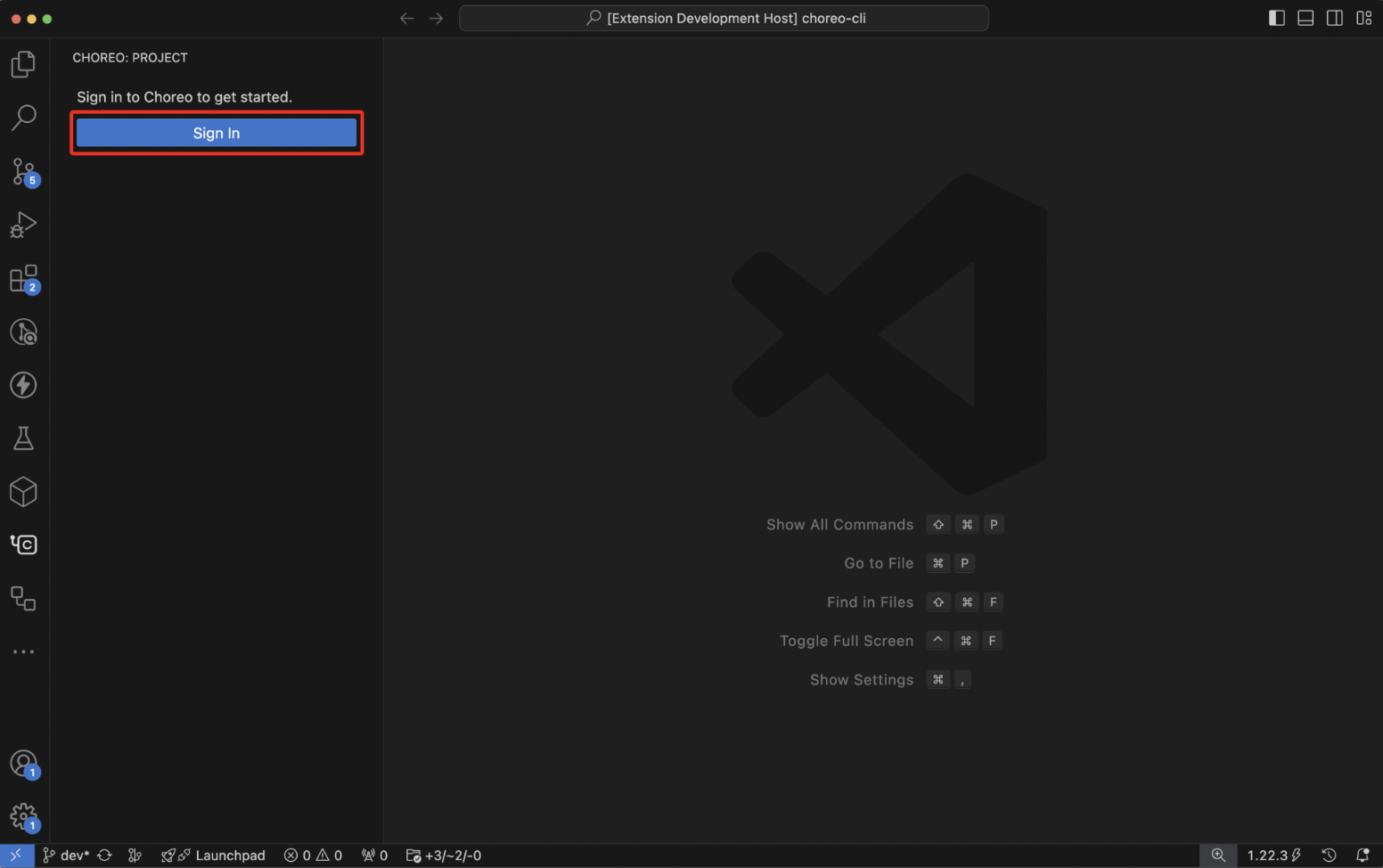
- Use the
Sign Incommand provided by the WSO2 Developer Platform extension.
This redirects you to an external URI to complete the authentication process. On successful sign-in, the WSO2 Developer Platform activity pane displays your account details along with any components detected within the VS Code workspace.
- In the WSO2 Developer Platform activity pane, click Sign In.
Create a new component
- Open the source code directory where you want to build, deploy, and manage components using WSO2 Developer Platform.
-
Create a new component using one of the following methods:
- In the WSO2 Developer Platform activity pane, click Create Component.
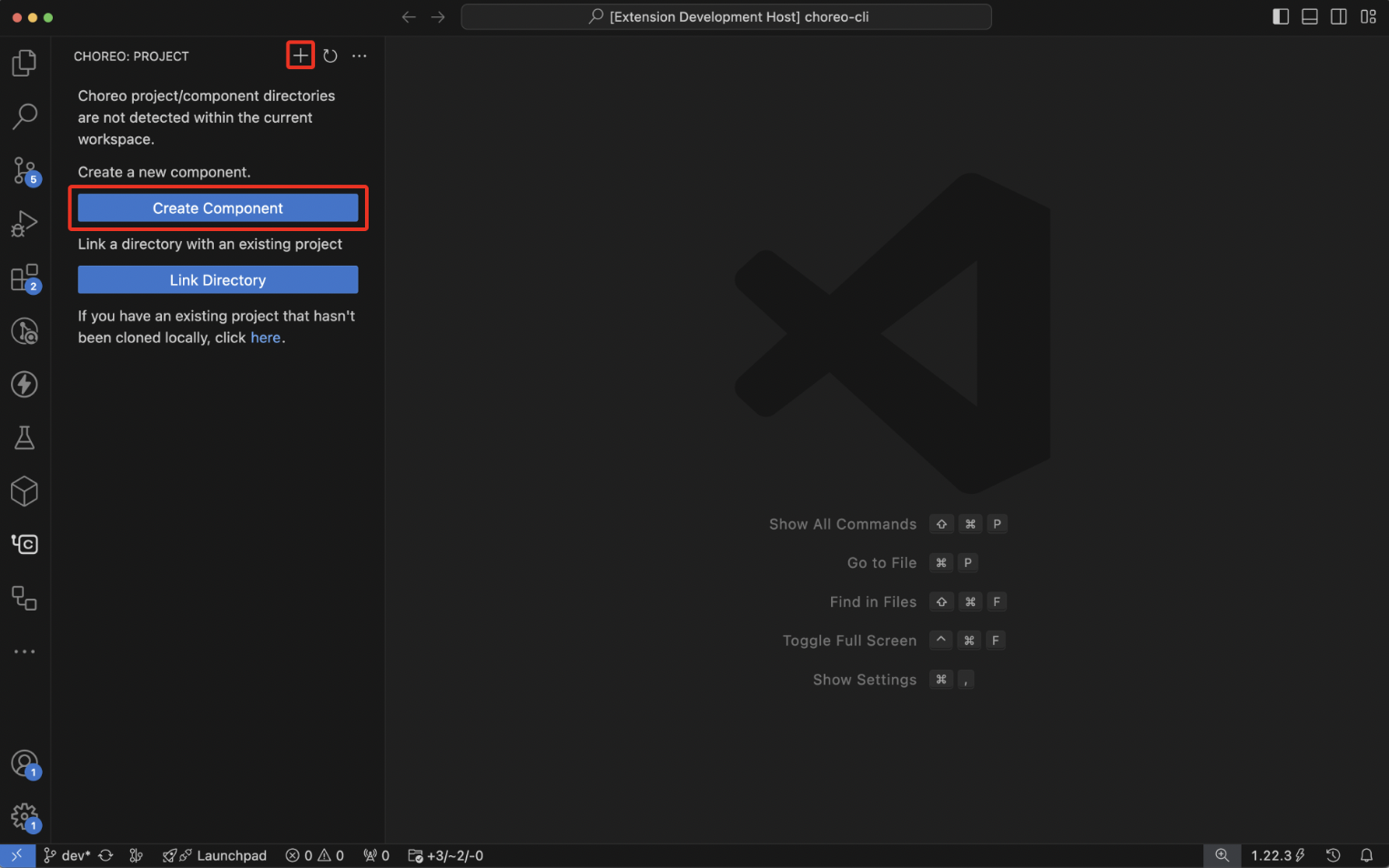
- Use the
Create New Componentcommand provided by the WSO2 Developer Platform extension.
- In the WSO2 Developer Platform activity pane, click Create Component.
-
If the WSO2 Developer Platform extension cannot determine the project context of the opened workspace, it prompts you to select the organization and the project to which the new component belongs.
-
Specify component details such as the name, type, build preset, etc.
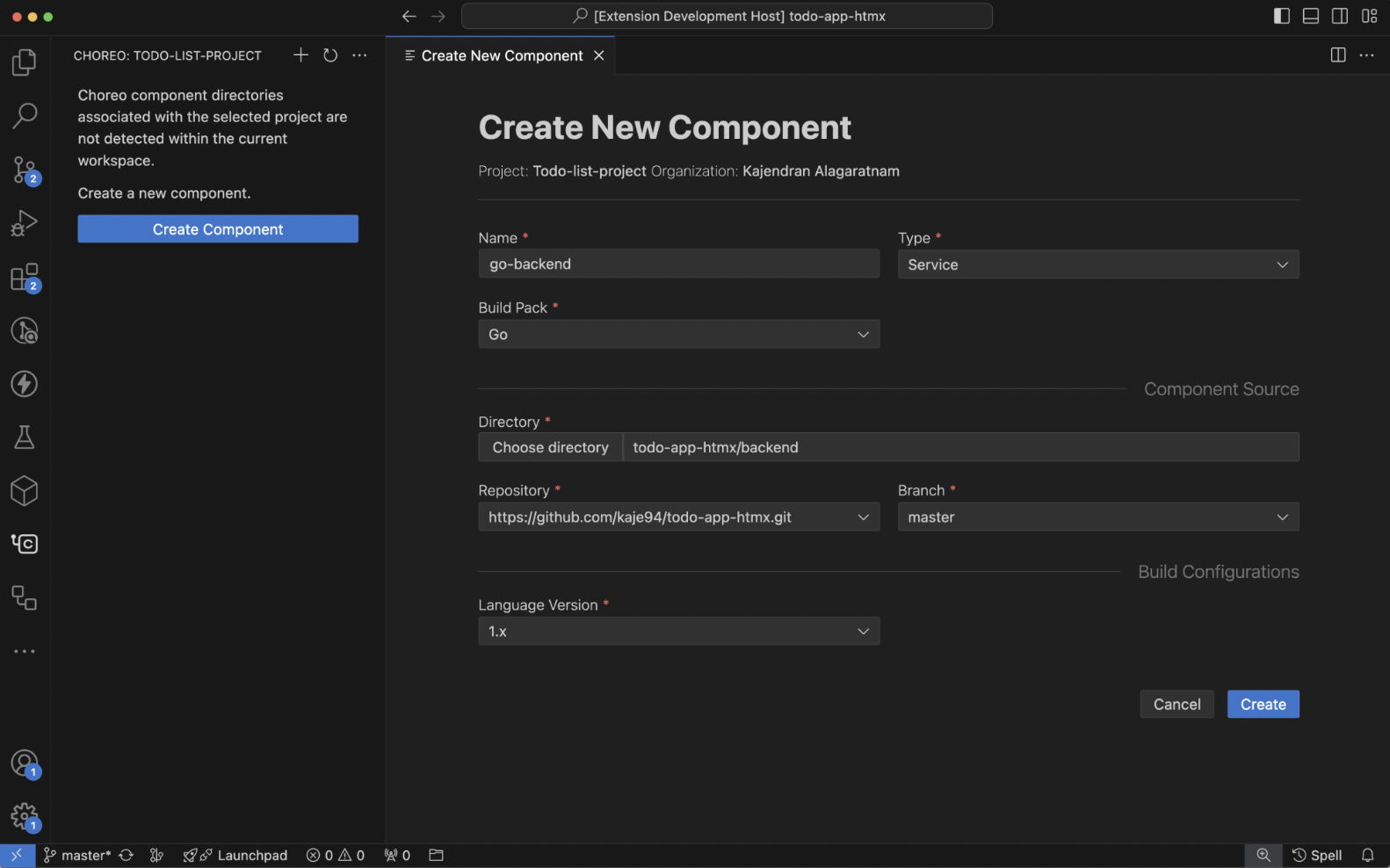
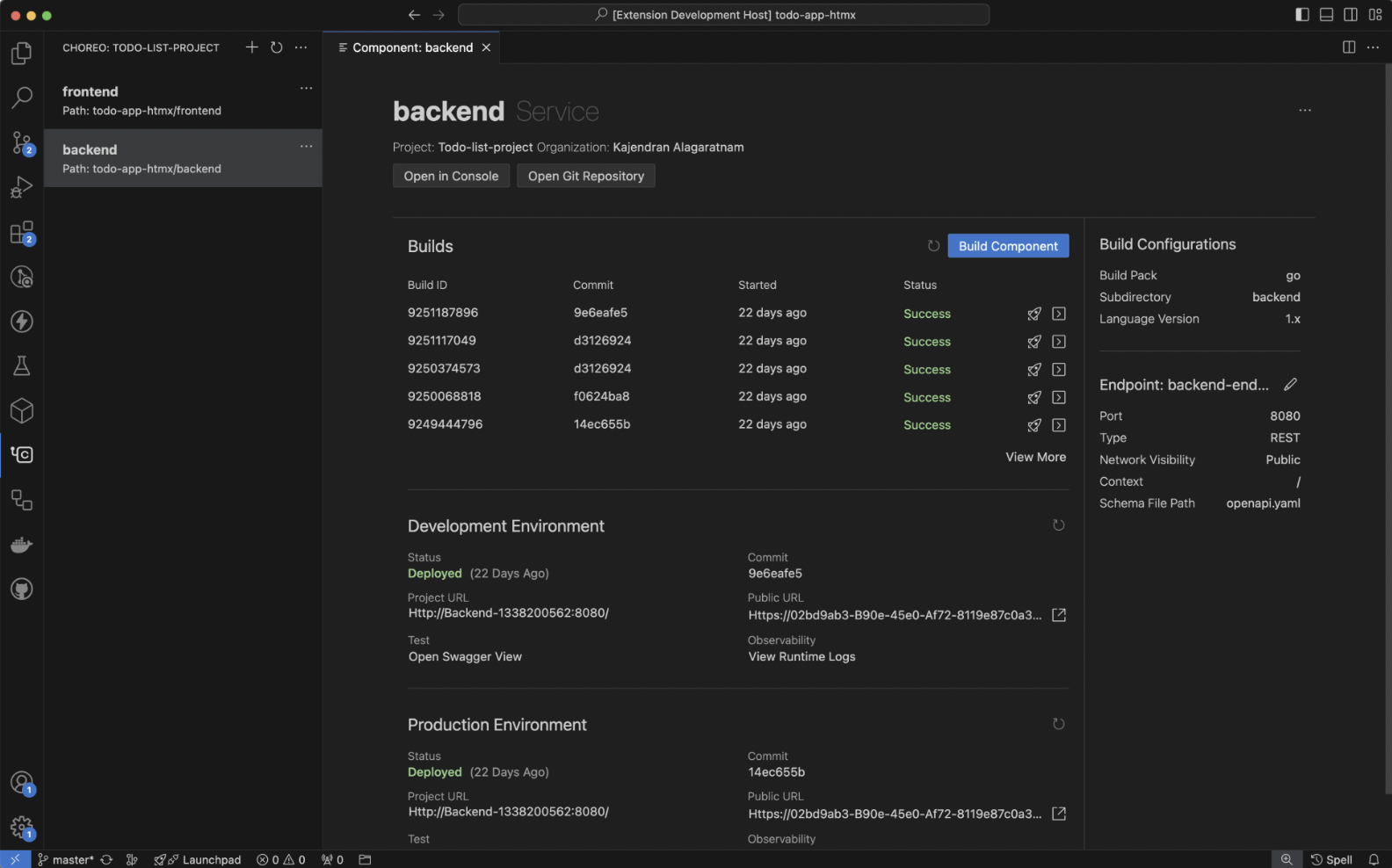
On successful creation, the component details view opens, and the WSO2 Developer Platform activity pane displays the new component.
Tip
Once the component is created, a
[Understand the project context](#understand-the-project-context)file is generated in the root of the Git repository. For more details, see .choreo/context.yaml.
The component details view allows you to manage your component by performing various actions such as the following:
- Triggering builds for selected commits.
- Viewing lists of builds and statuses.
- Diagnosing build failures with build logs.
- Deploying builds in available environments.
- Accessing runtime logs and deployed component URLs.
- Invoking deployed service endpoints.
Understand the project context
Context files contain metadata related to the project, allowing the extension to establish an association between local directories and WSO2 Developer Platform projects. These files, such as the context.yamlfile, resides in the /.choreo directory within the root of the Git repository.
The WSO2 Developer Platform extension scans the root of the opened Git repository to find the context.yaml file and lists the components of the associated project. This allows you to easily open and manage the components they are developing within the VS Code workspace.
A context.yaml file can contain multiple projects, whereas, a workspace opened via VS Code can have multiple context.yaml files with different project associations. In such cases, VS Code allows you to switch between these projects, add new project associations, or remove existing ones, allowing you as a developer to focus on components of a particular project at a time.
You can decide whether to commit the context.yaml file to the Git repository. Committing this file enables other team members working on the same repository to have a seamless developer experience with WSO2 Developer Platform.
If the context.yaml file for a particular project is not committed to the Git repository or is unavailable for other reasons, you can easily regenerate it using one of the following methods:
- In the WSO2 Developer Platform activity pane, click Link Directory.
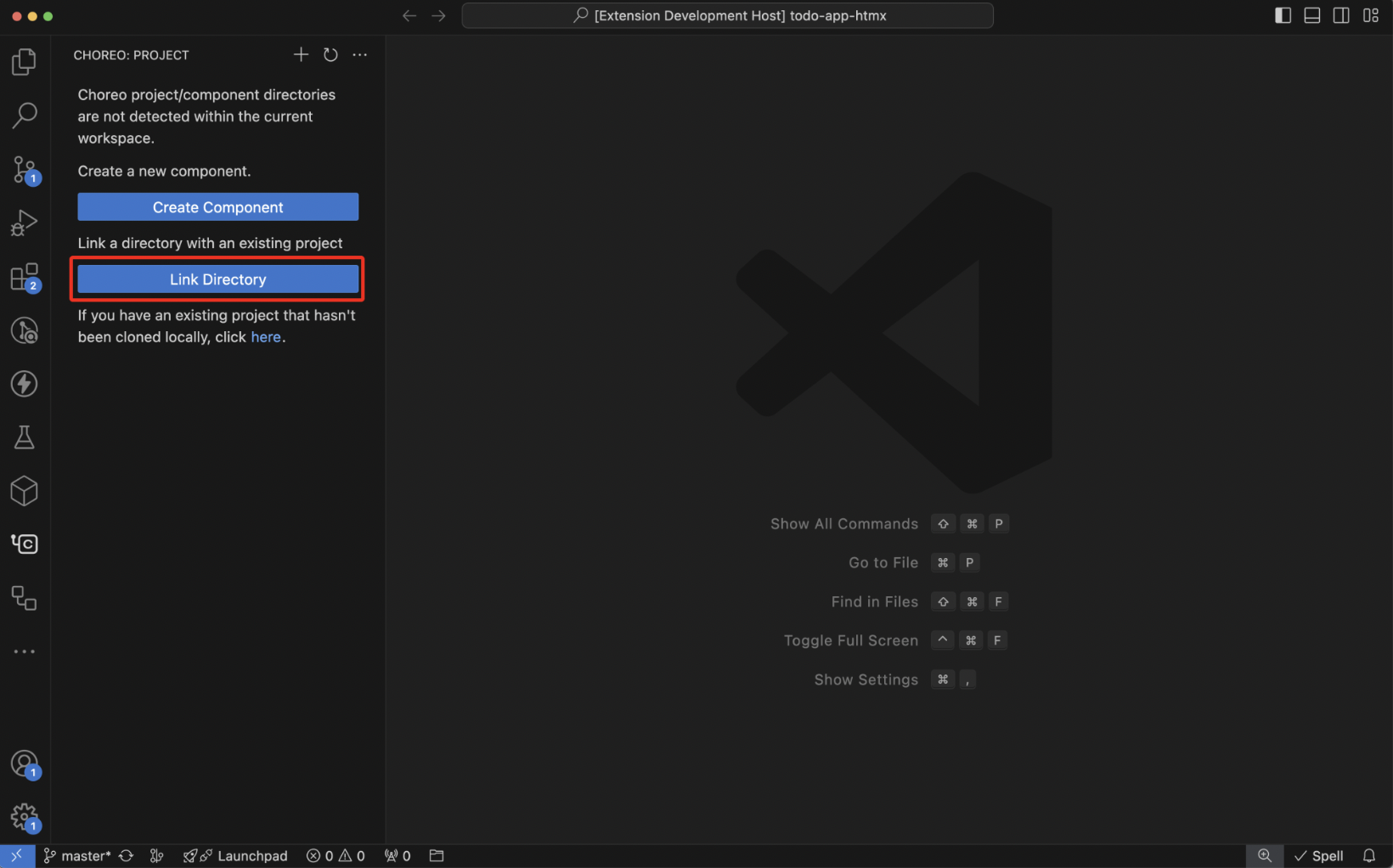
- Use the
Link Directorycommand provided by the WSO2 Developer Platform extension.
Discover additional features
To access a range of functionalities provided by the WSO2 Developer Platform extension, open the VS Code command palette and type WSO2 Developer Platform.
Troubleshoot issues
To troubleshoot WSO2 Developer Platform extension issues, follow these steps:
-
To open the OUTPUT pane, go to the VS Code editor main menu, click View, and then click Output.
-
Select WSO2 Developer Platform from the drop-down menu on the right-hand side to view the WSO2 Developer Platform output for troubleshooting.
Get help
For assistance with the WSO2 Developer Platform VS Code extension, create GitHub issues.