Compliance Dashboard
The Compliance Dashboard lets you monitor how your API proxies adhere to the governance policies defined in your organization. Before using this dashboard, ensure you have set up rulesets and policies. See Govern API Proxies for instructions on creating rulesets, policies, and documents.
The dashboard is accessible at three levels:
- Organization level - go to the Organization and open Insights > Compliance.
- Project level - go to a project and open Insights > Compliance.
- Component level - go to a component and open Insights > Compliance.
Organization Level
The organization level shows only the Policy compliance tab and provides an org-wide overview with:
- Three summary charts: Policy Compliance, Project Compliance, and Artifact Compliance.
- A Project Compliance table listing each project with its compliance status and policy violation counts.
- A Policy Compliance table listing each policy with its status across projects.
Project Level
The project level shows two tabs:
- Policy compliance - two summary charts (Policy Compliance and Artifact Compliance), an Artifact Compliance table listing each component with its compliance status and violation counts, and a Policy Compliance table listing each policy with its status across components.
- AI Compliance - results from AI compliance analysis. See AI Compliance Analysis below.
Component Level
The component level shows two tabs:
- Policy compliance - two summary charts (Policy Adherence and Ruleset Adherence), a rule violations detail view, a Policy Adherence Summary table, and a Rulesets Adherence Summary table.
- AI Compliance - results from AI compliance analysis. See AI Compliance Analysis below.
AI Compliance Analysis
AI Compliance Analysis is a manually triggered feature that uses AI to analyze your API definitions against the documents uploaded in Admin > Governance > Documents and generates a compliance report. Before running an analysis, ensure you have at least one document. See Govern API Proxies for instructions on adding documents.
Run an Analysis
Analysis is triggered at the project level and covers all API components in the project.
- Go to a project and open Insights > Compliance.
- Select the AI Compliance tab.
- Click Run AI Compliance Analysis.
Note
The Run AI Compliance Analysis button is enabled when your organization has either an active AI credential configured under Admin > Settings > Credentials > AI Credentials, or remaining attempts in the default usage quota provided by the platform.
Warning
This compliance analysis is generated using artificial intelligence and may occasionally produce inaccurate or incomplete results.
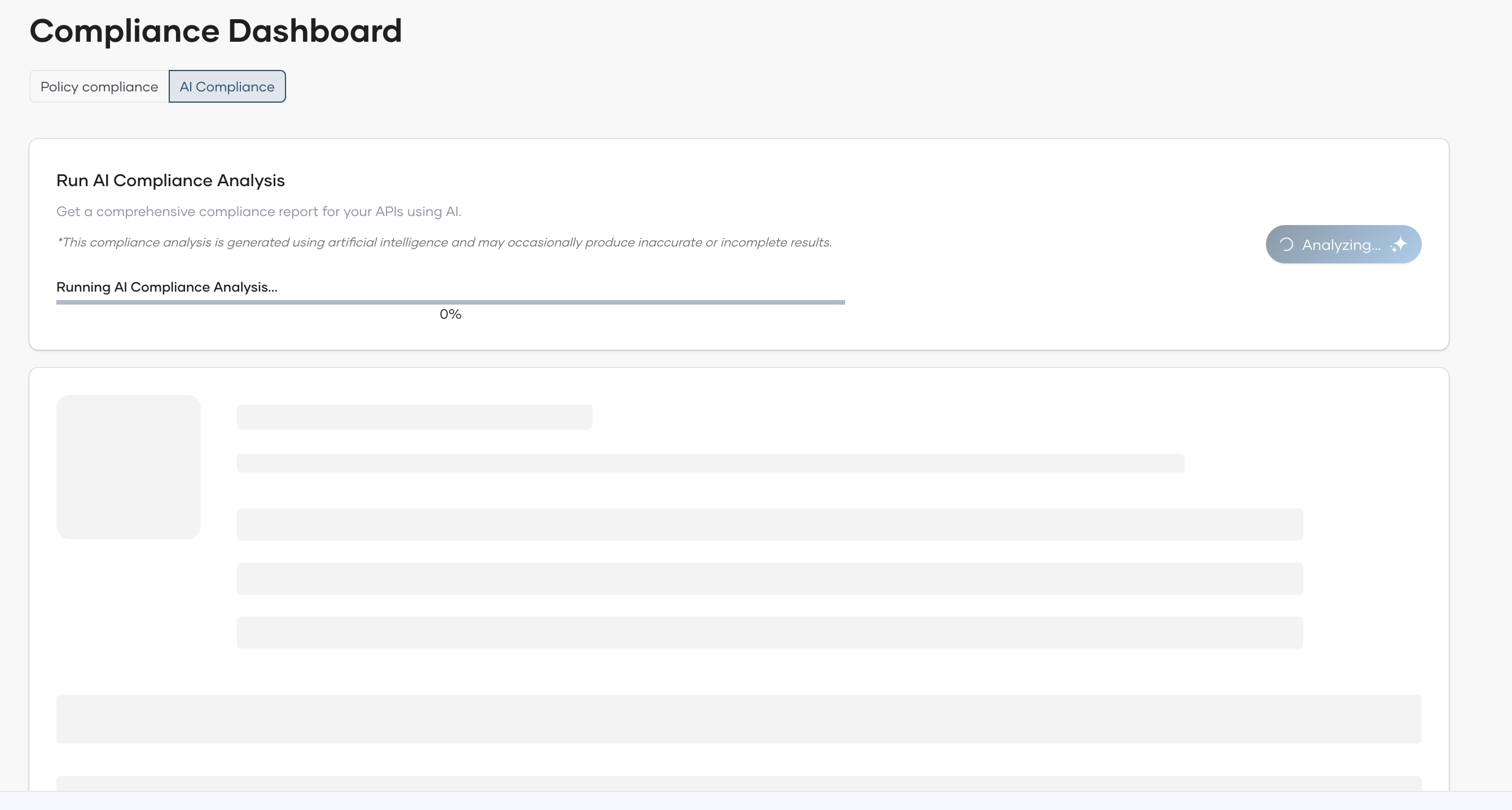
The analysis runs asynchronously. While in progress, the page shows the current stage of the analysis along with a percentage progress bar.
When complete, the Project Summary card displays:
- An overall rating (for example, Good, Fair, Poor).
- A summary describing the project's compliance with the governance guidelines.
- A list of guideline categories evaluated (such as Security Best Practices, Error Response Format, API Documentation Standards, API Versioning), each with a pass or fail status. Expand a guideline to view the detailed finding and suggested fix.
Below the Project Summary, each component is listed as an expandable card showing its individual analysis results.
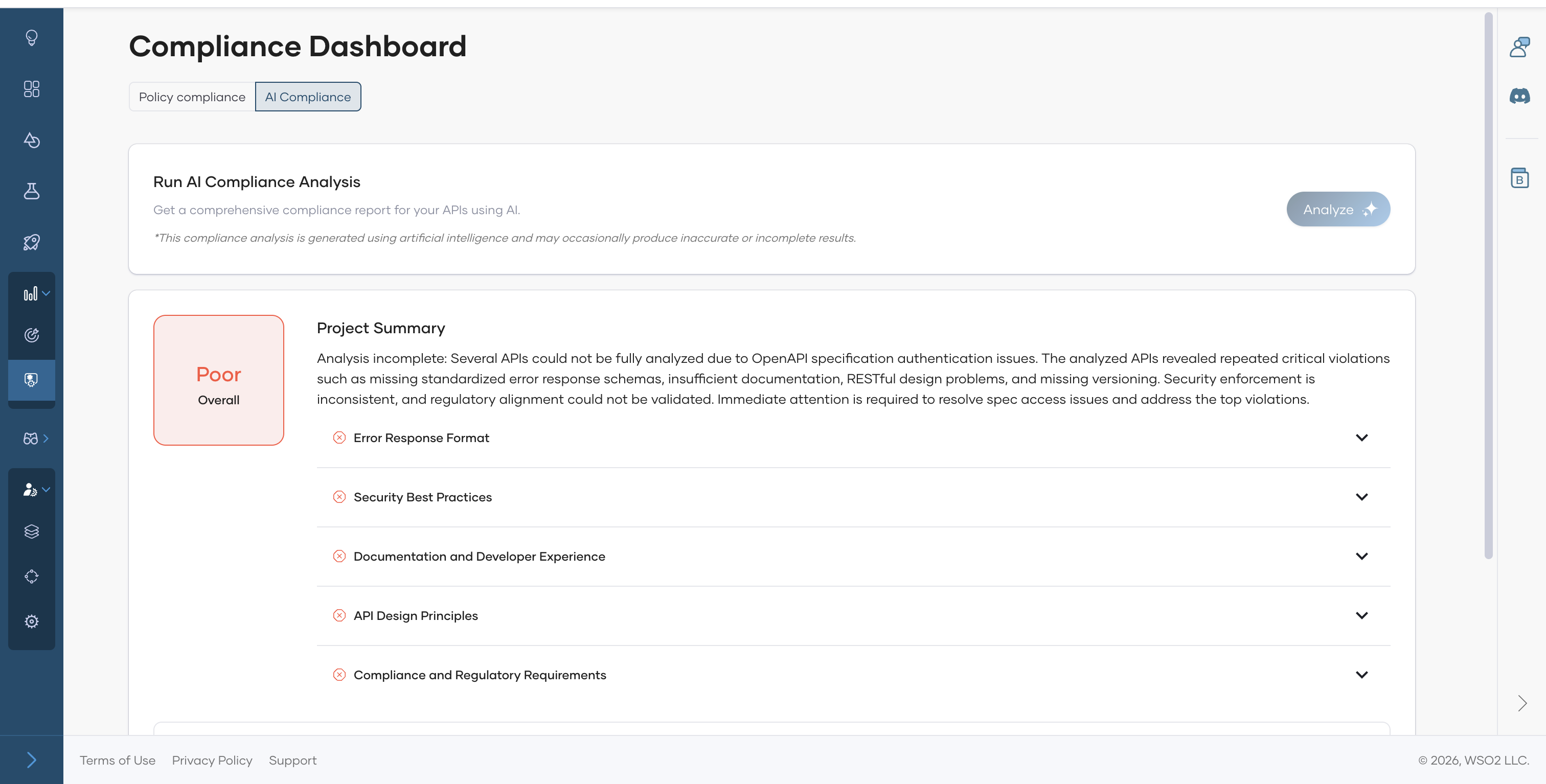
To re-run the analysis at any time, click Analyze at the top of the page.
View Component-Level Results
After a project-level analysis completes, you can drill down into per-component results. Go to the component and open Insights > Compliance > AI Compliance. There is no separate trigger at the component level.
This view shows the Component AI Compliance Analysis Results for the selected version. The API Summary card displays an overall rating, a summary, and a list of guideline categories with their pass or fail status - the same structure as the project-level summary.