Example
What you'll build
This integration demonstrates how to connect to the SAP S/4HANA Sales & Distribution Incoterms API using the ballerinax/sap.s4hana.api_sd_incoterms_srv connector. It uses an Automation entry point to periodically fetch incoterms classification records from SAP S/4HANA and logs the retrieved data for downstream processing. The complete low-code flow runs on a schedule and chains an Automation trigger → SAP Incoterms remote function call → Log output in a single canvas.
Operations used:
- listA_IncotermsClassifications: Reads the IDs and descriptions of all Incoterms classifications from the SAP S/4HANA Sales & Distribution API
Architecture
Prerequisites
- A running SAP S/4HANA system accessible over the network, with the Incoterms OData service (
api_sd_incoterms_srv) enabled and exposed via a service URL. - Valid SAP credentials (username and password) with permission to call the Incoterms API.
Setting up the SAP S/4HANA incoterms integration
New to WSO2 Integrator? Follow the Create a New Integration guide to set up your integration first, then return here to add the connector.
Adding the SAP S/4HANA incoterms connector
Step 1: Open the add connection palette
Select the + Add Connection button in the Connections section of the left sidebar to open the connector search palette.
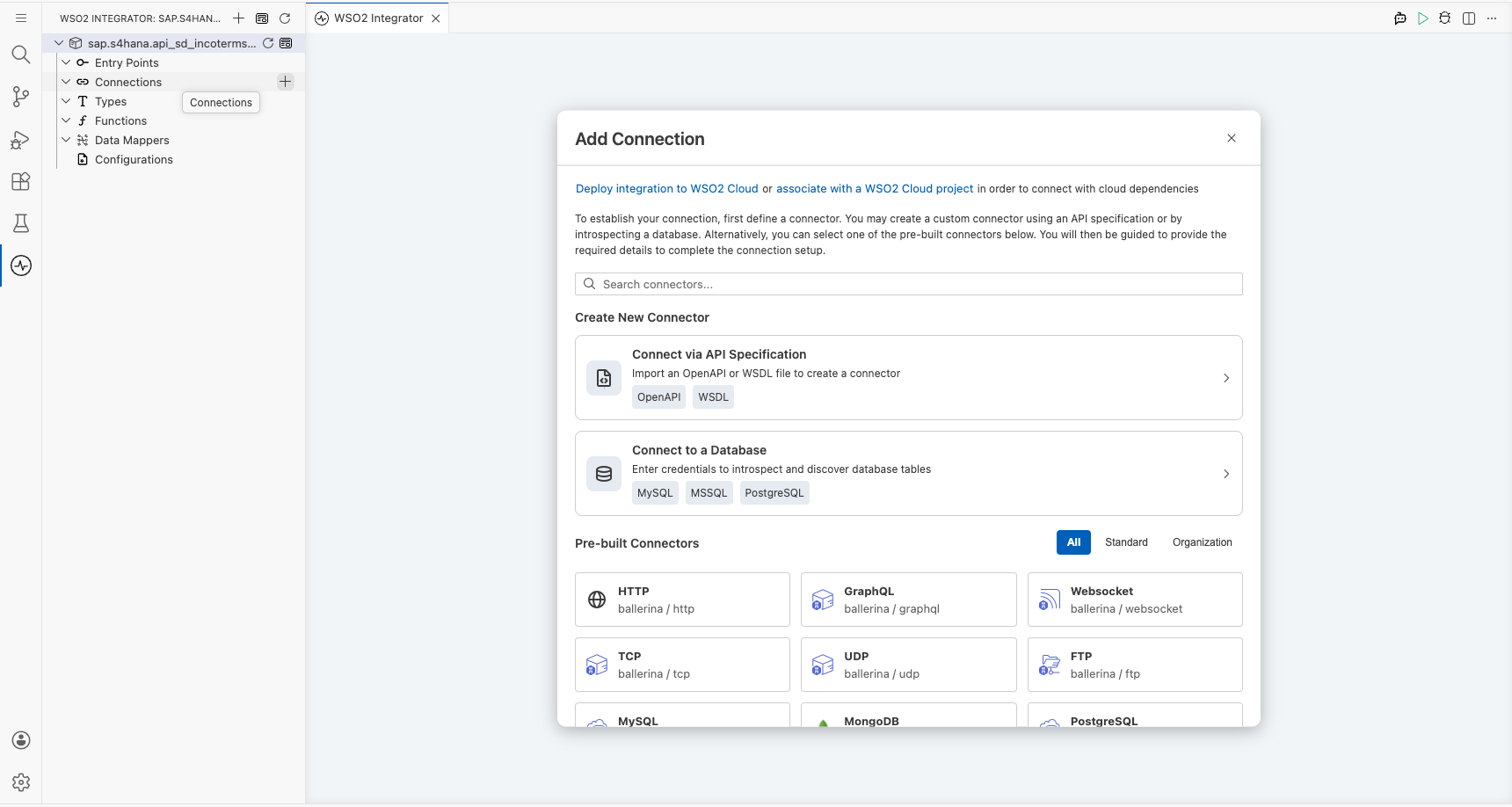
Step 2: Search for and select the sap.s4hana.api_sd_incoterms_srv connector
- In the search box, enter
incoterms(orsap.s4hanaif no results appear). - Locate the
sap.s4hana.api_sd_incoterms_srvconnector card in the results. - Select the connector card to open the connection configuration form.
Configuring the SAP S/4HANA incoterms connection
Step 3: Bind SAP S/4HANA incoterms connection parameters to configurables
For each non-boolean field visible in the connection configuration form, open its helper panel, navigate to the Configurables tab, select + New Configurable, enter a descriptive camelCase variable name and type, and select Save to auto-inject the configurable reference into the field. Repeat for every non-boolean field shown under the default auth selection.
- Hostname : The hostname of the SAP S/4HANA server that exposes the Incoterms OData service endpoint
- Config : The connection configuration record containing authentication credentials for the SAP S/4HANA API, structured as a
ConnectionConfigwith nestedCredentialsConfig:- username : The SAP system username used to authenticate requests to the Incoterms API
- password : The SAP system password associated with the username for API authentication
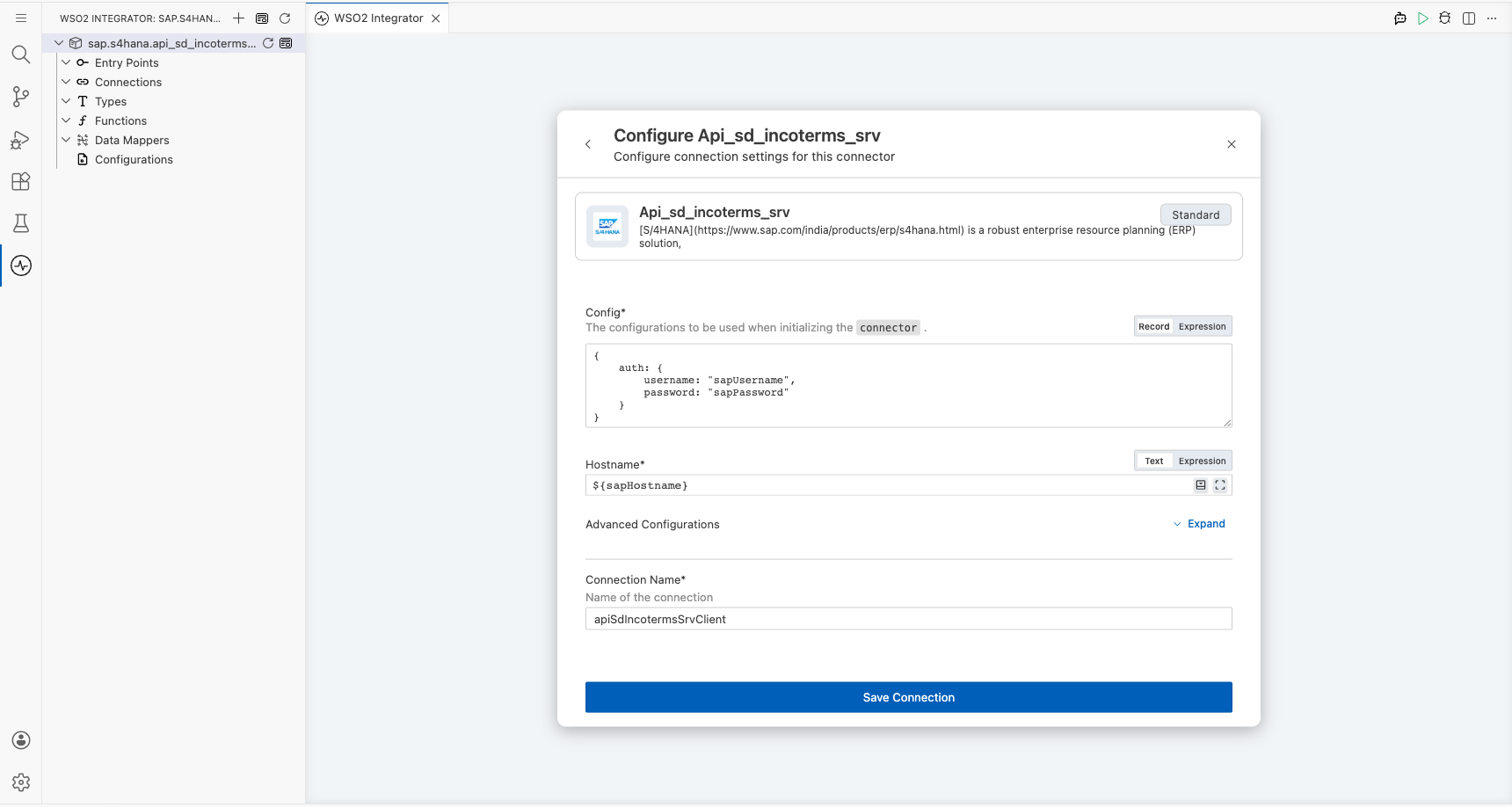
Step 4: Save the connection
Select Save (or Add) to persist the SAP S/4HANA Incoterms connection. The connector entry appears in the Connections panel on the integration design canvas.
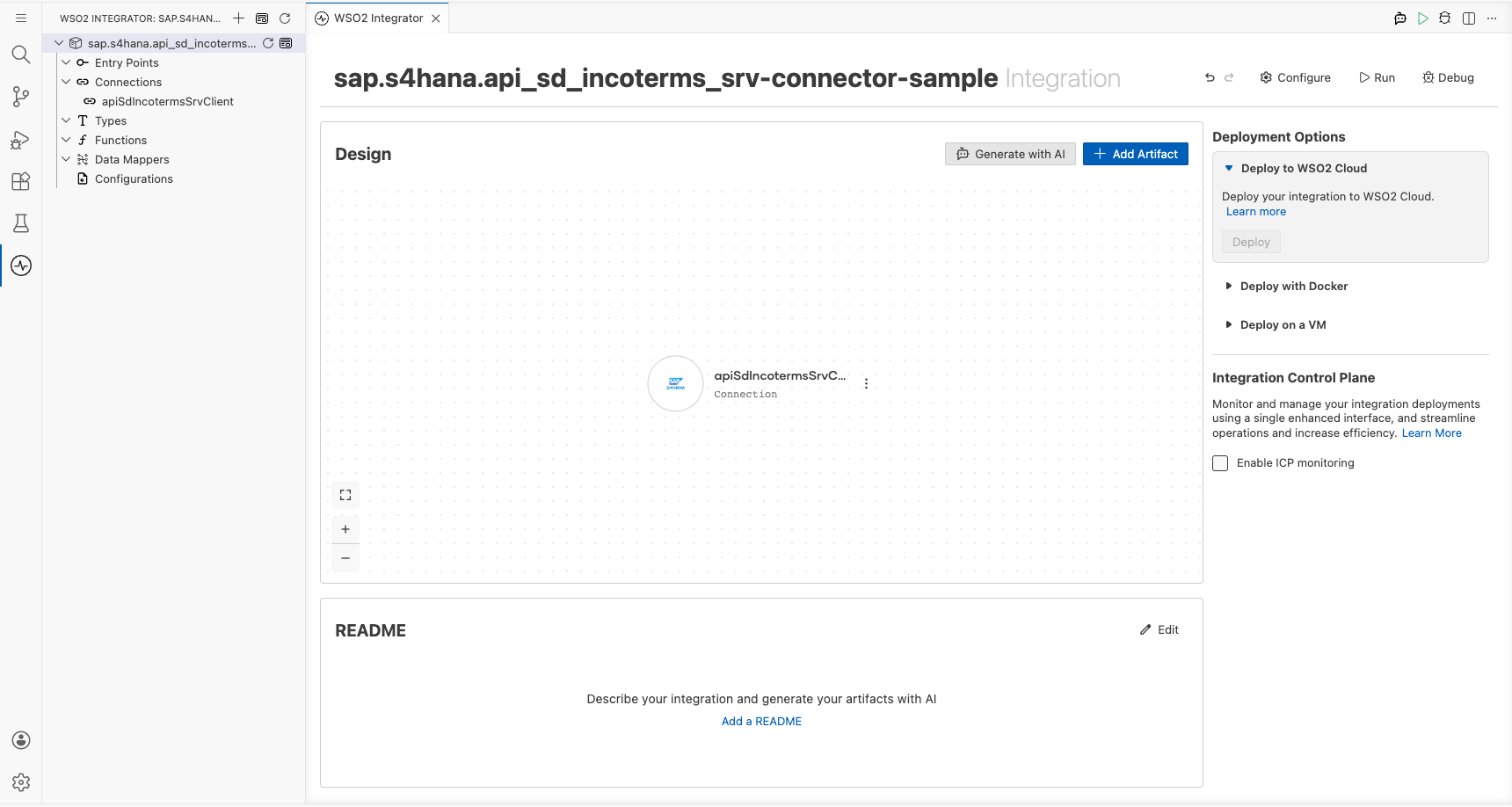
Step 5: Set actual values for your configurables
In the left panel of WSO2 Integrator, select Configurations (listed at the bottom of the project tree, under Data Mappers). Set a value for each configurable:
- sapHostname (string) : The hostname of your SAP S/4HANA system (e.g.,
my-s4hana-host.example.com) - sapUsername (string) : Your SAP system username with permission to call the Incoterms API
- sapPassword (string) : The password for the SAP system username
Configuring the SAP S/4HANA incoterms listA_IncotermsClassifications operation
Step 6: Add an automation entry point
- In the left sidebar, hover over Entry Points and select Add Entry Point (or + Add Automation).
- Select Automation in the artifact selection panel.
- Accept the default trigger settings (or set the interval to one minute) and select Create (or Save) to add the automation to the canvas.
Step 7: Expand the connection and select the listA_IncotermsClassifications operation
- Inside the automation body on the canvas, select the + (Add Step) button on the flow edge between the Start node and the Error Handler node.
- Under Connections in the node panel, select the apiSdIncotermsSrvClient connection node to expand it and reveal all available operations.
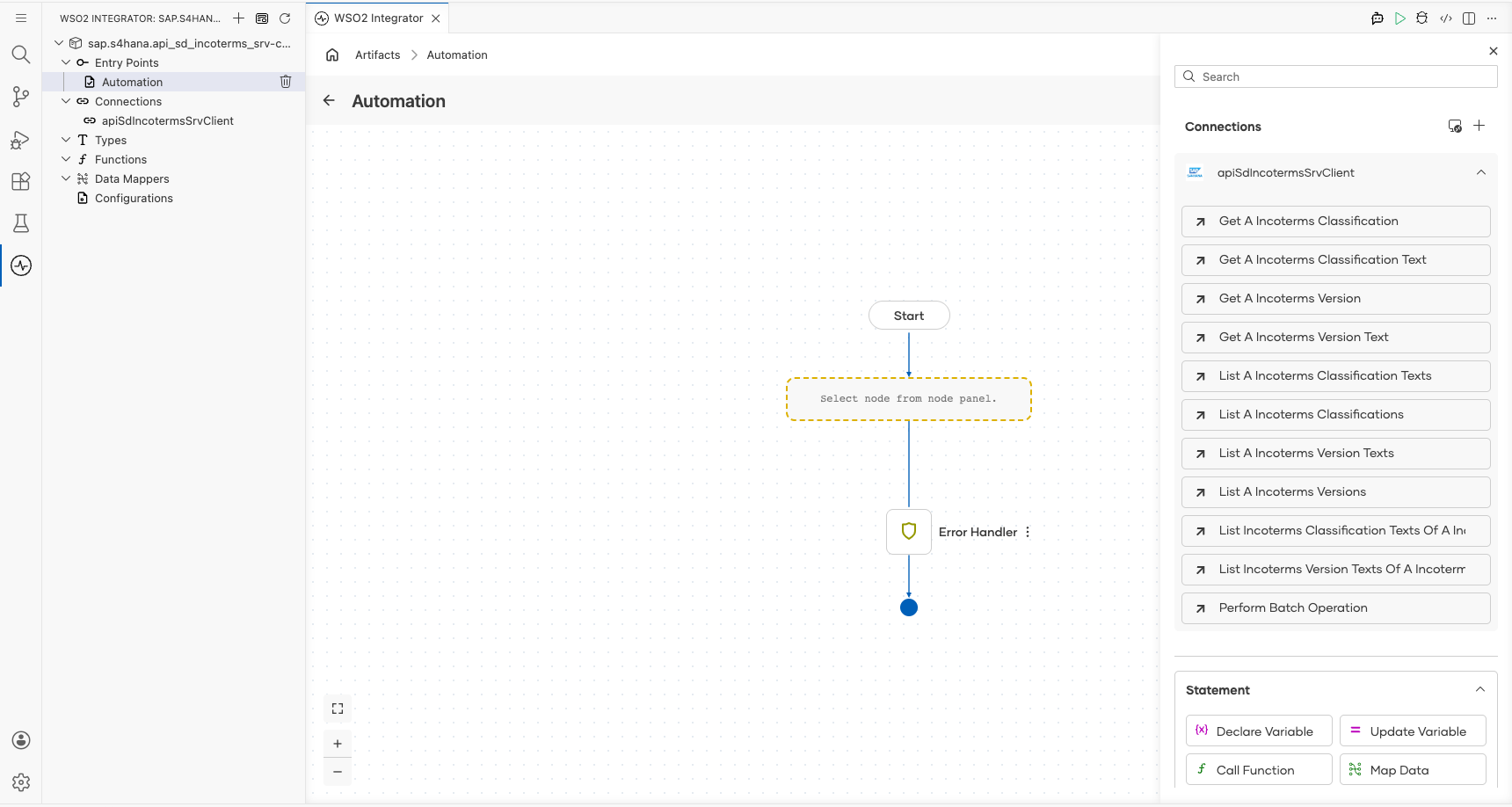
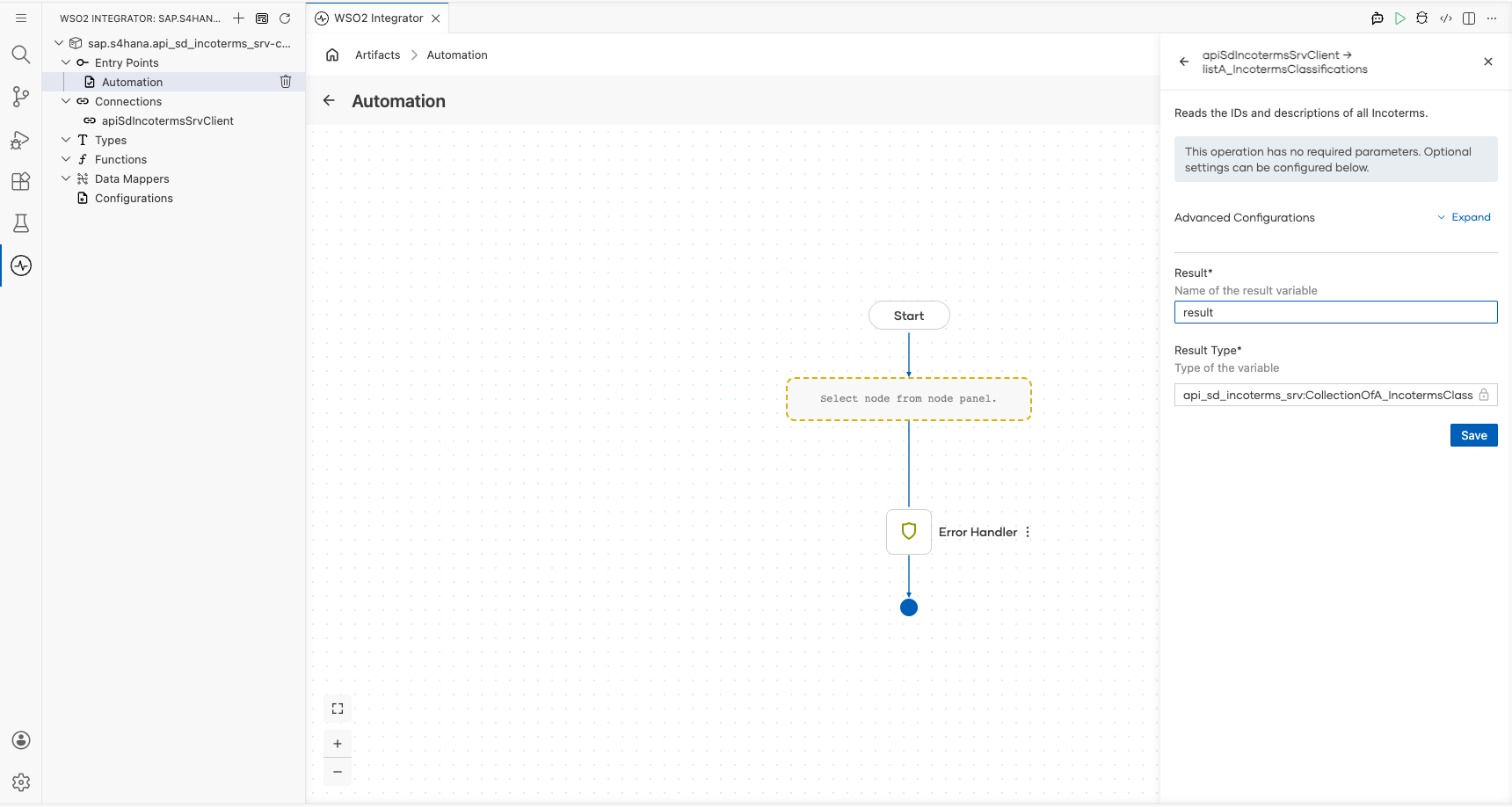
- Select listA_IncotermsClassifications from the list of available operations, then fill in the operation fields:
- Result : The local variable name to store the operation's return value, set to
result
- Select Save to add the operation step to the automation flow.
Step 8: Log the listA_IncotermsClassifications result
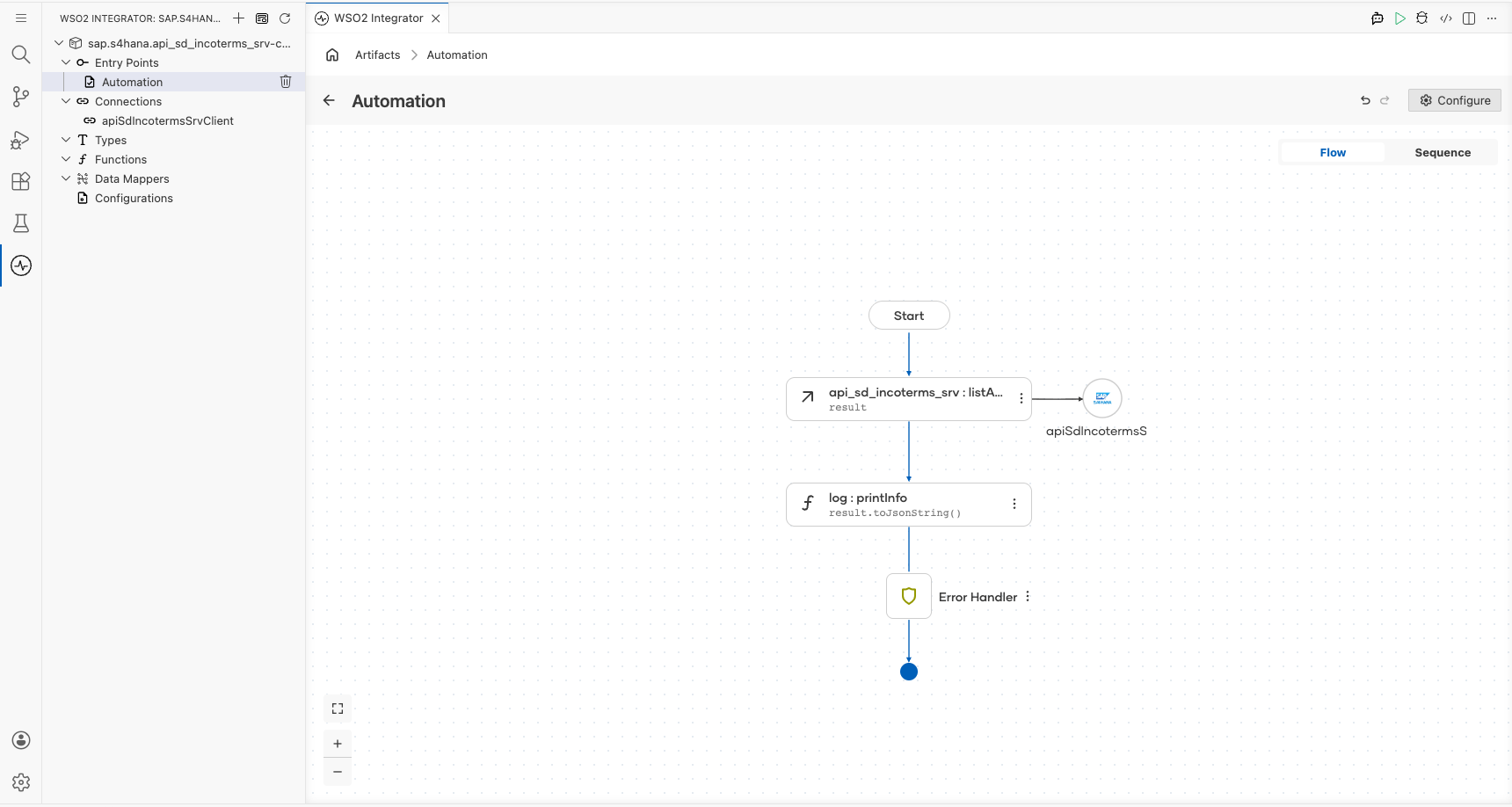
- Hover over the listA_IncotermsClassifications node on the canvas to reveal the + (Add Step) button on the connector edge between the operation and the Error Handler, then select it.
- From the node panel, expand Logging and select Log Info.
- Switch the Msg field to Expression mode and enter
result.toJsonString(). - Select Save to add the Log step to the flow. The new
log : printInfonode appears between the listA_IncotermsClassifications node and the Error Handler with no error indicator.
Try it yourself
Try this sample in WSO2 Integration Platform.

More code examples
The S/4 HANA Sales and Distribution Ballerina connectors provide practical examples illustrating usage in various scenarios. Explore these examples, covering use cases like accessing S/4HANA Sales Order (A2X) API.
-
Salesforce to S/4HANA Integration - Demonstrates leveraging the
sap.s4hana.api_sales_order_srv:Clientin Ballerina for S/4HANA API interactions. It specifically showcases how to respond to a Salesforce Opportunity Close Event by automatically generating a Sales Order in the S/4HANA SD module. -
Shopify to S/4HANA Integration - Details the integration process between Shopify, a leading e-commerce platform, and SAP S/4HANA, a comprehensive ERP system. The objective is to automate SAP sales order creation for new orders placed on Shopify, enhancing efficiency and accuracy in order management.