Example
What you'll build
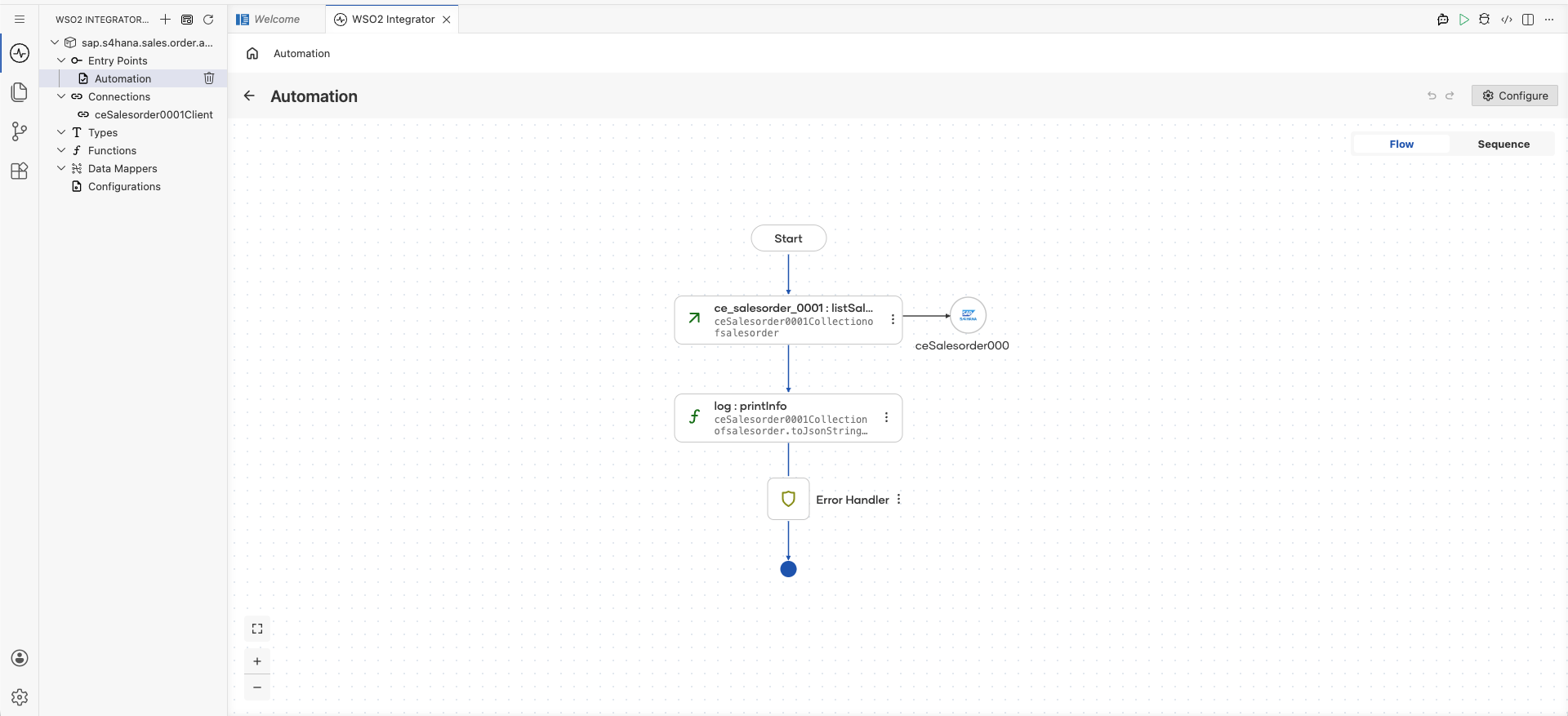
Build a WSO2 Integrator automation that connects to the SAP S/4HANA Sales Order Analytics API and retrieves a list of sales orders. The workflow calls the listSalesOrders operation and logs the result as a JSON string.
Operations used:
- listSalesOrders : Retrieves a collection of sales orders from the SAP S/4HANA Sales Order Analytics OData API
Architecture
Prerequisites
- Access to an SAP S/4HANA system with the Sales Order Analytics OData API enabled
- SAP authentication token and hostname
Setting up the sap.s4hana.ce_salesorder_0001 integration
New to WSO2 Integrator? Follow the Create a New Integration guide to set up your integration first, then return here to add the connector.
Adding the sap.s4hana.ce_salesorder_0001 connector
Step 1: Search and select the connector
In the project overview canvas, select the Connectors section to open the connector palette. In the search box, enter ce_salesorder_0001 to filter connectors, then select the sap.s4hana.ce_salesorder_0001 connector card.
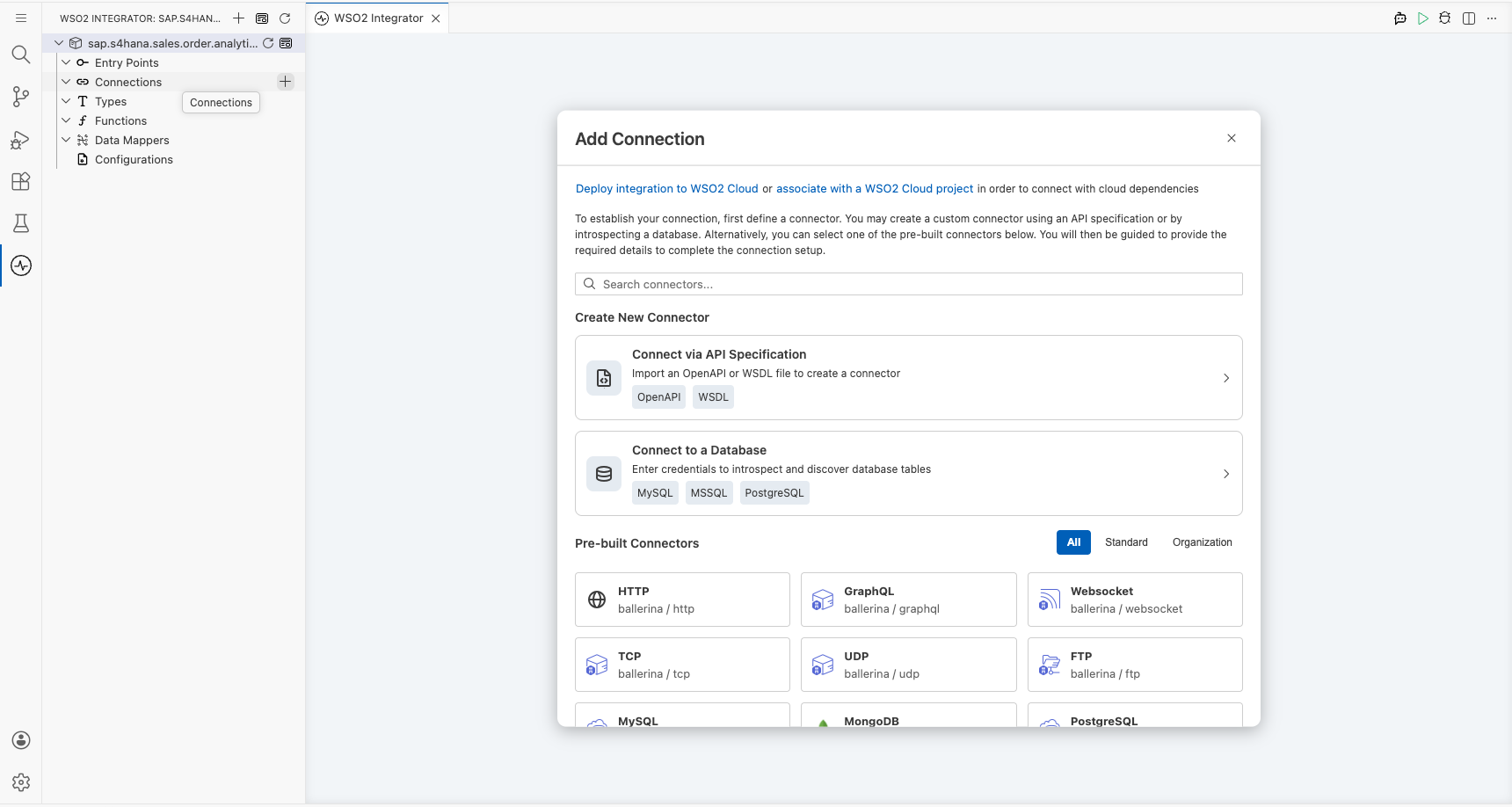
Configuring the sap.s4hana.ce_salesorder_0001 connection
Step 2: Fill in the connection parameters
Configure the connection form by binding each field to a configurable variable:
- connectionName : Enter
ceSalesorder0001Clientas the connection name - config : Set to
{auth: {token: sapAuthToken}}in Expression mode, referencing thesapAuthTokenconfigurable variable - hostname : Set to
${sapHostname}, referencing thesapHostnameconfigurable variable for the SAP system hostname
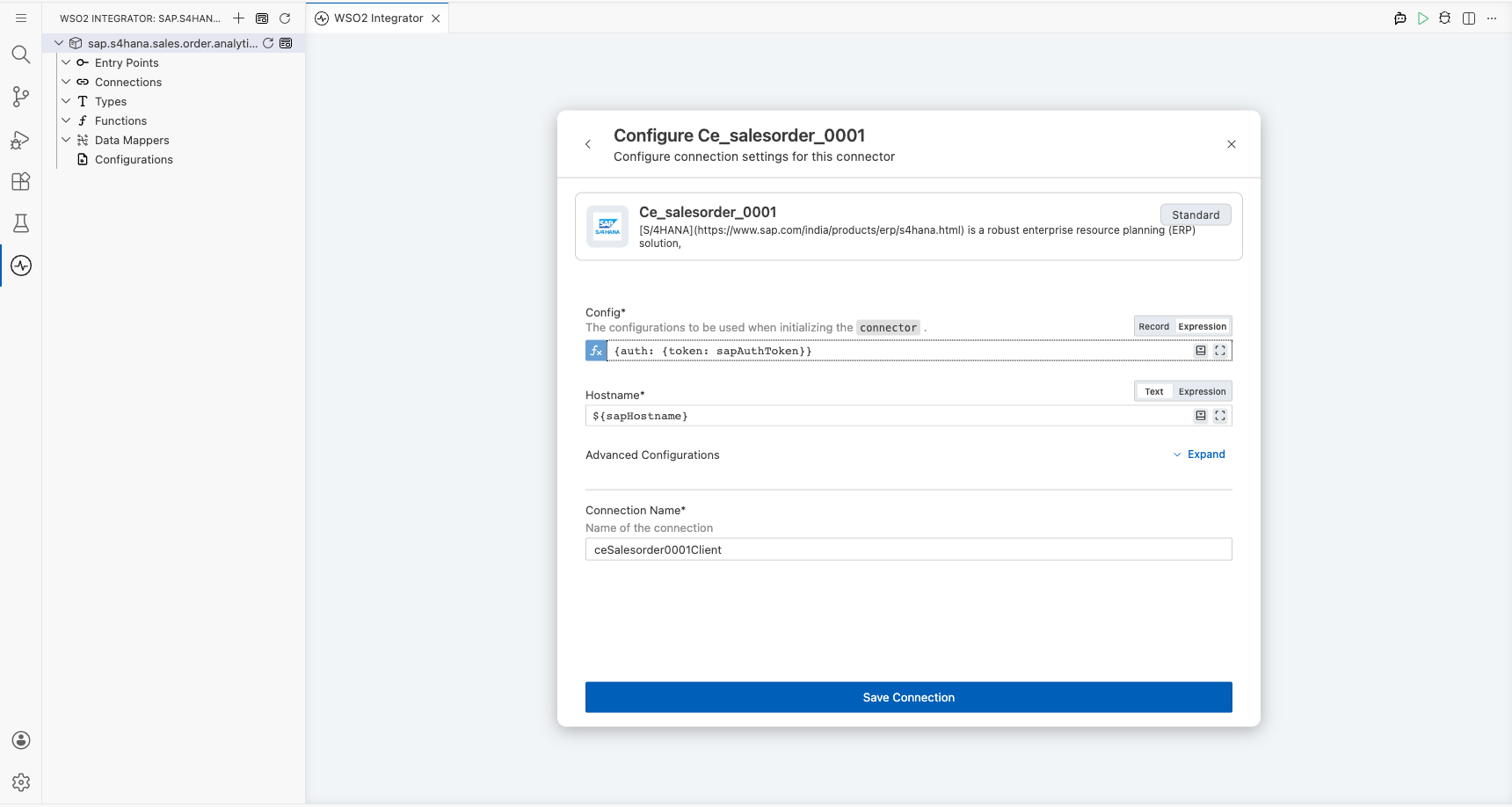
Step 3: Save the connection
Select Save to create the connection. The canvas updates to show the ceSalesorder0001Client connection card in the Connections panel.
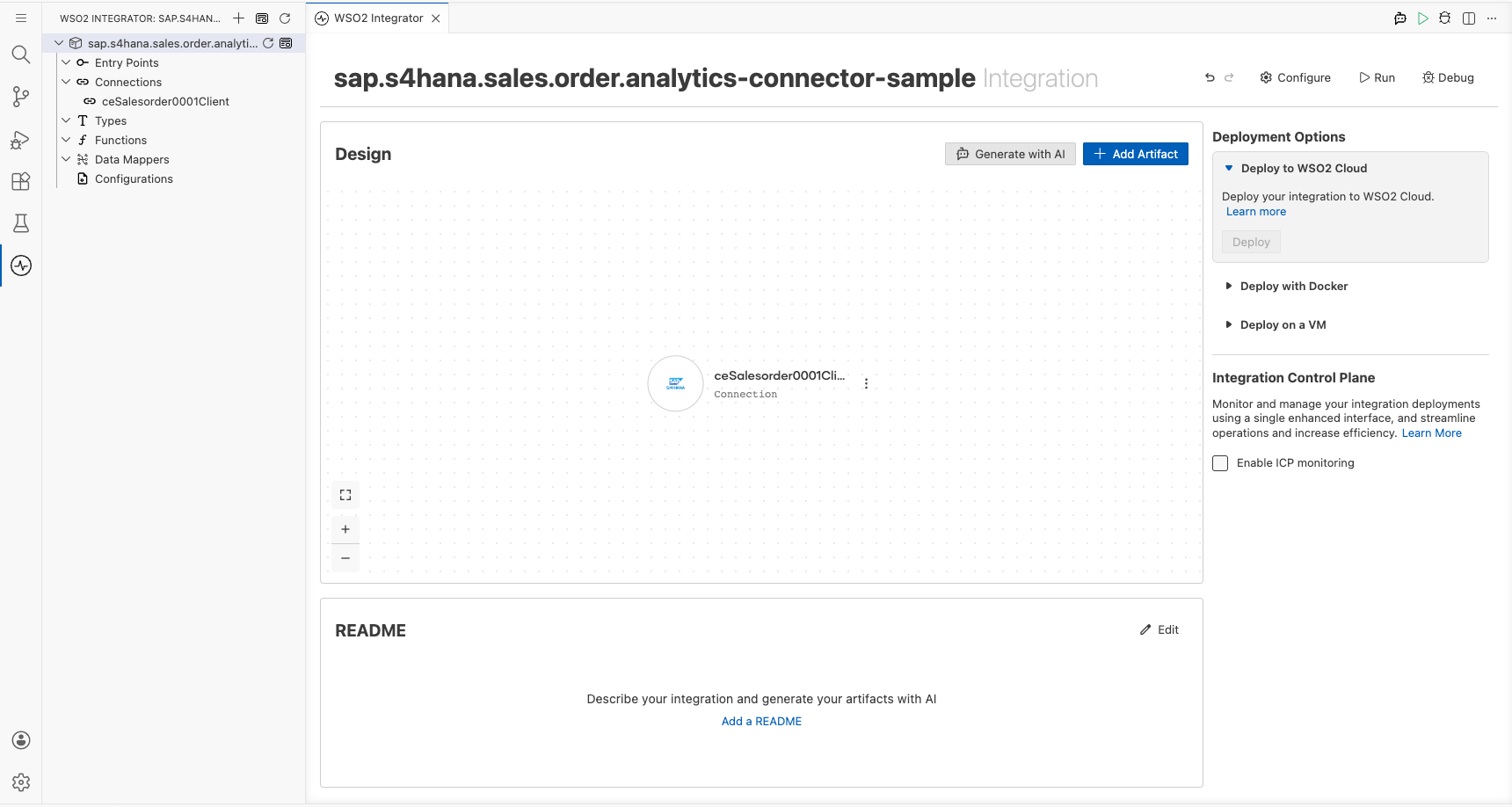
Step 4: Set actual values for your configurables
- In the left panel, select Configurations.
- Set a value for each configurable listed below.
- sapHostname (string) : The hostname of your SAP S/4HANA system
- sapAuthToken (string) : The SAP authentication token used to authorize API requests
Configuring the sap.s4hana.ce_salesorder_0001 listSalesOrders operation
Step 5: Add an automation entry point
In the project overview canvas, select Add Entry Point, choose Automation as the entry point type, and keep the default name main. Select Save to create the Automation entry point. The canvas shows an empty automation flow with a Start node.
Step 6: Select and configure the listSalesOrders operation
- Select the + button on the Start node to add a new step.
- In the action panel, expand the ceSalesorder0001Client connection to view available operations.
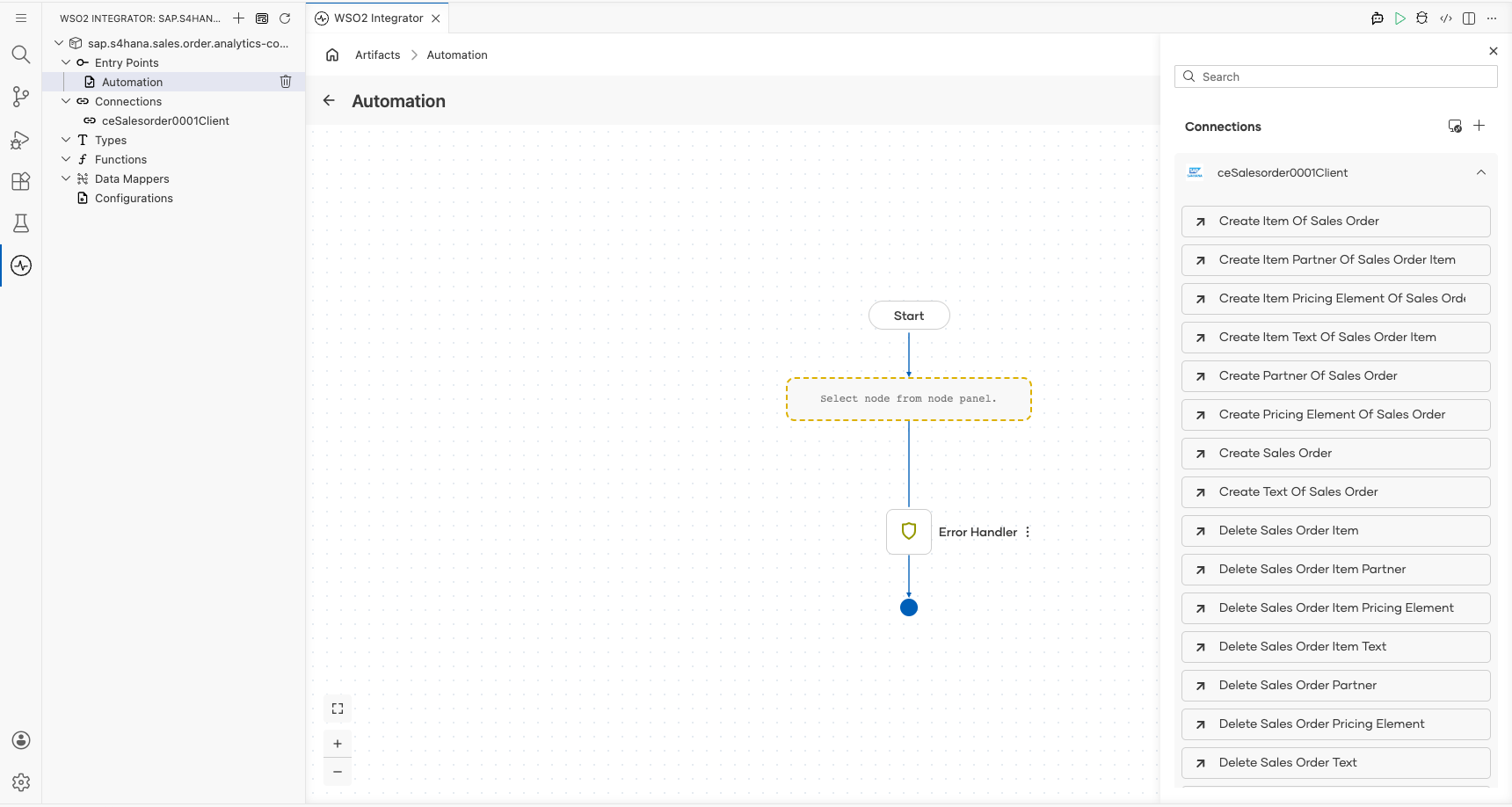
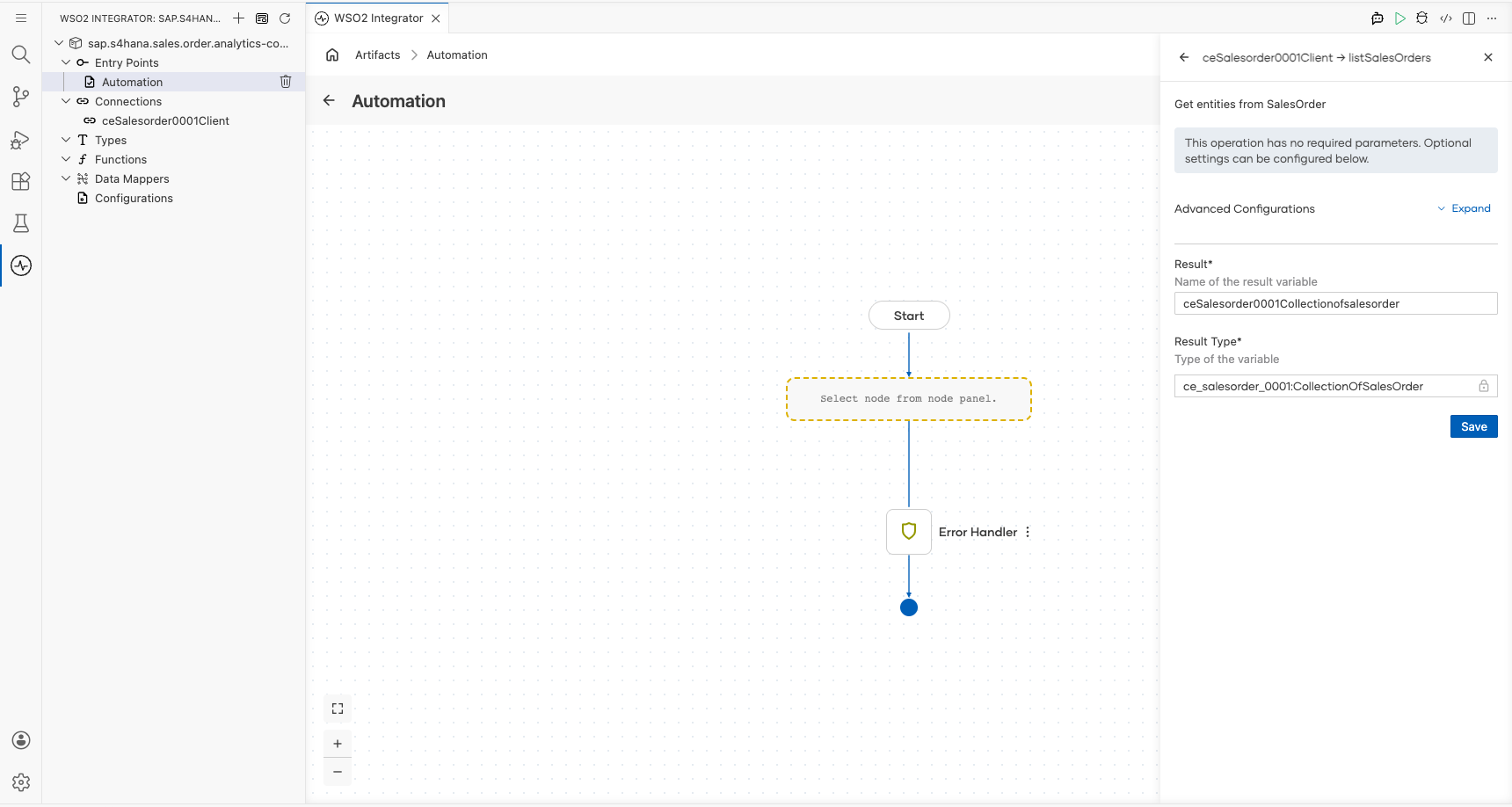
- Select the listSalesOrders operation from the list and configure the following fields:
- resultVariable :
ceSalesorder0001Collectionofsalesorder; the variable that stores the returned sales order collection - resultType :
ce_salesorder_0001:CollectionOfSalesOrder; the expected result type for the response
Leave the optional query parameters (filter, orderby, select, skip, top) empty. Select Save to add the operation to the flow.
Try it yourself
Try this sample in WSO2 Integration Platform.
