Setup Guide
This guide walks you through provisioning a Microsoft 365 tenant, registering an Azure AD application, and obtaining the OAuth 2.0 credentials needed to call the SharePoint Sites APIs.
Prerequisites
- An active Microsoft account with access to the Microsoft 365 admin portal
- A Microsoft 365 Business Basic, Business Standard, Business Premium, or Enterprise (E1, E3, or E5) subscription — SharePoint Online and its Graph API surface are restricted to these plans
- Access to the Microsoft Azure Portal with permission to register applications in Microsoft Entra ID
- Administrator privileges to grant tenant-wide consent for Microsoft Graph application permissions
Create a Microsoft account and set up SharePoint access
-
Navigate to the Microsoft 365 website and sign up for an account, or log in if you already have one.
-
Ensure your subscription includes SharePoint Online. SharePoint and its API capabilities are available on Microsoft 365 Business Basic, Business Standard, Business Premium, and Enterprise (E1, E3, or E5) plans.
Register an application and generate credentials
-
Log in to the Microsoft Azure Portal using your Microsoft 365 account credentials.
-
In the top search bar, select Microsoft Entra ID.
-
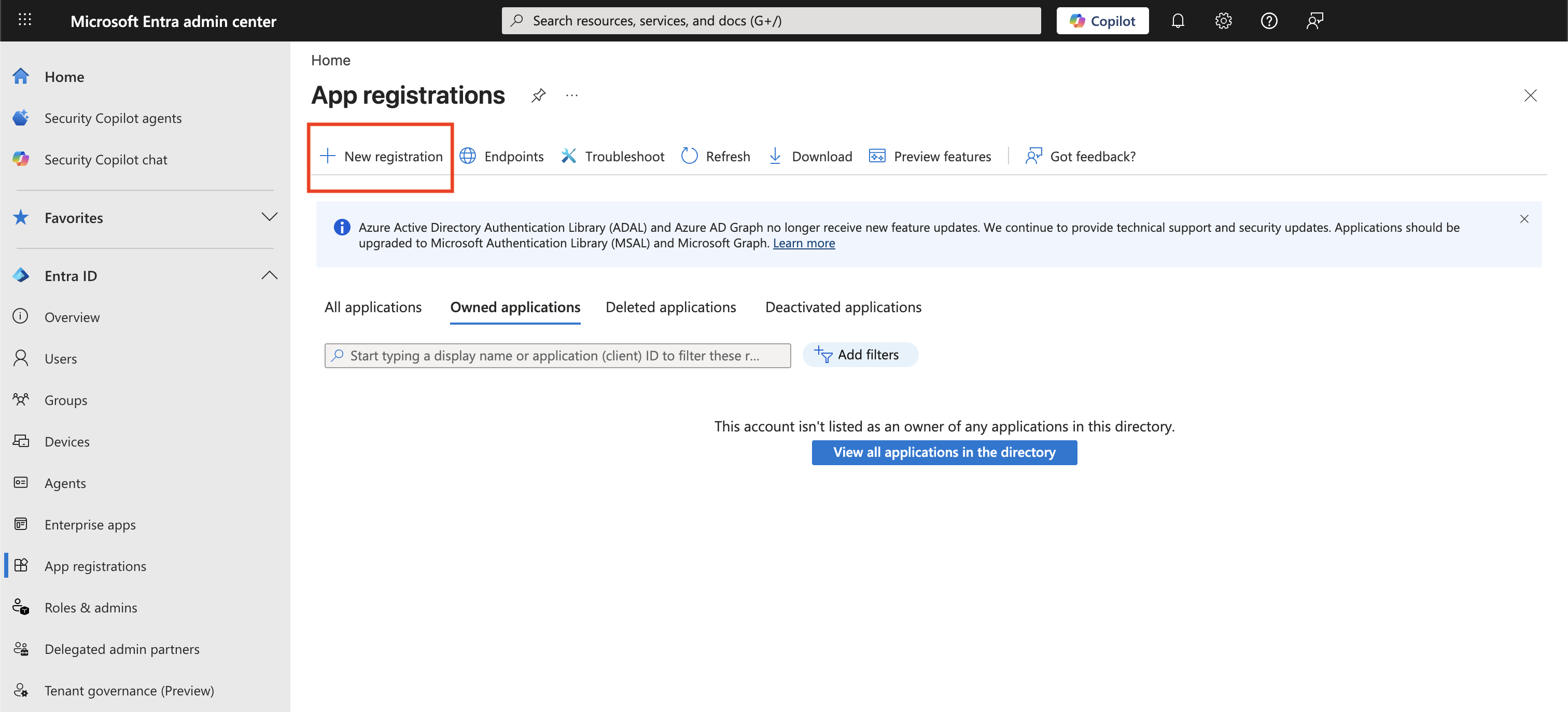
In the left panel, navigate to App registrations and click New registration.
-
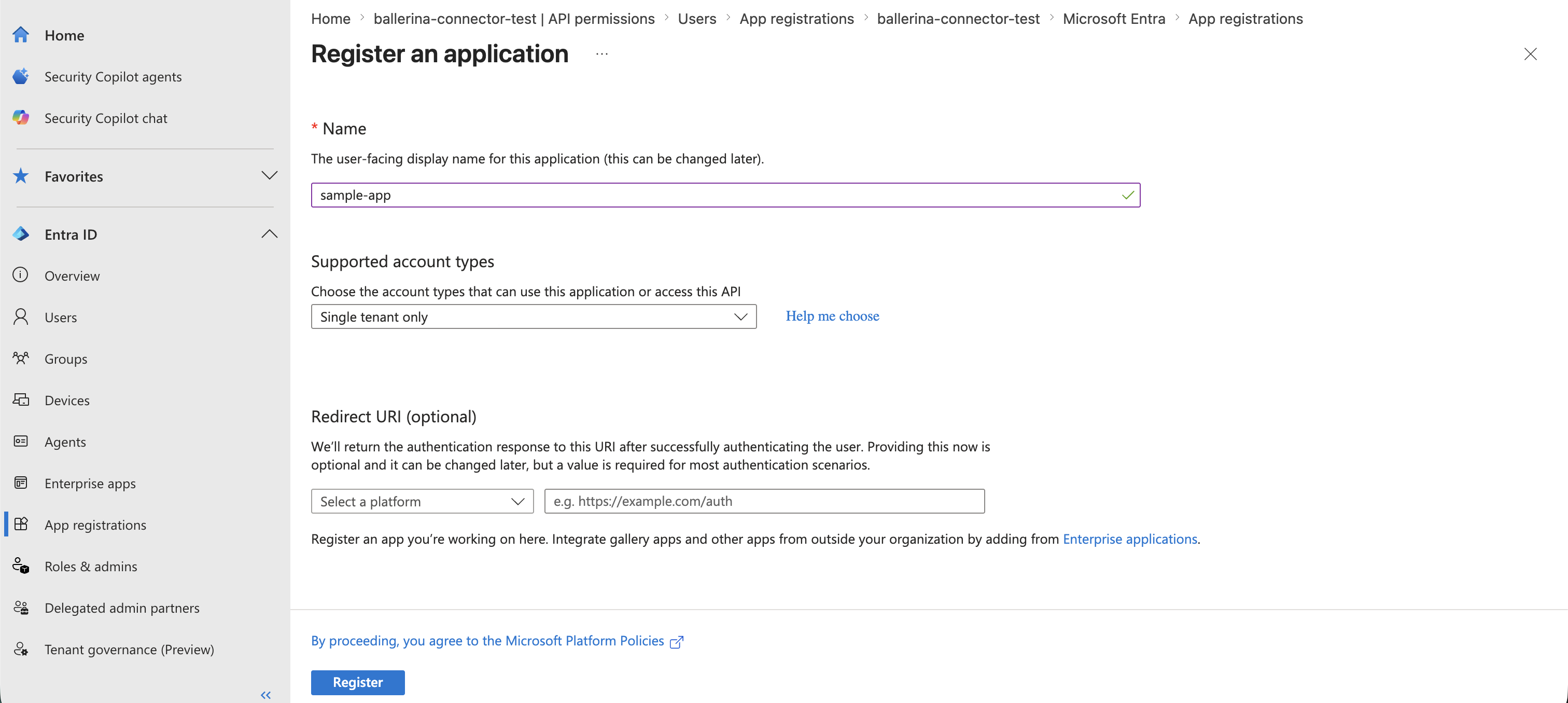
Enter a name for your application, select the appropriate Supported account types (e.g., "Single tenant only"), and click Register.
-
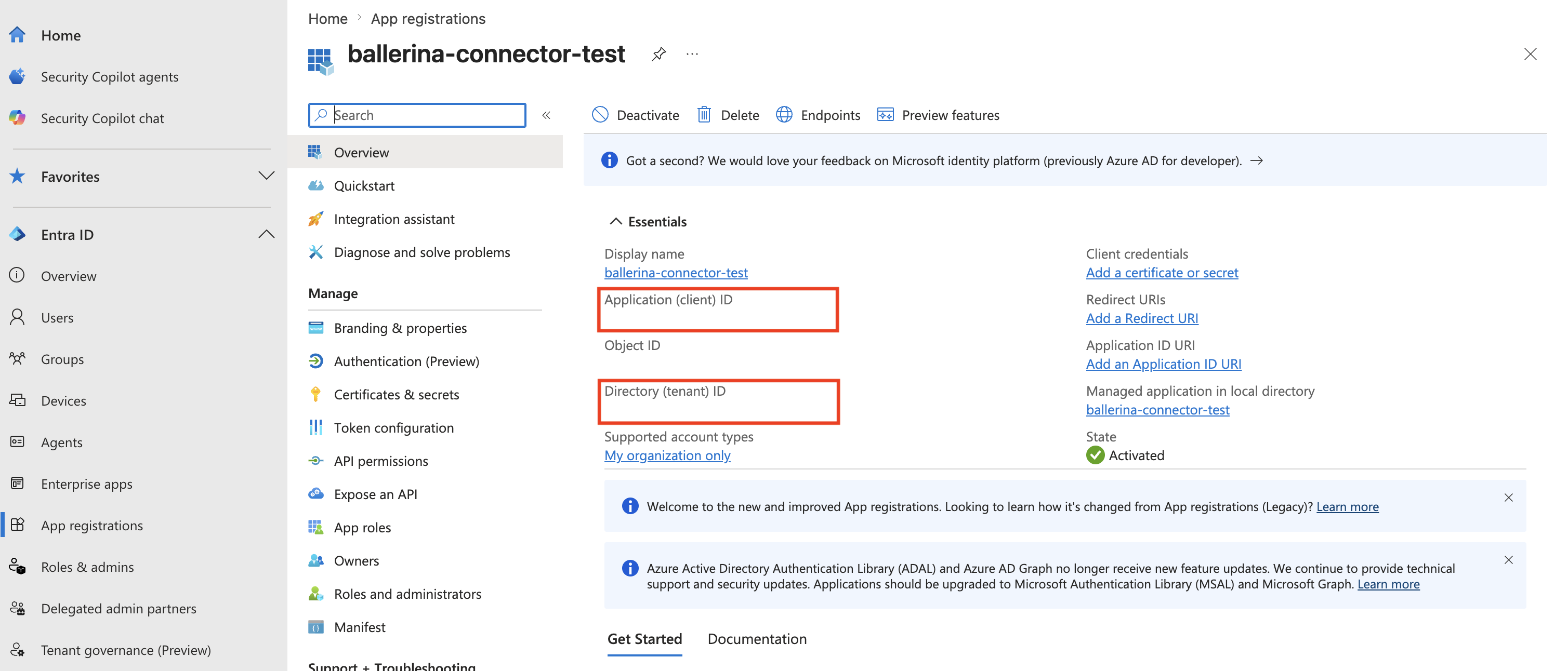
Once the application is registered, copy the Application (client) ID and Directory (tenant) ID from the Overview page.
-
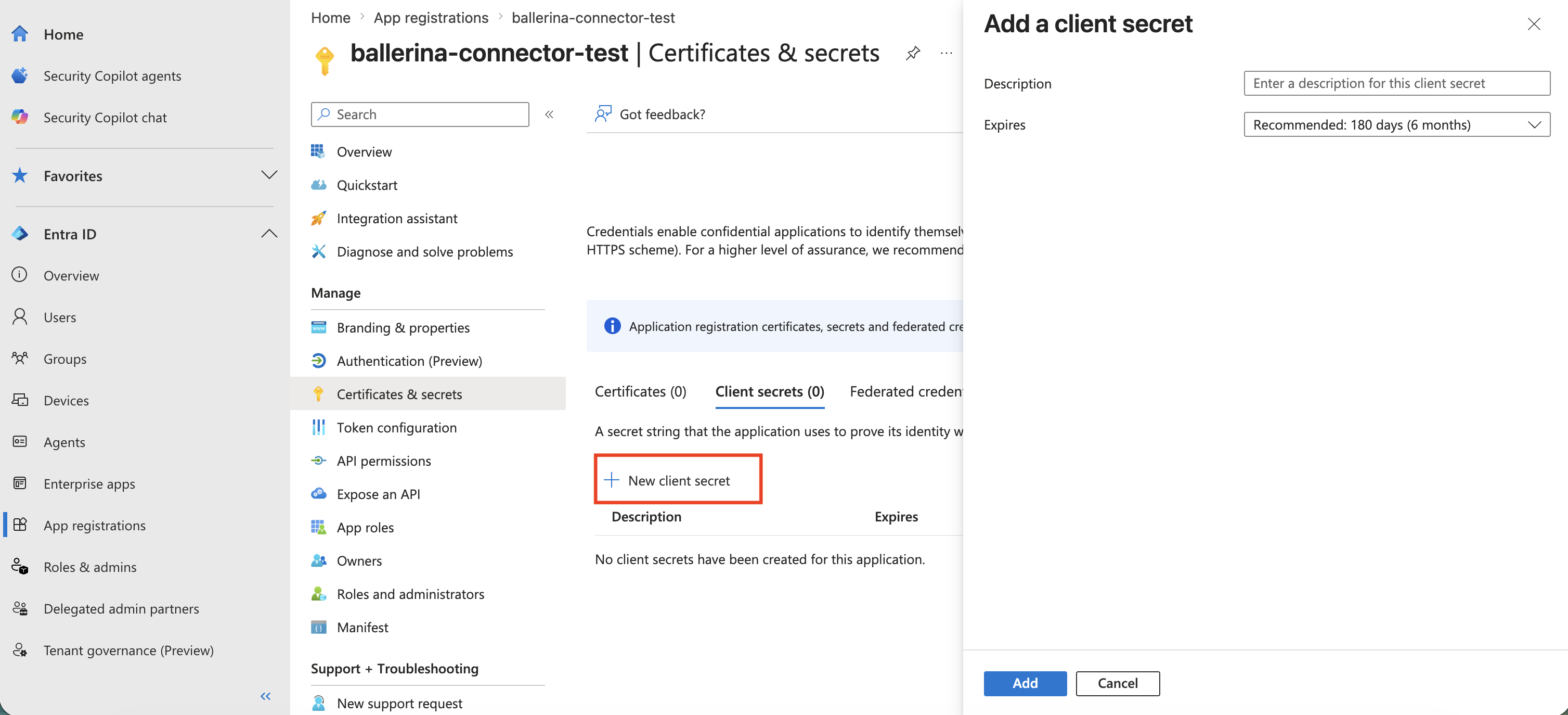
Navigate to Certificates & secrets in the left panel, click New client secret, provide a description and expiry period, then click Add. Copy the generated client secret value immediately — it cannot be retrieved later.
Configure API permissions
-
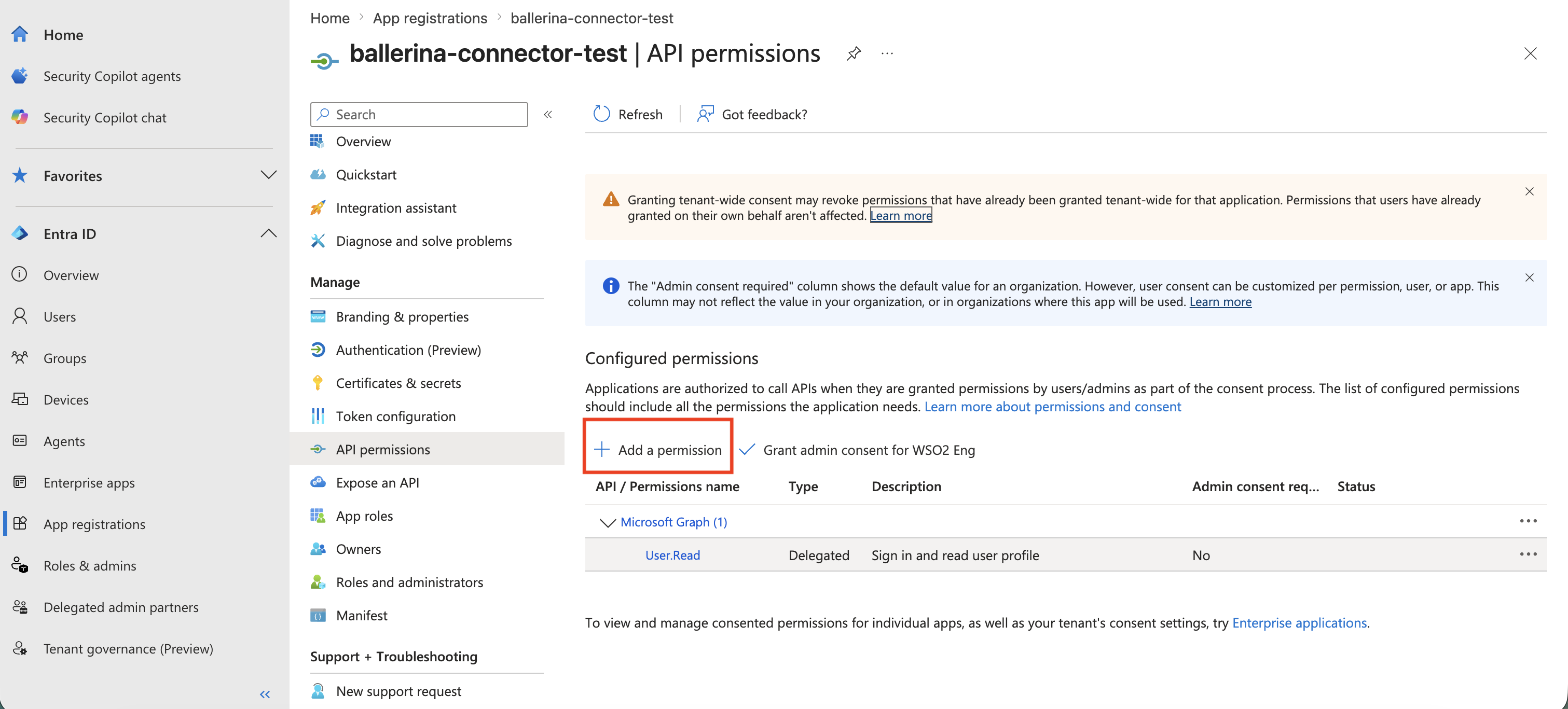
Navigate to API permissions in the left panel and click Add a permission.
-
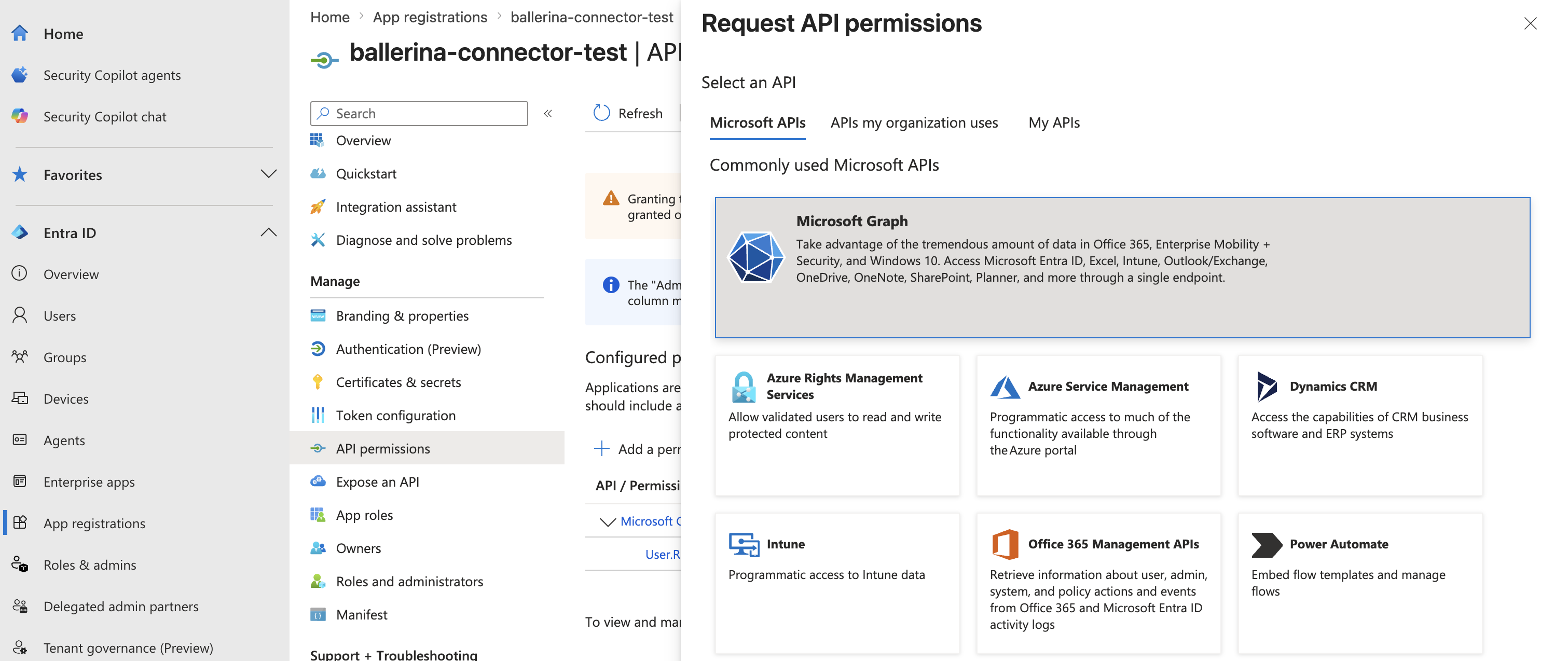
Select Microsoft Graph from the available API options.
-
Choose Application permissions, then search for and add the permissions that match your use case before clicking Add permissions.
Permission Operations covered Sites.Read.AllRead sites, lists, columns, content types, drives, analytics Sites.ReadWrite.AllCreate and update lists, list items, drives, and content Sites.Manage.AllUpdate site properties, create/delete columns and content types Sites.FullControl.AllManage site permissions 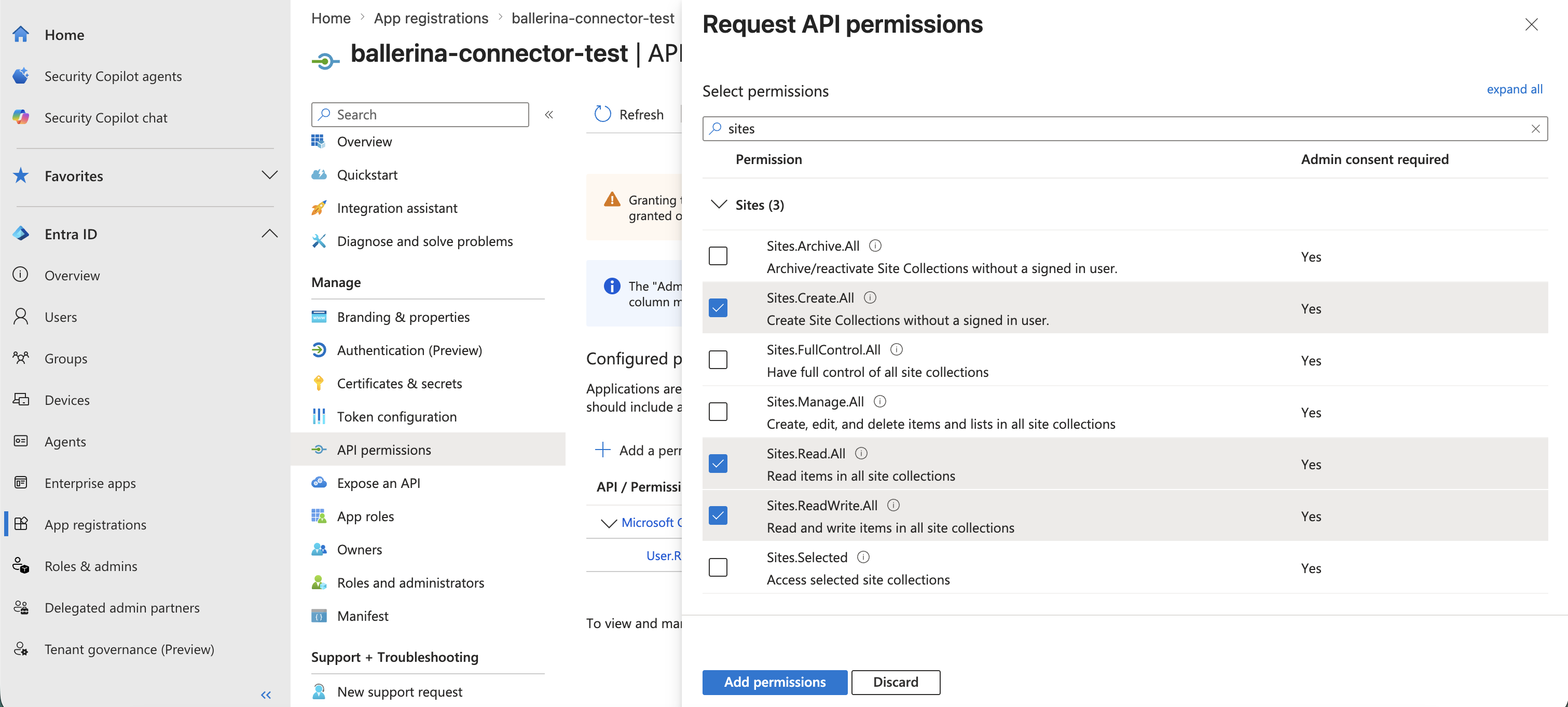 tip
tipGrant only the permissions your application actually requires. For read-only use cases,
Sites.Read.Allis sufficient. For full connector coverage, add all four. -
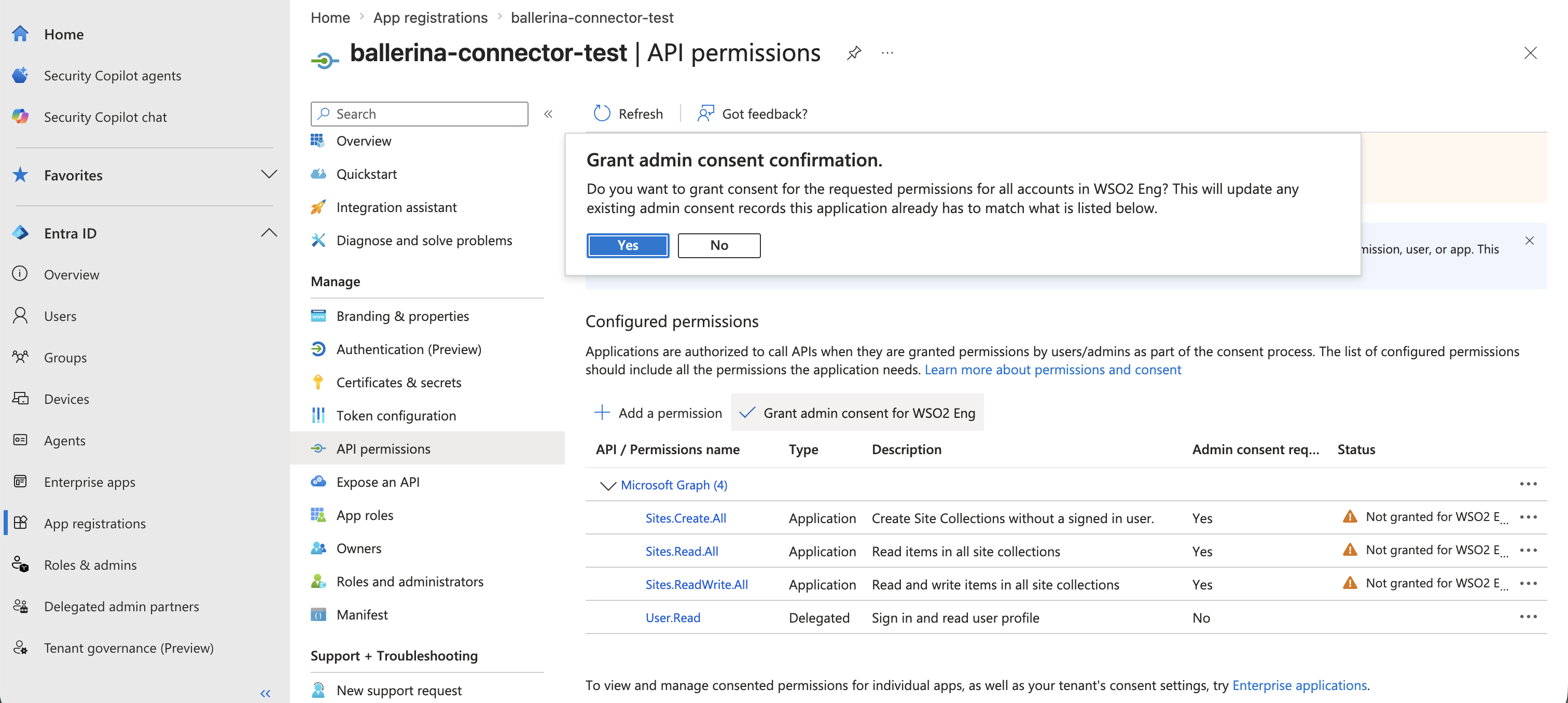
Click Grant admin consent to approve the permissions for your organization.
Construct the token URL
Build the OAuth 2.0 tokenUrl from the Directory (tenant) ID captured earlier:
https://login.microsoftonline.com/<TENANT_ID>/oauth2/v2.0/token
Use the scope https://graph.microsoft.com/.default when requesting tokens. This scope returns the union of all application permissions that were granted admin consent on the registered app.
Next steps
- Action Reference - Available operations