Raise SAP Business One Purchase Requests for Low-Stock Items
Time: About 25 minutes | What you'll build: A scheduled automation that finds items running low on stock in SAP Business One, raises a purchase request for each, and emails the procurement team, with no code to write.
Warehouses run out of stock quietly. Nobody notices a shortage until an order can't be fulfilled. In this guide you build a scheduled automation that watches SAP Business One's inventory for you: it finds items below a stock threshold, raises a purchase request in SAP Business One for each one, and emails procurement so the reorder doesn't wait on someone remembering to check.
How it works
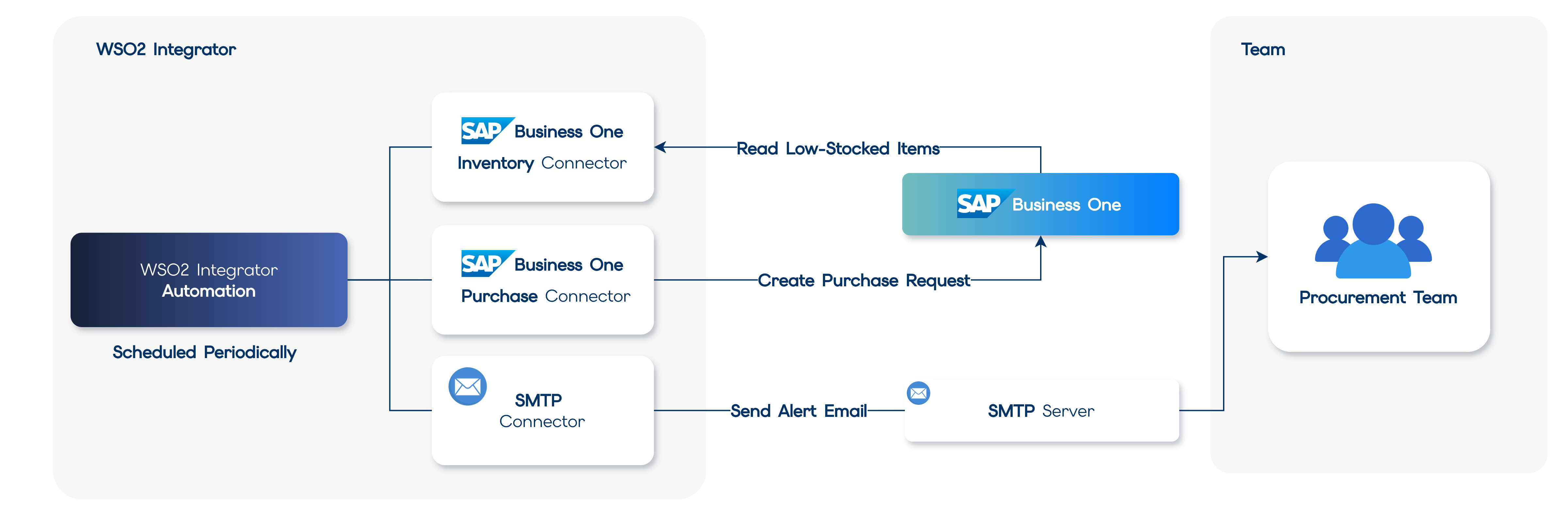
The WSO2 Integrator Scheduler invokes the automation periodically, and each run follows the same short flow:
- Read
Itemsfrom the SAP Business One Service Layer, filtered to those below the reorder threshold. - If nothing is low, log a note and stop.
- Otherwise, for each low-stock item, raise a purchase request in SAP Business One and email procurement.
- Log a one-line summary of how much work the run did.
Before you begin
- A working WSO2 Integrator environment. Choose the path that fits how you want to work:
- Cloud setup to launch WSO2 Integrator in a browser-based cloud editor.
- Local setup to install and launch the WSO2 Integrator IDE on your machine.
- Access to an SAP Business One system with the Service Layer component running (SAP Business One for SAP HANA, or SAP Business One on Microsoft SQL Server, version 9.3 PL10 or later). If you do not have one, ask your SAP administrator.
- An SMTP-enabled email account to send the procurement alerts (for example, Gmail with an App Password).
Build the automation
Build the flow in the Visual Designer, or switch to the Ballerina Code tab to see the equivalent source the designer generates for you.
- Visual Designer
- Ballerina Code
Step 1: Create the automation
An automation runs on a schedule with no inbound request, which makes it the right artifact for a recurring stock check.
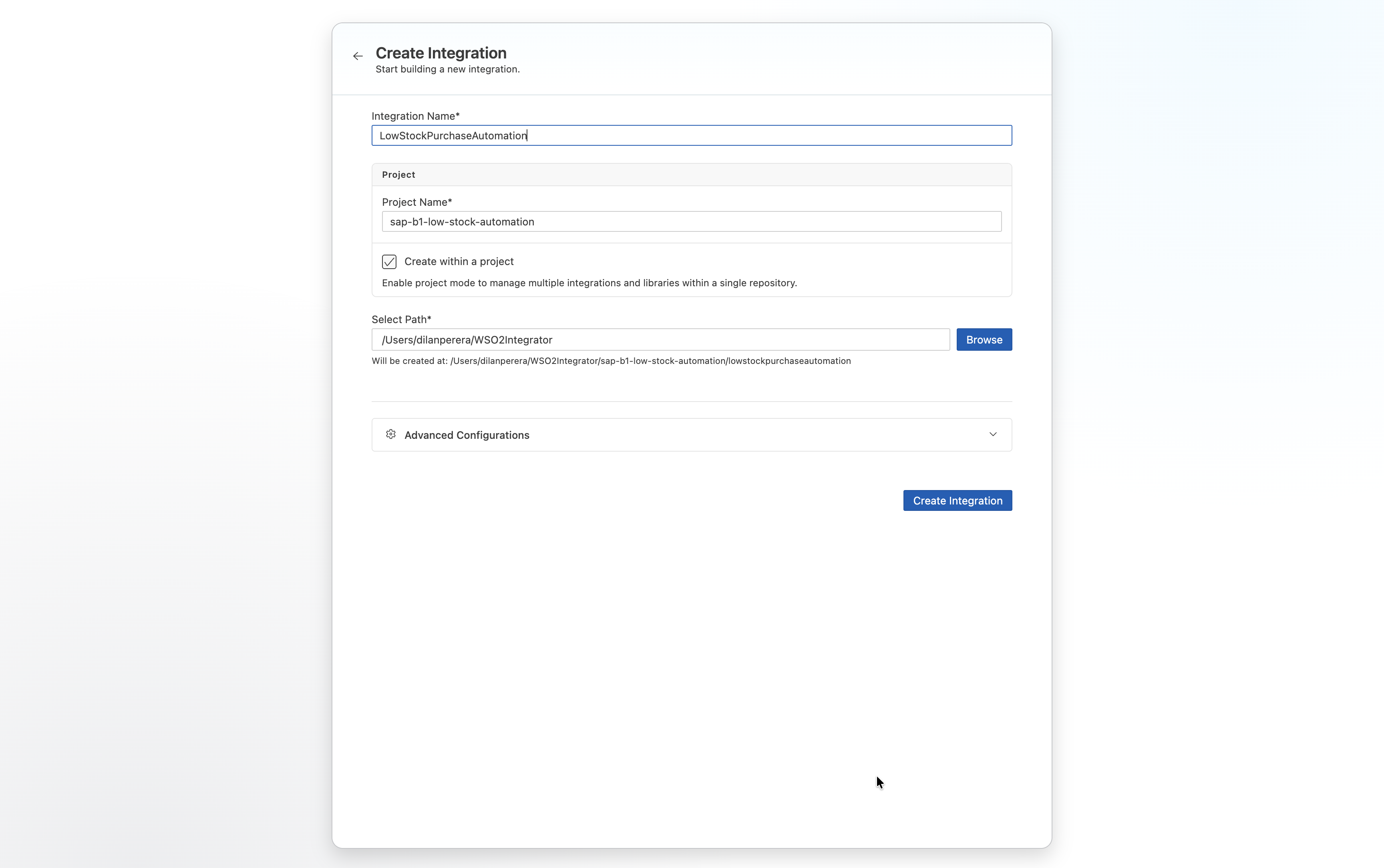
- Create a new integration named
LowStockPurchaseAutomationin a project namedsap-b1-low-stock-automation. - Add an Automation artifact to the integration.
You land in the flow editor with a single Start node, the entry point the scheduler will call.
Step 2: Connect to SAP Business One
SAP Business One is not (yet) a built-in connector wizard like the database and email connectors, so you add it the same way you would add any Ballerina Central connector.
Find your SAP Business One connection details
To connect, you need three values from the SAP Business One desktop client's login screen: the company database, your user name, and your password.
Click the company name at the top of the SAP Business One desktop application, or contact your administrator.
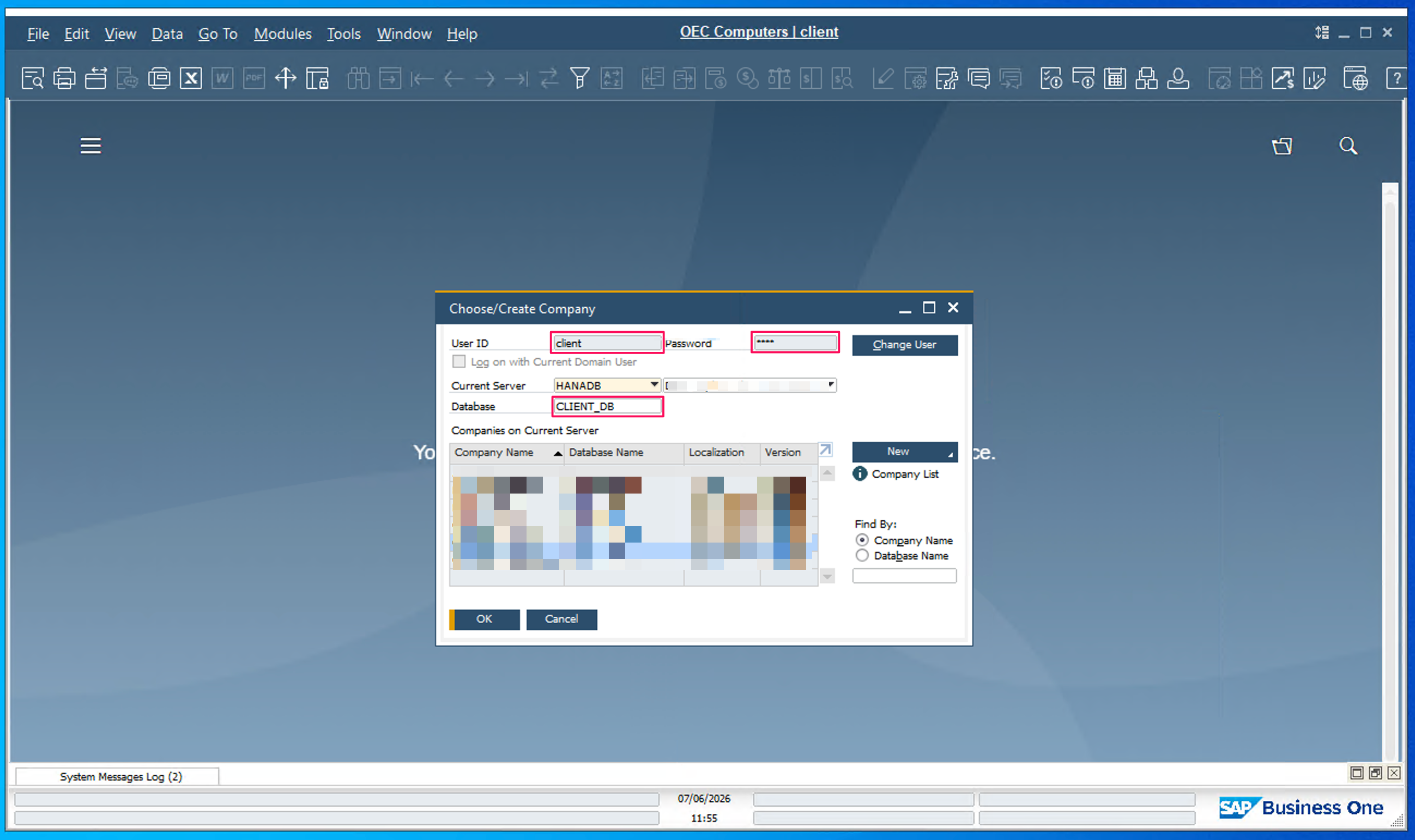
The Current Server field identifies the SAP HANA or SQL Server instance behind the Service Layer, not the Service Layer itself — it is not part of the connector configuration. Ask your SAP administrator for the Service Layer's own address if you do not already have it.
Add the Inventory connection
-
Add a connection: Add Connection → Search Connectors, then search for
sap.businessone.inventoryand select ballerinax/sap.businessone.inventory. -
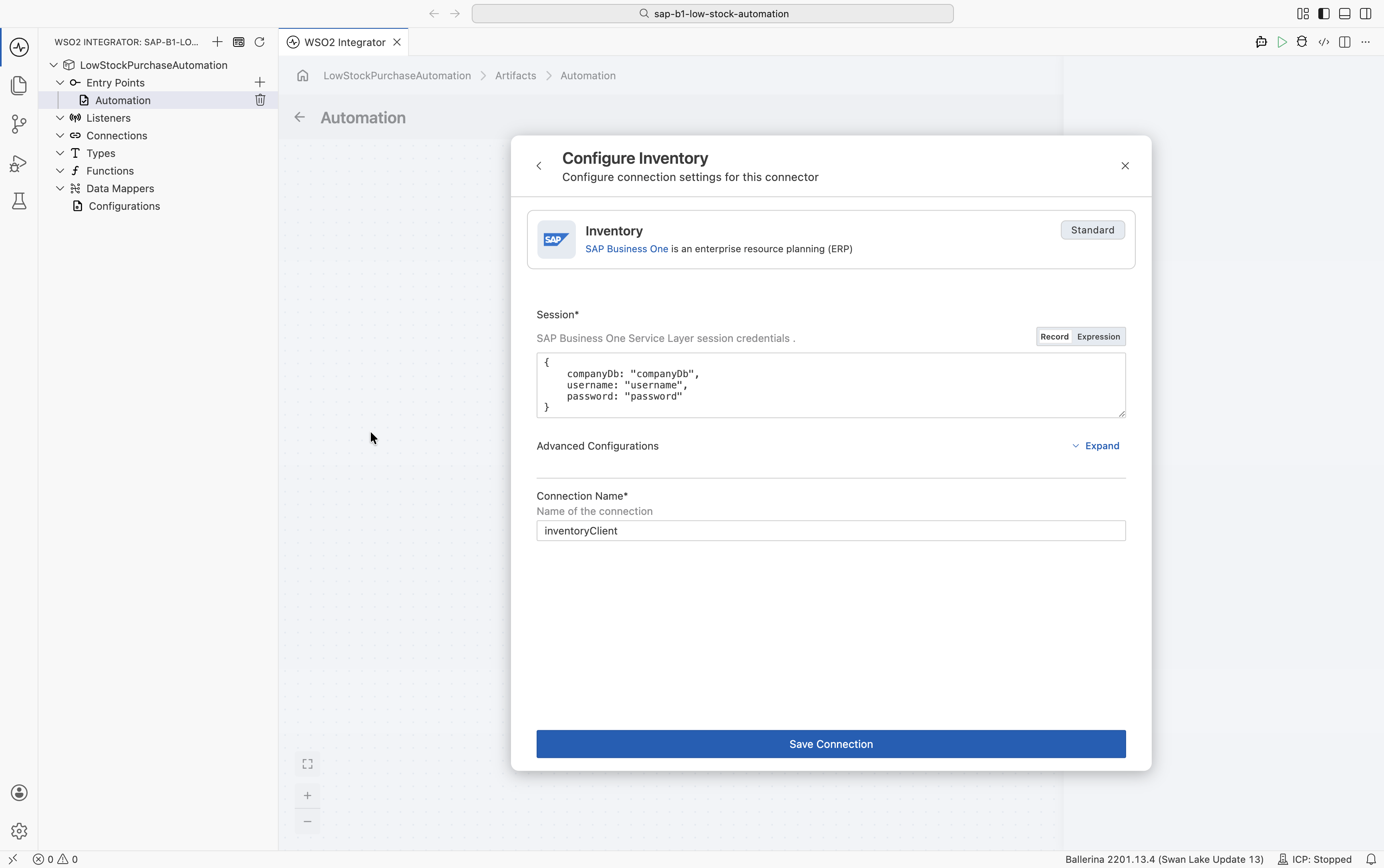
Configure the connection:
Field Value Service URL https://<service-layer-host>:50000/b1s/v1Company DB Your company database, from the Database field in the SAP Business One client Username Your SAP Business One User ID Password Your SAP Business One Password Best practiceDon't hardcode credentials into the connection. Click each field and select Configurables in the Expression editor's helper pane, then click New Configurable and set up a configurable, so the value is supplied at runtime instead of stored in the flow.
-
Name the connection
inventoryClient.
Add the Purchasing connection
Similar to the connection you just added, add one more: search for sap.businessone.purchasing and select ballerinax/sap.businessone.purchasing. Configure it with the same Service URL, Company DB, Username, and Password as inventoryClient, and name this connection purchasingClient.
Both connections will appear under Connections.
Step 3: Read the items running low on stock
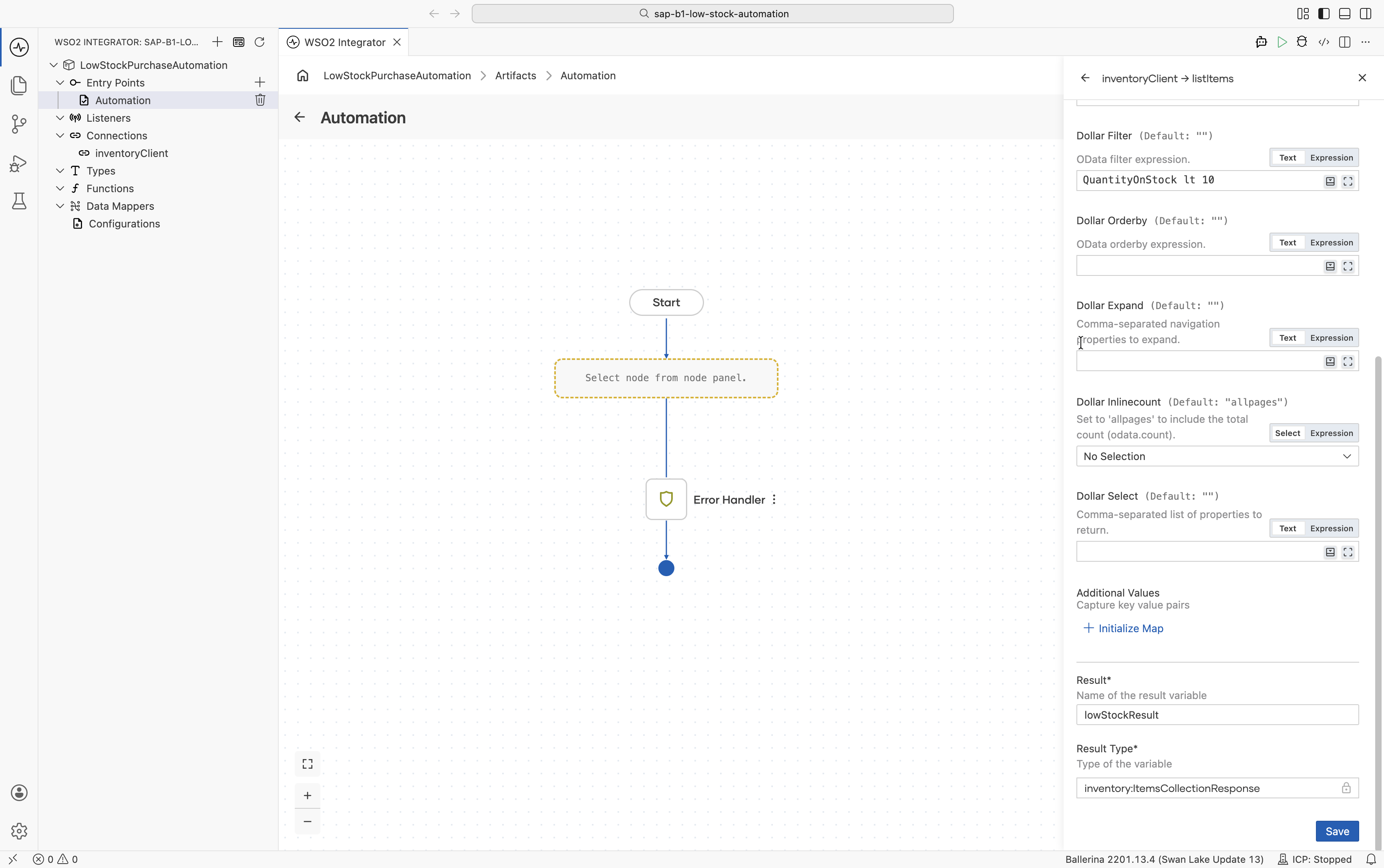
- After the Start node, add the
inventoryClientconnection's List Items operation. - Set Result to
lowStockResult. - Set the Filter parameter to
QuantityOnStock lt 10 and PurchaseItem eq 'YES'.
The Service Layer understands this as an OData filter and returns only the items whose QuantityOnStock field is below 10. Adjust the threshold to whatever counts as "low" for the item in question.
Your operation should match the checkpoint below.
Step 4: Skip the run when nothing is low
Exit early when there is nothing to reorder, so an empty run stays cheap and quiet.
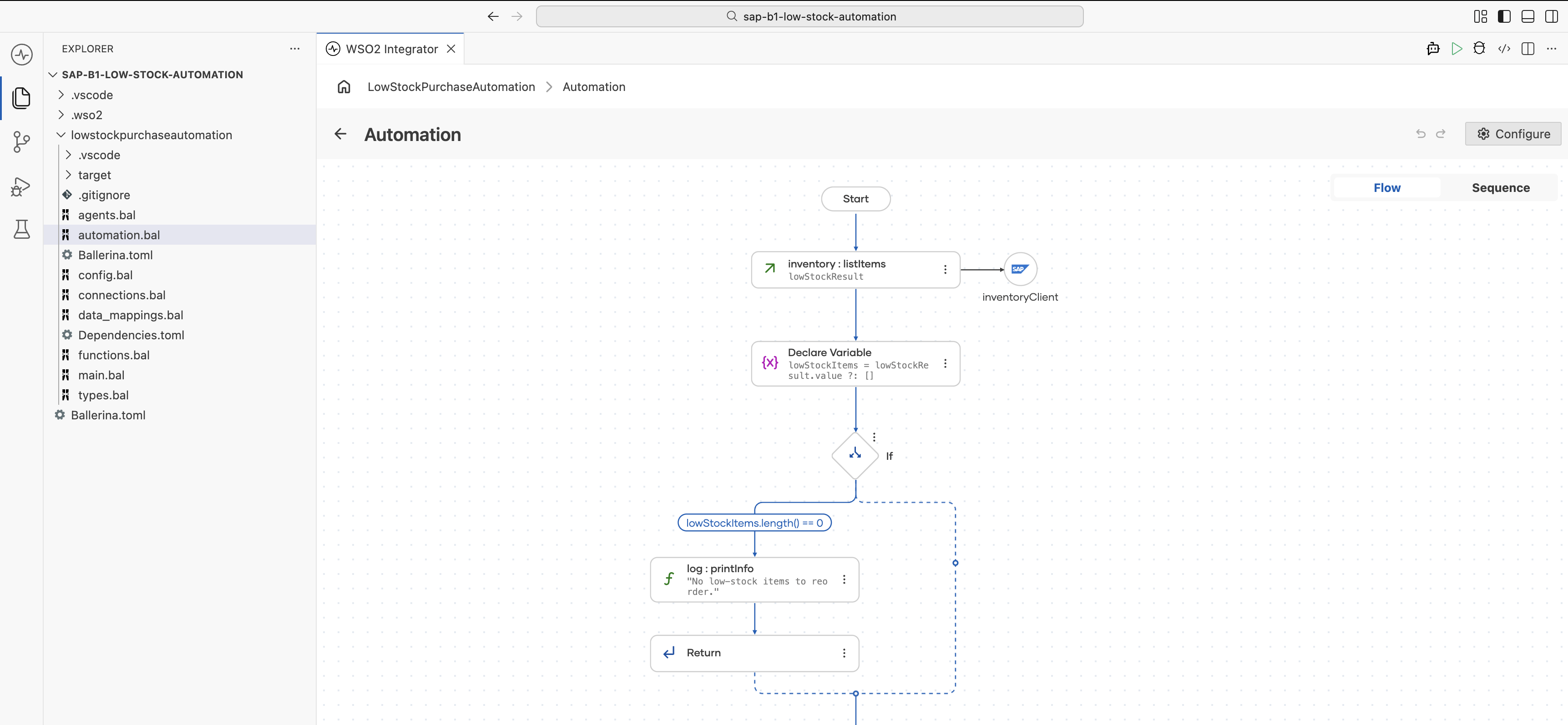
-
Add a Declare Variable node after List Items that assigns
lowStockResult.value ?: []to a variable namedlowStockItems(typeItem[]).![Declare Variable panel creating lowStockItems with type inventory:Item[] and expression lowStockResult.value ?: []](/integration-platform/docs/img/guides/usecases/sap-b1-low-stock-automation/declare-variable-lowstockitems.png)
-
Add an If node after it with the condition
lowStockItems.length() == 0. -
Inside the branch, add a Log Info node with the message
"No low-stock items to reorder." -
After the log, add a Return node with no value.
Your flow should now branch and return early when nothing is low.
Step 5: Raise a purchase request and notify procurement
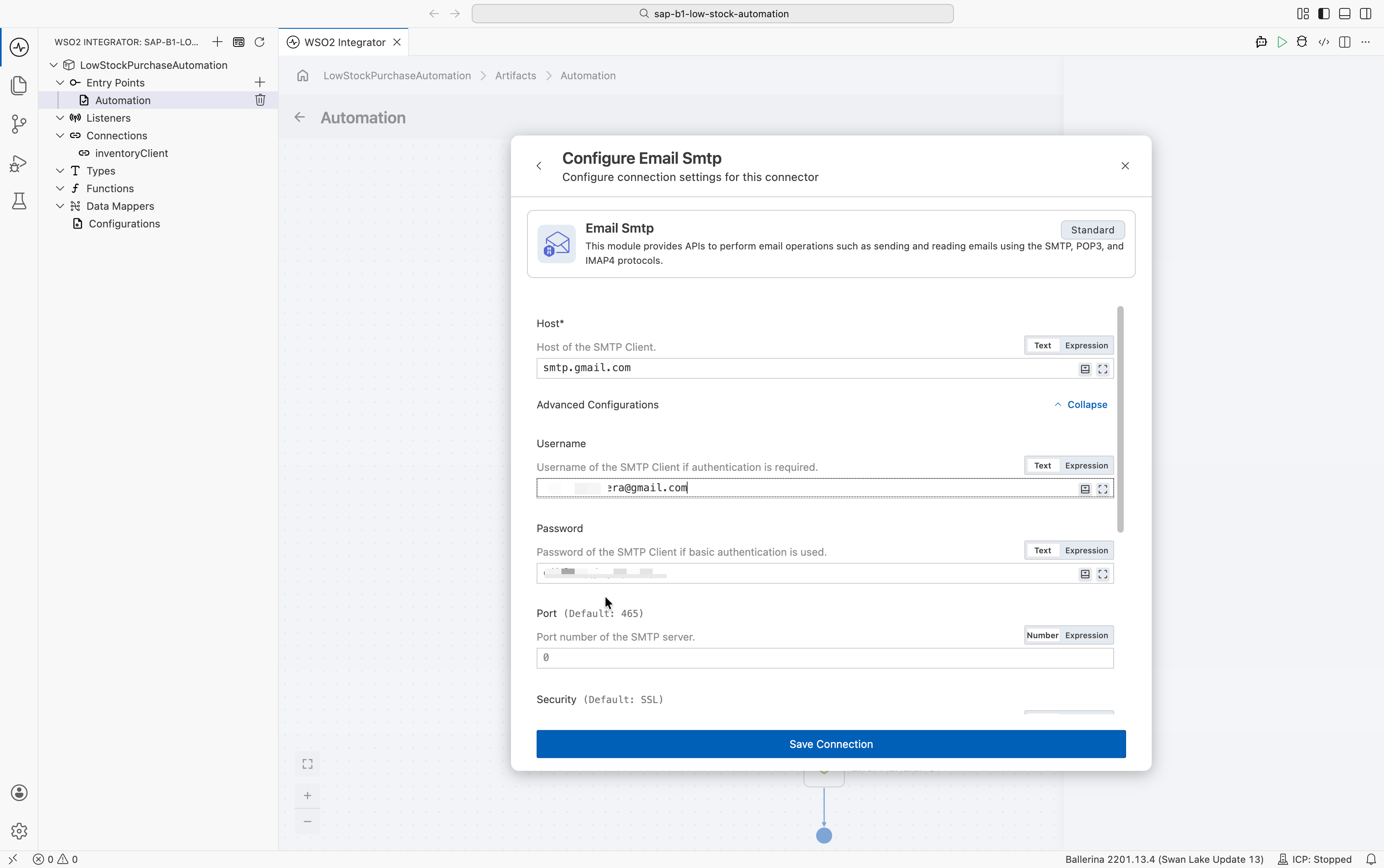
To reach your mail server, add an Email Smtp connection named emailSmtpclient:
| Field | Value |
|---|---|
| Host | Your SMTP host, for example smtp.gmail.com |
| Username | Your SMTP account username, for example [email protected] |
| Password | Your SMTP account password (for example, a Gmail App Password) |
Build the loop
-
Add a Foreach node after the If, looping over
lowStockItemswith the item variablelowStockItem(typeItem). -
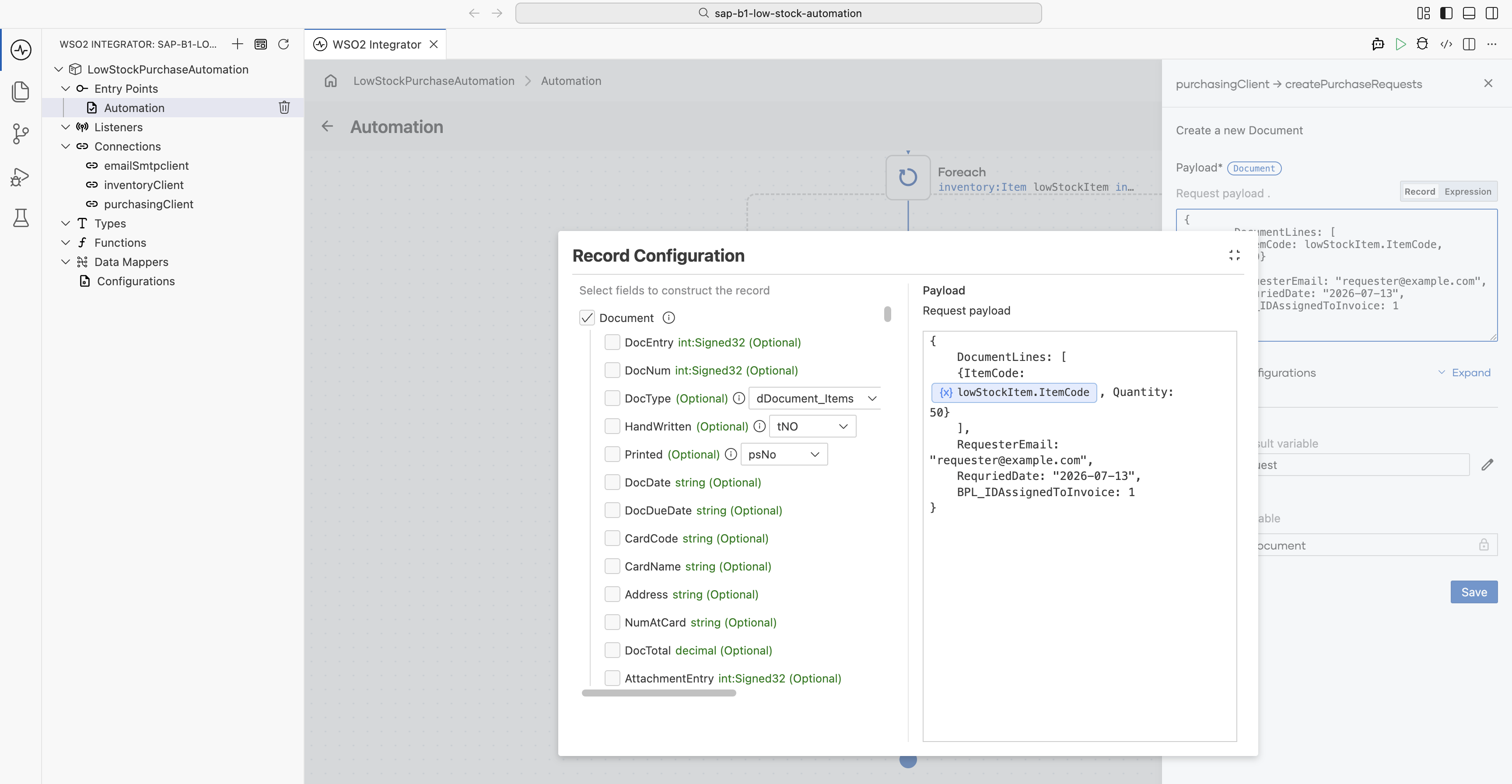
Inside the loop, add the
purchasingClientCreate Purchase Requests operation, and set Result topurchaseRequest. Configure the following fields on the Document record:Field Value DocumentLines For ItemCode, open the field's Expression editor and select lowStockItem→ItemCodefrom the Variables list in the helper pane. Set Quantity to50.RequesterEmail A valid email address, for example "[email protected]"RequriedDate A required-by date, for example "2026-07-13"BPL_IDAssignedToInvoice Required only when your company has multiple branches (Business Places) enabled; the BPLIDof a branch your user is authorized fornoteInstead of hardcoding RequriedDate to a fixed date, you can compute it dynamically relative to the run date. for example, using time module:
time:utcToCivil(time:utcAddSeconds(time:utcNow(), 3 * 24 * 60 * 60))returns atime:Civilthree days from now.Your payload should match the checkpoint below.
-
Inside the loop, add the
emailSmtpclientSend Message operation.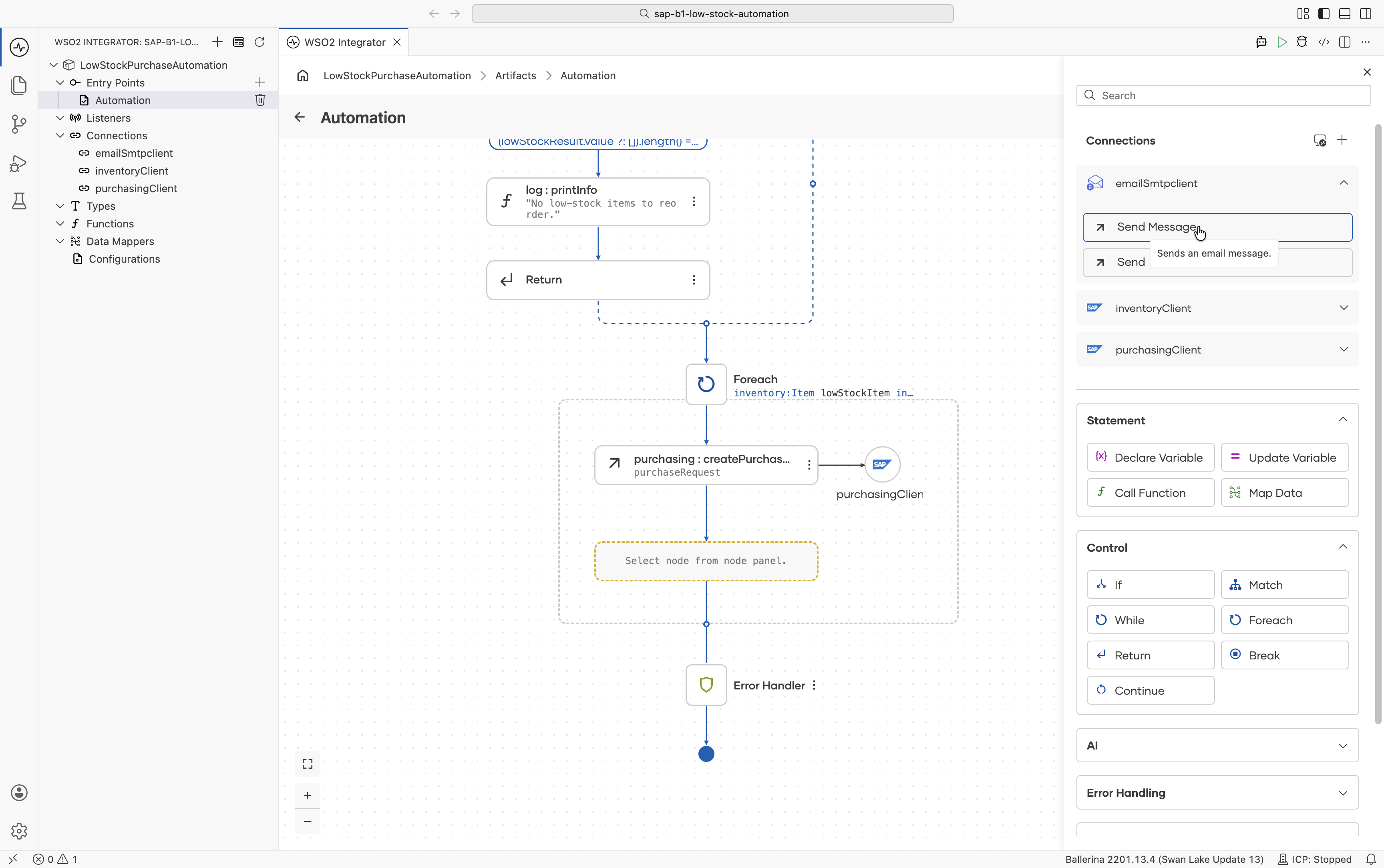
In the Email record:
-
Set to to your procurement address, for example
"[email protected]". -
Set subject to
"Low stock: " + (lowStockItem.ItemCode ?: ""). -
Set body to the following expression:
"Item " + (lowStockItem.ItemCode ?: "") + " (" + (lowStockItem.ItemName ?: "") +
") is down to " + (lowStockItem.QuantityOnStock ?: 0d).toString() +
" units. Purchase request #" + (purchaseRequest.DocNum ?: 0).toString() +
string `was raised for 50 units.`
ItemCode,ItemName,QuantityOnStock, andDocNumare all optional fields, so each is given a fallback with?:before use. -
-
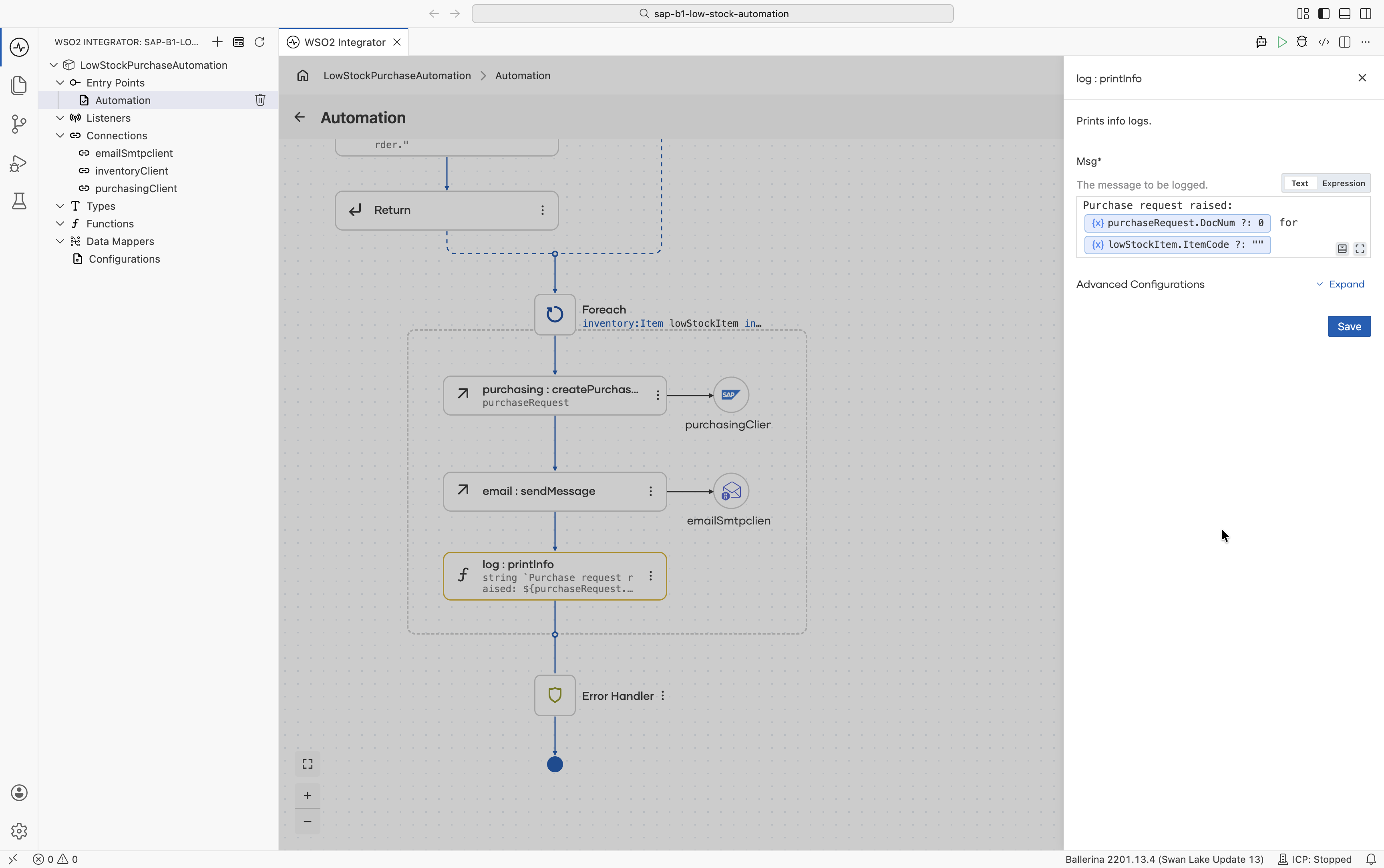
Inside the loop, add a Log Info node with the message
string `Purchase request raised: ${purchaseRequest.DocNum ?: 0} for ${lowStockItem.ItemCode ?: ""}`.
The loop now raises a purchase request for each low-stock item, emails procurement, and logs the result.
Step 6: Log a summary
After the Foreach node, add a final Log Info node with the message "Done - reordered low-stock items".
Your flow is complete: it reads the low-stock items, exits early when there are none, raises a purchase request and notifies procurement for each one, and reports a summary.
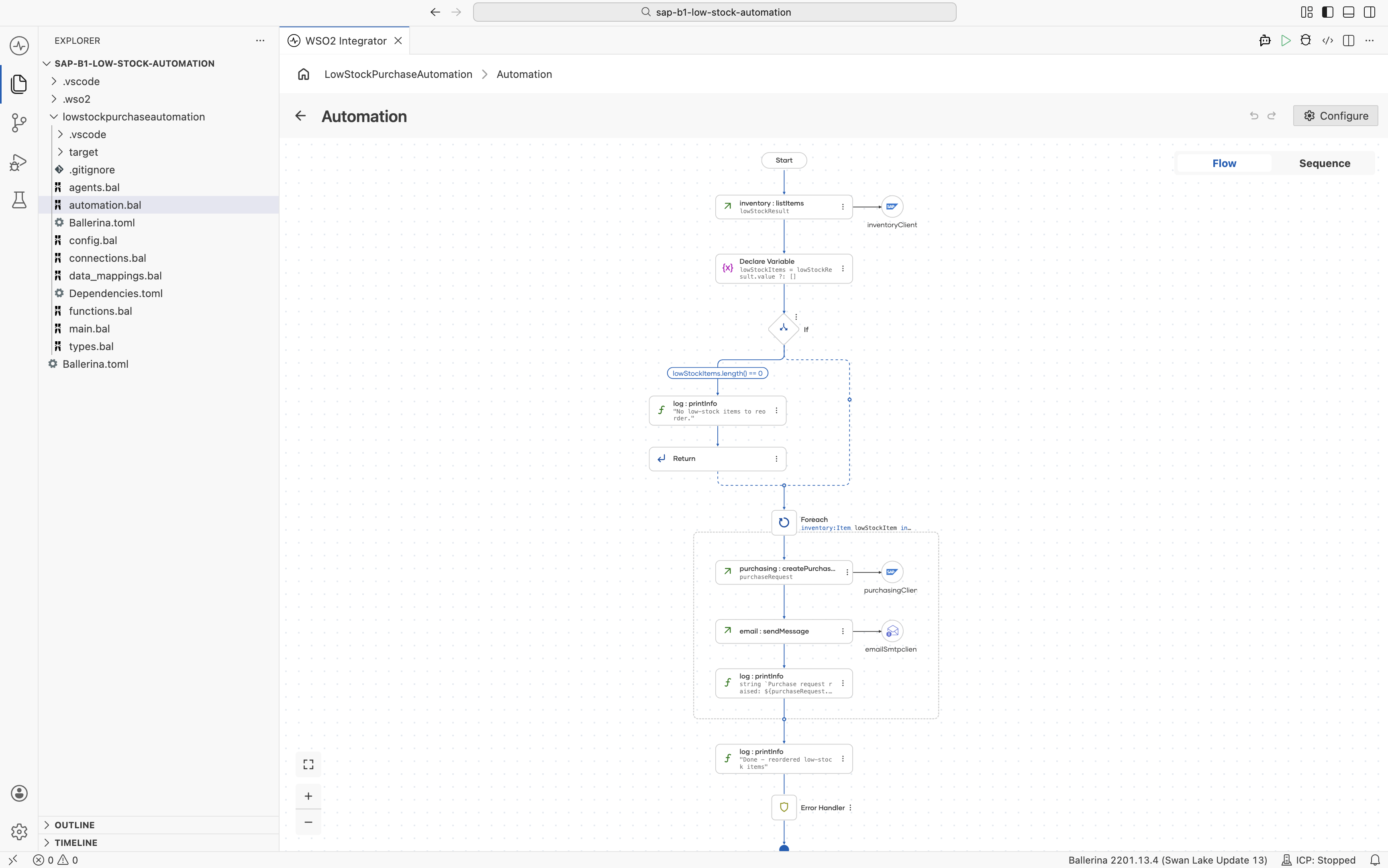
You design this on the canvas and never write any of it. The Visual Designer keeps the source in sync across connections.bal and automation.bal.
// connections.bal
import ballerinax/sap.businessone.inventory;
import ballerinax/sap.businessone.purchasing;

import ballerina/email;

configurable string b1ServiceUrl = ?;
configurable string b1CompanyDb = ?;
configurable string b1Username = ?;
configurable string b1Password = ?;

configurable string emailHost = ?;
configurable string emailUserName = ?;
configurable string emailPassword = ?;
configurable int emailPort = 465;

final inventory:Client inventoryClient = check new (
    {companyDb: b1CompanyDb, username: b1Username, password: b1Password},
    serviceUrl = b1ServiceUrl
);

final purchasing:Client purchasingClient = check new (
    {companyDb: b1CompanyDb, username: b1Username, password: b1Password},
    serviceUrl = b1ServiceUrl
);

final email:SmtpClient emailSmtpclient = check new (emailHost, emailUserName, emailPassword, port = emailPort, security = "START_TLS_AUTO");
// automation.bal
import ballerina/log;
import ballerinax/sap.businessone.inventory;
import ballerinax/sap.businessone.purchasing;

public function main() returns error? {
    do {
        inventory:ItemsCollectionResponse lowStockResult = check inventoryClient->listItems(dollarFilter = "QuantityOnStock lt 10 and PurchaseItem eq 'YES'");
        inventory:Item[] lowStockItems = lowStockResult.value ?: [];
        if lowStockItems.length() == 0 {
            log:printInfo("No low-stock items to reorder.");
            return;
        }
        foreach inventory:Item lowStockItem in lowStockItems {
            purchasing:Document purchaseRequest = check purchasingClient->createPurchaseRequests({
                DocumentLines: [
                    {ItemCode: lowStockItem.ItemCode, Quantity: 50}
                ],
                RequesterEmail: "[email protected]",
                RequriedDate: "2026-07-13",
                BPL_IDAssignedToInvoice: 1
            });
            check emailSmtpclient->sendMessage({
                to: "[email protected]",
                subject: "Low stock: " + (lowStockItem.ItemCode ?: ""),
                body: "Item " + (lowStockItem.ItemCode ?: "") + " (" + (lowStockItem.ItemName ?: "") +
                ") is down to " + (lowStockItem.QuantityOnStock ?: 0d).toString() +
                " units. Purchase request #" + (purchaseRequest.DocNum ?: 0).toString() +
                string ` was raised for 50 units.`
            });
            log:printInfo(string `Purchase request raised: ${purchaseRequest.DocNum ?: 0} for ${lowStockItem.ItemCode ?: ""}`);
        }
        log:printInfo("Done - reordered low-stock items");
    } on fail error e {
        log:printError("Error occurred", 'error = e);
        return e;
    }
}
The inventory:Client and purchasing:Client are generated when you add the connections; the flow logic, as you build the canvas.
Run and verify
-
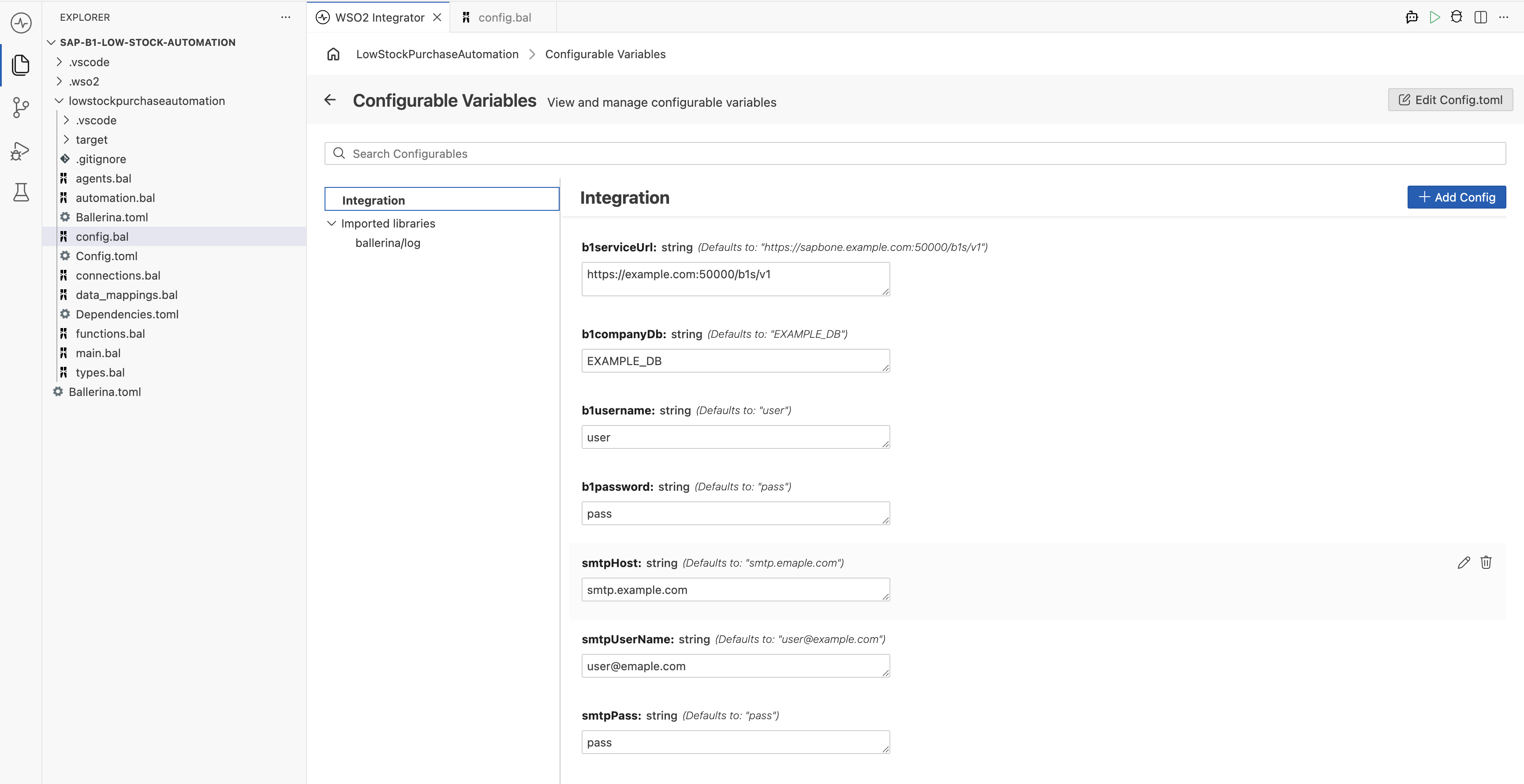
Go to Configurations and supply your SAP Business One credentials and your SMTP server details, then select Run on the integration overview:
-
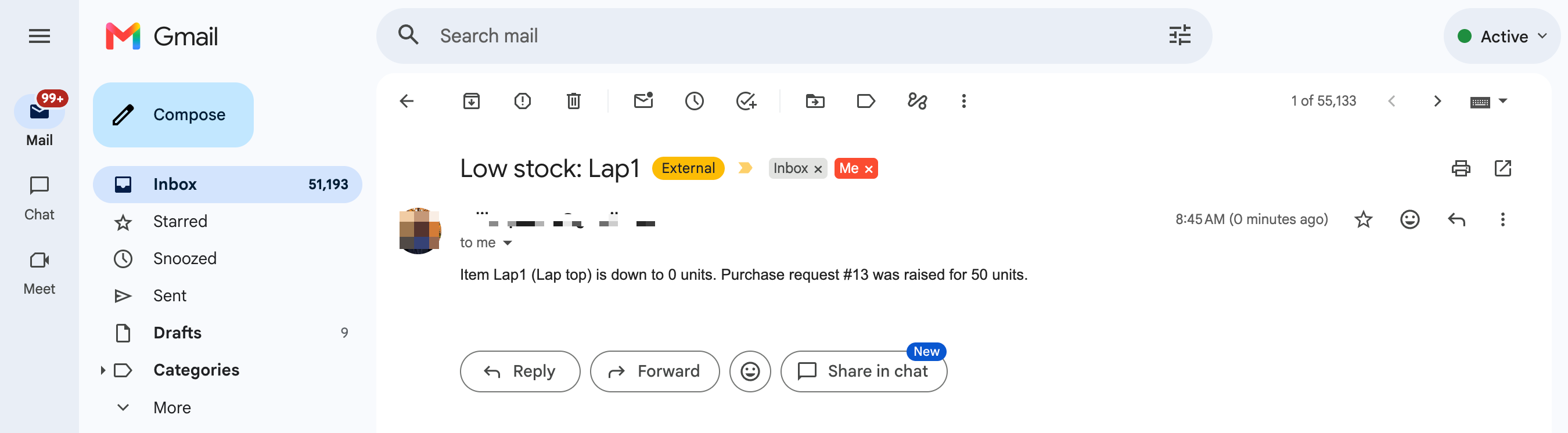
Watch the terminal. Each low-stock item gets a purchase request, procurement is emailed, and a final line reports completion.
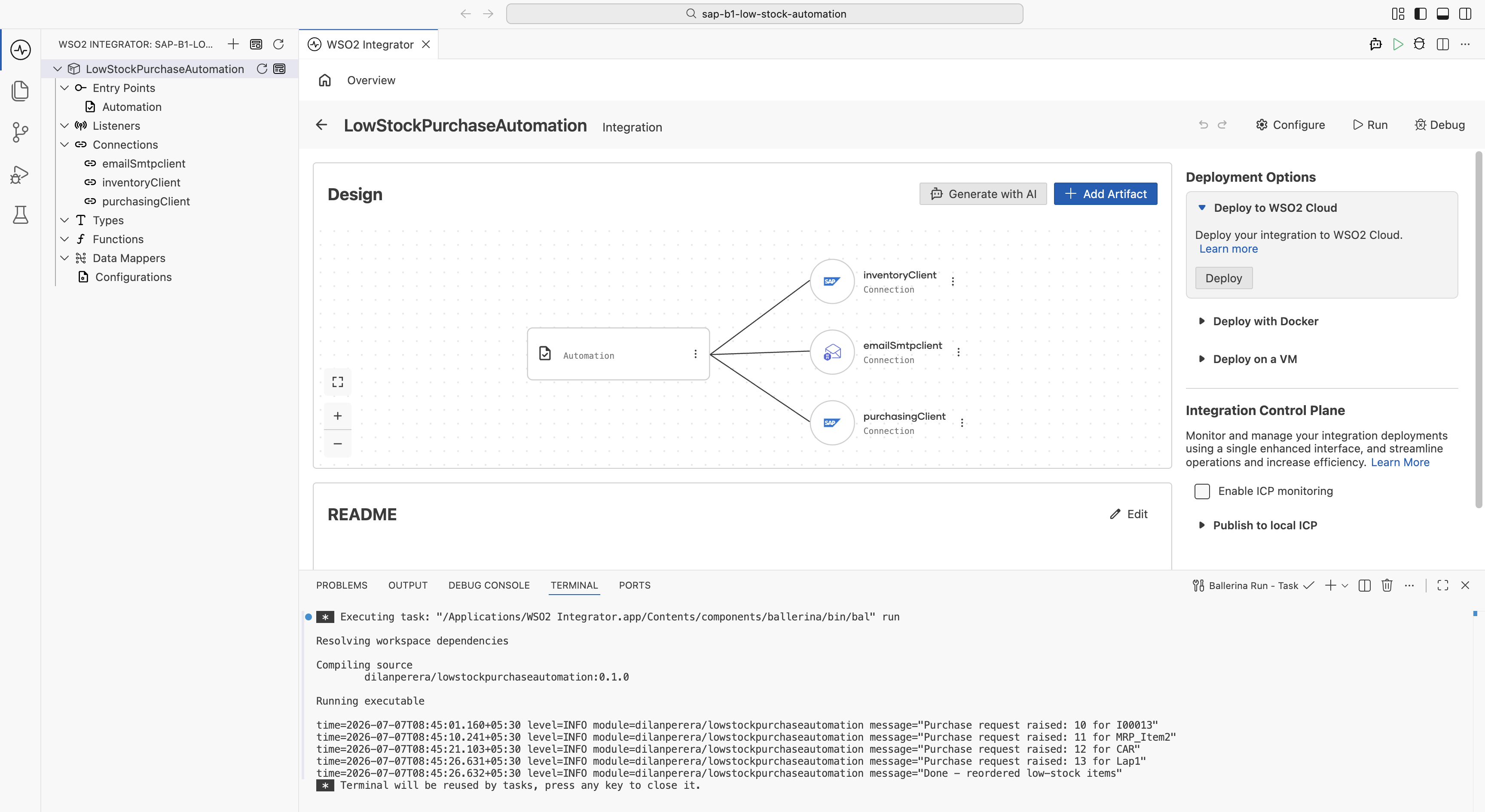
- Confirm the purchase requests landed in SAP Business One: open Purchasing – A/P → Purchase Request and look for the new documents (
10–13in the sample run above). Procurement should also have a new email per item.
What's next
Now that the automation works, you can take it further:
- Deploy and schedule it. Ship it to WSO2 Cloud, a Docker container, Kubernetes, or a virtual machine, then schedule periodic runs there (a
cronentry, a KubernetesCronJob, a host scheduler, or the WSO2 Integration Platform). - Richen the notification. The Email connector also supports HTML bodies, CC/BCC, and attachments, so procurement's plain note can become a formatted daily digest listing every item raised in that run.