Managed Message Brokers
WSO2 Cloud - Integration Platform lets you create fully managed, distributed message broker servers on AWS, Azure, GCP, and DigitalOcean as platform services. These servers handle high-throughput, fault-tolerant data streaming use cases such as real-time analytics, event sourcing, and log aggregation.
- The capability to create message broker servers is available only for paid WSO2 Cloud users.
- Billing for these servers is included in your WSO2 Cloud subscription, with pricing varying based on the service plan of the resources you create. For more details, see Pricing and plans.
Apache Kafka on WSO2 Cloud
Apache Kafka is an open-source distributed event streaming platform. You can create Kafka servers on WSO2 Cloud as fully managed message brokers, with service plans ranging from smaller instances for development purposes to production-grade servers with multi-node deployments.
Create a managed Kafka server
Follow the steps below to create a managed Kafka server:
-
Sign in to the WSO2 Cloud Console at https://console.devant.dev/.
-
In the header, select your organization from the Organization list.
-
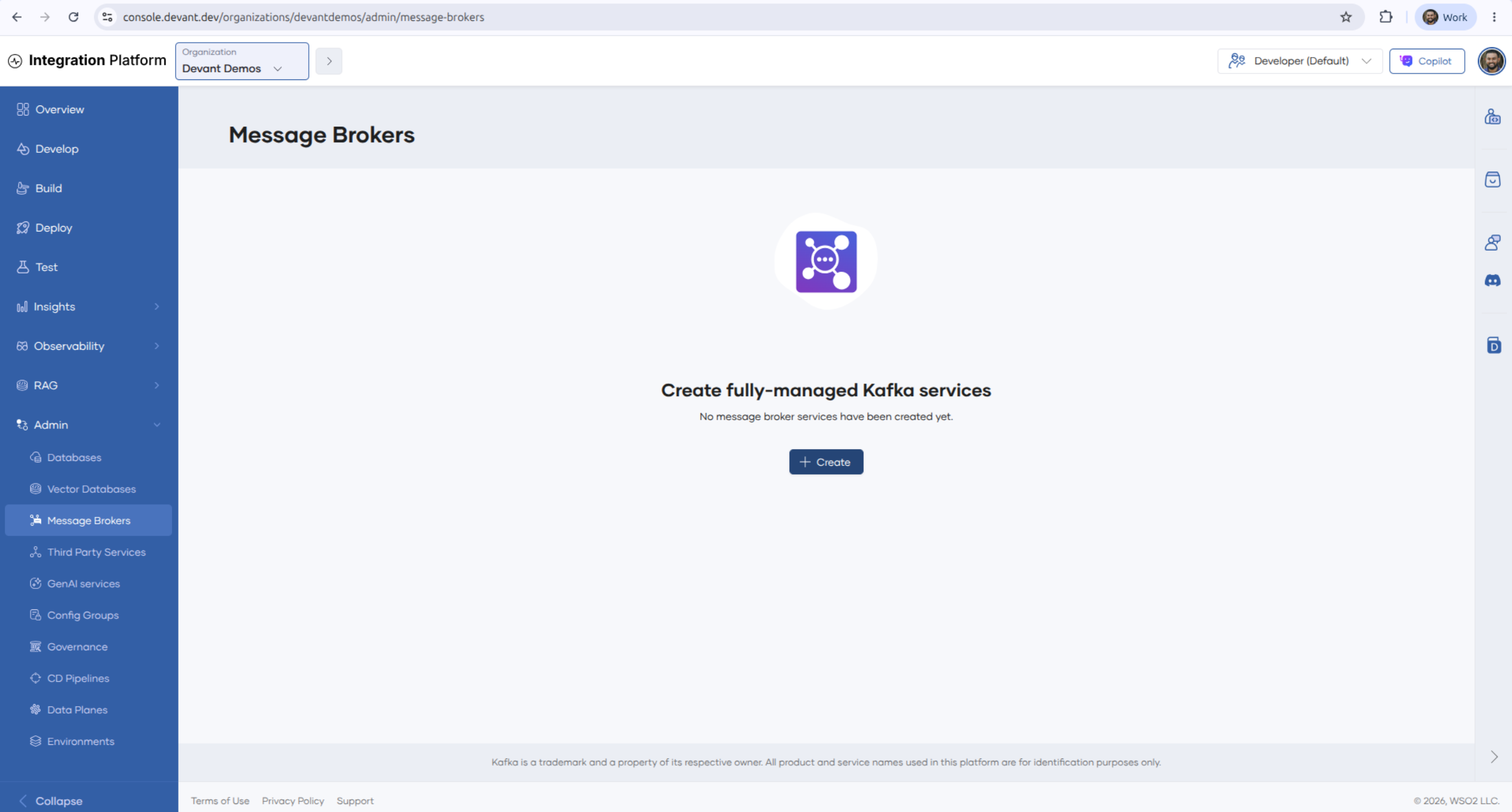
In the left navigation menu, click Admin, then Message Brokers.
-
Click + Create.
-
In Step 1: Provide server details, specify a display name for the Kafka server, then click Next.
-
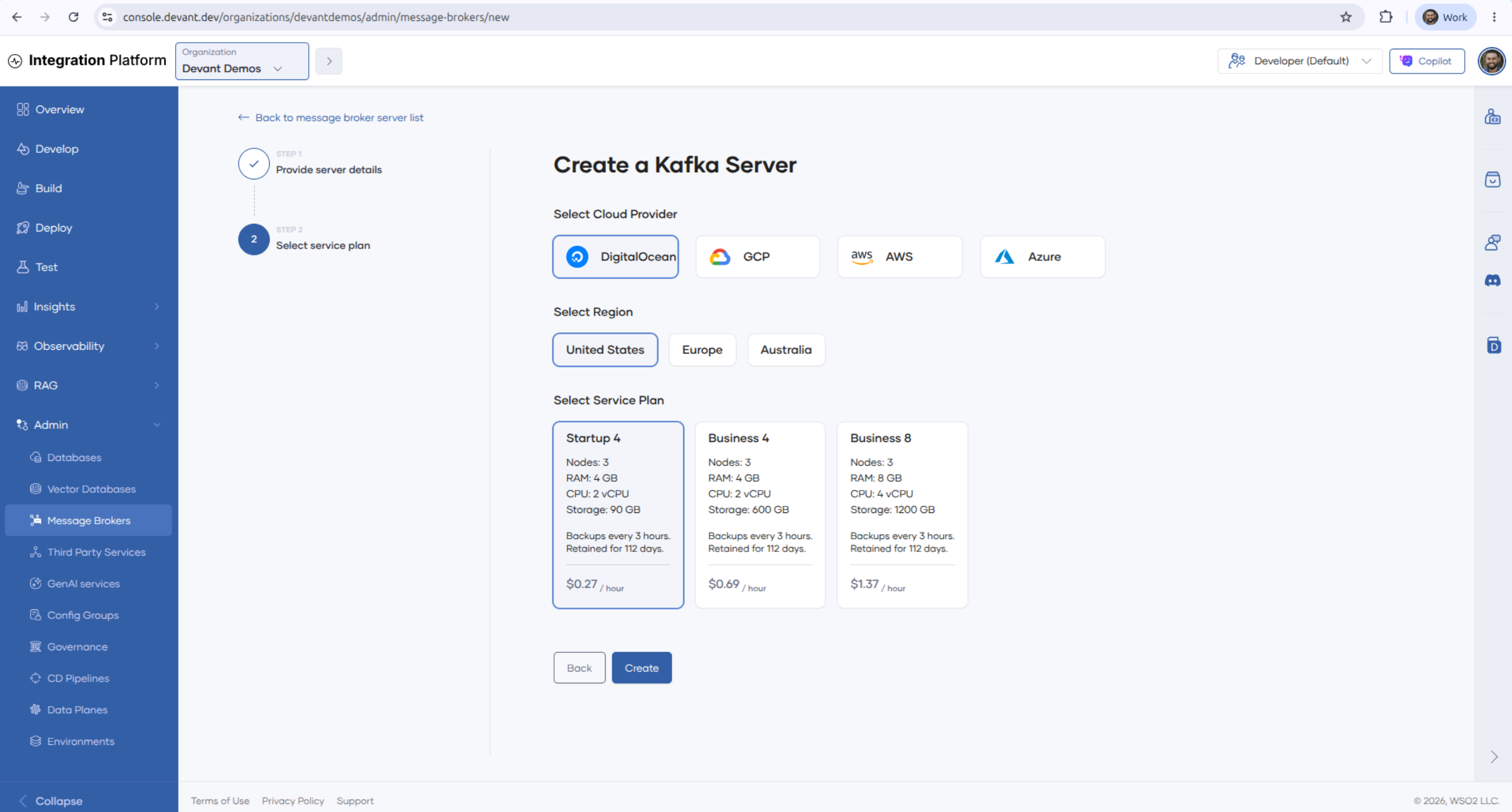
In Step 2: Select service plan, select your preferred cloud provider from DigitalOcean, GCP, AWS, or Azure.
- The cloud provider provisions the compute and storage infrastructure for your Kafka server.
- There is no functional difference between Kafka servers created on different cloud providers, apart from changes to service plans (and associated costs).
-
Select a region for your Kafka server from United States, Europe, or Australia.
- Available regions depend on the selected cloud provider.
-
Select a service plan.
- Each plan lists the number of nodes, CPU, memory (RAM), and storage space allocated for your Kafka server, along with its backup schedule, backup retention period, and hourly price.
- Available plans depend on the selected cloud provider and region.
-
Click Create. This creates the Kafka server and takes you to the Overview tab on the server details page.
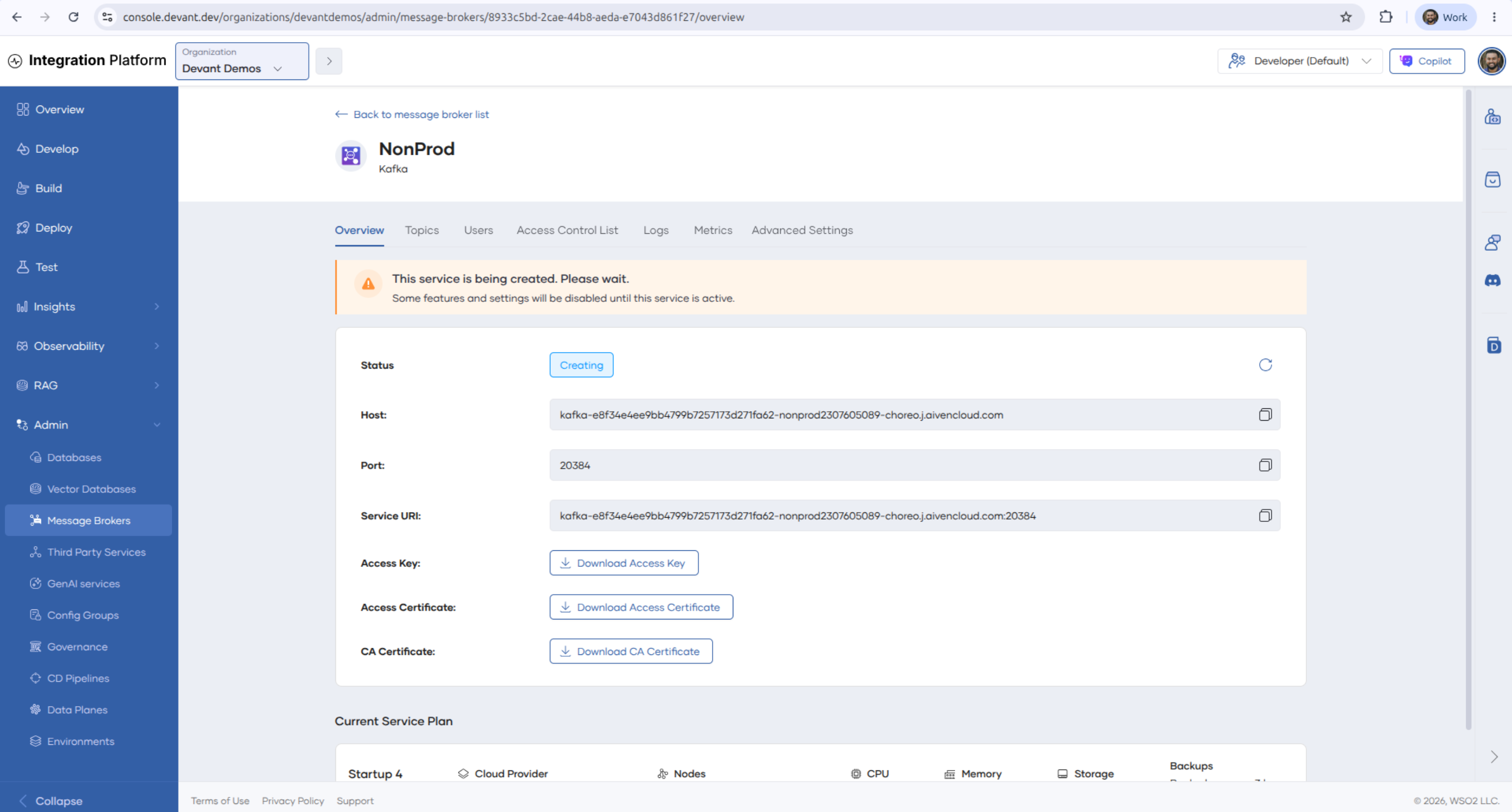
- The status of the server remains Creating until provisioning completes. Some features and settings are disabled until the server becomes active.
Connect to your managed Kafka server
To connect to your managed Kafka server, consider the following guidelines:
-
You can find the connection parameters on the Overview tab of the server details page. This tab lists the Host, Port, and Service URI of the server, and provides Download Access Key, Download Access Certificate, and Download CA Certificate options.
-
WSO2 Cloud secures Kafka connections with client certificate authentication. All connections require TLS.
-
Configure your producer and consumer integrations with the service URI and the downloaded key and certificates. To keep certificates and keys out of your source code, add them as runtime configurations and secrets.
-
Kafka servers accept traffic from the internet by default. To restrict access to specific IP addresses or CIDR blocks, use the Advanced Settings tab.
-
Create a topic on the Topics tab before you produce or consume messages. If the topic already exists, you can proceed.
-
To control which clients can access which topics, define users on the Users tab and grant them permissions on the Access Control List tab.
To build integrations that produce to or consume from this server, see Kafka event integrations and the Kafka connector.
Service plans and high availability (Kafka)
The high availability characteristics of a managed Kafka server depend on the service plan you select. The number of nodes in each plan appears on the plan card when you create the server, and on the Current Service Plan section of the Overview tab afterwards.
- Multi-node plans can be deployed across separate availability zones where the cloud provider supports it. When a node fails, the server remains available and the service URI stays the same. Only the IP address changes to point to the new node.
- Single-node plans can experience downtime during maintenance or failure recovery.
Multi-node plans are generally recommended for production scenarios because they keep the server available during hardware, software, or network failures, and they provide a quicker time to restore with a controlled failover.
Backup and recovery (Kafka)
Kafka uses a different backup model to the one that traditional databases use:
- WSO2 Cloud does not back up message content or topic data. The backup schedule and retention period shown on the plan card apply to the server configuration, not to the messages in your topics.
- WSO2 Cloud backs up server configuration, such as topics, users and ACLs, Schema Registry, and Kafka Connect, on the schedule shown on the plan card, and restores it automatically when required.
- You cannot select an older configuration backup point manually.
Because message content is not backed up, design your producers and consumers to tolerate message loss, or persist critical messages in a managed database.
Monitoring and observability (Kafka)
- Runtime metrics for your Kafka server are available on the Metrics tab of the server details page, and service logs are available on the Logs tab.
- Native alerting for resource spikes is not available. To export metrics to a third-party monitoring system, contact WSO2 Cloud support.
What's next
- Managed databases and caches — Create managed PostgreSQL, MySQL, and cache services for persistence and caching.
- Kafka event integrations — Build integrations that consume messages from Kafka topics.
- Runtime configurations — Set connection parameters and secrets per environment.
- Pricing and plans — How WSO2 Cloud bills platform services and how to upgrade a service plan.
Apache Kafka is a trademark and property of its respective owner. All product and service names used in this documentation are for identification purposes only.