Email domain based organization discovery
In Business-to-Business (B2B) applications, seamlessly authenticating users from external organizations remains essential. This ensures a smooth user experience.
One way to achieve this involves email domain-based organization discovery. With this feature, your application can provide a customized login experience. The experience depends on the domain of the user's email address.
For example, when users log in with an @xyz.com email address, the system automatically redirects them to the login screen customized for the XYZ organization. This provides a familiar and consistent experience.
This guide explains how you may use Asgardeo to configure email domain-based organization discovery for your B2B applications.
Scenario
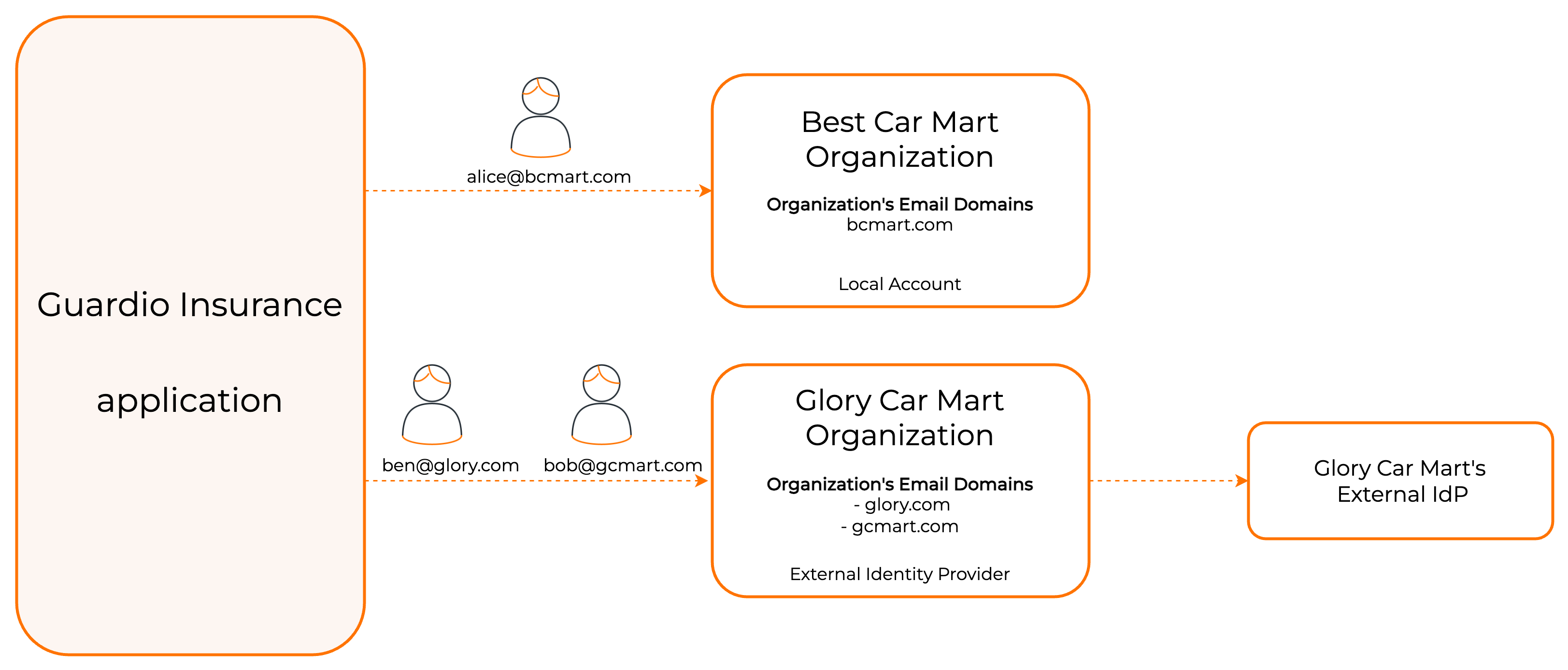
Guardio Insurance serves as an insurance provider. Best Car Mart and Glory Car Mart represent two of its customer organizations.
When a user enters an email address to log into the Guardio Insurance platform, the system needs to resolve the user's organization. It does this based on the email domain. Then it redirects them to the respective organization's login screen.
In this example scenario:
- User Alice with email
[email protected]should go to the login screen ofBest Car Martorganization. - User Bob and Ben, with emails
[email protected]and[email protected]should go to the login screen ofGlory Car Martorganization.
Prerequisites
Before you configure email domain-based organization discovery, understand the following requirements:
Username requirements during user creation
For any user to be discoverable by their email domain, the following requirements must be met during user creation:
- The user's username must be in a valid email format (for example,
[email protected]). - The domain portion of this username (for example,
company-domain.com) must match one of the domains configured for organization discovery. - This is a strict requirement during user creation. Attempting to create a user with a non-email username or a username with a non-matching domain for an organization with this feature enabled will fail.
Enable email domain based organization discovery
Important
- The root organization only permits enabling this feature and mapping email domains to organizations.
- For Just-In-Time (JIT) provisioning: Set the Subject Attribute to
http://wso2.org/claims/emailaddressin your external identity provider. See Map email domains to organizations below.
To do so,
- Login to the root organization Console.
- Navigate to Login & Registration, and under Organization Settings, click Organization Discovery.
-
Turn the toggle on to enable email domain based organization discovery.

To do so,
-
Get an access token with the
internal_organization_config_addscope. -
Use the obtained access token to execute the following command.
curl --location --request POST 'https://api.asgardeo.io/t/<root_organization_name>/api/server/v1/organization-configs/discovery' \
--header 'Content-Type: application/json' \
--header 'Authorization: Bearer <access_token>' \
--data '{
    "properties": [
        {
            "key": "emailDomain.enable",
            "value": true
        }
    ]
}'
Map email domains to organizations
When you map an email domain to an organization, the organization's behavior changes as follows:
-
A user can only onboard to the organization if the user's email domain matches one of the domains claimed by the organization.
-
Just-In-Time (JIT) provisioning during federated authentication only occurs if the user's email domain matches one of the domains claimed by the organization.
Map subject attribute for JIT provisioning
In OIDC and SAML applications, the subject uniquely identifies the user.
If your organization uses email domain-based organization discovery, make sure to map the subject attribute correctly as explained below:
- Set the email attribute as the subject attribute i.e.
http://wso2.org/claims/emailaddress. - Map the email attribute from the external identity provider to the same WSO2 claim:
http://wso2.org/claims/emailaddress.
Why this matters: Domain-based organization discovery relies on email addresses to identify organizations. Mapping the subject attribute to the email claim ensures that Just-in-Time (JIT) provisioning creates and updates users correctly.
Learn more about selecting selecting the subject attribute for OIDC applications and selecting the subject attribute for SAML applications.
- Set the email attribute as the subject attribute i.e.
-
If not, a user can register to the organization with an email address of any domain (other than the domains claimed by other organizations).
Before you begin
- Enable email domain based organization discovery for the root organization.
- Create the required organizations under the root organization. See Manage organizations for instructions.
To do so,
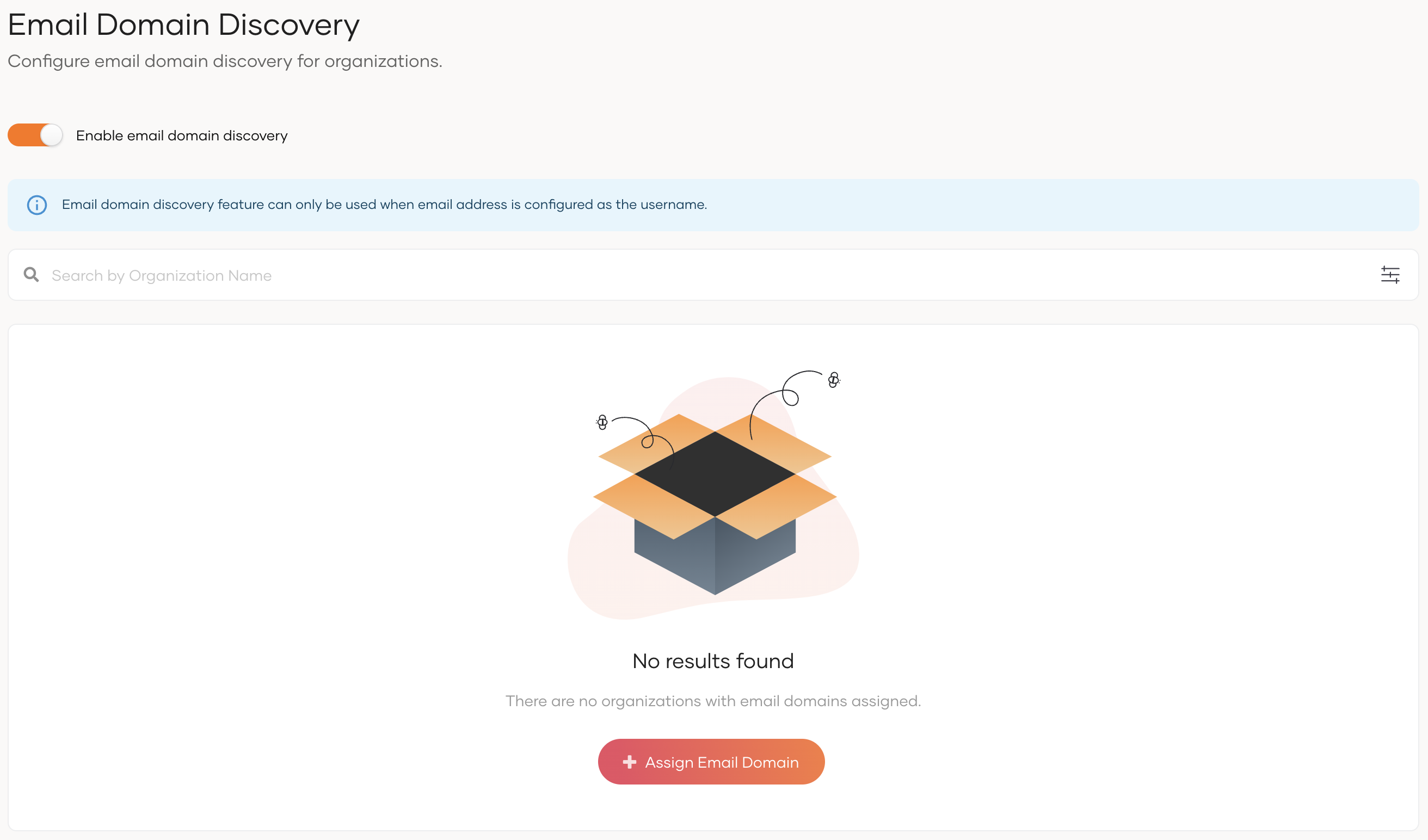
- On the Asgardeo Console, go to Login & Registration.
- Under Organization Settings, click Email Domain Discovery.
-
Click Assign Email Domain.
-
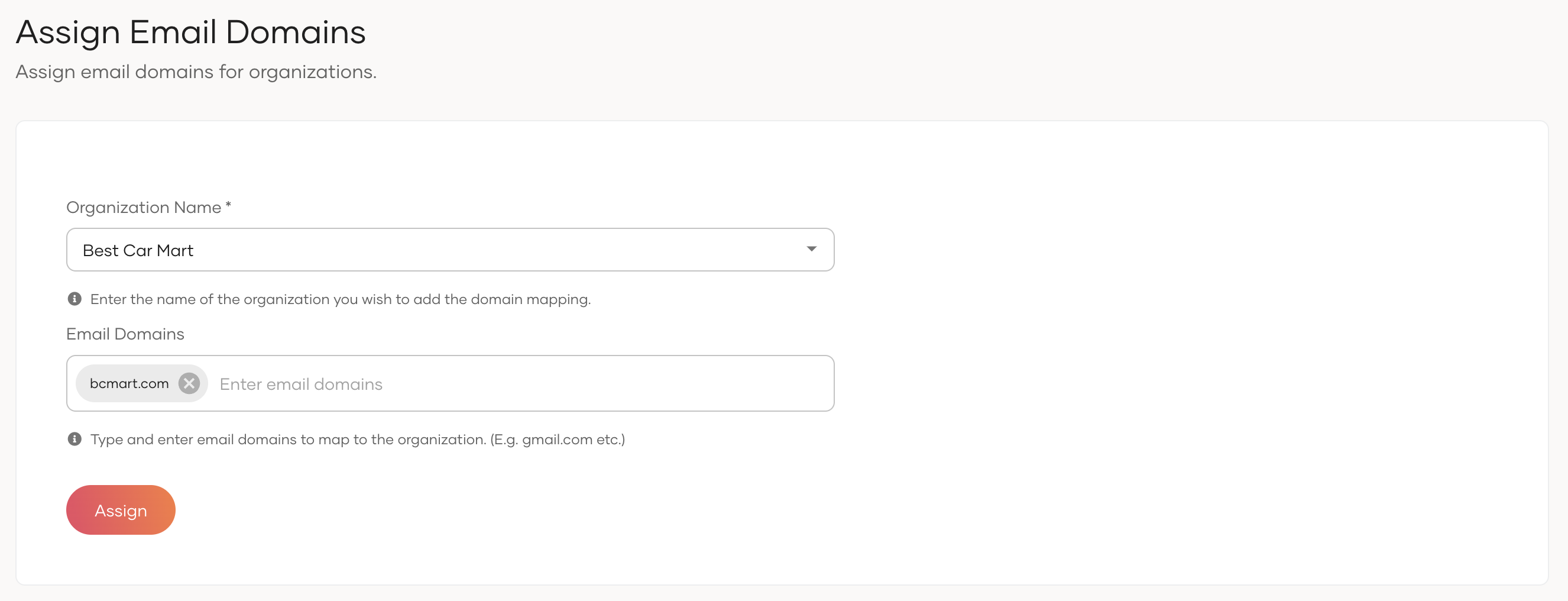
Under Organization Name, select the organization.
-
Under Email Domains, type the email domain you want to claim for the selected organization and press enter. You can add more than one email domain.
-
Click Assign.
Before you begin
- Enable email domain based organization discovery for the root organization.
- Create the required organizations under the root organization. See Manage organizations for instructions.
To do so,
-
Get an access token with the
internal_organization_discovery_updatescope. -
Use the obtained access token to execute the following cURL.
curl --location --request POST 'https://api.asgardeo.io/t/<root_organization_name>/api/server/v1/organizations/discovery' \
--header 'Content-Type: application/json' \
--header 'Authorization: Bearer <access_token>' \
--data '{
    "attributes": [
        {
            "type": "emailDomain",
            "values": [
                "bcmart.com"
            ]
        }
    ],
    "organizationId": "<organization-id>"
}'
Update email domain mappings
Warning
Changing the email domain mappings may prevent existing users from logging in to the B2B applications due to organization discovery failures.
To do so,
- On the Asgardeo Console, go to Login & Registration,
- Under Organization Settings, click Email Domain Discovery.
-
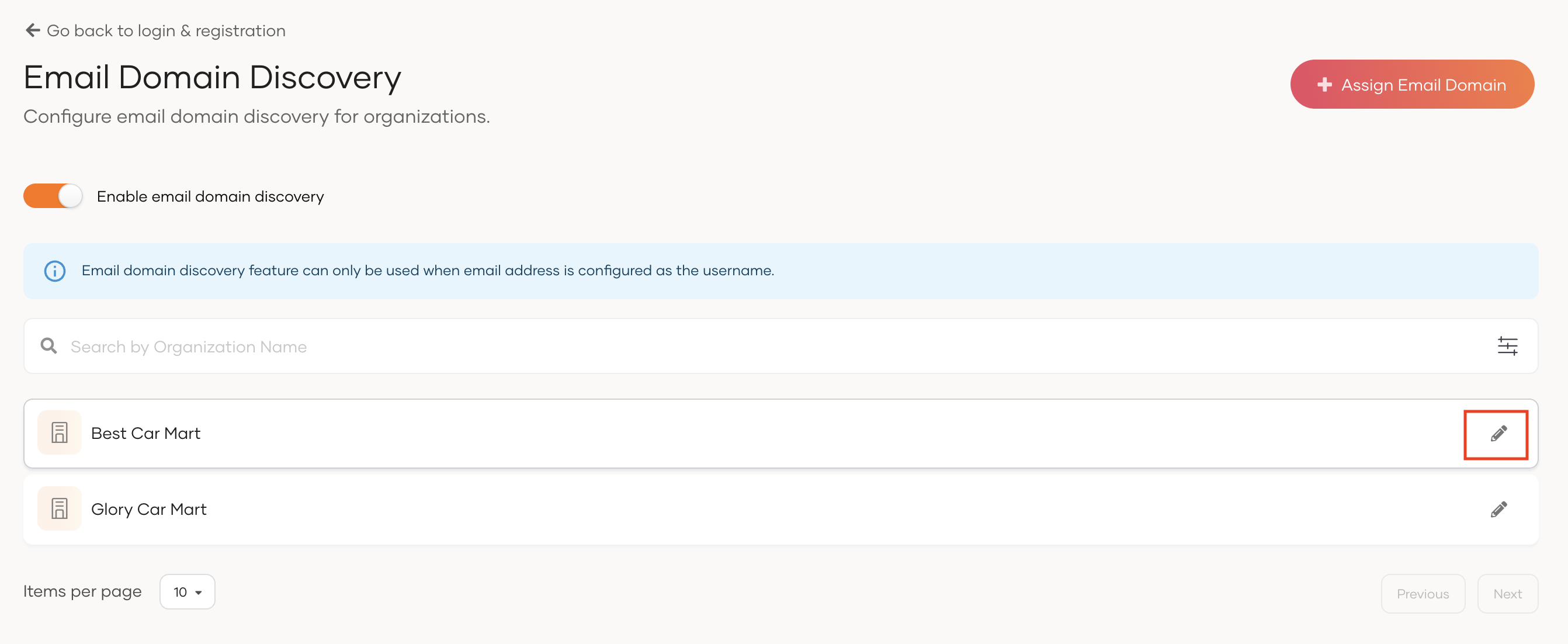
Click Edit of the organization you want to update the email domains.
-
Update the email domains in Email Domains and click Update.
To do so,
-
Get an access token with the
internal_organization_discovery_updatescope. -
Use the obtained access token to execute the following cURL.
curl --location --request PUT 'https://api.asgardeo.io/t/<root_organization_name>/api/server/v1/organizations/<organization-id>/discovery' \
--header 'Content-Type: application/json' \
--header 'Authorization: Bearer <access_token>' \
--data '{
    "attributes": [
        {
            "type": "emailDomain",
            "values": [
                "bcmart.com",
                "bestcars.com"
           ]
        }
    ]
}'
Try it out
To try out user login,
-
Set up the Guardio business application by following the B2B setup steps.
-
Create an organization for Best Car Mart by following the organization creation guide.
-
Follow the guides in this page and enable email domain based organization discovery. Add the following email domain mapping.
- Organization Name:
Best Car Mart - Email Domain:
bcmart.com
- Organization Name:
-
On the Asgardeo Console, switch to the Best Car Mart organization Console.
-
Onboard a new user to the Best Car Mart organization with the following information. You can either set a password for the user or invite the user to set the password.
Username and Email A unique email address to identify the user.
[email protected]First Name First name of the user.
AliceLast Name Last name of the user.
Charlotte -
Log in to the Guardio business app by selecting
Sign In With Single Sign-On (SSO).Note
You can bypass the
Sign In With SSOpage and go directly to your organization's login page by adding the following query parameters in the login request.login_hint: The email address of the user that will be used to resolve the domain.fidp: If you have additional B2C login options configured for the application, you can set this parameter toOrganizationSSOto direct users straight to the organization login page.
Sample requests:
-
Input the email address associated with the username for
Alicewithin the Best Car Mart organization.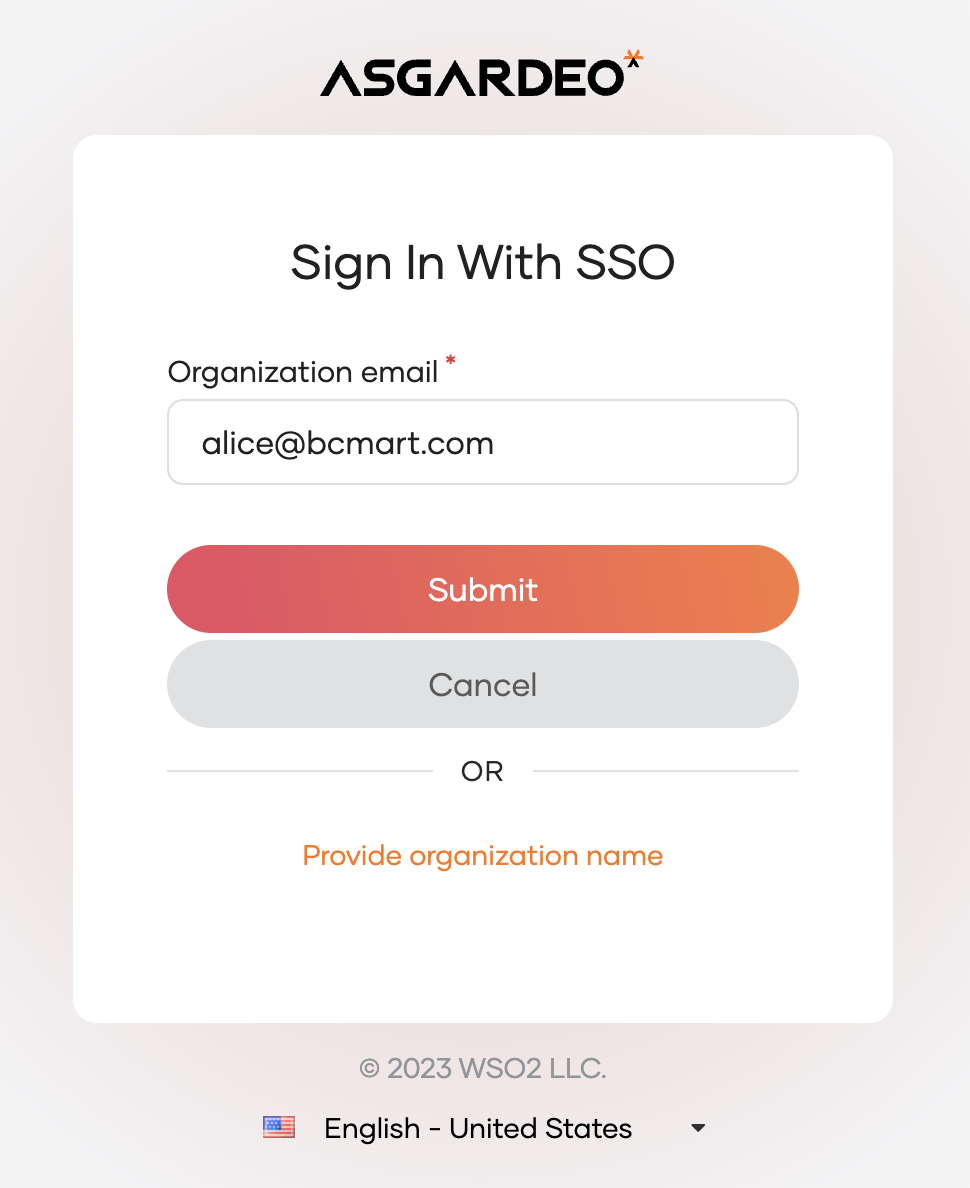
-
After resolving the organization from the email, the system redirects Alice to the authentication option of Best Car Mart.