Manage users
This guide walks you through the process of managing a user account. An owner or an administrator can manage user accounts.
Onboard users
Asgardeo provides multiple ways to onboard users to your organization. You can add users individually or in bulk using a CSV file. You can also allow users to self-register.
To learn more about onboarding users, see Onboard users.
Assign groups
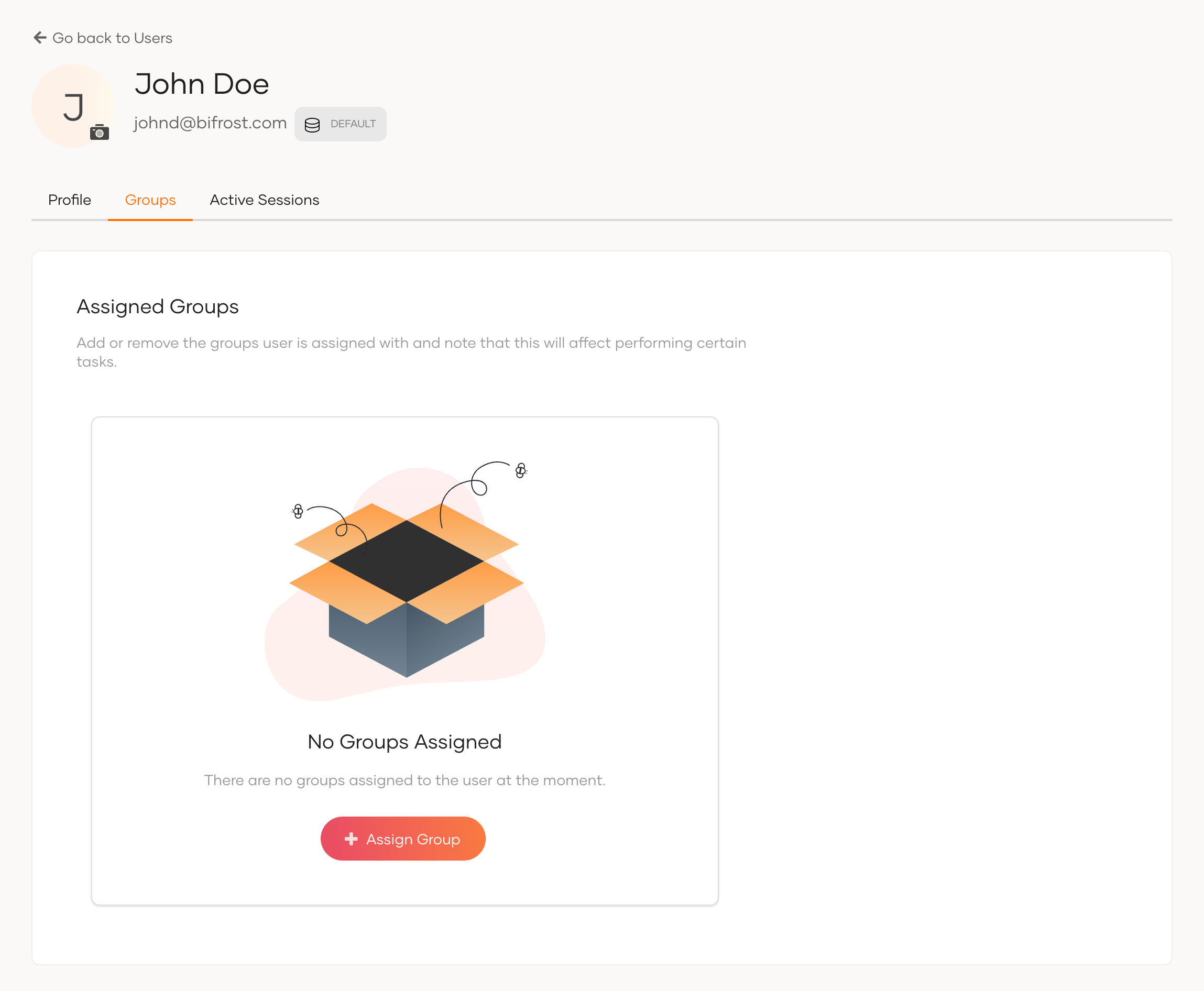
A user can be assigned to different groups in the organization. Groups can be used to restrict the user's access to resources.
To assign users to groups:
- On the Asgardeo Console, go to User Management > Users.
- Click Edit for the user.
-
Go to Groups and assign groups.
Note
The Groups tab for a user account will only appear after you create one or more groups in the organization. Learn how to create a group
Manage user profiles
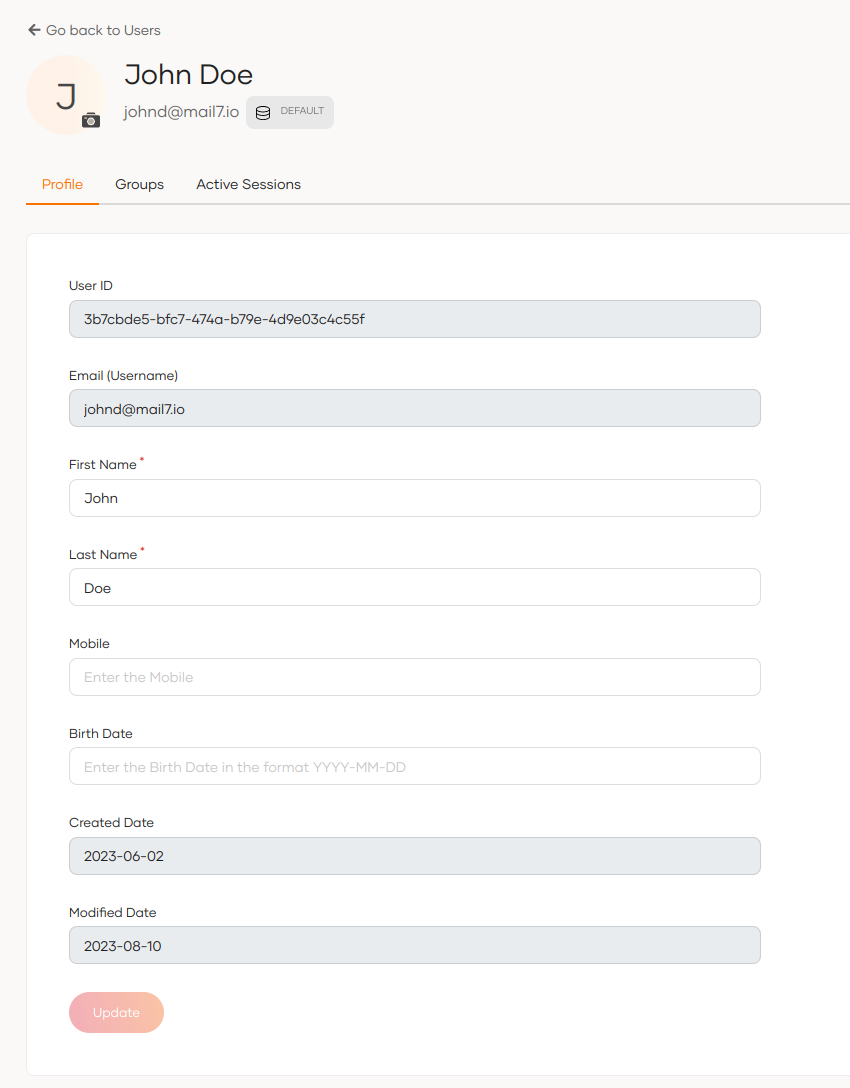
A user profile consists of attributes that represent the details of the user such as username, email address, contact information, other custom attributes, etc.
Note
Administrators in the organization can configure the list of attributes that should be available in a user profile. See Manage attributes for details.
View profile details
Administrators can view the user profile of any user as follows:
-
On the Asgardeo Console, go to User Management > Users.
Note
If you have connected a remote user store, and want to filter the users in your remote user store, select your user store from the drop-down menu.
-
Select the user to view the profile.
Update the profile
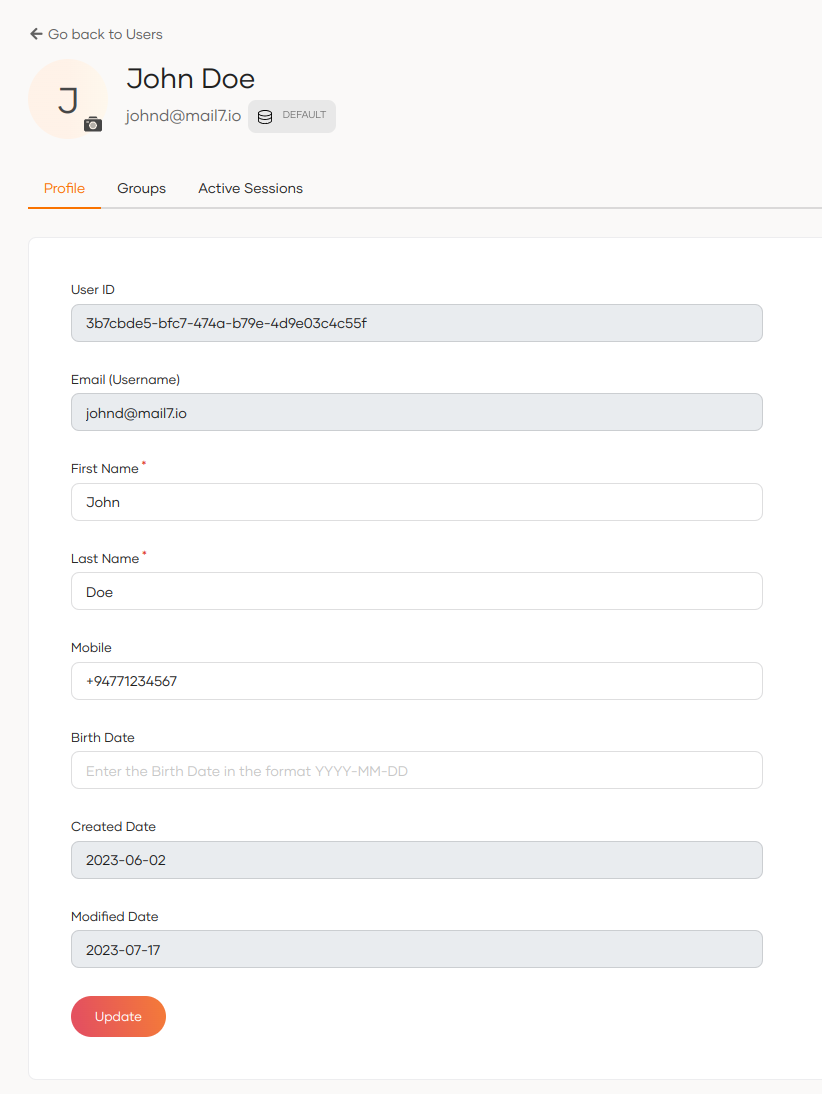
An administrator can update the profile of a user via the Asgardeo Console.
To update the user profile:
- On the Asgardeo Console, go to User Management > Users.
- Find the user's account and click Edit.
-
Update the information on the user profile.
-
Click Update to save.
Resend invitation links and codes
Administrators can resend expired invitation links or verification codes to users. This applies when users need to:
- Complete registration
- Reset passwords through an admin-initiated password reset
- Confirm their account
- Verify their email address
Use the Console
To resend links or codes through the Console:
-
Navigate to the user's profile in User Management > Users.
-
Click the Resend link in the warning message at the top of the user's profile.


Use the API
You can also use the resend-code API to resend links or codes programmatically.
curl -X 'POST' \
'https://api.asgardeo.io/t/{organization_name}/api/identity/user/v1.0/resend-code' \
-H 'accept: application/json' \
-H 'Authorization: Bearer <access_token>' \
-H 'Content-Type: application/json' \
-d '{
    "user": {
        "username": "<username>",
        "realm": "<realm>"
    },
    "properties": [
        {
            "key": "RecoveryScenario",
            "value": "<recovery_scenario>"
        }
    ]
    }'
curl -X 'POST' \
'https://api.asgardeo.io/t/{organization_name}/api/identity/user/v1.0/resend-code' \
-H 'accept: application/json' \
-H 'Authorization: Bearer <access_token>' \
-H 'Content-Type: application/json' \
-d '{
    "user": {
        "username": "jane",
        "realm": "DEFAULT"
    },
    "properties": [
        {
            "key": "RecoveryScenario",
            "value": "ASK_PASSWORD"
        }
    ]
    }'
Recovery scenarios
Specify the recovery scenario in the properties parameter of the API request:
ASK_PASSWORD: User needs to set up their initial password using the setup link.ASK_PASSWORD_VIA_EMAIL_OTP: User needs to complete registration using an email OTP.ASK_PASSWORD_VIA_SMS_OTP: User needs to complete registration using an SMS OTP.ADMIN_FORCED_PASSWORD_RESET_VIA_EMAIL_LINK: User needs to reset password via an admin-forced email link.ADMIN_FORCED_PASSWORD_RESET_VIA_OTP: User needs to reset password via an admin-forced OTP sent through email.EMAIL_VERIFICATION: User needs to verify their email using the setup link.EMAIL_VERIFICATION_OTP: User needs to verify their email using an email OTP.SELF_SIGN_UP: User needs to confirm their account using the email link.
Note
- Provide the username without the user store domain prefix
- Specify the relevant user store domain name in the
realmparameter
Response
Set a user's password
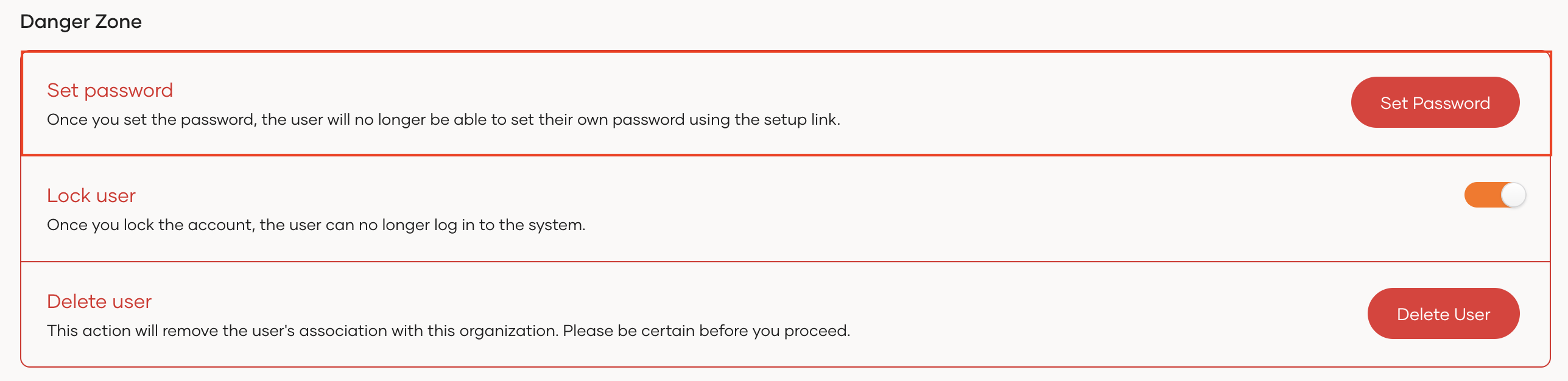
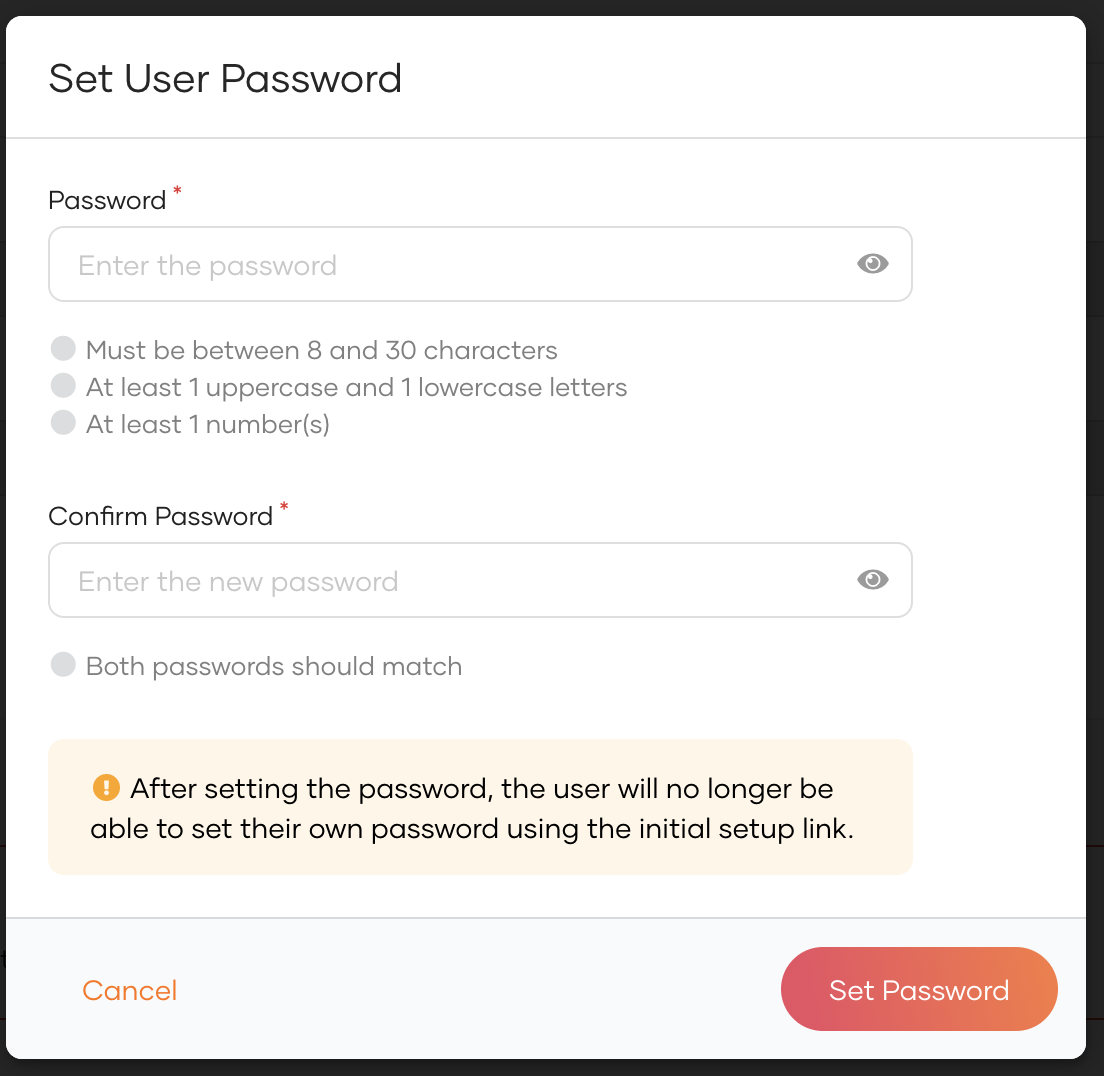
Administrators can set a user's password if the user is unable to set the password via the initial setup email link shared during user creation.
To set the password:
-
Click Set password at the bottom of the user's profile.
-
Type the new password.
-
Click Set Password.
Note
Once the administrator set the password, the user's account will get unlocked.
Reset the user's password
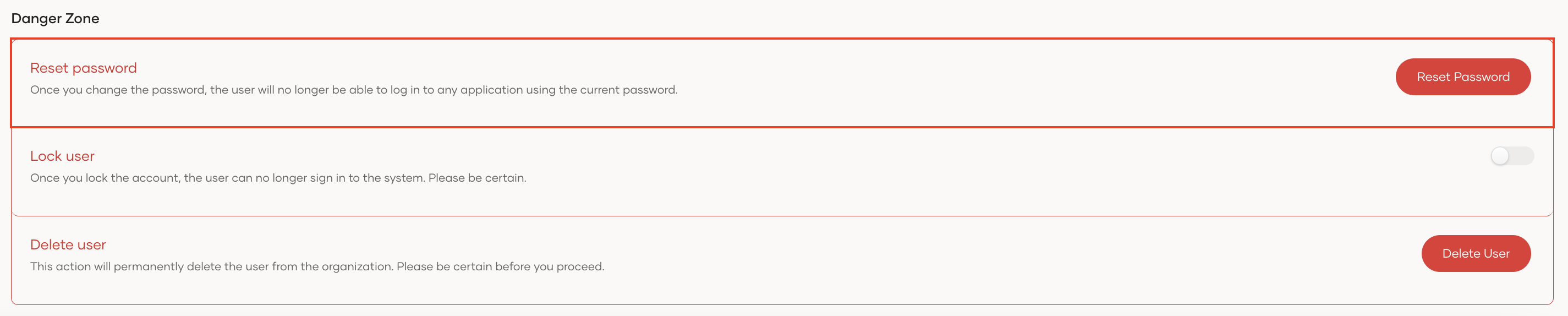
Administrators can reset a user's password or initiate the password reset process from the Asgardeo Console.
To reset the password:
-
Click Reset password at the bottom of the user's profile.
-
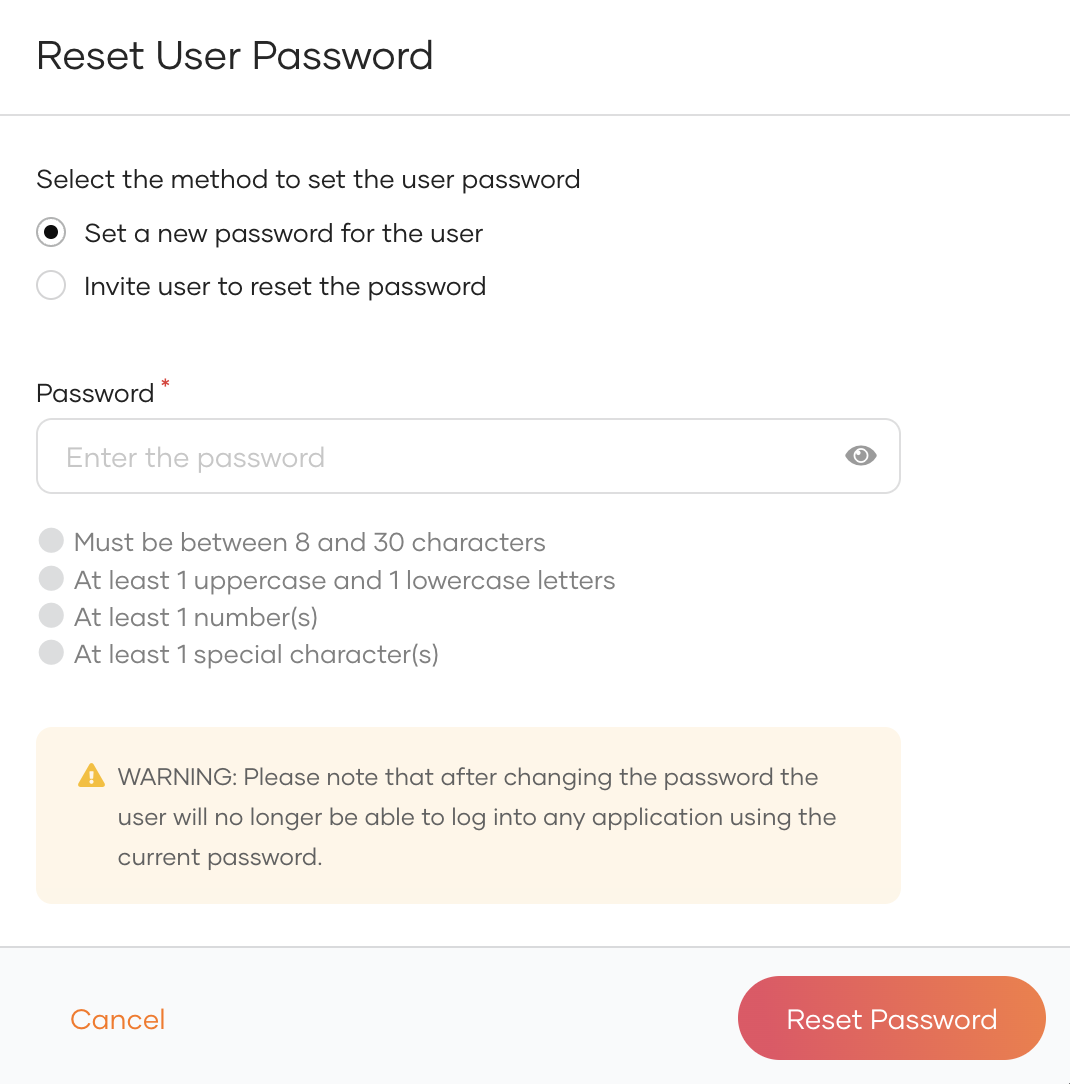
Select a method to reset the user password:
-
Invite user to set their own password: If this option is selected, a password reset request can be sent to the user via email. The user can then use the instructions in the email to reset the password.
-
Set a temporary password for the user: If this option is selected, the owner or an administrator can set a temporary password for the user.
Note
If the user is in pending admin forced password reset, once the admin resets the password, the account will get unlocked.
-
-
Click Reset Password.
Using the API
You can also use Asgardeo's SCIM API to initiate the admin initiated password recovery flow.
-
Get an access token with the
internal_user_mgt_updatescope. -
Use the obtained access token to execute the following cURL.
curl --location --request PATCH 'https://api.asgardeo.io/t/<org_name>/scim2/Users/ <user_id>' \
--header 'Content-Type: application/json' \
--header 'Authorization: Bearer <access_token>' \
--data '{
   "schemas": [
      "urn:ietf:params:scim:api:messages:2.0:PatchOp",
      "urn:scim:wso2:schema"
   ],
   "Operations": [
      {
            "op": "add",
            "value": {
               "urn:scim:wso2:schema": {
                  "forcePasswordReset": true
               }
            }
      }
   ]
}'
Upon successful execution of the cURL the user will recieve an email to reset their password.
Lock a user account
To temporarily prevent a user from logging into applications or the self-service My Account portal, you can lock their account.
To lock a user account:
- On the Asgardeo Console, go to User Management > Users and select the user.
-
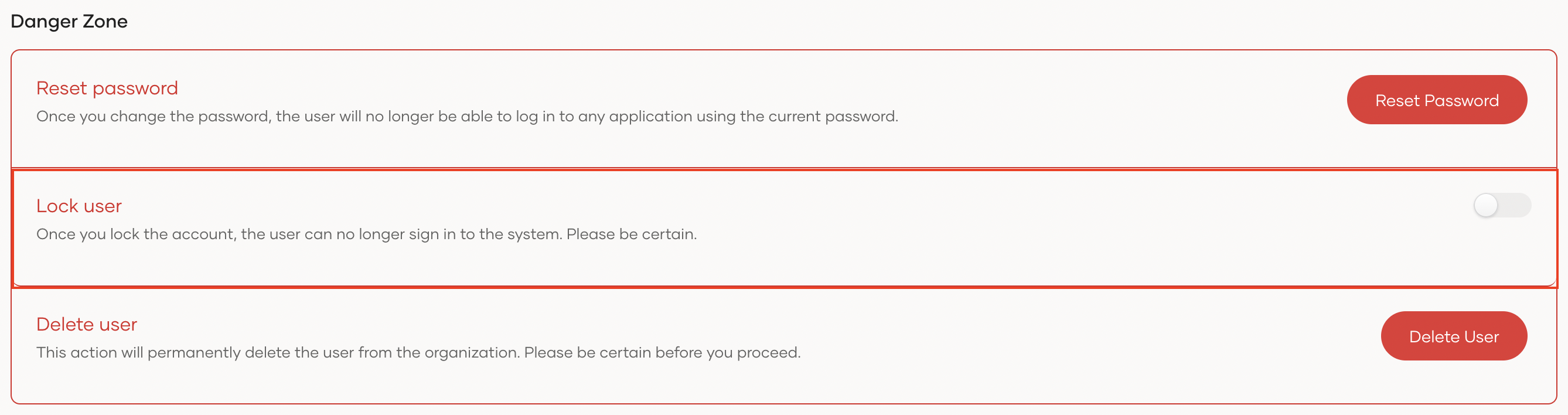
In the Danger Zone, turn the Lock user toggle on to lock the user's profile. Turn it off to unlock it.
-
Select the checkbox to confirm your action.
- Click Confirm.
Note
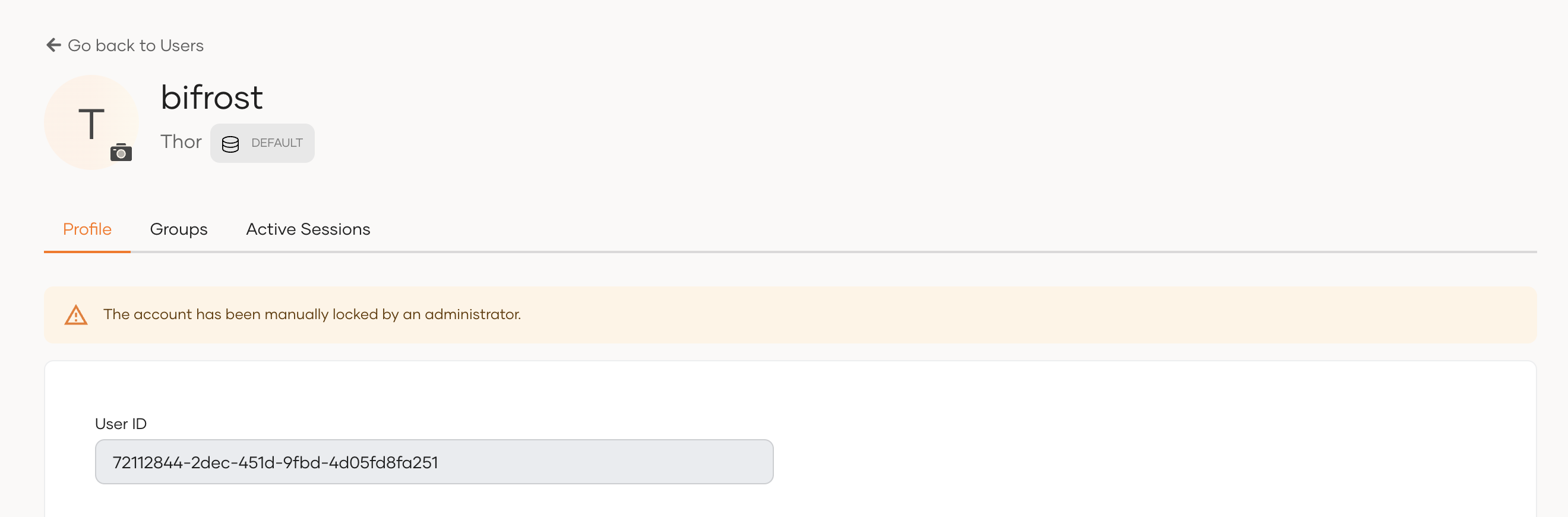
When a user account is locked, the reason for the account lock will be displayed in the user's profile.
Disable a user account
Disabling a user's account prevents users from logging into applications or to the self-service My Account portal. It is intended to be a long-term and a more permanent measure than locking a user's account. Therefore, if you simply wish to restrict a user's access temporarily, it is recommended to use account locking.
To disable a user account you can use either the Console or the SCIM API.
Enable account disabling
Account disabling is not an option available for a users' accounts by default. If you wish to enable this option for your organization, refer to account disabling.
- On the Asgardeo Console, go to User Management > Users and select the user.
-
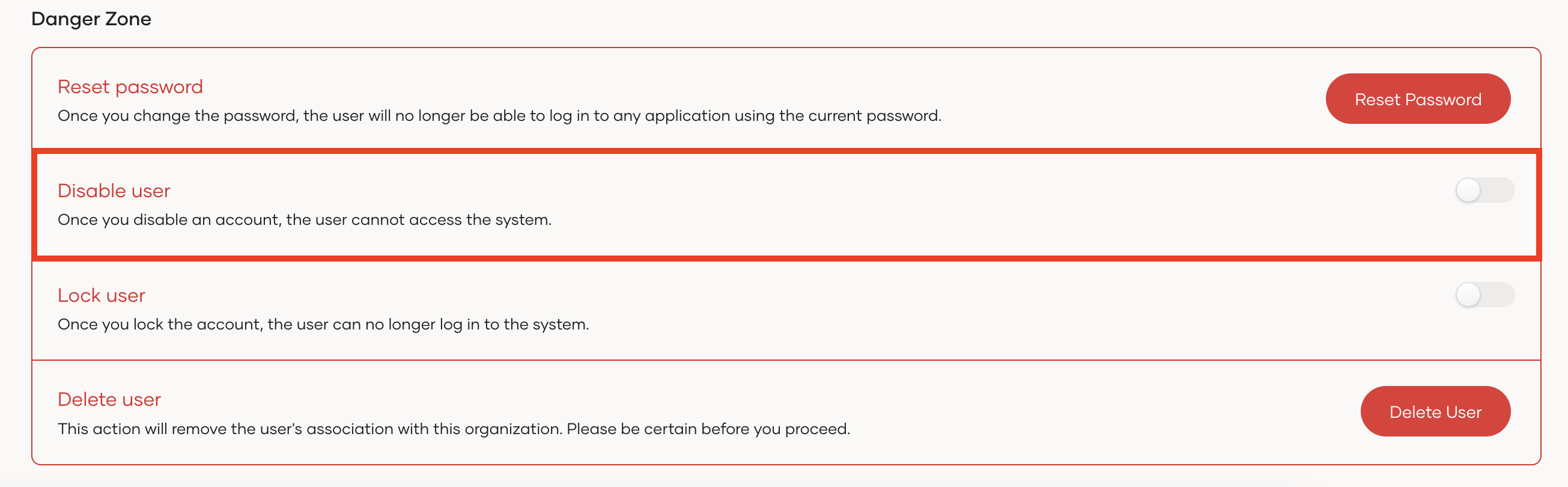
In the Danger Zone, turn the Disable user toggle on to disable the user's profile. Turn it off to enable it.
-
Select the checkbox to confirm your action.
- Click Confirm.
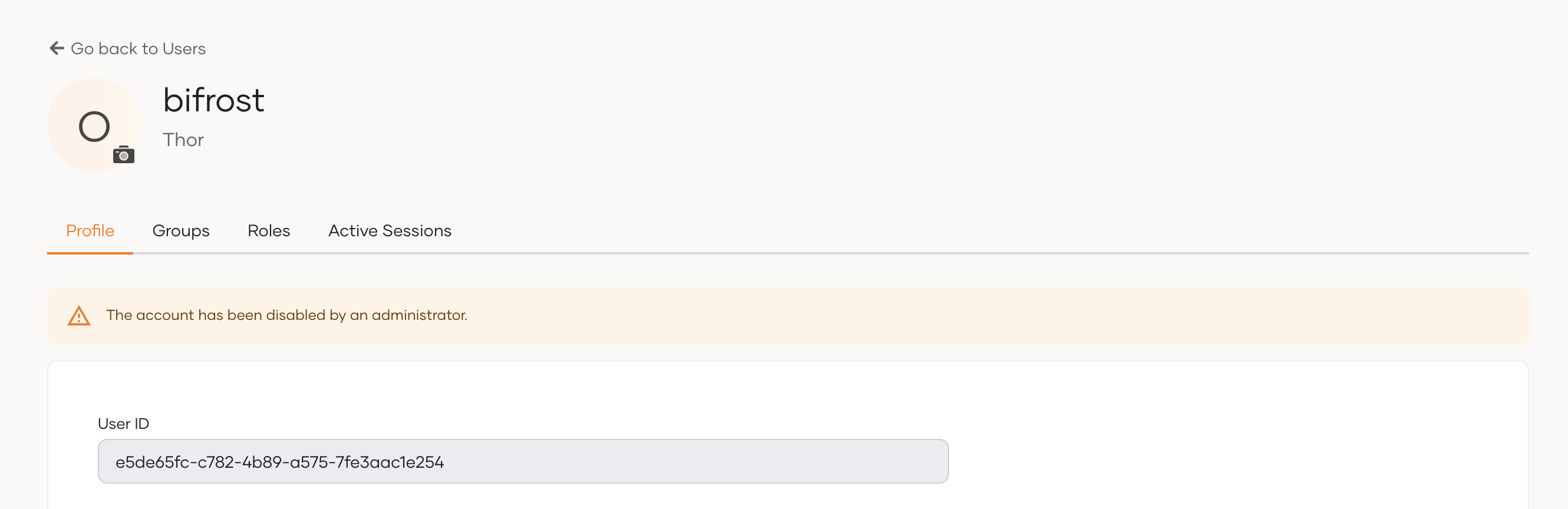
When a user account is disabled, the following message will be displayed in the user's profile.
You can use Asgardeo's SCIM API to disable user accounts. To do so,
-
Get an access token with the
internal_user_mgt_updatescope. -
Use the obtained access token to execute the following cURL.
Note
Replace
<user_id>with the ID of the user you want to disable, and<access_token>with the access token you obtained in step 1.curl --location --request PATCH 'https://api.asgardeo.io/t/{organization_name}/o/scim2/Users/<user-id>' \ --header 'Content-Type: application/json' \ --header 'Authorization: Bearer <access_token>' \ --data '{ "schemas": [ "urn:ietf:params:scim:api:messages:2.0:PatchOp", "urn:scim:wso2:schema" ], "Operations": [ { "op": "replace", "value": { "urn:scim:wso2:schema": { "accountDisabled": false } } } ] }'After you successfully execute the cURL, the user profile gets disabled.
Delete a user
A user account can be deleted by administrators. Once an account is deleted, the action is irreversible.
To delete a user account:
- On the Asgardeo Console, go to User Management > Users and select the user.
-
Click Delete User at the bottom of the user's profile.
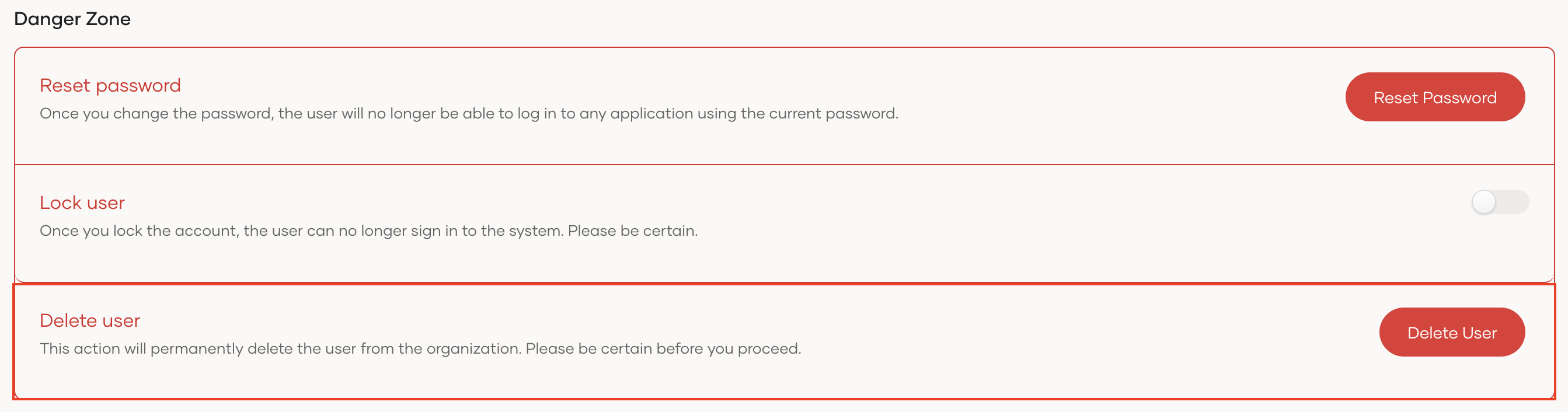
-
Enable the checkbox to confirm your action.
- Click Confirm.
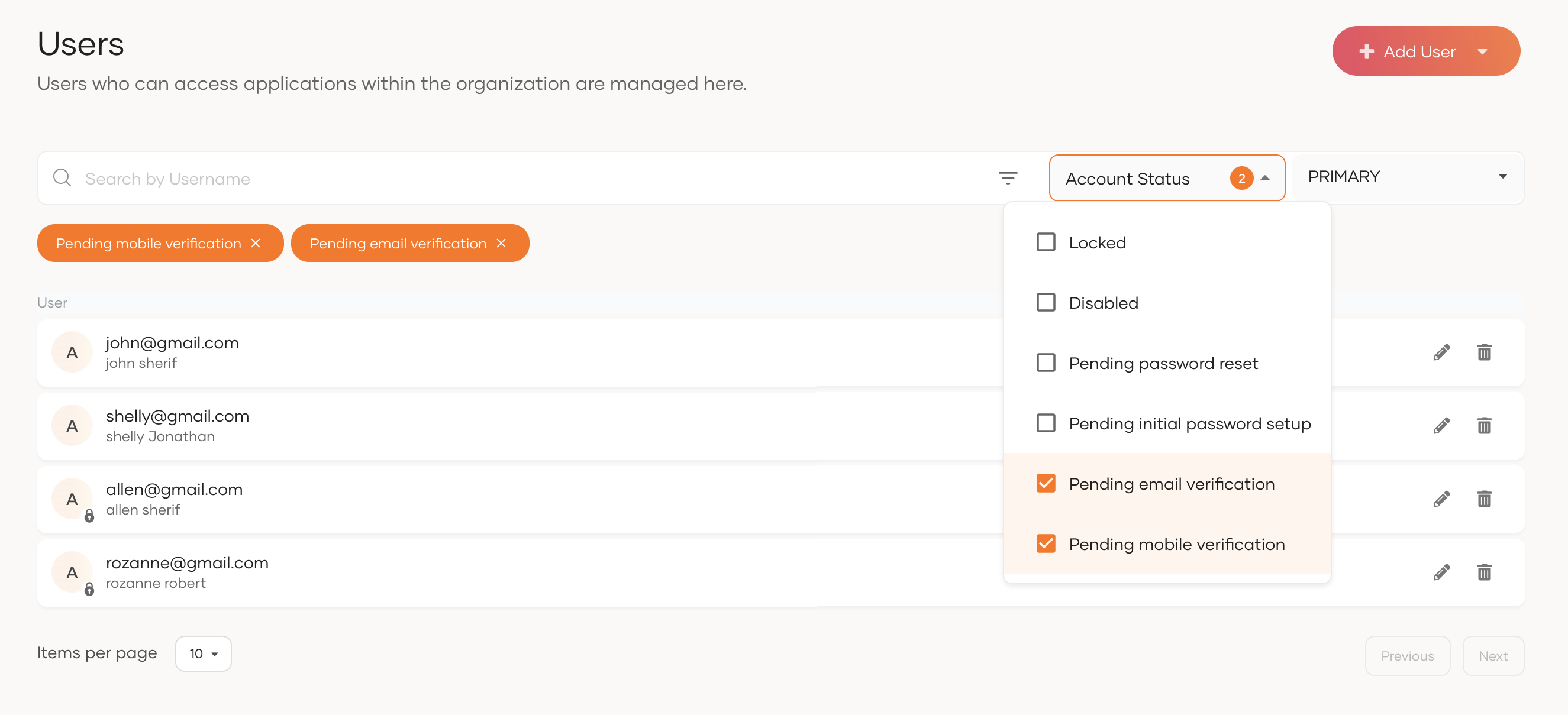
Filter users
Administrators can filter users based on their account status from the Asgardeo Console.
To filter users by account status:
- On the Asgardeo Console, go to User Management > Users.
-
Click the Account Status dropdown and select the relevant filter criteria:
- Locked: Filters users with locked accounts.
- Disabled: Filters users with deactivated accounts.
- Pending password reset: Filters users for whom the administrator has initiated a forced password reset, but the users haven't yet reset their passwords.
- Pending initial password setup: Filters users an administrator invited to set their own password during initial account creation but who haven't done so yet.
- Pending email verification: Filters users who haven't yet verified their primary email addresses.
-
Pending mobile verification: Filters users who haven't yet verified their primary mobile numbers.