Configuration Panel
The Configuration Panel is the view that opens whenever you select Configure in the editor. It groups the settings that apply to the project, service, or function you're working on into a single form, so you can review and update them without editing source code. The panel adapts its content to the level you opened it from.
Where to open it
The level you open the Configuration Panel from determines which configuration it loads:
- Project level: select Configure at the top of the project home page, or hover over Configurations in the project explorer and select View Configuration.
- Service level: select Configure in the header of a service, such as an MCP service, in the Service Designer.
- Function level: select Configure at the top of a function's flow.
Configuration levels
The panel exposes configuration at three levels. Each level scopes the settings to the part of the project you opened it from.
Project-level configurations
Apply to the entire project. The Configurable Variables view lists the configurable variables defined in the project, with each variable's type and default value, and the configurable variables of the libraries the project imports. Use this level for values that should be shared across all agents, entry points, and functions in the project and supplied through Config.toml.
Service-level configurations
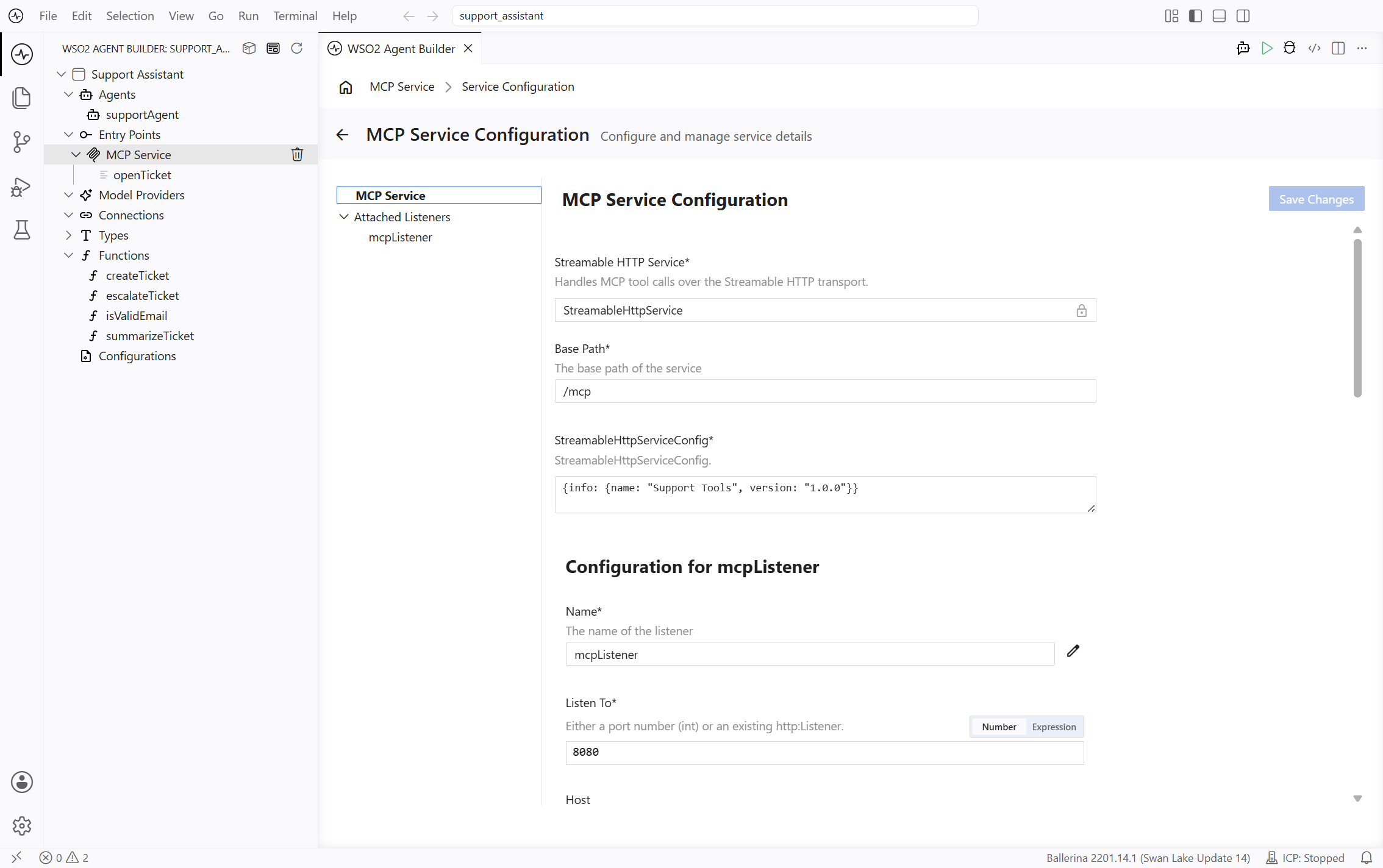
Apply only to the selected service. The form is split into the service's own settings and the configuration of every listener attached to it. For an MCP service, this includes:
- Base Path: the path the service is exposed on, for example
/mcp. - StreamableHttpServiceConfig: the server information sent to MCP clients, such as the server name and version, along with options such as the session mode and HTTP settings.
- Configuration for
<listener>: the listener's own settings (for example, Name, Listen To, Host, HTTP1 Settings, Secure Socket, and HTTP Version for an MCP listener), one block per attached listener.
For what each MCP setting does, see Service configuration and Listener configuration.
The left pane lists the service and its Attached Listeners so you can jump straight to the block you want to edit.
Function-level configurations
Use the same form you saw when you created the function. The form exposes:
- Name of the function.
- Description of the function.
- public checkbox, to make the function visible across the project.
- Parameters of the function.
- Return Type of the function.
Saving changes
On the project and service levels, the panel stages your edits until you select Save Changes at the top right. Save Changes stays disabled until at least one field has been modified, so you can open the panel to inspect a configuration without risk of changing it. On the function level, select Save at the bottom of the form.
What's next
- Service Designer: return to the service designer to manage resources and handlers.
- Exposing a Service as MCP: create an MCP service and configure its tools.
- Expression Panel: use configurable variables in expressions.