Example
What you'll build
Build a low-code integration that sends a message to a Discord channel using the Discord connector in WSO2 Integrator. The integration uses an Automation entry point to invoke the create_message operation, which posts a message to a specified channel via the Discord REST API.
Operations used:
- create_message : Posts a text message to a Discord channel using ApiKeysConfig authentication
Architecture
Prerequisites
- A Discord channel ID where the bot has permission to send messages
Setting up the Discord integration
New to WSO2 Integrator? Follow the Create a New Integration guide to set up your integration first, then return here to add the connector.
Adding the Discord connector
Step 1: Open the connector palette
In the Design canvas, select + Add Artifact → Connection to open the connector palette.
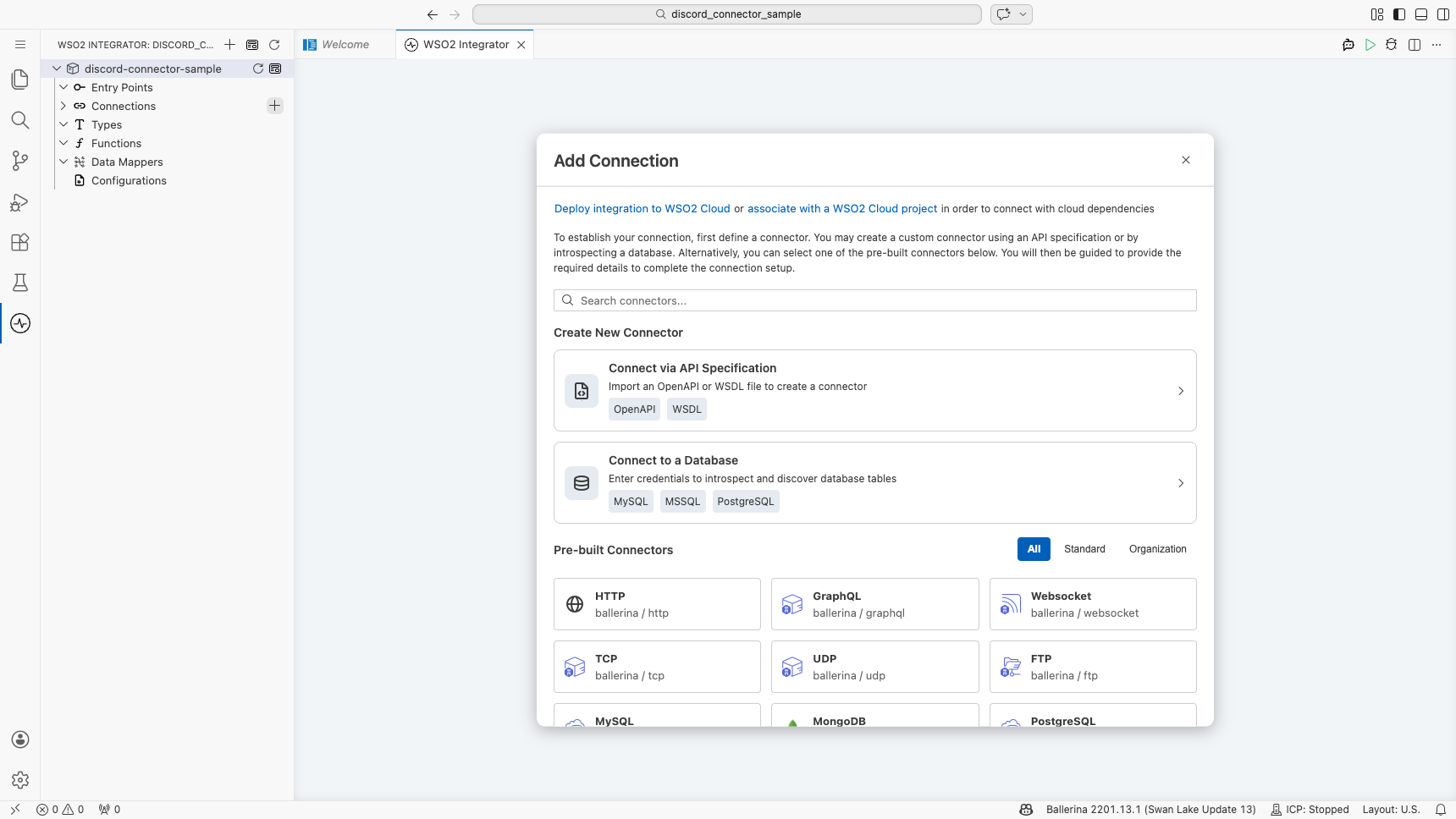
Configuring the Discord connection
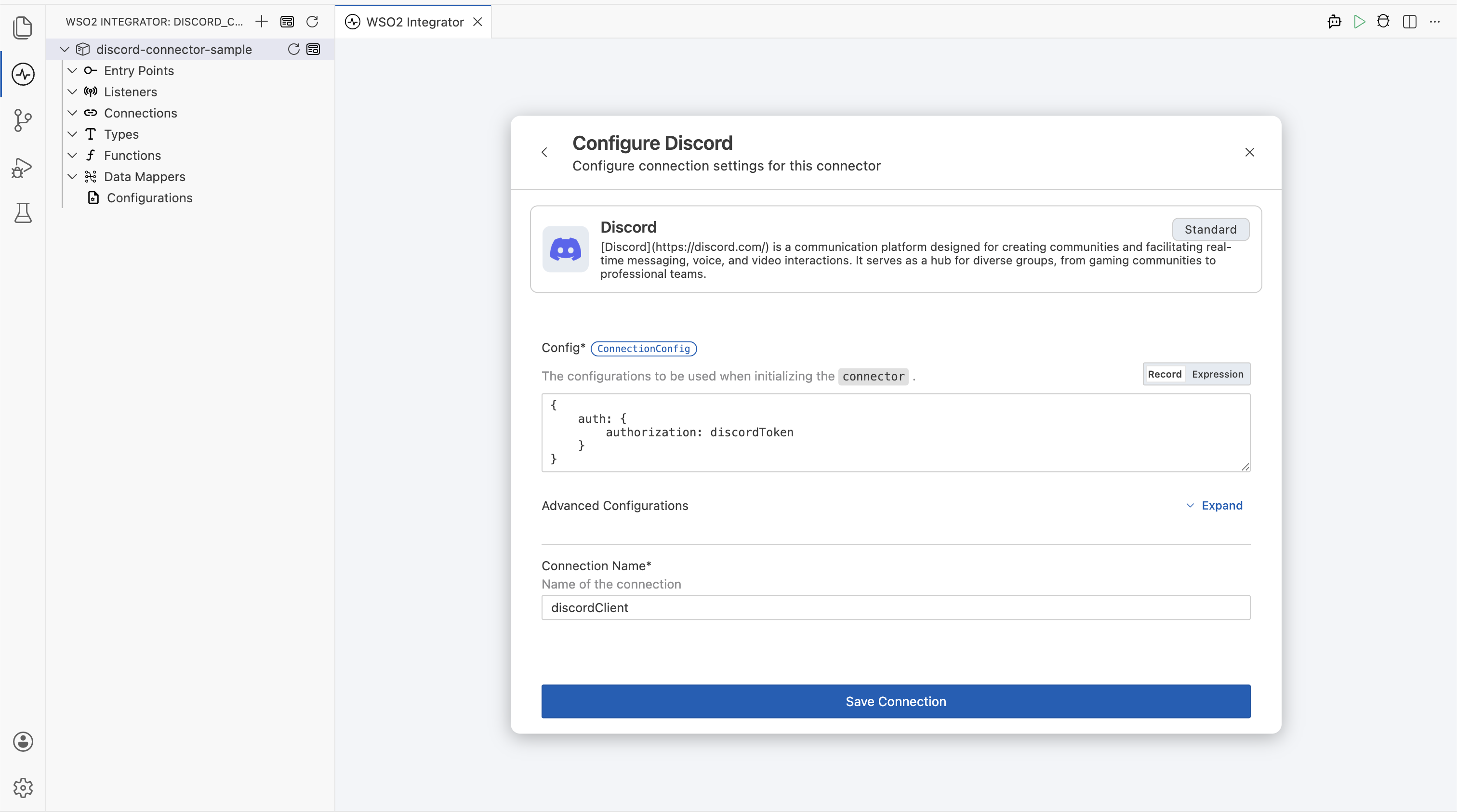
Step 2: Fill in the connection parameters
Search for discord, select the ballerinax/discord connector card to open the connection form, and bind each parameter to a configurable variable:
- auth : ApiKeysConfig authentication config referencing the
discordTokenconfigurable variable - Connection Name :
discordClient
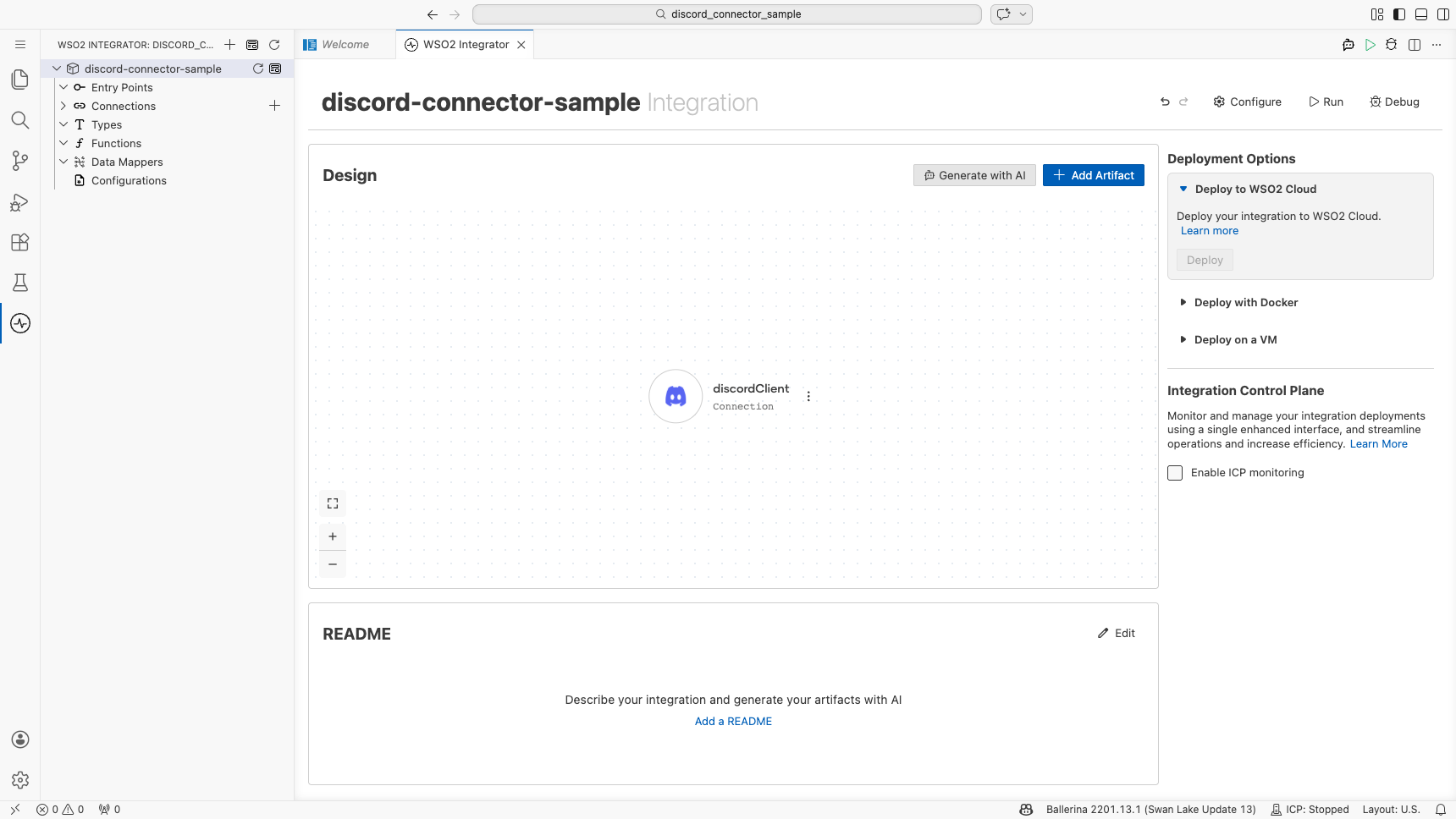
Step 3: Save the connection
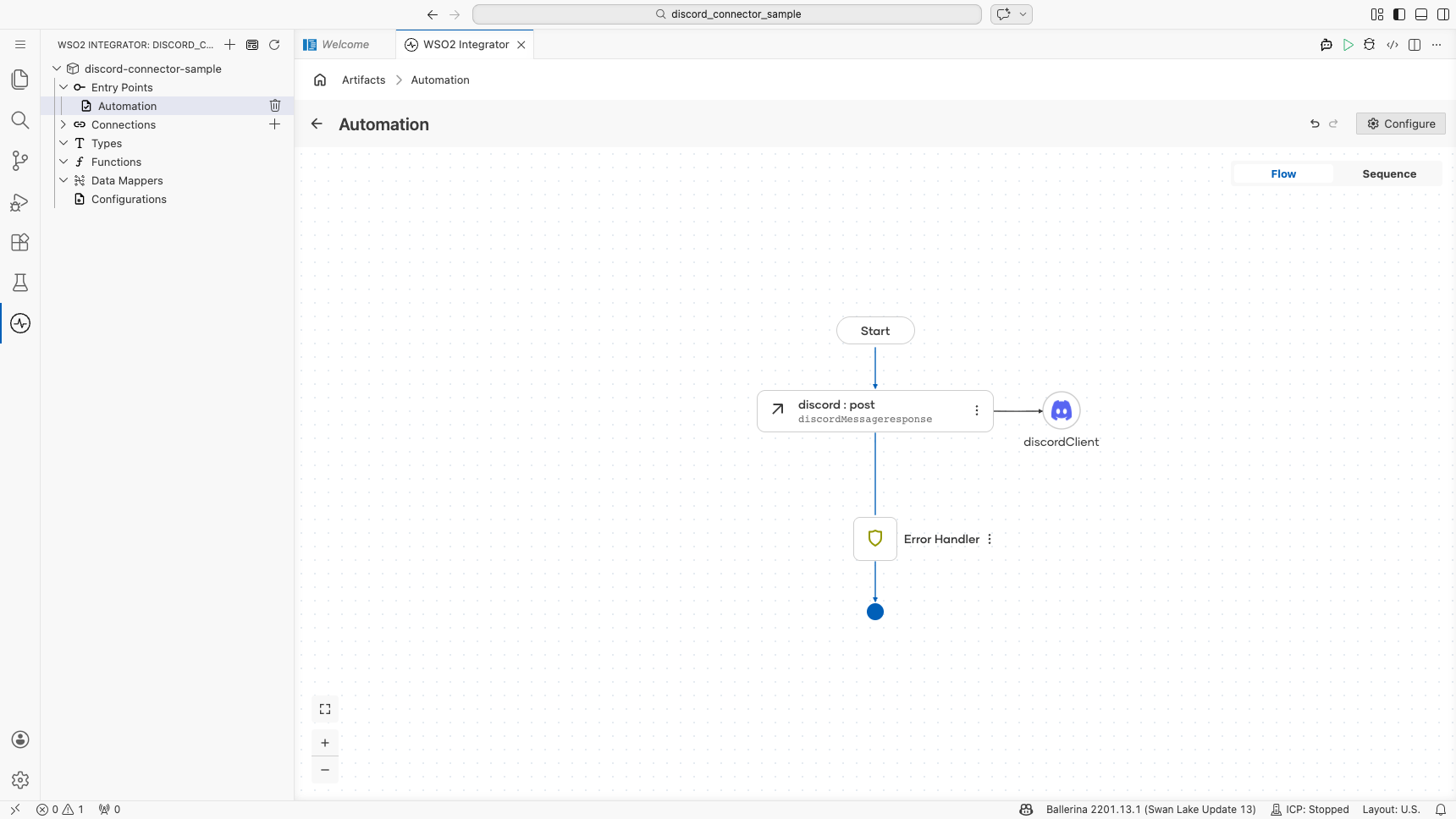
Select Update Connection to save the connection. The discordClient connection node appears on the Design canvas.
Step 4: Set actual values for your configurables
- In the left panel, select Configurations.
- Set a value for each configurable listed below.
- discordToken :
string: your Discord bot token used by the ApiKeysConfig authentication config (e.g.,YOUR_DISCORD_BOT_TOKEN_HERE)
Configuring the Discord createMessage operation
Step 5: Add an automation entry point
Select + Add Artifact and select Automation under the Automation category. Select Create to generate the automation entry point named main.
Step 6: Select and configure the createMessage operation
- Select the + button between the Start and Error Handler nodes to open the node panel.
- Under Connections in the node panel, select discordClient to expand it and reveal all available operations.
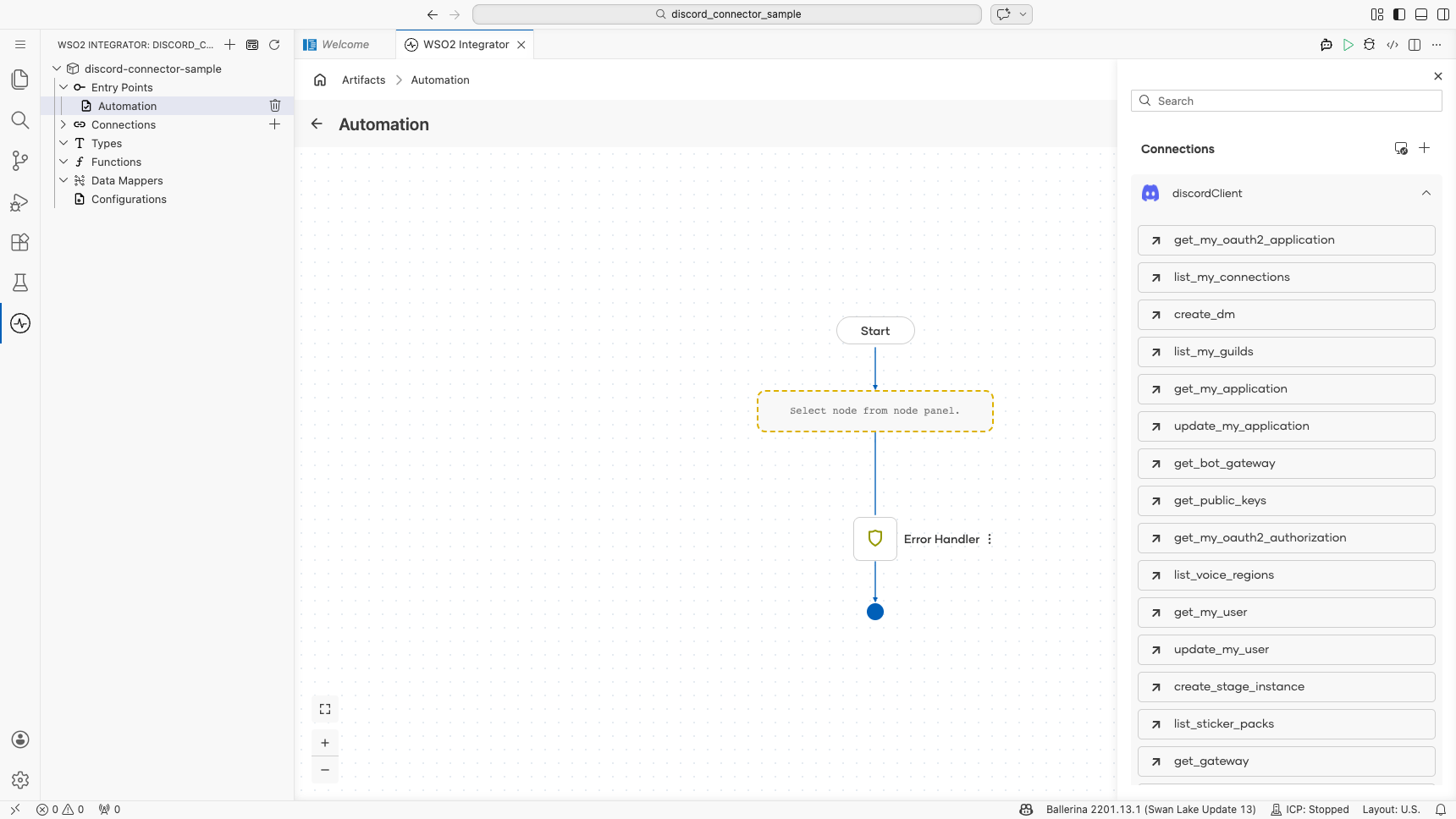
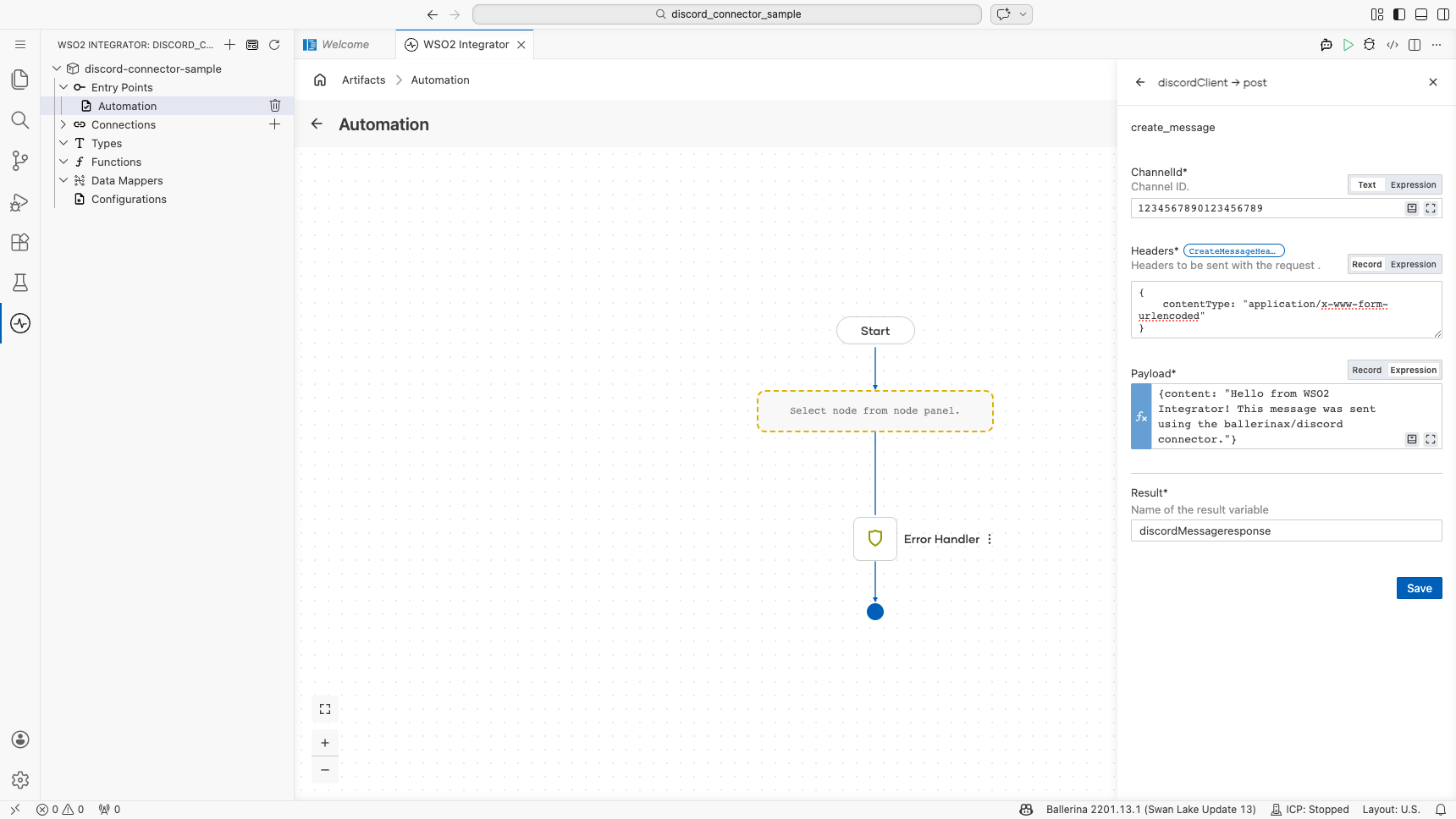
- Select create_message from the list of operations, then fill in the operation fields:
- ChannelId : the Discord channel ID to post the message to
- Headers : content type header for the request
- Payload : the message body containing the
contentfield with the text to post - Result : variable name to store the API response
- Select Save to add the operation to the Automation flow.
Try it yourself
Try this sample in WSO2 Integration Platform.

More code examples
The Discord connector provides practical examples illustrating usage in various scenarios. Explore these examples, covering the following use cases:
- Automated Event Reminders - This use case illustrates how the Discord API can be leveraged to create a scheduled event in a Discord server and automate daily reminders about this event across all channels within the server.
- Automated Role Assignment Based on Reactions - This use case illustrates the utilization of the Discord API to assign roles to members based on their interests, enabling them to gain roles by reacting to designated messages.