Example
What you'll build
This example builds an automation that connects to Microsoft Dynamics 365 Finance and retrieves the fiscal calendars configured for a Finance and Operations environment. The automation logs the retrieved collection so you can confirm the connection and operation work end to end.
Operations used:
- List Fiscal Calendars : Retrieves the collection of fiscal calendars defined in the target Dynamics 365 Finance and Operations environment.
Architecture
Prerequisites
-
A Microsoft Dynamics 365 Finance and Operations environment, cloud-hosted or sandbox, with an OAuth2 client credentials application configured for API access.
-
An Azure Active Directory application registration with API permissions granted and consented for Dynamics 365 Finance and Operations.
-
The application must be registered as a user in the target Dynamics 365 Finance and Operations environment and assigned the security roles required for this connector's operations.
Setting up the Microsoft Dynamics 365 Finance Fiscal integration
New to WSO2 Integrator? Follow the Create a New Integration guide to set up your integration first, then return here to add the connector.
Adding the Microsoft Dynamics 365 Finance Fiscal connector
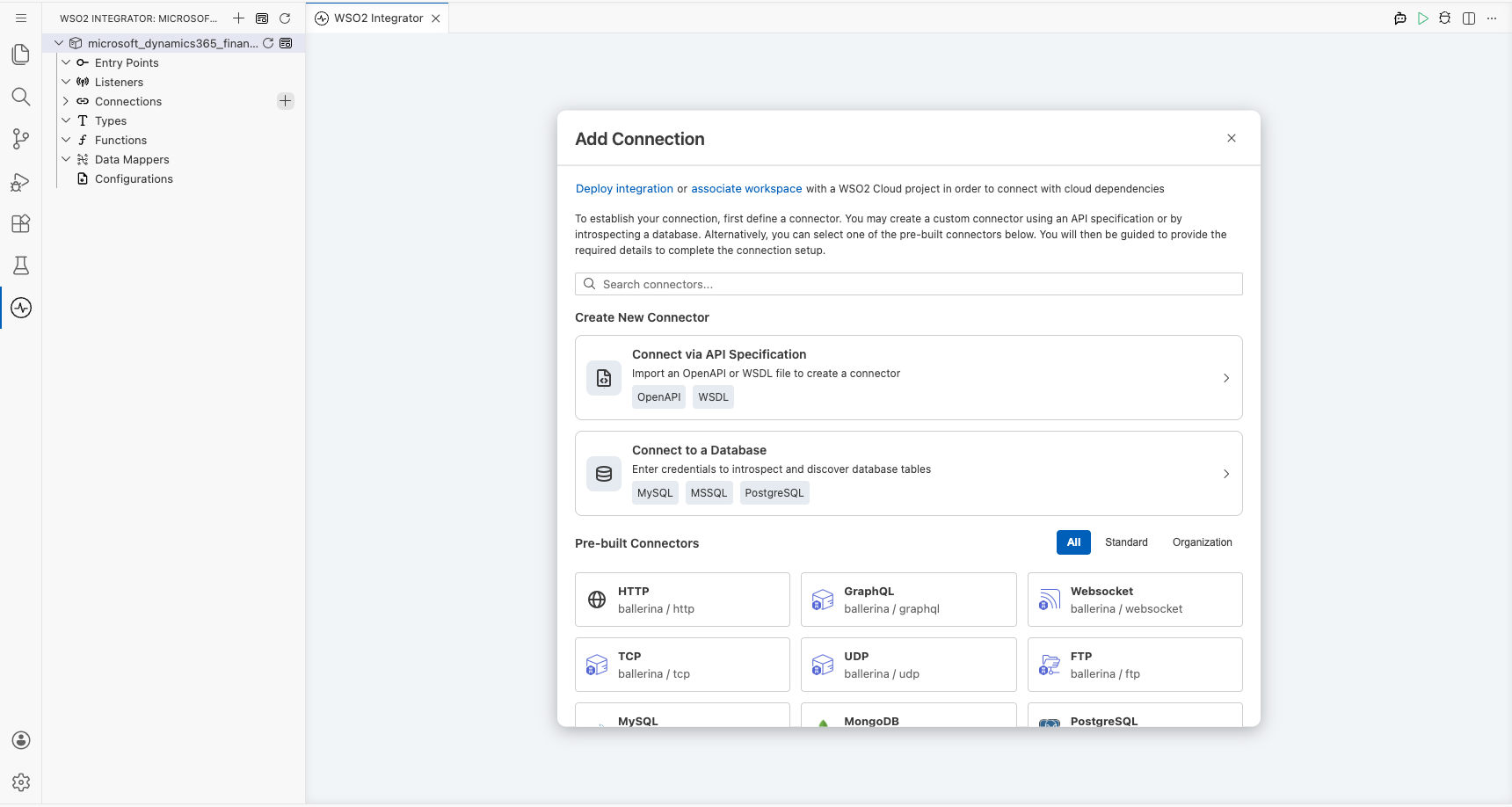
Step 1: Open the connector palette
Select Add Connection in the Connections section.
Step 2: Select the Microsoft Dynamics 365 Finance Fiscal connector
- Enter
microsoft.dynamics365.finance.fiscalin the search field. - Select the Fiscal connector card.
Configuring the Microsoft Dynamics 365 Finance Fiscal connection
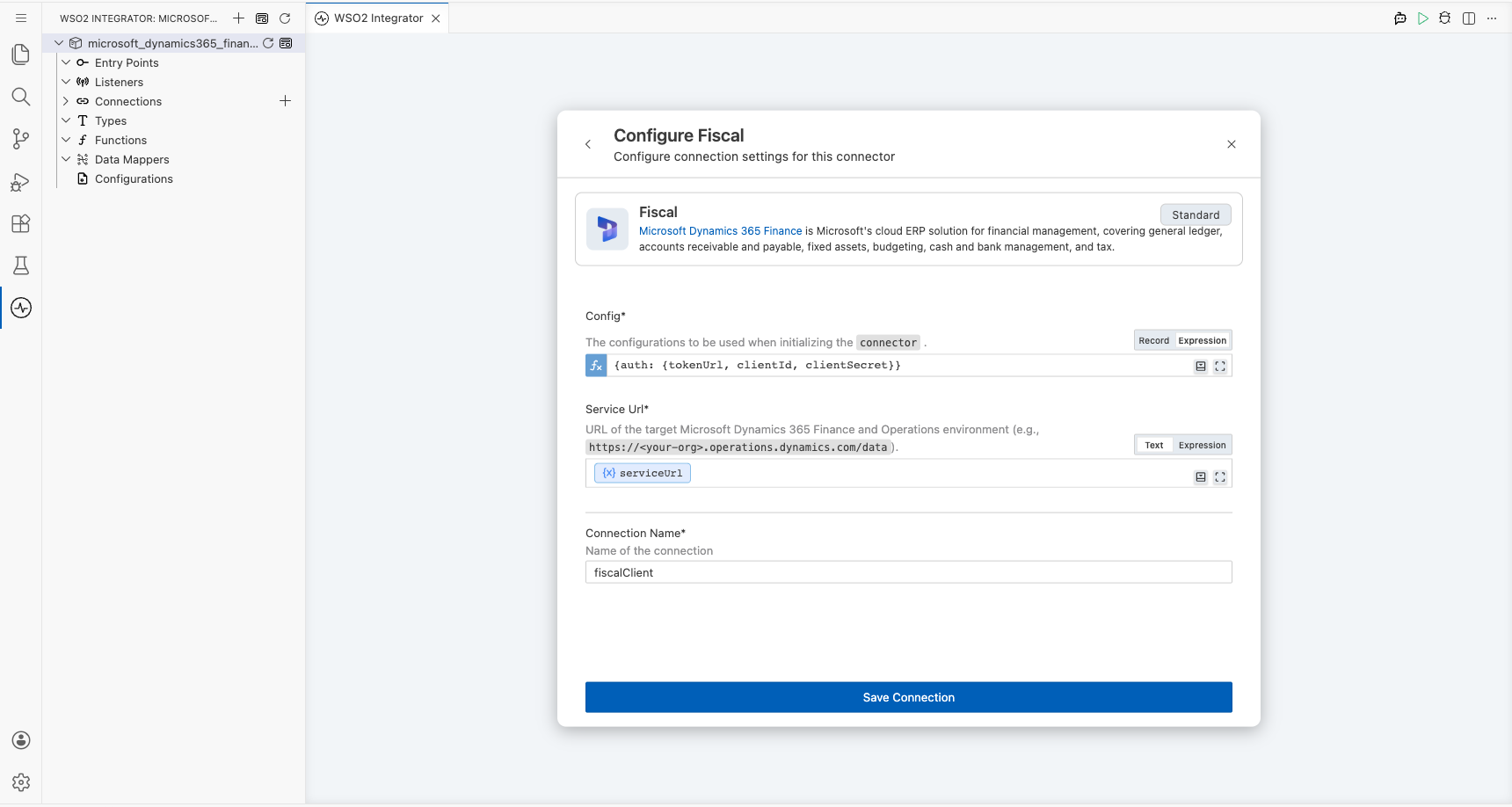
Step 3: Bind the connection parameters to configurable variables
Bind every connection field to a configurable variable rather than a literal value.
- Config : An expression that references configurable variables for the OAuth2 client credentials settings — token URL, client ID, and client secret. Enter the expression
{auth: {tokenUrl, clientId, clientSecret, scopes}}. - Service Url : A reference to a configurable variable holding the target Dynamics 365 Finance and Operations environment URL. Use the OData root, for example
https://<your-org>.operations.dynamics.com/data.
Step 4: Save the connection
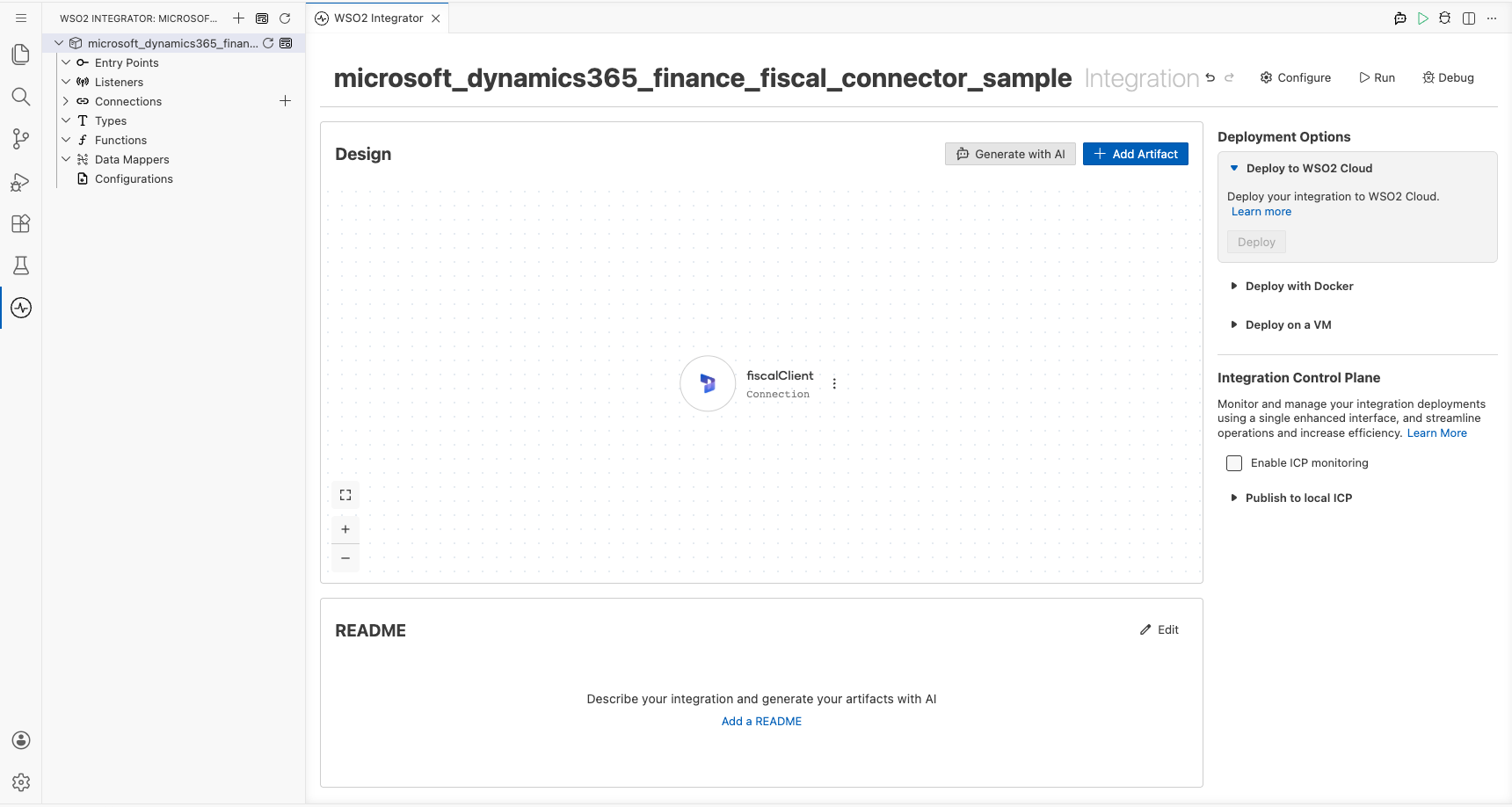
Select Save Connection and verify that the connection appears in the Connections section.
Step 5: Set actual values for your configurables
- Select Configurations at the bottom of the project tree under Data Mappers.
- Enter a value for each configurable listed below before you run the integration.
- tokenUrl (
string) : The OAuth2 token endpoint used to obtain an access token for the target environment. - clientId (
string) : The application (client) identifier from the Azure Active Directory registration. - clientSecret (
string) : The client secret value from the Azure Active Directory registration. - scopes (
string[]) : The OAuth2 scope requested for the client-credentials token, set to the environment base URL followed by/.default - serviceUrl (
string) : The base URL of the target Dynamics 365 Finance and Operations environment.
Configuring the Microsoft Dynamics 365 Finance Fiscal List Fiscal Calendars operation
Step 6: Add an automation entry point
- Select Add Entry Point next to Entry Points.
- Select Automation.
- Select Create to accept the settings.
Step 7: Expand the connection and configure the List Fiscal Calendars operation
- Select the add icon on the automation flow between Start and Error Handler.
- Expand fiscalClient to display its operations.
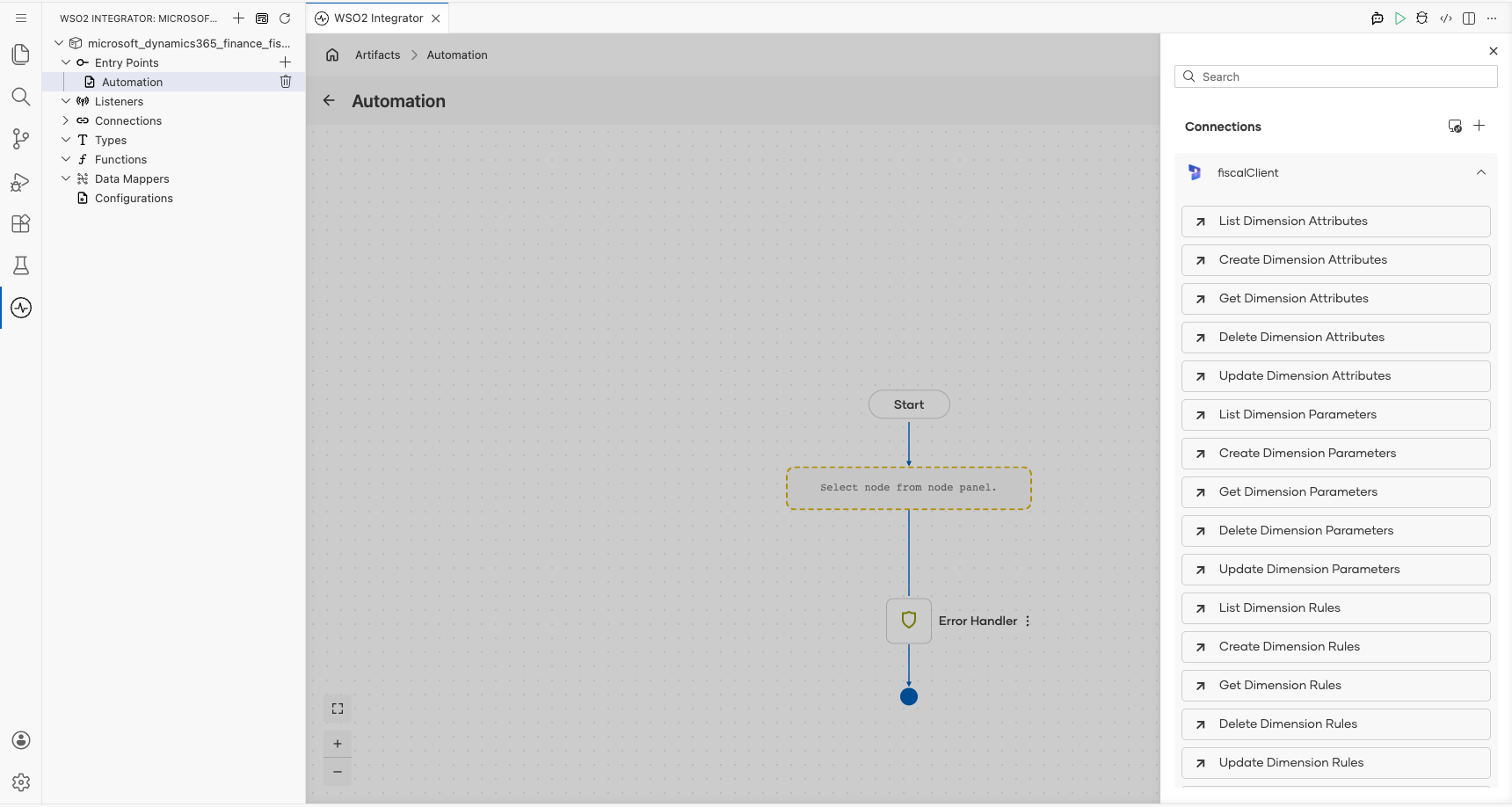
- Select List Fiscal Calendars. This operation has no required fields, so the default result variable is used as is.
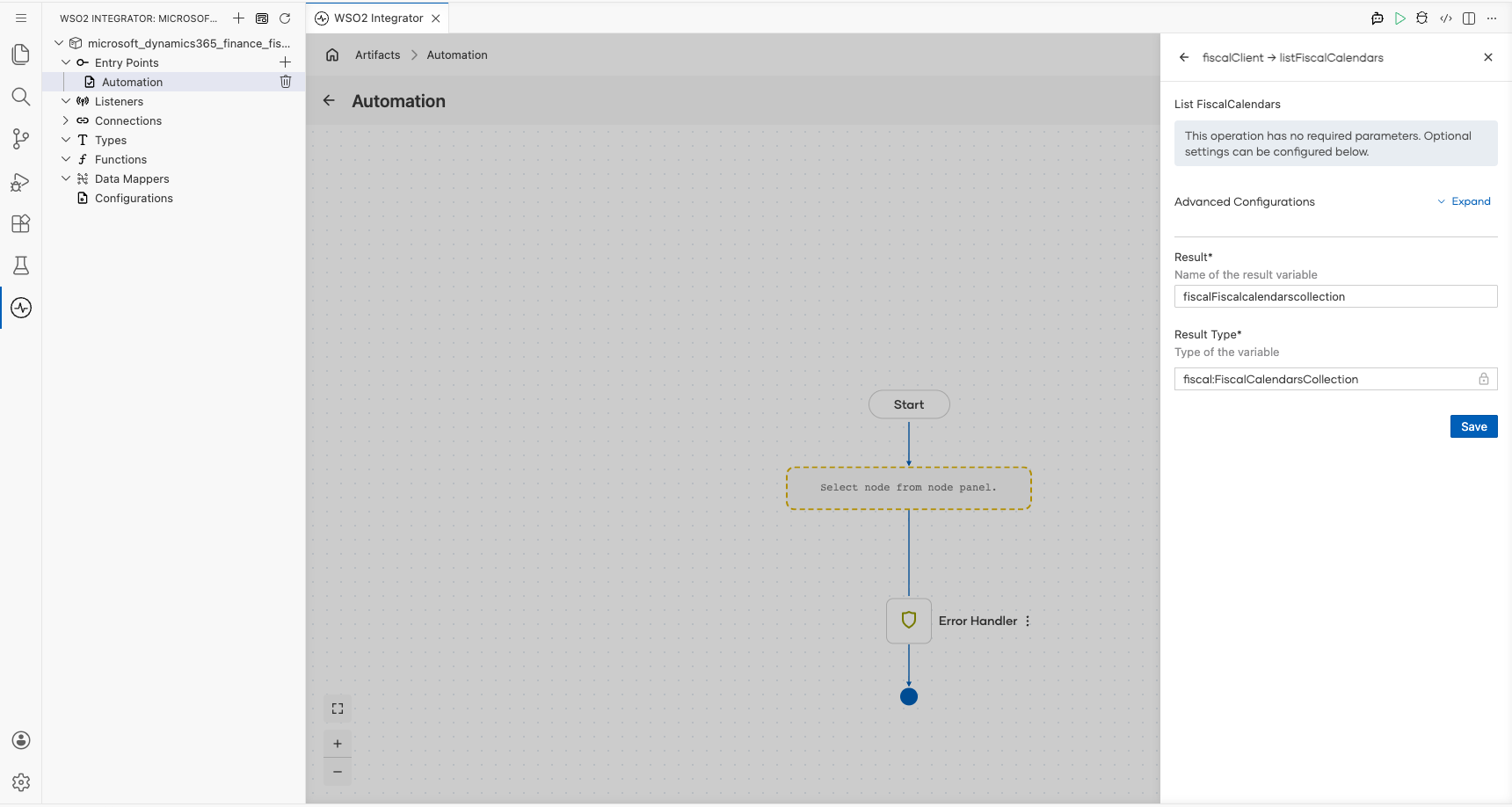
- Select Save.
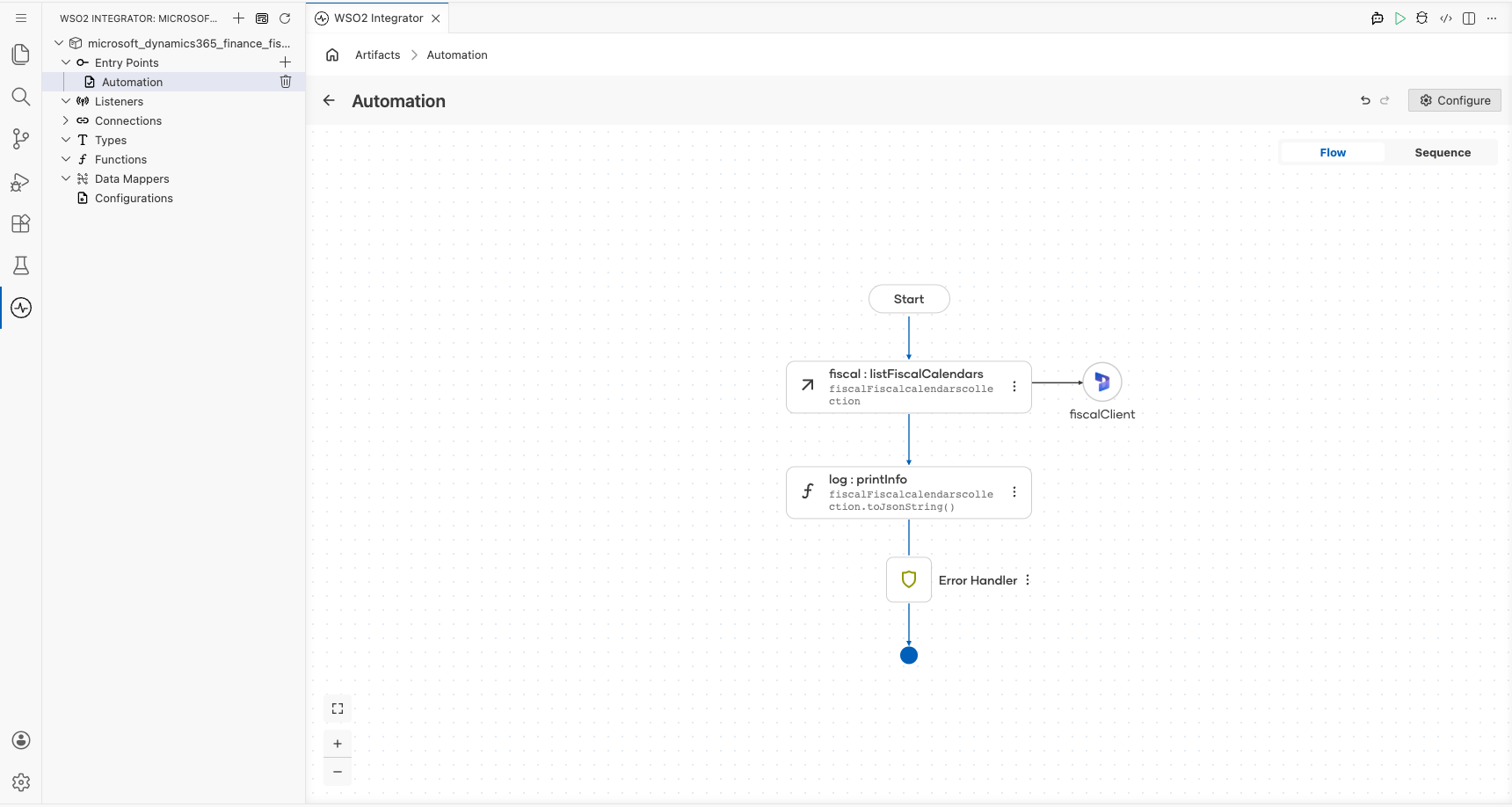
Step 8: Log the List Fiscal Calendars result
Add a Log Info action on the connecting line after the operation, switch its message to expression mode, and reference the result variable's toJsonString() value, then return to the visual flow.
Try it yourself
Try this sample in WSO2 Integration Platform.

More code examples
The Dynamics 365 Finance Ballerina connectors provide practical examples illustrating usage in various scenarios. Explore these examples.