Example
What you'll build
Build an automation that connects to SAP Business One and retrieves the available purchase orders. The flow uses a saved Purchasing connection and exposes the response as a result variable.
Operations used:
- List Purchase Orders
Architecture
Prerequisites
- An SAP Business One installation with the Service Layer enabled.
- The SAP Business One company database name, user name, and password.
- The Service Layer endpoint for your SAP Business One environment.
Setting up the Purchasing integration
New to WSO2 Integrator? Follow the Create a New Integration guide to set up your integration first, then return here to add the connector.
Adding the Purchasing connector
Step 1: Open the connector palette
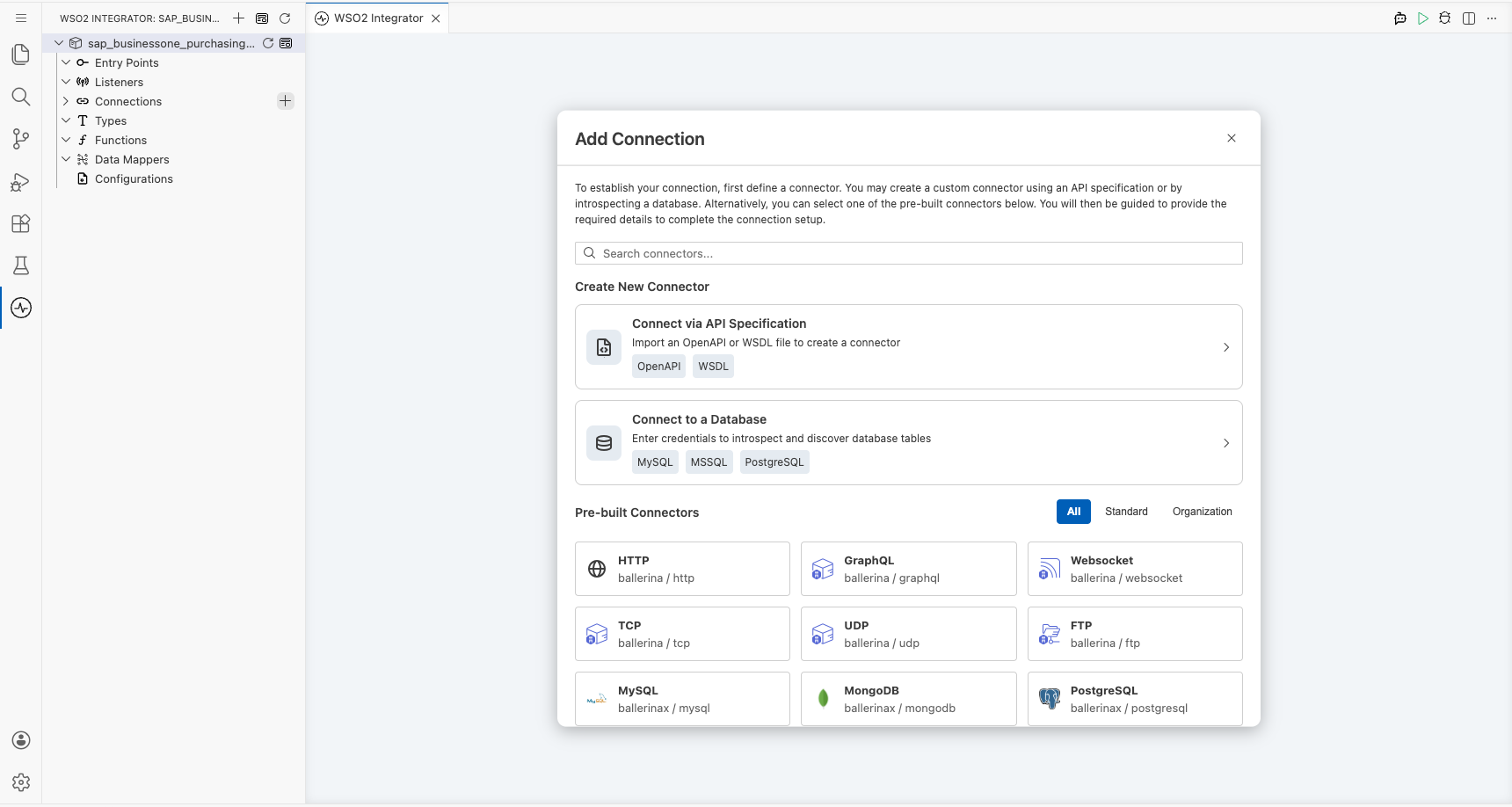
Open Connections, select Add Connection, and search for the SAP Business One Purchasing package.
Step 2: Select the Purchasing connector
Select Purchasing to open its connection configuration form.
Configuring the Purchasing connection
Step 3: Configure the connection
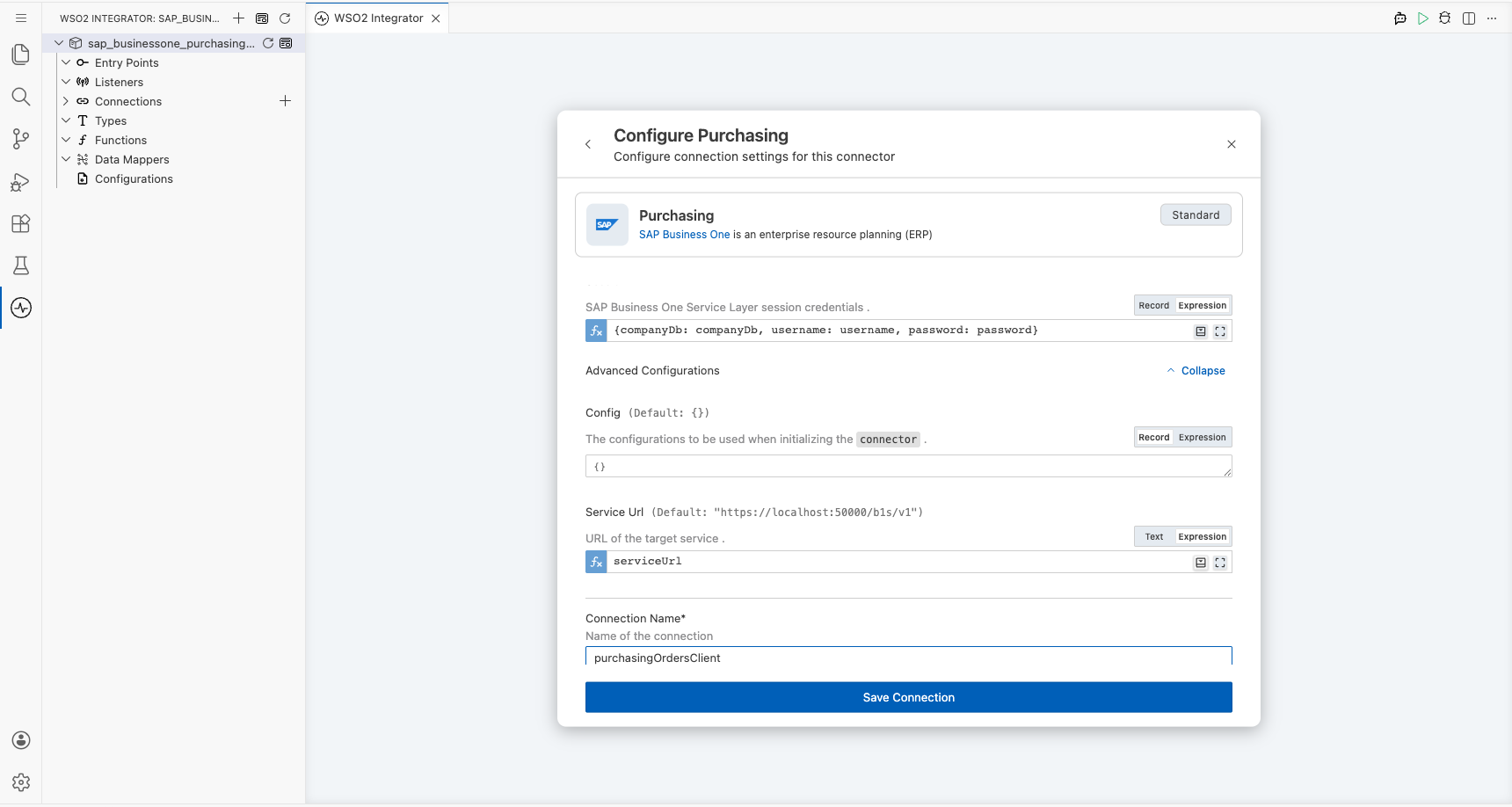
Enter the connection values as configurable variables, and keep credential values outside the integration source.
- Session : Bind the company database, user name, and password configurable variables.
- Config : Keep the default connector configuration unless your environment requires advanced settings.
- Service Url : Bind the configurable variable containing the SAP Business One Service Layer endpoint.
- Connection Name : Enter
purchasingOrdersClient.
Step 4: Save and review the connection
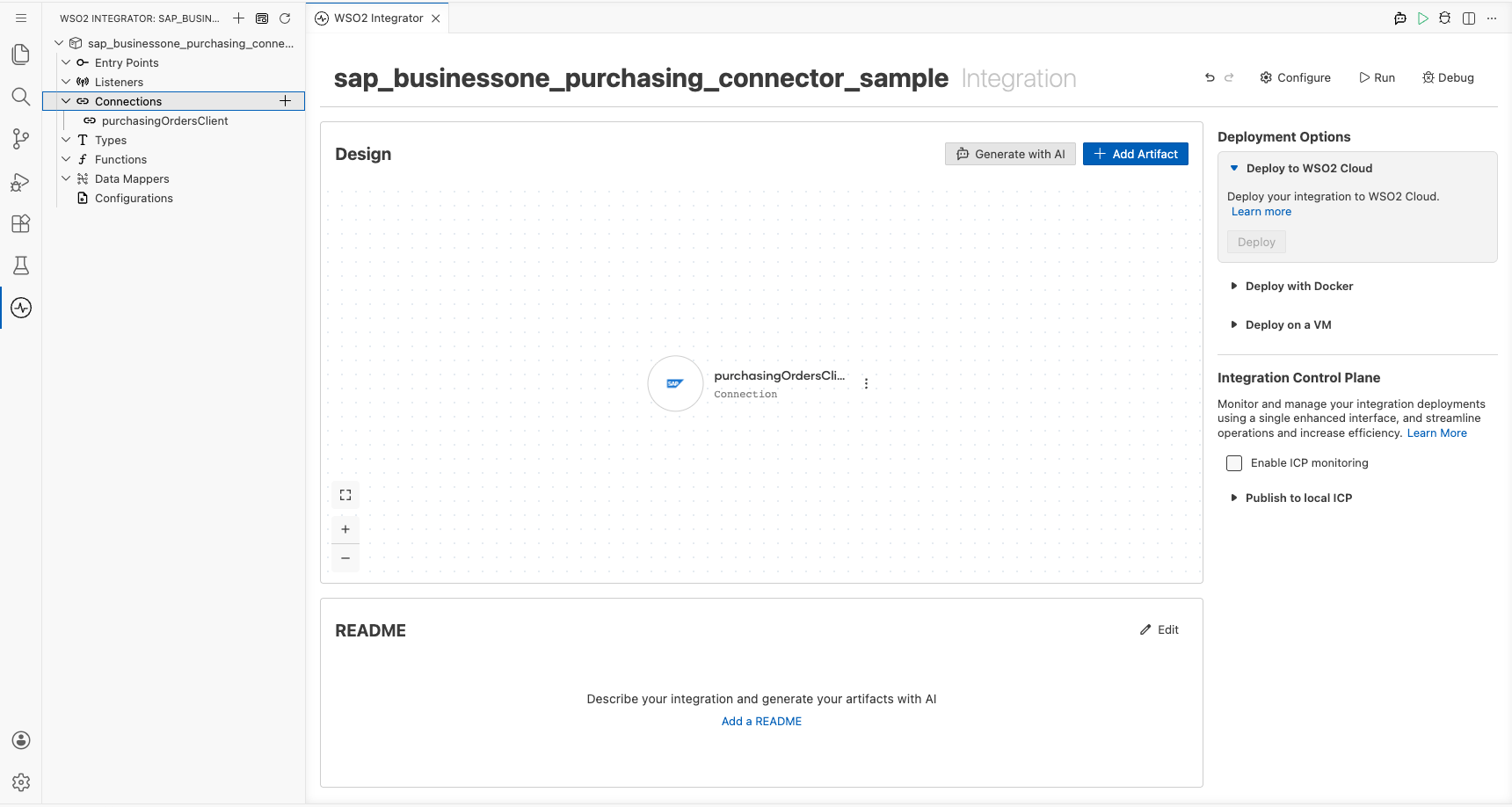
Save the connection, then expand Connections and confirm that purchasingOrdersClient appears. Review Configurations to verify that the generated configurable entries don't contain credential values.
Configuring the Purchasing List Purchase Orders operation
Step 5: Create an automation entry point
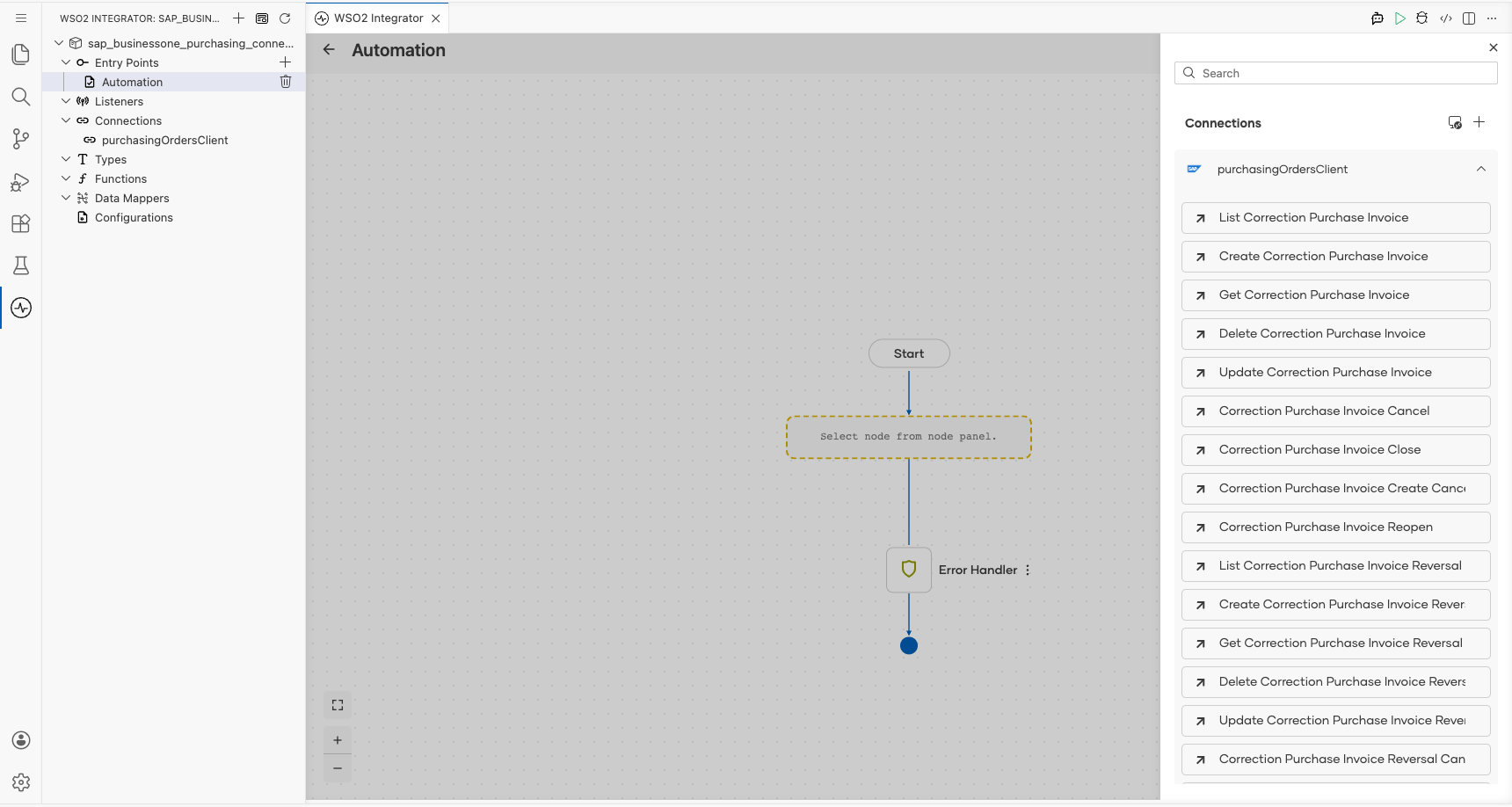
Add an Automation entry point and select Create to open its flow editor.
Step 6: Expand the saved connection
Add a node after Start, then expand purchasingOrdersClient in the node panel to view its available operations.
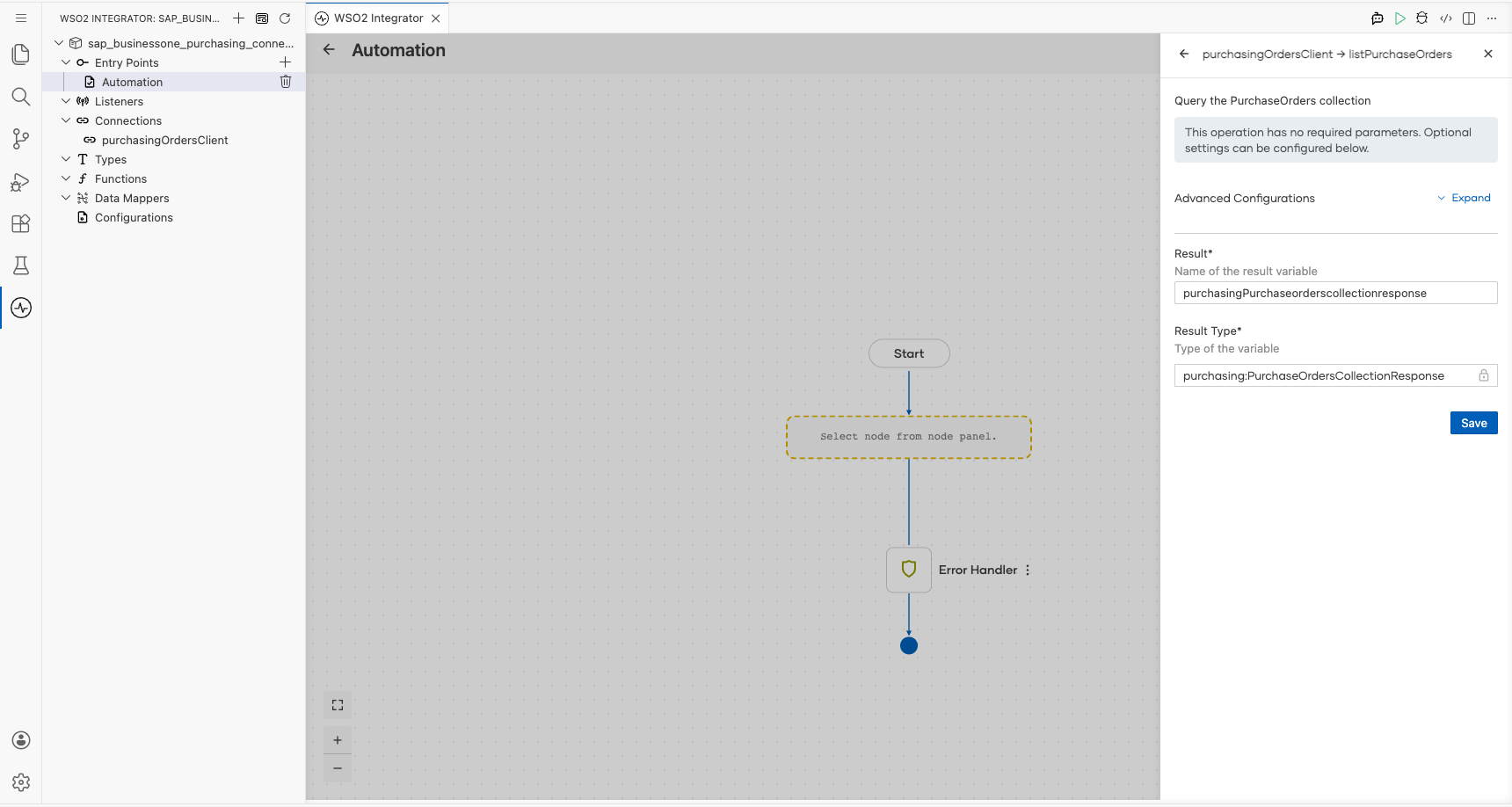
Step 7: Configure List Purchase Orders
Select List Purchase Orders. Keep the generated result variable and result type, because this operation has no required input parameters.
- Result : Stores the purchase orders collection response.
- Result Type : Uses the generated Purchasing response type.
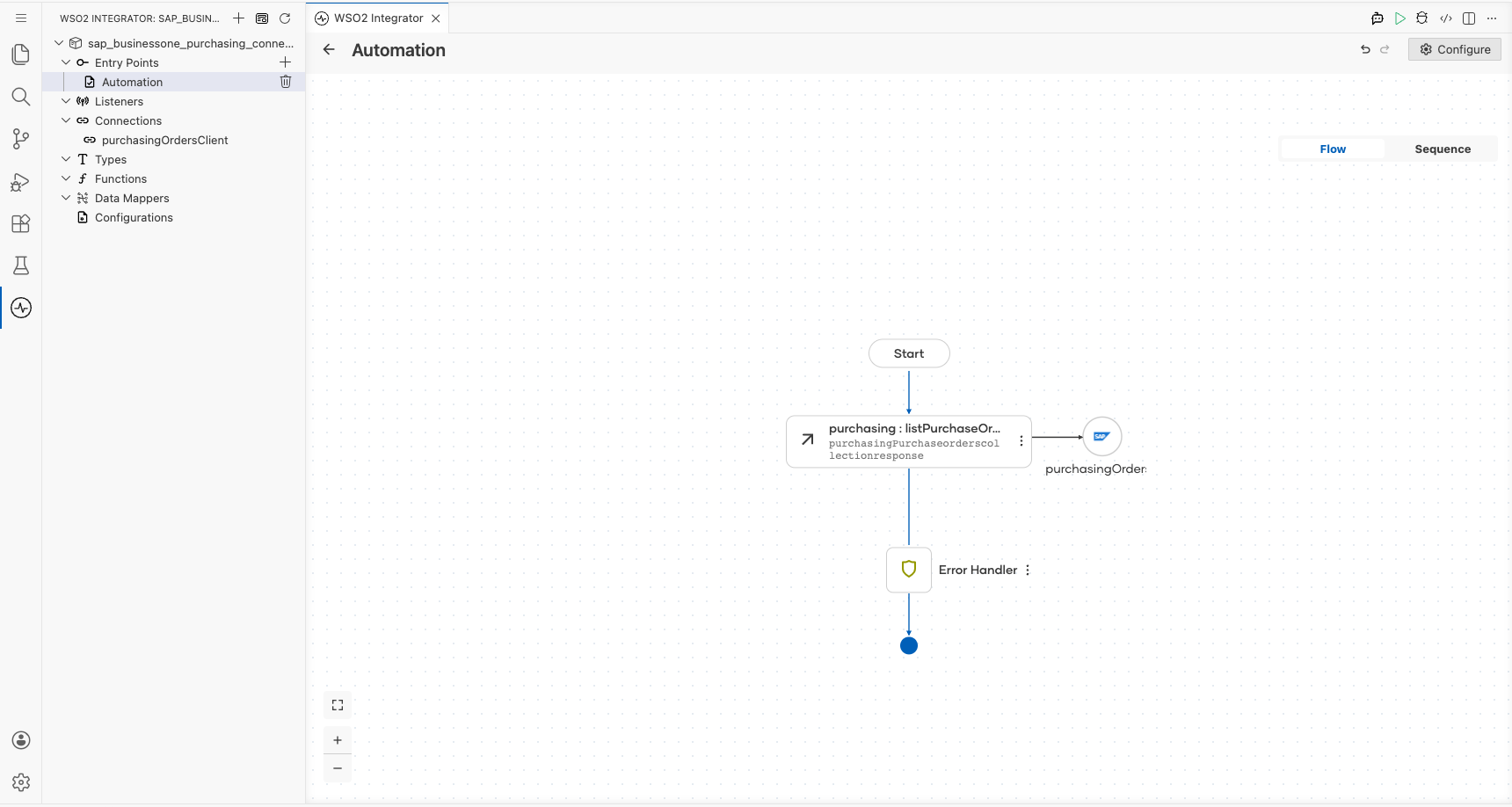
Step 8: Save the completed flow
Save the operation and confirm that purchasing : listPurchaseOrders appears between Start and the error handler.
Try it yourself
Try this sample in WSO2 Integration Platform.

More code examples
The SAP Business One connectors provide practical examples illustrating usage in various scenarios. Explore these examples, covering use cases like listing open sales orders, reporting inventory stock, and logging CRM activities.