MCP Tools
WSO2 Integrator Copilot ships with a built-in set of tools for building integrations. You can extend that toolset by connecting your own Model Context Protocol (MCP) servers. Once a server is connected and enabled, the tools it exposes become available to Copilot during a chat turn, and the agent can call them like any built-in tool.
This lets you and your team extend Copilot with the tools your work needs, whether they run as a local process or a remote service.
This page is about giving Copilot extra tools. To make your own integrations speak MCP, whether by exposing a service as an MCP server or by consuming MCP from an AI agent, see MCP integration.
Enable MCP tools
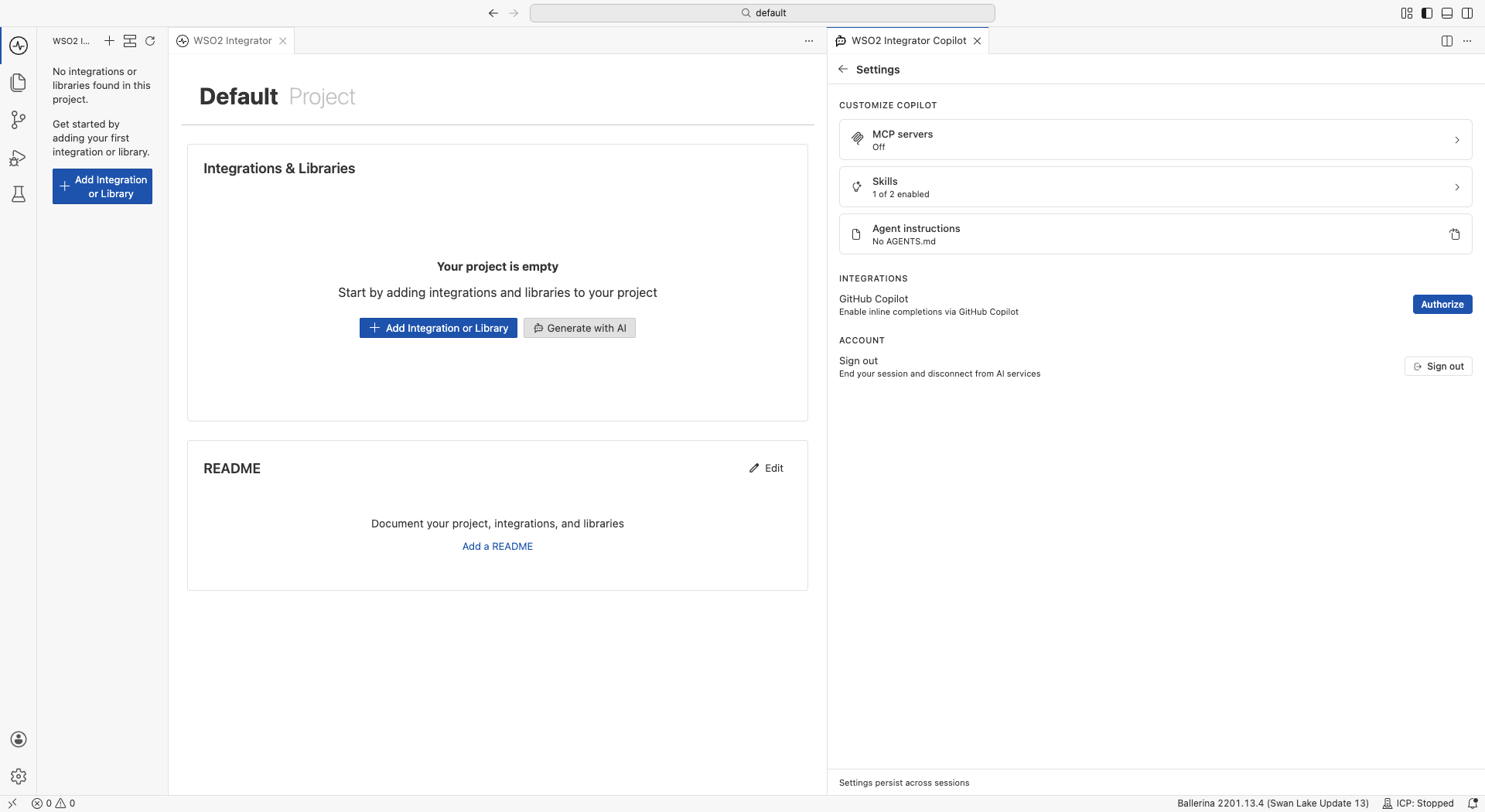
To enable MCP tools, open Copilot > Settings > Customize Copilot > MCP servers, then turn on MCP tools.
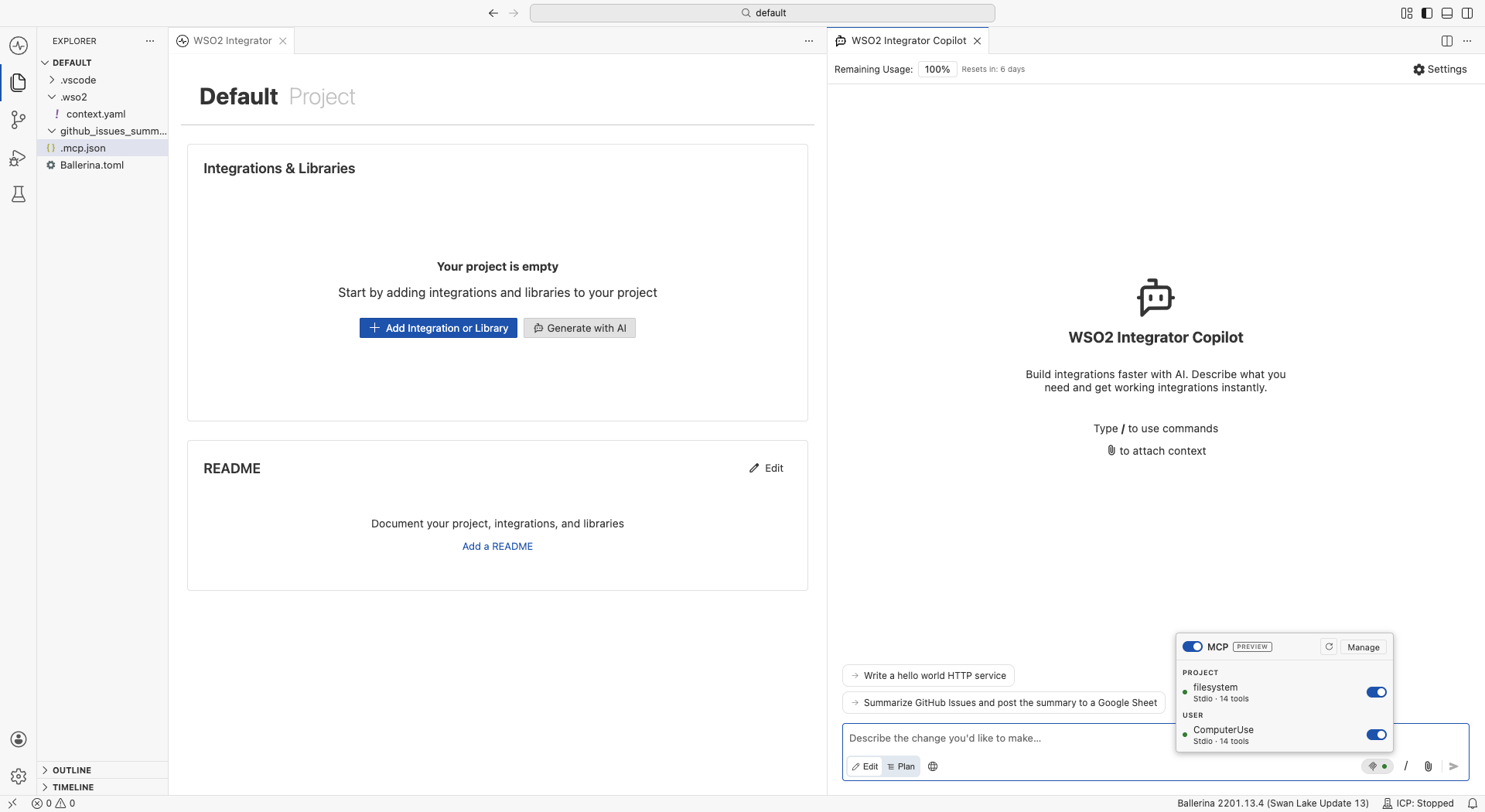
Once enabled, the MCP chip appears in the Copilot chat input and you can add and manage servers. While MCP is off, the chip stays hidden and no servers connect.
Add a server
Open the MCP servers manager from Copilot > Settings > Customize Copilot > MCP servers. The MCP chip in the chat input gives a compact view of the same servers.
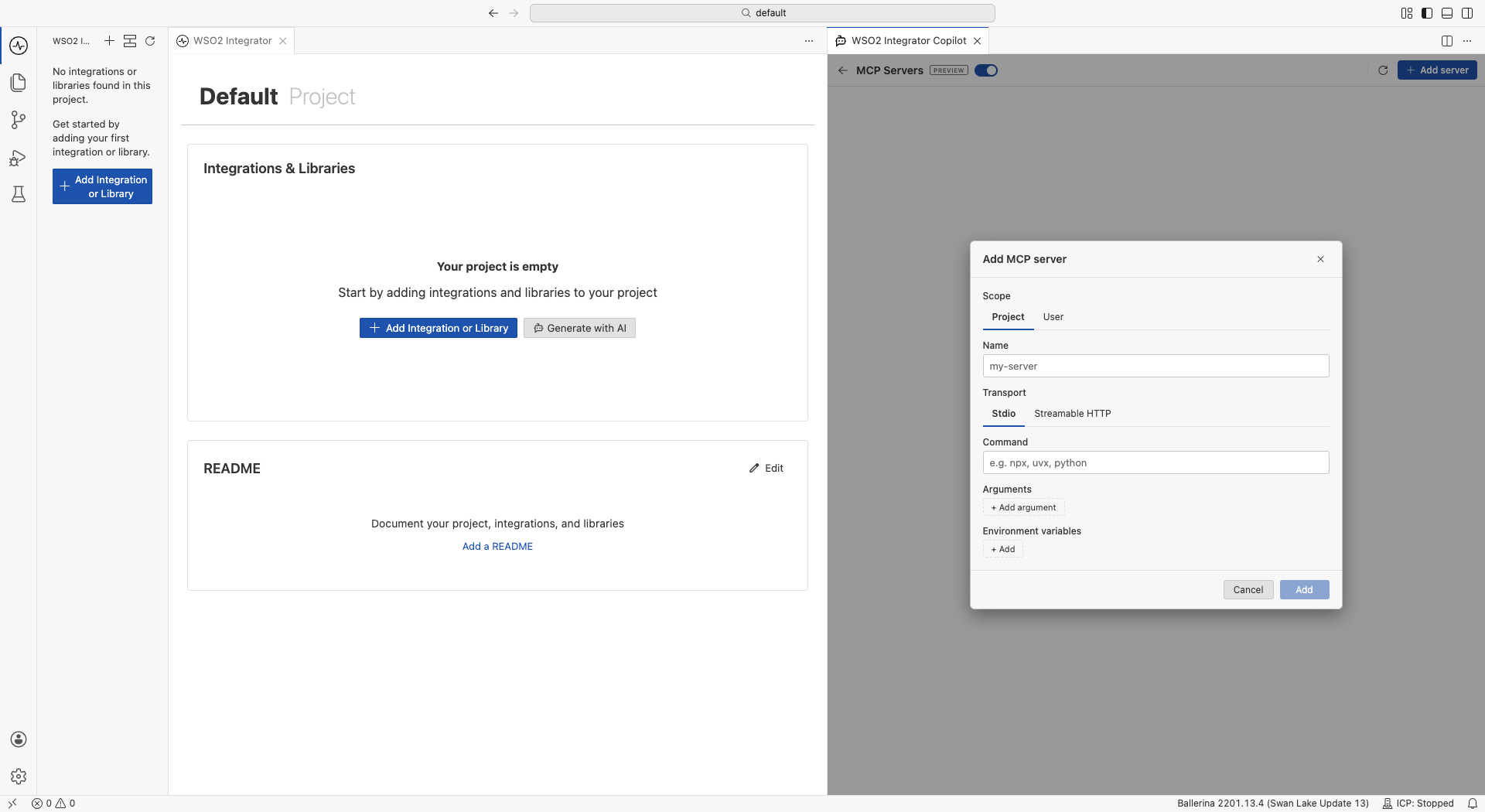
In the manager panel, select + Add server and choose a transport:
- Stdio: A local process. Enter the command and its arguments, plus any environment variables the process needs.
- HTTP: A remote endpoint. Enter the URL and any headers.
Enter a name, then select Add. Copilot connects to the server and lists its tools. The status dot shows the result: connecting, connected, or failed with an error tooltip.
Server scopes
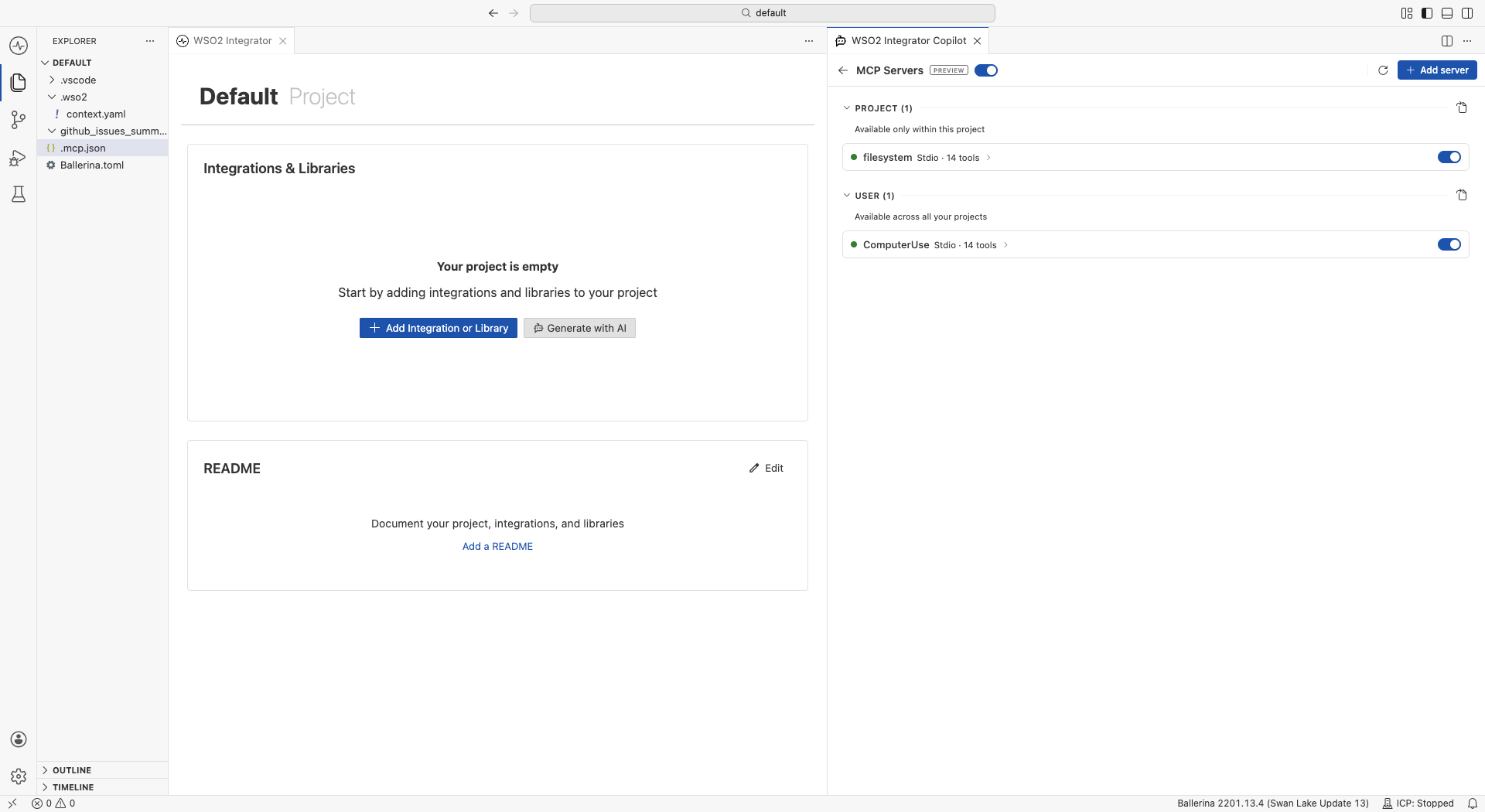
A server is defined in one of the following scopes.
| Scope | Where it lives | Available |
|---|---|---|
| User | ~/.ballerina/copilot/mcp.json | Across all your projects |
| Project | <project>/.mcp.json, committed with the repo | Only within that project, and shared with your team |
| Built-in | Curated and maintained by WSO2 | Across all your projects |
The project file uses the bare filename .mcp.json, following a common convention, so the same file is portable across tools that support MCP. Commit it to share a consistent set of servers with your team.
Built-in servers are provided by WSO2, so you add them from the manager rather than defining them in a config file. They appear in their own group when available.
Workspace trust
A project .mcp.json loads only when the workspace is trusted. This prevents a cloned repository from spawning arbitrary processes as soon as you open it. If you grant trust during a session, the project servers come online without a reload.
Manage servers
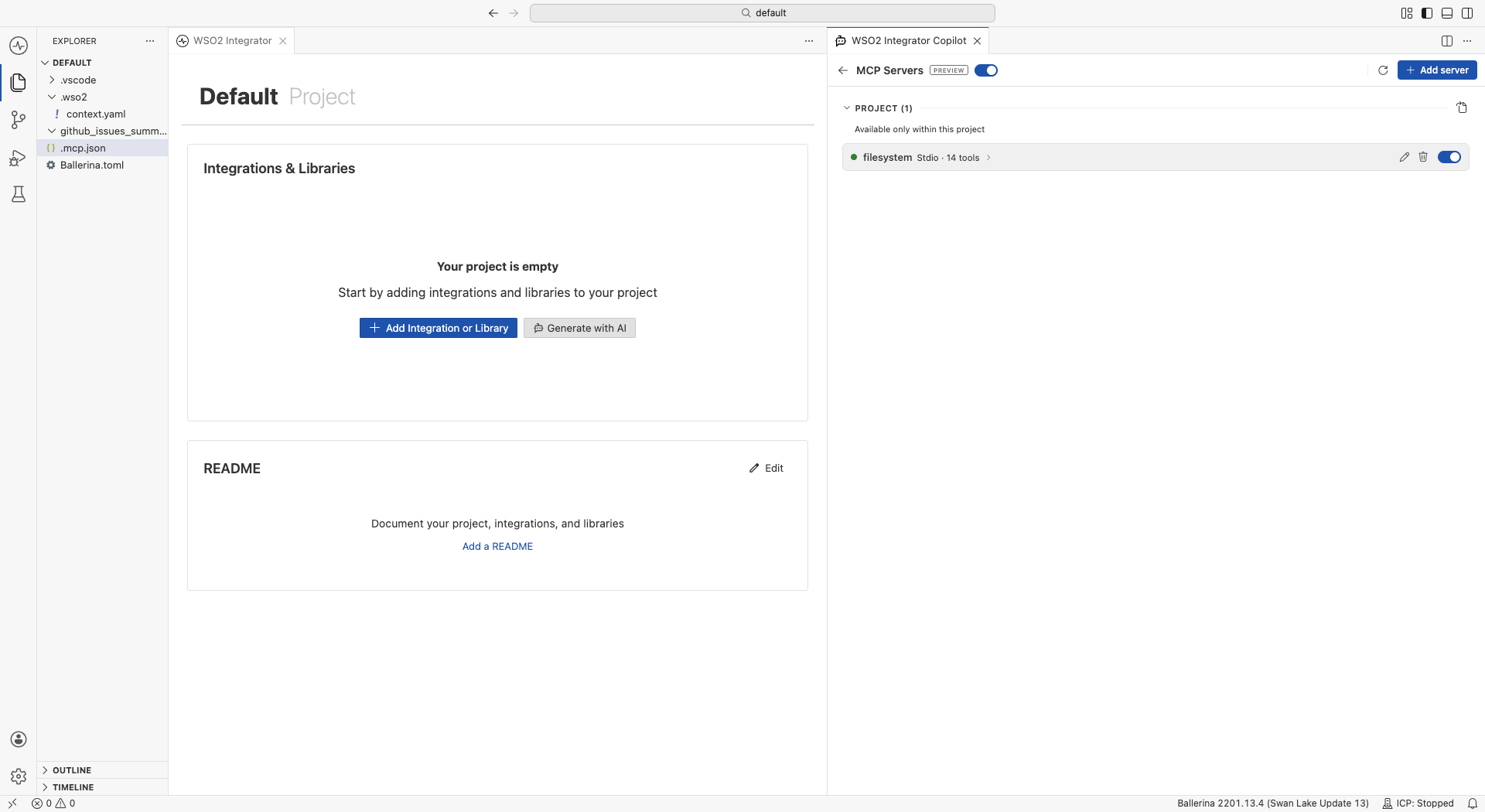
In the MCP servers manager, servers are grouped by scope. Each row shows a status dot, the server name, its transport, and the tool count. Expand a row to see the tool list with names and descriptions.
From the manager, you can:
- Enable or disable a server: Use the per-server toggle. Disabling keeps the entry but stops the connection, so the tools no longer appear in Copilot.
- Edit or delete a server: Use the low-code form. Editing pre-fills every saved field.
- Reload: Retry servers that failed or disconnected.
- Edit raw JSON: Select the file icon next to a scope to open its config file directly in the editor, for advanced changes such as custom headers or environment variables.
If a config file contains invalid JSON, a warning banner appears for that scope. Select it to open the file and fix the error. The rest of the servers keep working.
The MCP chip in the chat input mirrors these controls in a popover: the global toggle, per-server toggles, reload, and a Manage button that opens the full panel.
Pass secrets safely
A project .mcp.json is committed to the repository, so never put secrets directly in it.
- HTTP servers: Use
headersFromEnvto map a header to an environment variable name. The value is read from the environment at connect time, so the token never sits in the committed file. - Stdio servers: The process inherits the host environment, so pass secrets through your environment rather than the config file.
Use MCP tools in chat
On each chat turn, Copilot automatically adds the tools from every connected and enabled server to its toolset. No further configuration is needed.
- Tool calls render in the chat stream and respect the existing approval flow, including auto-approve.
- Tools are namespaced as
mcp__<server>__<tool>so tools from different servers never collide. - A broken or unreachable server fails gracefully. It shows a failed status with an error message and does not affect the rest of Copilot. A connection timeout stops a slow server from hanging a turn.
Copilot prefers its built-in integration tools for core work and uses MCP tools when they add a capability relevant to your request.
Configuration reference
Servers live in a mcpServers object. The type field is optional and is inferred from command (stdio) or url (HTTP). Open the file directly from the manager with the file icon, or edit it in your own editor.
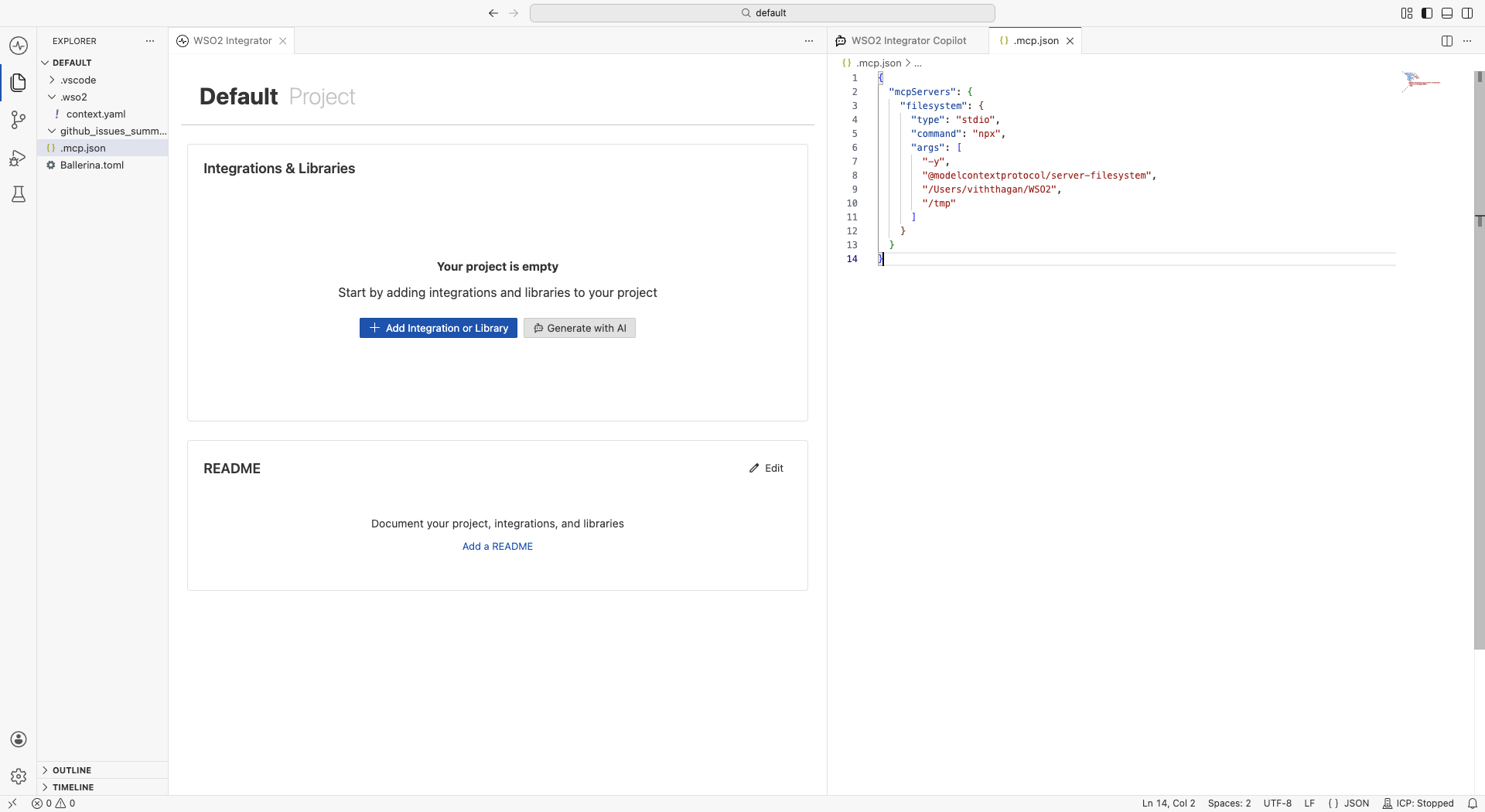
Stdio server:
{
  "mcpServers": {
    "everything": {
      "type": "stdio",
      "command": "npx",
      "args": ["-y", "@modelcontextprotocol/server-everything"],
      "env": { "LOG_LEVEL": "info" },
      "disabled": false
    }
  }
}
HTTP server with an environment-backed header:
{
  "mcpServers": {
    "remote-api": {
      "type": "http",
      "url": "https://mcp.example.com/mcp",
      "headers": { "X-Trace-Id": "abc" },
      "headersFromEnv": { "Authorization": "MY_API_TOKEN" }
    }
  }
}
envsets environment variables for a stdio process.headerssets static HTTP headers with plain values.headersFromEnvmaps a header name to an environment variable name, read at connect time. Use it for secrets.disabled: truekeeps the entry but turns the server off, the same as toggling it off in the UI.
Troubleshooting
| Symptom | Likely cause | Fix |
|---|---|---|
| The MCP chip doesn't appear. | MCP tool support is off. | Turn on MCP tools in Copilot > Settings > Customize Copilot > MCP servers. |
| A server shows a failed status. | The command can't be found, or the URL is unreachable. | Check the command, arguments, and URL. Select Reload after fixing. |
| A warning banner appears for a scope. | The mcp.json or .mcp.json file has invalid JSON. | Select the banner to open the file and fix the syntax. |
| Project servers don't load. | The workspace isn't trusted. | Grant workspace trust. The servers come online without a reload. |
See also
- Copilot capabilities — Explore planning, review, testing, and more.
- MCP integration — Expose your integrations as MCP servers or consume MCP from an AI agent.
- AI usage and data handling guidelines — How Copilot handles your data.