Copilot Capabilities
WSO2 Integrator Copilot builds integrations from natural language prompts. It produces ready-to-use artifacts in your project. Iterate through follow-up prompts to refine logic, add features, or modify behavior.
Modes
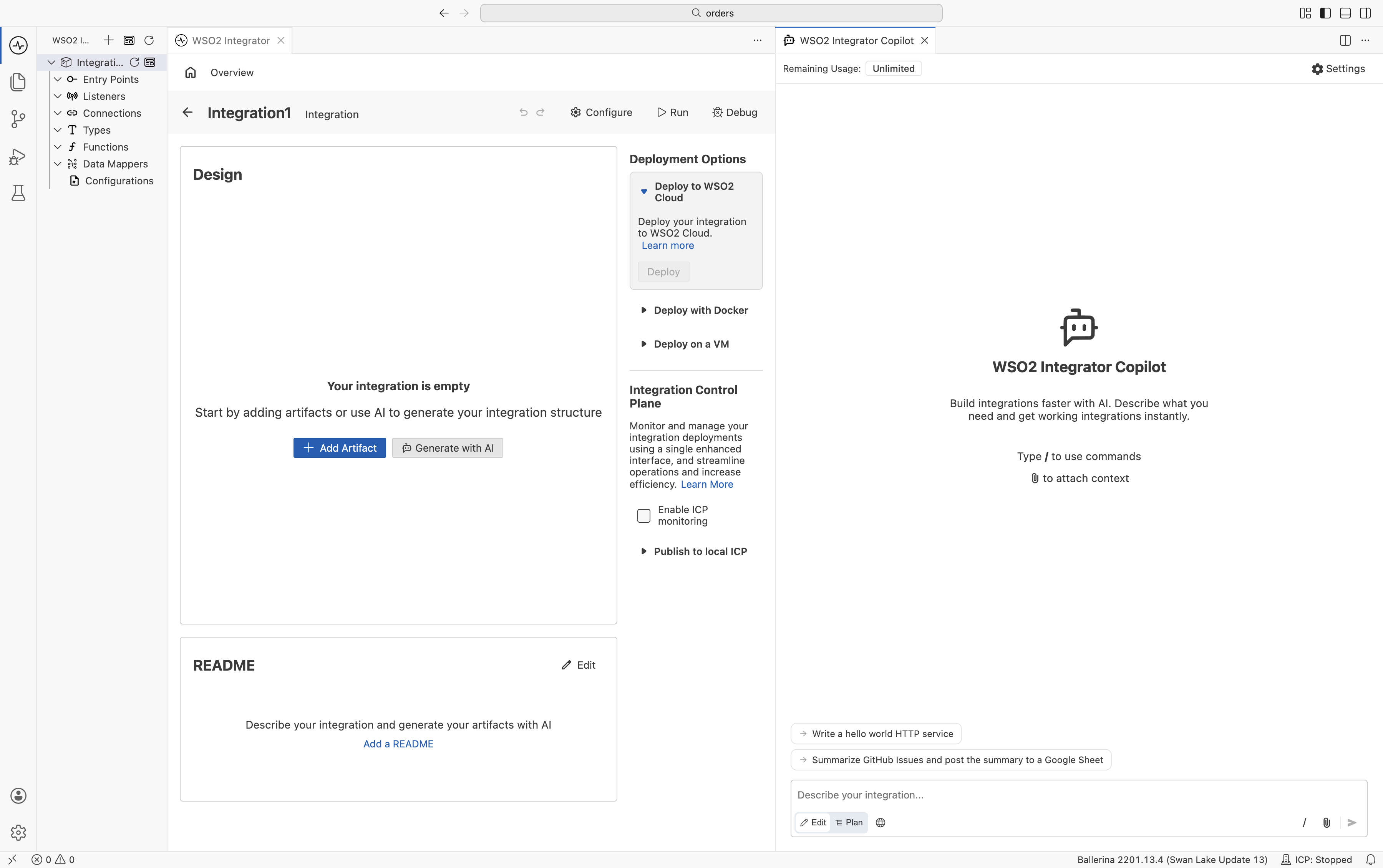
Copilot has two modes: plan and edit. Switch between them using the toggle in the Copilot input bar.
-
Edit Mode: Copilot starts generating immediately and applies the changes to your integration. Best for quick edits.
-
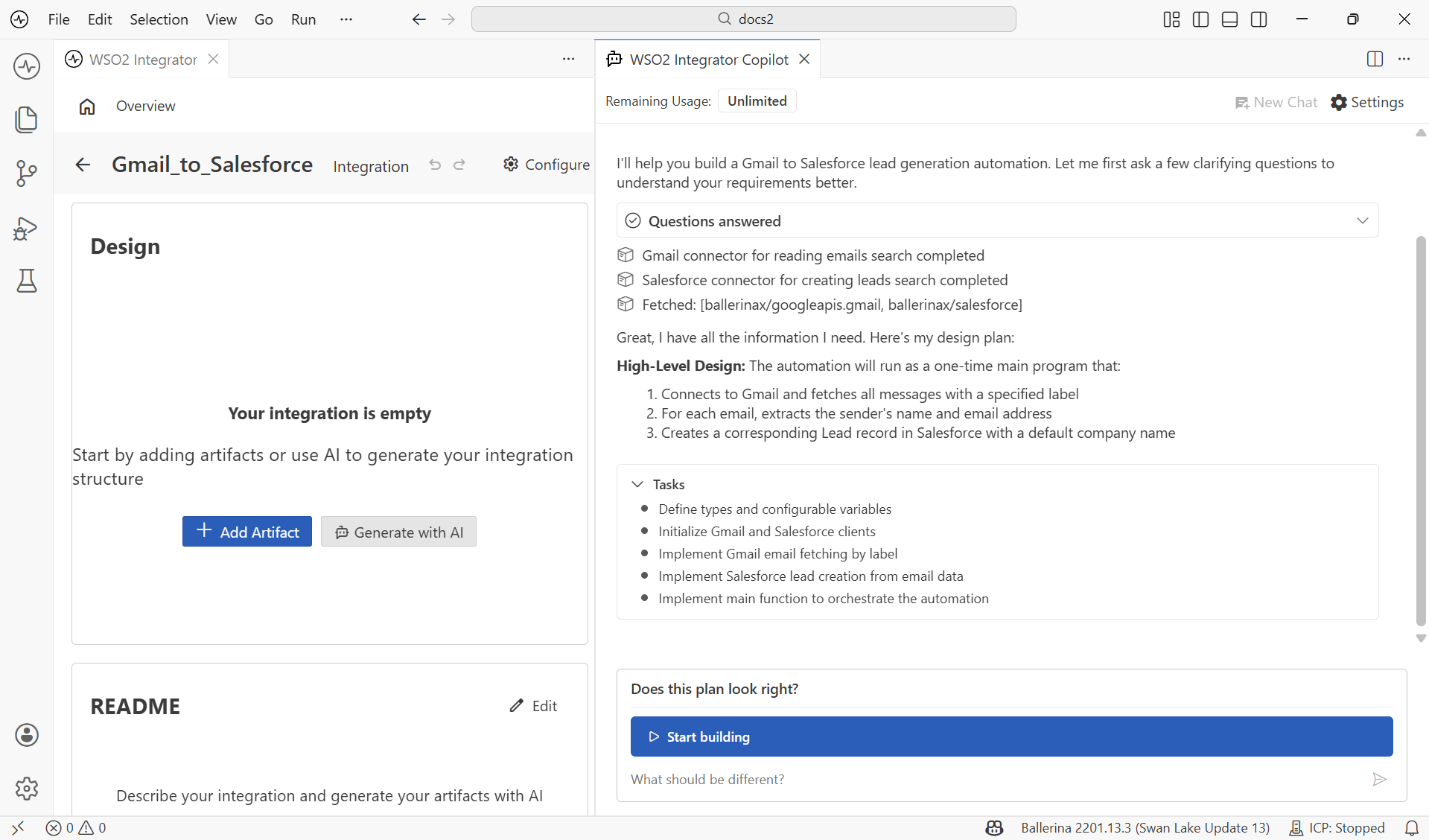
Plan Mode: Copilot first proposes a high-level plan with a step-by-step task breakdown. Review or revise the plan, then approve it to begin generation.
Generating connectors
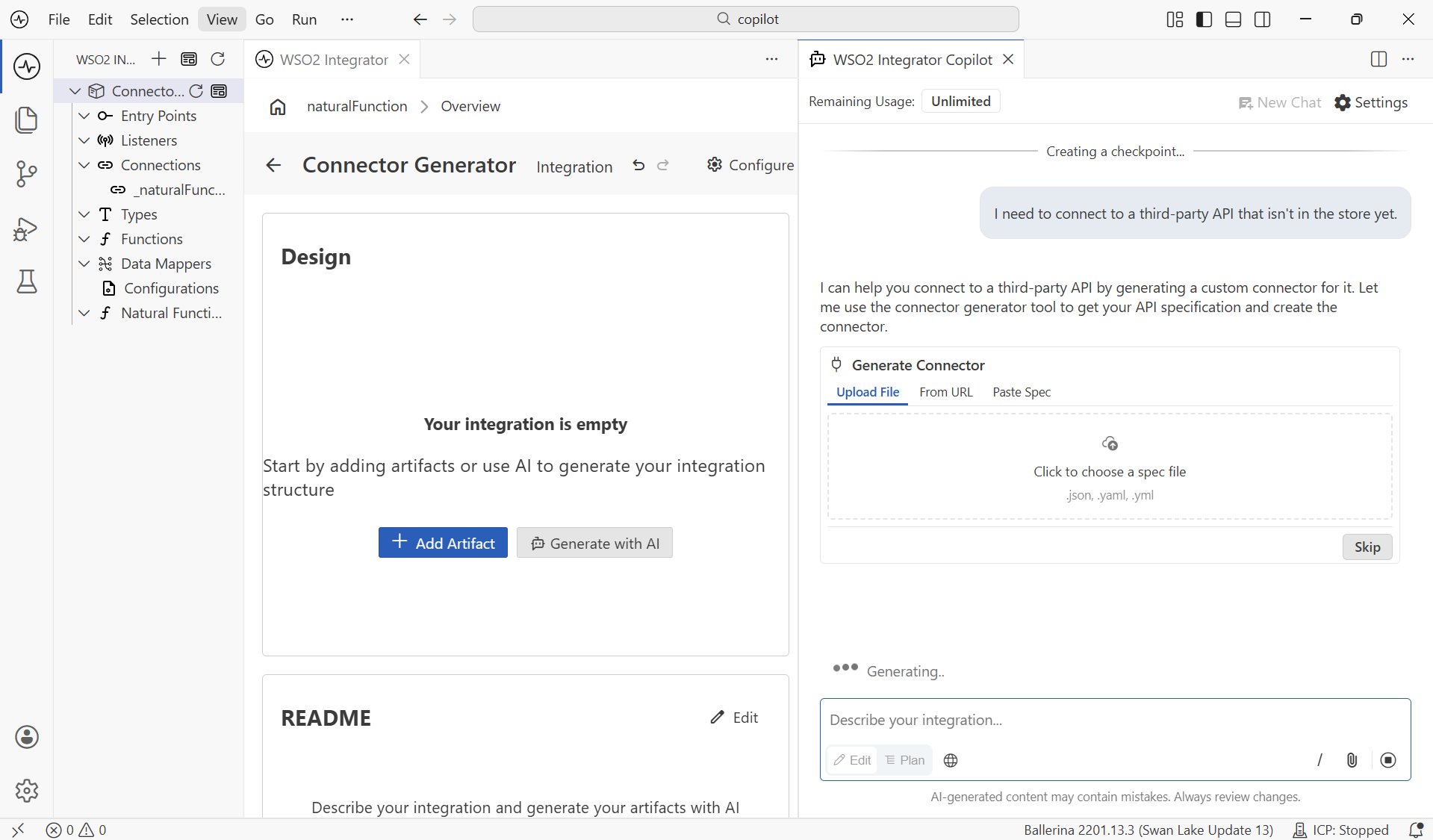
Copilot can generate a custom connector when a pre-built one is not available. During integration generation, if no pre-built connector exists, Copilot prompts the user for an OpenAPI specification. The user can also directly request to generate a custom connector. Once generated, the connector is available for Copilot to use in the flow.
Using web tools
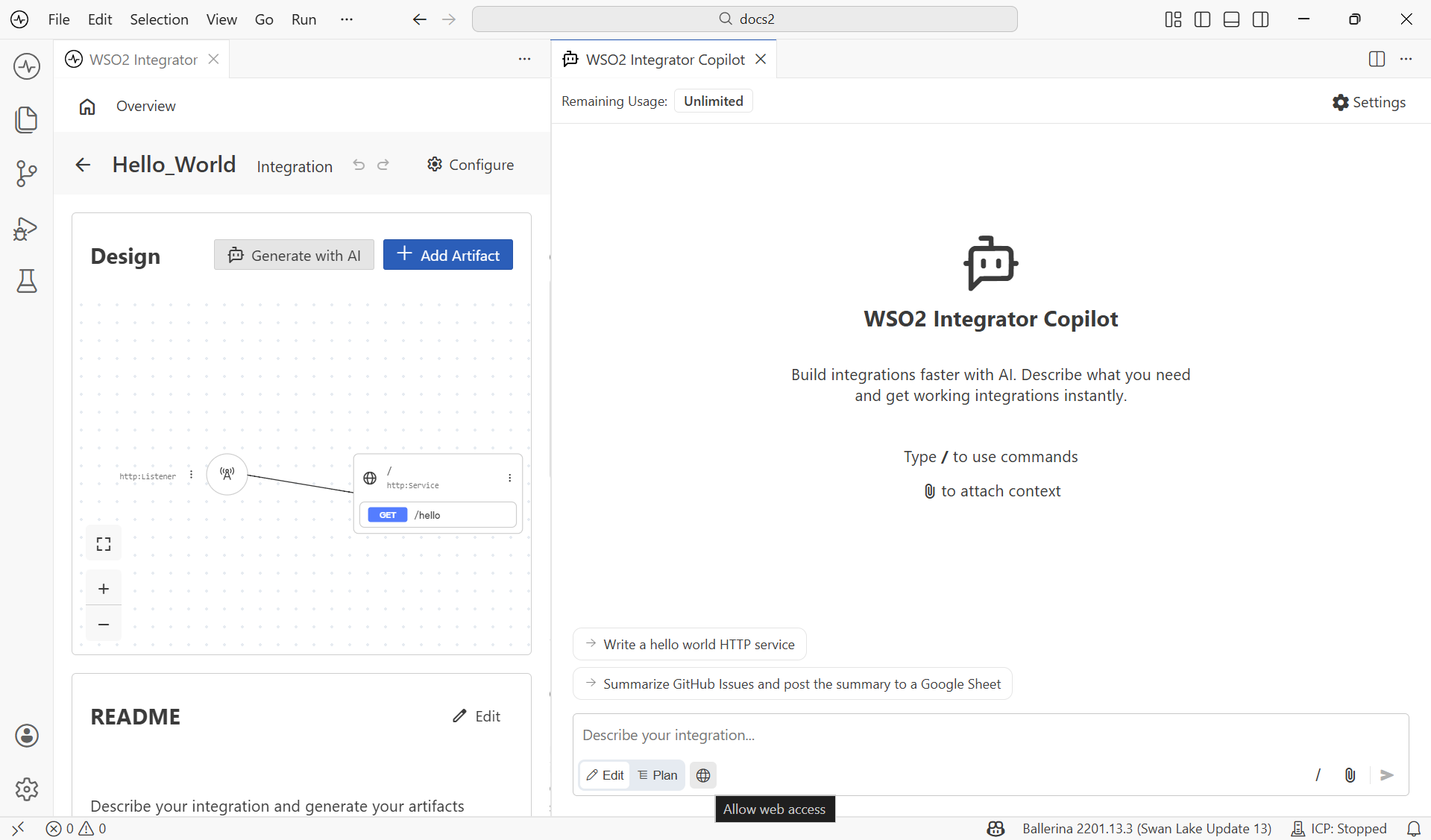
Copilot can search the internet for external context or up-to-date documentation. It asks for permission before each search unless you enable the web tools toggle in the input bar.
MCP tools
Extend Copilot with your own tools by connecting Model Context Protocol (MCP) servers. Once a server is connected, its tools become available to Copilot in chat alongside the built-in tools. See MCP tools to enable it and add a server.
Clarifying requirements
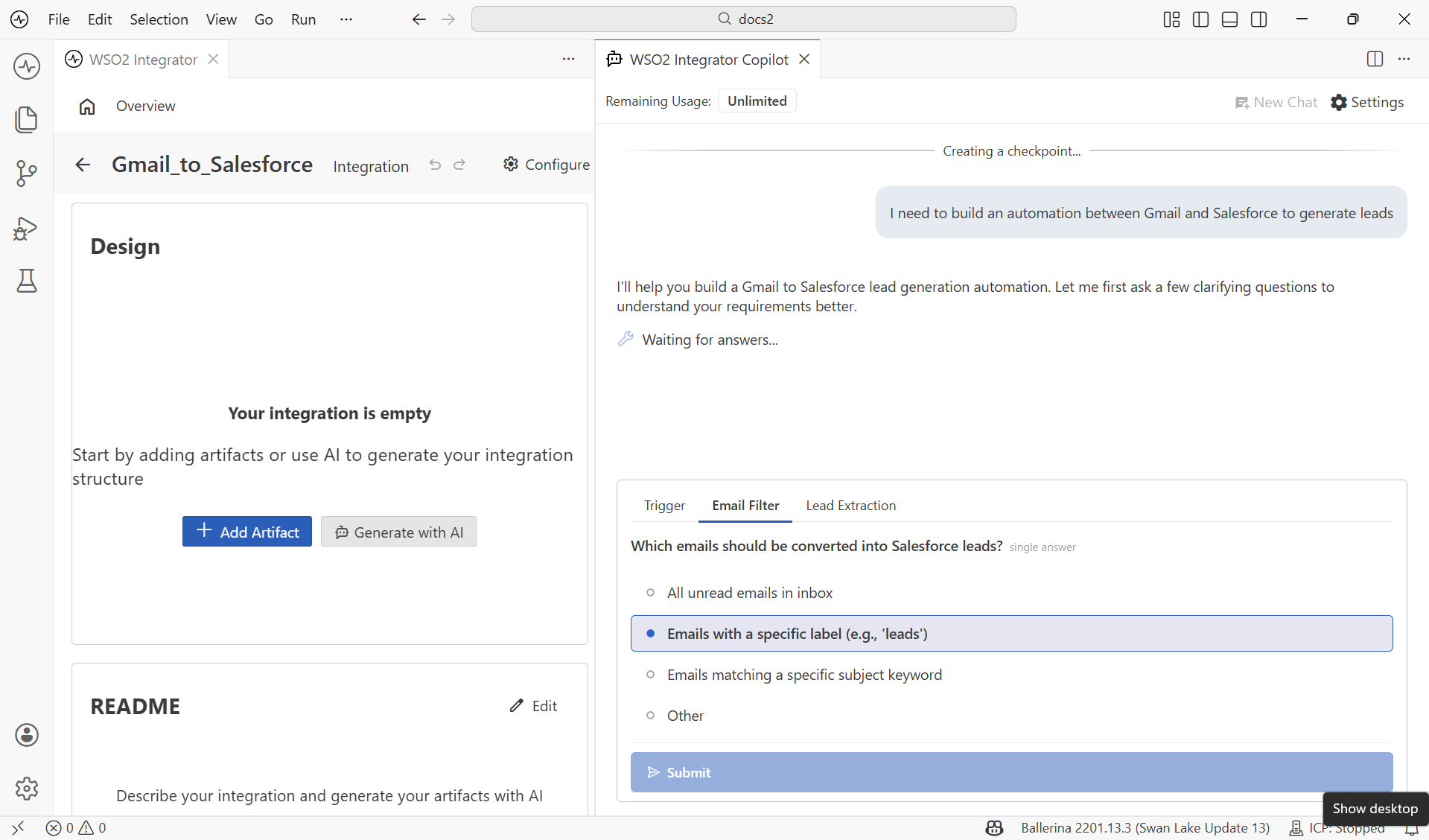
During the planning or generation phase, Copilot may identify missing information that is critical to the integration. If a requirement is ambiguous, it pauses and presents a list of suggested options. Select one, or select Other to type your own answer.
Reviewing
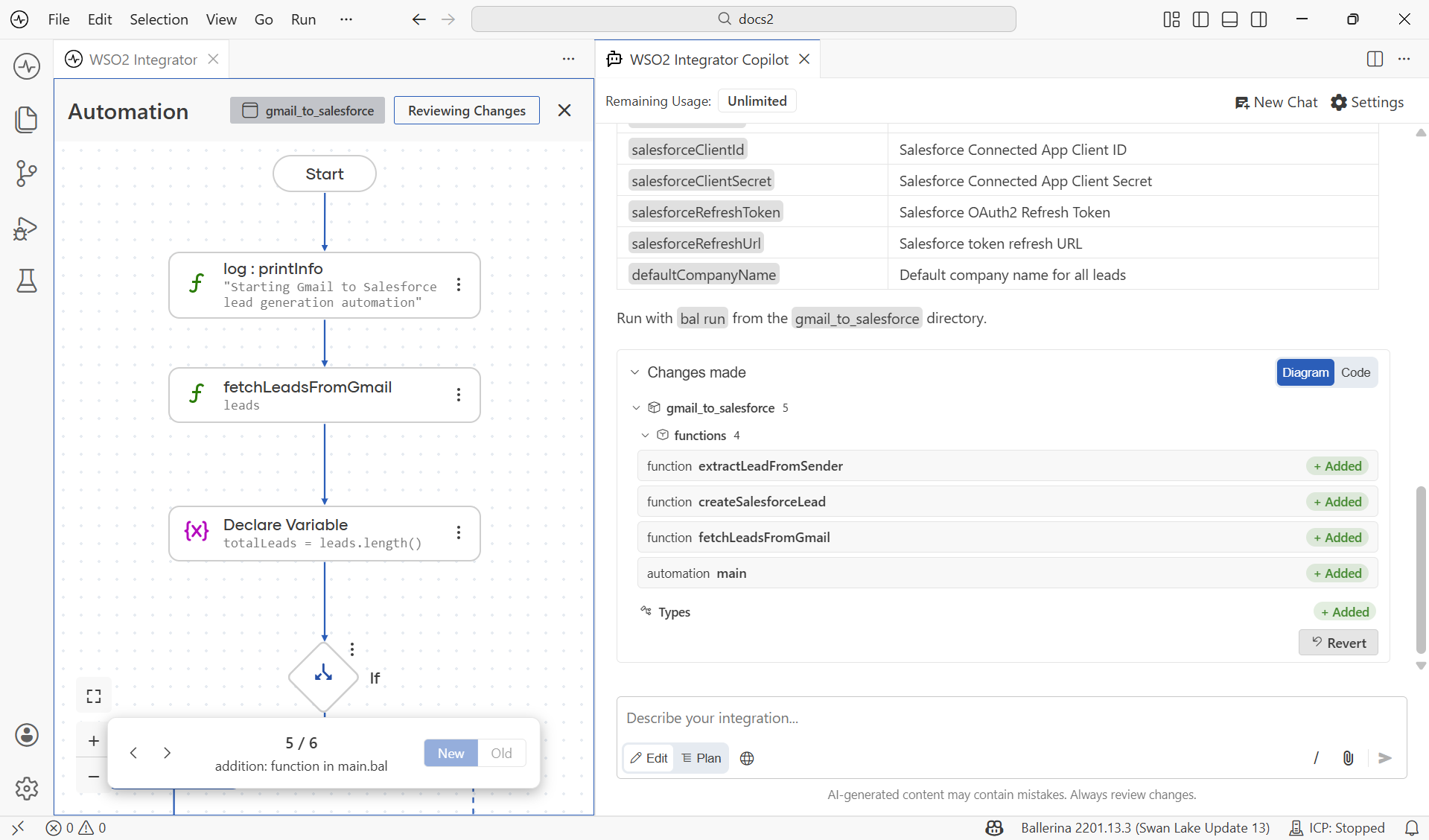
After generation completes, you can inspect exactly what was built or changed before finalizing the changes. Review the generated artifacts as the flow diagram or as source code with a diff view.
Configuring
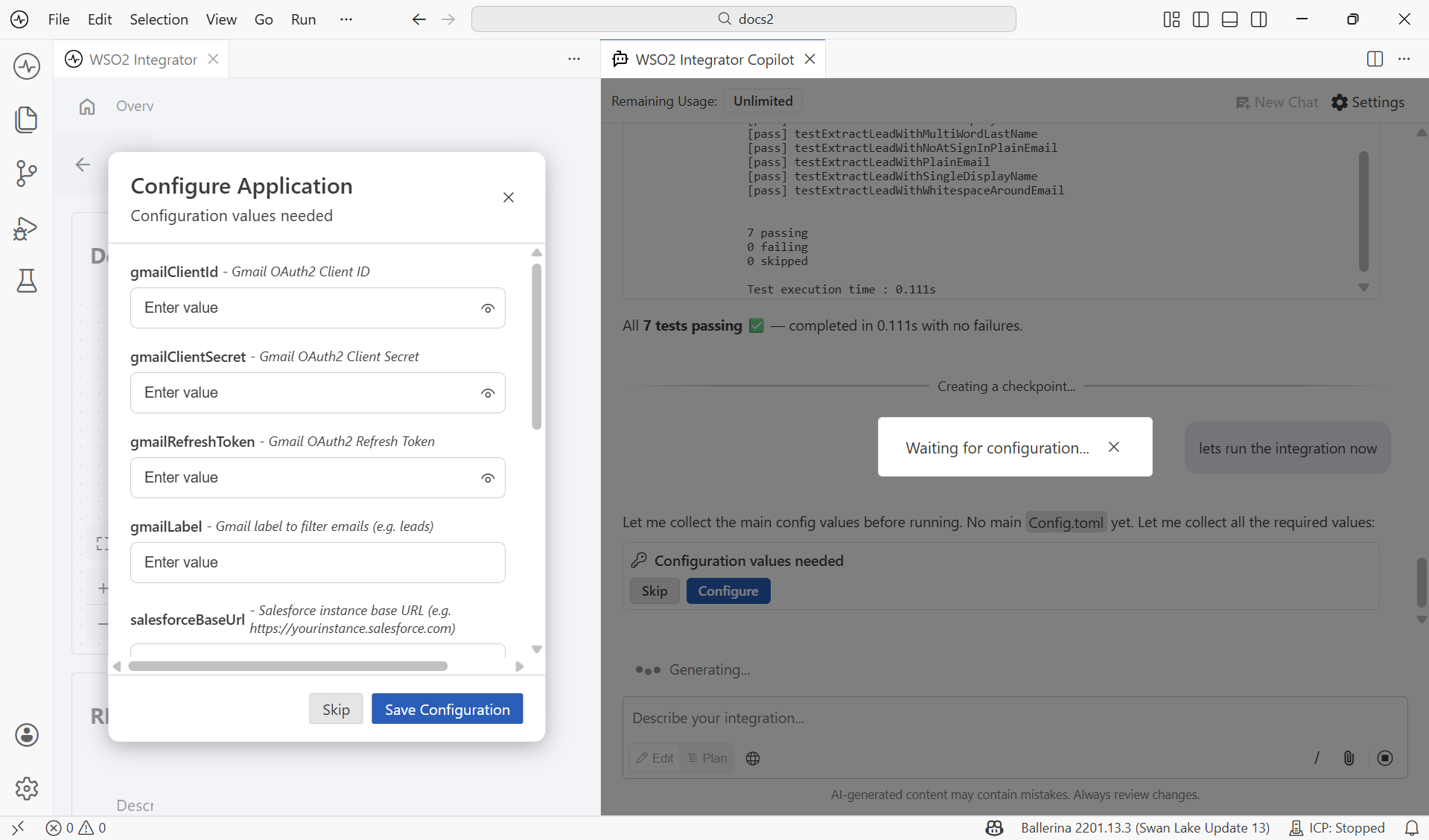
When you run or test the integration, Copilot identifies the required configurables and prompts you to enter them.
Testing
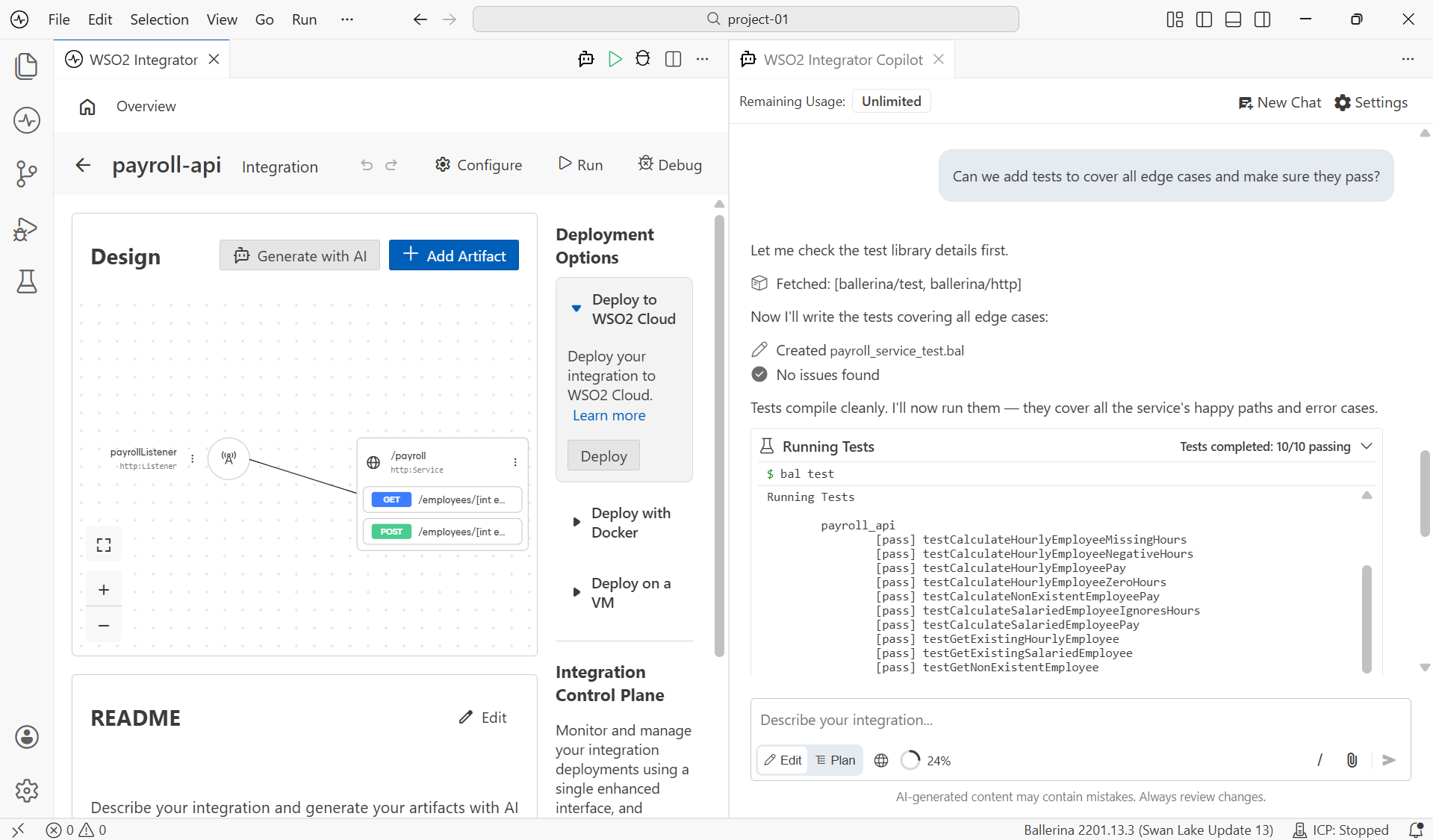
Copilot generates tests for your integration and runs them with the built-in test runner, allowing you to verify the generated artifacts immediately.
Trying your services
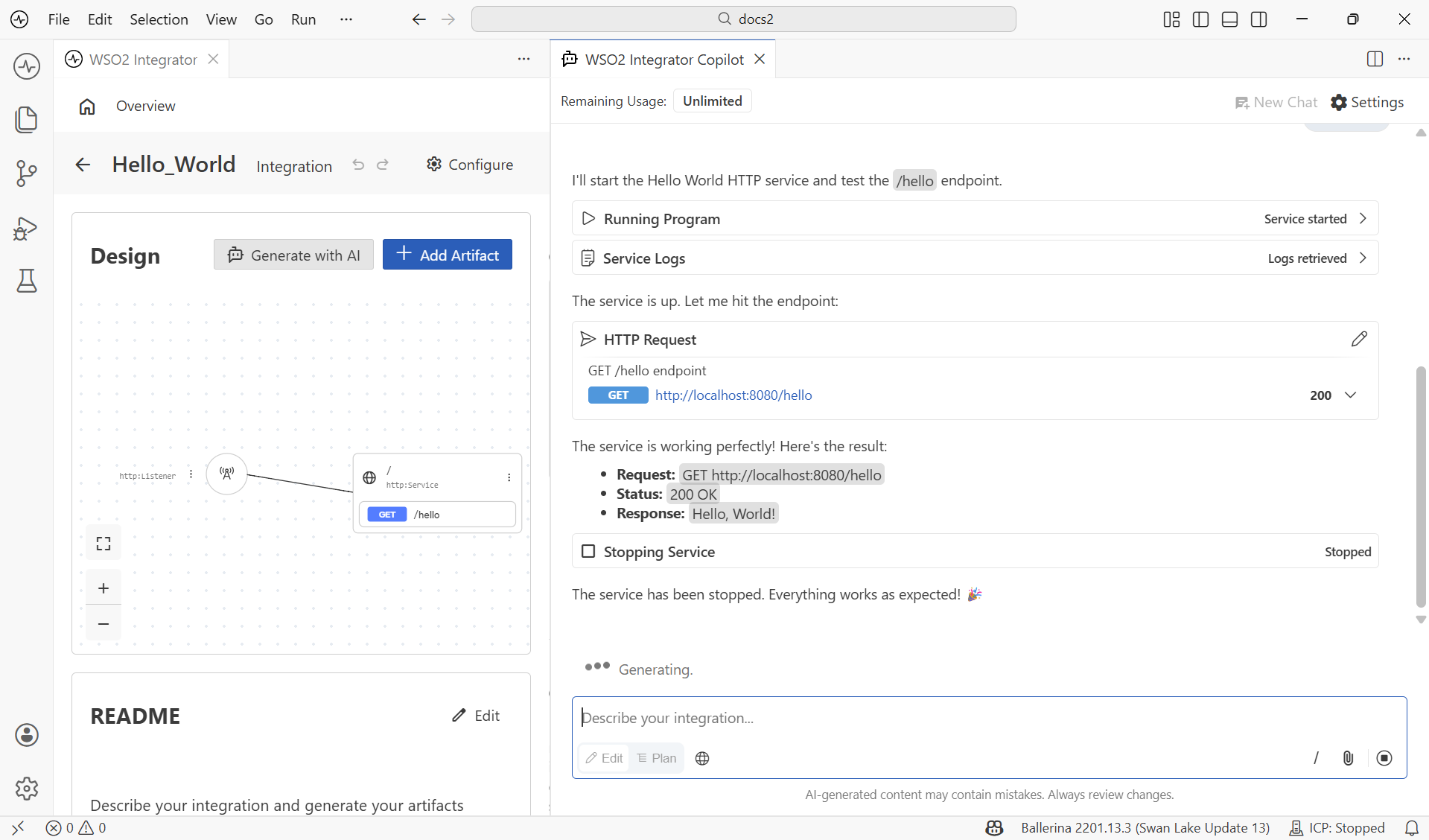
Once your integration is running, you can send test requests to your services from Copilot. Describe what you want to test in plain language, and Copilot calls your service and returns the response.
Debugging
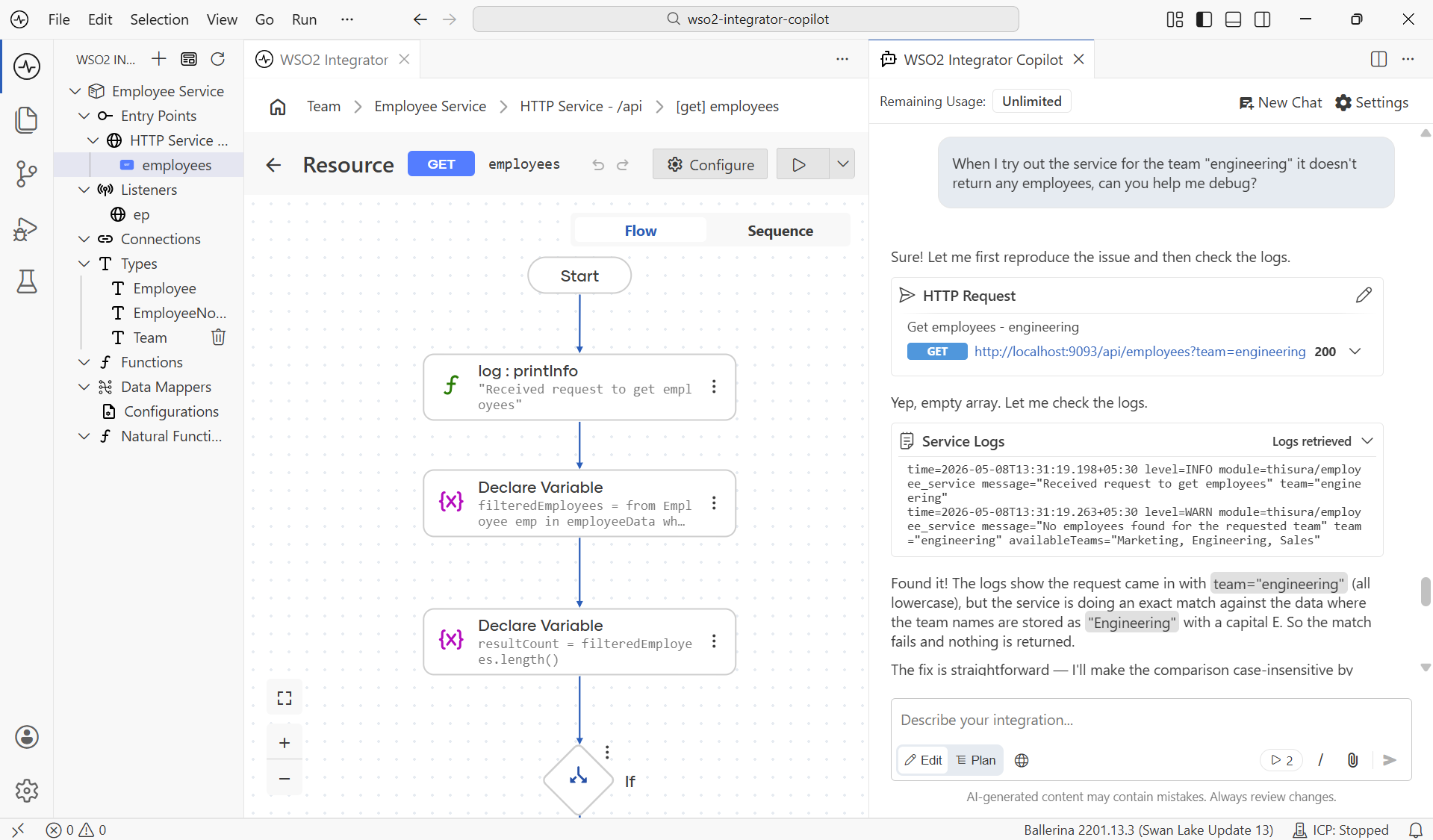
Copilot can run your integrations and read the runtime logs to debug issues as they occur.
Project instructions
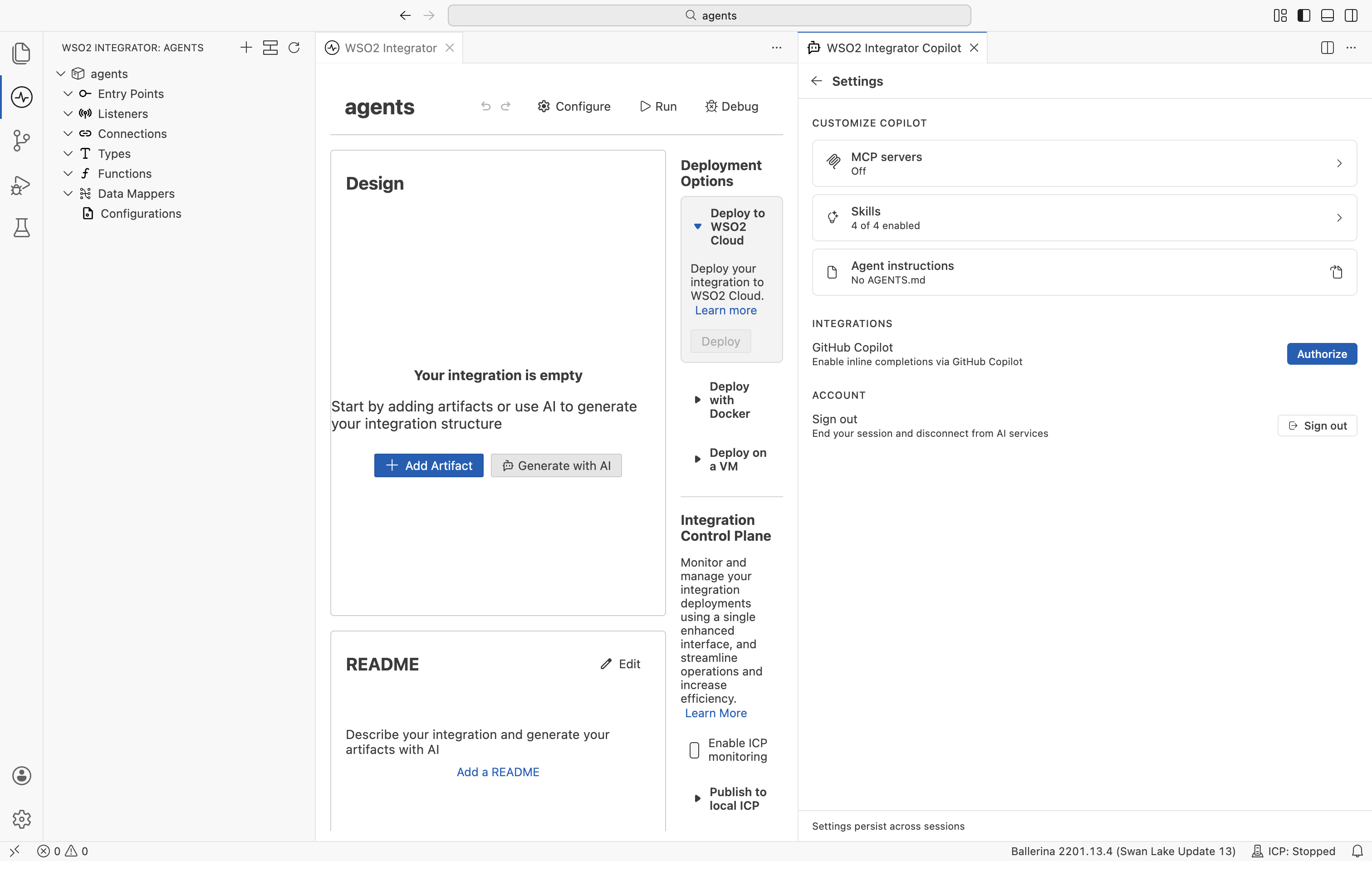
Add an AGENTS.md file to your project root to give Copilot standing instructions for the workspace, such as preferred libraries, naming and style rules, or error-handling patterns. Copilot reads the file as project context and applies the relevant instructions on every request.
To create or edit the file, open Settings in the Copilot panel and select the file icon on the Agent instructions row under Customize Copilot. If AGENTS.md does not exist yet, selecting the icon creates it from a starter template; otherwise, it opens the existing file for editing.
Skills
Skills are reusable instruction sets for specific tasks. When your request matches a skill, Copilot applies it automatically for consistent results without repeating the same guidance each time.
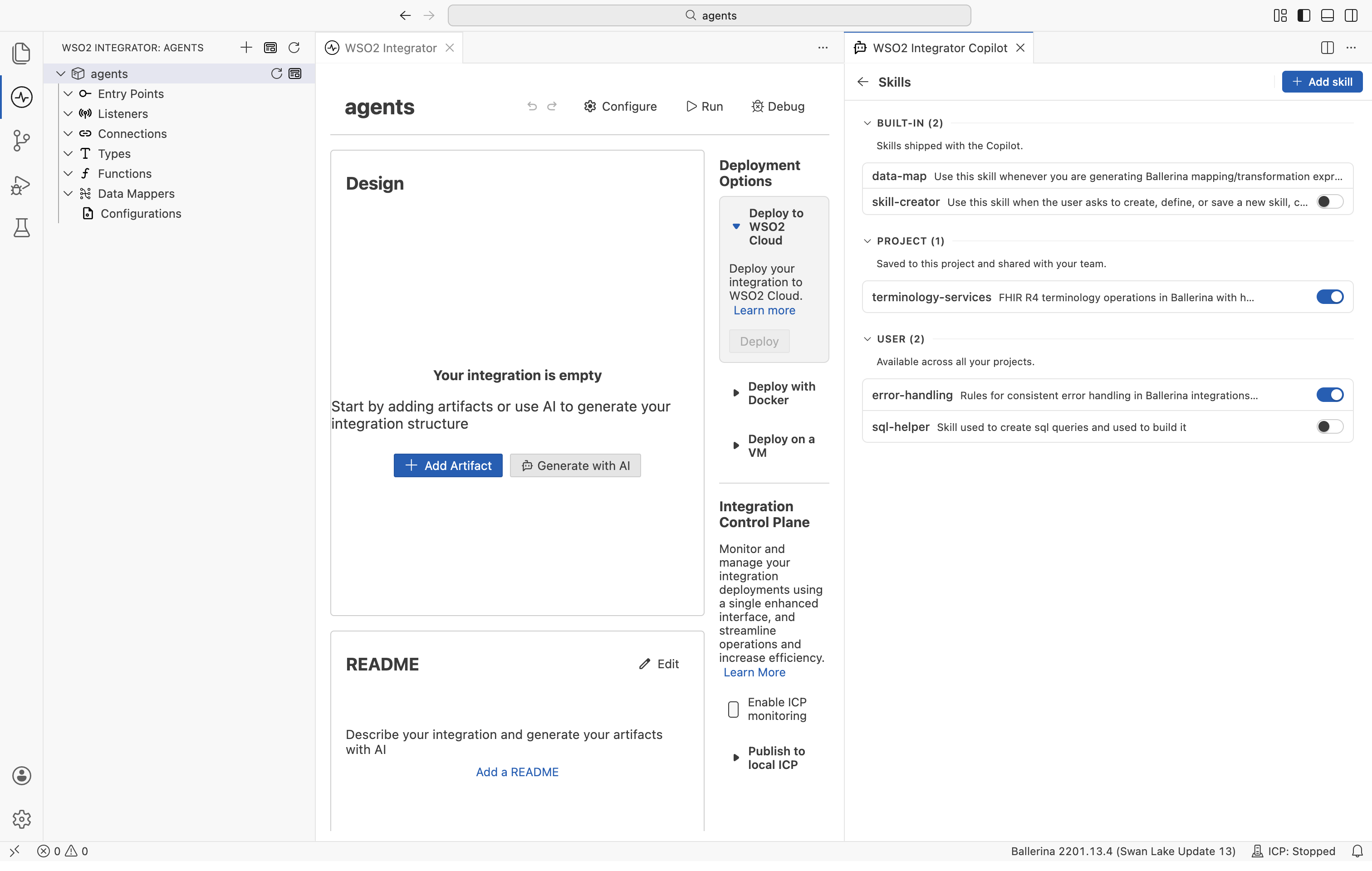
Copilot organizes skills into three groups:
- Built-in: Skills shipped with Copilot.
- Project: Skills saved to your project under
.agents/skills. - User: Skills available across all your projects.
Manage skills
Open Settings in the Copilot panel and select the Skills row under Customize Copilot. The Skills panel lists each group. Enable or disable individual skills using the controls next to each skill.
Some built-in skills are always active and cannot be disabled.
Add your own skill
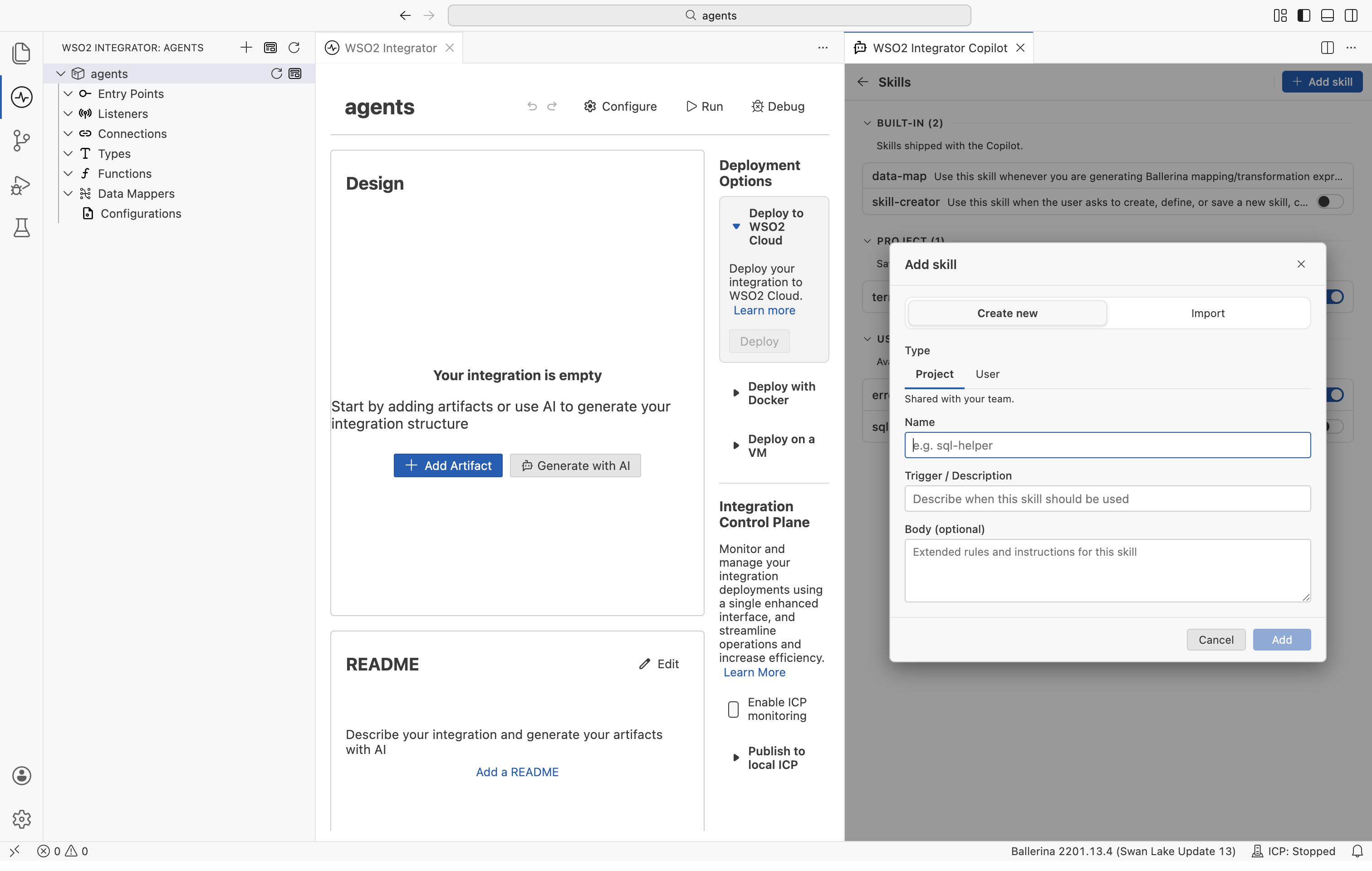
Select Add skill to define a custom skill.
- Create new: Enter a Name, a Trigger / Description that tells Copilot when to use the skill, and an optional Body with detailed rules and instructions.
- Import: Upload a
.mdfile (with the skill name and description in YAML front matter) or a.zipor.skillfile (containing aSKILL.md).
Choose the Type to control where the skill lives: Project saves it to your project, while User makes it available across all your projects.
How Copilot uses skills
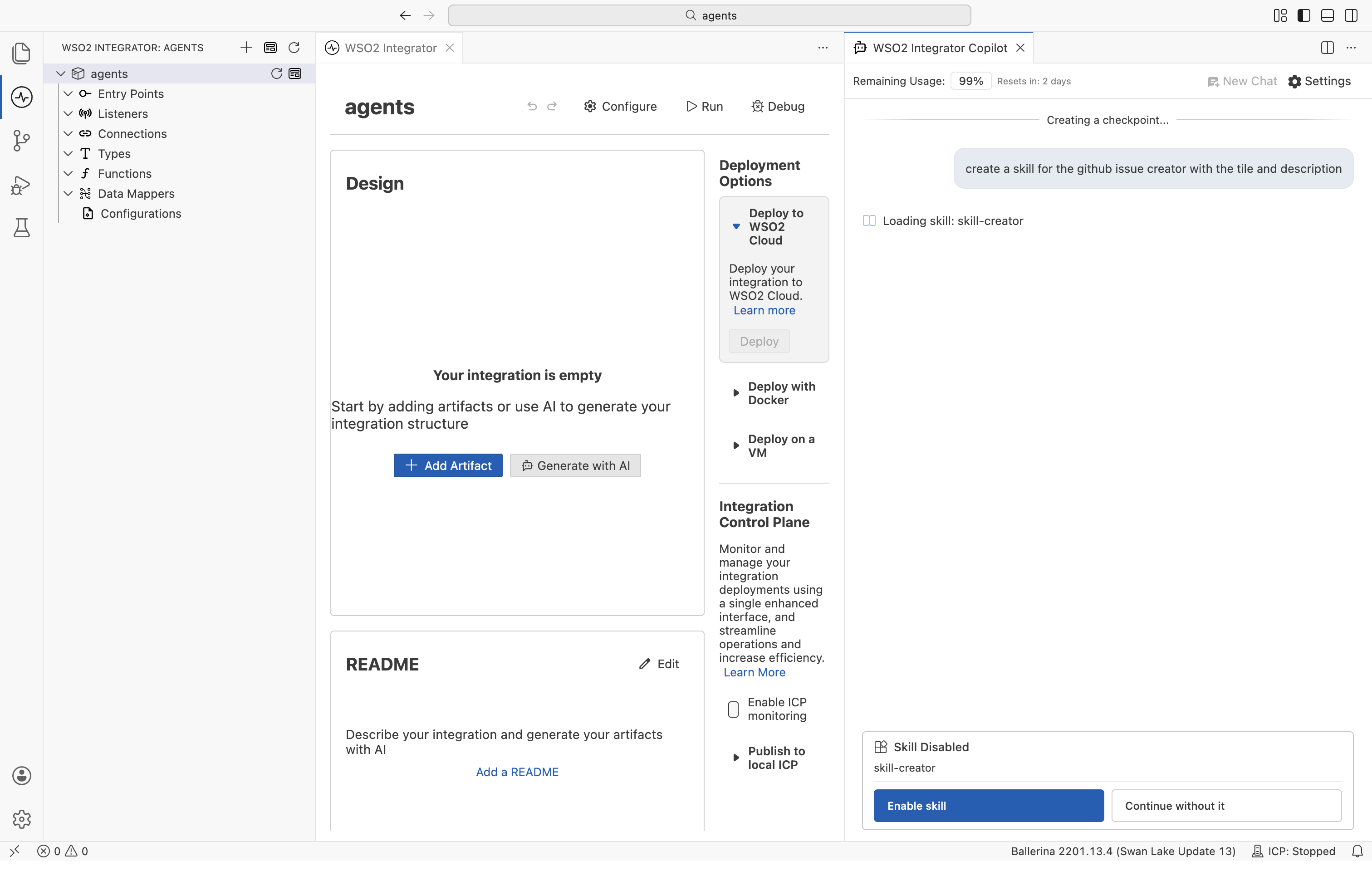
When a skill is enabled and your request matches its trigger, Copilot applies the skill automatically. If a matching skill is disabled, Copilot pauses and asks whether to enable it. Select Enable to turn it on, or Skip to continue without it for that message.
Chat history
Copilot saves each project's conversation, so it stays available after you reload or restart the IDE. History is tied to the project's location on disk, so it no longer appears if you move, rename, or open the project from a different path.
You can also reset the conversation in two ways:
- New Chat: Clears the current project's history and starts a fresh conversation.
- Restore Checkpoint: Rolls your integration back to a saved checkpoint, undoing the changes Copilot made afterward and removing the later prompts.
Slash commands
Type / in the Copilot input bar to invoke a command for a specific task. You can also invoke an enabled skill directly: type / and select the skill from the list, for example /data-map.
| Command | Description |
|---|---|
/ask | Ask questions about Ballerina to be answered based on the documentation. |
/doc | Generate documentation for your integration. |
/openapi | Import OpenAPI specifications. |
/typecreator | Create custom types. |
/data-map | Generate data mappings. |
/natural-programming | Experimental. Generate code from requirements and check for drift. |
/ask answers only from the Ballerina documentation and does not use your codebase context. For questions about your code or any other topic, message Copilot directly without a command. /data-map is powered by the built-in data-map skill rather than a command.
See also
- Getting started — Sign in to WSO2 Integrator Copilot.
- Generate tests with AI — Use Copilot to generate test cases.
- AI data mapper — Generate data mappings using AI.
- Try-It tool — Test services without leaving the IDE.
- AI usage and data handling guidelines — How Copilot handles your data.