Consuming an API Secured with an API Key
This document provides guidance on how to consume an API that is secured using the API Key security scheme.
Prerequisites
Before you begin, ensure you have the following:
- An integration as API configured with API Key security in WSO2 Cloud - Integration Platform. Refer to the API Security documentation for details on setting up API Key security for your API.
- The integration as API is promoted to the Production environment.
Steps to consume an API secured with API Key
- Sign in to the WSO2 Cloud.
- Select your project and navigate to the Overview page in the left navigation.
- Select the integration as API that you want to consume.
- In the integration Overview page, on the right side, click the Developer Portal icon. This will open the Developer Portal for the selected API.
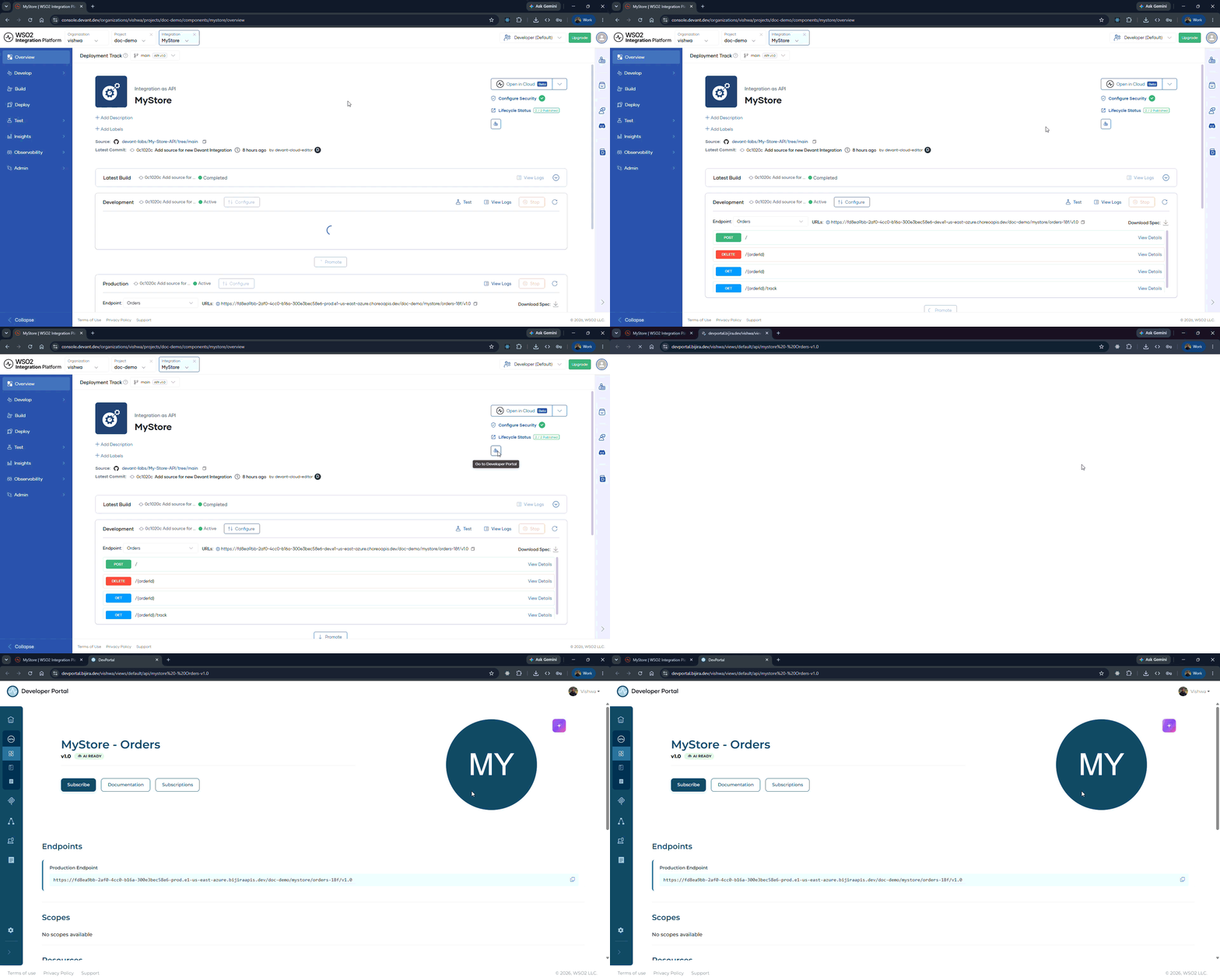
- In the Developer Portal, click Subscribe to subscribe the API to an application.
- If you already have an application, select it from the list. If not, enter a name for a new application and click Create Application.
- Once the application is created, click Subscribe to complete the subscription process.
- In the left navigation menu, click Applications and select your application.
- Click Manage Keys at the top right of the application page.
- In the API Keys section, locate the row corresponding to the subscribed API (identified by its API Name and API Version), and click Generate Key under the Key Actions column.
- Enter a name for the API Key in the API Key Name field and click Generate to generate the API Key.
Once you have the API Key, you can use it to make authenticated requests to the secured API. Include the key in the api-key header of your HTTP requests as follows:
api-key: <api_key>
An example using curl to make a request to the secured API:
curl --request GET \
  --url <endpoint> \
  --header 'Accept: text/plain' \
  --header 'api-key: <api_key>'
You can also click Documentation in the API Overview page to view the API documentation, and test the API endpoints directly from the Developer Portal using the generated API Key.