How to Build an MCP Server: A Step-by-Step Guide
Most teams meet the Model Context Protocol (MCP) from the client side. You add a connector to Claude Desktop or GitHub Copilot, and give your assistant the ability to query your issue tracker. The moment you want an assistant to reach your systems however, that order flips, and you now have to build an MCP server that allows the assistant to interact with your systems.
This complete guide explores that implementation process step by step: detailing the protocol-level mechanics of an MCP server, demonstrating how to set one up to launch your initial tool, and explaining how to validate its functionality before an agent ever touches it. The last two sections cover what changes when the server leaves your laptop. The examples use WSO2 Integrator, which can act as an MCP server and an MCP client, so the same project that already talks to your backends can publish those capabilities as tools.
- What you will build: an MCP server (a MathTutor example service) that exposes tools an AI assistant can discover and call
- What you will learn: how MCP servers work, choosing a transport and session mode, writing tool descriptions models will use correctly, testing with the MCP Inspector, and securing a server for production
- Prerequisites: WSO2 Integrator installed (native installers for Linux, macOS, and Windows), and a WSO2 Cloud account for centralized environment management and observability
What is an MCP server?
An MCP server is a process that advertises a set of capabilities to an AI application over a standard protocol, then executes them on request. The Model Context Protocol defines a client-server architecture. A host application, such as an AI assistant or a coding agent, creates one MCP client for every server it connects to, and each client holds a dedicated connection to its server. Your server never talks to the model directly. It talks to a client, and the client is what the host wires into the model's tool-calling loop.
Underneath, the wire format is JSON-RPC 2.0. A client discovers what a server can do by calling tools/list, then invokes a specific capability with tools/call. That's genuinely most of the protocol. The interesting engineering is not in the message envelope, it's in deciding which operations to expose and describing them well enough that a model picks the right one.
The examples here target MCP protocol version 2026-07-28, which the runtime negotiates with the client during initialization rather than something you hardcode.
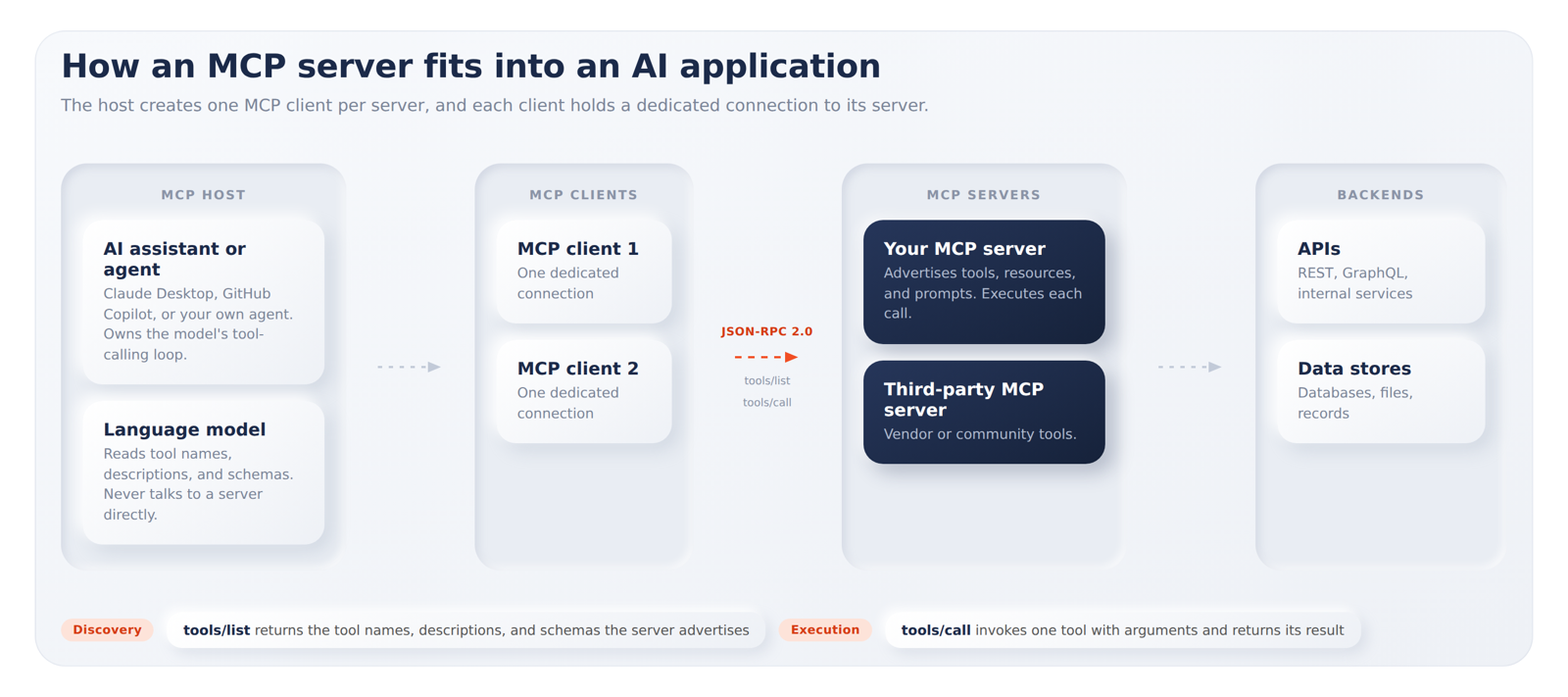
Figure 1: MCP Server Architecture
The practical consequence of this is worth understanding before you write any code. An MCP server is a public API surface whose primary consumer is a language model rather than a developer reading your docs. Models don't read your source. They read the names, descriptions, and schemas you advertise, and they make routing decisions from that text alone.
What an MCP server exposes: tools, resources, and prompts
The protocol defines three primitives a server can expose. "Tools" are executable functions the AI application can invoke to perform actions, such as file operations, API calls, or database queries. "Resources" are data sources that supply contextual information, like file contents, database records, or API responses. "Prompts" are reusable templates that structure interactions with the model, including system prompts and few-shot examples.
Almost every server you build in practice will lead with tools. WSO2 Integrator's MCP service is built around exactly that primitive. Each tool has a name, a description, typed parameters, and a typed return value, and the framework derives the JSON Schema sent to clients from those types automatically.
That automatic derivation is worth understanding early, because it changes how you write the function:
| What you write in code | What the MCP client receives |
|---|---|
| Remote function name | Tool name |
| Function doc comment | Tool description |
| Parameter doc lines | Parameter descriptions |
| Return type | Output schema |
Your doc comment isn't documentation in the usual sense. It's the prompt that decides whether the model calls your tool at the right moment, and it ships to every client that connects.
Before you build: prerequisites and design decisions
Prerequisites
Download and set up WSO2 Integrator, which provides native installers for Linux, macOS, and Windows. Signing in with a WSO2 Cloud account is the prerequisite for unlocking centralized environment management, integrated observability, and the platform's AI-driven development capabilities.
Design decisions
The architecture of your server rests on two fundamental design decisions; prioritizing these before implementing any capabilities ensures a smoother path to production.
Decide on your transport
MCP defines two standard transports.
- The STDIO transport uses standard input and output streams for direct process communication between local processes on the same machine, with no network overhead.
- The Streamable HTTP transport uses HTTP POST for client-to-server messages with optional Server-Sent Events for streaming, which is what enables remote servers. Streamable HTTP also supports standard HTTP authentication methods including bearer tokens, API keys, and custom headers, and the protocol's own guidance is to use OAuth to obtain those tokens.
The choice drives your audience as much as your plumbing. A local STDIO server typically serves a single client, while a remote Streamable HTTP server typically serves many. MCP services built in WSO2 Integrator run on Streamable HTTP, so a server you build for one developer's laptop and a server you deploy for a team differ in configuration rather than in kind.
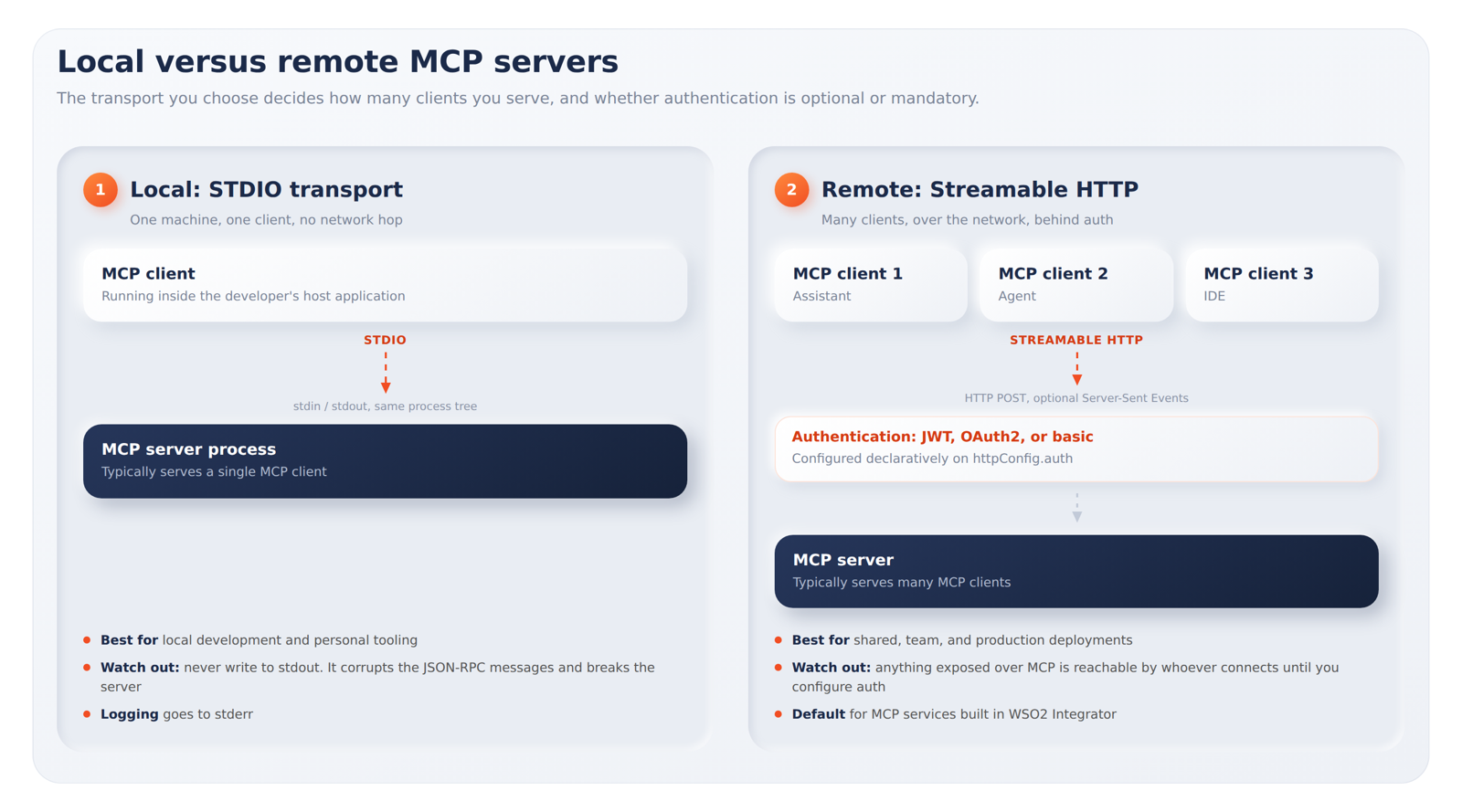
Figure 2: Local vs Remote MCP Servers
Decide how tools get defined
WSO2 Integrator offers two service types.
Use mcp:Service when | Use mcp:AdvancedService when |
|---|---|
| Tools map cleanly to compile-time remote functions | Tools are dynamic, defined in configuration, a database, or another service |
| You want schemas derived automatically | You want hand-crafted JSON schemas or extra validation |
| You want the simplest possible MCP server | You want a dispatch-table architecture |
Use mcp:Service unless your tool list genuinely can't be known at compile time. mcp:AdvancedService exists for tool definitions that come from configuration, a database, or another runtime source, and it asks you to implement onListTools() and onCallTool() yourself. Currently, the WSO2 Integrator visual designer exclusively supports the creation of mcp:Service. To demonstrate how this works, we will walk through the step-by-step process using a straightforward example.
How to build an MCP server: step by step
The transition from a fresh project to a functional MCP server involves a specific six-step sequence. To illustrate this lifecycle, we will implement a MathTutor MCP service, providing a clear window into the fundamental build mechanics.
Step 1: Create the MCP service
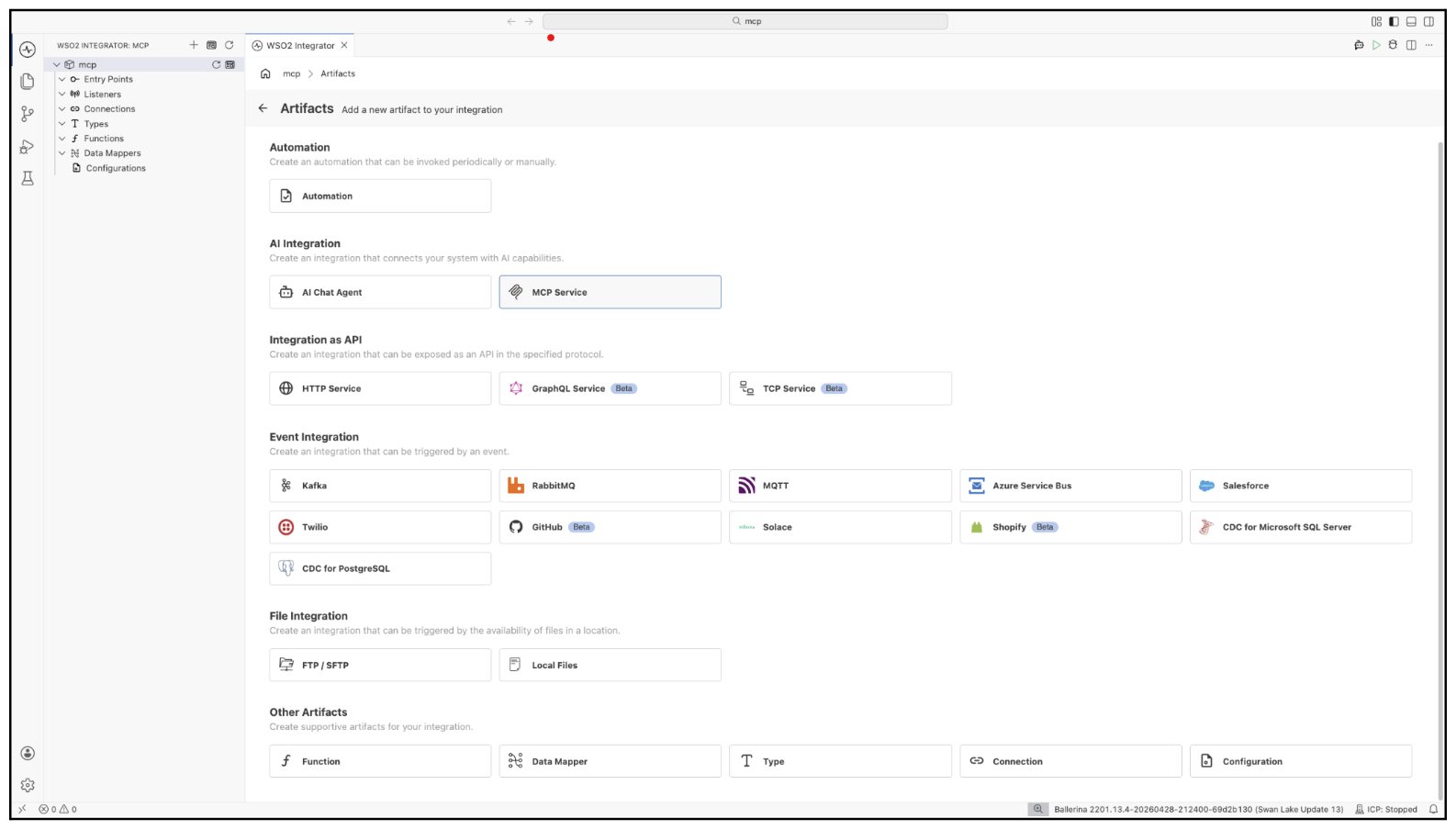
In the WSO2 Integrator design view, select Add Artifact, choose MCP Service under the AI Integration category.
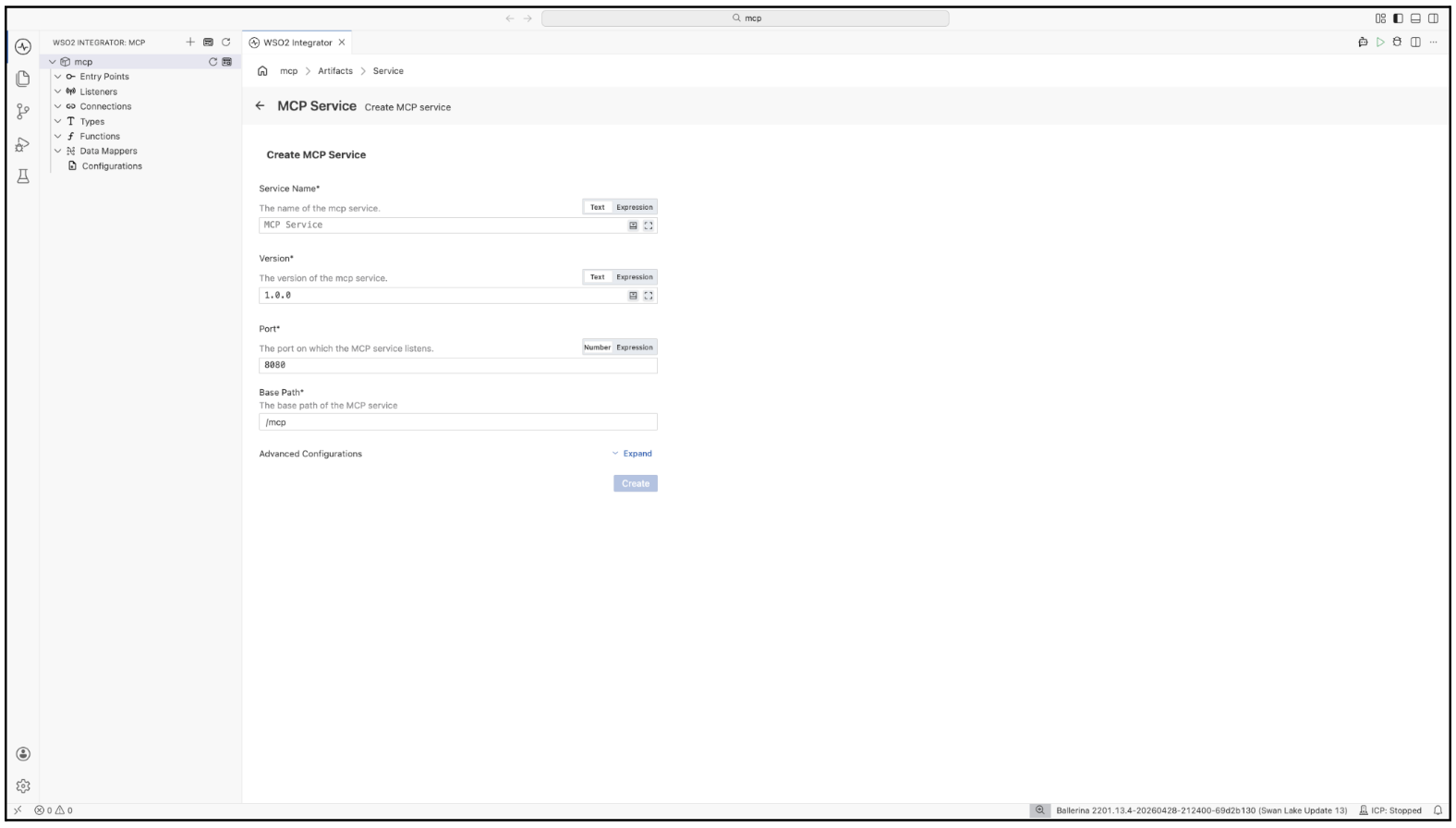
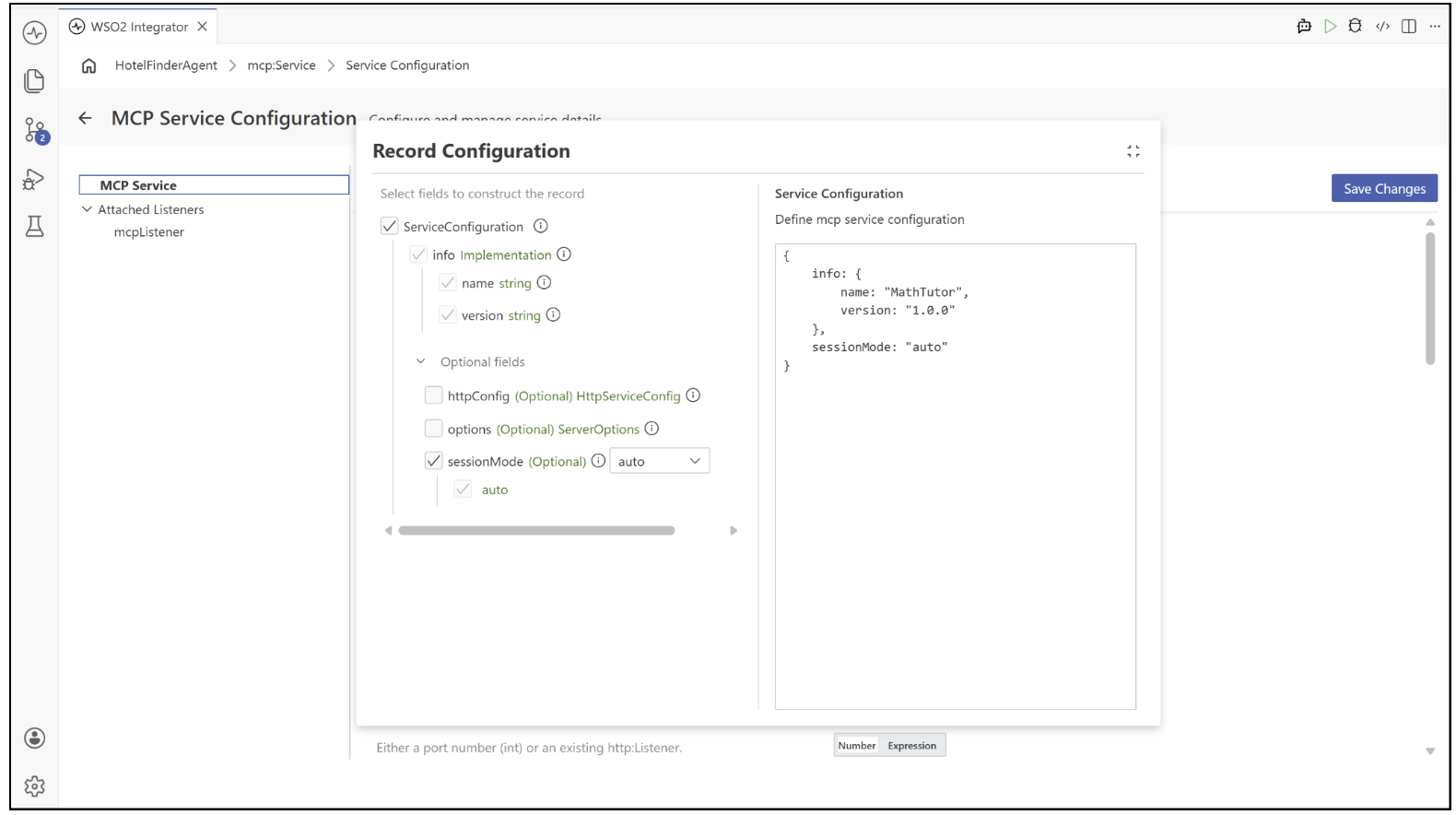
Then fill in the creation form. You supply a service name (MathTutor) that clients will see, a version string, a listening port that defaults to 8080, and a base path such as /mcp.
Step 2: Add your first tool
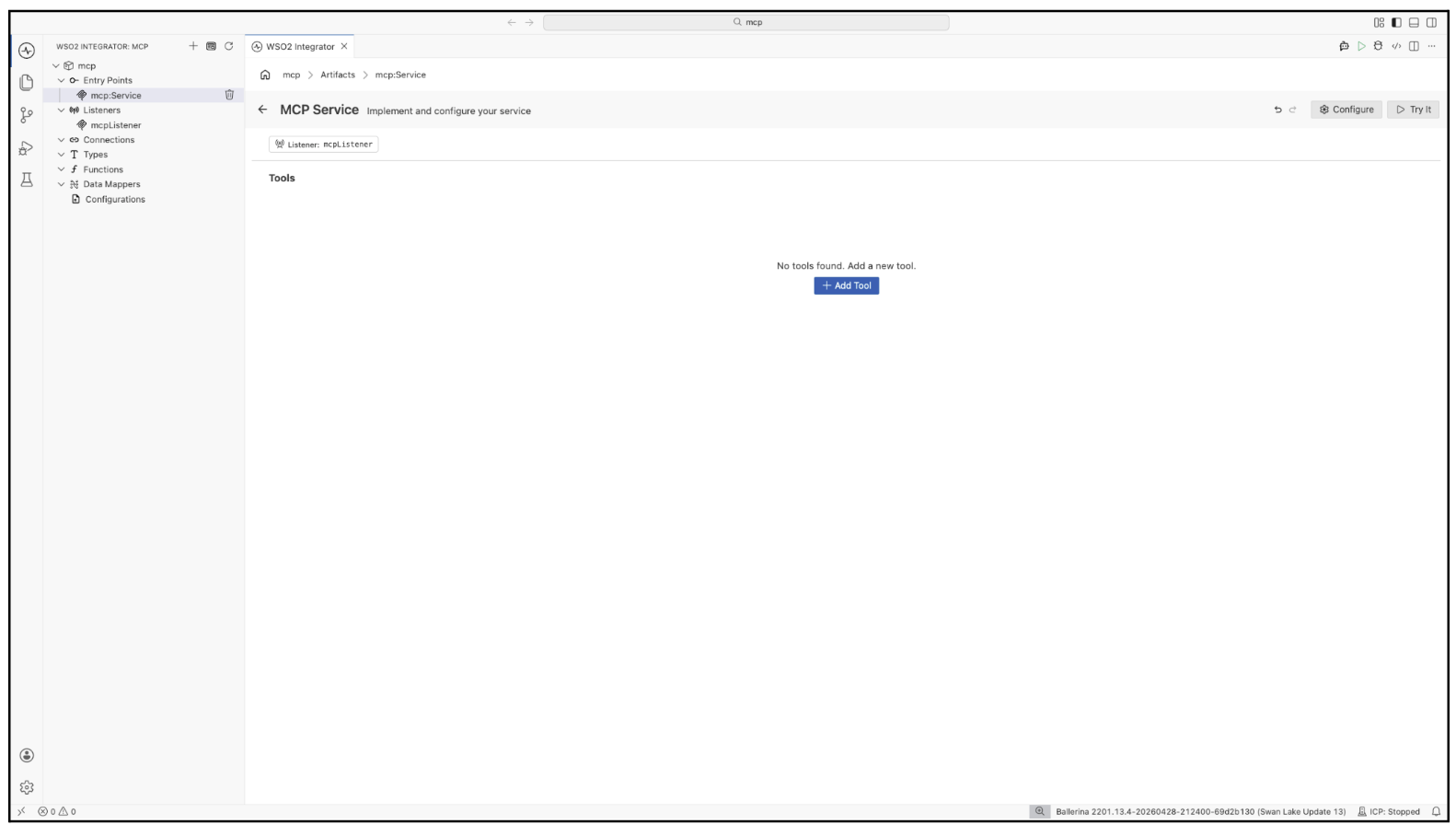
After clicking Create, WSO2 Integrator opens the service in the MCP Service Editor. In the visual designer click + Add Tool to add your first tool.
Step 3: Write the tool description properly
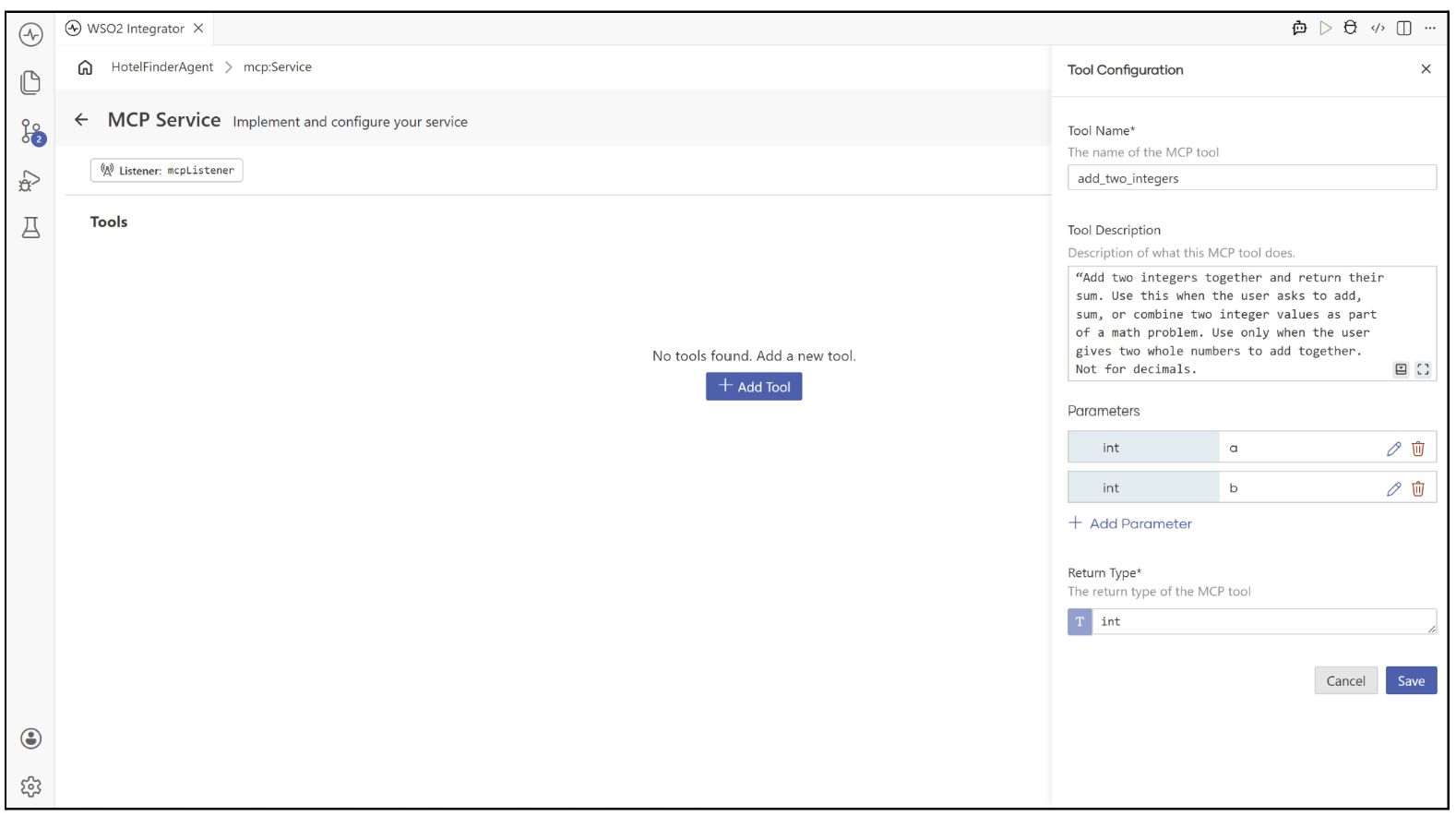
This is the step teams skip, and it's the one that determines whether the server works. Alongside the tool name and parameter schema, the description is the largest part of what the model reads when deciding which tool to call. WSO2's guidance is to be explicit about scope, so that two similar tools are unmistakably distinct:
"Add two integers together and return their sum. Use this when the user asks to add, sum, or combine two integer values as part of a math problem. Use only when the user gives two whole numbers to add together. Not for decimals."
You can also bake safety rules directly into the text for mission critical tools, as in,
"Process a wire transfer between bank accounts. IMPORTANT: Confirm the recipient account number and exact amount with the user before calling this tool. This action cannot be reversed once submitted."
The client will follow it most of the time, but the docs are blunt about the limits of that: for deterministic enforcement, keep server-side checks as well. Do not use a description like "Math endpoint." as a generic description leads to bad tool selection downstream.
Then fill in the tool creation form as below and click Save.
Step 4: Implement tool logic
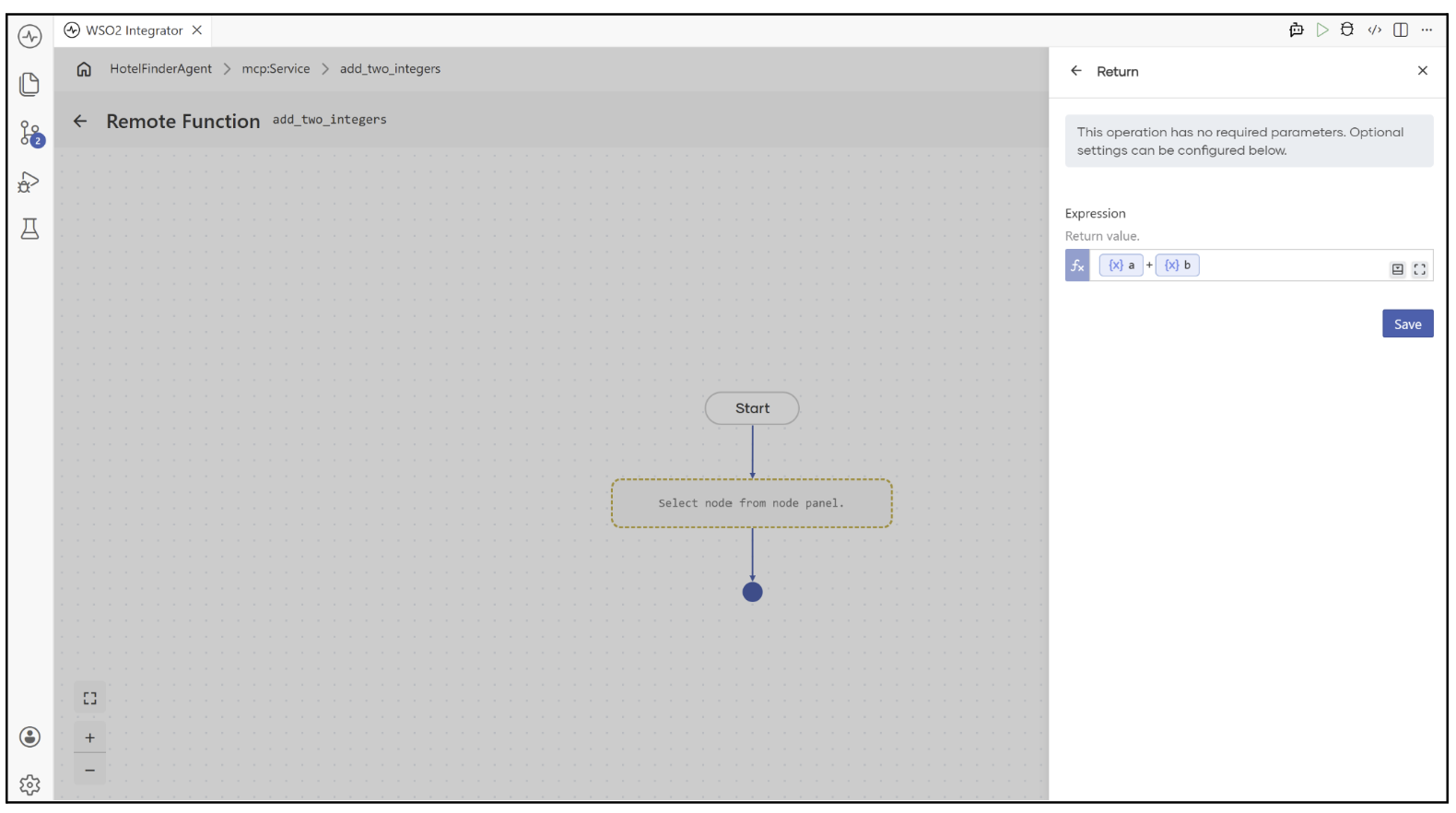
Within the visual designer, wire up standard integration components to define the tool's underlying logic. For MathTutor's add_two_integers tool, the operation is simple: take the two integer parameters, a and b, and return their sum.
Addition rarely fails, but not every math operation is that forgiving, a tool like divide_two_integers, for instance, has an obvious failure mode: dividing by zero. This is where error handling stops being an afterthought and becomes part of the tool's design. The framework propagates a returned error message back to the client as a tool-call error, which means the message becomes input to the model's reasoning loop. A specific, actionable message lets the assistant correct itself and try again instead of getting stuck:
remote function divideTwoIntegers(int a, int b) returns int|error {
    if b == 0 {
        return error("Cannot divide by zero. Provide a non-zero value for b.");
    }
    return a / b;
}
An error with no meaningful message gives the assistant nothing to reason about, so it either gives up or retries the exact same failing call. The message you write here is the only feedback loop the model has — treat it as part of the tool's interface, not just a failure path. Full configuration reference for all of the above lives in the Error handling section of the Exposing a Service as MCP documentation.
Step 5: Configure the service identity
Service configuration governs essential settings including the base path, advertised server identity, session management mode, and HTTP-level features like authentication and CORS. To access these settings in the MCP Service Editor, select Configure from the header menu to open the MCP Service Configuration form. This interface is split into two primary sections: a top field for defining the Base Path, and a Service Configuration record editor dedicated to advanced settings.
Step 6: Choose a session mode
Three modes are available, and the default is usually right.
| Mode | Use when |
|---|---|
mcp:AUTO (default) | The mode is decided automatically from how the client initializes. Recommended for most services. |
mcp:STATEFUL | The transport tracks session IDs and your tools need per-session state, such as a shopping cart. |
mcp:STATELESS | Each request is independent. Use for pure functions and read-only lookups. |
Step 7: Set listener configuration
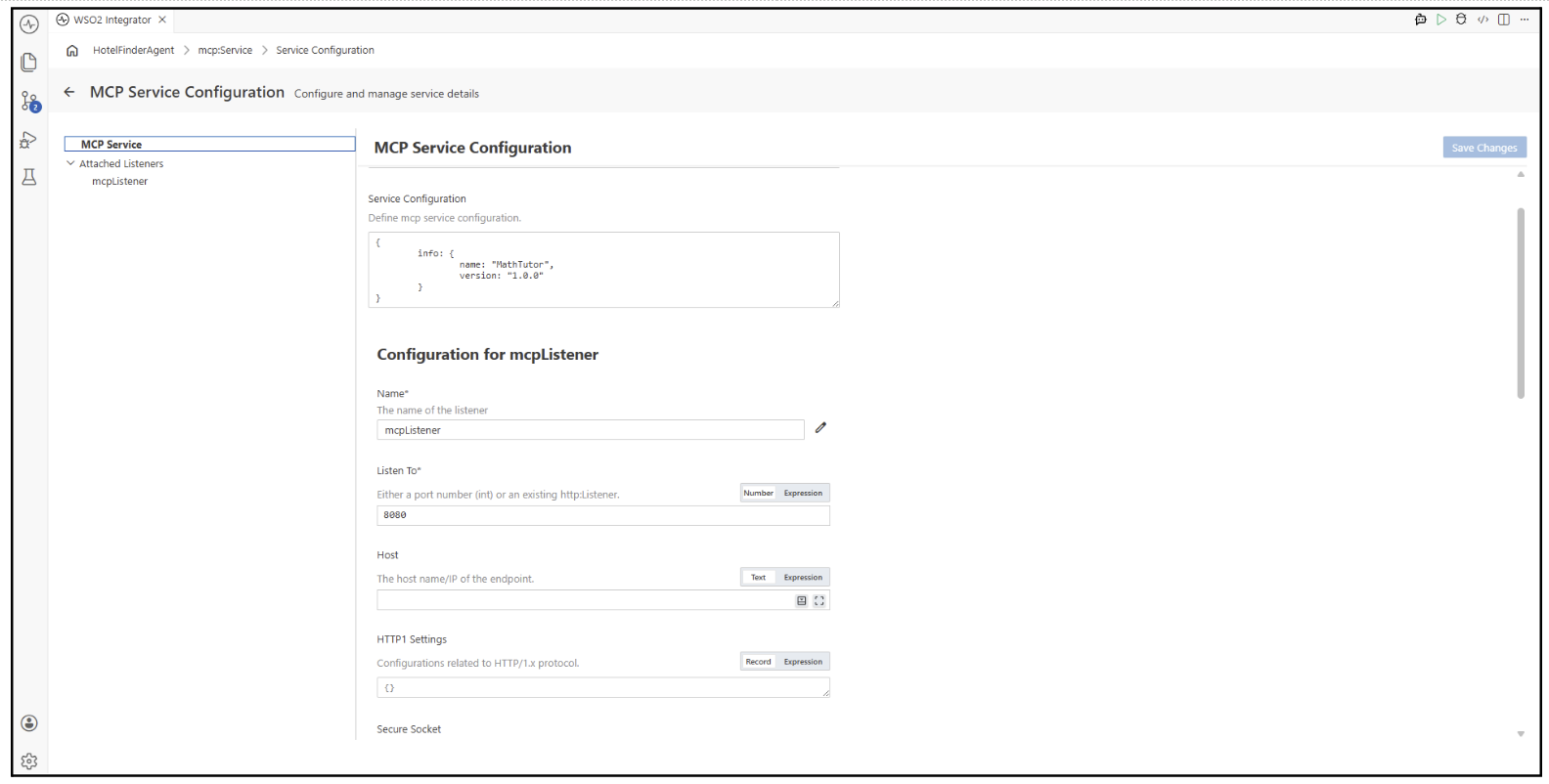
The listener handles incoming MCP connections via Streamable HTTP by binding to a designated port. You can set this up in the MCP Service Configuration panel by choosing the listener listed under Attached Listeners. Standard HTTP configurations only need the port specified in Listen To, whereas HTTPS setups require configuring Secure Socket.
Testing your MCP server with the MCP Inspector
Wiring an untested server into an assistant is a bad debugging loop, because you end up guessing whether a failure came from your tool, the schema, or the model's choice of tool. Test the server directly first.
In the Service Designer, the button next to Configure in the service header opens Try It, which launches the MCP Inspector: an interactive interface for connecting to your server, listing its tools, and invoking them with input parameters. To verify the MathTutor MCP service, select Streamable HTTP as the transport method and specify http://localhost:8080/mcp as the target URL.
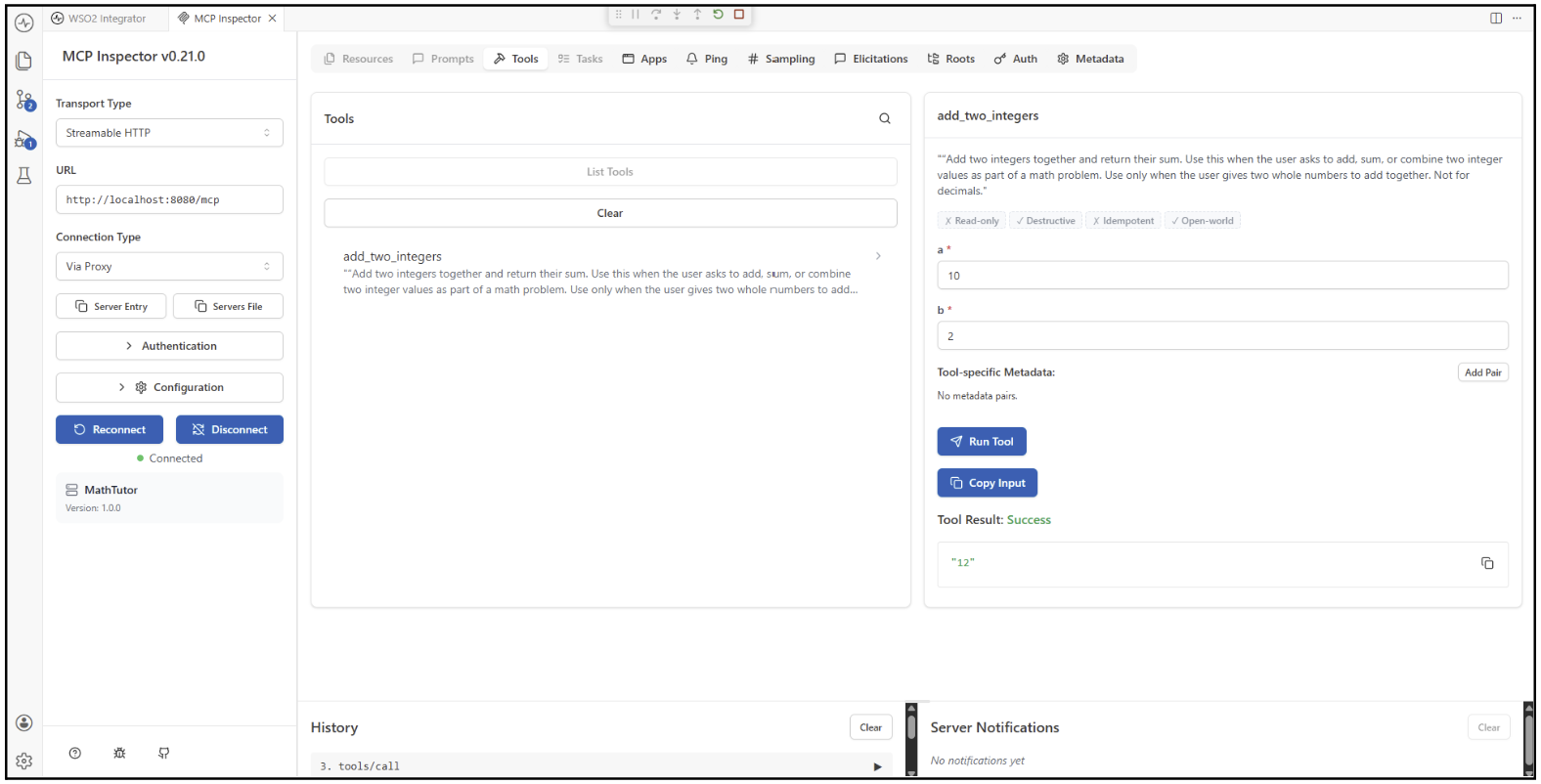
Three things in the Inspector repay attention on a first run:
- List Tools fetches the live tool list from the running server. If a tool you expected is missing, the problem is registration, not the model.
- Annotation tags on each tool show behavioral hints such as Read-only, Destructive, Idempotent, and Open-world, which inform agents how to treat the tool safely. A destructive operation that isn't tagged as one is a finding, not a detail.
- History records every protocol call made during the session in order, including
initialize,tools/list, andtools/call, and a play icon replays any of them. Replaying a singletools/callis far faster than re-prompting an assistant to trigger it.
Once the tools behave, point a real client at the server. Claude Desktop connects by URL:
{
  "mcpServers": {
    "wso2-integrator": {
      "url": "http://localhost:9090/mcp"
    }
  }
}
Taking it to production: auth, sessions, and governance
What you need to keep in mind when deciding on your deployment plan is "Anything you expose over MCP is, by default, accessible to whoever connects." A tool that reads customer records is an unauthenticated data export until you configure otherwise.
Authenticate at the service level. Auth is declarative and lives on httpConfig.auth, supporting JWT, OAuth2, and basic auth. WSO2 Integrator applies the same authentication configuration you'd use on an HTTP service, so a JWT validator takes an issuer, an audience, a JWKS URL for signature verification, and a scope key, with required scopes declared alongside it:
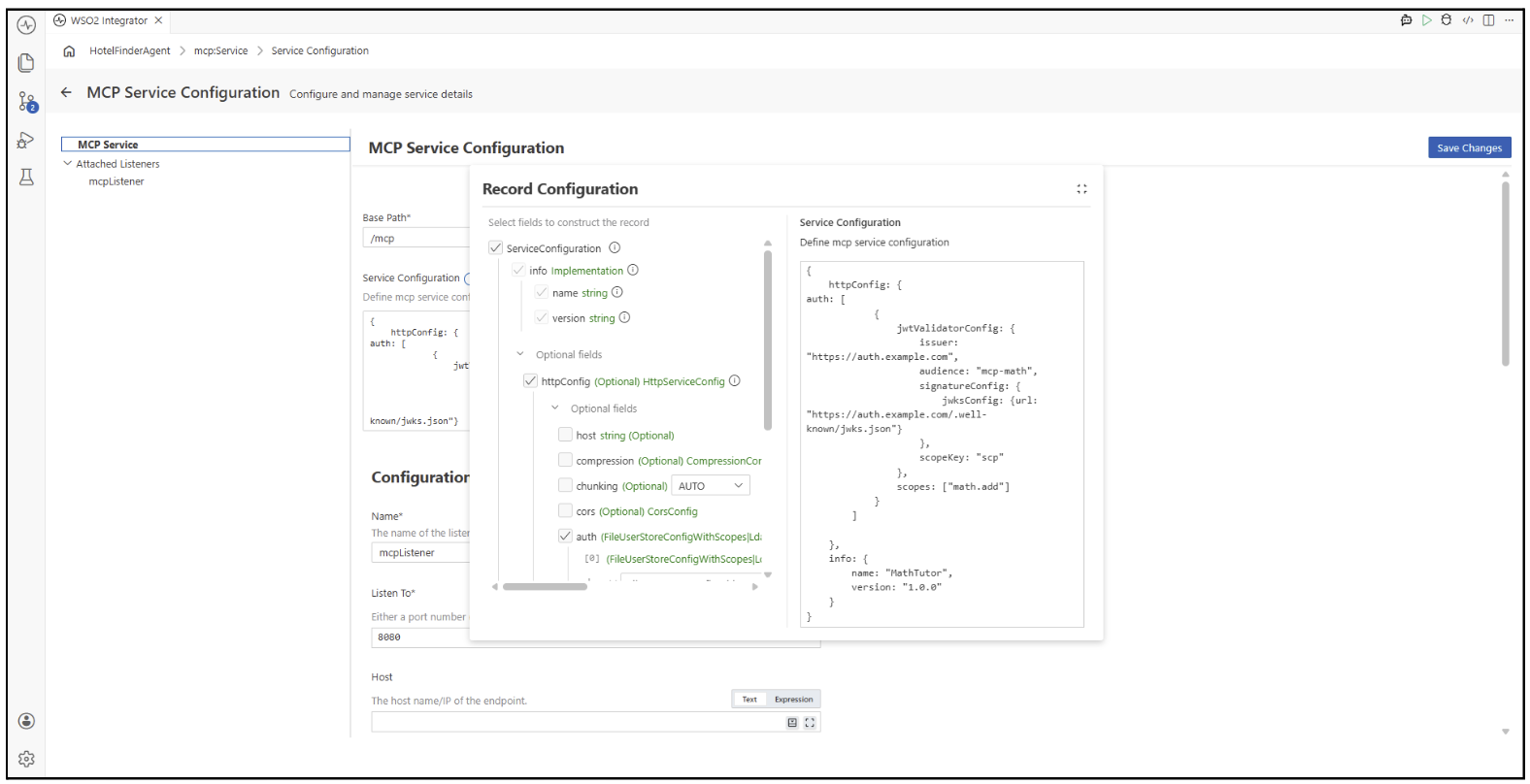
You can stack several handlers on one service and they're tried in order, which is the usual path when you're migrating from one identity provider to another.
Secure the listener. mcp:ListenerConfiguration is an alias for http:ListenerConfiguration, so every HTTP listener field applies, including secureSocket for TLS. A listener can also be initialized from an existing http:Listener, which lets an MCP service and an HTTP service share a port instead of you opening a second one.
Govern above the server. Authentication answers who is calling. It doesn't answer what they're allowed to do once inside, how many calls they get, or what happened last Tuesday. Those questions sit at a layer above the server, which is the argument for putting an MCP gateway in front of a fleet of them once you have more than one.
Two operational habits are worth adopting from day one regardless:
- Log every tool call the way you'd log any other API surface. Knowing who called what is what makes an incident debuggable.
- Version explicitly. Add a new tool rather than silently changing an existing one, because clients depend on stable schemas.
Turning existing APIs and integrations into MCP servers
The build above starts from an empty service, which is the right shape when the capability is new. It's the wrong shape when the capability already exists as an integration you shipped two years ago.
This is where running the MCP server inside the same integration runtime pays off and it's most visible in the Visual Designer, because exposing an existing capability doesn't require writing anything MCP-specific. A tool's underlying logic is built from the same connectors, HTTP calls, and data-mapper steps you'd already use anywhere else in the platform. Open the MCP Service editor, click + Add Tool, and instead of designing new logic from scratch, point the operation flow at the backend you already call today the same connector, the same endpoint, the same transformation you shipped two years ago. Set a Return Type on the tool, and WSO2 Integrator derives the schema clients see from that type automatically, so there's no second schema to hand-write and keep in sync with the first.
In practice, that means turning an existing integration into an MCP tool is mostly a matter of exposing an existing call path through a new front door, point-and-click, rather than rewriting what the integration already does.
The distinction worth keeping in mind when deciding whether a capability belongs behind MCP at all: reach for it when you want that capability reusable by Claude Desktop, GitHub Copilot, or any other MCP client, or when you need a standard, governed boundary between the AI surface and your tools covering auth, rate limits, and audit, the way the next section covers. Skip it when only your own agents inside the same platform will ever call the tool; a local function tool works fine there, without the extra layer of a server and a client in between.
Common mistakes when building MCP servers
Most MCP server problems fall into a short list, and all of them are easier to avoid than to debug.
- Exposing too many tools. Keep the tool list small, because fewer, better-described tools beat dozens of overlapping ones. A model choosing between forty similarly-named tools chooses badly.
- Writing to stdout on a STDIO server. If you build a local STDIO server, never write to stdout, because doing so corrupts the JSON-RPC messages and breaks the server outright. The MCP docs call out
print()specifically, since it writes to stdout by default. Log to stderr instead. Streamable HTTP servers aren't affected by this. - Shipping vague descriptions. Covered above, but it's the single most common cause of "the agent has the tool and won't use it."
- Returning raw upstream payloads. A tool that returns an entire API response burns context and buries the answer. Project the fields the assistant needs into a typed record.
- Treating the server as internal. MCP endpoints are network endpoints, and the security considerations that apply to any exposed API apply here too, with the added wrinkle that the caller is a model that can be talked into things.
- Mutating tool schemas in place. Renaming a parameter on a live tool breaks every client that cached the schema. Add a new tool and deprecate the old one.
Summary
Building an MCP server is a small, well-defined job: declare a listener, expose functions as tools, describe them clearly, and return errors a model can act on. The work that decides whether the server survives contact with production sits on either side of that. Good tool descriptions determine whether an assistant ever calls the right thing, and authentication, logging, and stable schemas determine whether you can safely leave it running.
If your capabilities already exist as integrations, the shortest path is usually to expose what you have rather than build something new. WSO2 Integrator is where the full MCP service reference, the Inspector, and the deployment options live.
FAQ: Building MCP servers
Can I build my own MCP server?
Yes. MCP is an open protocol with SDKs across several languages, and a minimal server is a small amount of code. In WSO2 Integrator, a runnable MCP service with one tool is about a dozen lines of code, or a short form in the visual designer.
How is an MCP server created?
You declare a listener, declare a service on it, and add one function per capability you want to expose. The runtime handles protocol negotiation, tool discovery, and schema generation, so the code you write is the business logic plus a description of each tool.
How do I set up an MCP server for an existing API?
Write a tool whose body calls that API and returns a typed record. The output schema is derived from the return type, so no separate schema definition is needed, and the authentication, retry, and transformation logic for that backend already exists in your integration project.
What is the difference between a local and a remote MCP server?
Transport and audience. Local servers generally use STDIO and serve a single client on the same machine, while remote servers use Streamable HTTP and typically serve many clients. That's why authentication stops being optional in practice once a server goes remote.
How do I test an MCP server before connecting an agent?
Use the MCP Inspector. It lists the tools your running server advertises, invokes them with parameters you supply, and records the protocol calls so you can replay a specific tools/call without going through an assistant.
Do MCP servers need authentication?
Any server reachable over the network does. Anything exposed over MCP is accessible to whoever connects unless you configure otherwise. The Streamable HTTP transport supports standard HTTP authentication, and MCP recommends OAuth as the way to obtain tokens.

