End-to-end tutorial
Follow this guide once to understand the full API Designer workflow using one OpenAPI file.
In this tutorial, you will:
- Draft a spec with Copilot.
- Refine it in API Designer.
- Review governance reports.
- Fix findings using Chat.
Step 1: Draft the spec with Copilot
- Open GitHub Copilot Chat with agent mode.
- Ask Copilot to scaffold a complete OpenAPI specification for an Orders API.
Example prompt:
Design an API for Order management app
- Copilot Chat uses the
api-designskill, may ask clarifying questions, and iterates until the specification is ready. It then writes and saves the file.
Outcome: A working OpenAPI draft on workspace.
Note: If Copilot prompts you to open the specification in API Designer, confirm the prompt.
Step 2: Open API Designer
- With the openapi spec file (e.g:
orders-api.yaml) focused, open API Designer using one of these options:- Copilot Chat: Confirm the prompt to open in API Designer (uses the
openInApiDesignertool).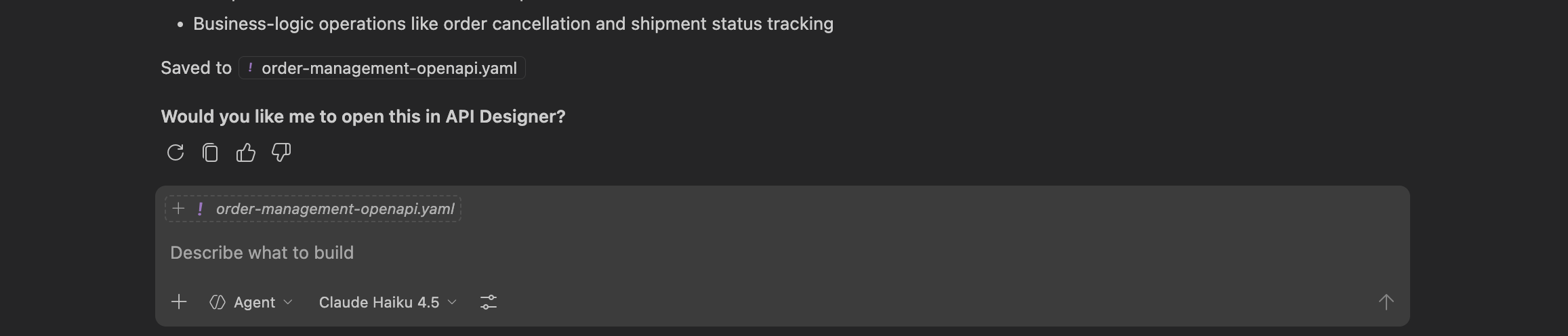
- CodeLens: Open in API Designer.
- Title bar: Open in API Designer.
- Command Palette: API Designer: Open in API Designer.
- If a notification appears (“Open it in API Designer?”), choose Open in API Designer.
- Copilot Chat: Confirm the prompt to open in API Designer (uses the
Outcome: You get a structured view of paths, operations, and components.
Step 3: Edit with AI
- Stay in the designer (or use the AI entry point your build provides for "edit with AI").
- Prompt with scope, for example:
Click on the Edit with AI button in the orders GET endpoint and type:
> Add `limit` and `offset` query parameters with defaults documented in the parameter descriptions.

This will open up the copilot chat in agent mode and run the prompt with the provided scope.
- Review the proposed changes and accept only what matches your API conventions.
Outcome: Fast updates for larger or repetitive changes.
Step 4: Use form-based edits
- In the designer, open the Edit form for a specific operation or schema.
- Adjust a response code, update an operation summary/description, mark a schema field as required, or refine a parameter type and constraints.
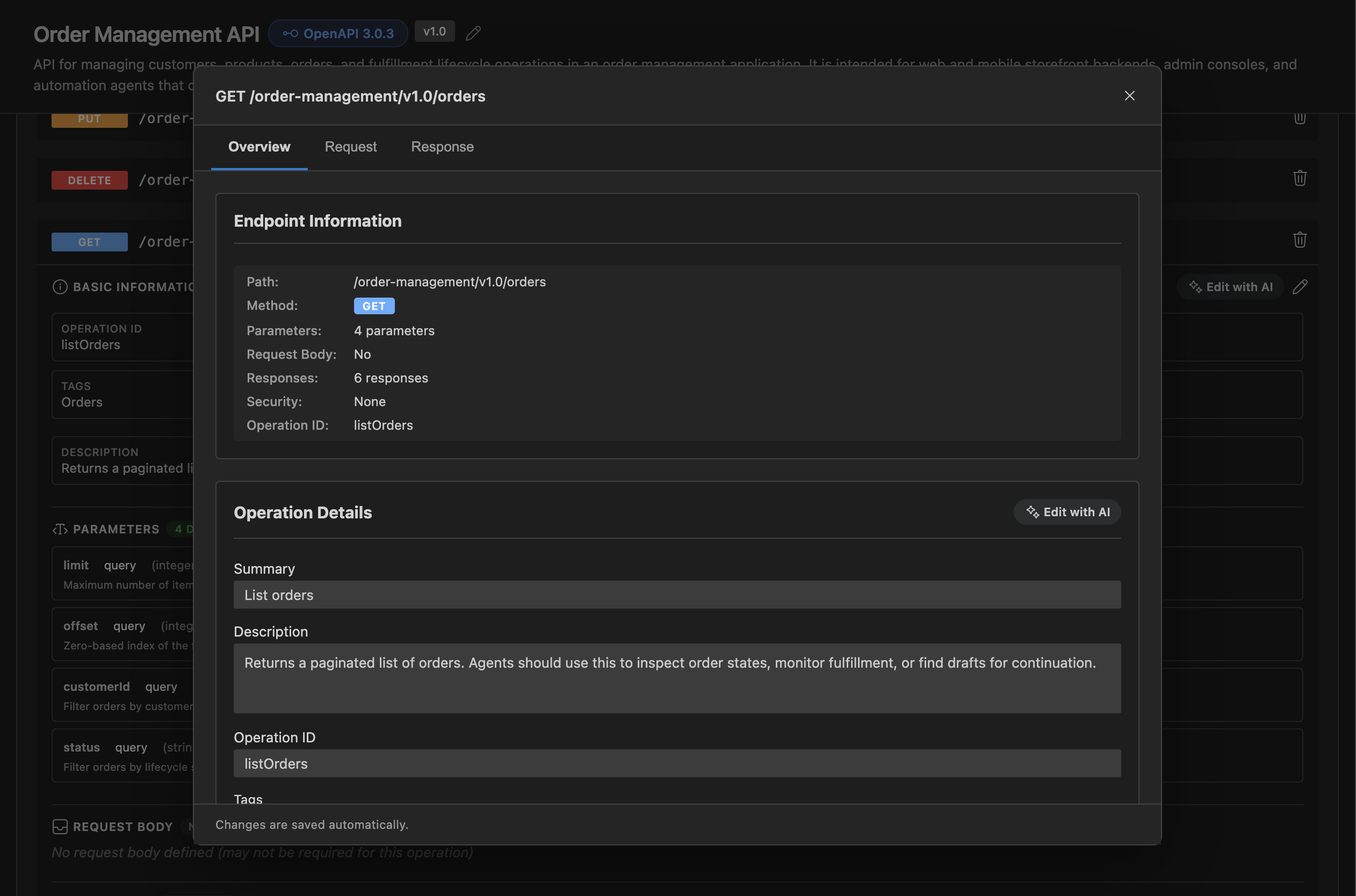
Outcome: Safe and precise structural edits.
Step 5: Open a governance report and review findings
- In the designer, report cards are available for the following:
- WSO2 REST API AI Readiness Guidelines
- WSO2 REST API Design Guidelines
- OWASP API Security Top 10
- Click any report card to open the full report and review its score and issue list.
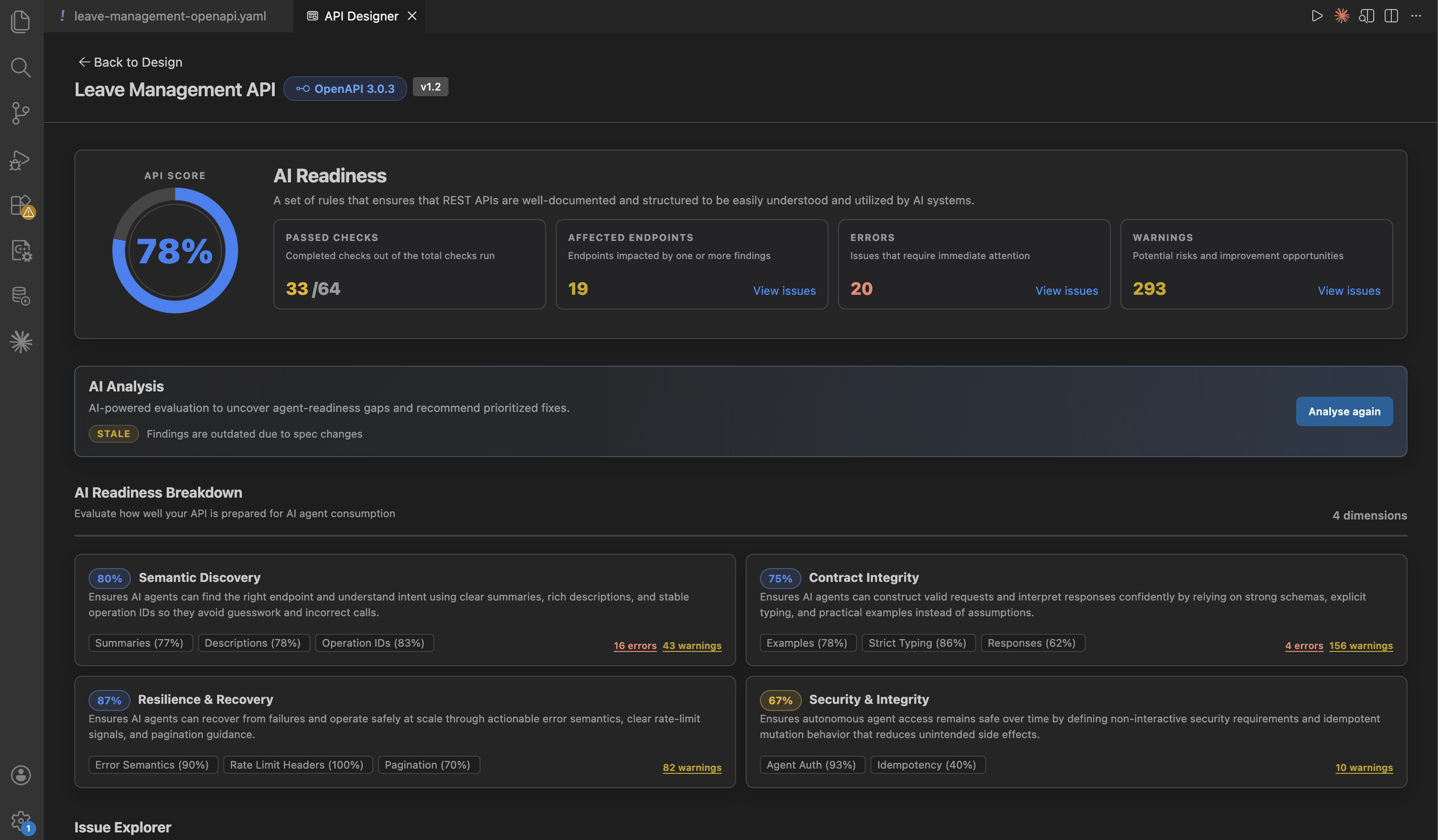
Outcome: You can prioritize issues by impact and severity.
Step 6: Triage findings
- Quick wins: missing
operationId, obvious response gaps, and thin descriptions. - Design consistency: naming, pagination envelope, and error model alignment.
- Security: items that need real auth configuration or URLs.
Outcome: A practical fix backlog.
Step 7: Fix with AI (Chat + api-design skill)
- Open Chat with the spec available (open editor or
@file reference, depending on product). - Ask for a bounded fix tied to the report, for example:
Using the api-design skill: apply all auto-fixable findings from the current readiness report for
orders-api.yaml. Do not rename paths without asking. List anything that needs manual security or deployment details.
- Open the relevant report card again and review the updated report.
Outcome: Better report scores and fewer open findings.
Recap
Copilot (draft YAML)
Open in API Designer -> structured editor (overview)
Edit with AI (scoped) + Forms (precise)
Report cards (ready in UI) -> Spectral reports + AI readiness narrative
Chat / api-design skill -> safe fixes + confirm breaking changes
Open reports again -> ship or iterate