Example
What you'll build
Build a WSO2 Integrator automation that lists your organization's OpenAI fine-tuning jobs and logs the results. The integration connects to the OpenAI Fine-Tunes API using a secure configurable API token and retrieves all fine-tuning jobs associated with your account.
Operations used:
- listFineTunes : Lists all fine-tuning jobs in your organization's OpenAI account
Architecture
Prerequisites
- An OpenAI API key with access to fine-tuning endpoints
Setting up the OpenAI Fine-Tunes integration
New to WSO2 Integrator? Follow the Create a New Integration guide to set up your integration first, then return here to add the connector.
Adding the OpenAI Fine-Tunes connector
Step 1: Open the Add connection panel
Select + Add Artifact and then select the Connections node to open the Add Connection palette.
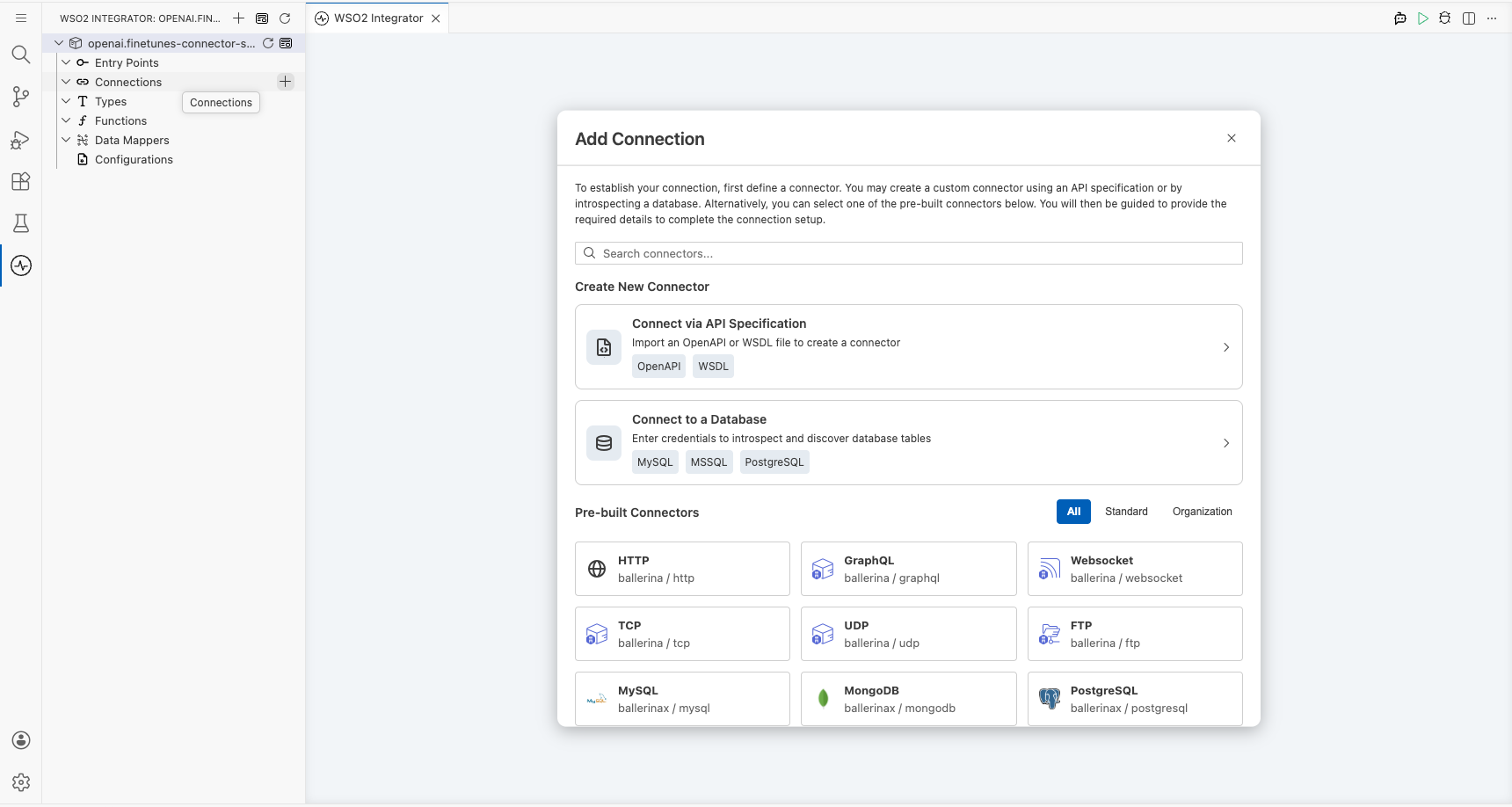
Configuring the OpenAI Fine-Tunes connection
Step 2: Fill in the connection parameters
Search for openai in the palette and select Finetunes to open the Configure Finetunes form. Bind the connection parameter to a configurable variable and enter a connection name.
- config : Bind to a configurable variable of type
stringto hold the OpenAI Bearer token (openaiFineTunesApiToken) - connectionName : Enter
finetunesClientas the connection name
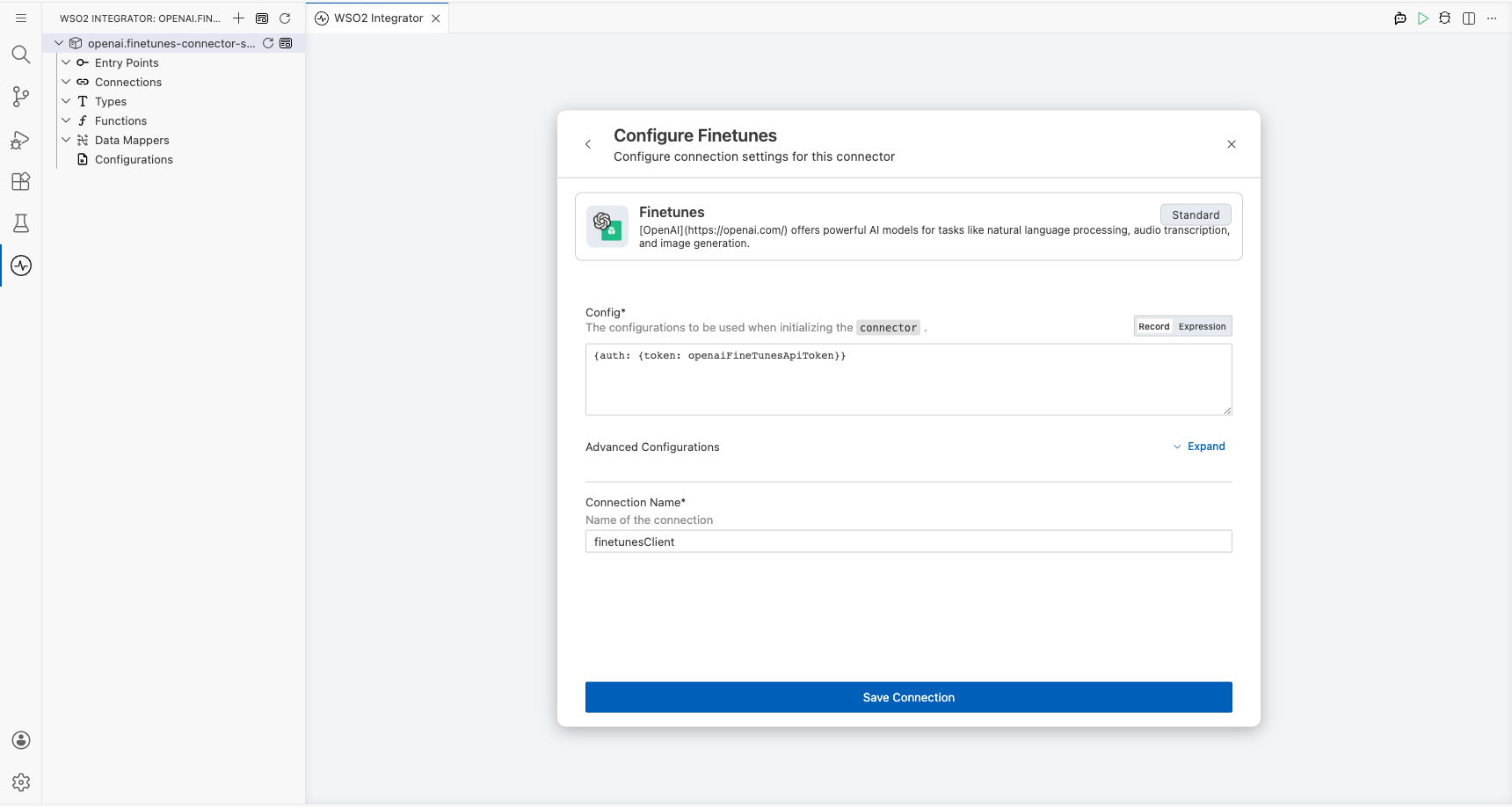
Step 3: Save the connection
Select Save Connection to persist the connection. The finetunesClient connection now appears under Connections in the project tree and on the design canvas.
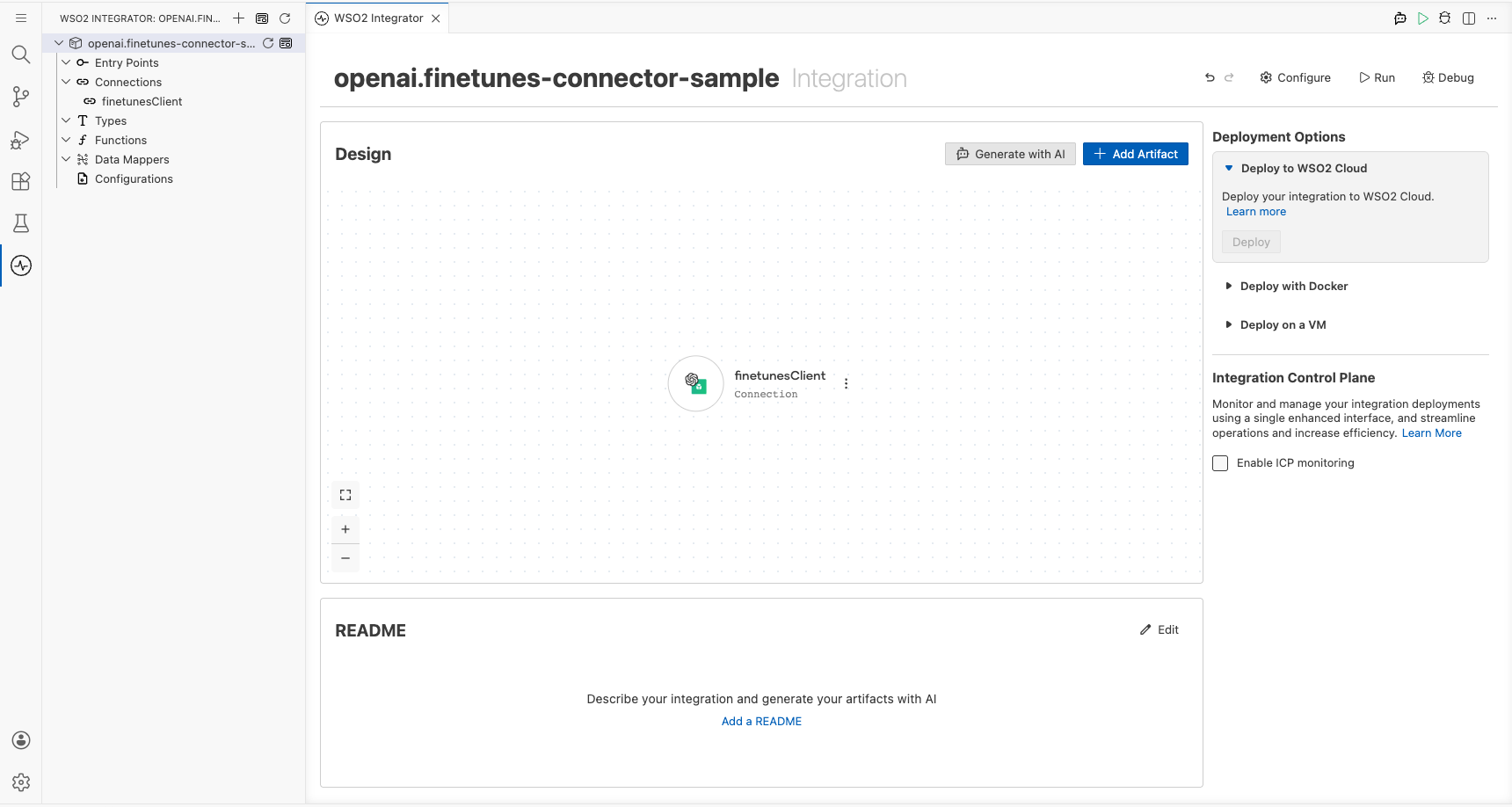
Step 4: Set actual values for your configurables
In the left panel, select Configurations and set a value for each configurable listed below.
- openaiFineTunesApiToken (string) : Your OpenAI API key with access to fine-tuning endpoints
Configuring the OpenAI Fine-Tunes listFineTunes operation
Step 5: Add an Automation entry point
Select + Add Artifact on the design canvas. Under Automation, select Automation, leave all fields at their defaults, and select Create. The main automation appears under Entry Points and the automation flow canvas opens.
Step 6: Select and configure the listFineTunes operation
In the automation flow canvas, select the + (Add Step) button between Start and Error Handler. Expand finetunesClient under Connections to reveal all available operations.
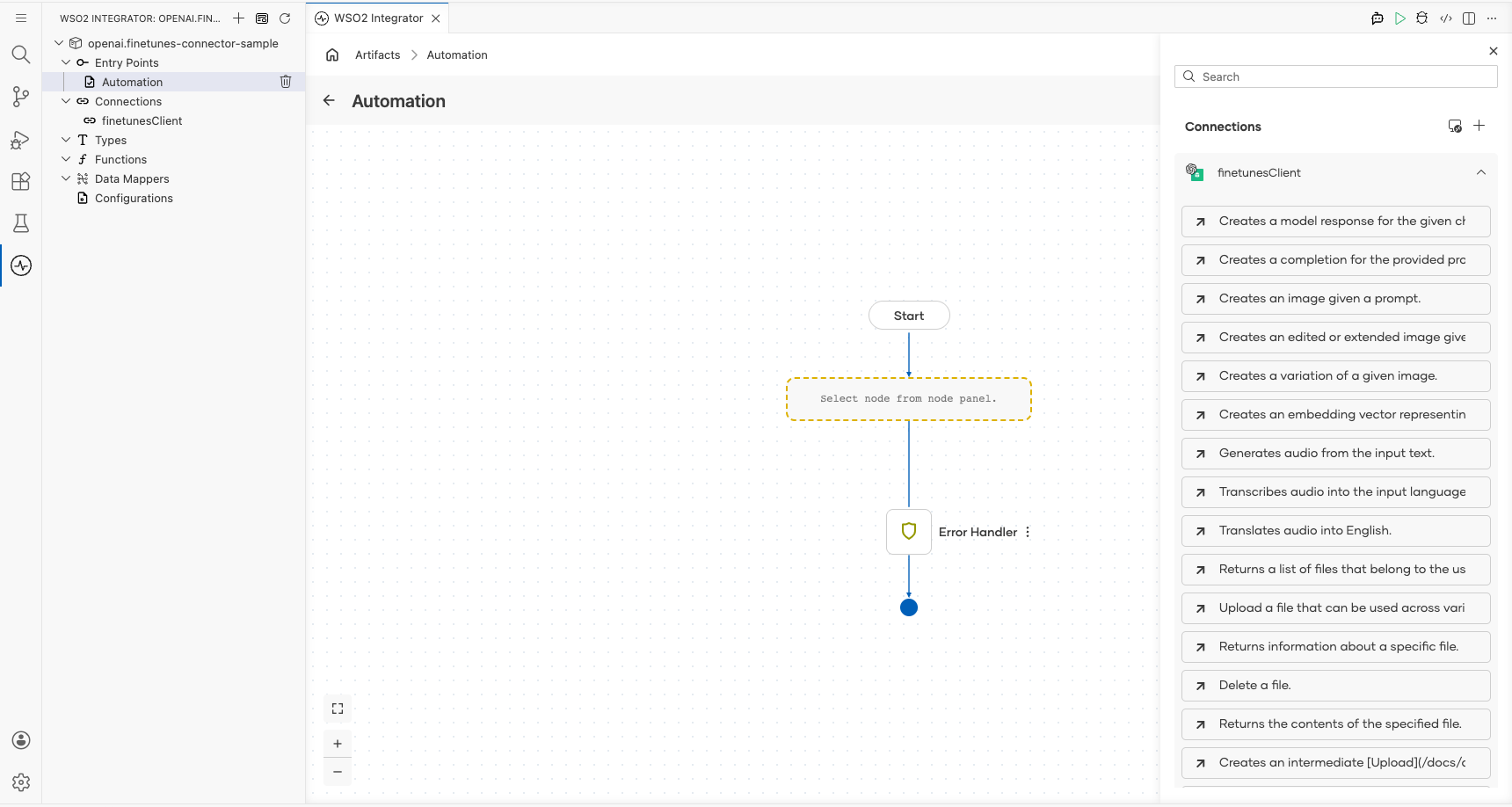
Select List your organization's fine-tuning jobs (listFineTunes) to open the operation form, then configure the following:
- result : Enter
resultas the output variable name to capture the list of fine-tuning jobs
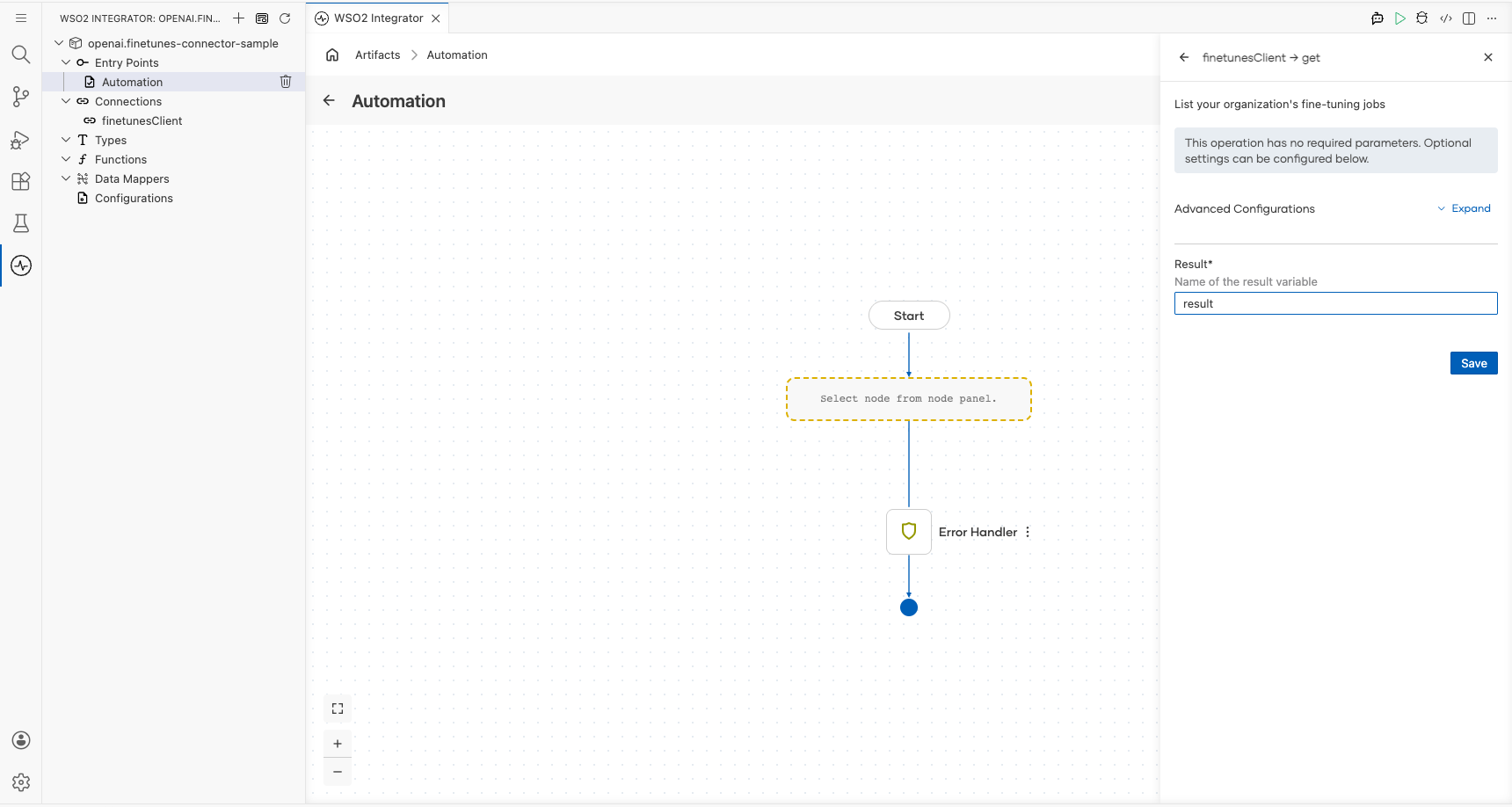
Select Save to apply the configuration.
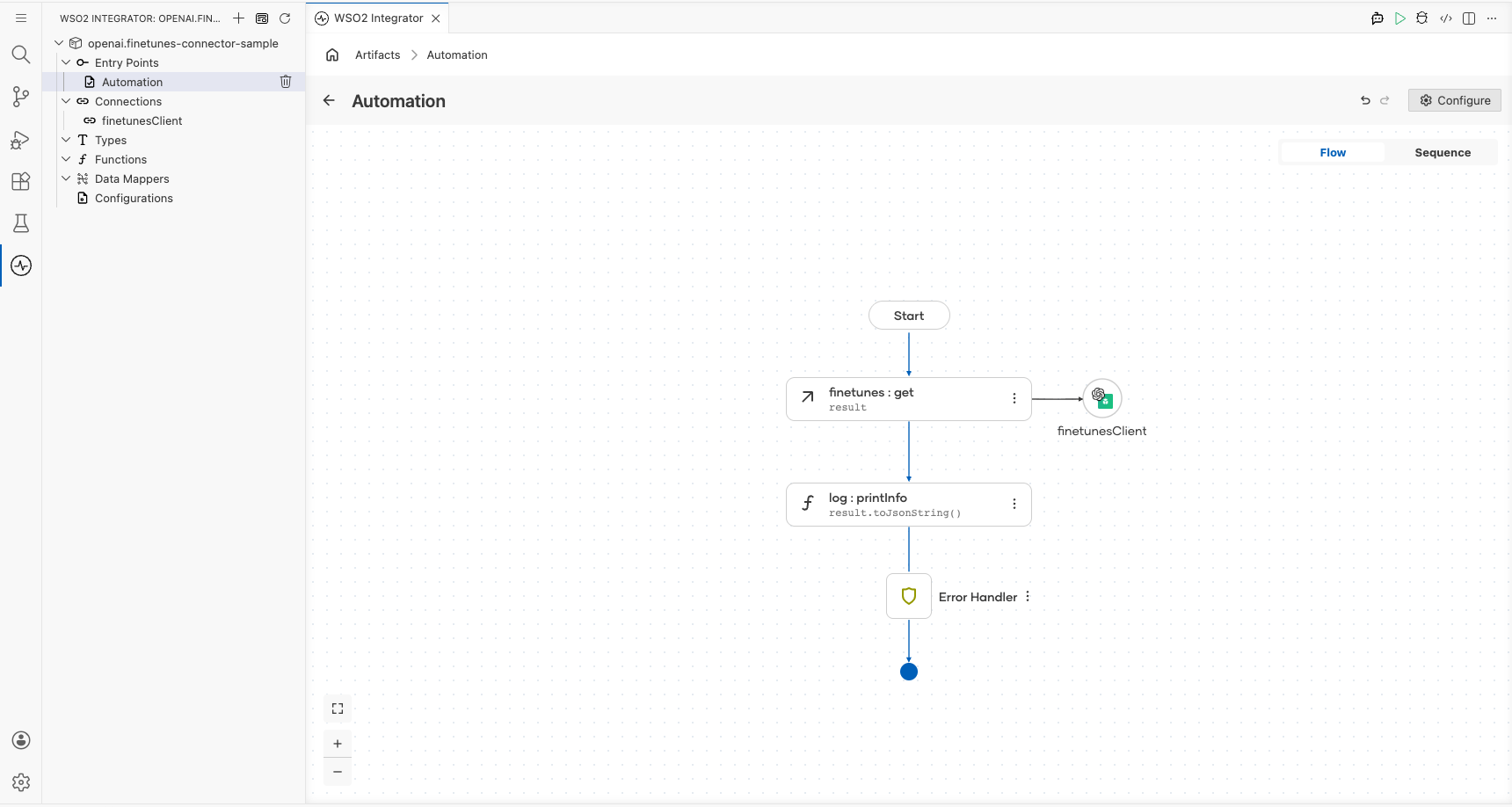
Try it yourself
Try this sample in WSO2 Integration Platform.

More code examples
The OpenAI Finetunes connector provides practical examples illustrating usage in various scenarios. Explore these examples, covering the following use cases:
-
Sarcastic bot - Fine-tune the GPT-3.5-turbo model to generate sarcastic responses
-
Sports headline analyzer - Fine-tune the GPT-4o-mini model to extract structured information (player, team, sport, and gender) from sports headlines.