Example
What you'll build
Build a WSO2 Integrator automation that connects to HubSpot CRM and creates an engagement note using the ballerinax/hubspot.crm.engagement.notes connector. The integration runs as an automation entry point and posts a note with a body and timestamp to HubSpot via a bearer token–authenticated connection.
Operations used:
- Create : Creates a single CRM engagement note in HubSpot with the specified properties and associations
Architecture
Prerequisites
- A HubSpot account with API access
- A HubSpot Private App bearer token with the
crm.objects.notes.writescope
Setting up the HubSpot Notes integration
New to WSO2 Integrator? Follow the Create a New Integration guide to set up your integration first, then return here to add the connector.
Adding the HubSpot Notes connector
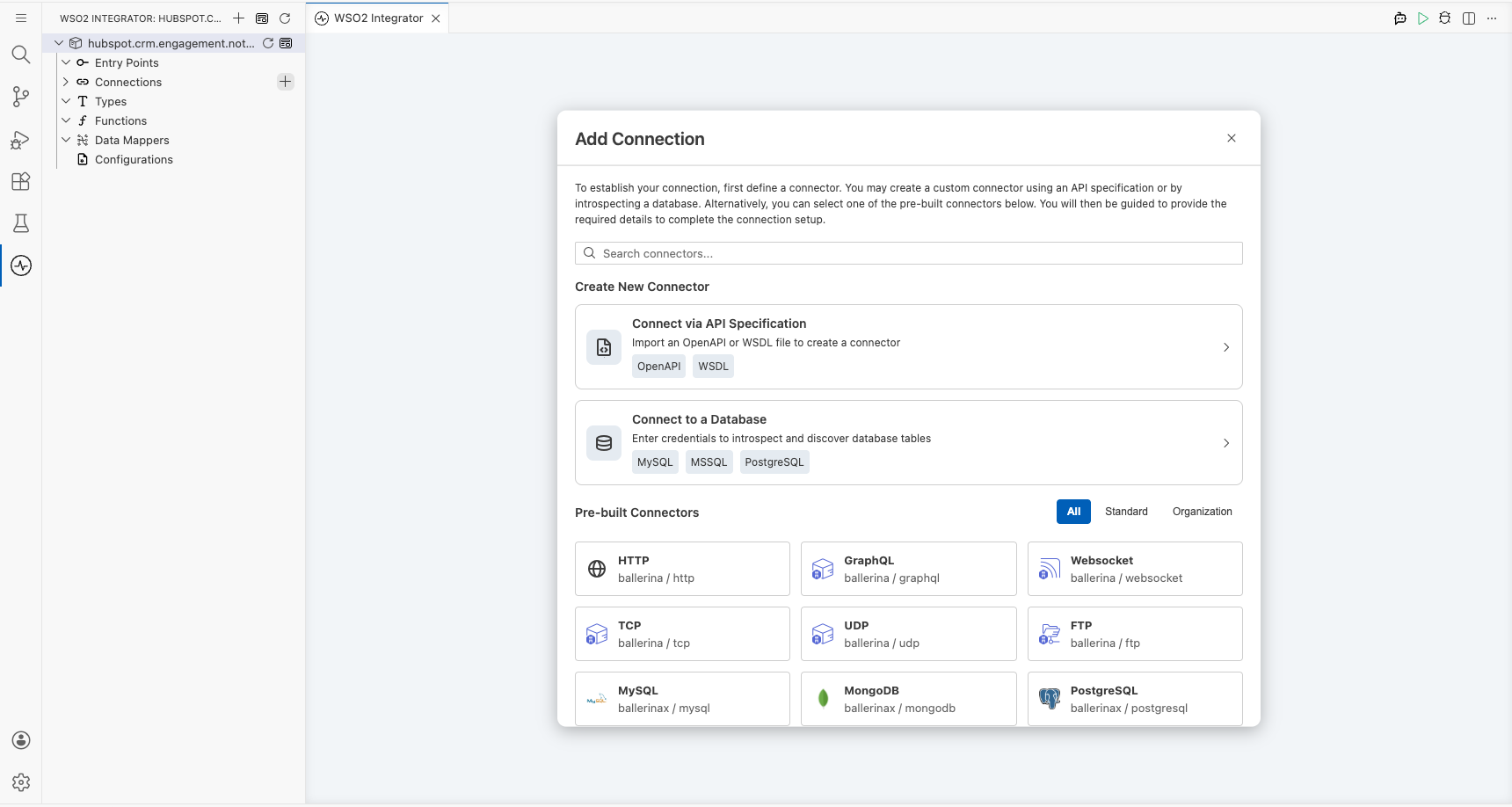
Step 1: Open the Add Connection palette
Select + next to Connections in the WSO2 Integrator sidebar to open the Add Connection palette.
Step 2: Add an automation entry point
Select + Add Artifact → Automation → Create. An Automation entry point named main is added under Entry Points in the sidebar. The canvas switches to the automation flow view showing a Start node and an Error Handler block.
Configuring the HubSpot Notes connection
Step 3: Fill in the connection parameters
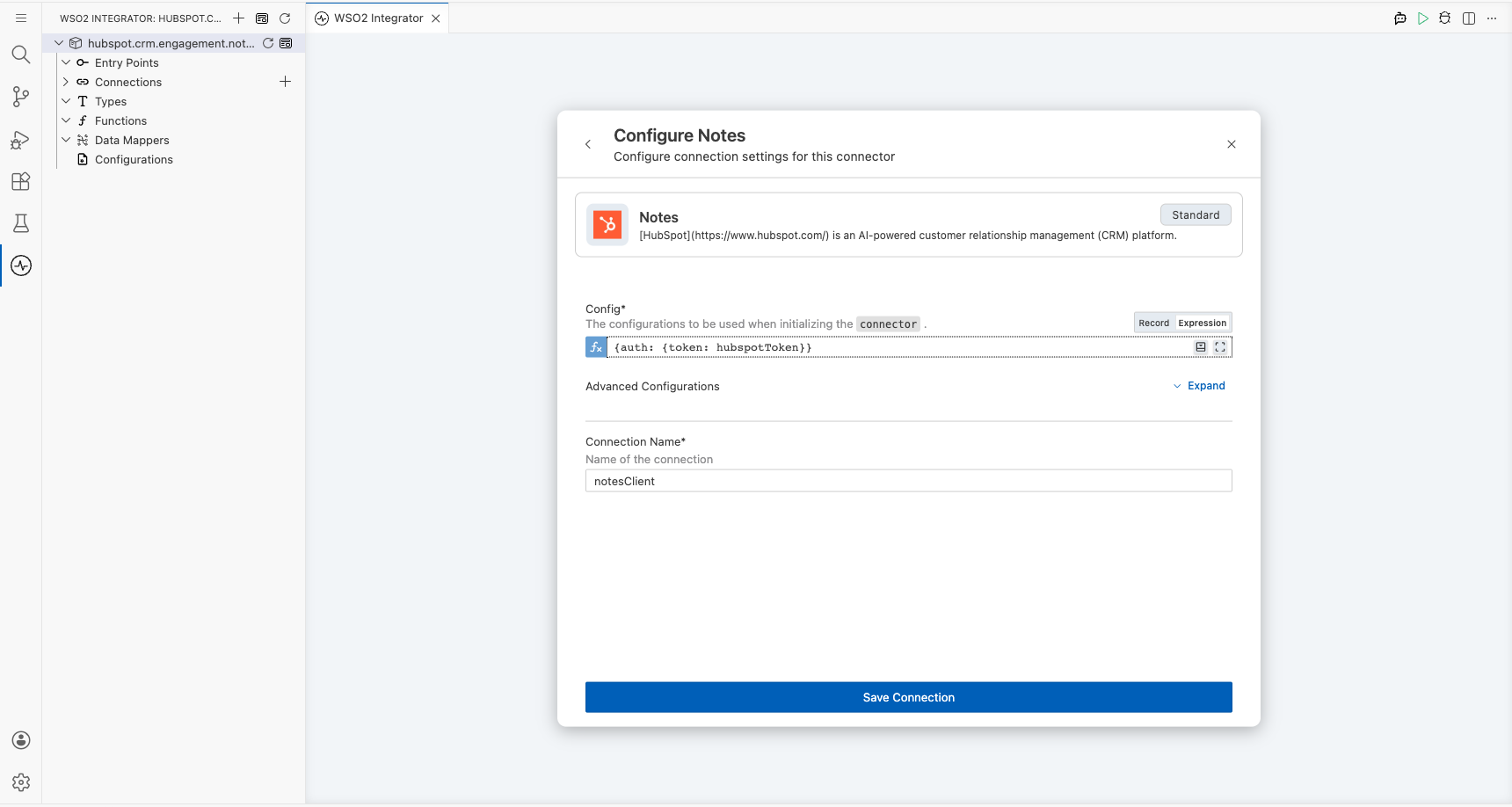
Search for hubspot, locate the Notes connector (ballerinax/hubspot.crm.engagement.notes), and select it to open the Configure Notes form. Bind each field to a configurable variable:
- Config : HubSpot connection configuration with bearer-token auth using the
hubspotTokenconfigurable variable - Connection Name : Logical name used to reference this connection throughout the integration
Step 4: Save the connection
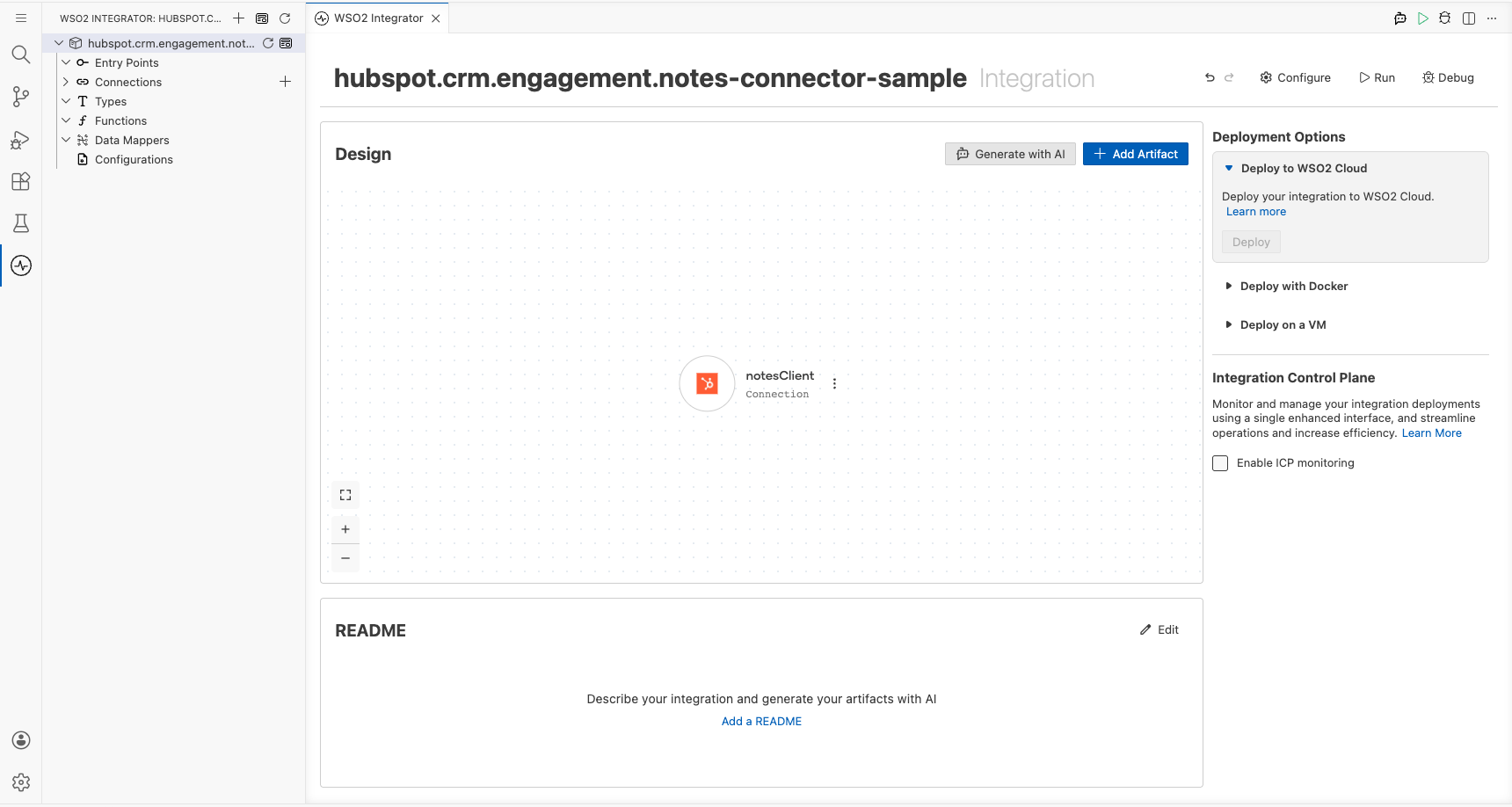
Select Save Connection. The integration canvas displays the notesClient connection card.
Step 5: Set actual values for your configurables
In the left panel, select Configurations. Set a value for each configurable listed below:
- hubspotToken (string) : Your HubSpot Private App bearer token with
crm.objects.notes.writescope
Configuring the HubSpot Notes Create operation
Step 6: Select and configure the Create operation
Select + between Start and Error Handler to open the Node Panel. Expand Connections → notesClient to list all available operations.
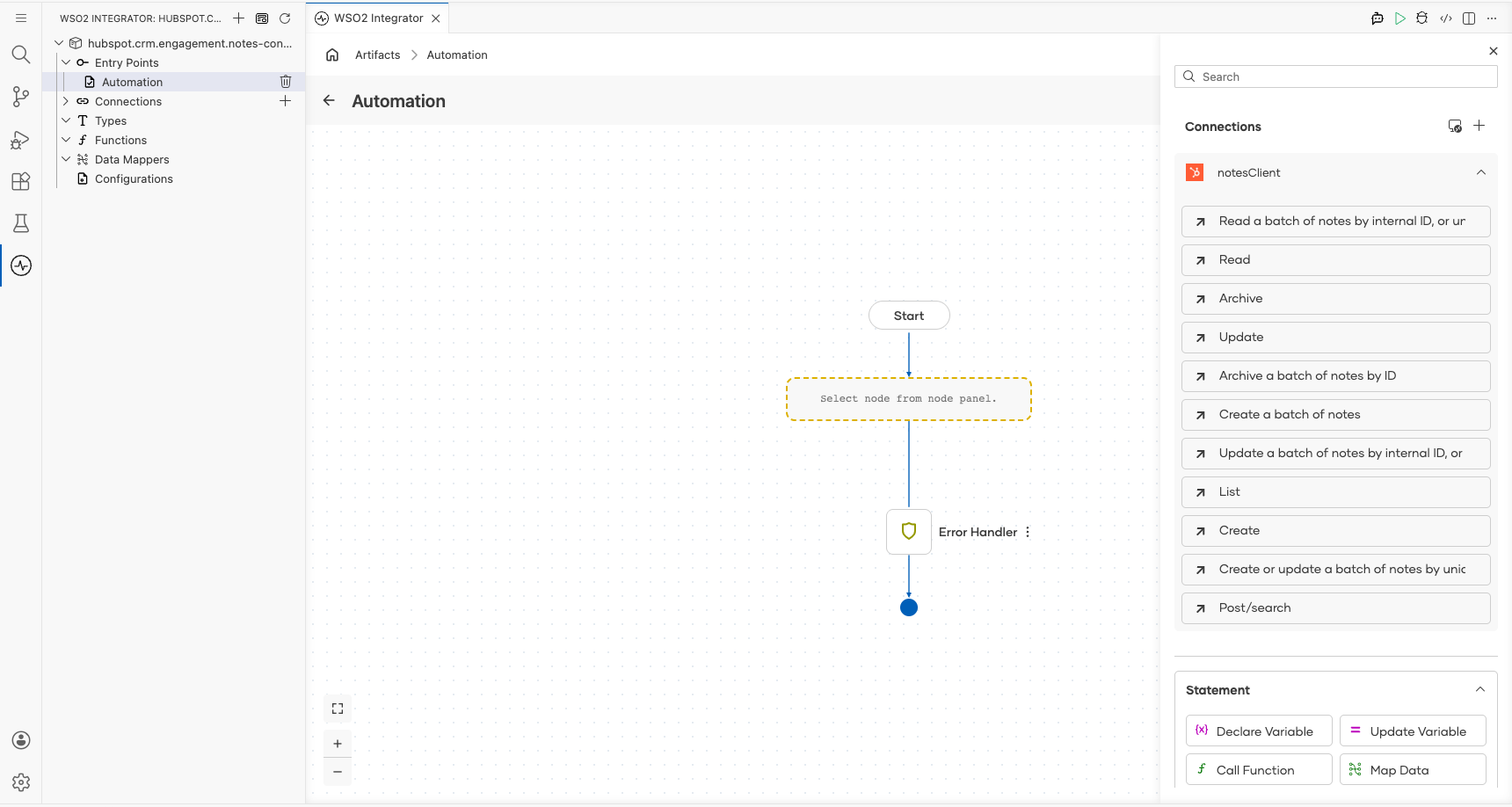
Select Create to open the operation form, then fill in the fields:
- Payload : The note payload including
associationsandproperties(seths_note_bodyandhs_timestampin expression mode) - Result : Variable name to store the returned
SimplePublicObject
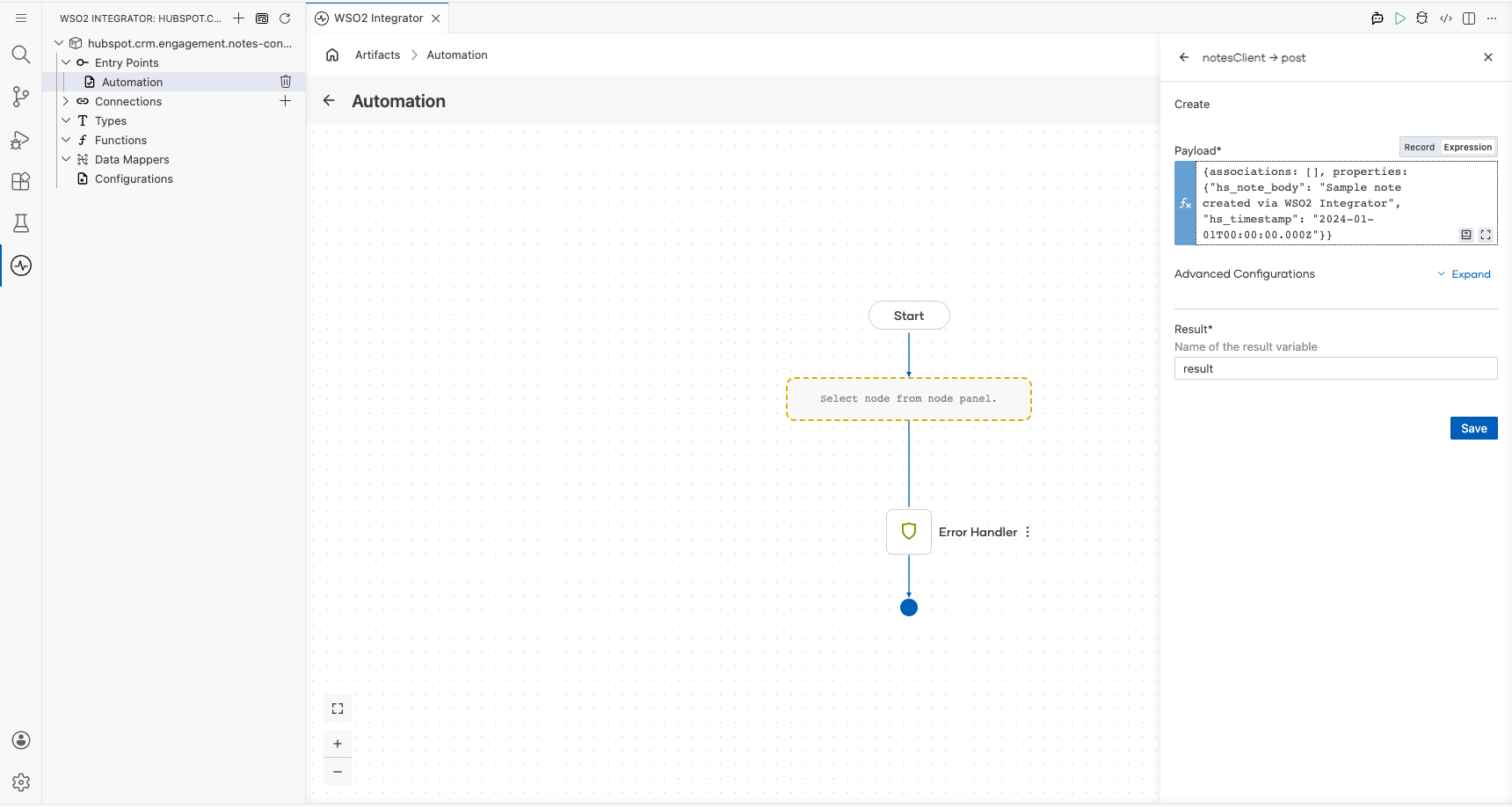
Select Save.
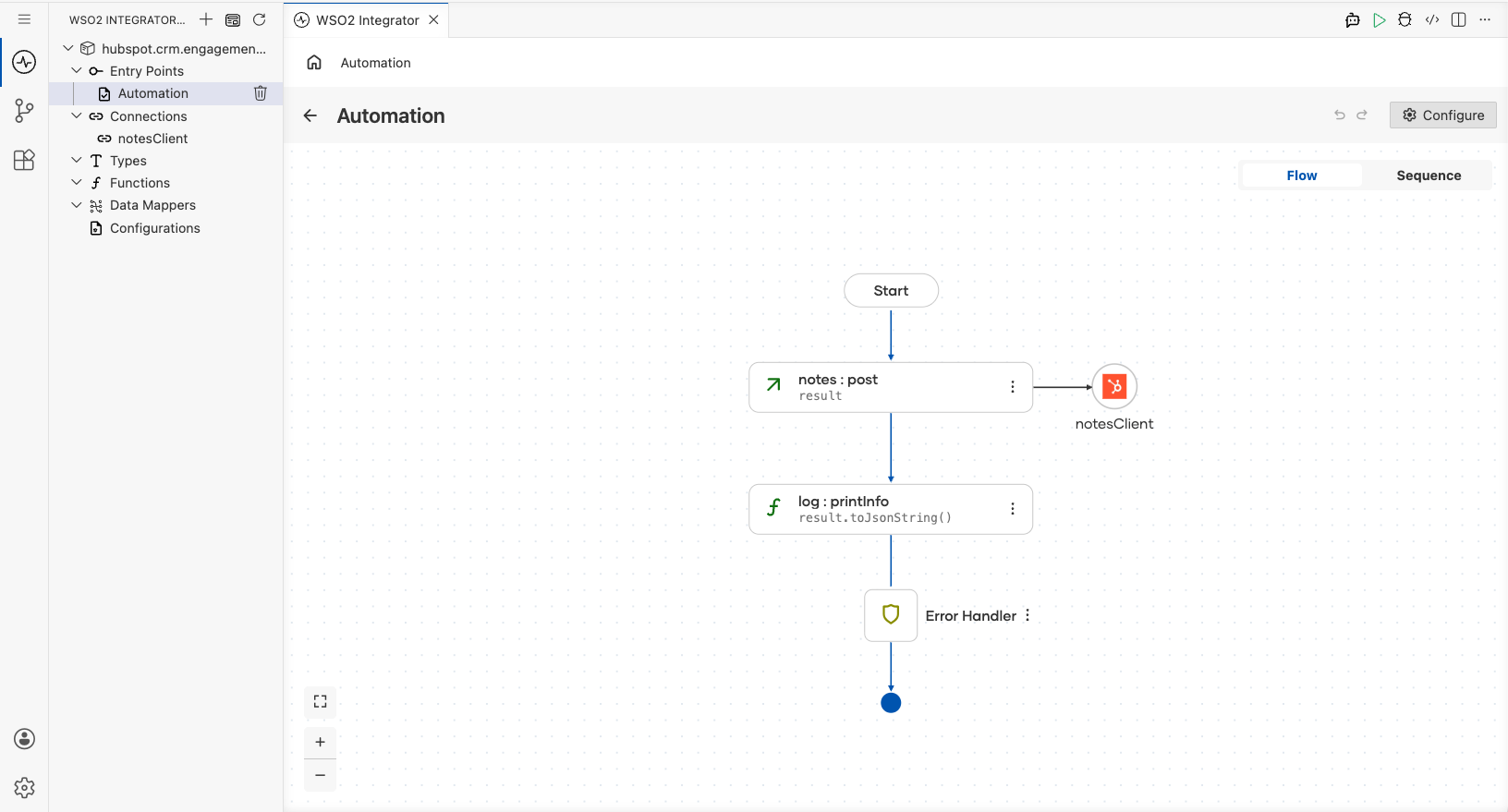
Try it yourself
Try this sample in WSO2 Integration Platform.

More code examples
The Ballerina HubSpot CRM Engagement Notes Connector connector provides practical examples illustrating usage in various scenarios. Explore these examples, covering the following use cases:
-
Managing a single note - Operations on a single note such as creating, updating and deleting, as well as getting a list of available notes and searching for a note by its content.
-
Working with a batch of notes - Operations on a batch of notes such as creating, updating and deleting, as well as getting notes by their ID.