Example
What you'll build
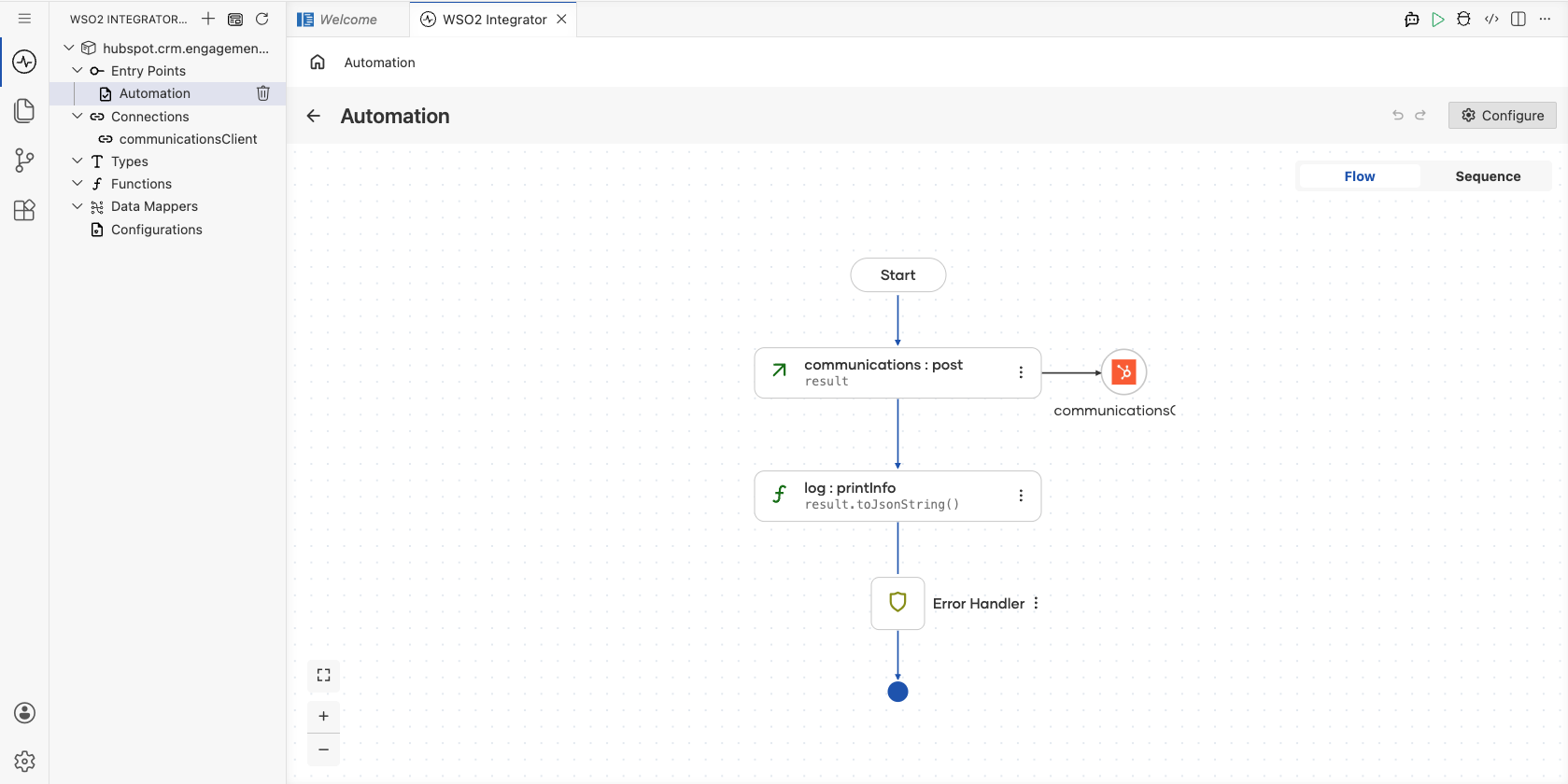
Build a WSO2 Integrator Automation that creates a communication engagement (such as an email log) in HubSpot CRM and prints the result to the log. The integration connects to HubSpot using a Private App bearer token and calls the create operation to post a new communication record.
Operations used:
- Create a communication : Creates a new communication engagement in HubSpot CRM with specified properties such as channel type, origin, and message body.
Architecture
Prerequisites
- A HubSpot account with a Private App access token that has
crm.objects.contacts.readandcrm.objects.communications.writescopes.
Setting up the HubSpot Communications integration
New to WSO2 Integrator? Follow the Create a New Integration guide to set up your integration first, then return here to add the connector.
Adding the HubSpot Communications connector
Step 1: Open the Add Connection panel
Select Add Connection (or the + icon in the Connections section of the side panel) to open the connector palette.
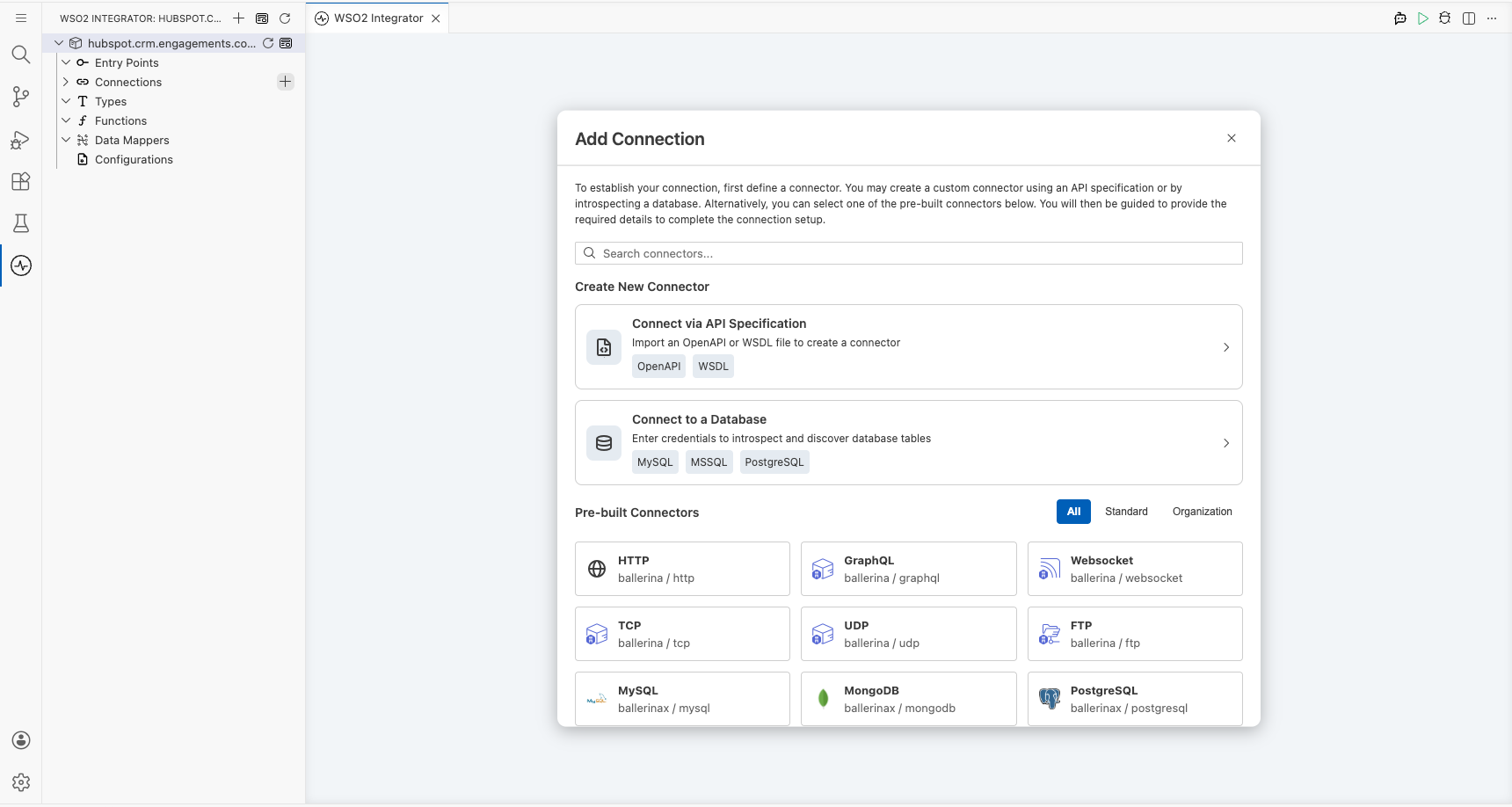
Step 2: Search for and select the HubSpot Communications connector
Enter hubspot in the search field, then select ballerinax/hubspot.crm.engagements.communications from the results to open the Configure Communications form.
Configuring the HubSpot Communications connection
Step 3: Fill in the connection parameters
In the Configure Communications form, set the following parameters. Switch the Config field to Expression mode and enter the bearer-token expression referencing the hubspotToken configurable variable:
- Connection Name : The identifier used to reference this connection throughout the integration
- Config : The
ConnectionConfigrecord wrapping aBearerTokenConfig; set to{auth: {token: hubspotToken}}
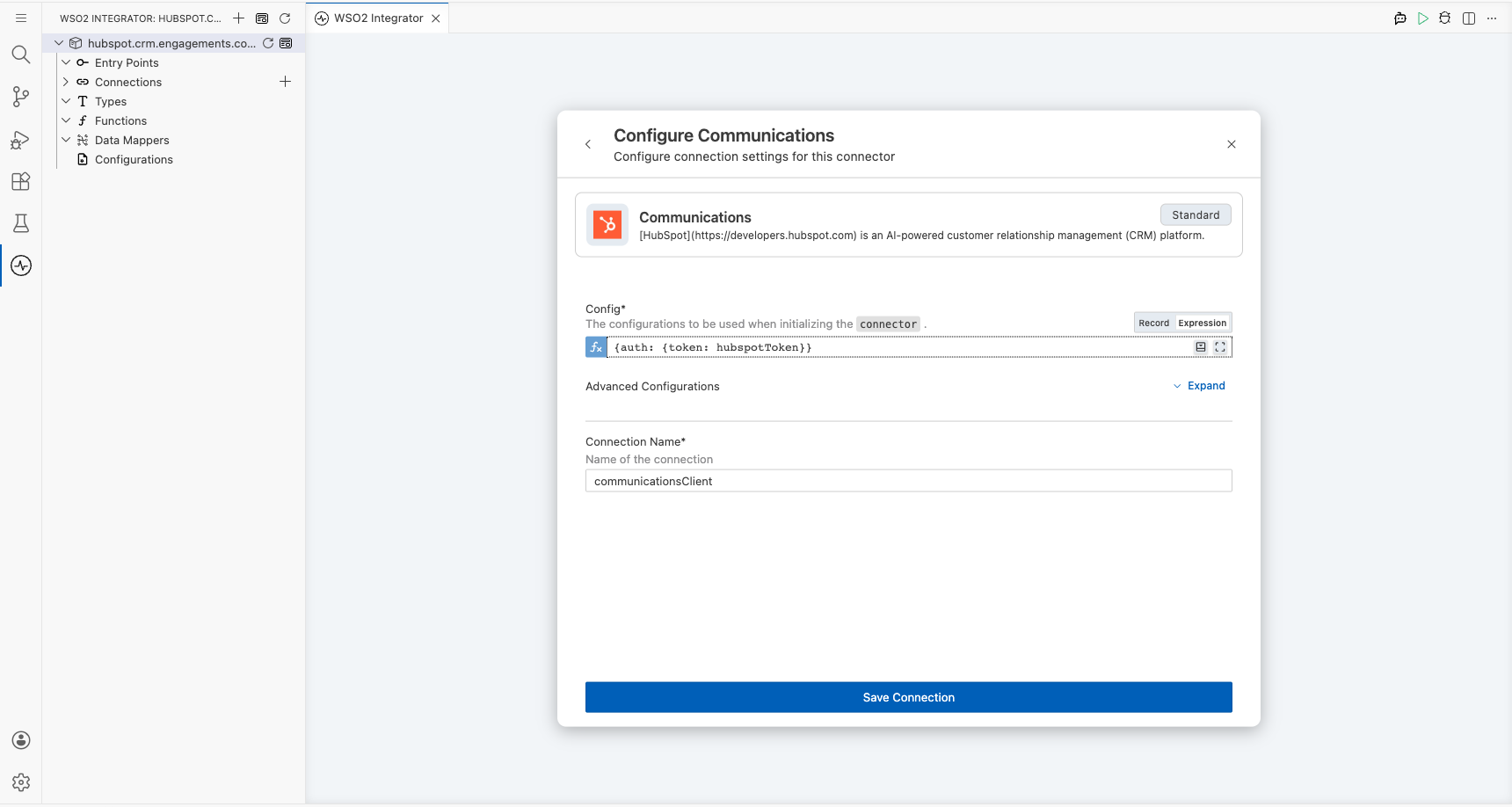
Step 4: Save the connection
Select Save to create the connection. The canvas updates to show the communicationsClient connection node.
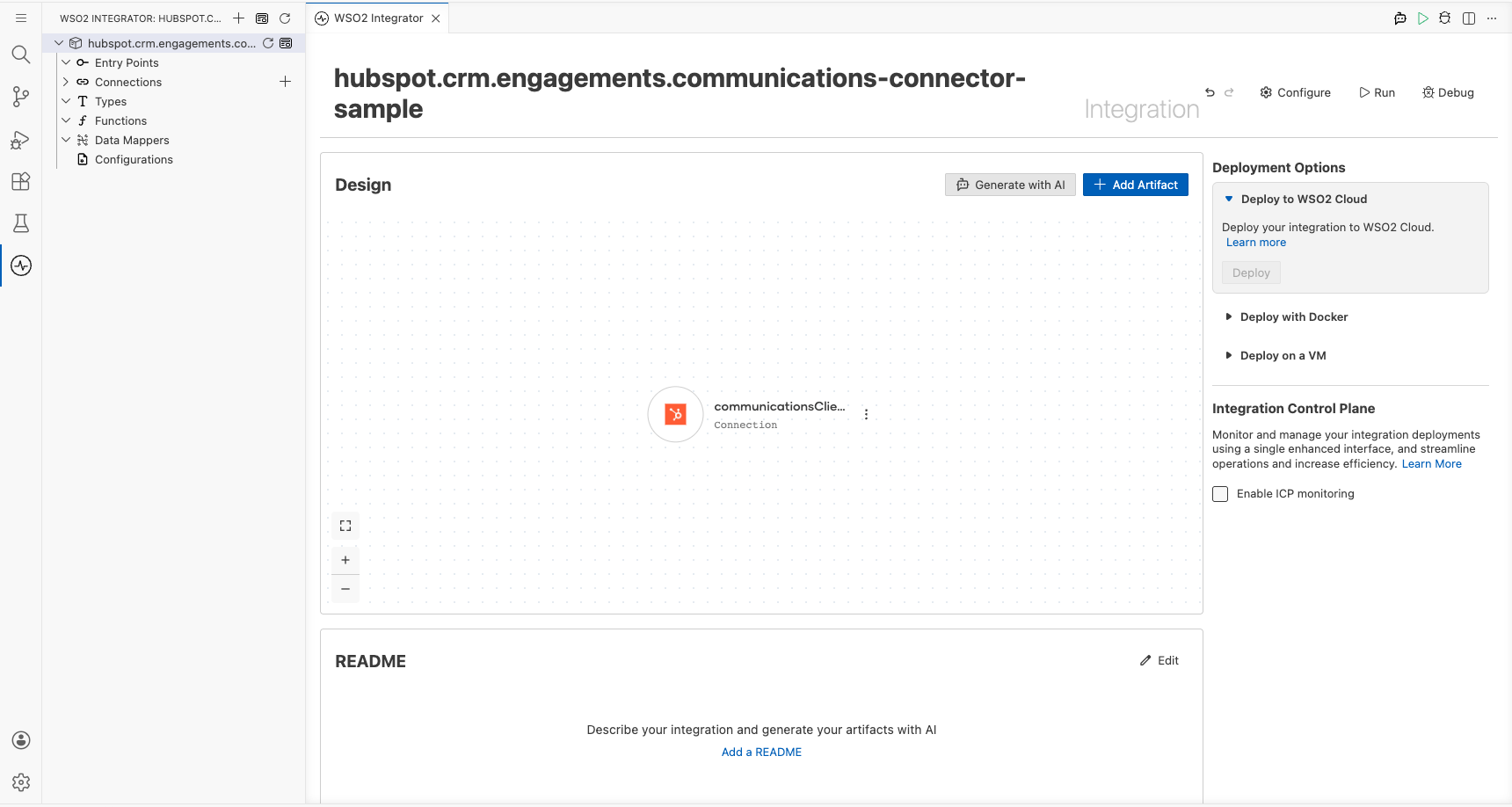
Step 5: Set actual values for your configurables
- In the left panel, select Configurations.
- Set a value for each configurable listed below.
- hubspotToken (string) : Your HubSpot Private App access token with the required CRM scopes
Configuring the HubSpot Communications create a communication operation
Step 6: Add an Automation entry point
- Select Add Artifact on the toolbar.
- In the Artifacts panel, select Automation.
- Select Create to accept the default settings. The canvas switches to the Automation flow view, showing a Start node and an Error Handler node.
Step 7: Select and configure the Create a communication operation
Select the + (Add Step) button between the Start and Error Handler nodes. In the Connections section of the step panel, expand communicationsClient to reveal all available operations.
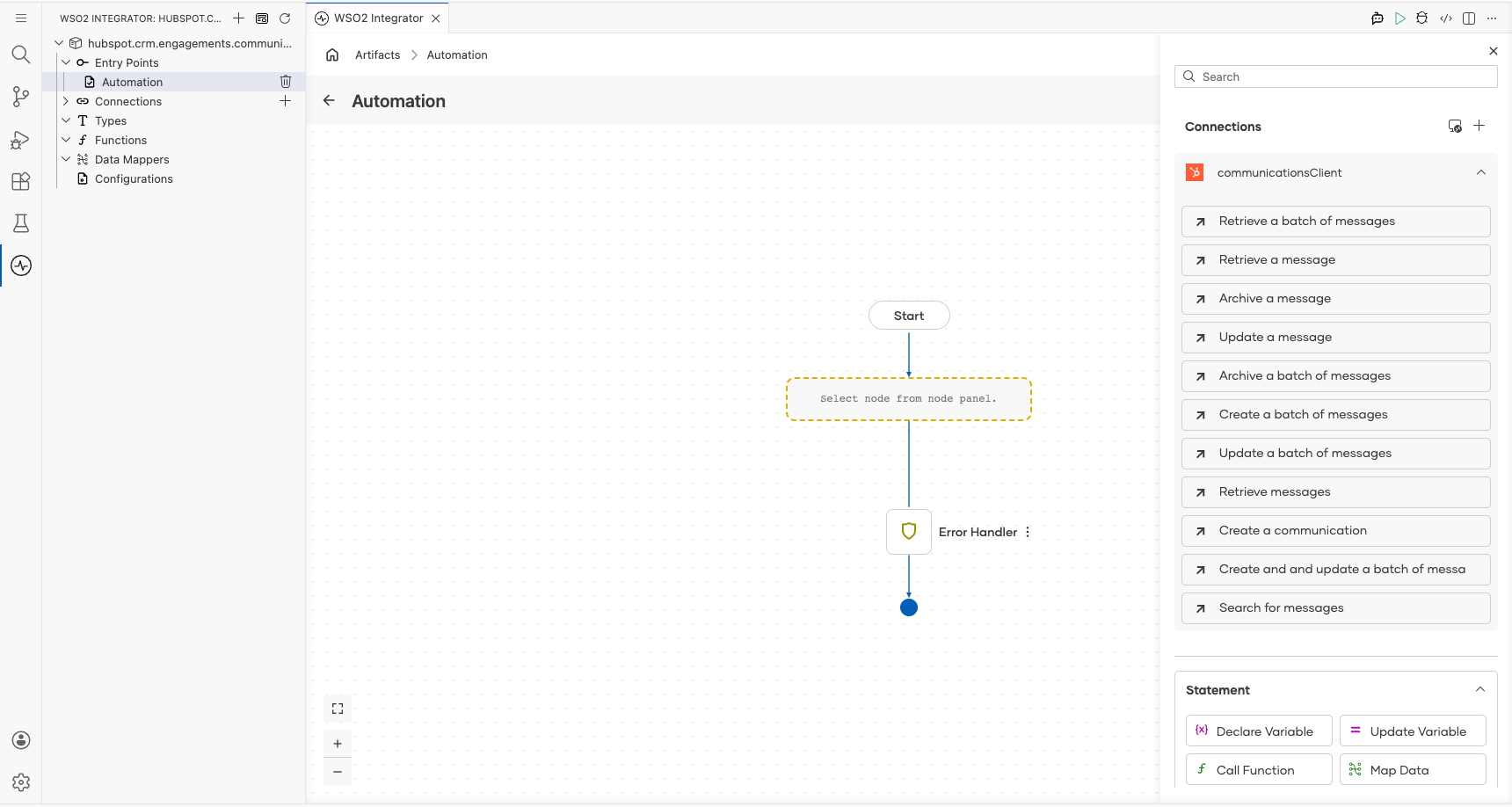
Select Create a communication, then configure the following parameters in the operation form:
- Payload : The communication record to create; set to
{associations: [], properties: {"hs_communication_channel_type": "EMAIL", "hs_communication_logged_from": "CRM", "hs_communication_body": "Hello from WSO2 Integrator"}} - Result : The variable name for the returned object; set to
result
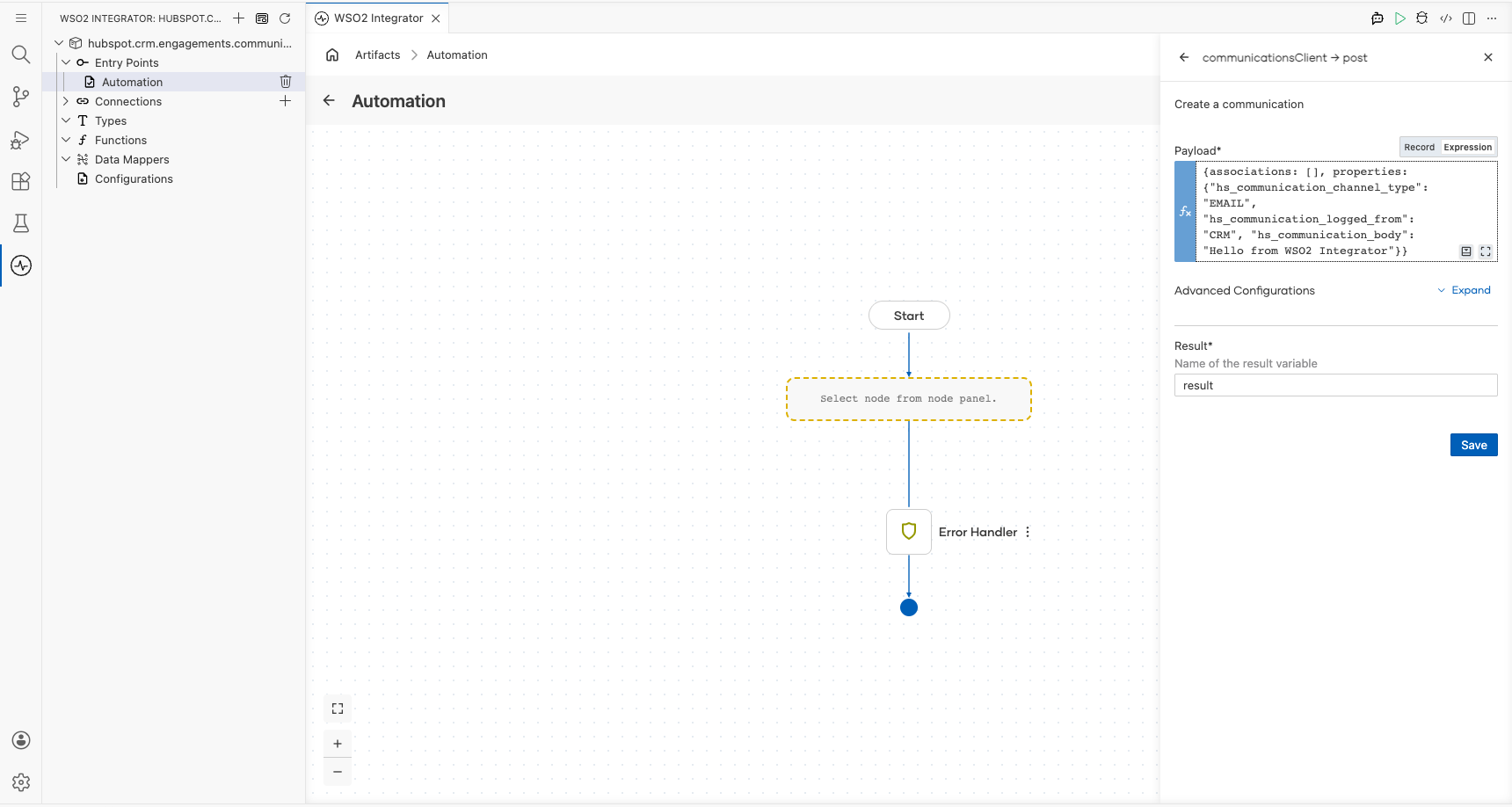
Select Save to add the step to the flow.
Try it yourself
Try this sample in WSO2 Integration Platform.

More code examples
The HubSpot CRM Engagements Communications connector provides practical examples illustrating usage in various scenarios. Explore these examples, covering the following use cases:
-
Logging WhatsApp Messages - This example demonstrates the usage of the HubSpot CRM Communications connector to log WhatsApp messages as CRM communications. It includes posting a communication, associating it with a specific HubSpot record, retrieving the logged communication, searching for WhatsApp messages using filters, updating a communication, and deleting a communication.
-
Logging LinkedIn Messages - This example demonstrates the usage of the HubSpot CRM Communications connector to log LinkedIn messages as CRM communications. It includes posting a batch of communications, associating them with specific HubSpot records, updating a batch of logged communications, retrieving a batch of communications, and deleting a batch of communications.