Setup Guide
This guide walks you through creating an IAM user, obtaining access keys, and setting up an Amazon Redshift cluster for use with the AWS Redshift data connector.
Prerequisites
- An active AWS account. If you do not have one, sign up for a free account.
Step 1: Log in to the AWS Console
Access the AWS Management Console.
Step 2: Create an IAM user
-
In the AWS Management Console, search for IAM in the services search bar and select it.
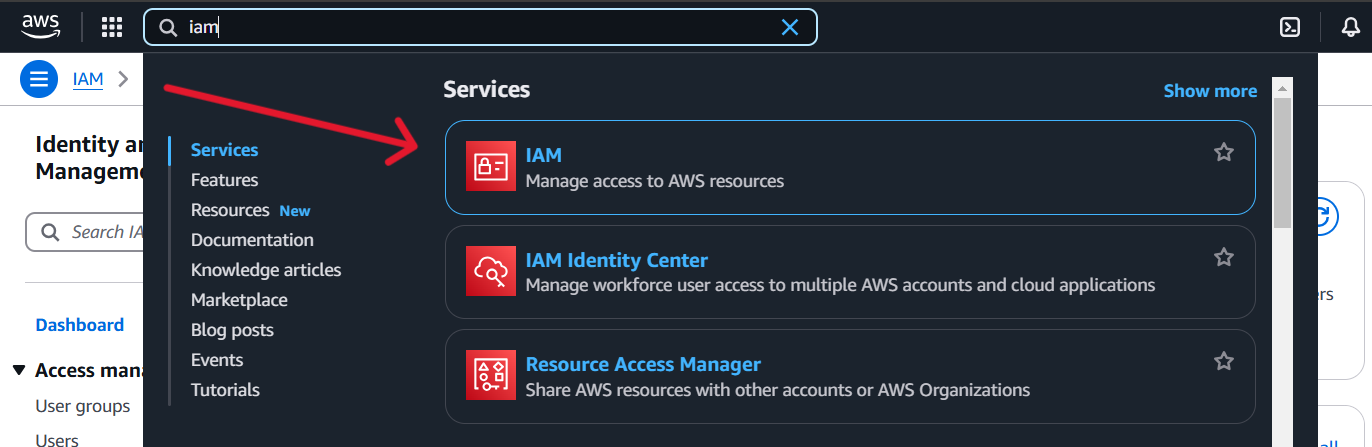
-
Select Users in the left navigation pane.
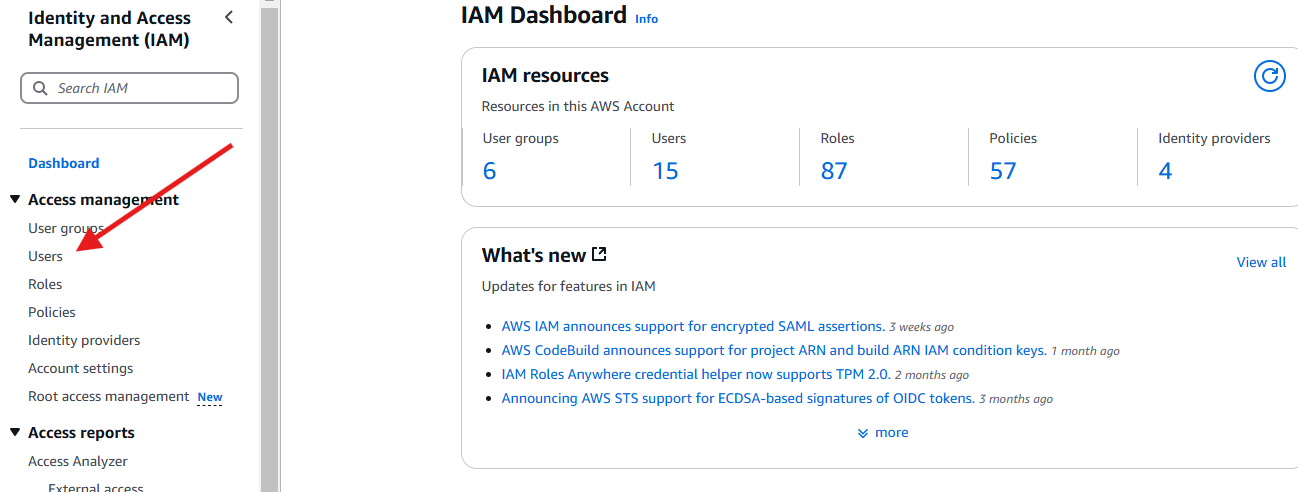
-
Select Create user.

-
Enter a suitable User name and select Next.
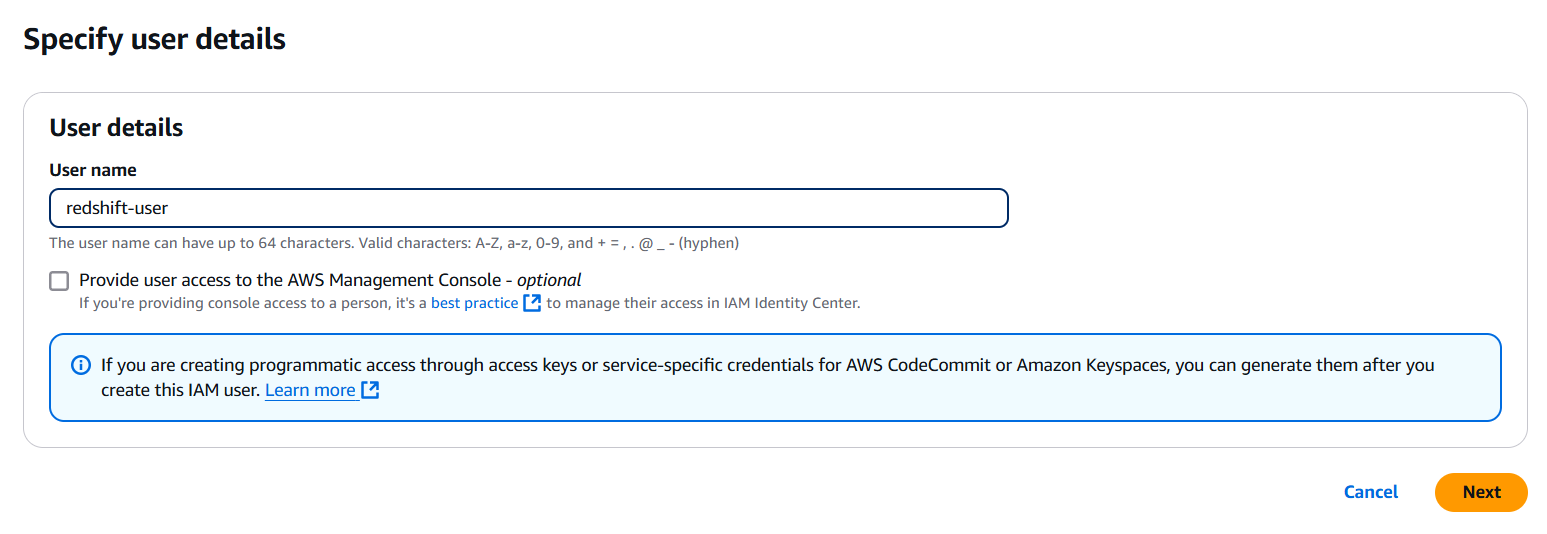
-
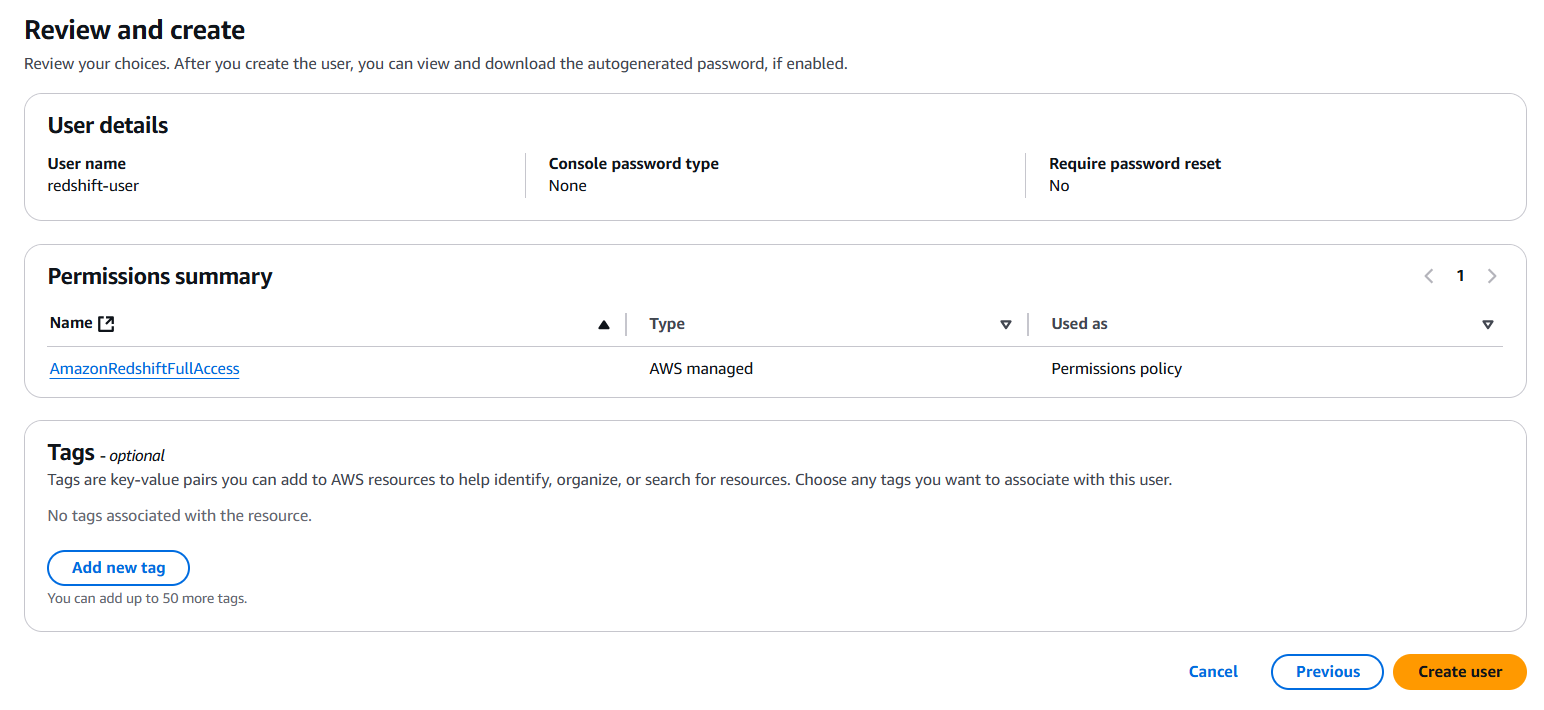
Add the required permissions by adding the user to a group, copying permissions, or attaching policies directly (for example, AmazonRedshiftDataFullAccess). Select Next.
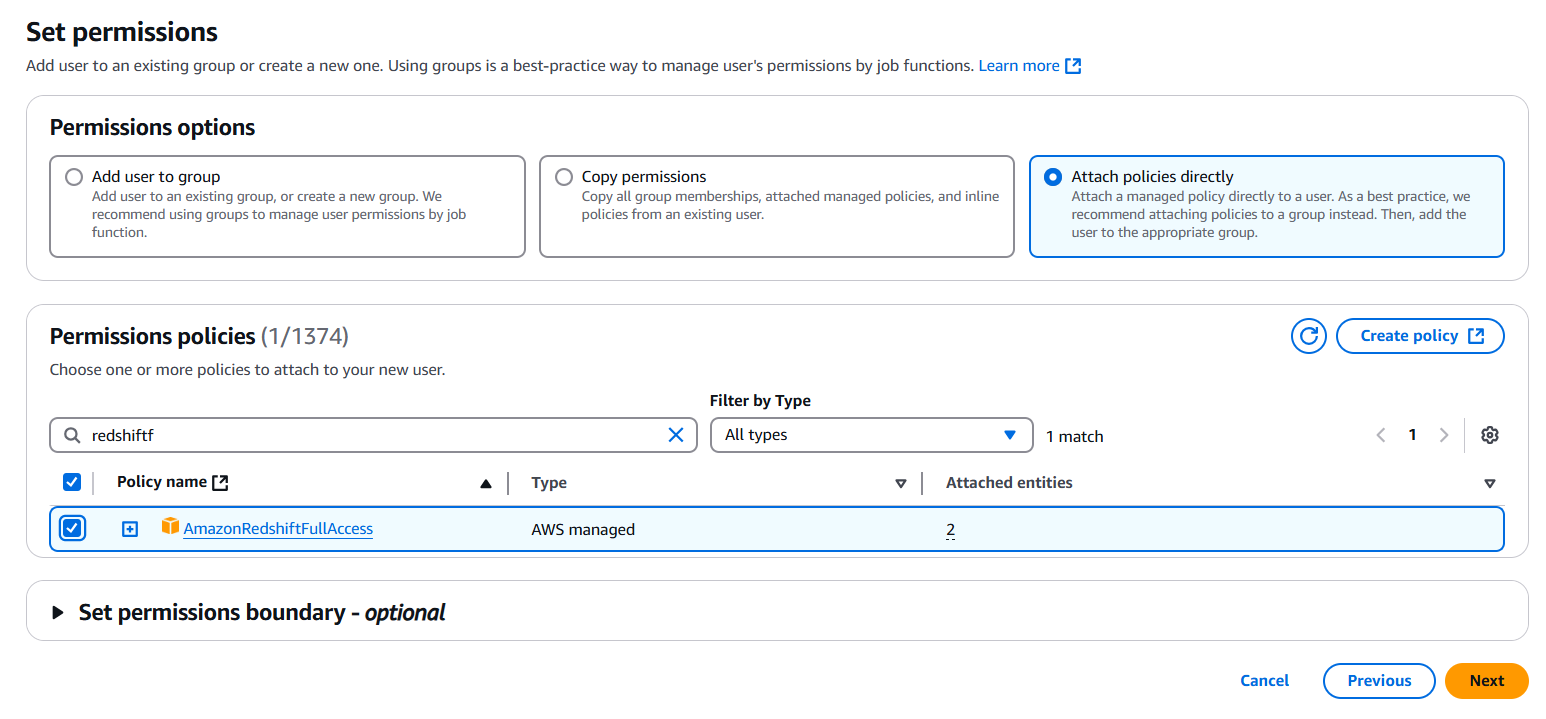
-
Review the details and select Create user.
Step 3: Get the access key ID and secret access key
-
Select the user you just created from the Users list.

-
Go to the Security credentials tab and select Create access key.

-
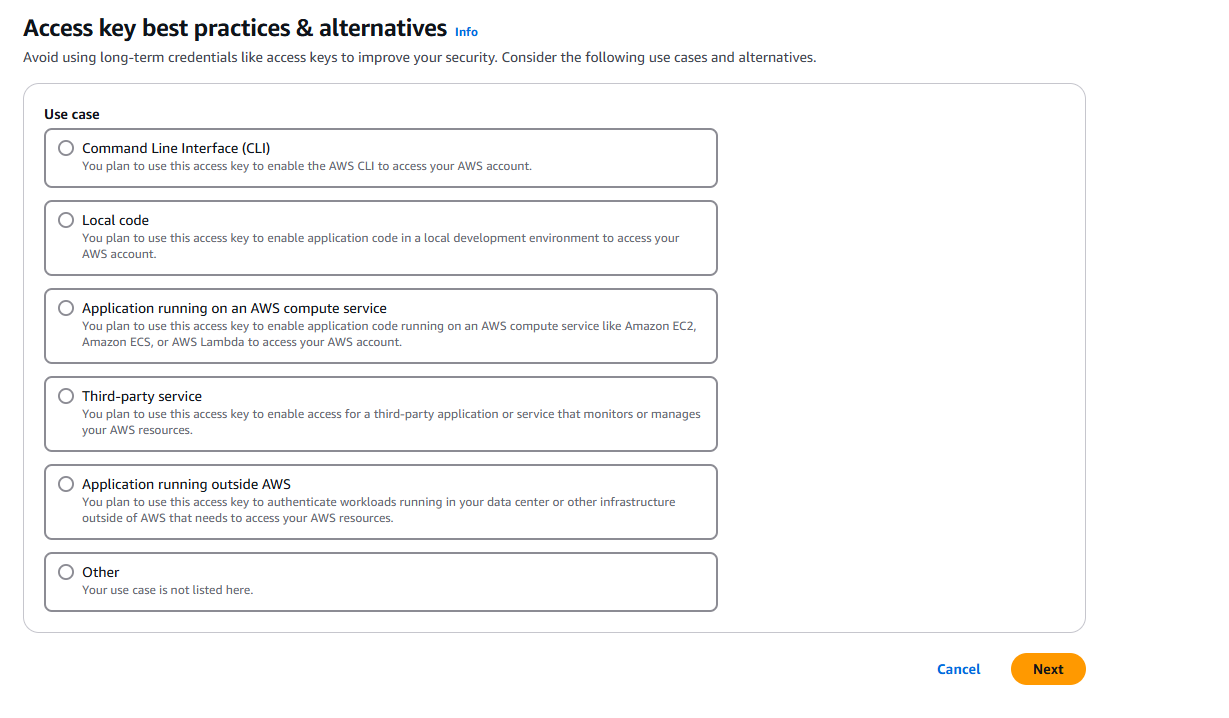
Select your use case and select Next.
-
Copy the Access key ID and Secret access key. Use these credentials to authenticate your integration.
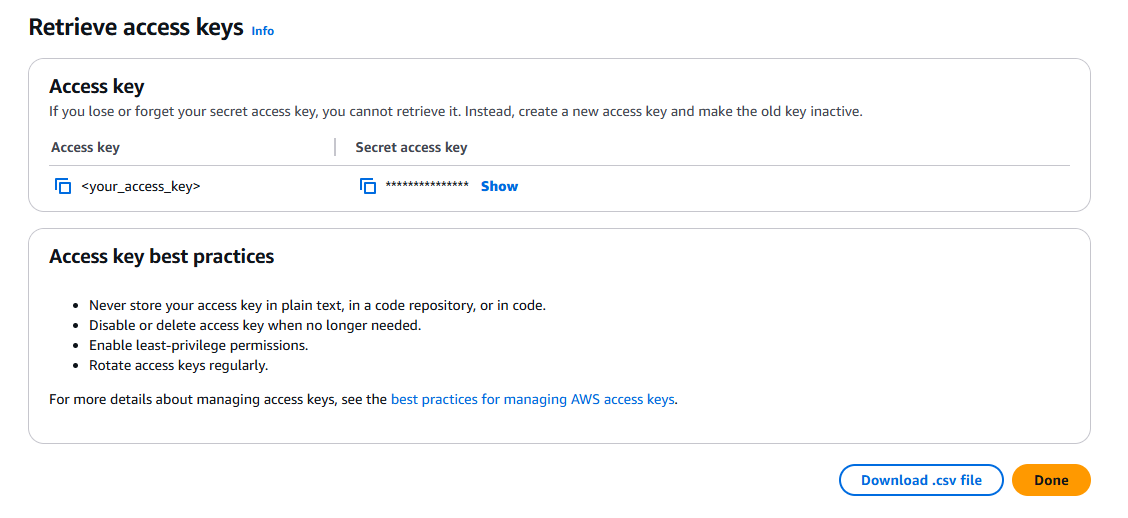
The secret access key is shown only once. Copy both values immediately or download the CSV file. If lost, you must create a new access key pair.
Step 4: Set up a Redshift cluster
Navigate to Amazon Redshift and create a cluster
-
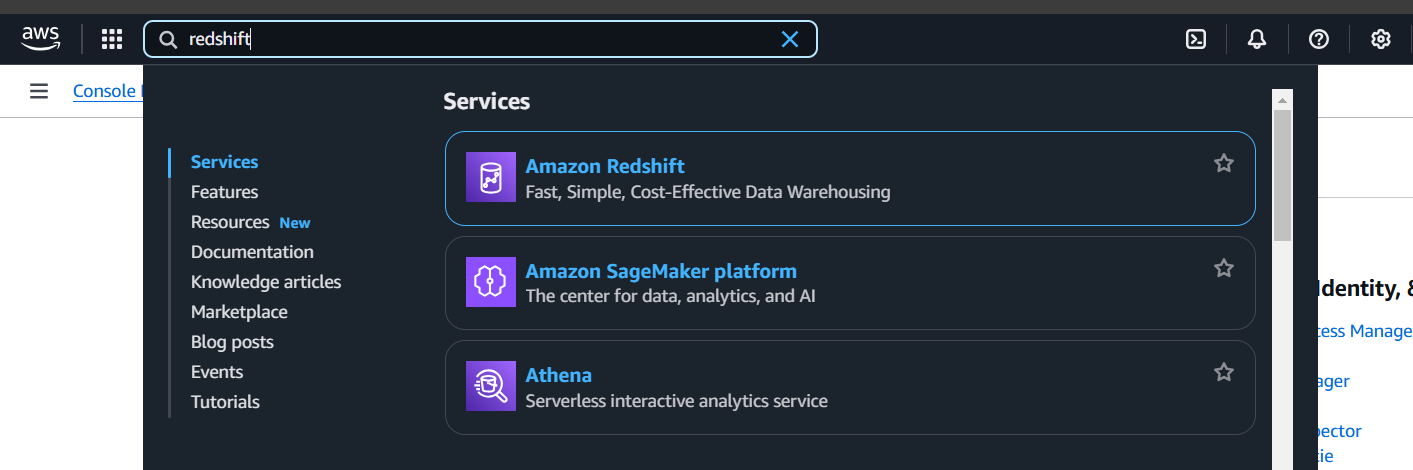
In the AWS Management Console, search for Redshift and select it.
-
Select Create cluster to start creating a new cluster.

Configure cluster settings
-
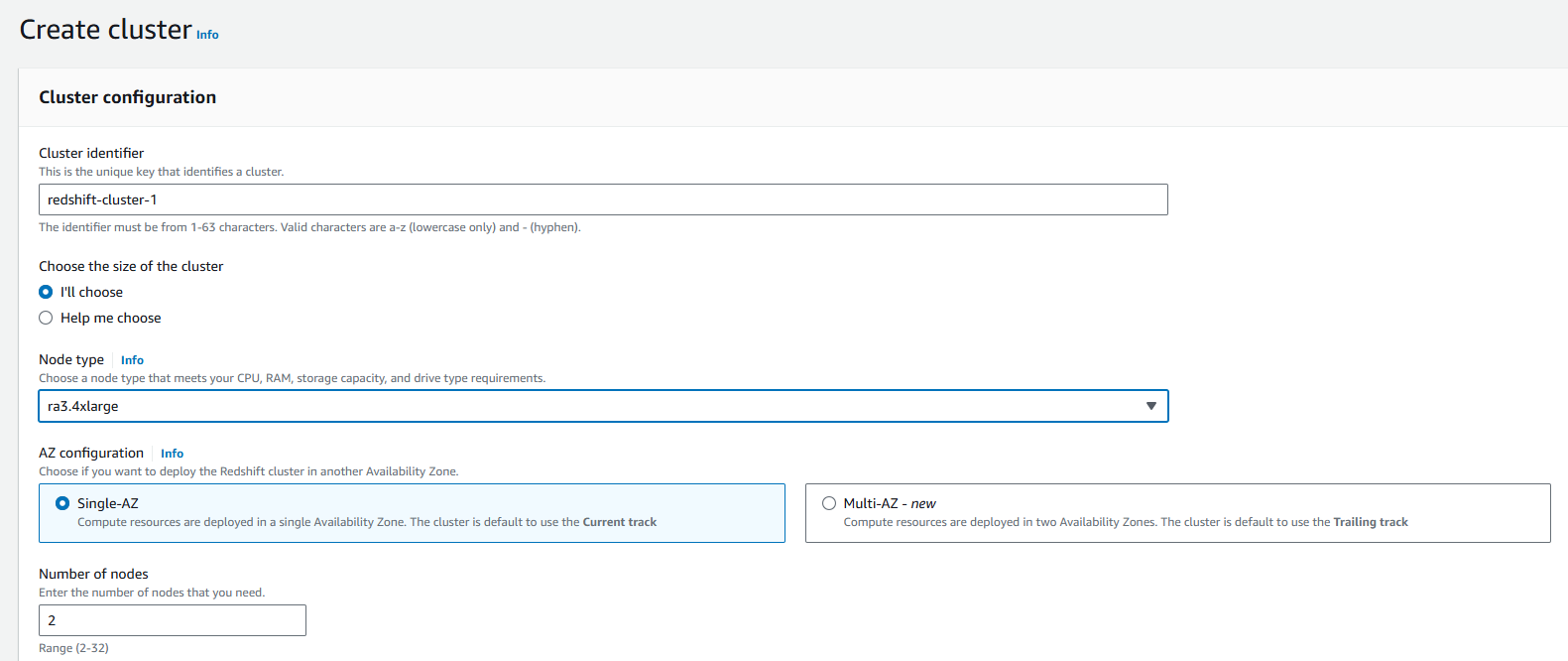
Configure the cluster identifier, database name, credentials, and other relevant parameters.
-
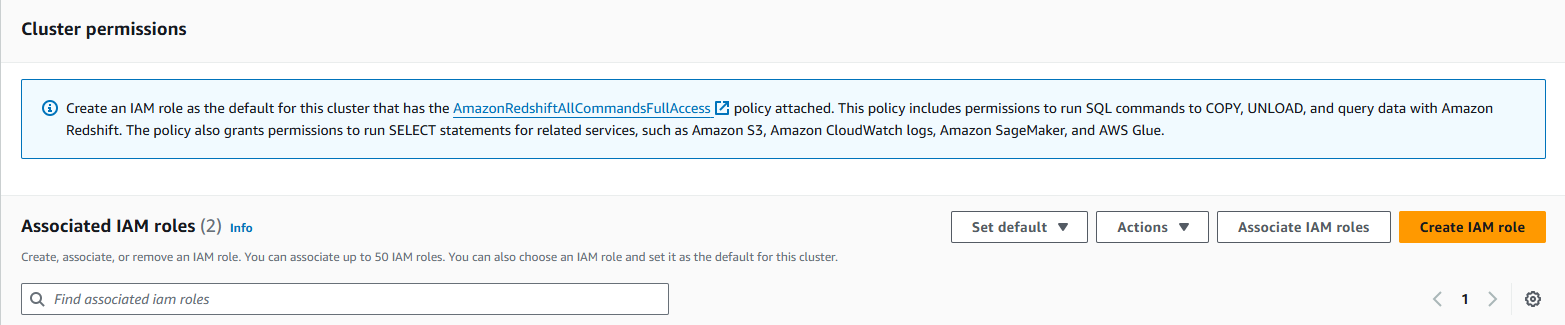
Configure security groups to control inbound and outbound traffic to your Redshift cluster.
-
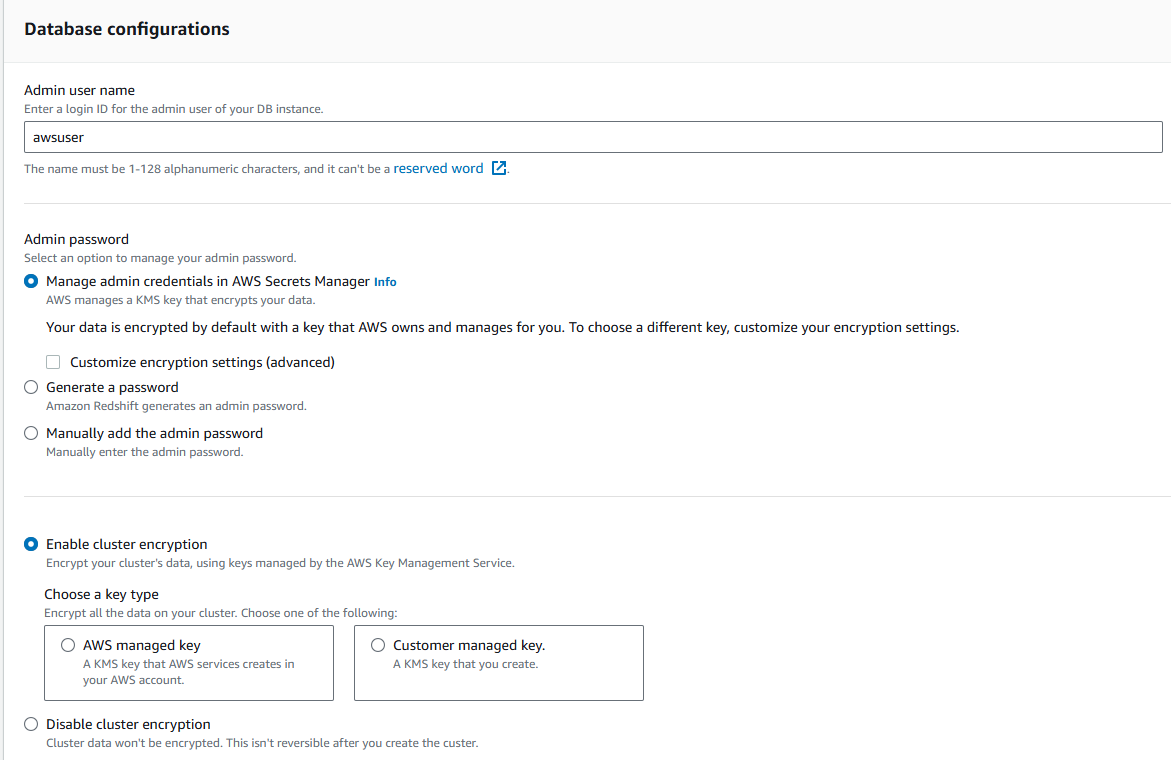
Record the database username set during cluster configuration — it will be used to authenticate your integration.
-
Review your settings and select Create cluster.
Wait for cluster availability
Monitor the cluster status in the AWS Console until it shows as Available.

Amazon Redshift also offers a serverless option that scales automatically without managing infrastructure. To configure Redshift Serverless, see the AWS documentation.