Example
What you'll build
Build a WSO2 Integrator automation that connects to the WSO2 API Manager Service Catalog and imports a service definition. The flow uses the wso2.apim.catalog connector to authenticate with a running APIM instance and upload a service definition file to the catalog.
Operations used:
- Import a service : Uploads and imports a service definition file into the WSO2 API Manager Service Catalog
Architecture
Prerequisites
- A running WSO2 API Manager instance (v4.x) with valid access credentials
Setting up the WSO2 APIM catalog integration
New to WSO2 Integrator? Follow the Create a New Integration guide to set up your integration first, then return here to add the connector.
Adding the WSO2 APIM catalog connector
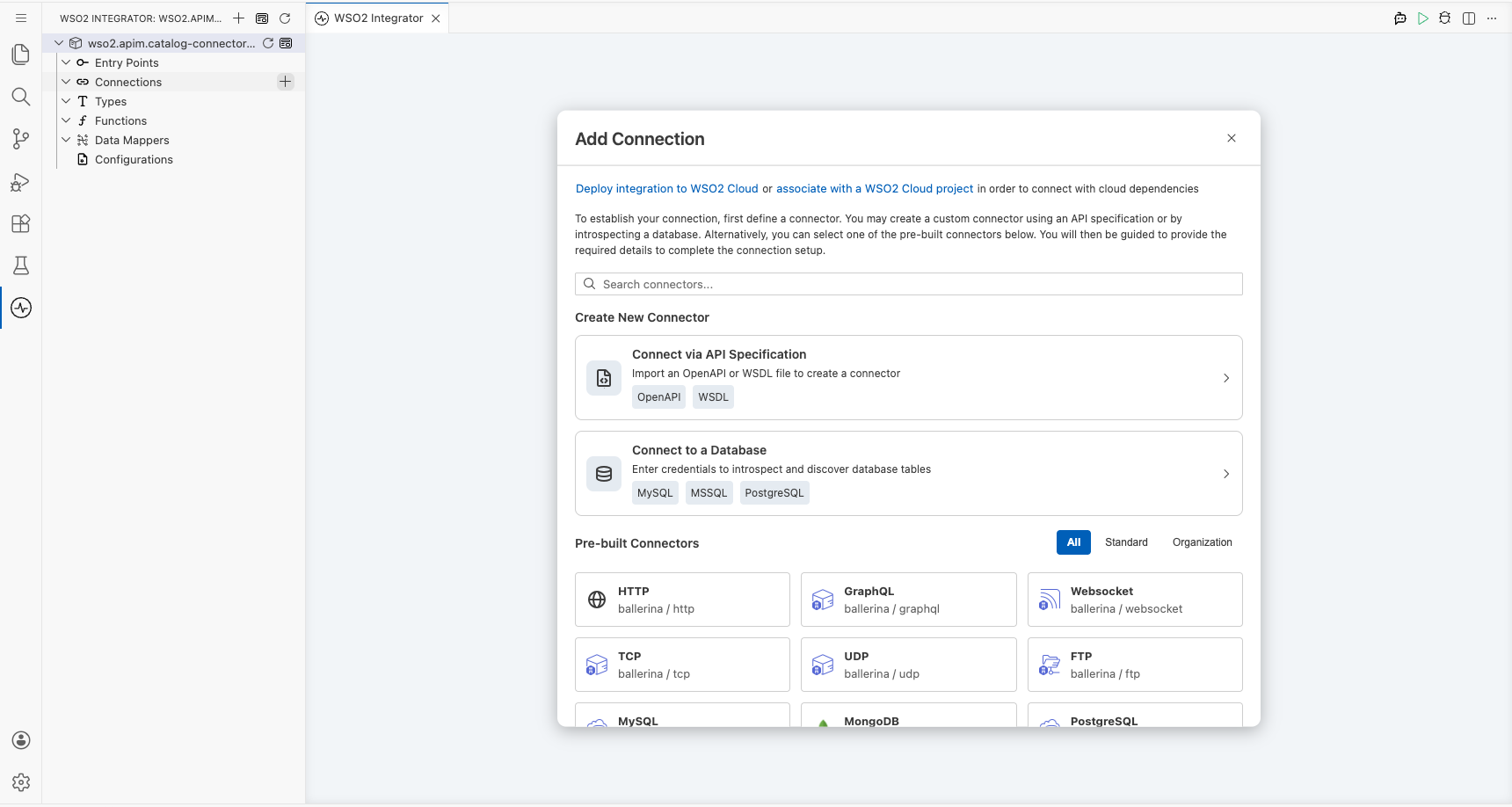
Step 1: Open the add connection panel
Select the + (Add) icon in the Connections section of the side panel to open the Add Connection palette.
Configuring the WSO2 APIM catalog connection
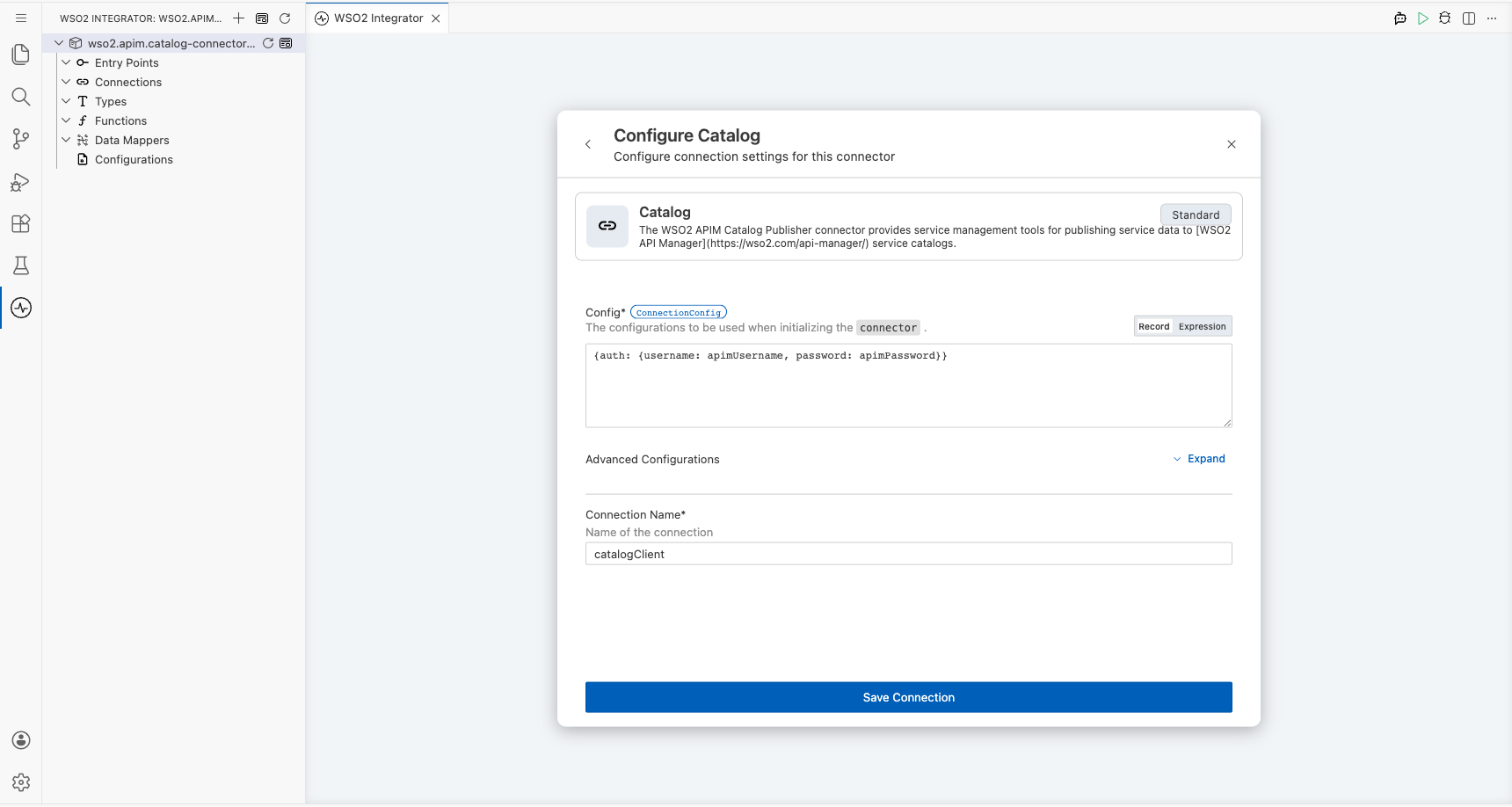
Step 2: Fill in connection parameters
Enter the connection details, binding each field to a configurable variable so credentials are never hardcoded.
- Connection Name : A unique name for this connection instance
- Config : The
ConnectionConfigrecord containing theauthblock withusernameandpasswordbound to configurable variables
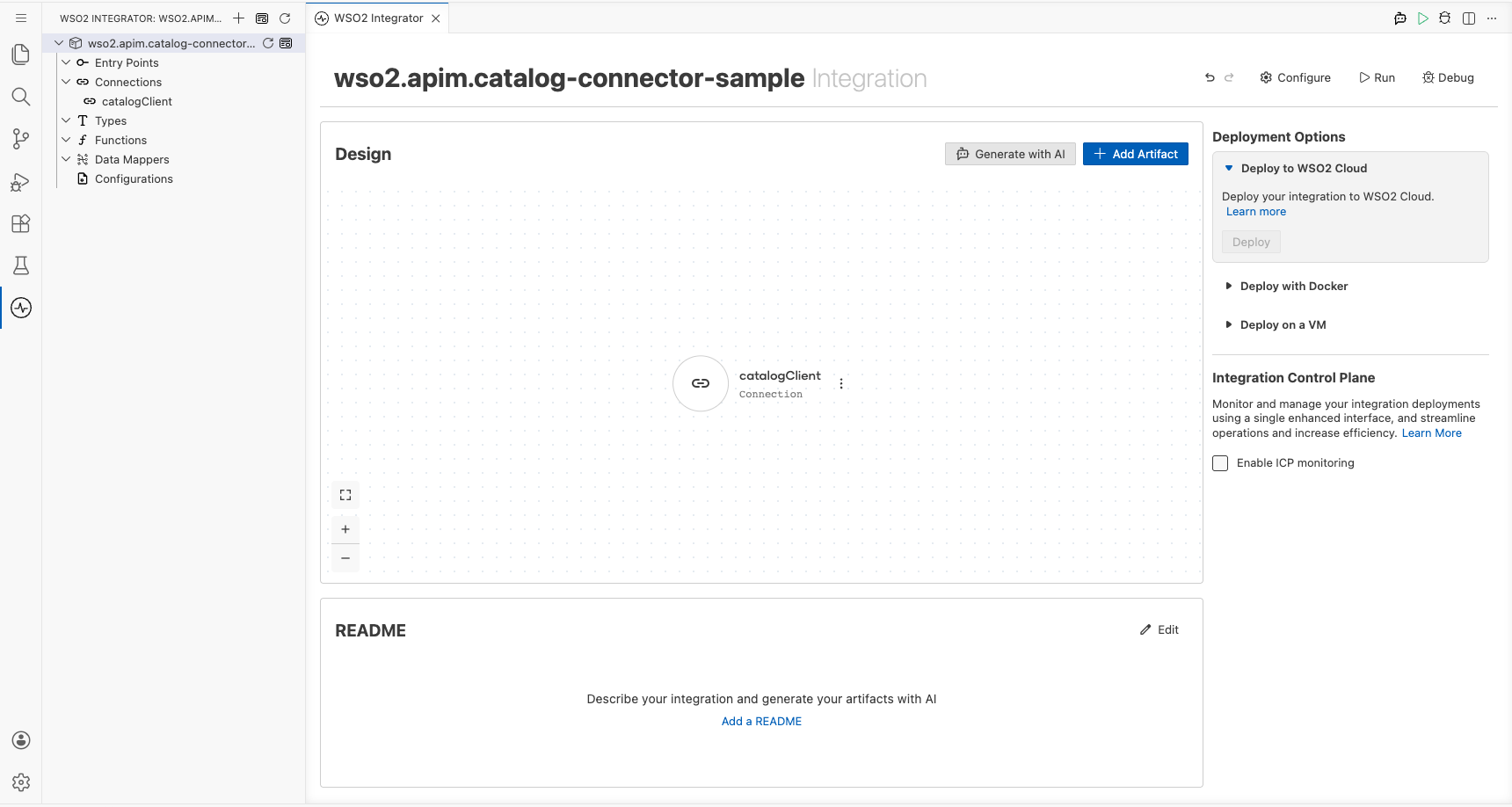
Step 3: Save the connection
Select Save Connection to persist the connection. The catalogClient entry appears in the Connections panel.
Step 4: Set actual values for your configurables
- In the left panel, select Configurations.
- Set a value for each configurable listed below.
- apimUsername (string) : The WSO2 API Manager admin username
- apimPassword (string) : The WSO2 API Manager admin password
Configuring the WSO2 APIM catalog import a service operation
Step 5: Add an automation entry point
- In the side panel, navigate to Entry Points.
- Select + to add a new entry point.
- Select Automation as the entry point type and name it
main.
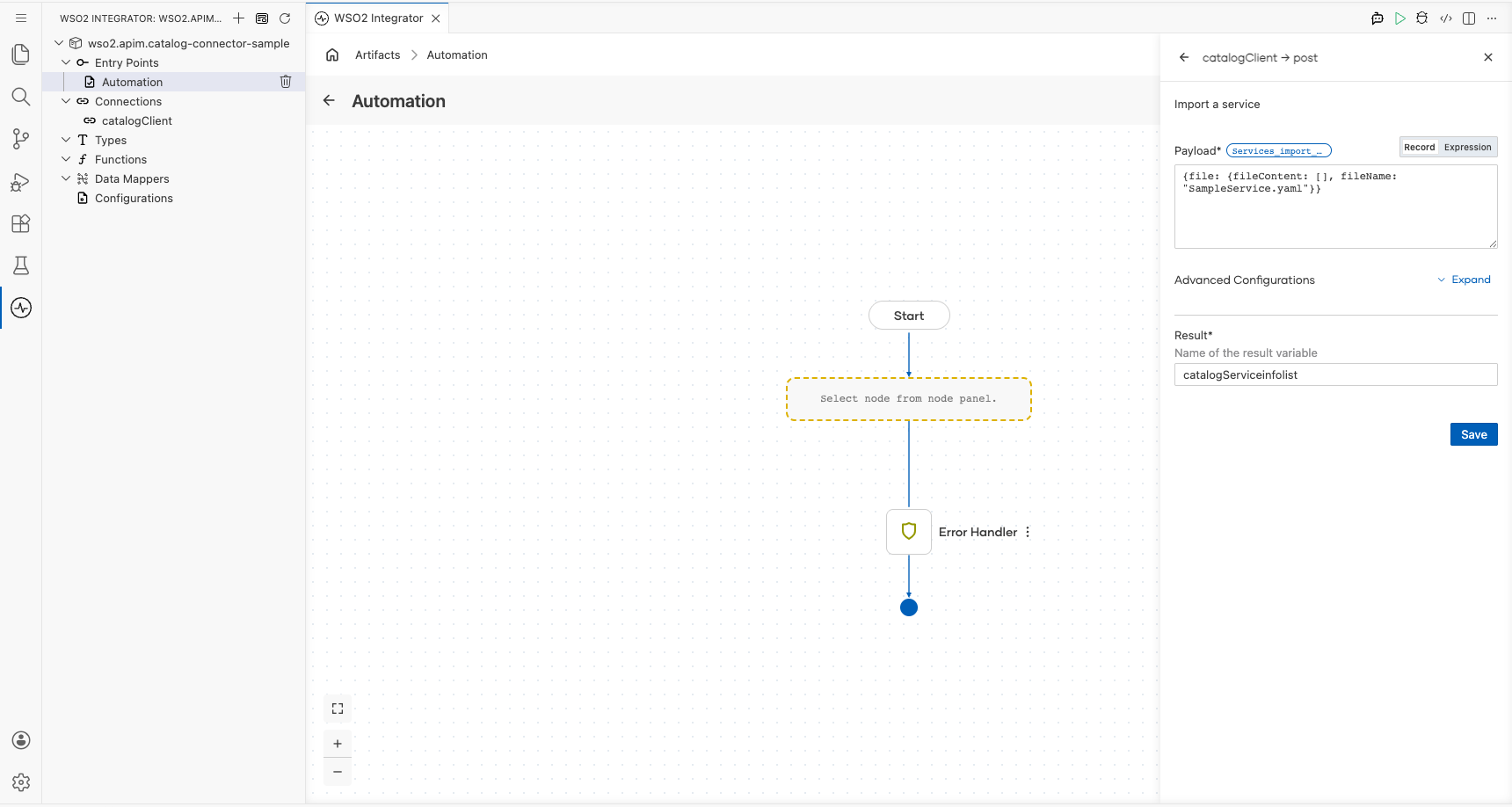
Step 6: Select and configure the import a service operation
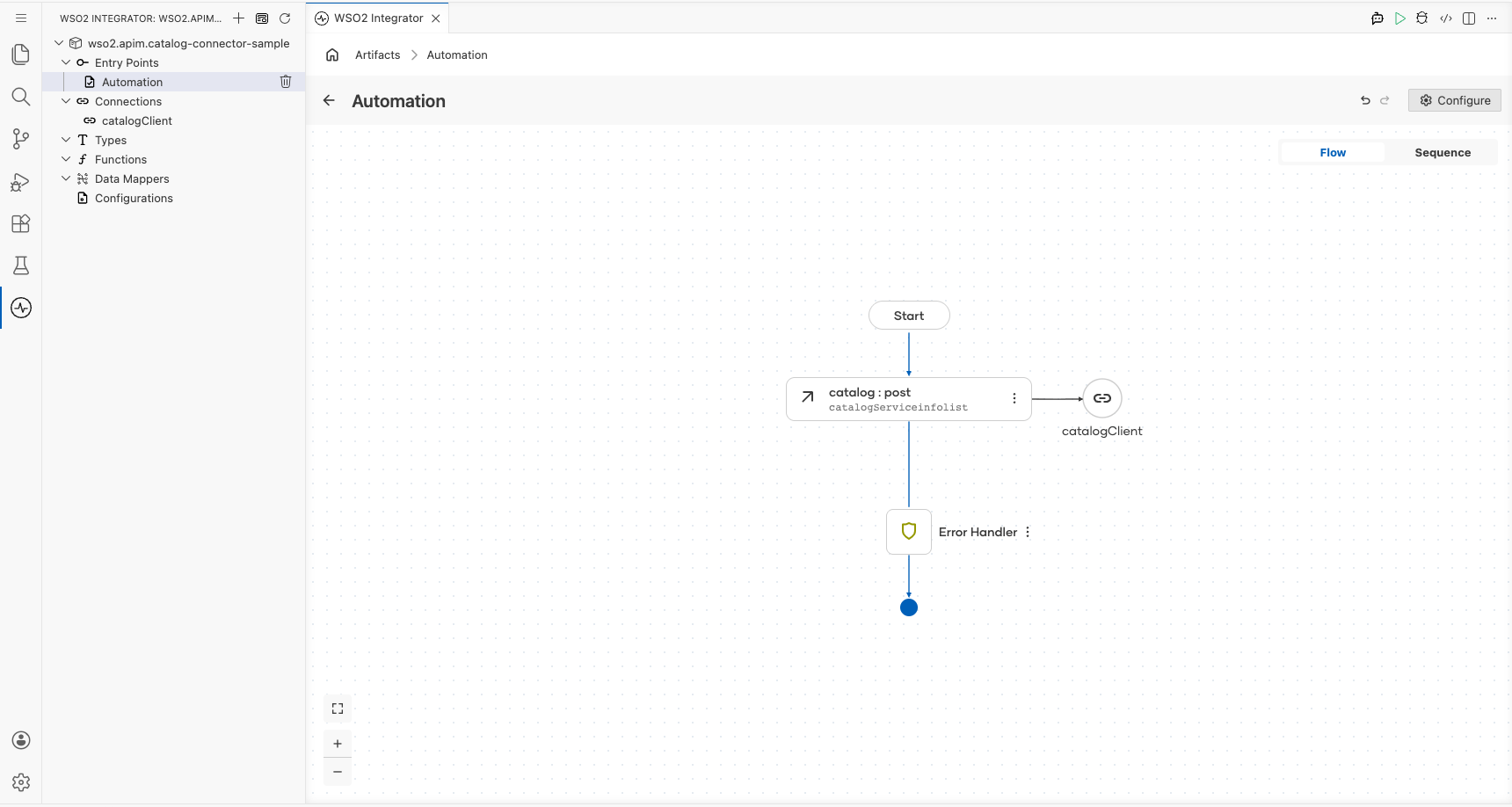
Expand the catalogClient node in the node panel to reveal all available operations, then select Import a service and fill in the required fields.
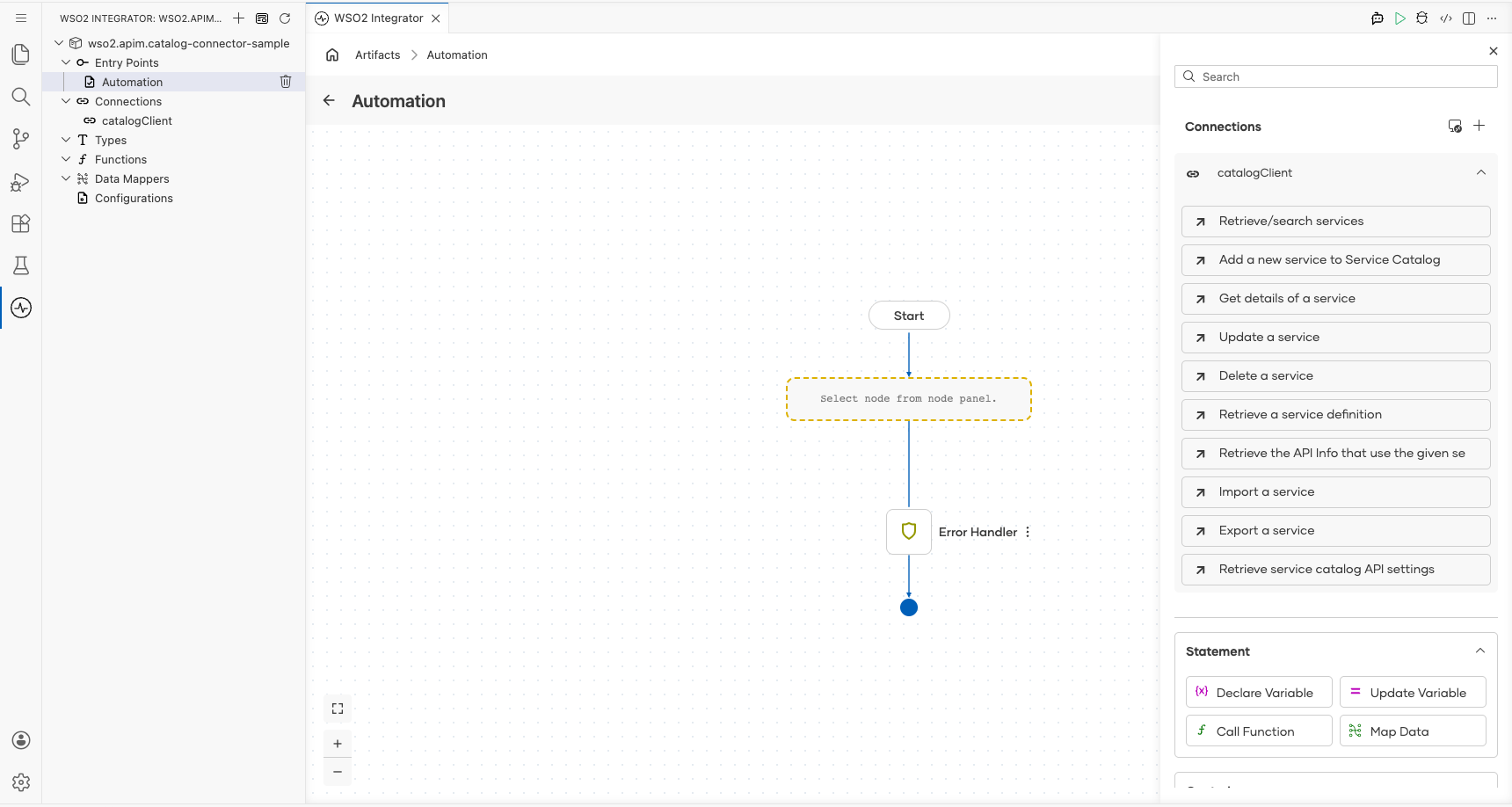
- Payload : A
Services_import_bodyrecord containingfile.fileContent(byte array of the service definition) andfile.fileName(name of the service definition file) - Result : Output variable that holds the
ServiceInfoListresponse listing imported services
Try it yourself
Try this sample in WSO2 Integration Platform.

More code examples
   import ballerina/http;
   import ballerinax/wso2.apim.catalog as _;

   service /sales0 on new http:Listener(9000) {
       // implementation
   }