Example
What you'll build
Build a WSO2 Integrator automation that connects to an IBM CICS Transaction Gateway (CTG) server and executes a CICS transaction program. The integration uses the IBM CTG connector to invoke a named CICS program and capture the result as a byte array for further processing.
Operations used:
- Execute : Sends a request to the IBM CTG server to invoke a specified CICS program and returns the result as a byte array
Architecture
Prerequisites
- Access to an IBM CICS Transaction Gateway server
- The following connection details:
- Host : CTG server hostname or IP
- CICS Server : Name of the target CICS server
- User ID : Authentication user ID
- Password : Authentication password
Setting up the IBM CTG integration
New to WSO2 Integrator? Follow the Create a New Integration guide to set up your integration first, then return here to add the connector.
Adding the IBM CTG connector
Step 1: Open the add connection panel
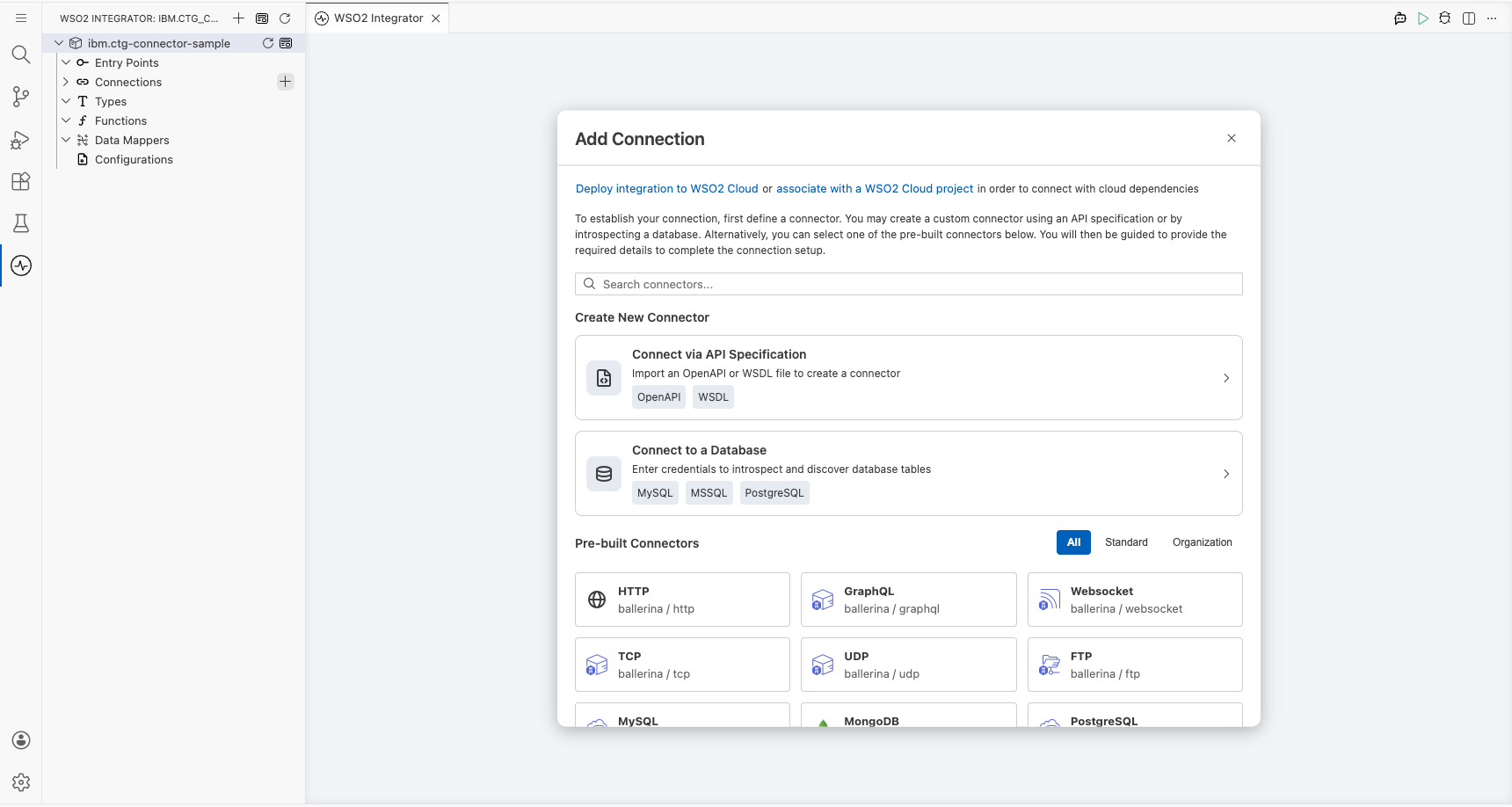
Select the + button next to Connections in the project tree to open the Add Connection palette, which displays available pre-built connectors.
Configuring the IBM CTG connection
Step 2: Fill in the connection parameters
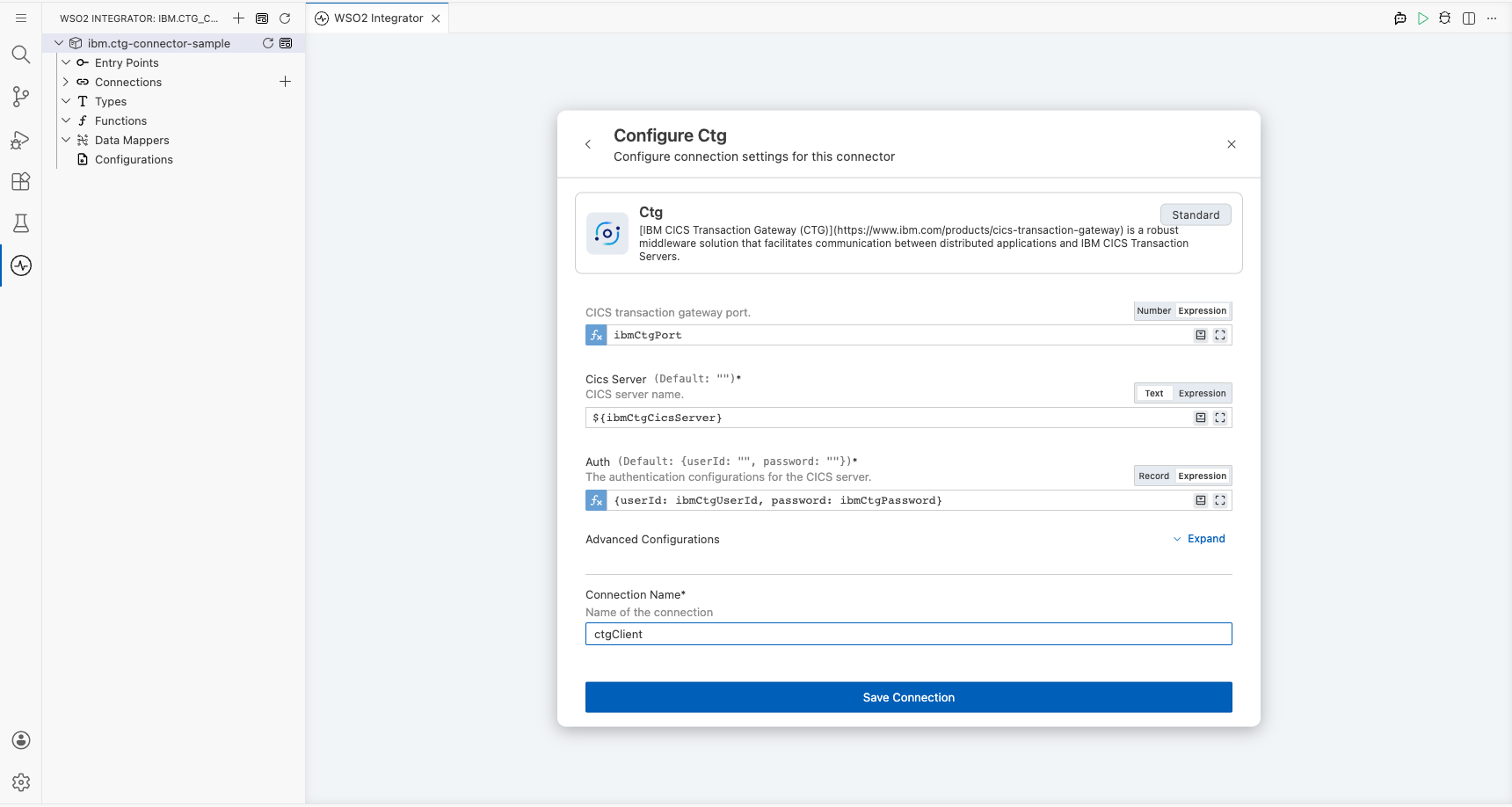
Search for ibm.ctg in the search field, select the IBM CTG connector card, and bind each connection parameter to a configurable variable.
- connectionName : Unique identifier for this connection
- host : CTG server hostname
- port : CTG server port number
- cicsServer : Target CICS server name
- auth : Authentication credentials record containing user ID and password
Step 3: Save the connection
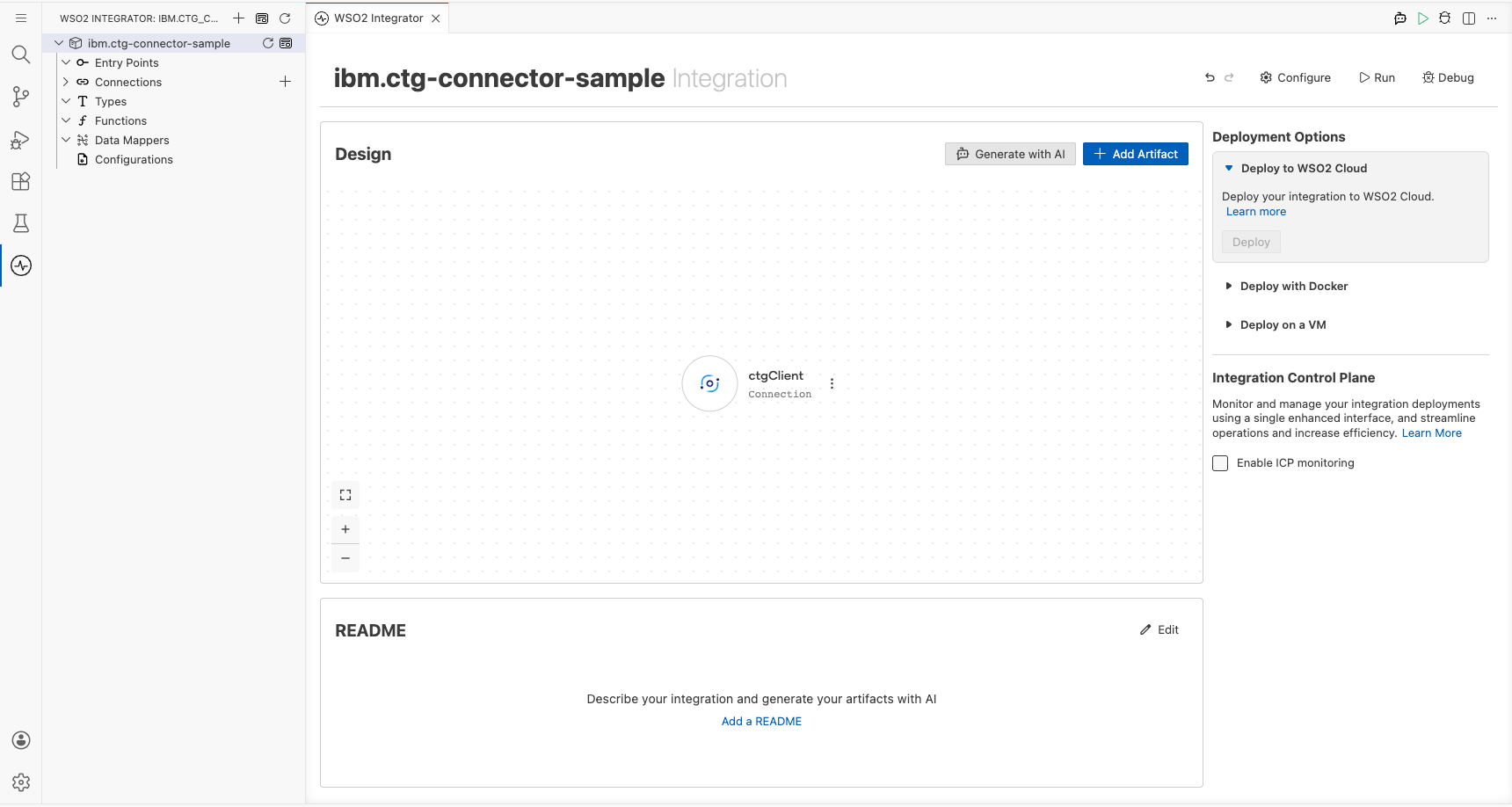
Select Save Connection to create the connection. The ctgClient entry appears in the Connections panel on the canvas.
Step 4: Set actual values for your configurables
In the left panel, select Configurations and set a value for each configurable listed below.
- ibmCtgHost (string) : IBM CTG server hostname or IP address
- ibmCtgPort (int) : IBM CTG server port number
- ibmCtgCicsServer (string) : Name of the target CICS server
- ibmCtgUserId (string) : User ID for CTG authentication
- ibmCtgPassword (string) : Password for CTG authentication
Configuring the IBM CTG execute operation
Step 5: Add an automation entry point
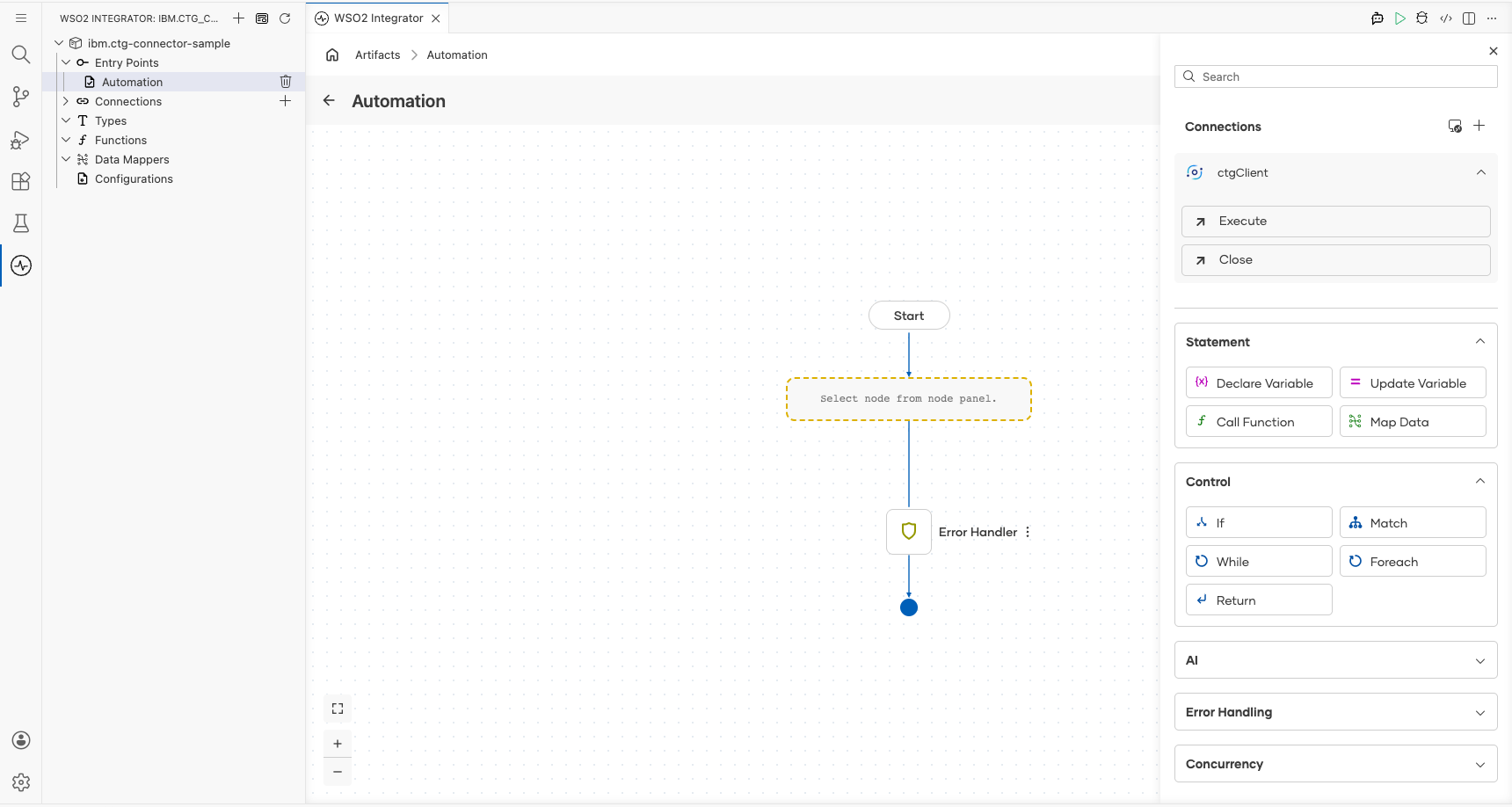
Select the + button next to Entry Points in the project tree and select Automation as the entry point type. The automation flow canvas opens with a Start node, an empty placeholder, and an Error Handler node.
Step 6: Select and configure the execute operation
Expand ctgClient in the Connections section of the node panel to view available operations, then select Execute to add it to the automation flow and configure its parameters.
- programName : The CICS program to invoke on the server (for example,
EC01) - result : Name of the result variable (for example,
byteResult) - resultType : Return type of the result (
byte[]|())
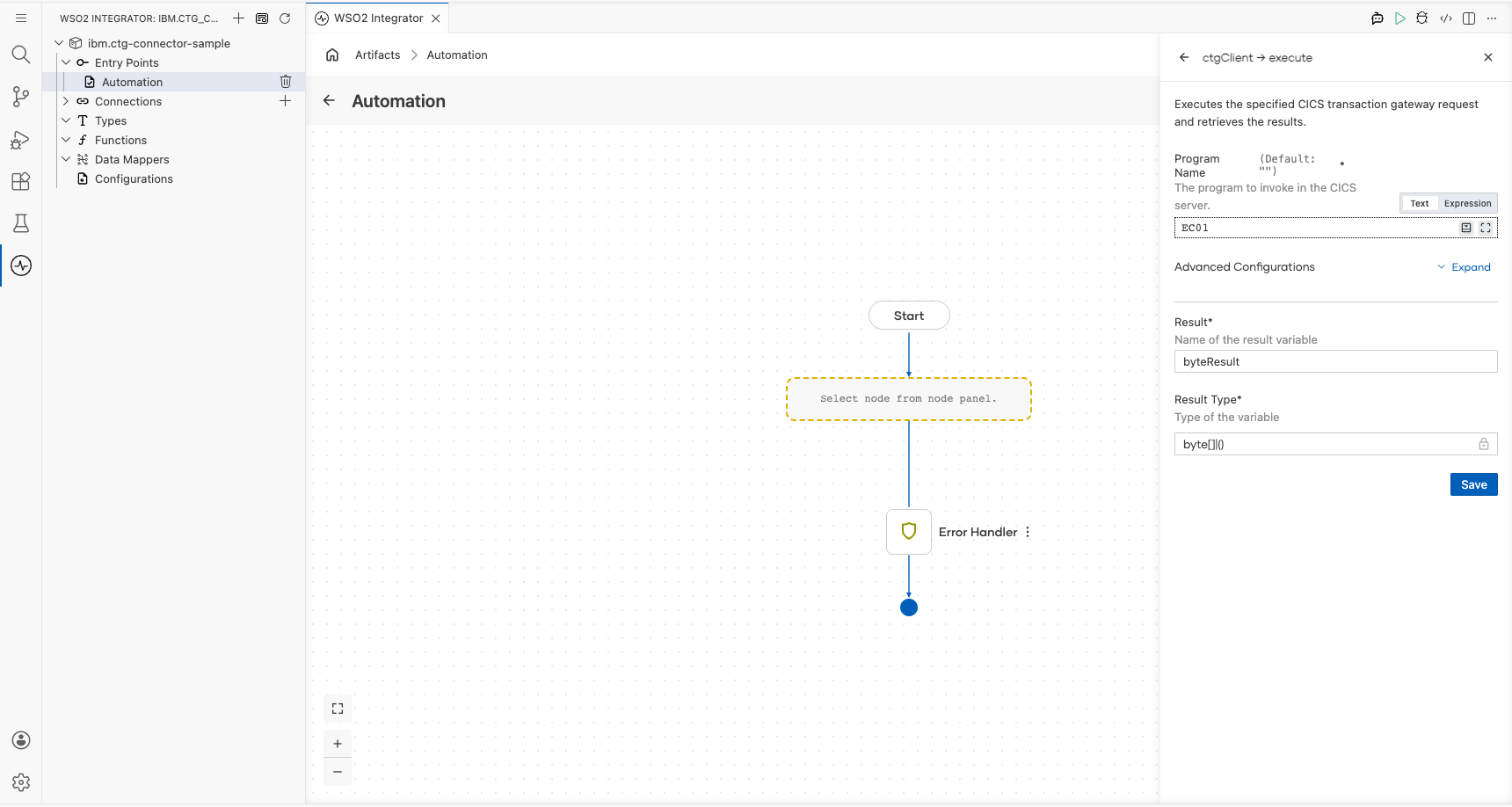
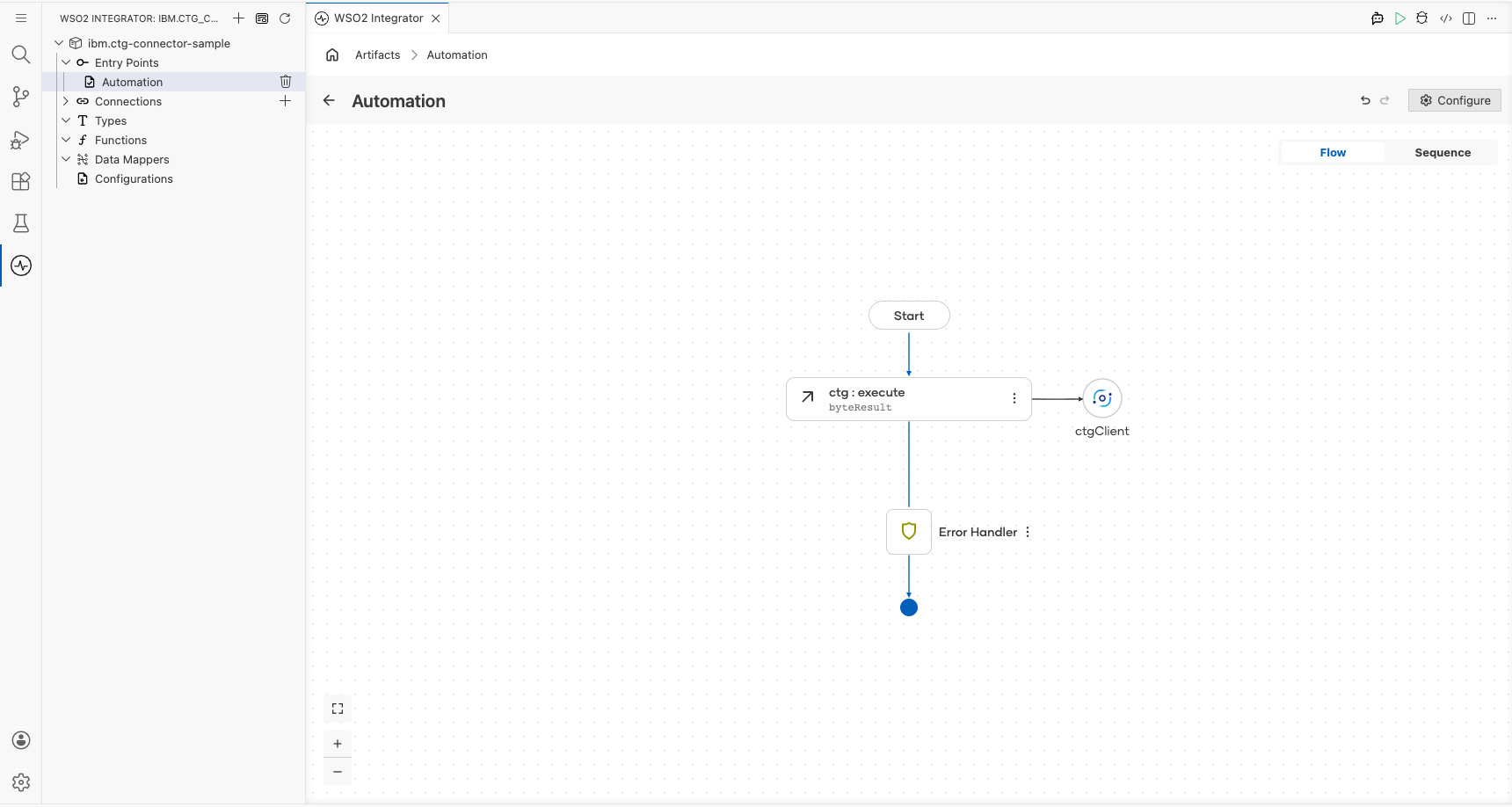
Select Save to add the operation to the flow.
Try it yourself
Try this sample in WSO2 Integration Platform.
