Setup Guide
This guide walks you through configuring SAP S/4HANA Cloud Communication Management to expose the API_CHARCATTRIBUTECATALOG_SRV service and obtaining the hostname and credentials the SAP Characteristic Attribute Catalog connector needs.
The connector uses Basic Authentication with an SAP S/4HANA Cloud communication user. SAP exposes each API through a communication scenario, so the user must be assigned to a communication arrangement for the Inspection Master Data Integration (SAP_COM_0110) scenario before the connector can call the service.
Prerequisites
- An SAP S/4HANA Cloud system.
- A business user with the
SAP_BR_ADMINISTRATORrole (or equivalent) to create communication users, systems and arrangements.
All the apps used in this guide are in the Communication Management group of the SAP Fiori launchpad.
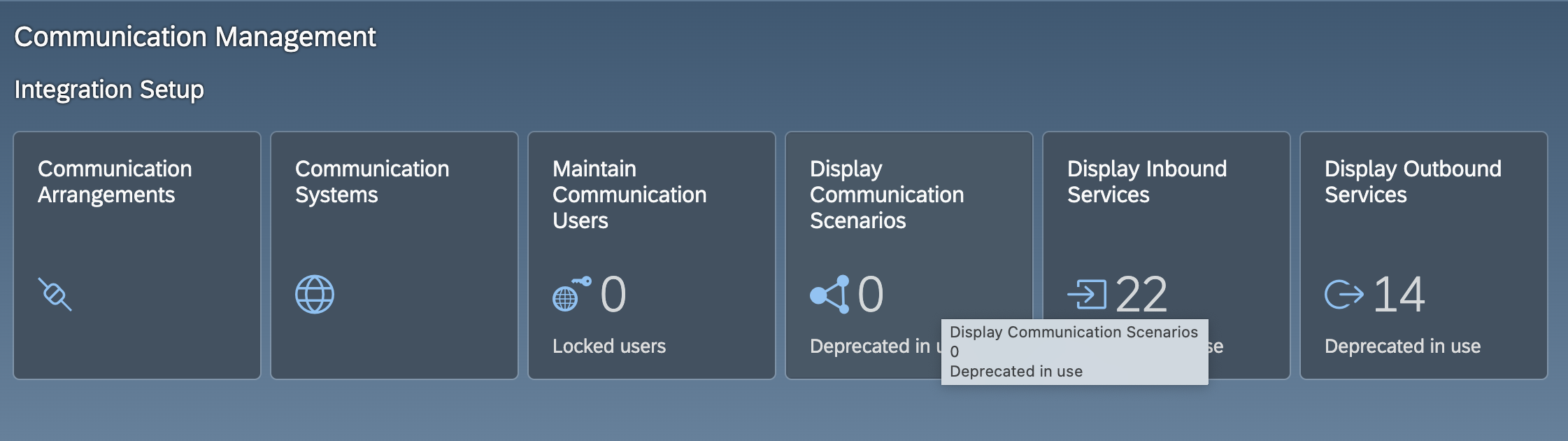
Step 1: Create a communication user
- Open the Maintain Communication Users app and select New.
- Enter a User Name and a Description.
- Set a Password and confirm it.
- Select Create.
Note the user name and password. These are the credentials the connector uses.
Step 2: Create a communication system
- Open the Communication Systems app and select New.
- Enter a System ID and a System Name, then select Create.
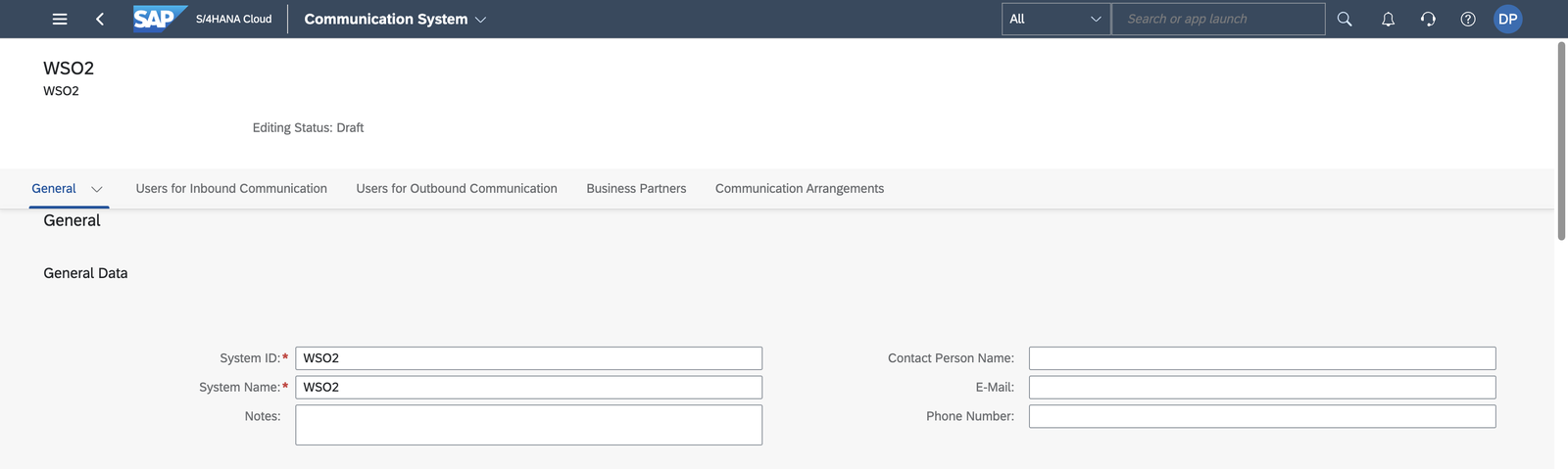
- Under General > Technical Data, enter a Host Name and a Logical System (an uppercase ID of up to 10 characters, for example,
INTEGRATOR). Some scenarios refuse to activate when the logical system is empty. - Under Users for Inbound Communication, add the communication user from Step 1 with the User Name and Password authentication method.
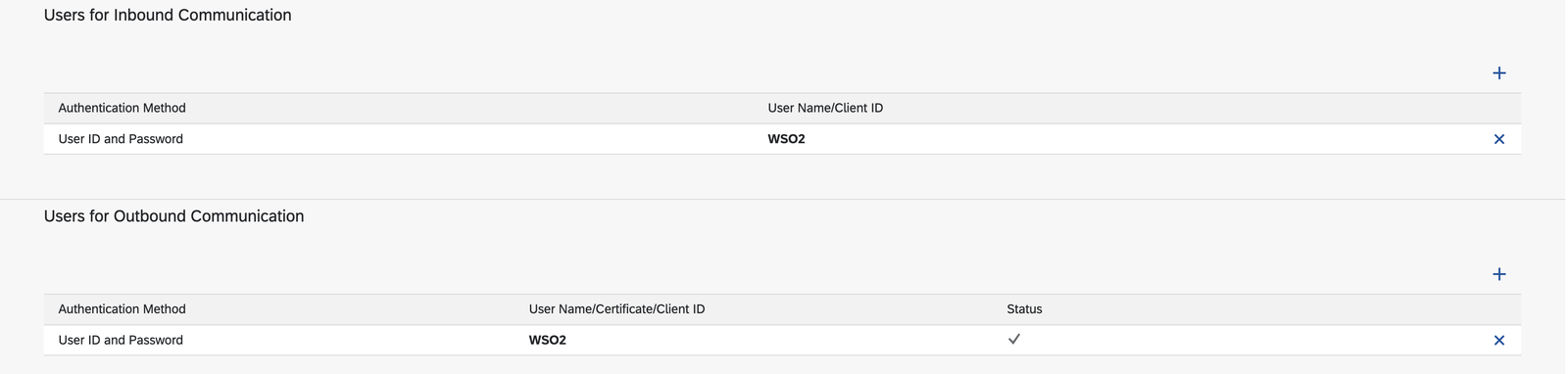
- Select Save.
Step 3: Create a communication arrangement
- Open the Communication Arrangements app and select New.
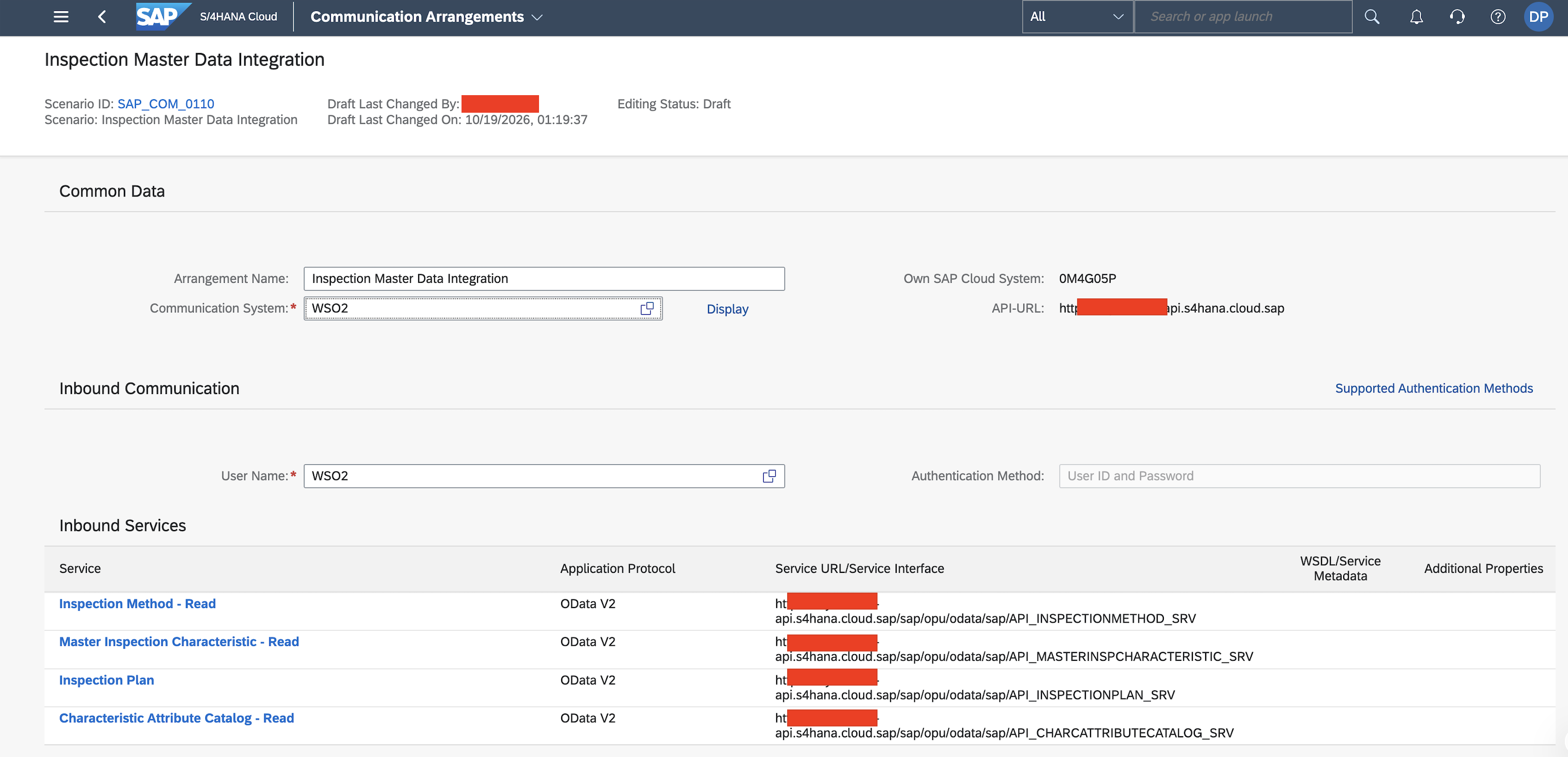
- In the Scenario value help, search for Inspection Master Data Integration and select
SAP_COM_0110. This is the scenario that exposesAPI_CHARCATTRIBUTECATALOG_SRV, the service this connector calls.

- Enter a unique Arrangement Name and select Create.
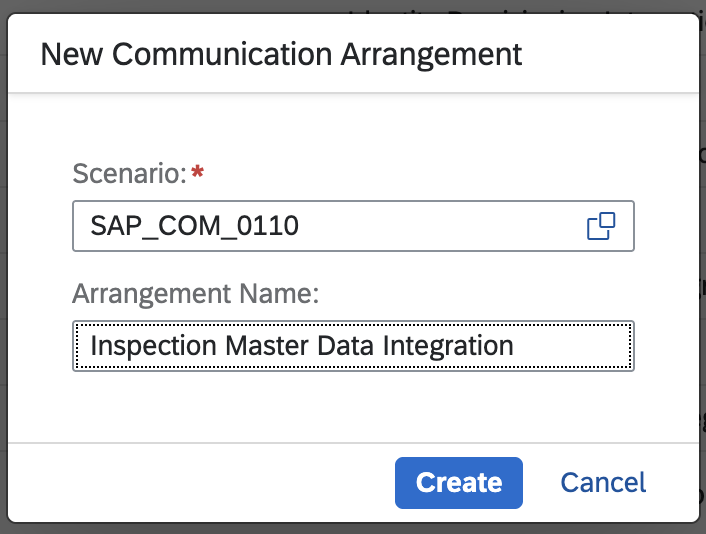
- Select the communication system from Step 2. The communication user from Step 1 is filled in as the inbound user. If the scenario lists outbound services that the integration does not need, clear their Active check boxes so that no outbound user is required.
- Select Save.
Step 4: Note the hostname
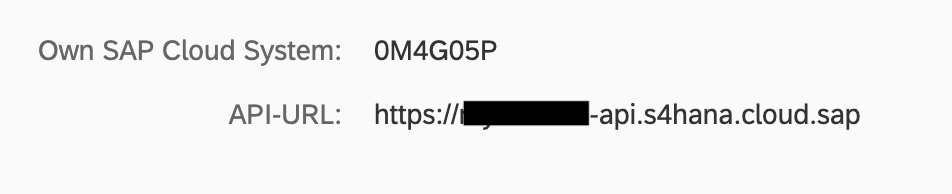
Open the saved arrangement. The API-URL next to Own SAP Cloud System shows the hostname (<unique id>-api.s4hana.cloud.sap).
You now have everything the connector needs:
- hostname: the API hostname, for example,
my123456-api.s4hana.cloud.sap - username: the communication user name
- password: the communication user password
Store the hostname, username and password securely. Bind them to configurable variables and supply the values in Config.toml at runtime instead of hardcoding them.
What's next
- Action Reference: available operations
- Example: build an integration with this connector