Example
What you'll build
This example builds an automation that connects to SAP Signavio and lists the dictionary categories defined in your workspace. The automation calls the List Dictionary Categories operation and logs the result.
Operations used:
- List Dictionary Categories : Retrieves a list of your workspace's dictionary categories.
Architecture
Prerequisites
- An SAP Signavio account with a user name and password. See the connector's Setup Guide.
Setting up the SAP Signavio integration
New to WSO2 Integrator? Follow the Create a New Integration guide to set up your integration first, then return here to add the connector.
Adding the SAP Signavio connector
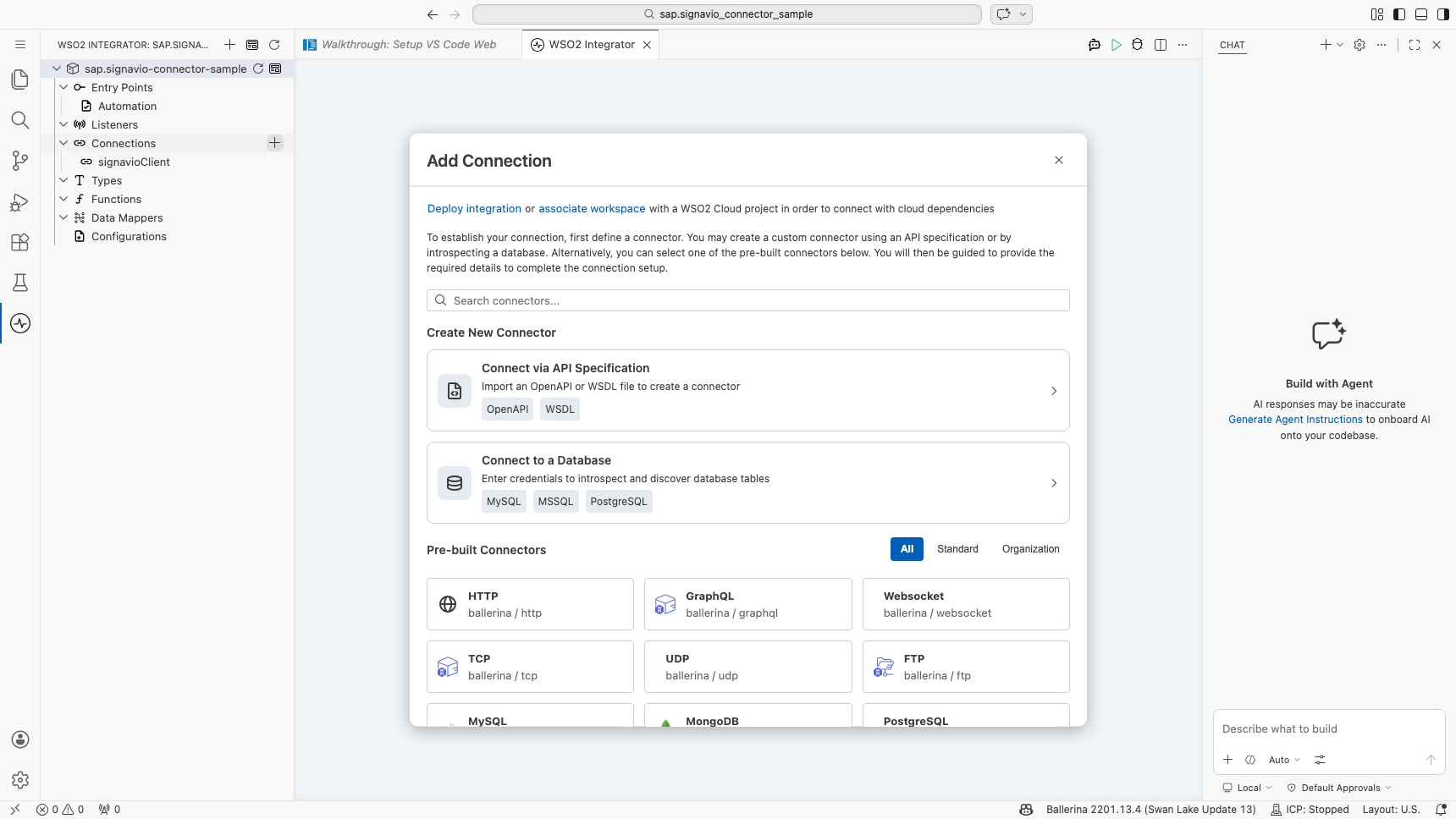
Step 1: Open the connector palette
Select Add Connection in the Connections section.
Step 2: Select the SAP Signavio connector
Enter "signavio" in the search box to filter the connector list, then select the Signavio connector card (ballerinax/sap.signavio) to open its connection configuration form.
Configuring the SAP Signavio connection
Step 3: Bind the connection parameters to configurable variables
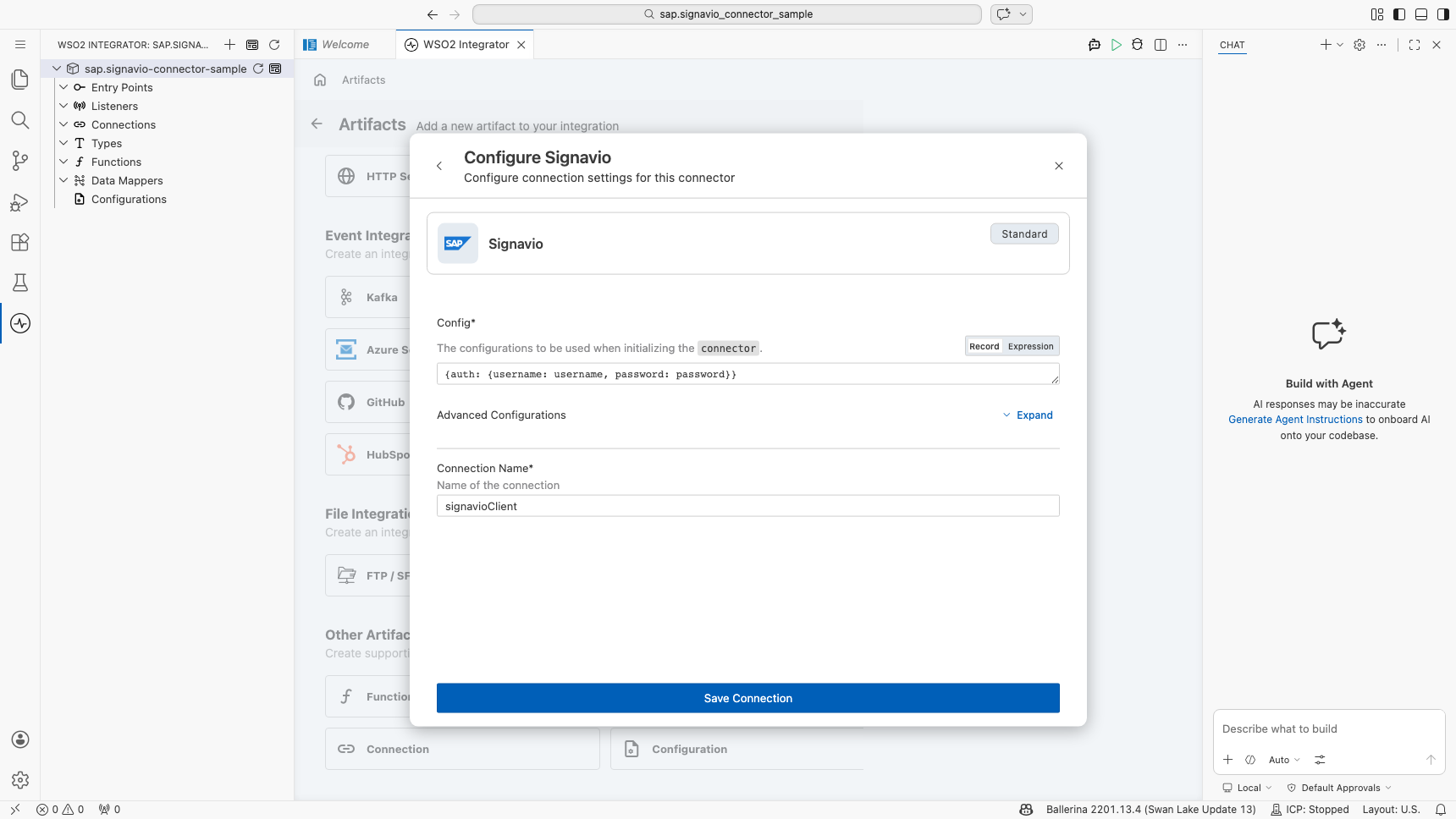
Bind the required connection fields to configurable variables.
- Username : The account's user name (typically an email address).
- Password : The account's password.
Step 4: Save the connection
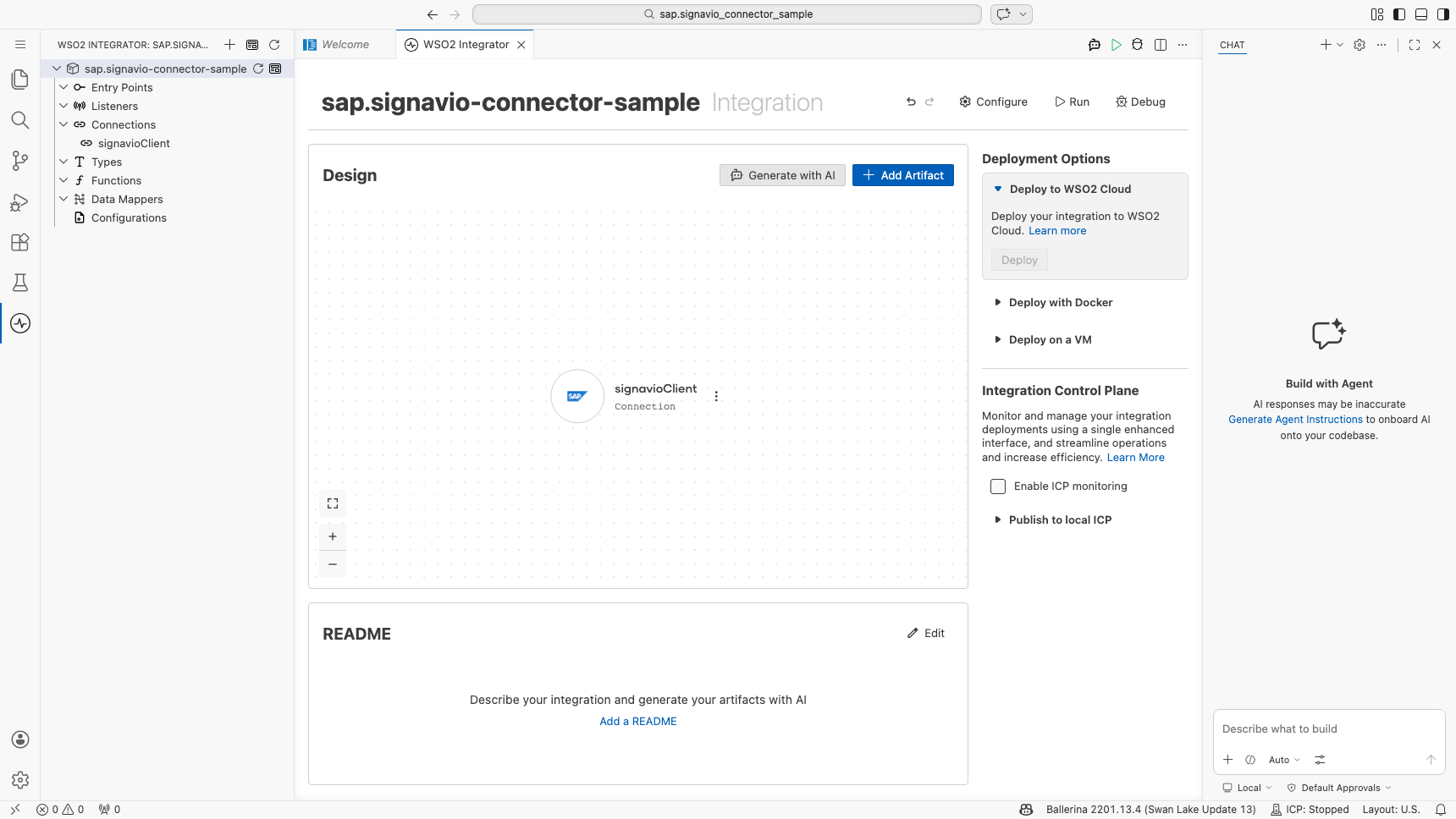
Select Save and verify that the connection appears in the Connections section.
Configuring the SAP Signavio List Dictionary Categories operation
Step 5: Add an automation entry point
- In the left panel under Entry Points, select + (Add Entry Point).
- Under Automation, select Automation.
- In the Create New Automation dialog, accept the default settings and select Create.
The canvas switches to the Automation flow view, showing a Start node, an Error Handler node, and an End node.
Step 6: Set actual values for your configurables
- Select Configurations at the bottom of the project tree under Data Mappers.
- Enter a value for each configurable listed below before you run the integration.
- username (
string) : Your SAP Signavio account's user name. - password (
string) : Your SAP Signavio account's password.
Step 7: Select the List Dictionary Categories operation
- In the automation flow body on the canvas, select the + (Add Step) button between the Start and Error Handler nodes to open the step-addition panel.
- Under Connections in the step panel, select the signavioClient connection node to expand it and reveal all available SAP Signavio API operations.
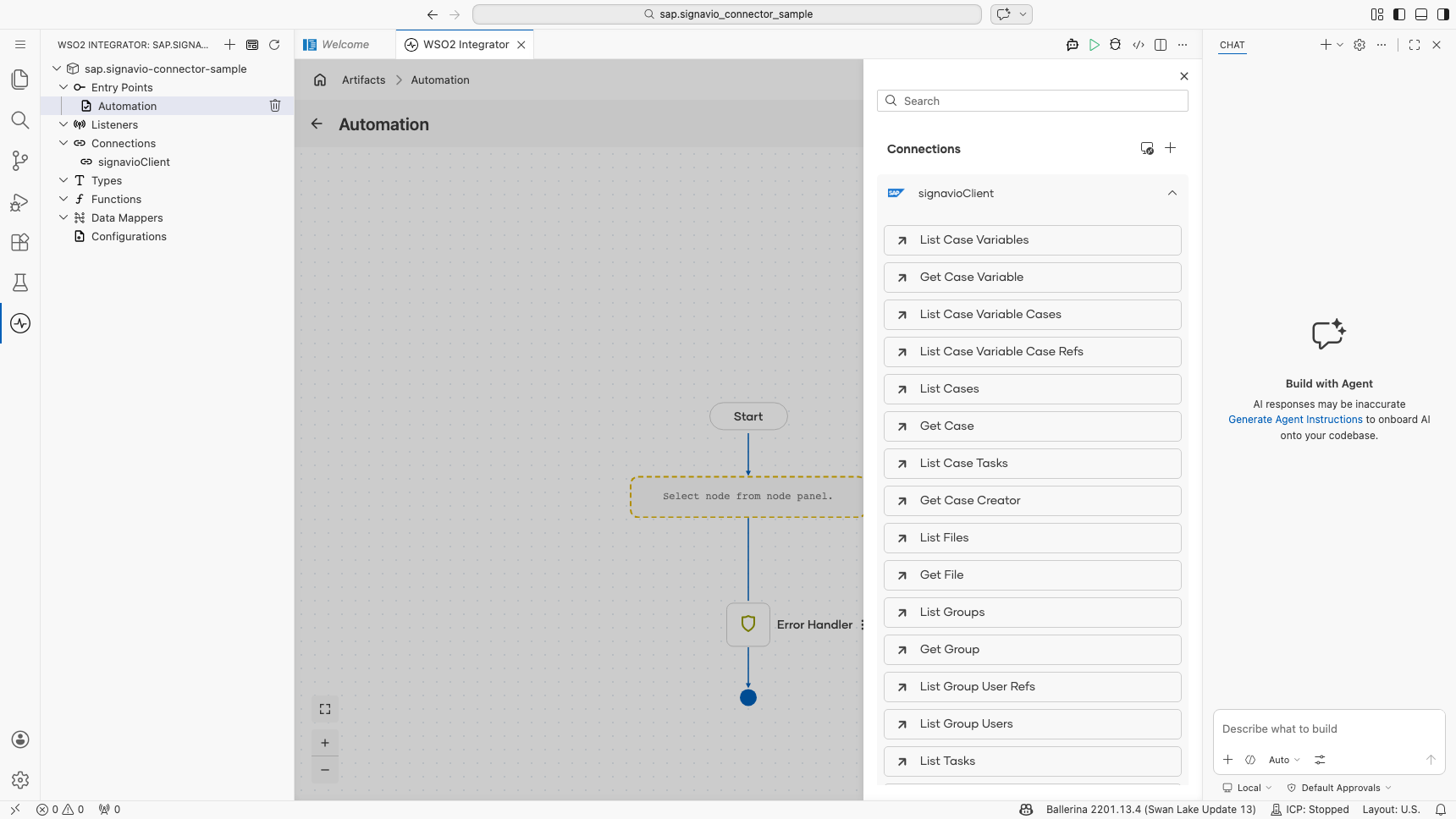
- Select List Dictionary Categories from the list. This operation has no required parameters, so only the result variable needs a name.
- Result : The name of the variable that holds the returned dictionary categories.
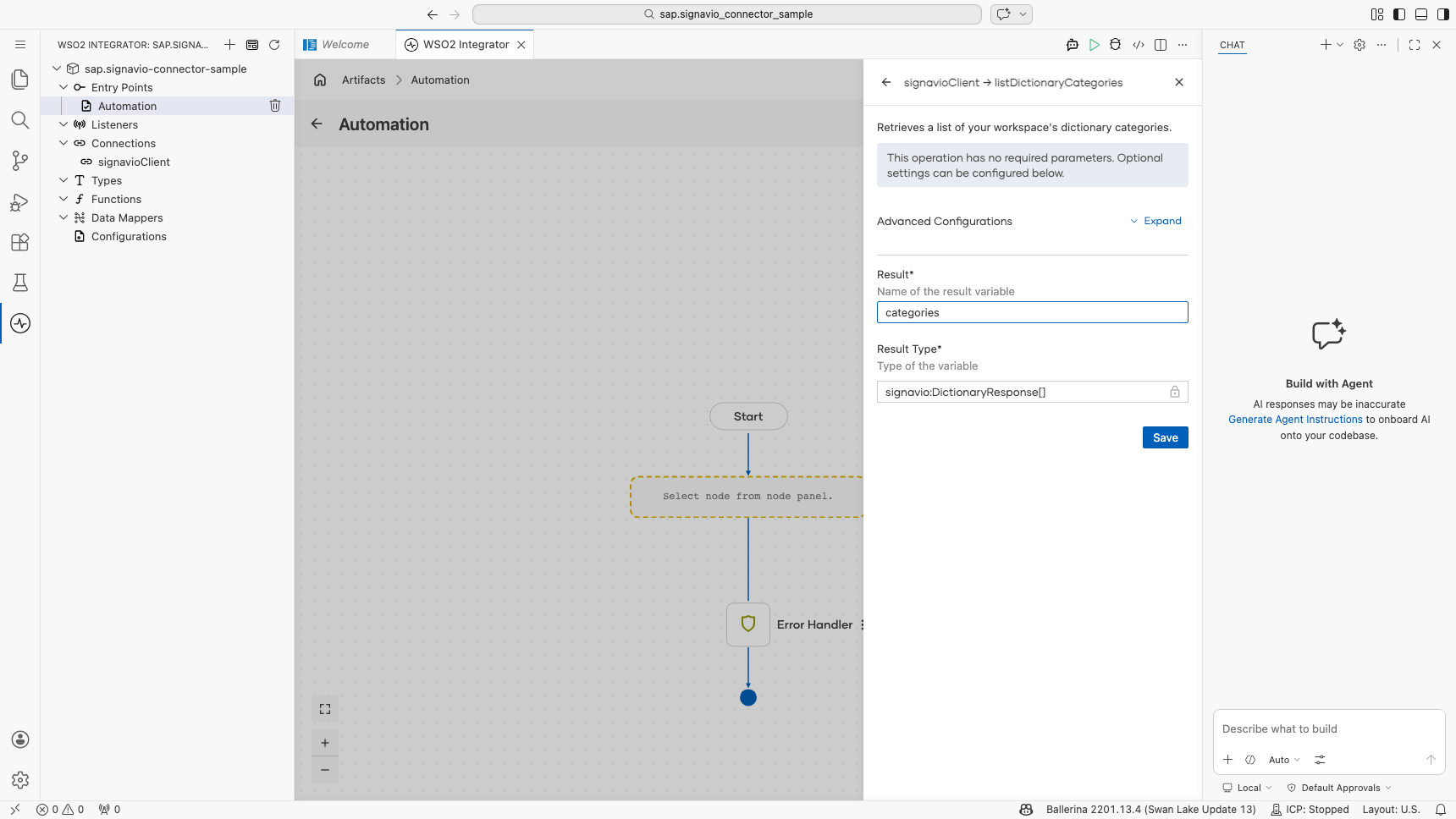
- Select Save to add the SAP Signavio operation step to the automation flow.
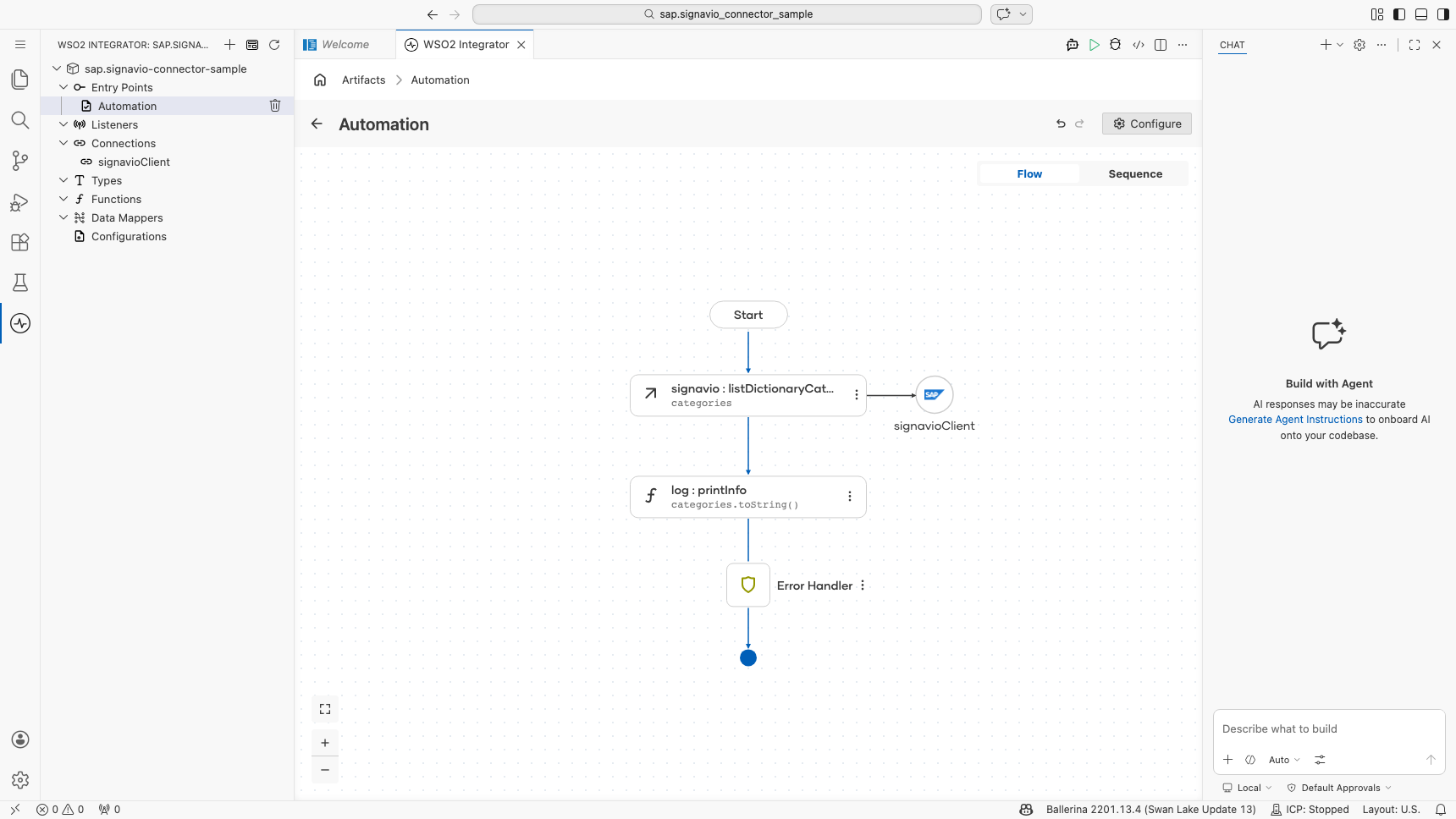
Step 8: Log the List Dictionary Categories result
Add a log action for the returned value, then return to the visual flow.
Try it yourself
Try this sample in WSO2 Integration Platform.

More code examples
The SAP Signavio connector offers practical examples illustrating its use in various scenarios.
Explore these examples, covering the following use cases:
- Process model export: Browses the workspace folders and exports a process model as diagram JSON and BPMN 2.0 XML.
- Dictionary entry management: Creates a dictionary entry, lists the entries of its category, and retrieves the entry's details.
- Business process extraction: Signs in to a Process Manager workspace and collects the Business Process Level 2 and Level 3 models for a downstream Ardoq mapping step.