Example
What you'll build
Build an integration that connects to SAP SuccessFactors Employee Central and retrieves background community records through the SAP SuccessFactors Employee Central Employee Profile connector. The integration exposes an automation entry point that calls the operation and stores the result in a variable you can process further.
Operations used:
- List Background Communities : Queries the Background_Community collection and returns a page of entities, optionally filtered, sorted, and paged through OData query options.
Architecture
Prerequisites
- Access to a SAP SuccessFactors OData API server (see the setup guide)
- A company ID, username, and password, or OAuth 2.0 credentials
Setting up the SAP SuccessFactors Employee Central Employee Profile integration
New to WSO2 Integrator? Follow the Create a New Integration guide to set up your integration first, then return here to add the connector.
Adding the SAP SuccessFactors Employee Central Employee Profile connector
Step 1: Open the connector palette
- Select Add Artifact.
- Select Connection to open the connector search palette.
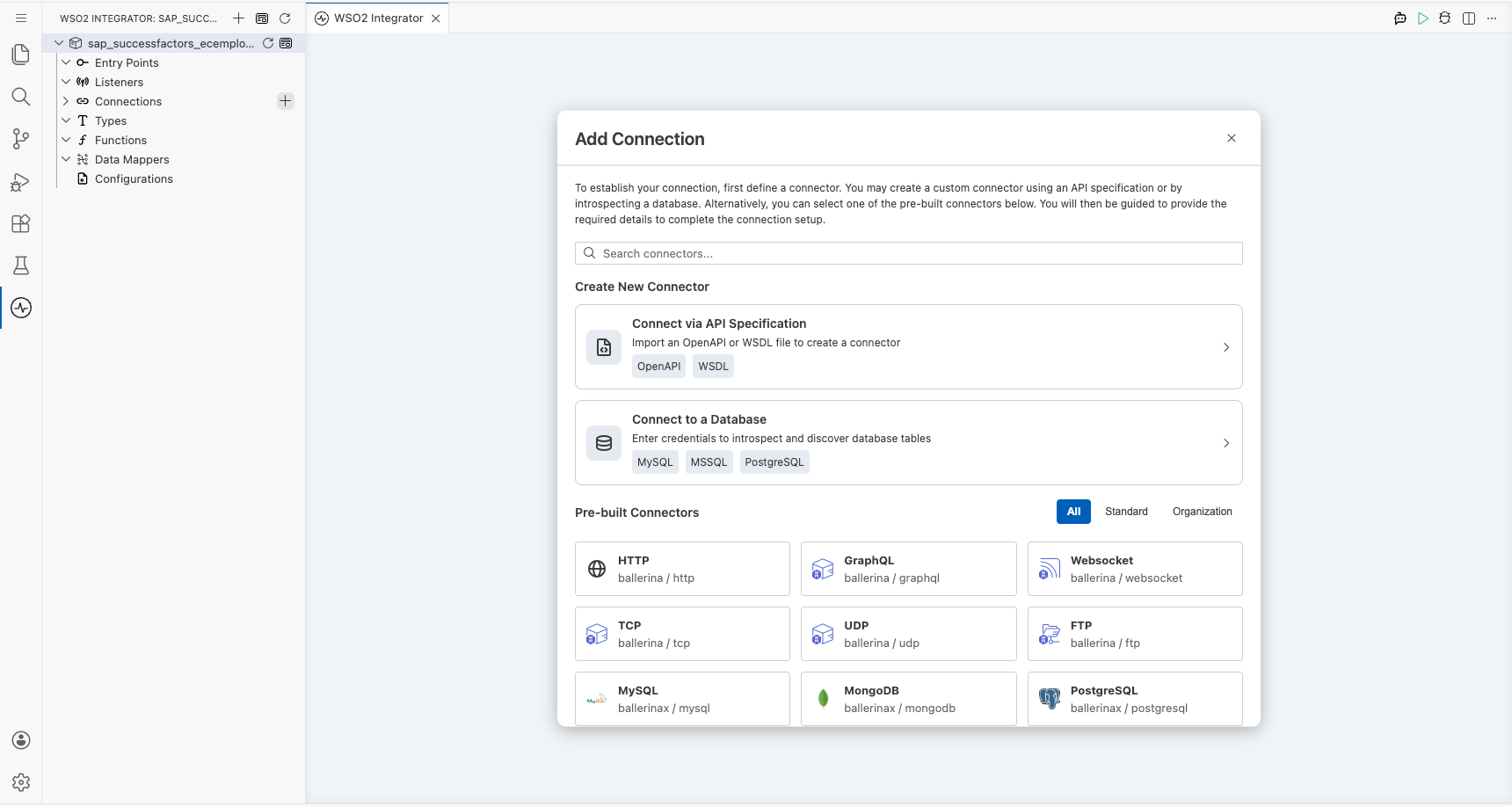
Step 2: Select the SAP SuccessFactors Employee Central Employee Profile connector
- Enter
ecemployeeprofilein the search field. - Select the Ecemployeeprofile connector card.
Configuring the SAP SuccessFactors Employee Central Employee Profile connection
Step 3: Bind the connection parameters to configurable variables
Bind every required connection field to a configurable variable.
- Config : Expression containing the
authcredentials for the SAP SuccessFactors OData server — bindusernameto asfUsernameconfigurable variable andpasswordto asfPasswordconfigurable variable. - Hostname : The SAP SuccessFactors OData API server hostname — bind to a
sfHostnameconfigurable variable.
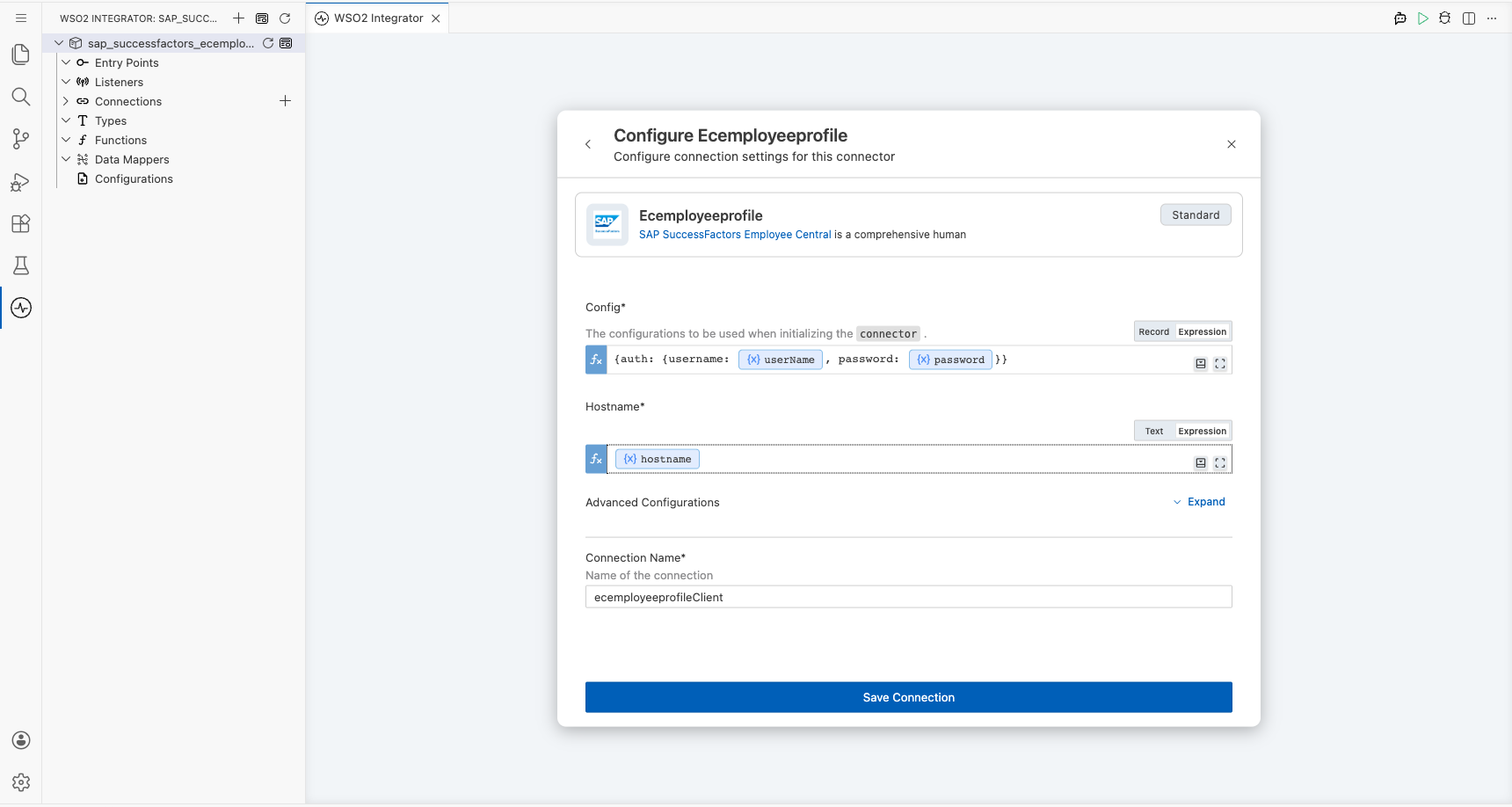
Step 4: Save the connection
Select Save Connection and verify that ecemployeeprofileClient appears in the Connections section.
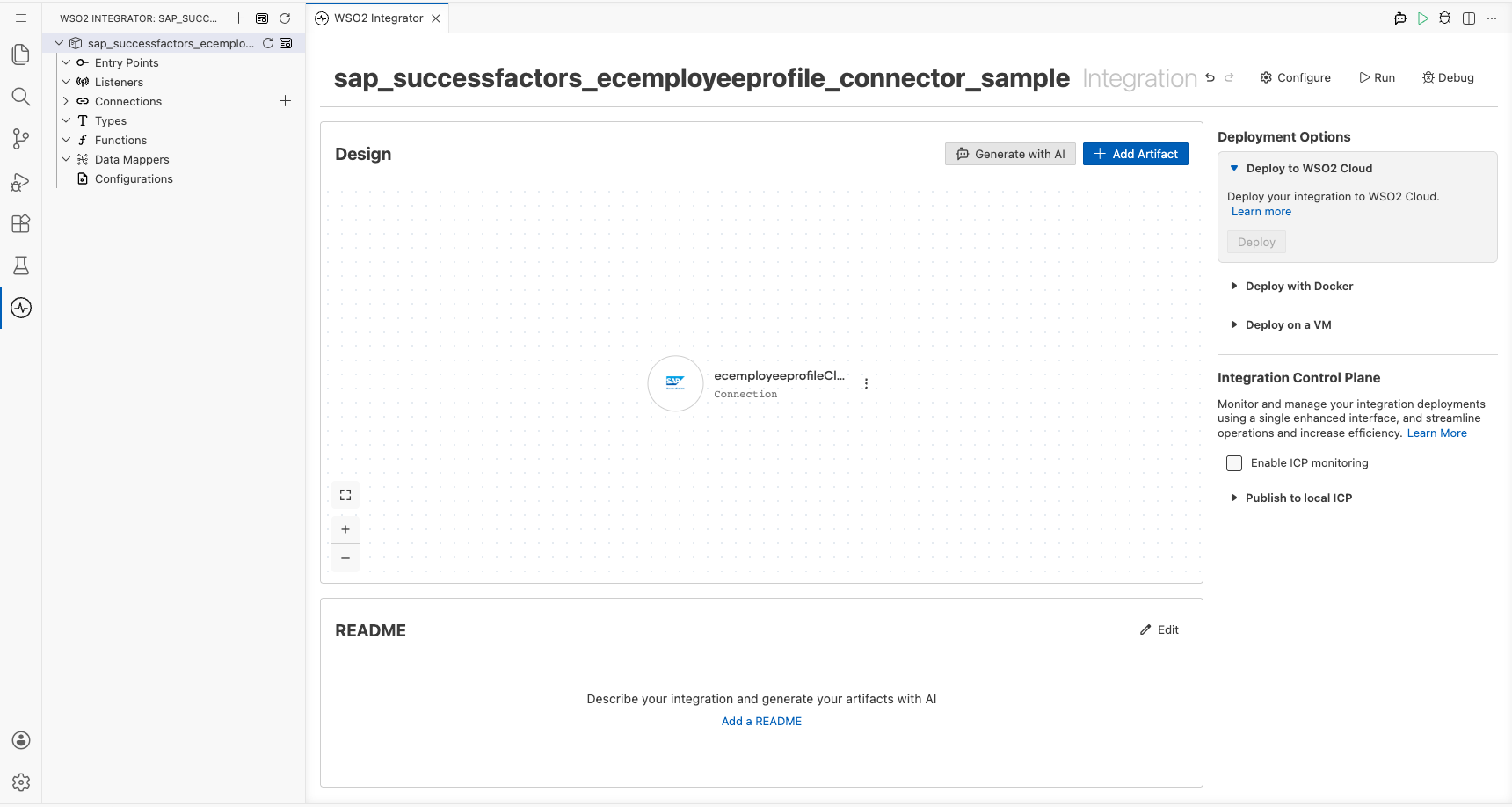
Step 5: Set actual values for your configurables
- Select Configurations at the bottom of the project tree under Data Mappers.
- Enter a value for each configurable listed below before you run the integration.
- sfUsername (
configurable string) : The SAP SuccessFactors login username, formatted as<username>@<companyID>. - sfPassword (
configurable string) : The SAP SuccessFactors login password. - sfHostname (
configurable string) : The SAP SuccessFactors OData API server hostname, for exampleapi68sales.successfactors.com.
Configuring the SAP SuccessFactors Employee Central Employee Profile List Background Communities operation
Step 6: Add an automation entry point
- Select Add Artifact.
- Select Automation.
- Select Create to accept the default settings.
Step 7: Expand the connection and configure the List Background Communities operation
- Select the + icon between Start and Error Handler.
- Expand ecemployeeprofileClient to display its operations.
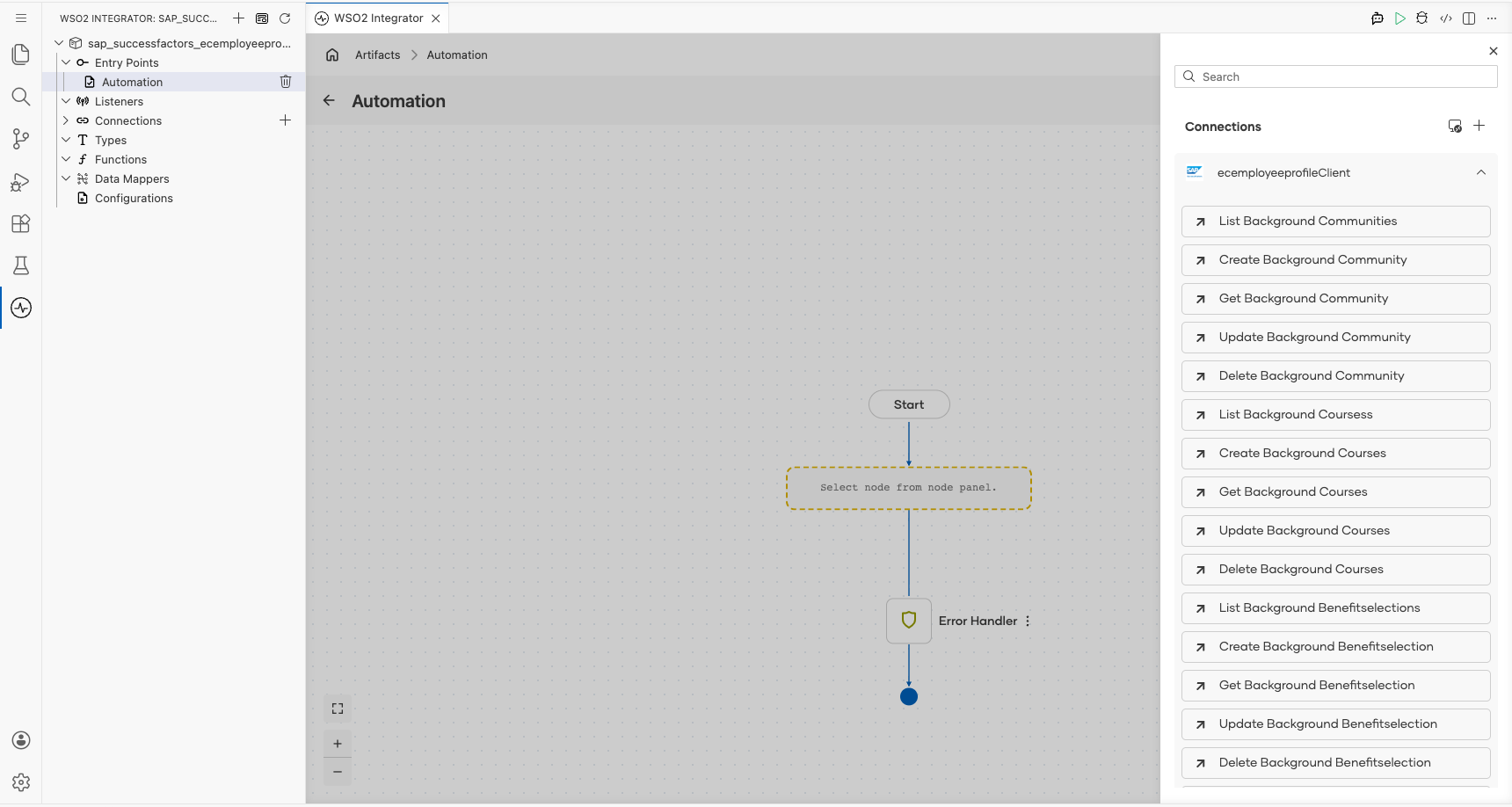
- Select List Background Communities. The operation has no required parameters, so review the auto-generated result variable.
- Result : Name of the variable that stores the returned Background_Community records.
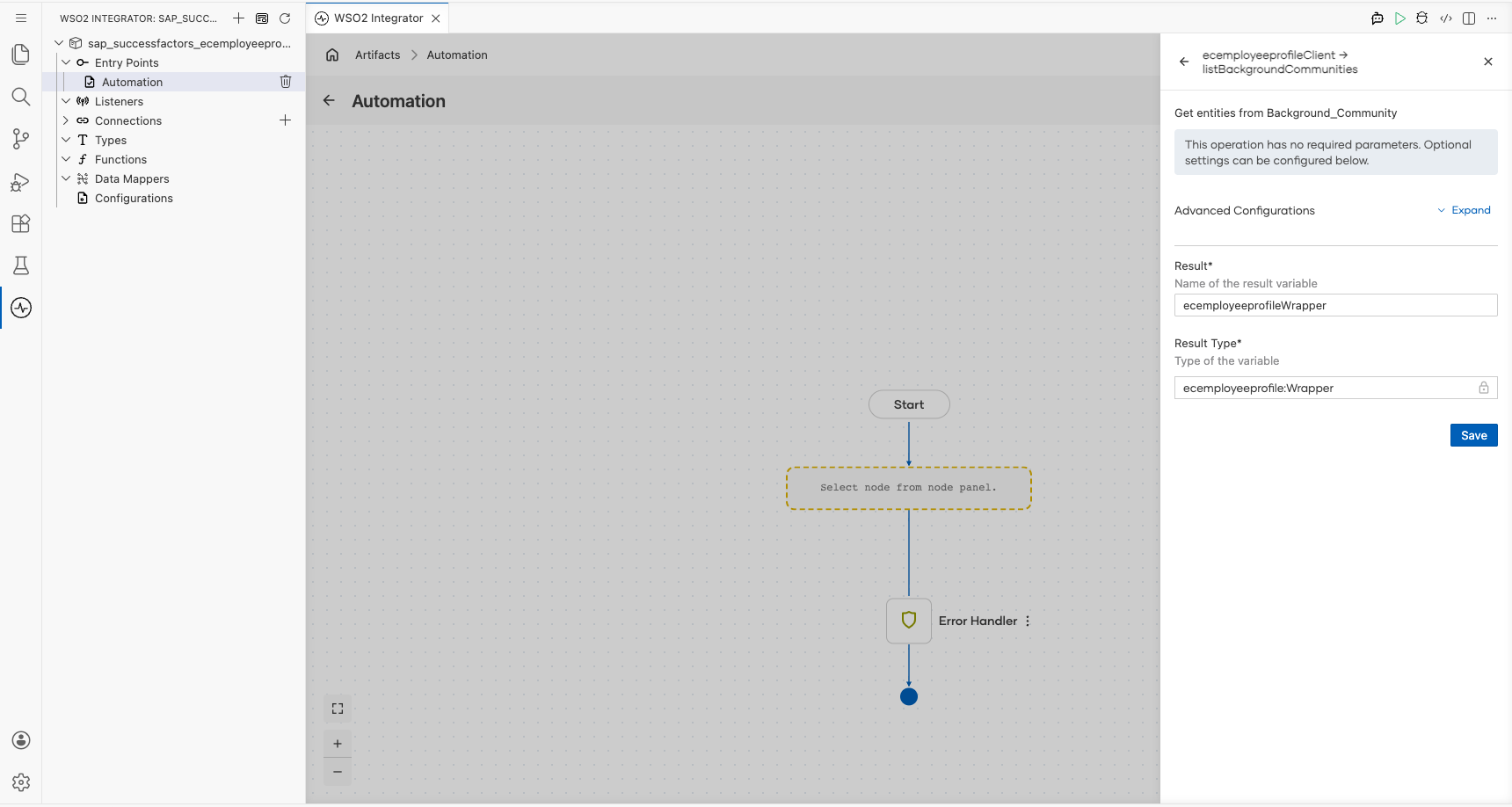
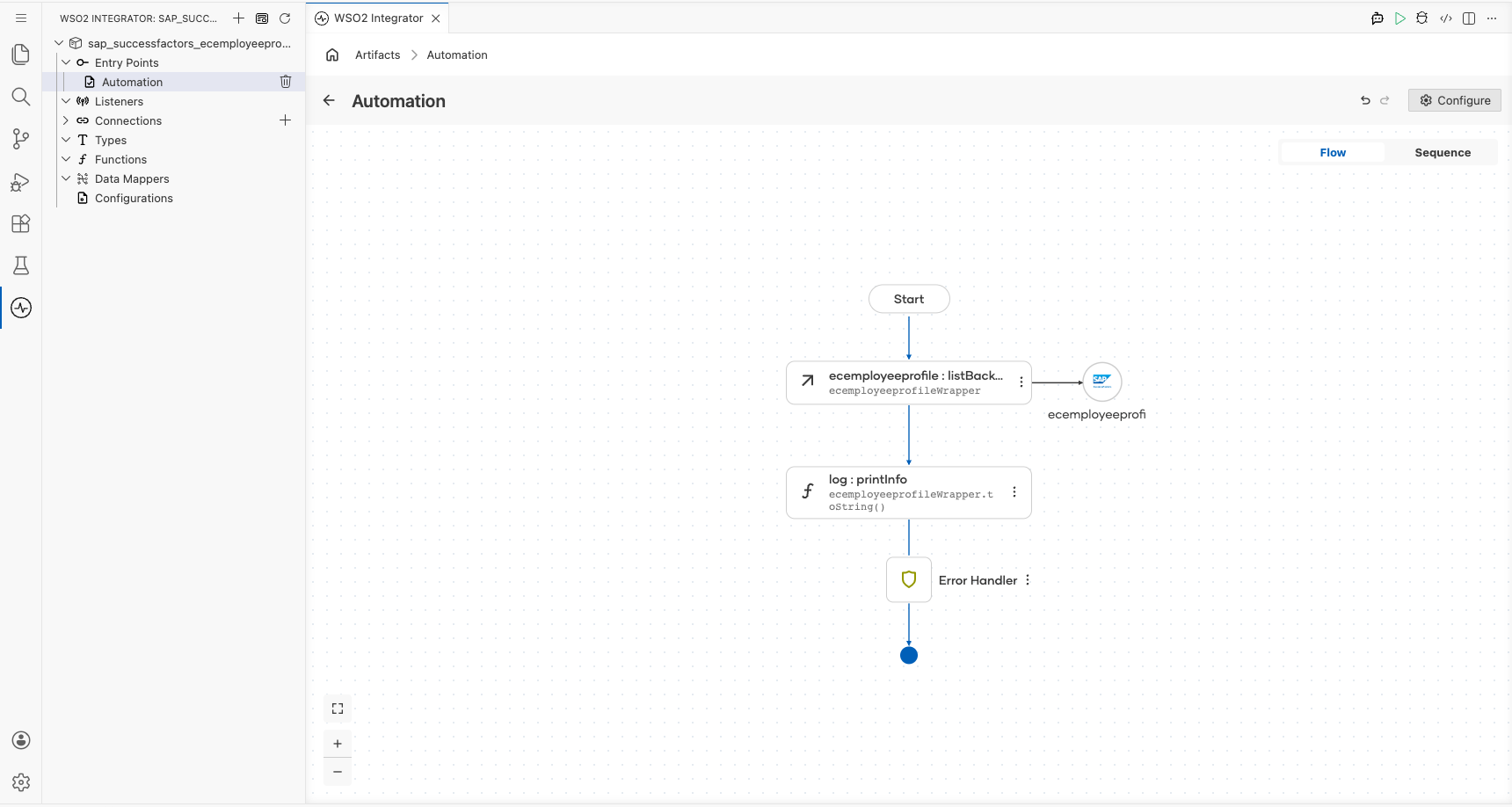
- Select Save. The operation step appears in the automation flow between Start and Error Handler.
Try it yourself
Try this sample in WSO2 Integration Platform.

More code examples
The SAP SuccessFactors Employee Central connectors provide practical examples illustrating usage in various scenarios. Explore these examples, covering use cases like syncing employee data and sending notifications.
- Google Sheets to SuccessFactors : Read employee records from a Google Sheets roster and create Personal Information records in SuccessFactors.
- SuccessFactors to Slack : Poll SuccessFactors for newly onboarded employees and send welcome notifications to a Slack channel.