Example
What you'll build
In this example, you'll build an automation that sends a transactional email through Amazon SES. The integration assembles a simple message from a subject and a plain-text body, hands it to Amazon SES for delivery, and logs the message ID that Amazon SES returns on acceptance. Sender and recipient addresses are bound to configurable variables, so the same integration can send from any verified identity without a code change.
Operations used:
- Send Email : Sends an email message that Amazon SES assembles from the supplied subject and body
Architecture
Prerequisites
- An active AWS account with access to the Amazon SES console
- A verified email identity to send from. Amazon SES only sends from an address or domain you have proved you own, so verify one under Identities > Create identity in the Amazon SES console.
- A recipient address that Amazon SES will accept. A new account is in the Amazon SES sandbox, where mail can be sent only to verified addresses, so verify the recipient as well or request production access first.
- An IAM user with an access key, granted the
ses:SendEmailaction. See the Setup Guide for the full policy.
Setting up the AWS SES integration
New to WSO2 Integrator? Follow the Create a New Integration guide to set up your integration first, then return here to add the connector.
Adding the AWS SES connector
Step 1: Open the connector palette
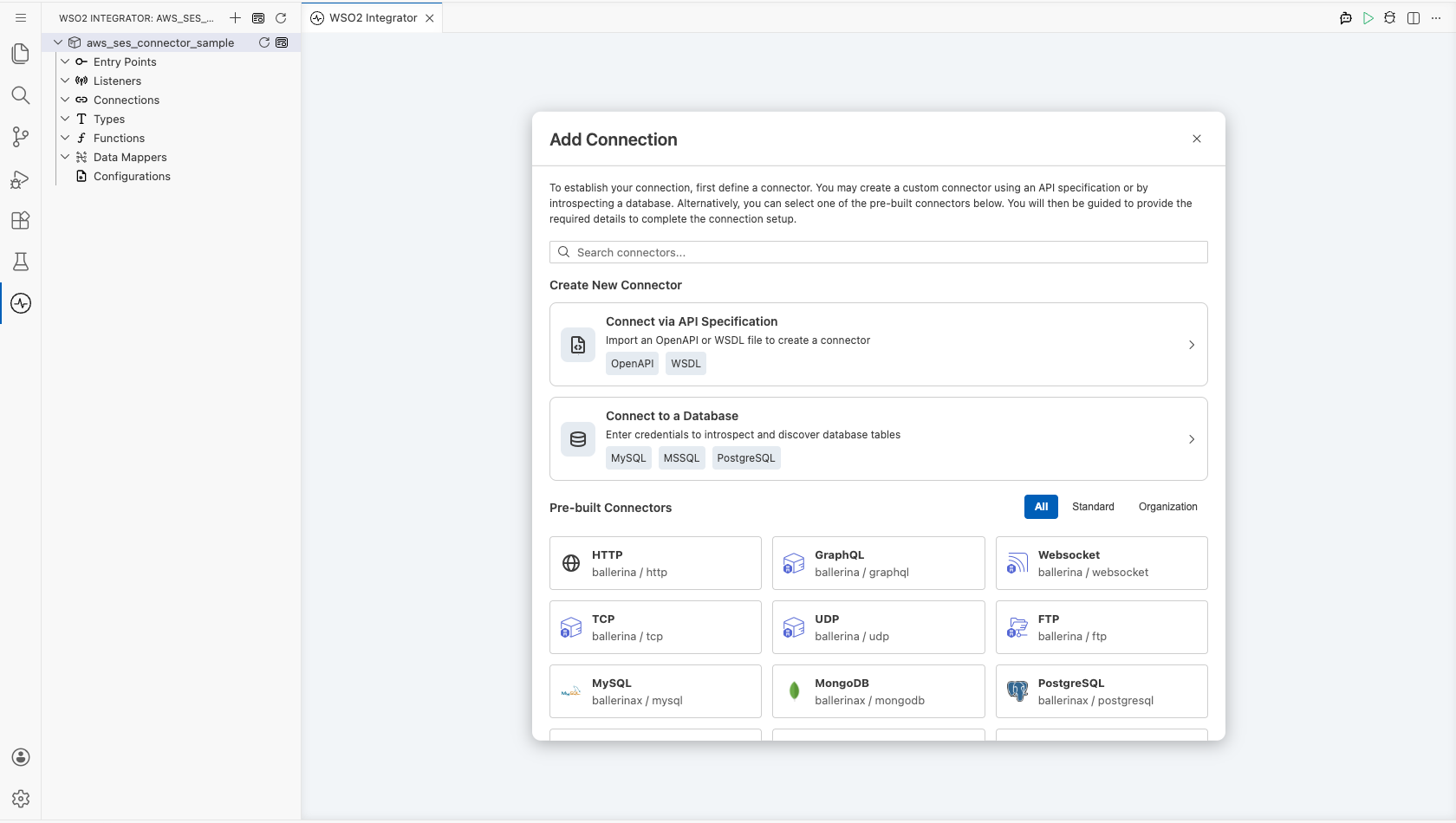
Select Add Connection in the Connections section.
Step 2: Select the AWS SES connector
- Enter
sesin the search field. - Select the Ses connector card.
Configuring the AWS SES connection
Step 3: Bind the connection parameters to configurable variables
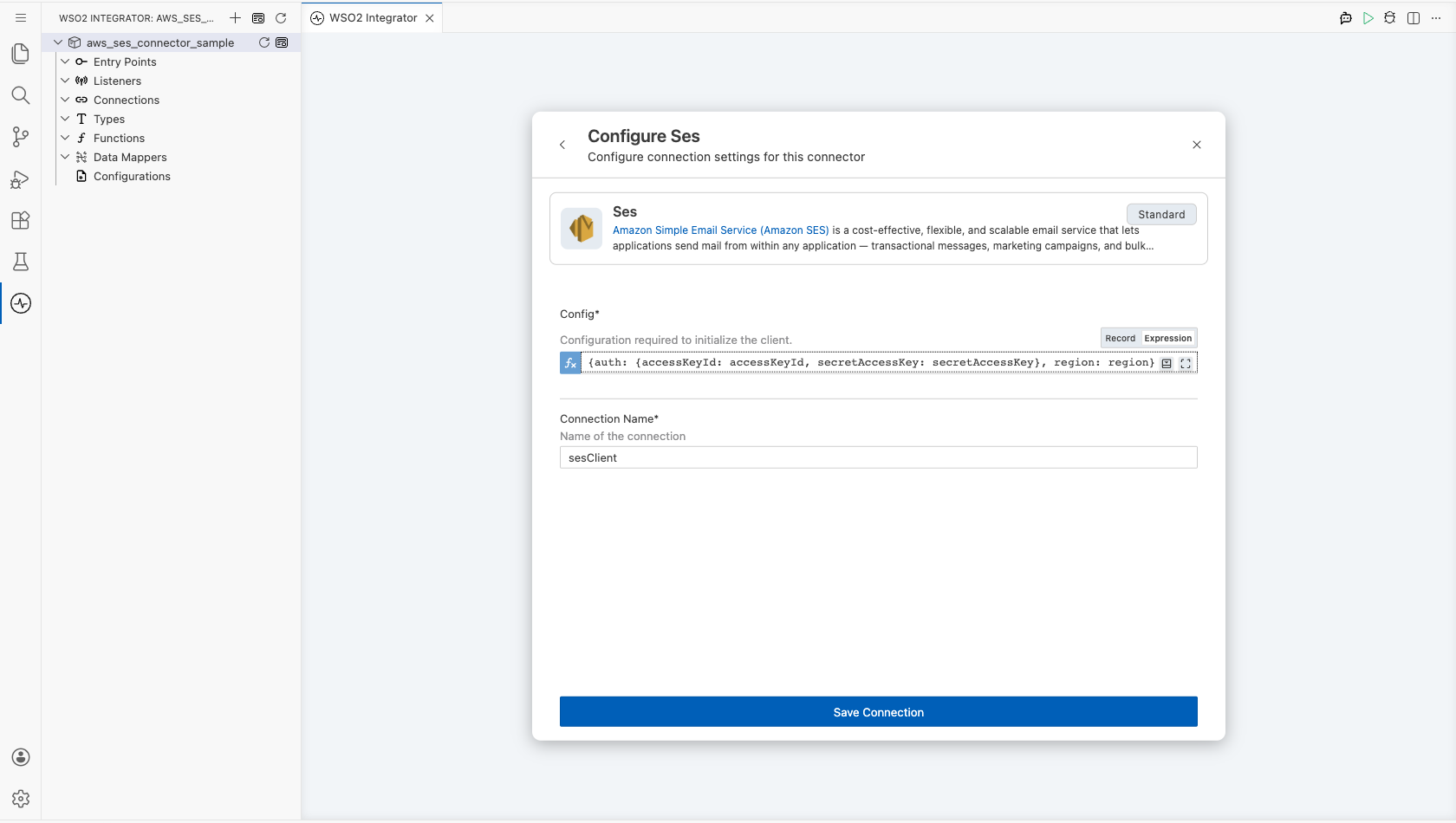
The connector takes its whole connection configuration as one record, so switch Config to Expression mode and supply a record that references a configurable variable for each credential and the Region.
- Config : The configuration required to initialize the client. Enter
{auth: {accessKeyId: accessKeyId, secretAccessKey: secretAccessKey}, region: region}, creating each configurable variable with New Configurable in the helper panel as you reference it. - Connection Name : The name the operations refer to this connection by. Enter
sesClient.
Step 4: Save the connection
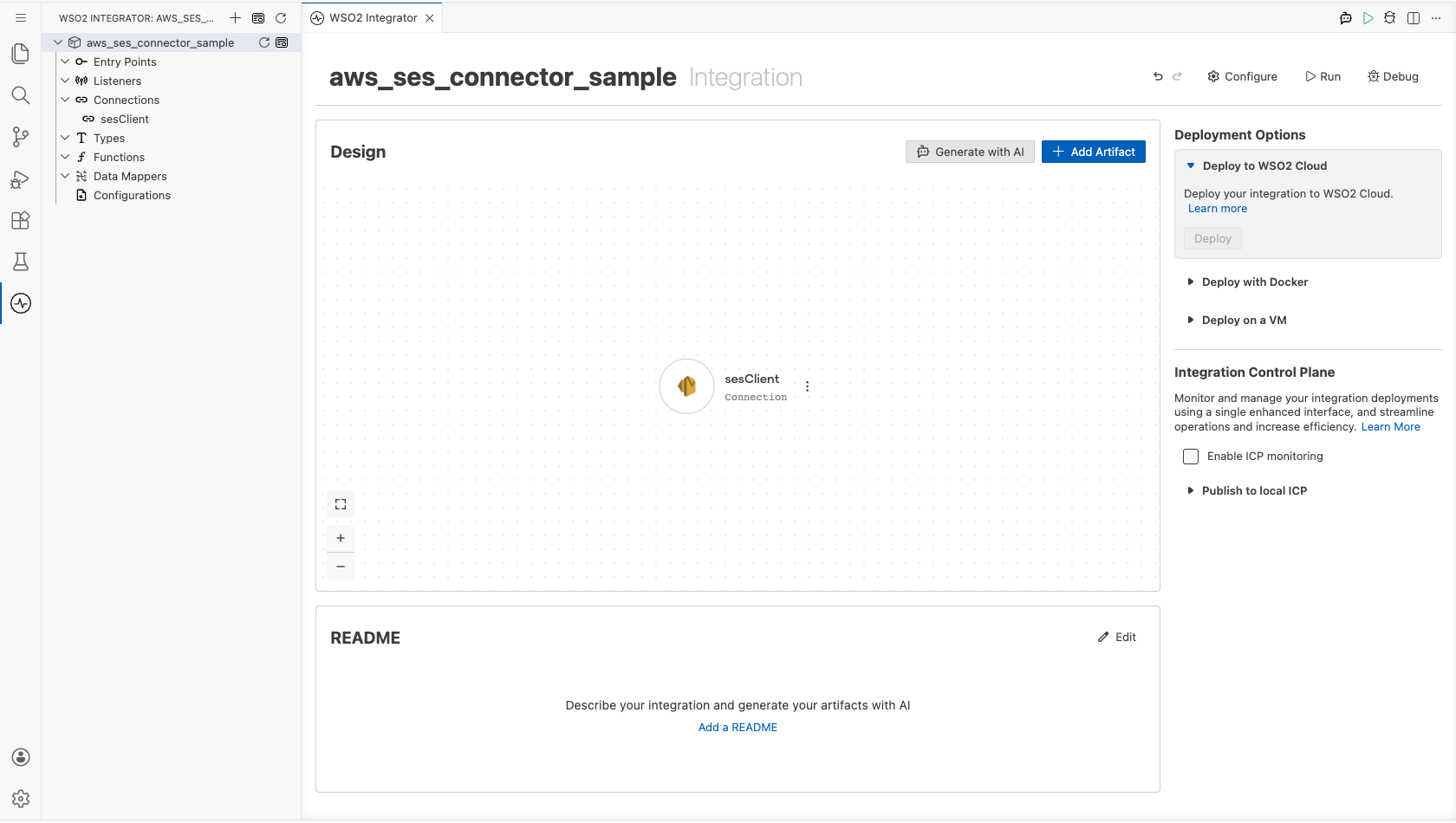
Select Save Connection and verify that the connection appears in the Connections section.
Step 5: Set actual values for your configurables
- Select Configurations at the bottom of the project tree under Data Mappers.
- Enter a value for each configurable listed below before you run the integration.
- accessKeyId (
string) : The access key ID of the IAM user - secretAccessKey (
string) : The secret access key of the IAM user - region (
string) : The AWS Region the Amazon SES identities live in, such asus-east-1 - senderEmail (
string) : The verified identity to send from - recipientEmail (
string) : The address to send the message to
Configuring the AWS SES send email operation
Step 6: Add an automation entry point
- Select Add Entry Point next to Entry Points.
- Select Automation.
- Select Create to accept the settings.
Step 7: Expand the connection and configure the send email operation
- Select Add Step in the automation flow.
- Expand sesClient to display its operations.
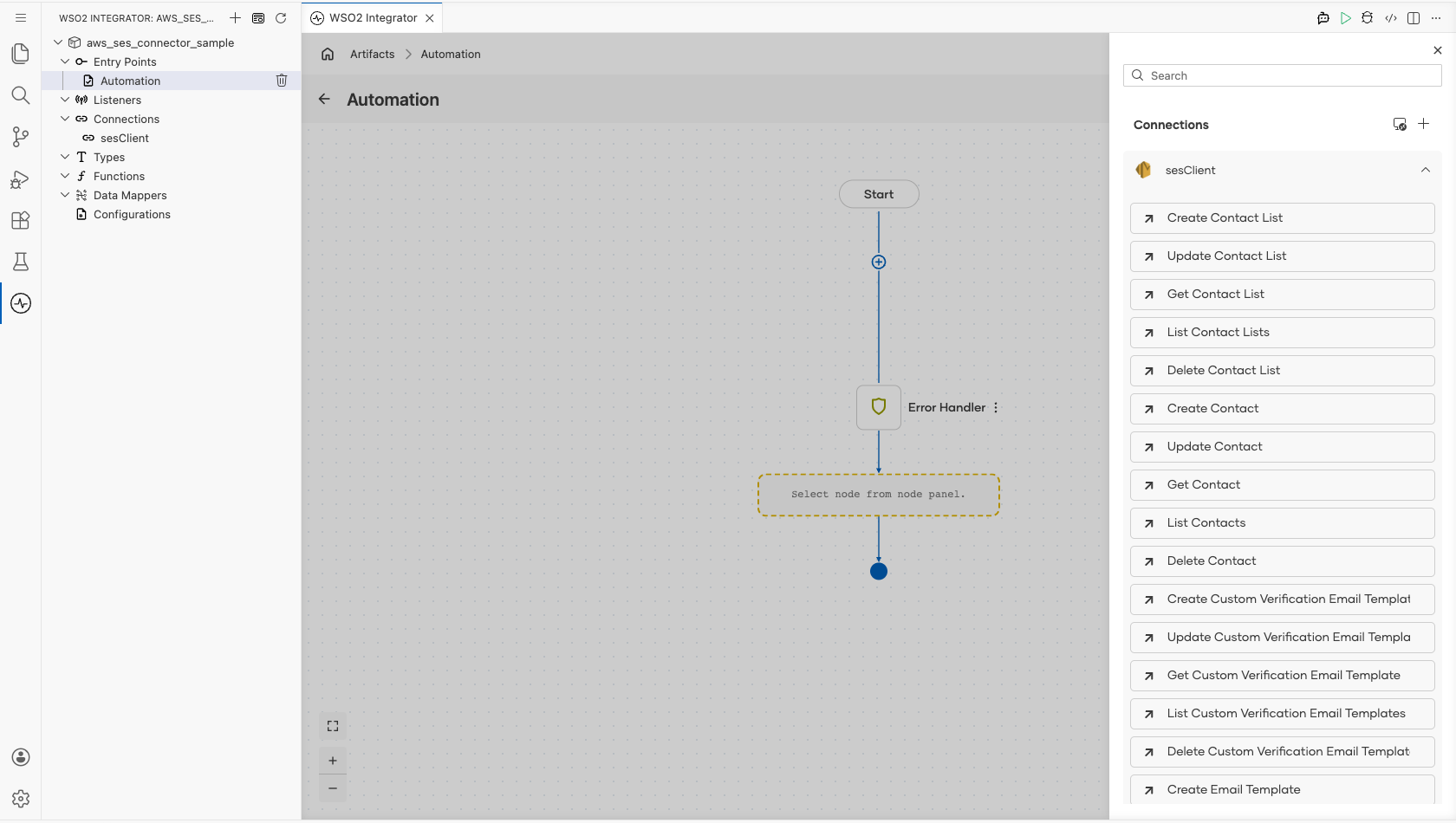
- Select Send Email and enter its required values.
- Request : The details of the message to send. Switch to Expression mode and enter
{fromEmailAddress: senderEmail, destination: {toAddresses: [recipientEmail]}, content: {simple: {subject: {data: "Hello from the WSO2 Integrator"}, body: {text: {data: "This message was sent with the Amazon SES connector."}}}}}. - Result : The name of the variable holding the response. Enter
sendEmailResponse.
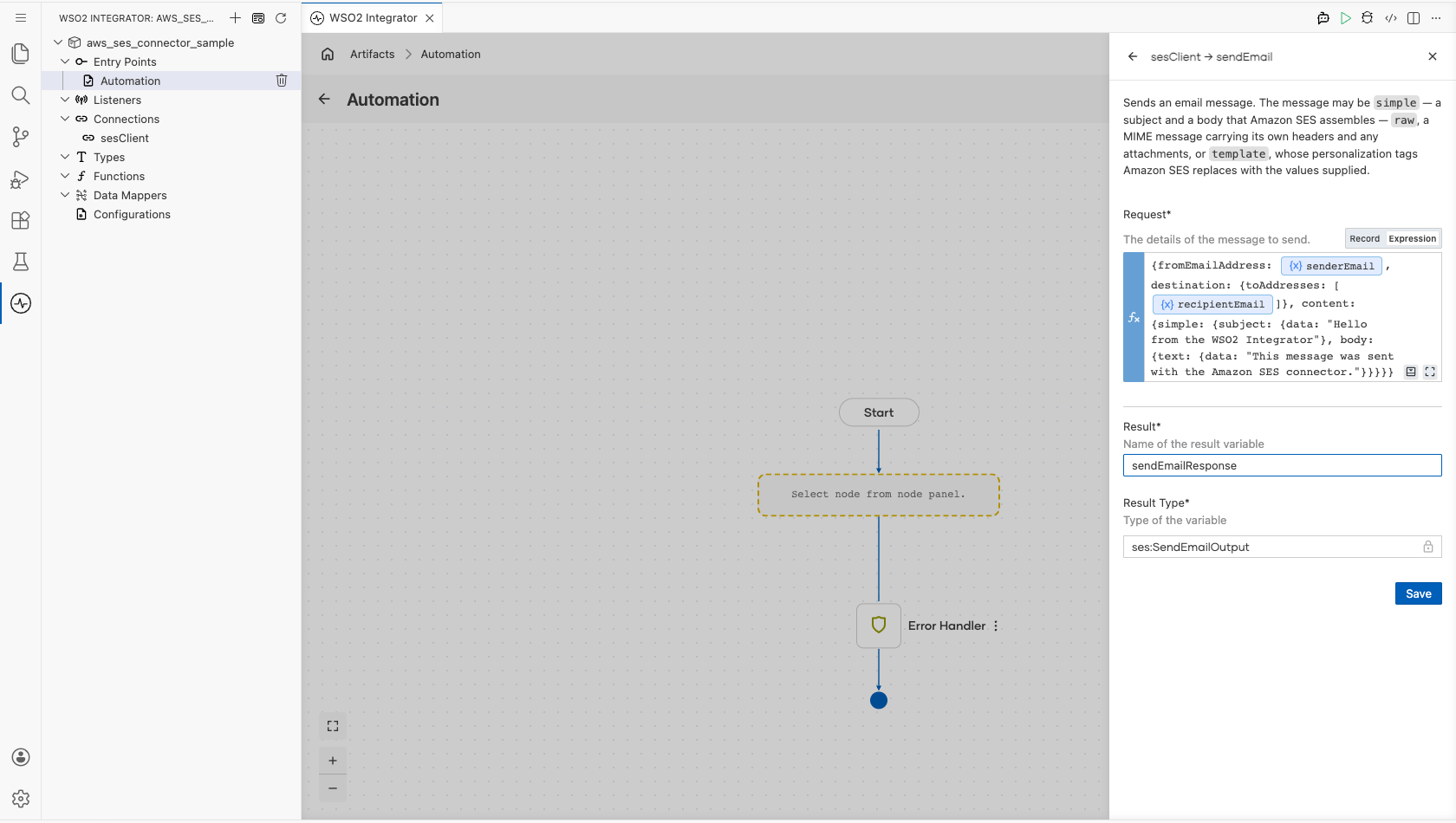
- Select Save.
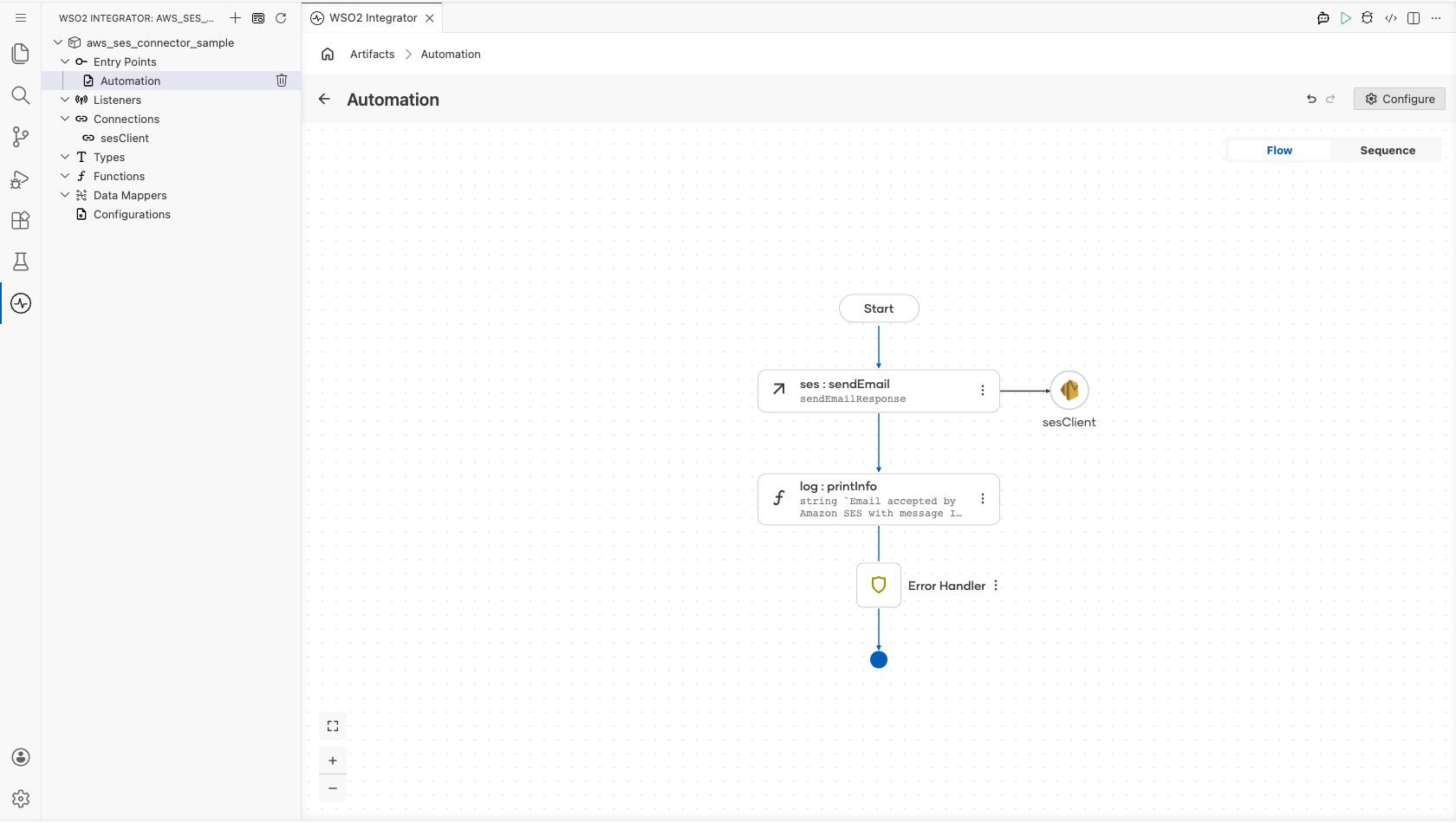
Step 8: Log the send email result
Add a Log Info step after the operation and set Msg to Email accepted by Amazon SES with message ID: ${sendEmailResponse.messageId.toString()}, then return to the visual flow.
Try it yourself
Try this sample in WSO2 Integration Platform.

More code examples
The aws.ses connector provides practical examples illustrating usage in various scenarios. Explore these examples.
-
Send a transactional email This example shows how to send an order confirmation as a one-off HTML message, through a stored template, and as a bulk send with per-recipient replacement values.
-
Manage a contact list This example shows how to run a newsletter list end to end: create the list and its topic, subscribe contacts, send only to the ones opted in, and let the unsubscribe link maintain the list. It runs on the default credential provider chain, so it works unchanged on EC2, ECS, and EKS.