Setup Guide
This guide walks you through creating a Mailchimp account, enabling the transactional email feature, and generating a Mandrill API key required to use the Mailchimp Transactional connector.
Prerequisites
- A Mailchimp account. If you do not have one, sign up for free.
Step 1: Log in to your Mailchimp account
-
Log in to your Mailchimp account at login.mailchimp.com.
-
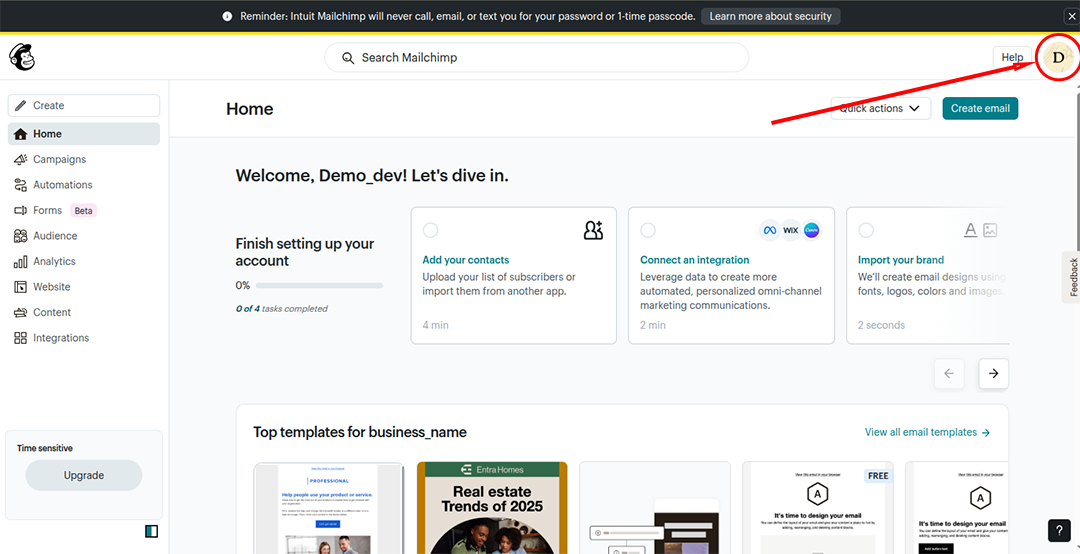
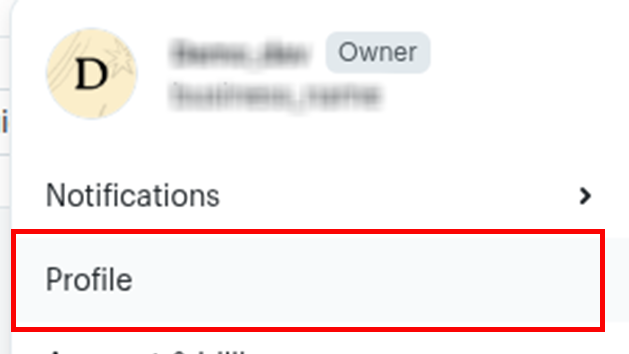
Select your profile icon in the top-right corner to open the account menu.
Step 2: Enable transactional email
-
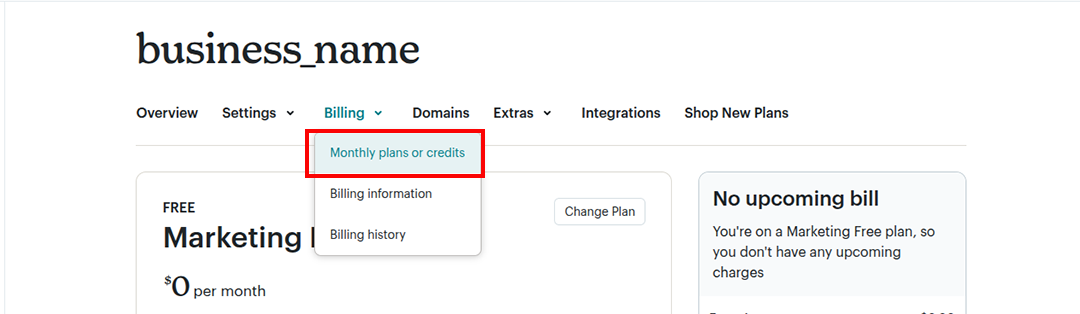
In the account menu, select Billing.
-
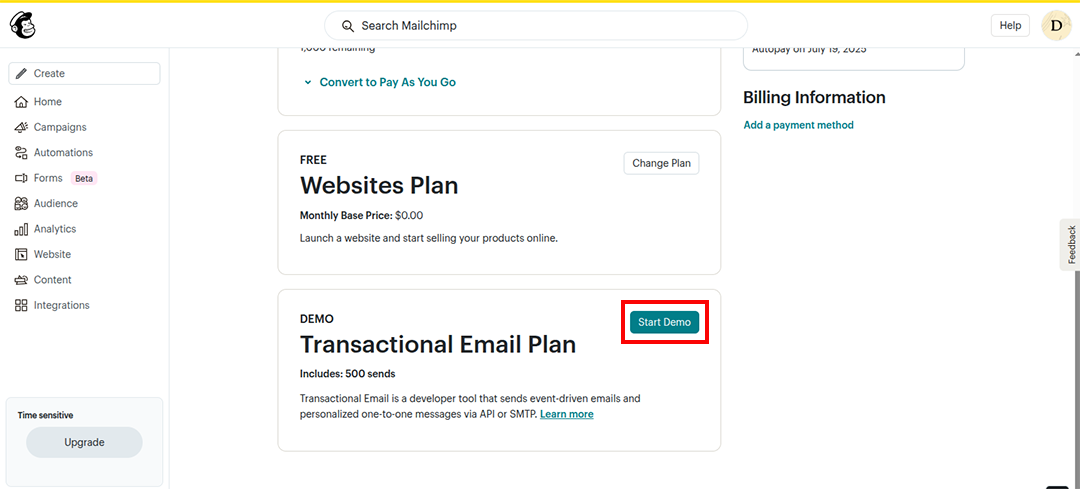
Under Monthly plans or credits, select the Transactional Email Plan (you can start with the demo plan).
Step 3: Generate a Mandrill API key
-
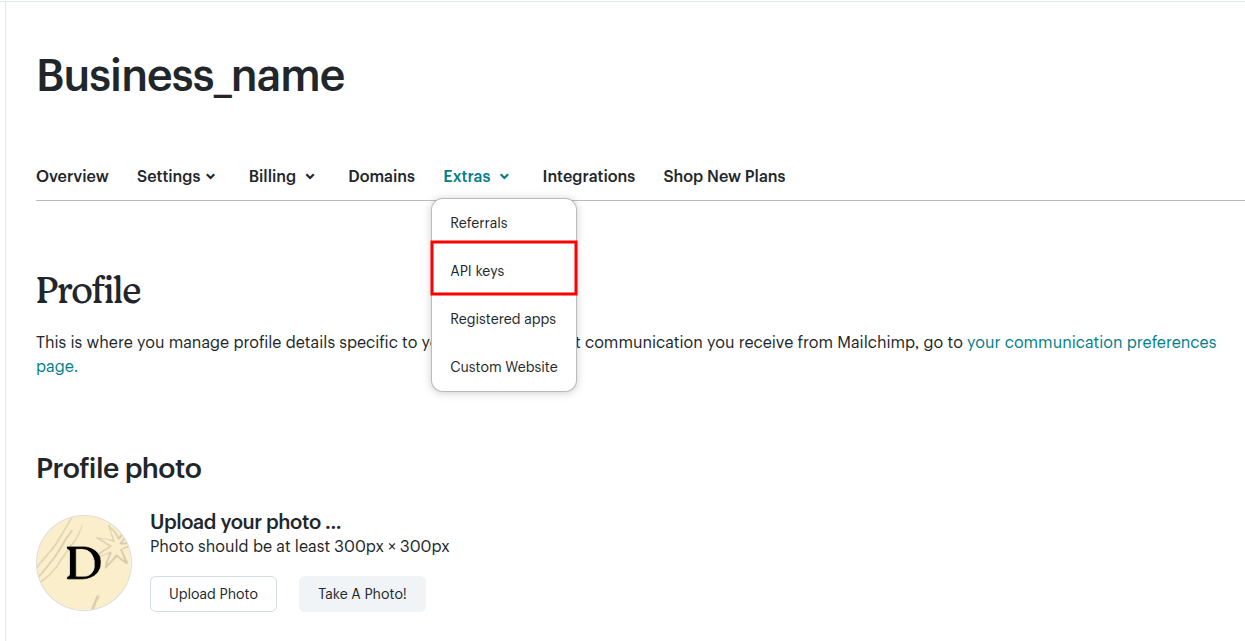
Navigate to the Extras section and select API keys.
-
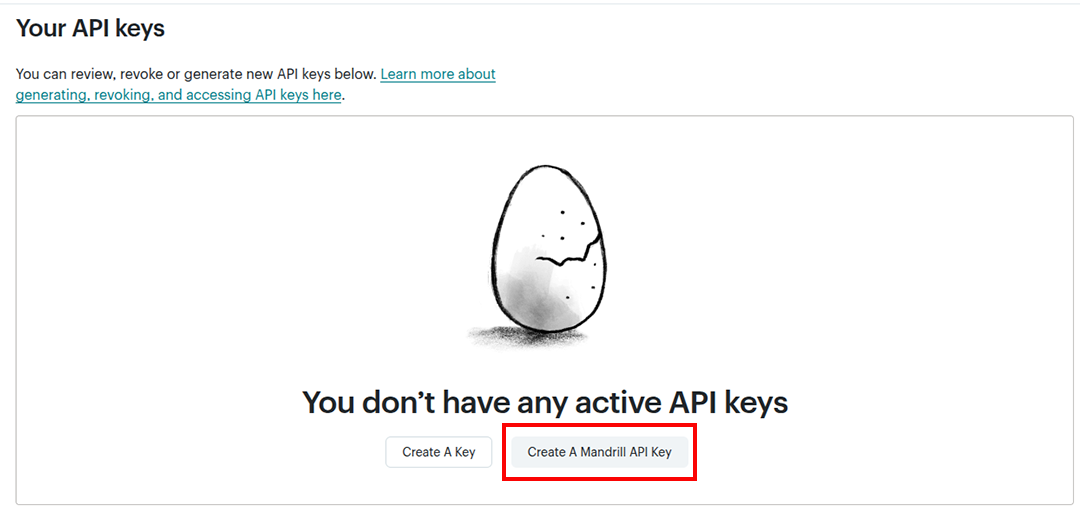
Select Create A Mandrill API Key (not the regular API key). You are redirected to the MandrillApp dashboard.
-
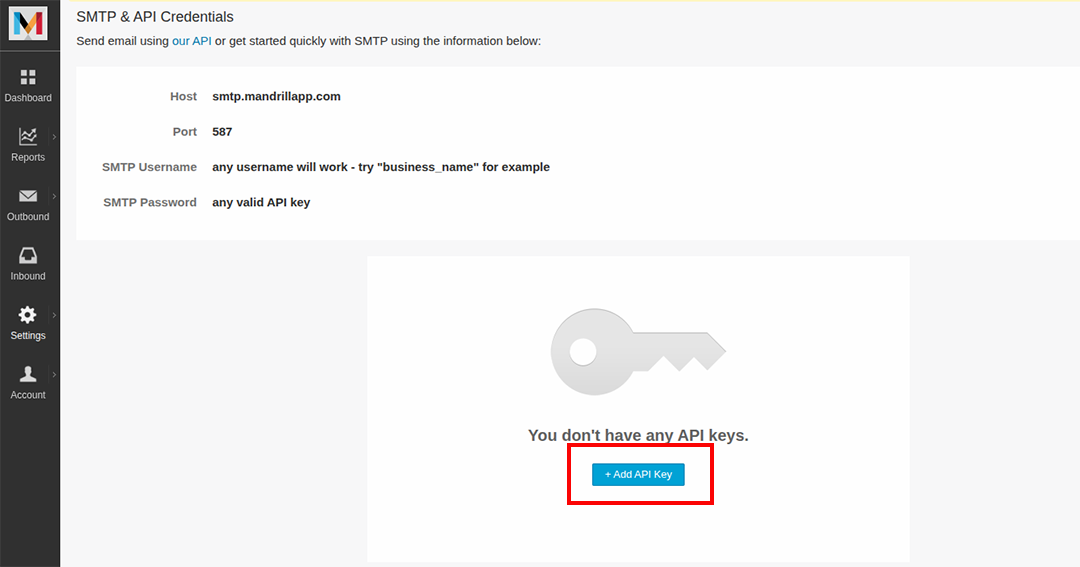
In the MandrillApp dashboard, select + Add API Key to generate your key.
-
Copy the generated API key.
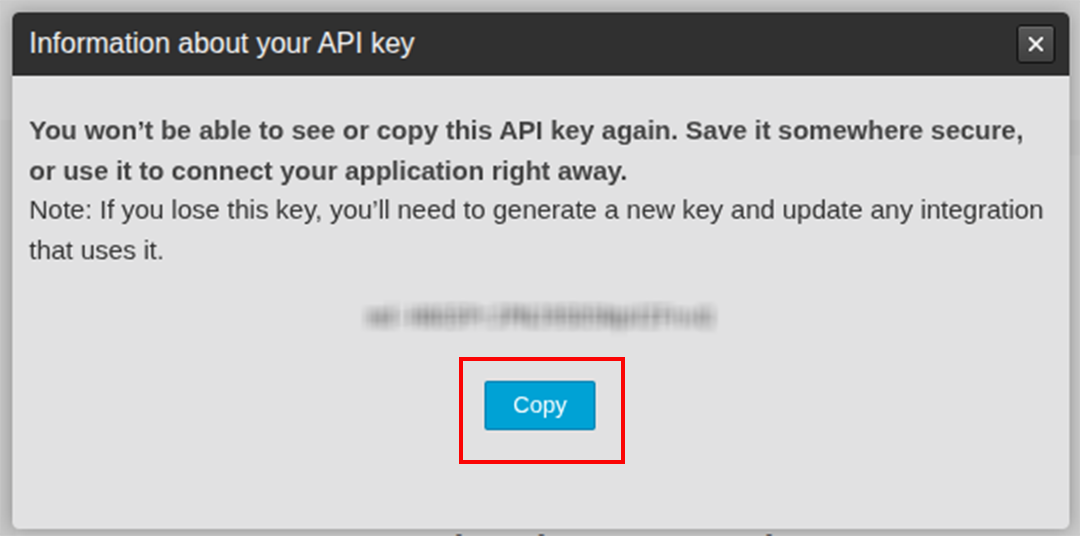
Store your Mandrill API key securely. Do not commit it to source control. Use Ballerina's configurable feature and a Config.toml file to supply it at runtime.
What's next
- Action reference: Available operations