Example
What you'll build
Build a Twitter (X) integration that posts a tweet using the ballerinax/twitter connector in WSO2 Integrator's low-code canvas. The integration uses an Automation entry point to call the Creation of a Post operation via a securely configured twitterClient connection.
Operations used:
- Creation of a Post : Creates a new tweet on Twitter (X) using a
TweetCreateRequestpayload
Architecture
Prerequisites
- An active Twitter (X) Developer account with a Bearer Token
Setting up the Twitter integration
New to WSO2 Integrator? Follow the Create a New Integration guide to set up your integration first, then return here to add the connector.
Adding the Twitter connector
Step 1: Open the add connection palette
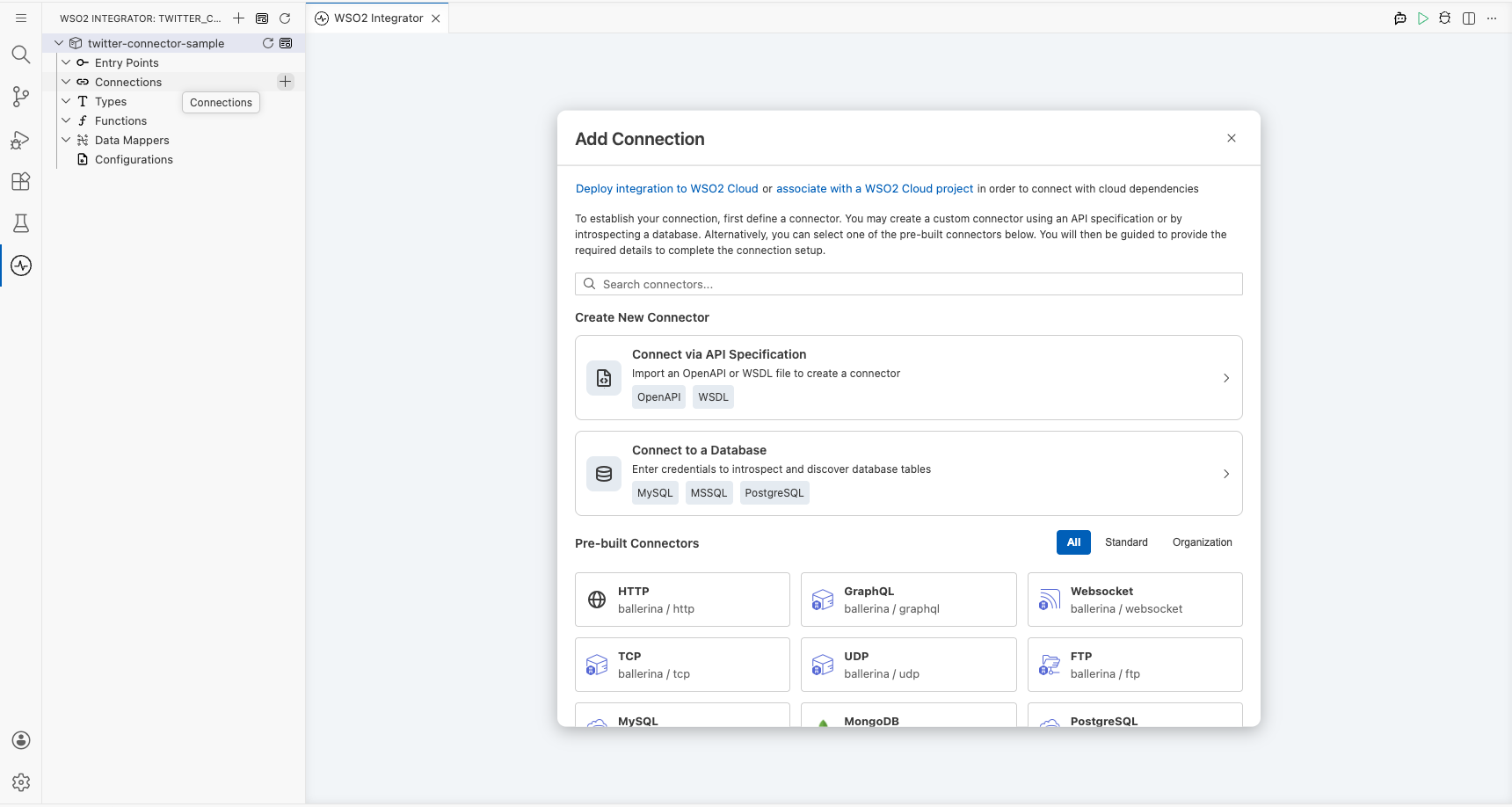
In the WSO2 Integrator sidebar, hover over the Connections section and select Add Connection (the + icon) to open the Add Connection palette.
Step 2: Select the Twitter connector
Search for twitter in the palette and select ballerinax/twitter from the results to open the connection configuration form.
Configuring the Twitter connection
Step 3: Fill in the connection parameters
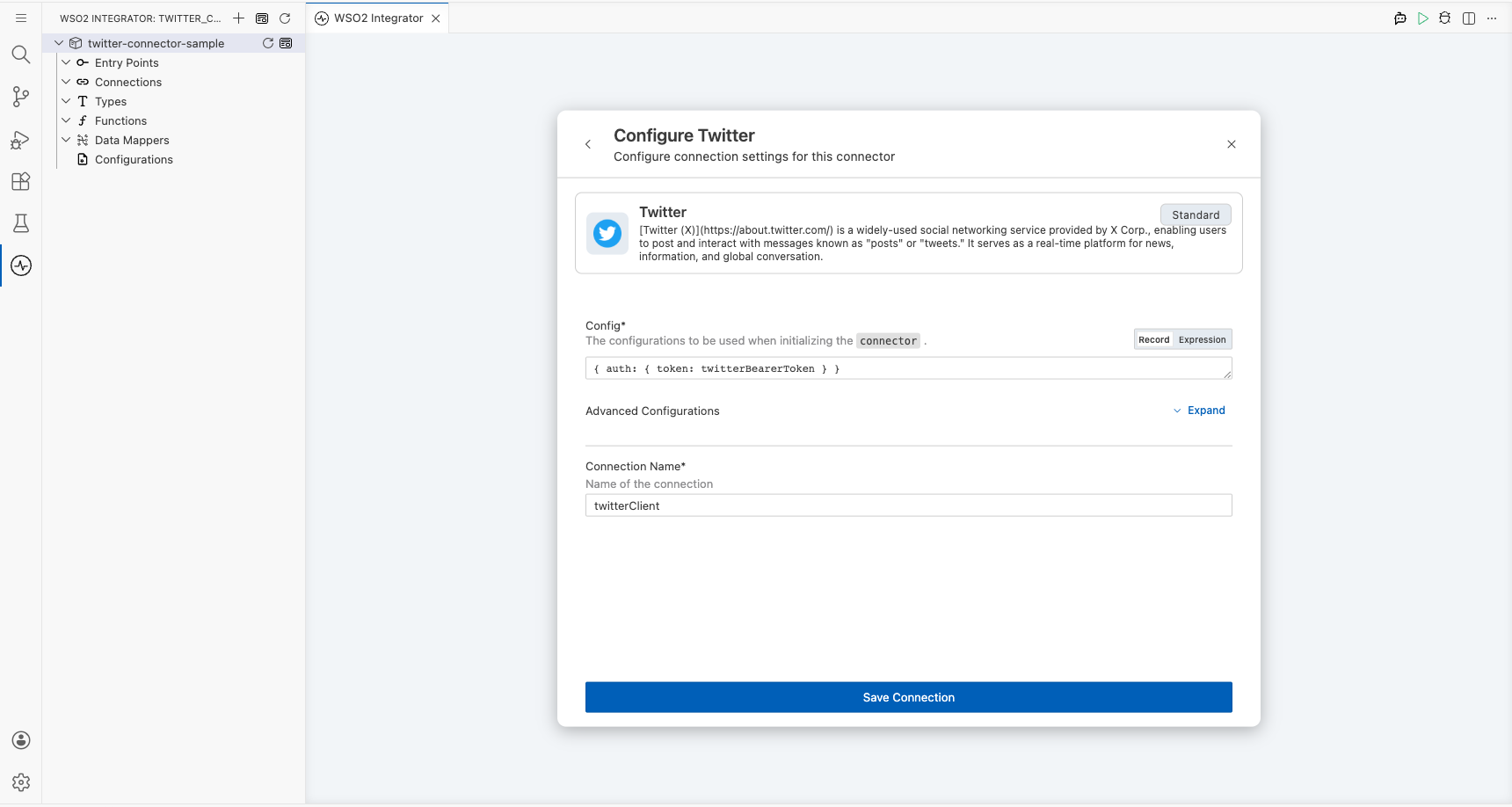
Enter the connection details, binding each field to a configurable variable:
- connectionName : Enter
twitterClientas the connection name - config : Select the Record editor icon to open the Record Configuration modal, expand auth, select BearerTokenConfig, and for the
tokenfield select + New Configurable to create a new configurable variable namedtwitterBearerTokenof typestring
Step 4: Save the connection
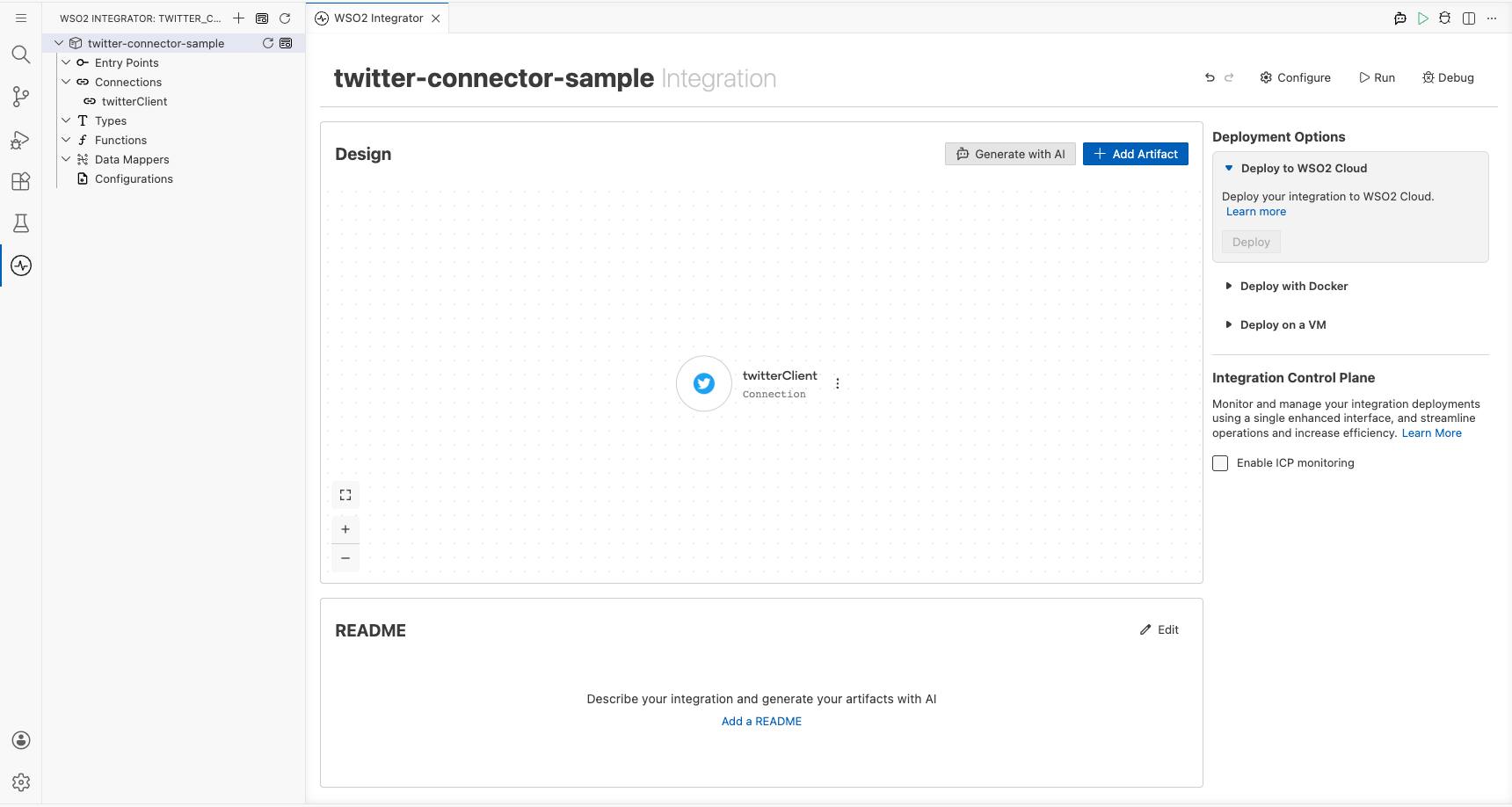
Select Save to persist the connection. The twitterClient connection appears in the Connections panel.
Step 5: Set actual values for your configurables
- In the left panel, select Configurations.
- Set a value for each configurable listed below.
- twitterBearerToken (string) : Your Twitter (X) Developer Bearer Token with write permissions
Configuring the Twitter creation of a post operation
Step 6: Add an automation entry point
- In the sidebar, hover over Entry Points and select Add Entry Point.
- Select Automation from the Artifacts panel.
- Leave the defaults and select Create.
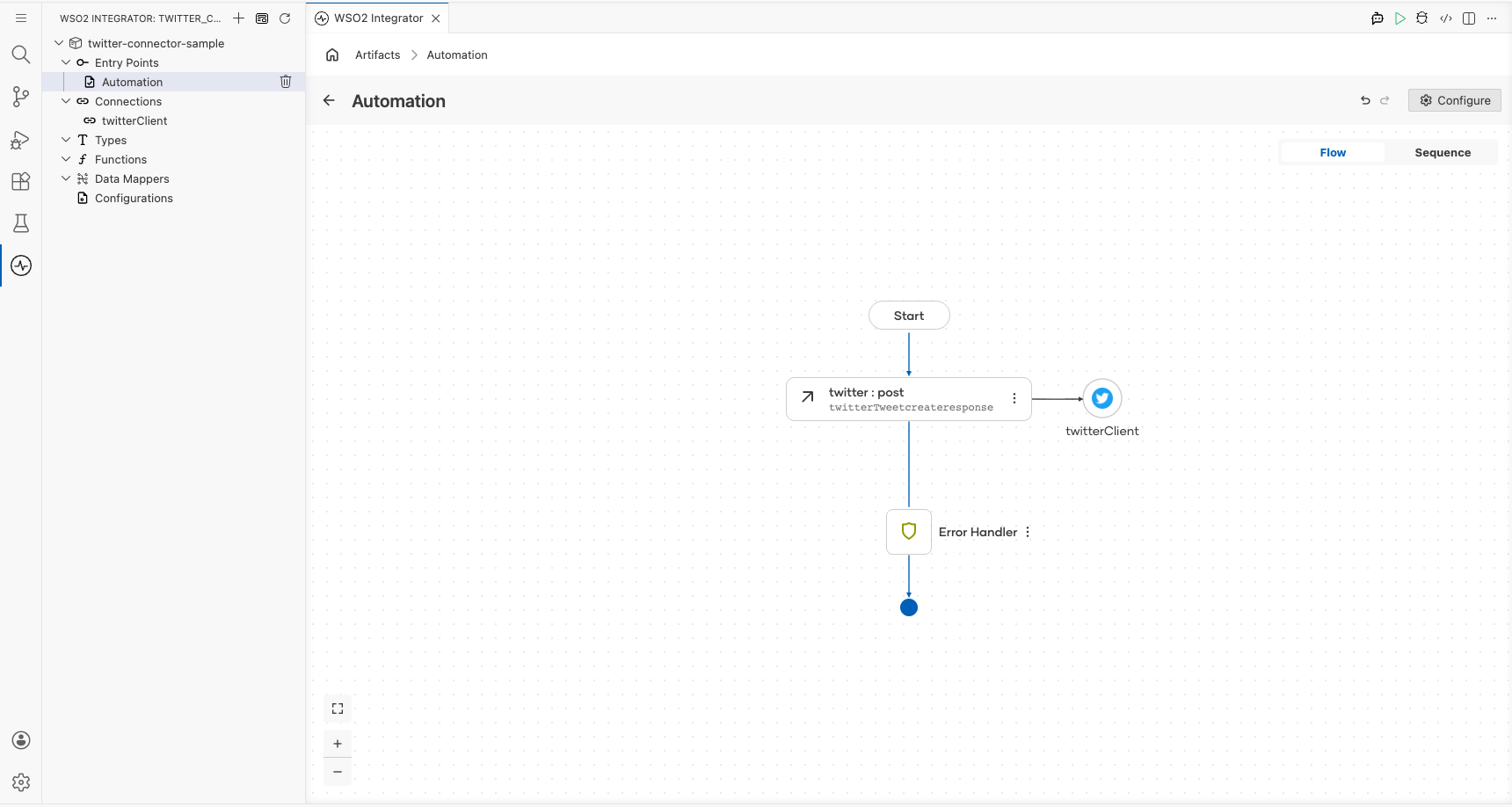
The canvas switches to the Automation flow view showing Start → (empty placeholder) → Error Handler → End.
Step 7: Select and configure the creation of a post operation
- Select the + (Add Step) button between the Start and Error Handler nodes on the canvas.
- Under Connections, select twitterClient to expand it and reveal all available Twitter API operations.
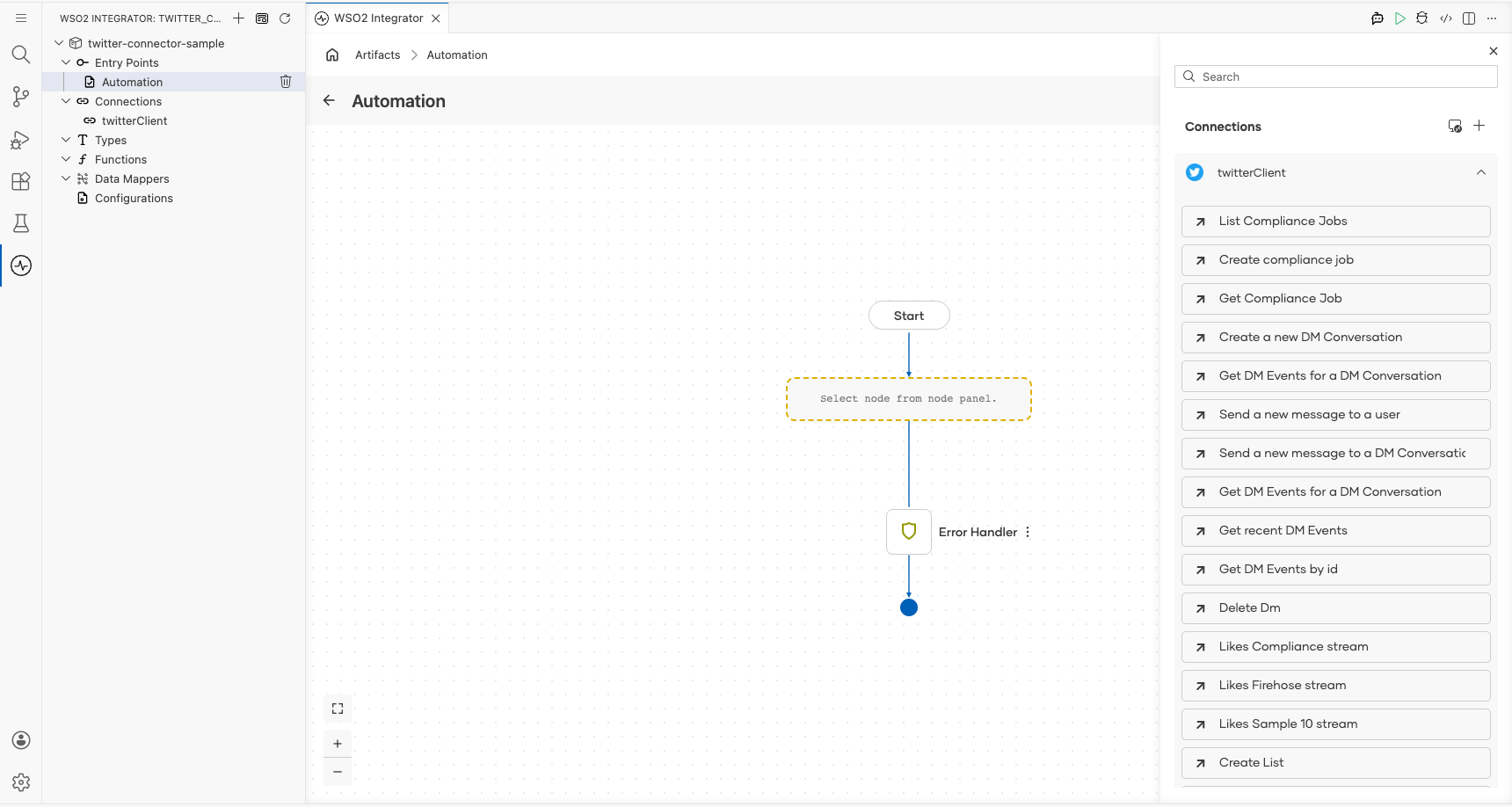
- Scroll to the Posts group and select Creation of a Post.
- Configure the operation fields:
- payload : Select Record, check the
textfield checkbox, and enter your tweet text in the Record Configuration modal - result : Leave as
twitterTweetcreateresponse(auto-generated)
- payload : Select Record, check the
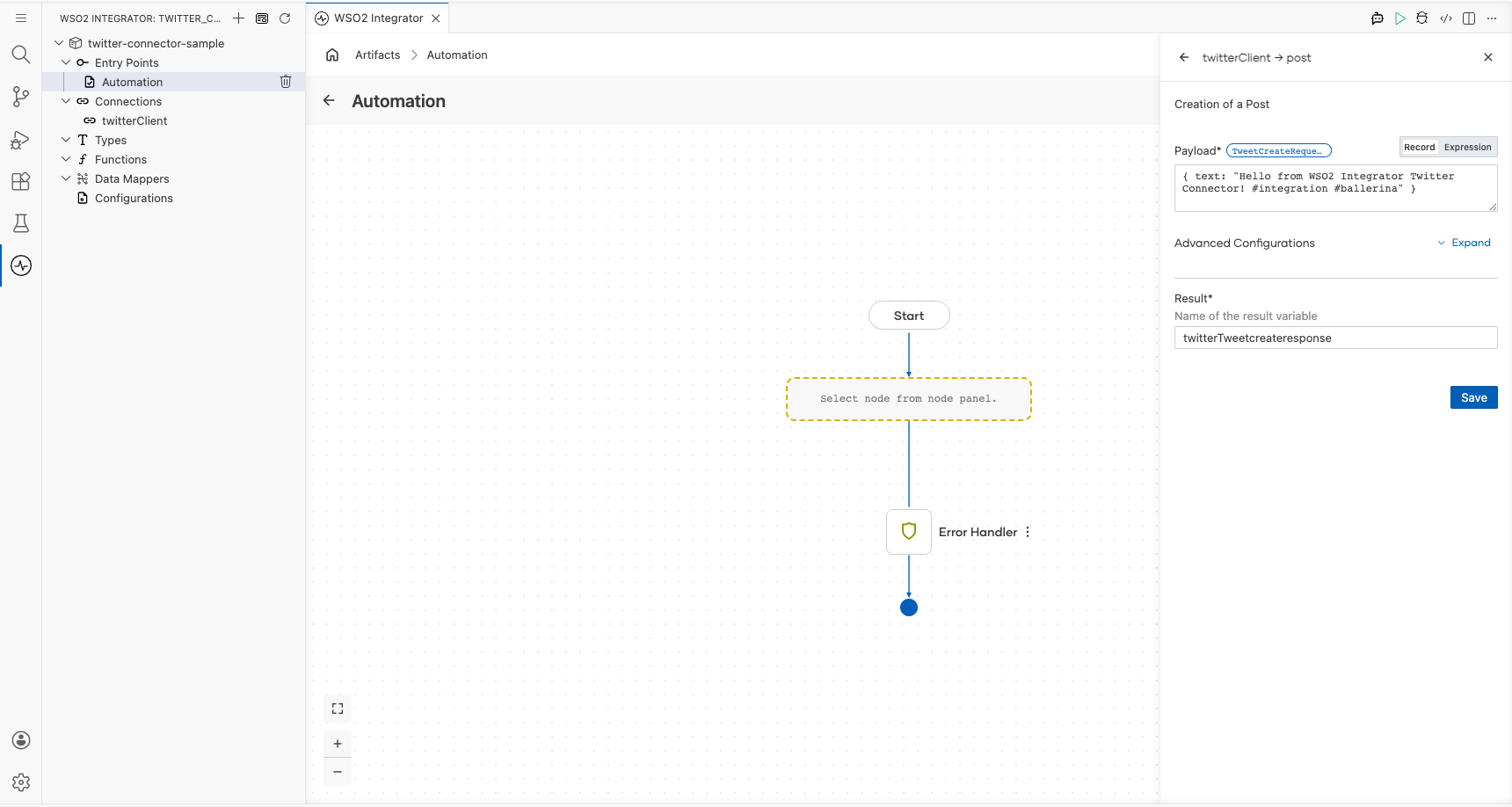
- Select Save.
Try it yourself
Try this sample in WSO2 Integration Platform.

More code examples
The Twitter connector provides practical examples illustrating usage in various scenarios. Explore these examples, covering the following use cases:
-
Direct message company mentions - Integrate Twitter to send direct messages to users who mention the company in tweets.
-
Tweet performance tracker - Analyze the performance of tweets posted by a user over the past month.