Example
What you'll build
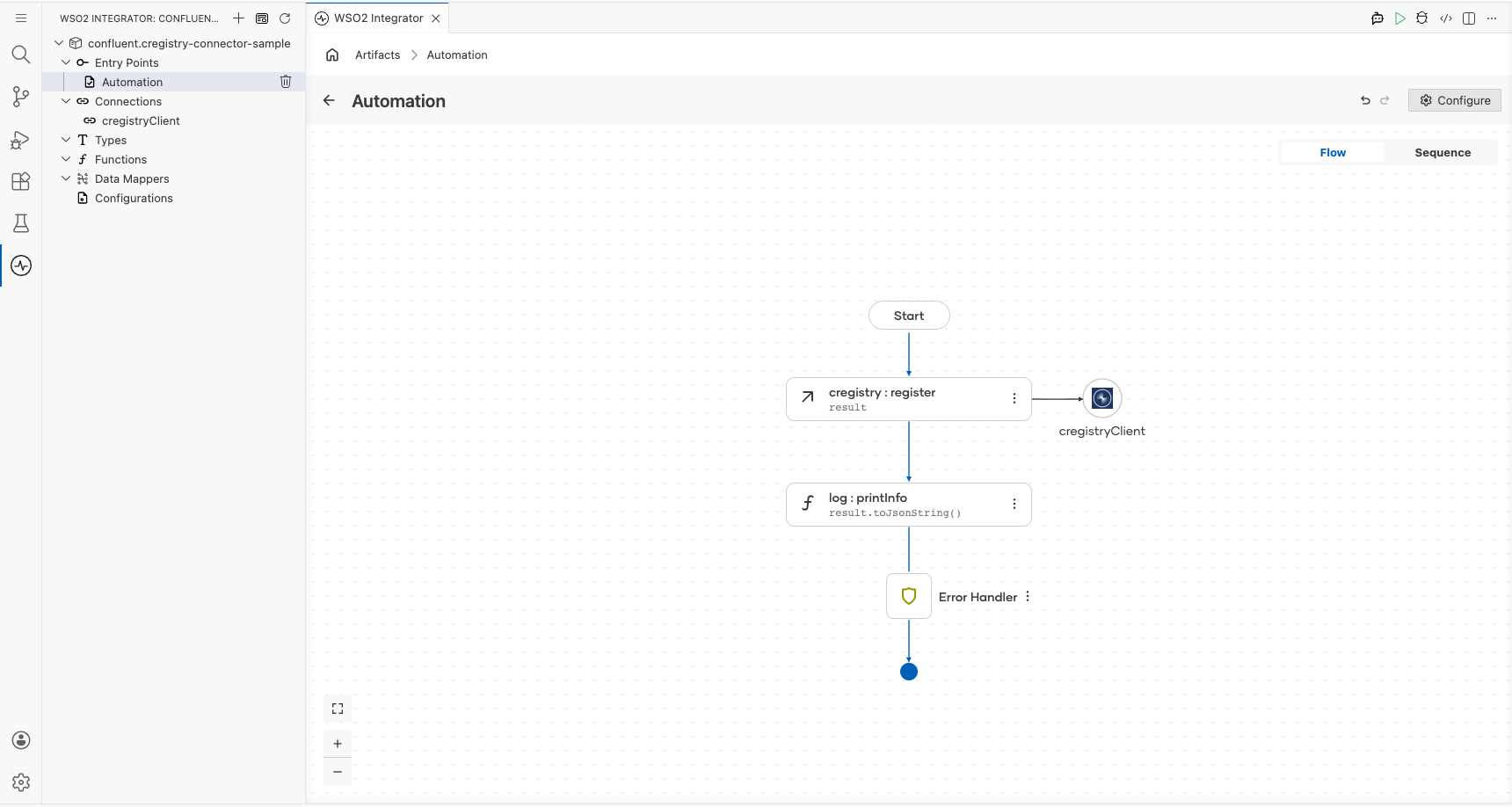
Build a WSO2 Integrator automation that uses the Confluent Schema Registry connector to register an Avro schema with a running Confluent Schema Registry instance. The integration captures the returned schema ID and logs it to standard output.
Operations used:
- Register : Registers a schema under a named subject and returns the assigned schema ID as an integer
Architecture
Prerequisites
- Access to a running Confluent Schema Registry instance
Setting up the Confluent Schema Registry integration
New to WSO2 Integrator? Follow the Create a New Integration guide to set up your integration first, then return here to add the connector.
Adding the Confluent Schema Registry connector
Step 1: Open the connector palette
- In the WSO2 Integrator panel, select Add Artifact.
- Select Connection from the artifact list.
- Enter
confluent.cregistryin the search box. - Select the Cregistry connector tile to open the connection configuration form.
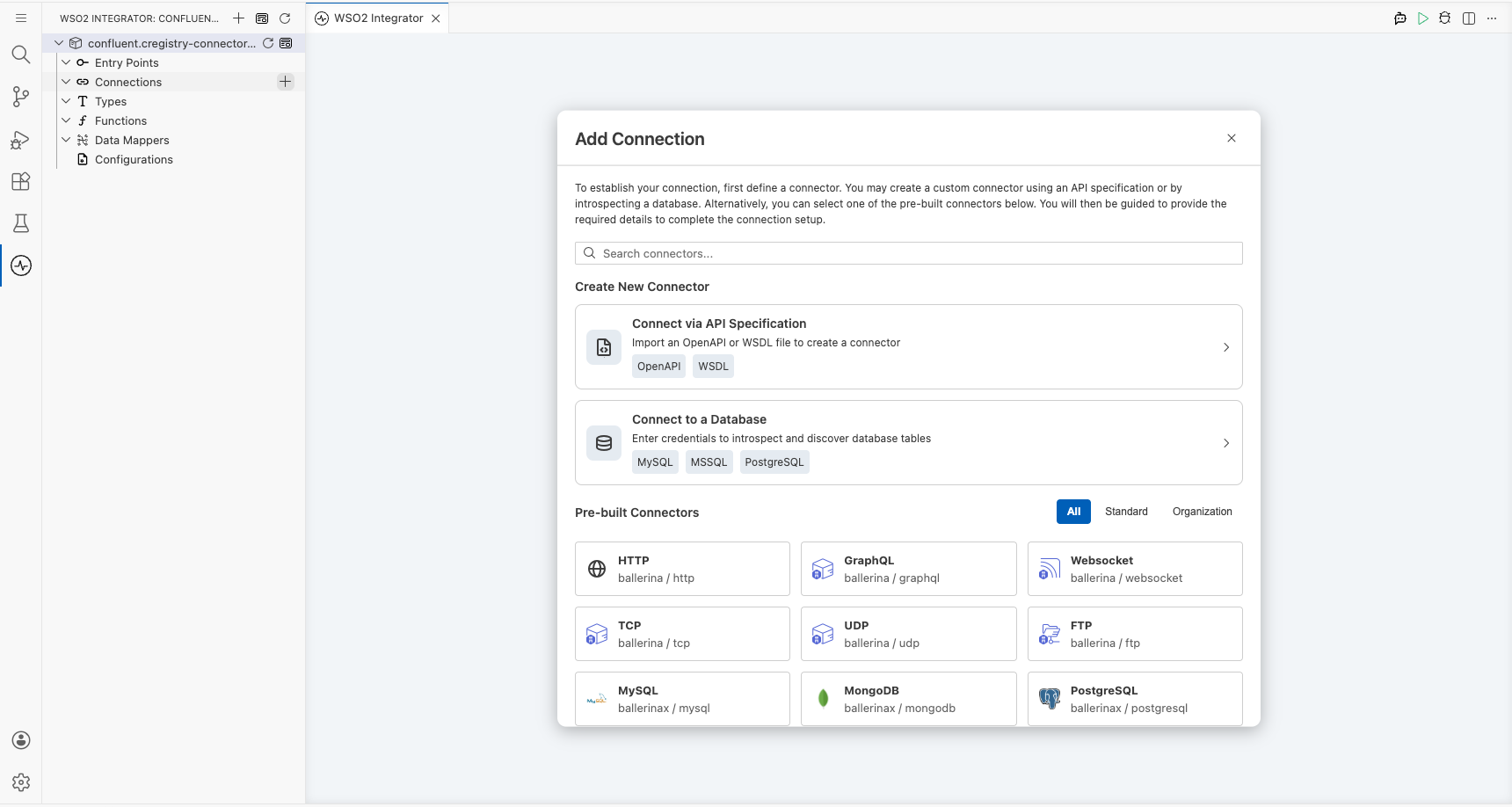
Configuring the Confluent Schema Registry connection
Step 2: Bind connection parameters to configurable variables
Enter the connection parameters, binding each field to a configurable variable:
- baseUrl : The URL of the Confluent Schema Registry service
Confluent Cloud Schema Registry requires API key authentication, which you supply through the optional originals field of the connection. For Confluent Cloud, set originals to a map containing the basic.auth.credentials.source and basic.auth.user.info keys. The equivalent code is:
cregistry:Client cregistryClient = check new (
    baseUrl = cregistryServiceUrl,
    originals = {
        "basic.auth.credentials.source": "USER_INFO",
        "basic.auth.user.info": string `${apiKey}:${apiSecret}`
    }
);
Here, apiKey and apiSecret are configurable variables holding the Schema Registry API key and secret created in the Setup Guide.
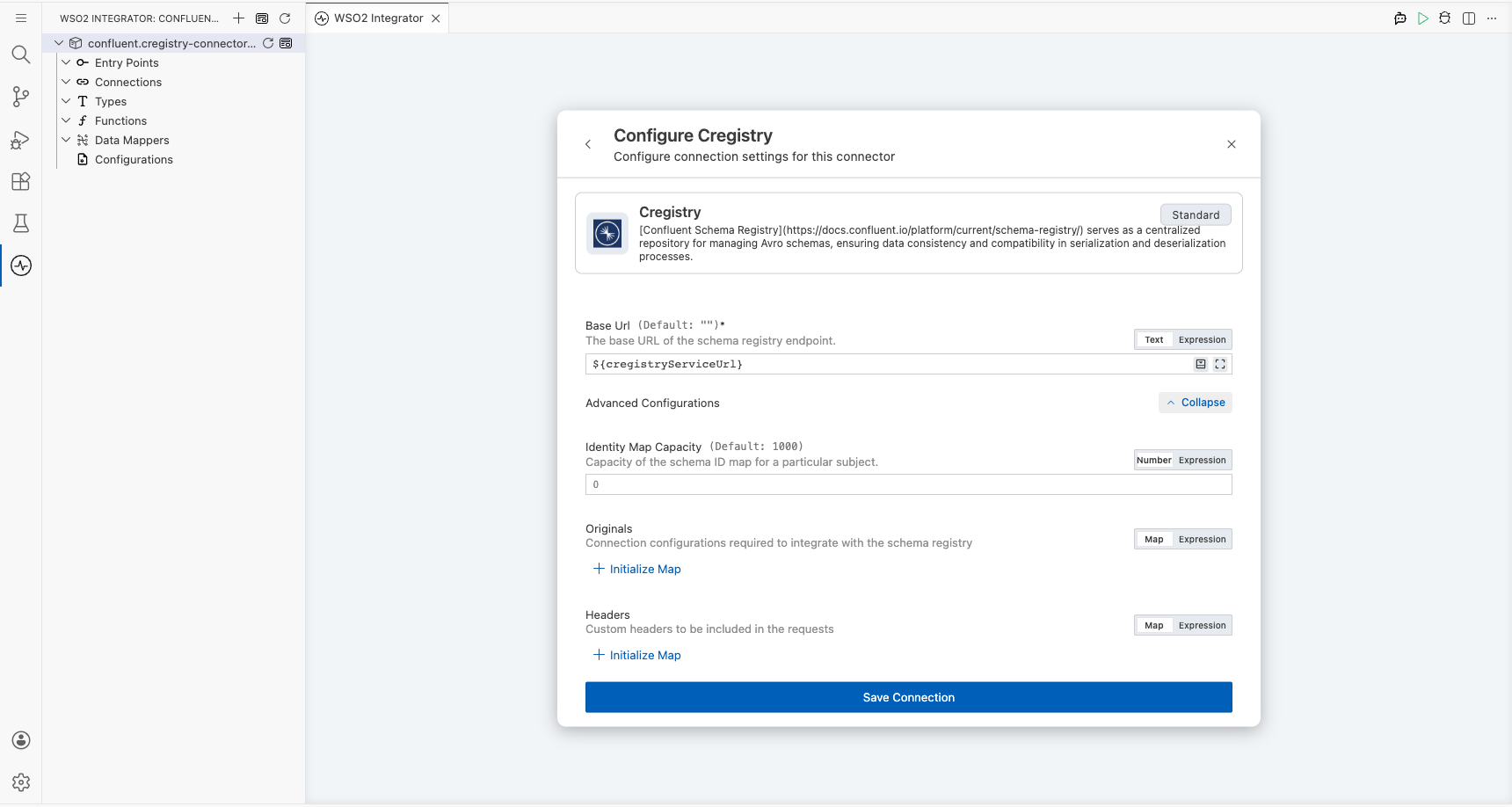
Step 3: Save the connection
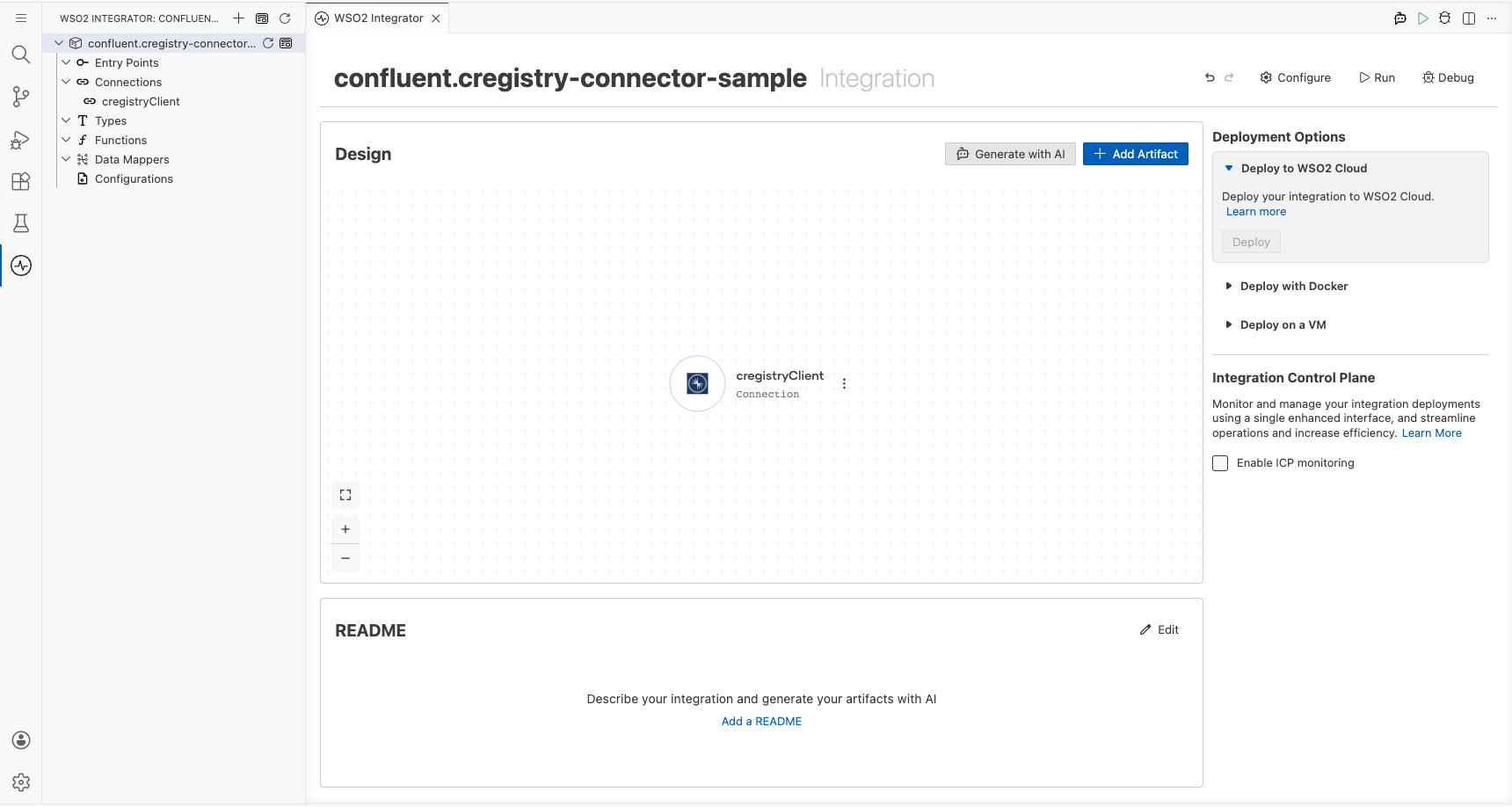
Select Save to create the connection. The cregistryClient connection node appears in the WSO2 Integrator project.
Step 4: Set actual values for your configurables
- In the left panel, select Configurations.
- Set a value for each configurable listed below.
- cregistryServiceUrl (string) : The base URL of your Confluent Schema Registry instance
Configuring the Confluent Schema Registry Register operation
Step 5: Add an Automation entry point
- In the WSO2 Integrator panel, select Add Artifact.
- Select Automation as the artifact type.
- Accept the default name
mainand select Create.
Step 6: Select and configure the Register operation
- In the Automation flow, select the + button between the Start and Error Handler nodes.
- Under Connections, expand cregistryClient.
- Select Register to open the operation configuration form.
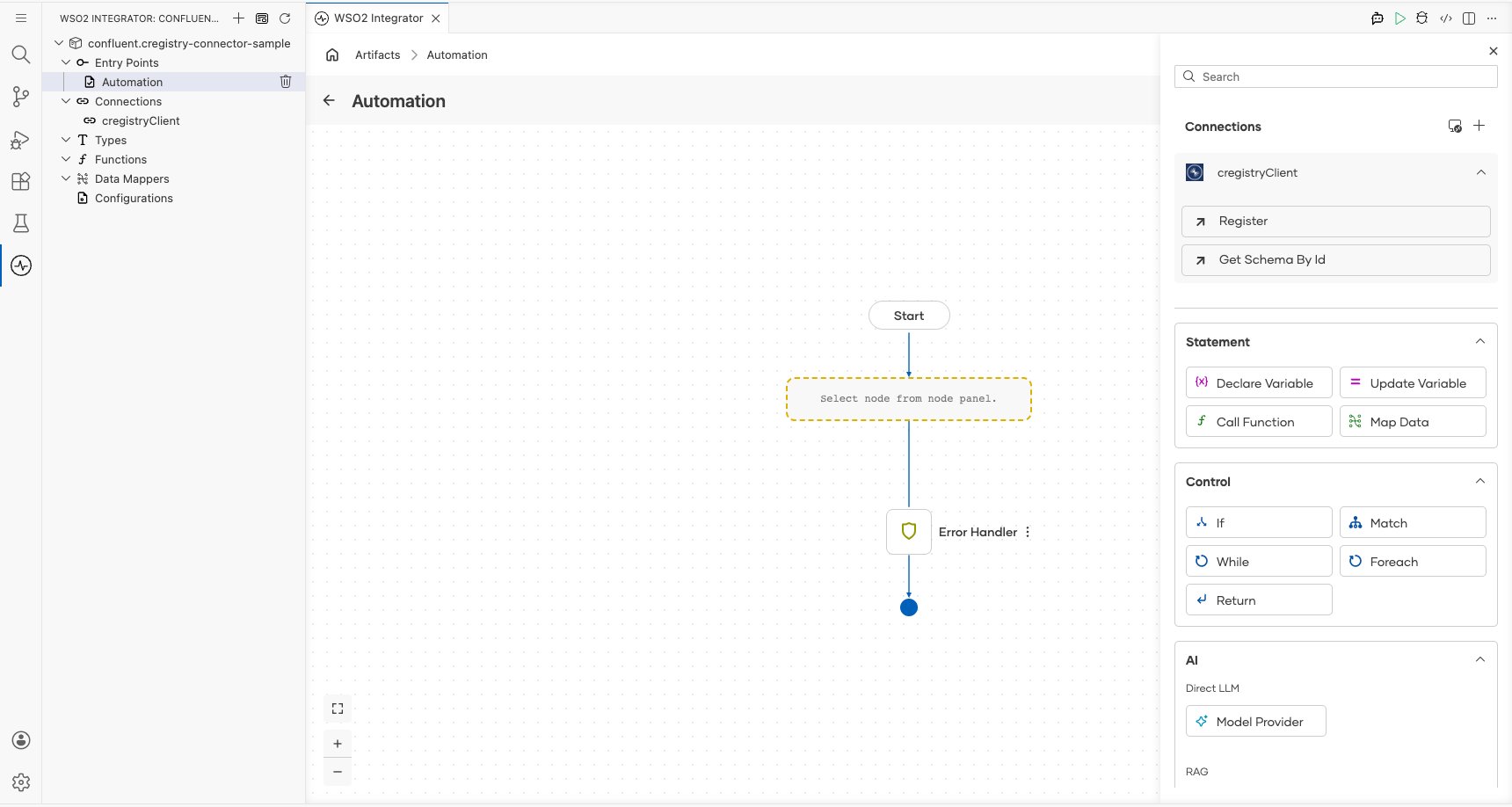
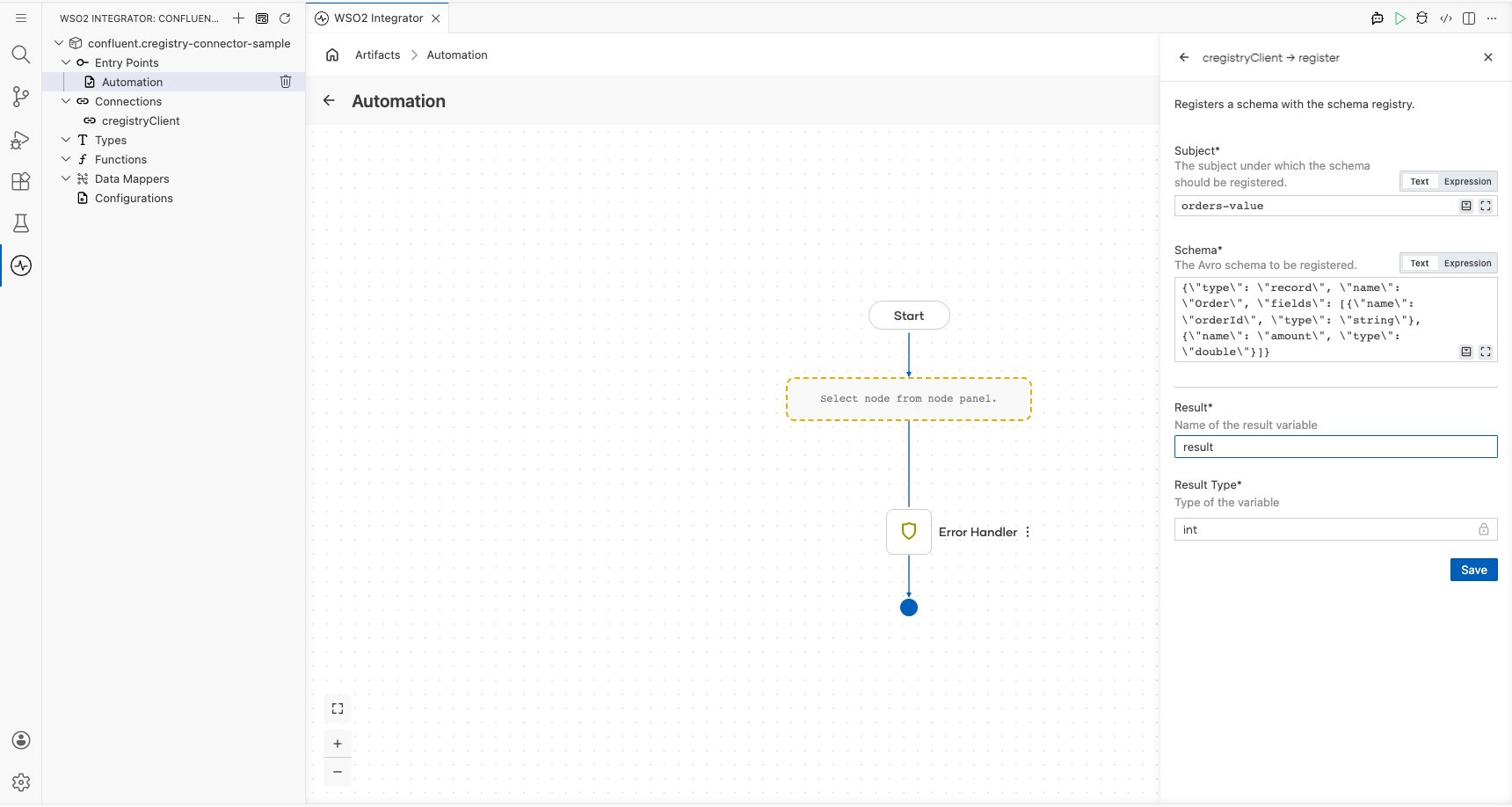
Configure the following fields:
- subject : The subject name under which the schema will be registered
- schema : The Avro schema definition as a JSON string
- result : Name of the variable to hold the returned schema ID
- resultType : Set to
int: the registry returns the schema ID as an integer
Select Save to add the operation to the flow.
Try it yourself
Try this sample in WSO2 Integration Platform.
