Example
What you'll build
Build an automation that connects to an SMSC over SMPP and sends one SMS to a phone number. The connection binds the SMSC host, system ID, and password to configurable variables, so you can point the same integration at any carrier or aggregator without editing the flow. The automation requests a delivery receipt, then logs the message ID the SMSC assigned.
Operations used:
- Submit : Sends a text message to one destination (
submit_sm) and returns the message ID assigned by the SMSC
Architecture
Prerequisites
- An SMSC, carrier, or aggregator account that exposes SMPP, reachable from your integration environment on its SMPP port (
2775is the common default) - The bind credentials for that account: the system ID and password
- An account allowed to bind as
TRANSMITTERorTRANSCEIVER, since the automation sends messages
See the Setup Guide for how to obtain these from your provider.
Setting up the SMPP integration
New to WSO2 Integrator? Follow the Create a New Integration guide to set up your integration first, then return here to add the connector.
Adding the SMPP connector
Add a connection to the SMSC first; the automation you build later sends through it.
Step 1: Open the connector palette and search for the connector
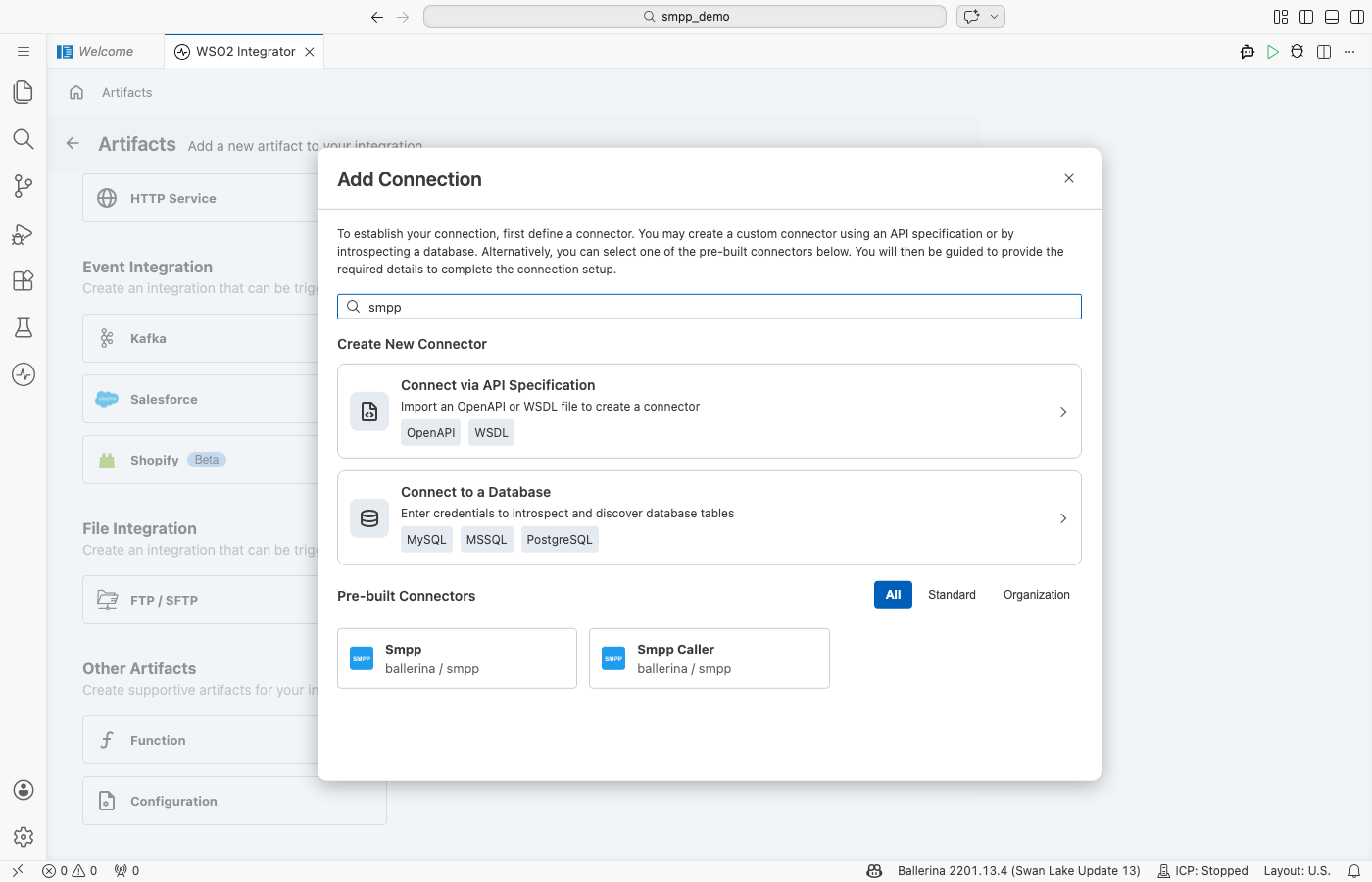
- Select Add Artifact on the integration's Design view, then select Connection under Other Artifacts.
- Enter
smppin the Search connectors field. - Select the Smpp connector card.
Note: The search also returns Smpp Caller, which is used inside a listener service to reply on the session a message arrived on. Select Smpp to create a client connection.
Configuring the SMPP connection
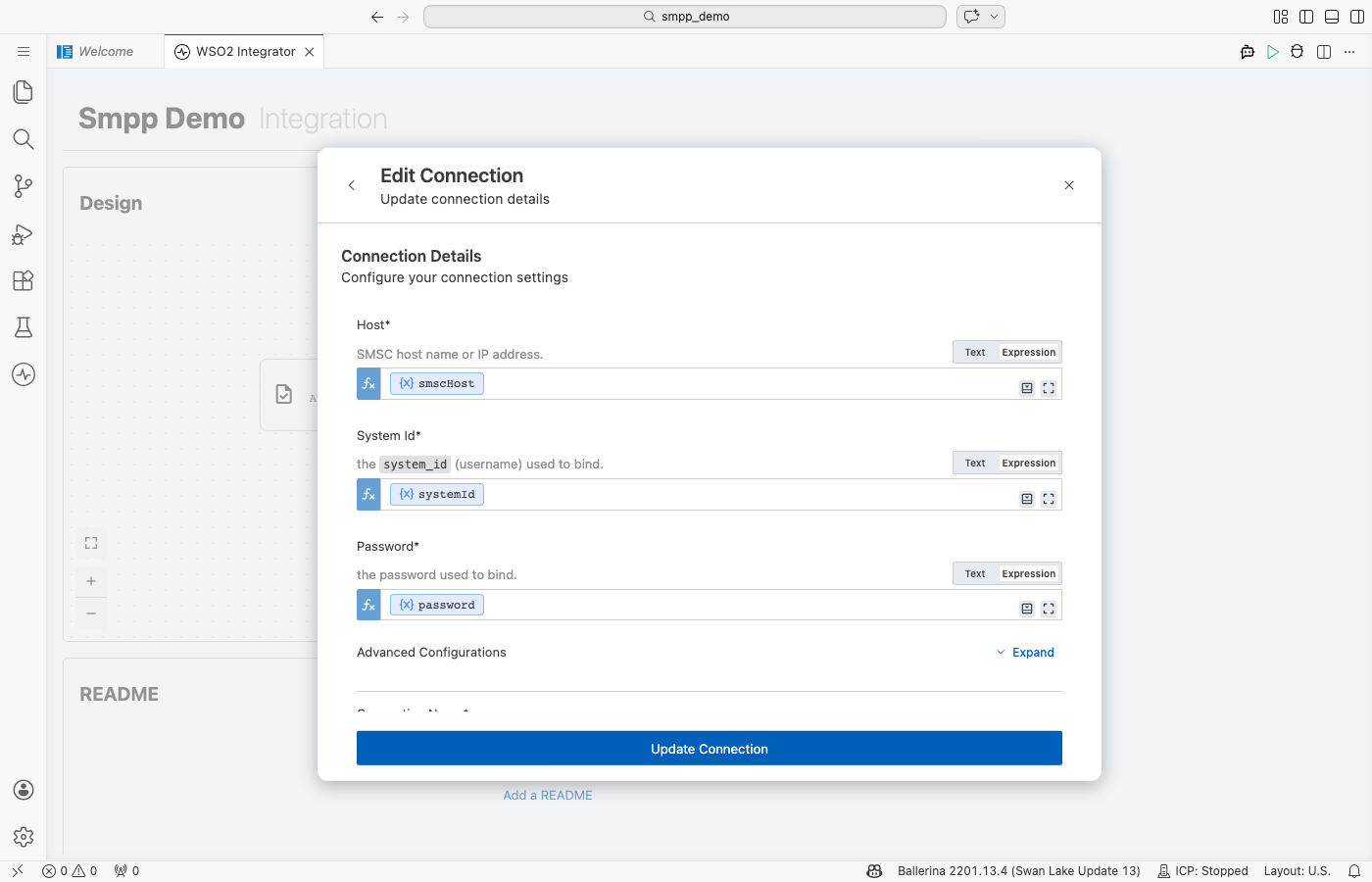
The connection form takes the SMSC endpoint and the bind credentials. Bind each value to a configurable so the same flow works against any provider.
Step 2: Fill in the connection parameters
Bind each field to a configurable variable rather than entering a literal, so credentials never reach source control. For each field, open the helper panel, select Configurables, select New Configurable, enter the name and type, and select Save.
- Host : The SMSC host name or IP address; bind to
smscHost - System Id : The SMPP
system_id(username) used to bind; bind tosystemId - Password : The password used to bind; bind to
password - Advanced Configurations : Expand this section to bind the Port to
smscPortand set Bind Type toTRANSMITTER, since this automation only sends - Connection Name : Enter
smppClient; the flow references the connection by this name
Step 3: Save the connection
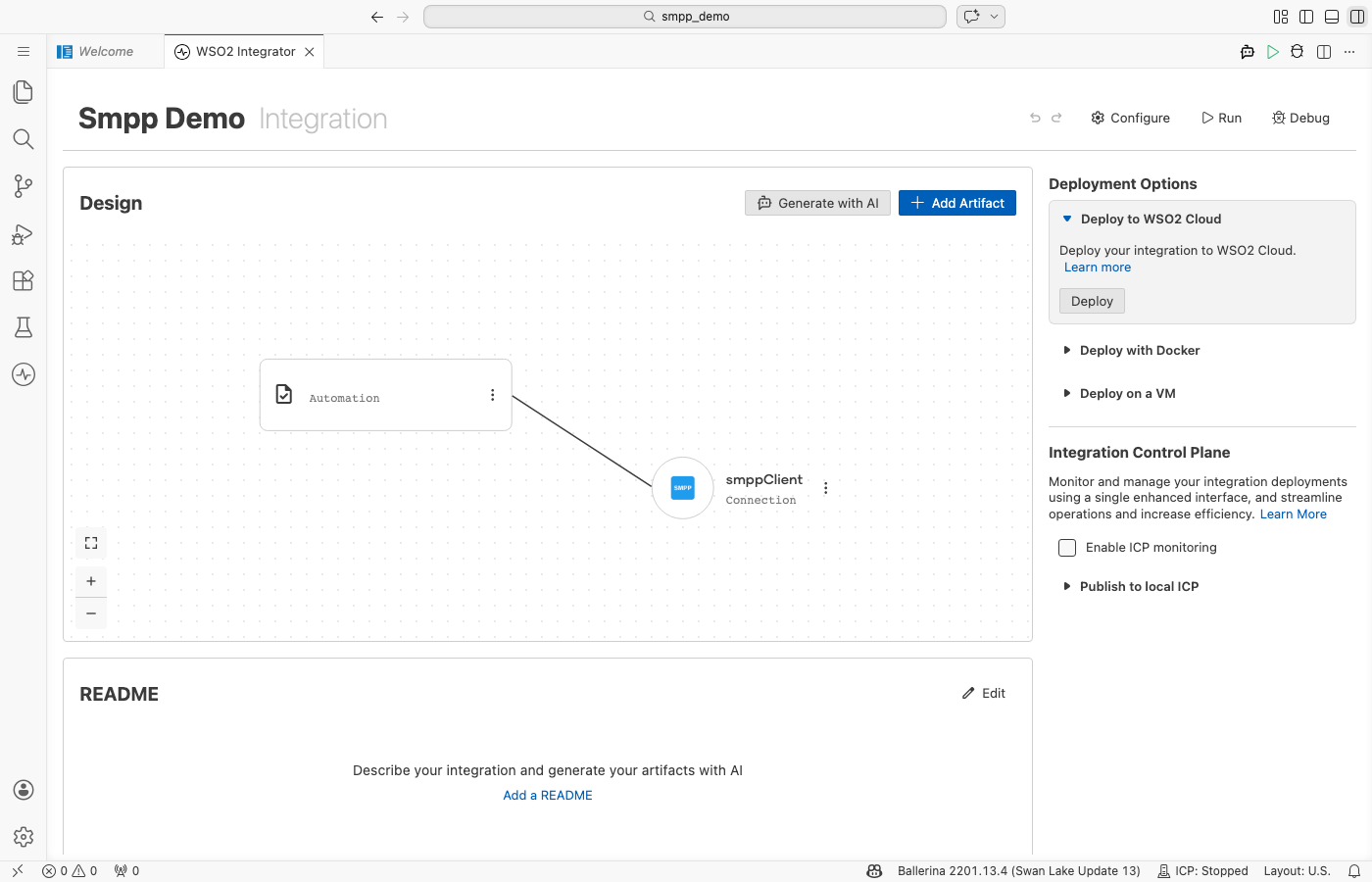
Select Save on the connection form. The smppClient connection appears in the project tree and on the Design view.
Step 4: Set actual values for your configurables
- In the left panel, select Configurations.
- Set a value for each configurable listed below before you run the integration.
- smscHost (string) : Host name or IP address of the SMSC
- smscPort (int) : The SMSC's SMPP port; defaults to
2775 - systemId (string) : The system ID the SMSC issued for your account
- password (string) : The password for that system ID
- destinationNumber (string) : The recipient's number in international format without a leading
+, for example94771234567
Configuring the SMPP Submit operation
With the connection saved, create an automation and add the Submit operation to its flow.
Step 5: Add an automation entry point
- In the left panel under Entry Points, select + (Add Entry Point).
- Under Automation, select Automation.
- In the Create New Automation dialog, accept the default settings and select Create.
The canvas switches to the Automation flow view, showing a Start node, an Error Handler node, and an End node.
Step 6: Select and configure the Submit operation
Select the + drop zone between Start and Error Handler on the canvas to open the Add Step panel. Expand the smppClient connection to reveal its operations.
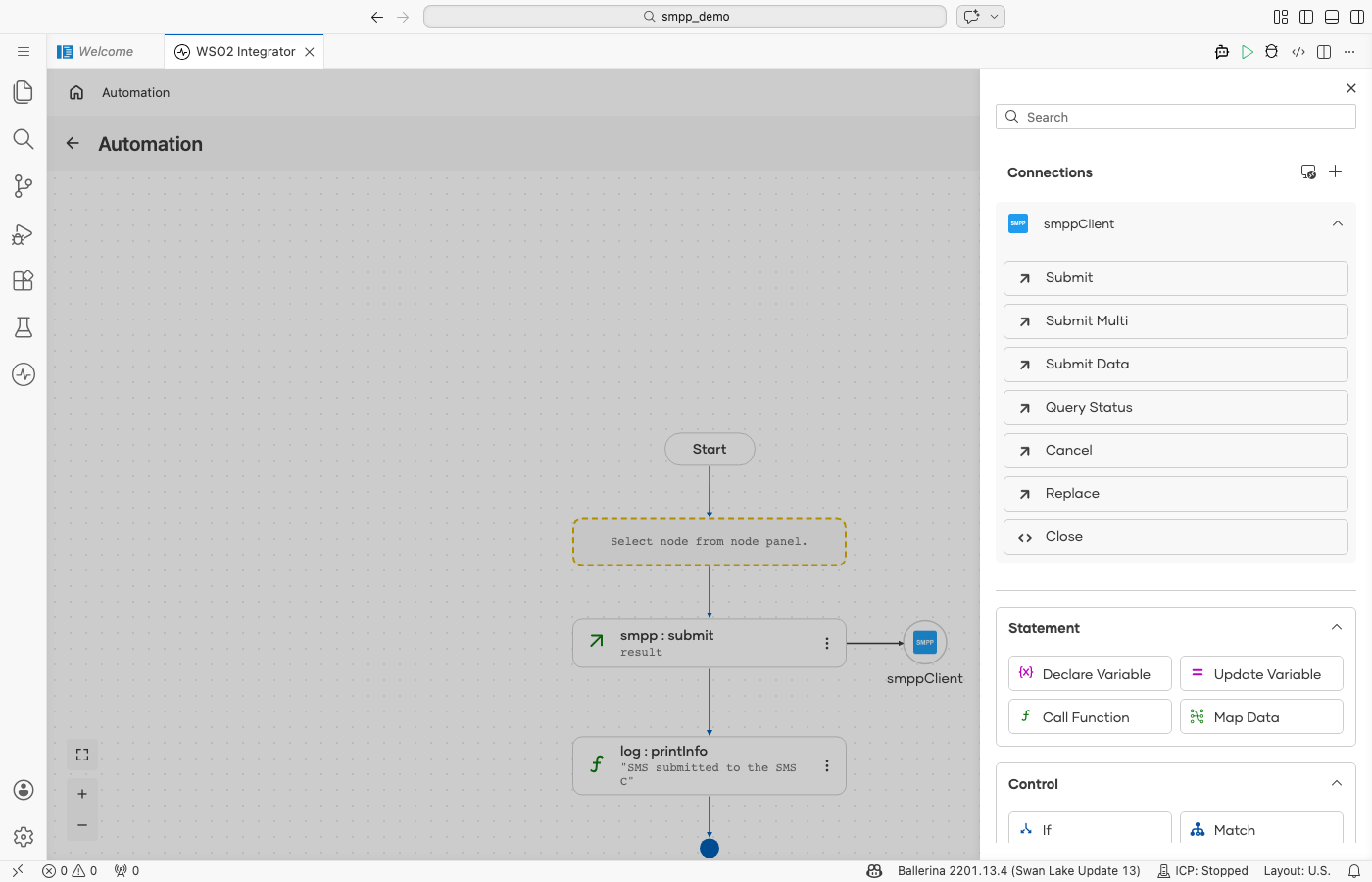
Select Submit to open the smppClient → submit configuration form, then configure the following fields:
- Sms : The message to send. Open the helper panel, select Configurables, select New Configurable, and create
destinationNumber(typestring) for the recipient's number. Then switch the field to Expression mode and enter aTextSmsrecord that addresses the message to that configurable and requests a delivery receipt:{destinationAddress: destinationNumber, shortMessage: "Hello from WSO2 Integrator!", registeredDelivery: smpp:ON_SUCCESS_OR_FAILURE} - Result : Enter
result; the SMSC's message ID is returned inresult.messageId
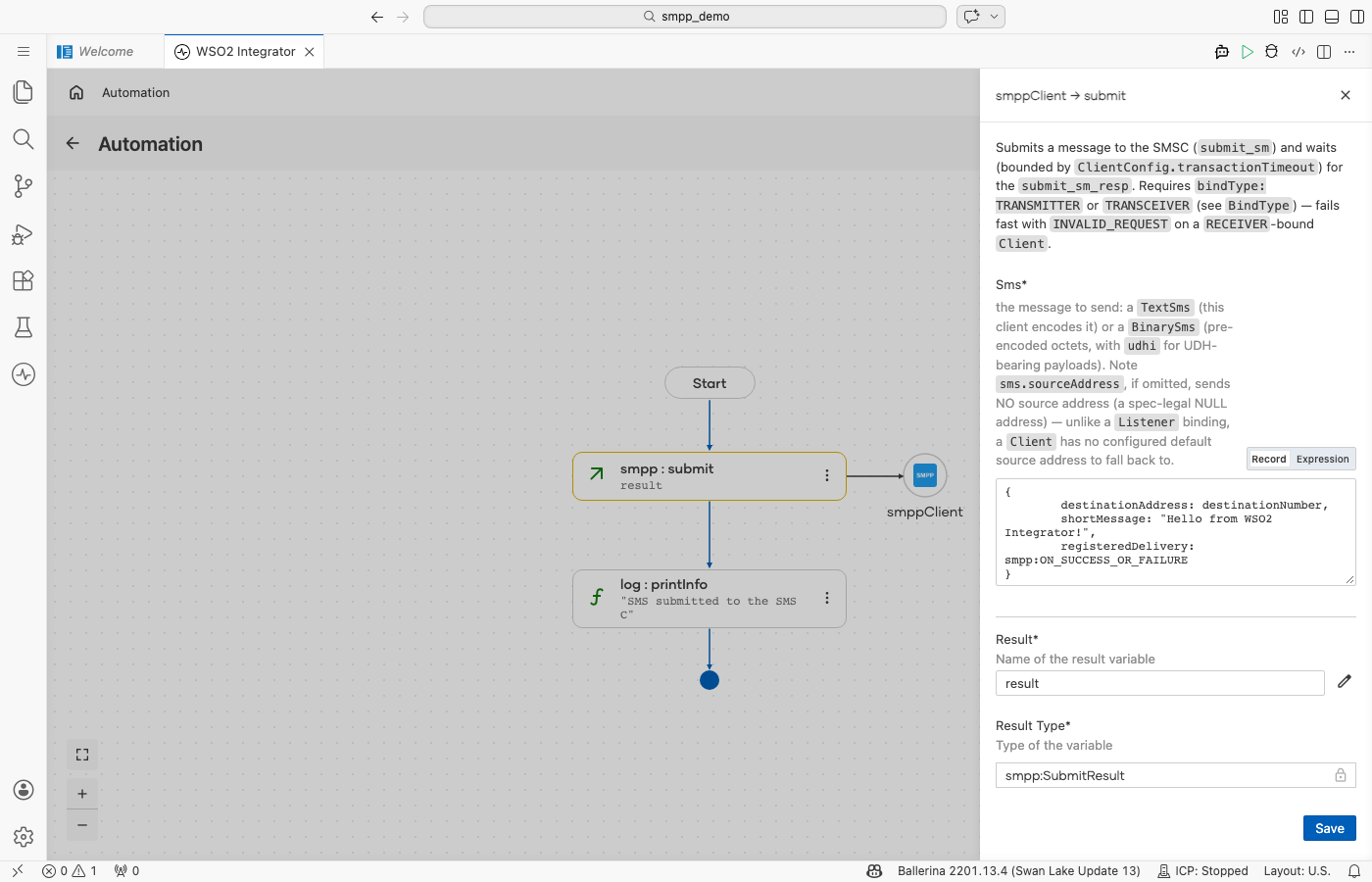
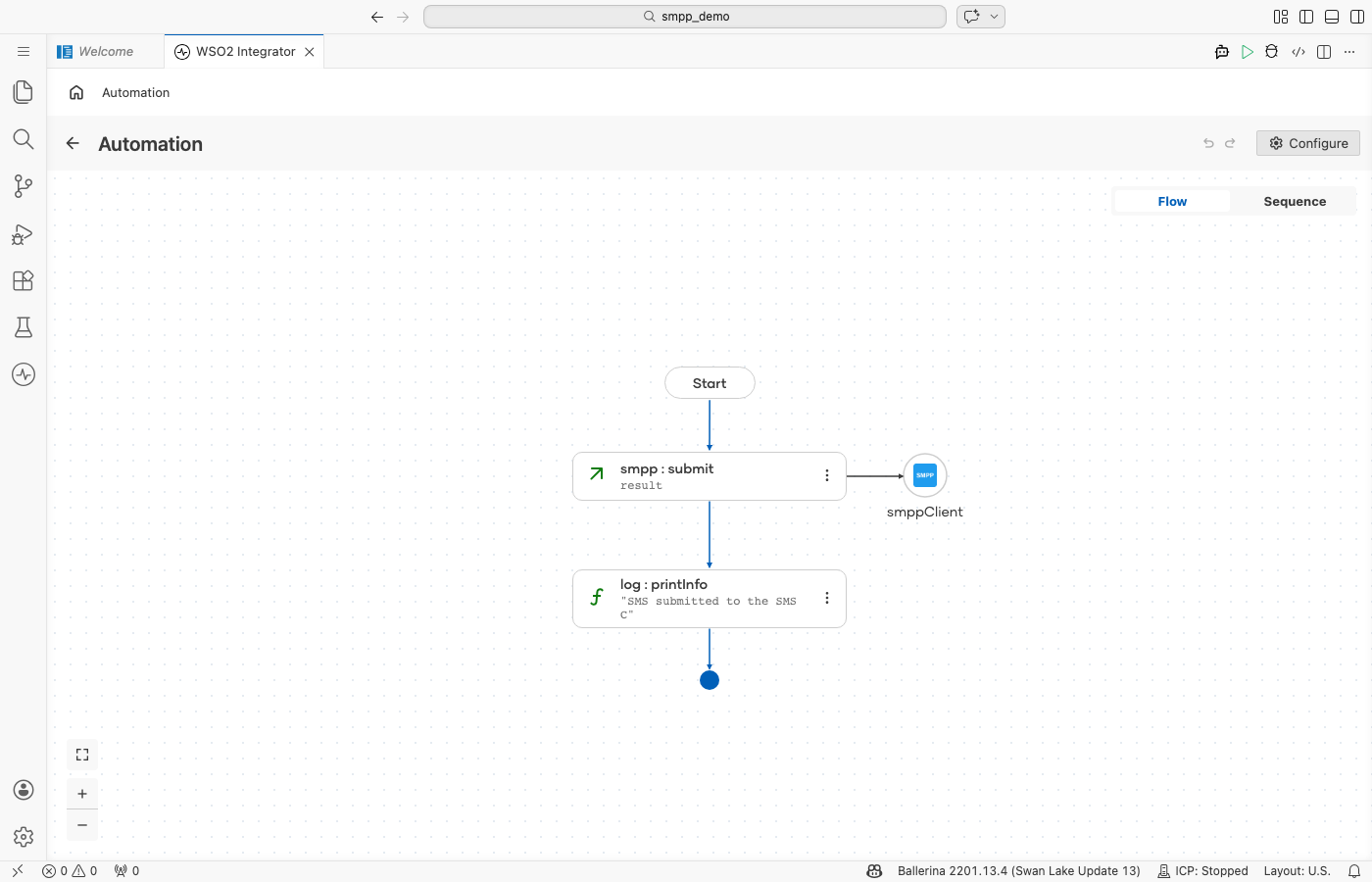
Select Save. The smpp : submit node is added to the Automation flow. Then add a Log Info step after the operation with the message SMS submitted to the SMSC and result.messageId as an additional value, so the ID can be correlated with the delivery receipt later.
Try it yourself
Try this sample in WSO2 Integration Platform.

More code examples
The smpp module provides practical examples illustrating usage in various scenarios.
- Send an SMS: Binds a transmitter client, submits a single text message with a delivery-receipt request, and prints the message ID the SMSC returns.
- Receive SMS and delivery receipts: Binds a receiver listener and logs every inbound message and delivery receipt, including the receipt's final status.
- Two-way SMS short code: Binds a transceiver listener that answers a balance-enquiry keyword by replying on the same session through the
Caller.