Example
What you'll build
Build an automation that retrieves a secret from AWS Secrets Manager and logs the secret's name and version. The integration binds the AWS credentials, region, and secret identifier to configurable variables, so no credentials or secret identifiers are stored in the integration itself. The retrieved secret value stays in memory and is never written to the log.
Operations used:
- Get Secret Value : Retrieves the contents of the encrypted fields from the specified version of a secret
Architecture
Prerequisites
- An active AWS account. If you don't have one, sign up for a free AWS account.
- A secret stored in AWS Secrets Manager. To create one, follow the create a secret guide.
- An IAM user with an access key. Grant it
secretsmanager:GetSecretValueon the secrets you read, andkms:Decrypton the KMS key that encrypts them when that key is customer managed.
Setting up the AWS Secrets Manager integration
New to WSO2 Integrator? Follow the Create a New Integration guide to set up your integration first, then return here to add the connector.
Adding the AWS Secrets Manager connector
Step 1: Open the connector palette
Select Add Connection in the Connections section.
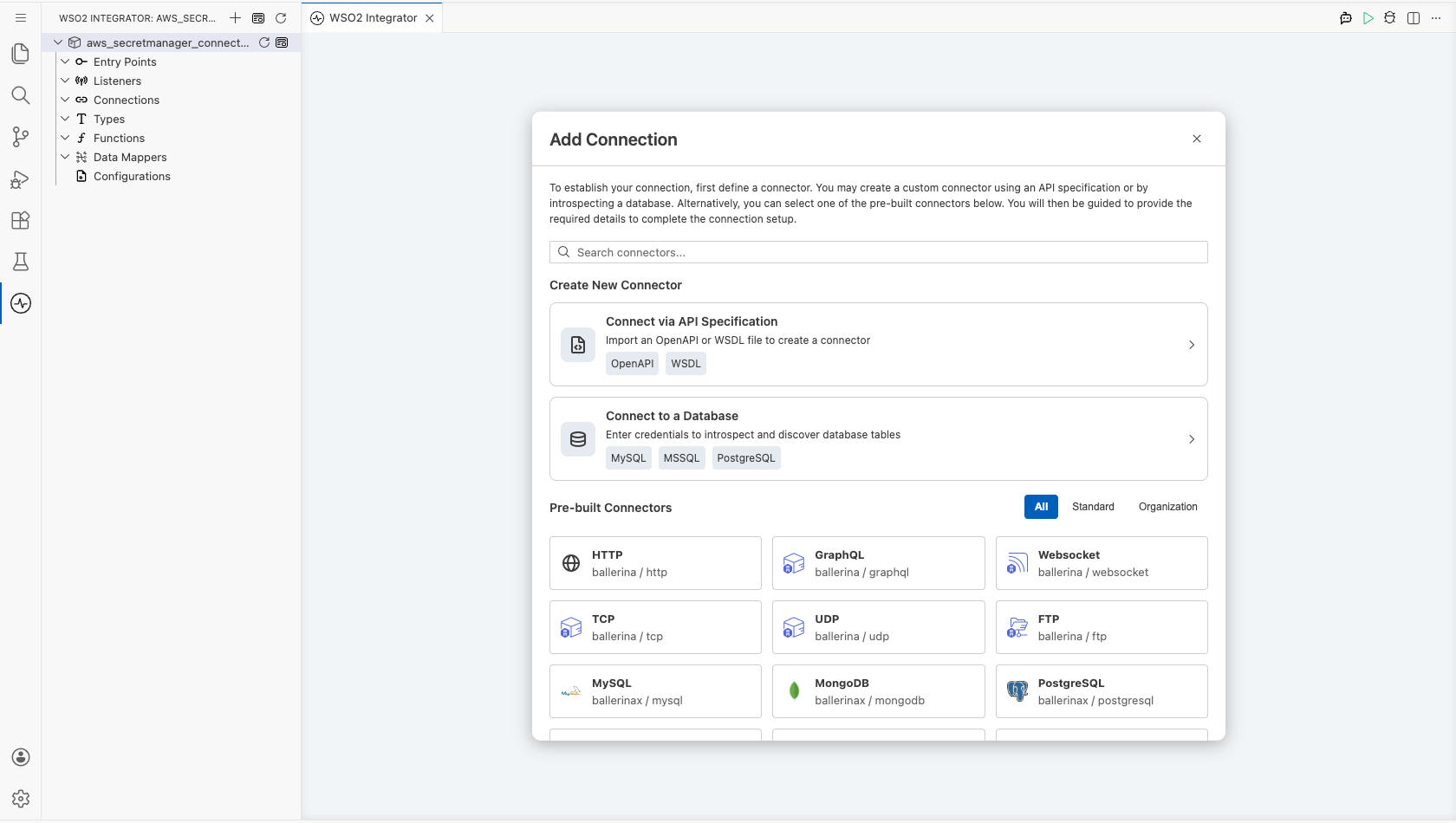
Step 2: Select the AWS Secrets Manager connector
- Enter
aws.secretmanagerin the search field. - Select the Secretmanager connector card.
Configuring the AWS Secrets Manager connection
Step 3: Bind the connection parameters to configurable variables
Bind each connection field to a configurable variable so that no credential is stored in the integration. Keep the default static credentials variant for Auth, and switch both fields to Expression mode to reference the configurable variables you create.
- Auth : Authentication settings for AWS. The default variant takes a static access key ID and secret access key
- Region : The AWS region that holds your secrets
Leave Endpoint at its default empty value unless you target a FIPS, dualstack, or custom endpoint.
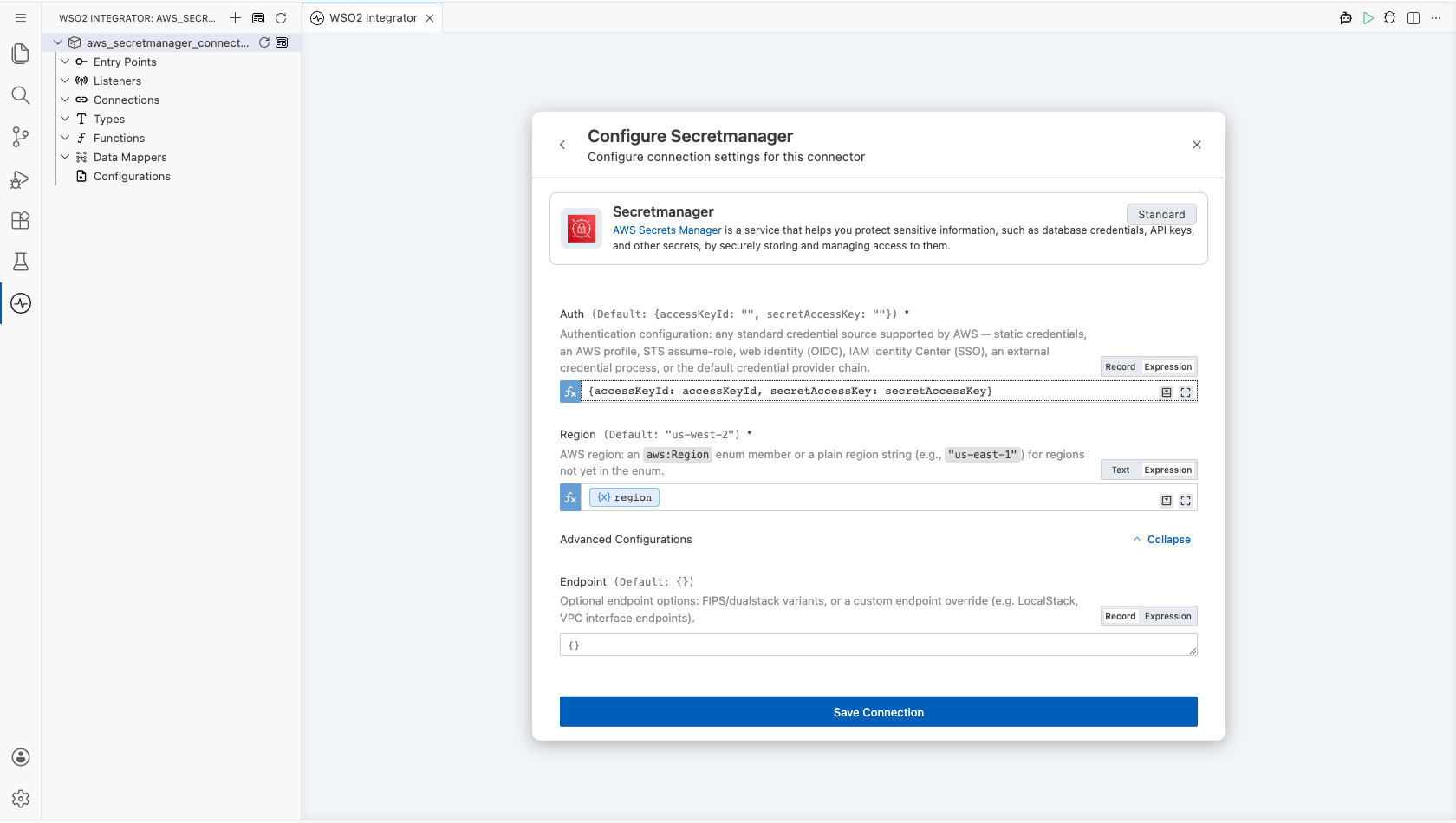
Step 4: Save the connection
Select Save Connection and verify that the connection appears in the Connections section.
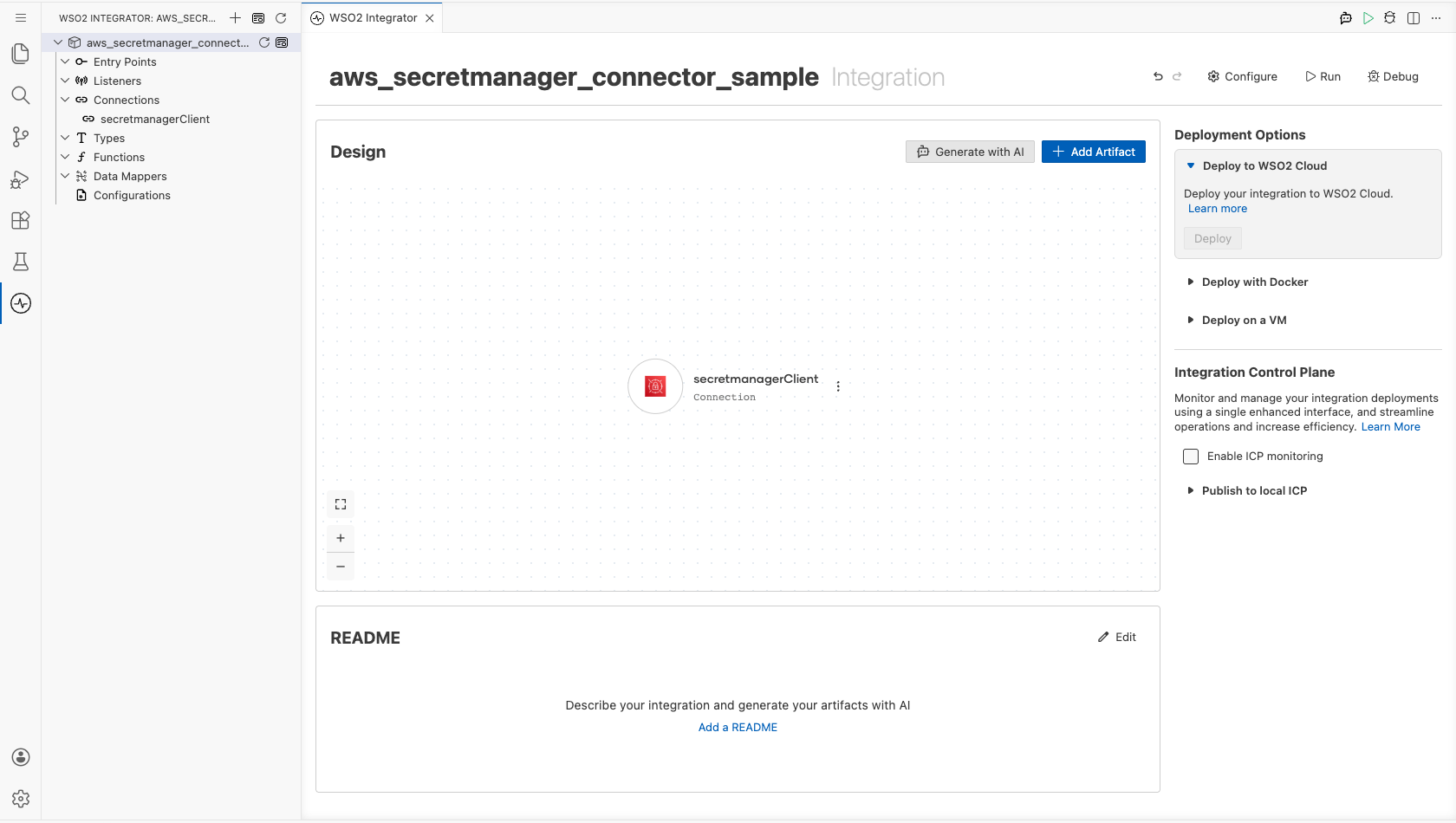
Step 5: Set actual values for your configurables
- Select Configurations at the bottom of the project tree under Data Mappers.
- Enter a value for each configurable listed below before you run the integration.
- accessKeyId (
string) : The access key ID of the IAM user that reads the secret. - secretAccessKey (
string) : The secret access key that pairs with the access key ID. - region (
string) : The AWS region code that holds the secret, such asus-east-1. - secretId (
string) : The friendly name or ARN of the secret to retrieve.
Warning: Treat
accessKeyIdandsecretAccessKeyas secrets. Keep them out of source control.
Configuring the AWS Secrets Manager Get Secret Value operation
Step 6: Add an automation entry point
- Select Add Artifact on the integration design canvas.
- Select Automation.
- Select Create to accept the default settings.
Step 7: Expand the connection and configure the Get Secret Value operation
- Select + in the automation flow, between Start and Error Handler.
- Expand secretmanagerClient to display its operations.
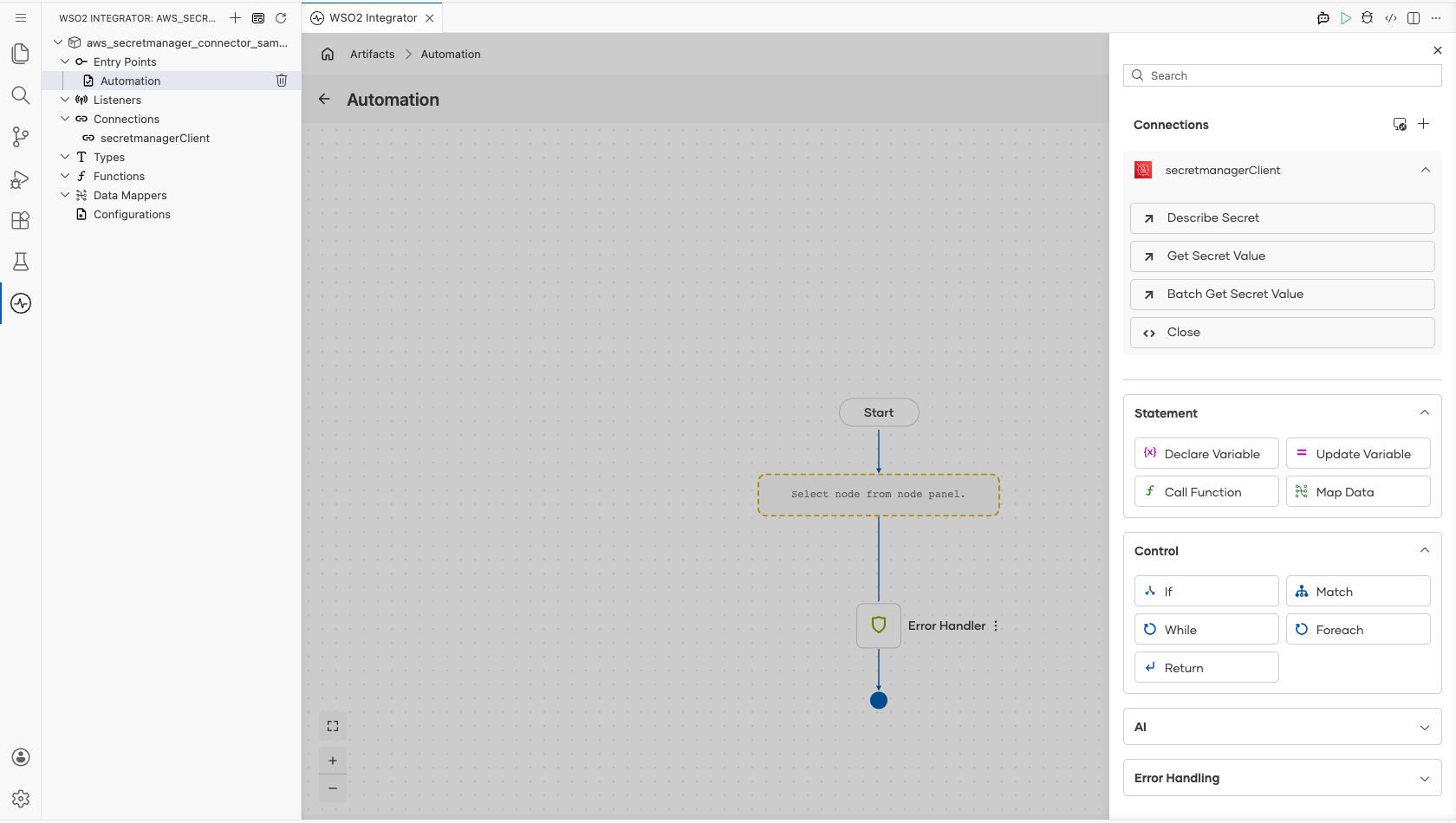
- Select Get Secret Value and enter its required values.
- Secret Id : The friendly name or ARN of the secret. Bind it to a configurable variable so the integration isn't tied to one secret
- Result : The name of the variable that holds the retrieved secret
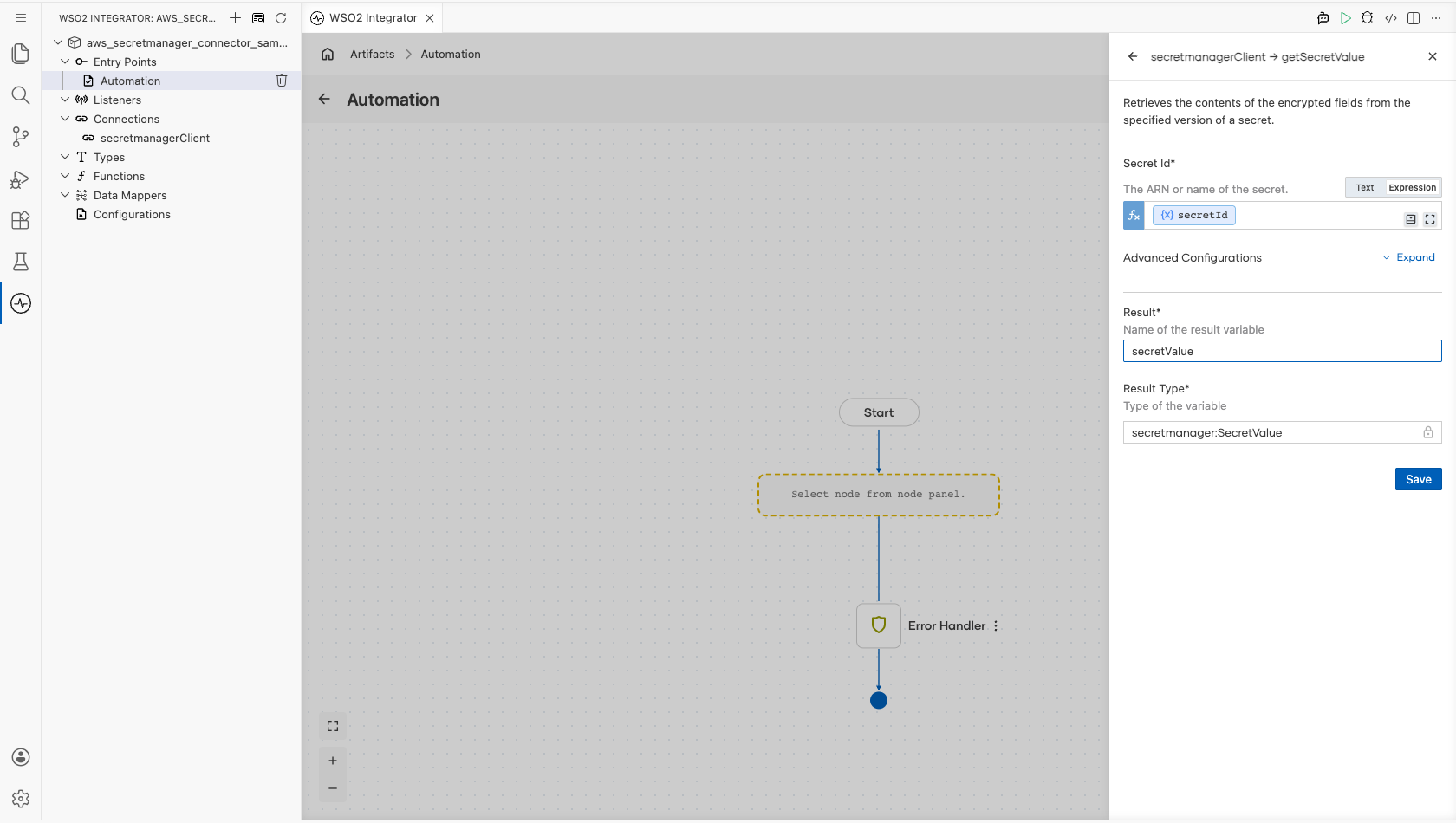
- Select Save.
Step 8: Log the Get Secret Value result
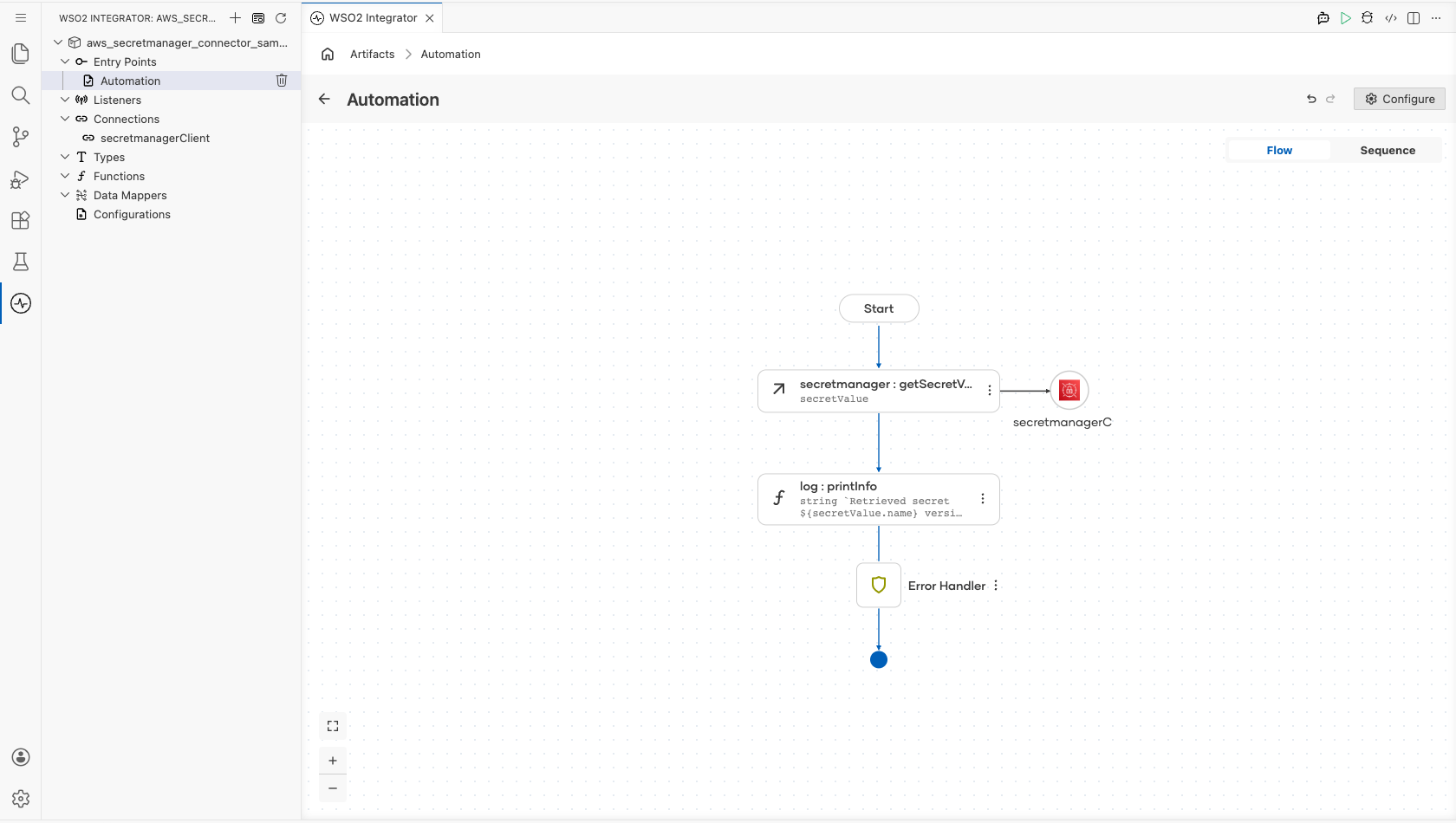
Add a Log Info action after the operation, and enter a message that reads the secret's name and version from the result variable. The completed flow runs from Start, through the operation and the log action, to Error Handler.
Warning: Log only metadata such as the secret's name, ARN, or version. Never log the
valuefield, because it holds the decrypted secret and log output is rarely as well protected as the secret store.
Try it yourself
Try this sample in WSO2 Integration Platform.

More code examples
The ballerinax/aws.secretmanager connector provides practical examples illustrating usage in various scenarios. Explore these examples:
-
Database credentials – Loads a database credential from a secret, keeps the password out of the logs, and checks for a previous version to fall back on during rotation.
-
Secret rotation audit – Discovers the secrets carrying a tag key and reports which of them are outside a rotation SLA.