Setup Guide
This guide walks you through creating an AWS IAM user and obtaining the access credentials required to use the AWS S3 connector.
Prerequisites
- An active AWS account. If you do not have one, sign up here.
Step 1: Sign in to the AWS Management Console
- Go to console.aws.amazon.com and sign in.
- In the top navigation bar, select the AWS Region where you want to create your S3 buckets (for example,
us-east-1).
Step 2: Create an IAM user
-
Open the IAM console by searching for "IAM" in the AWS Management Console.
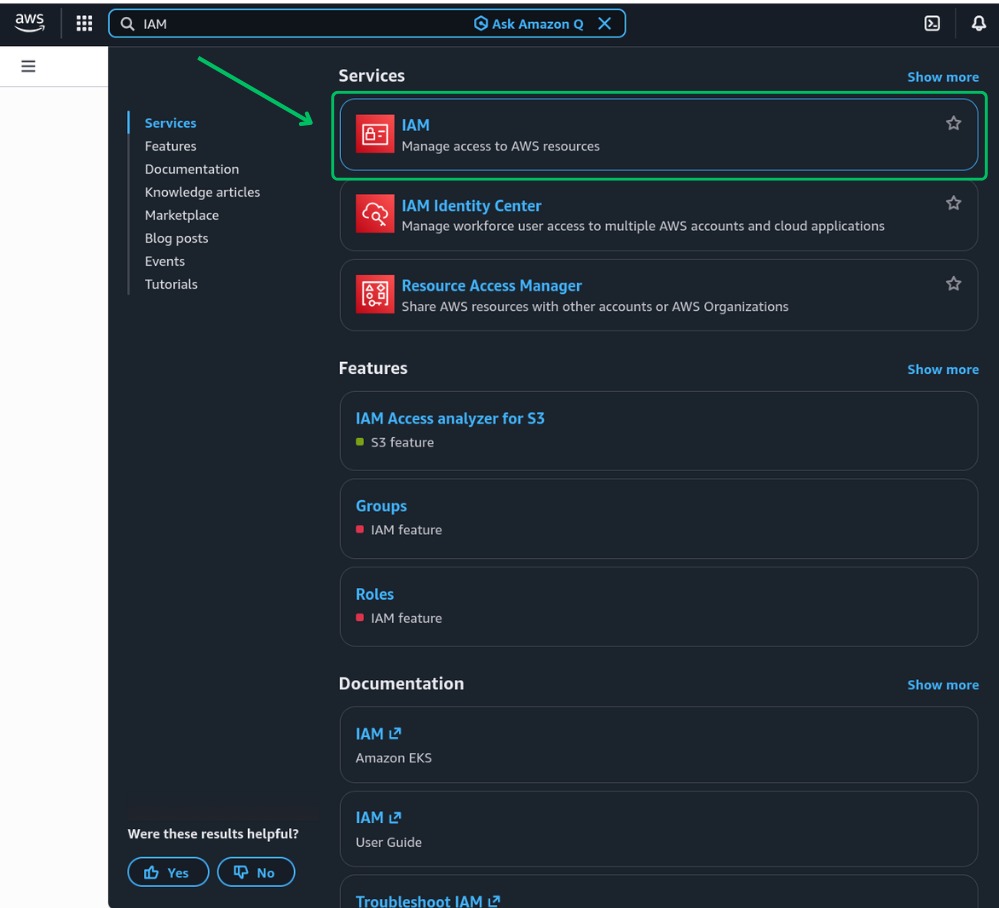
-
In the left navigation pane, select Users.
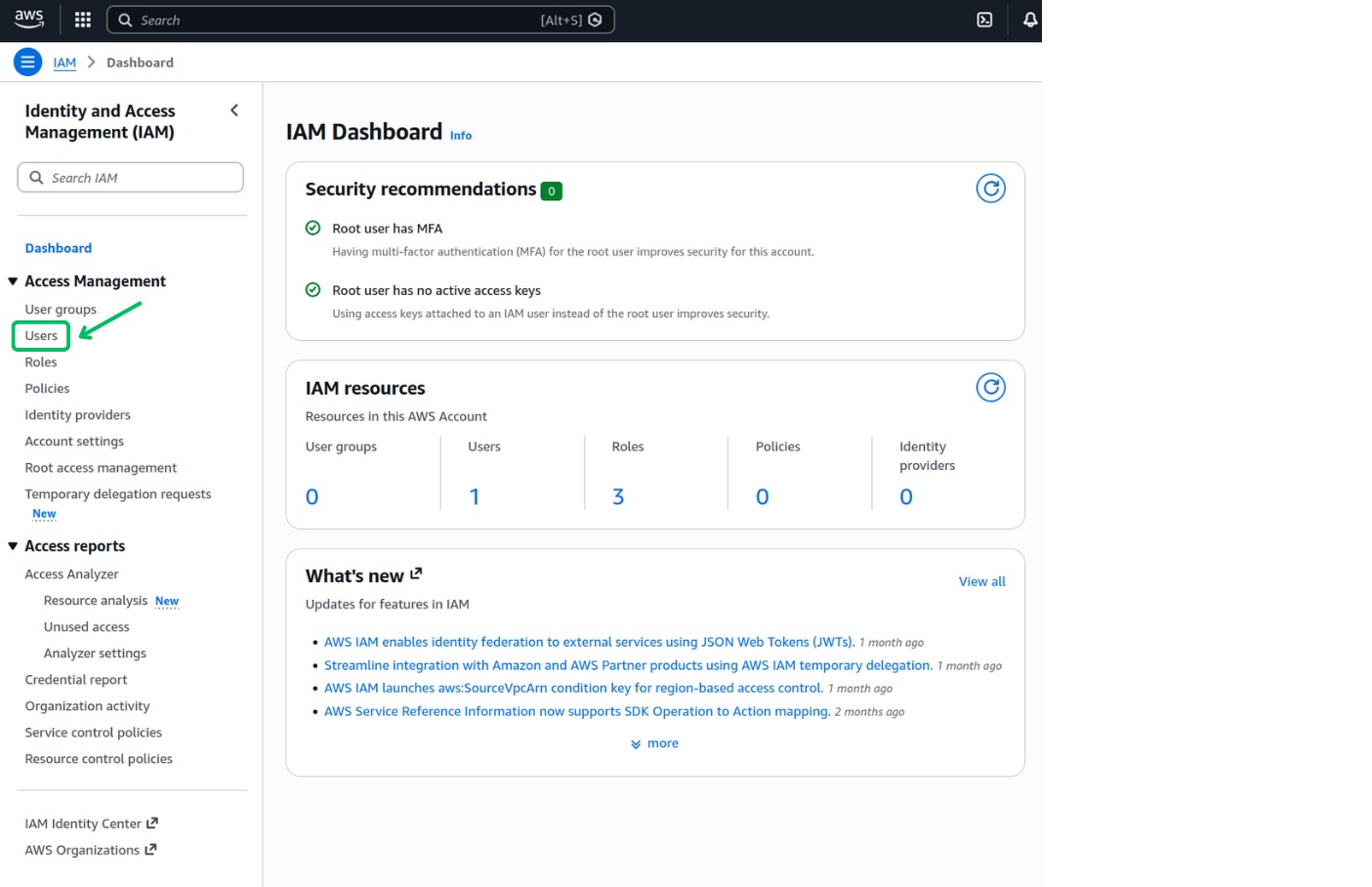
-
Select Create user.
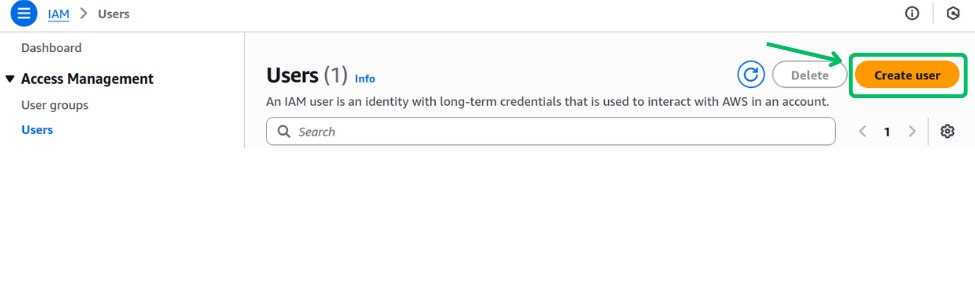
-
Enter a User name (for example,
S3-USER) and select Next.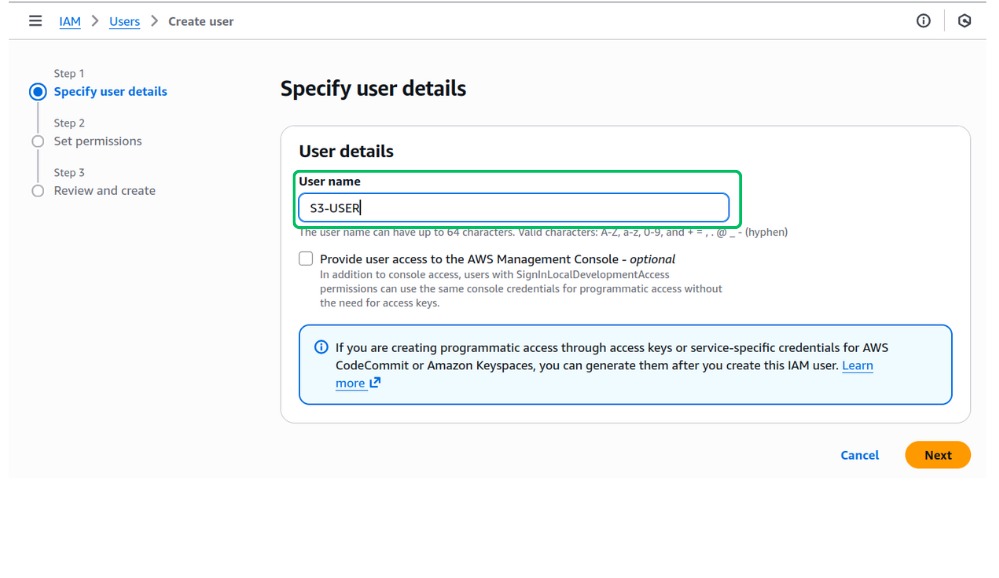
-
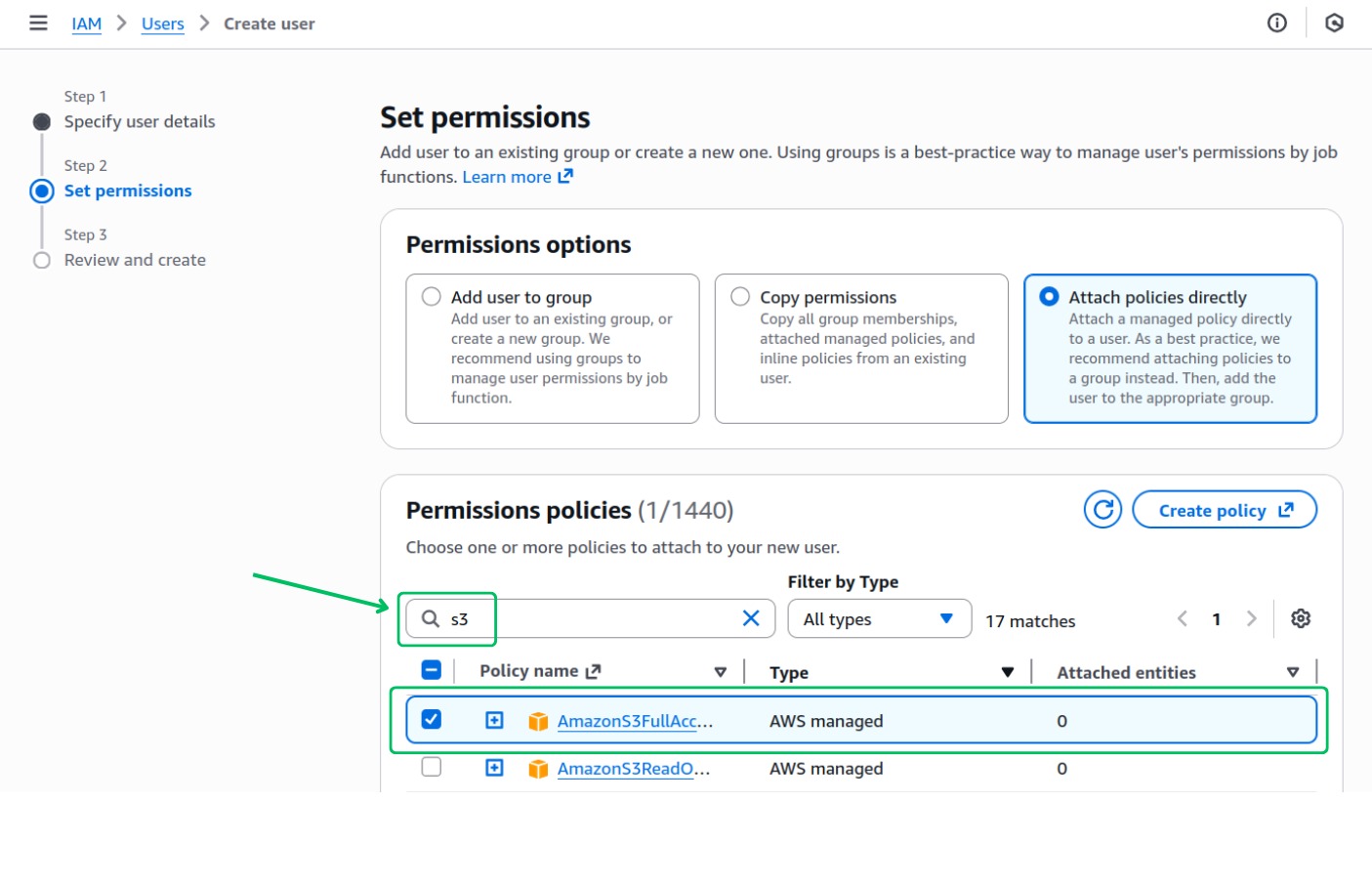
Under Set permissions, select Attach policies directly. Search for and select the AmazonS3FullAccess managed policy (or a custom policy with the minimum S3 permissions your integration requires).
-
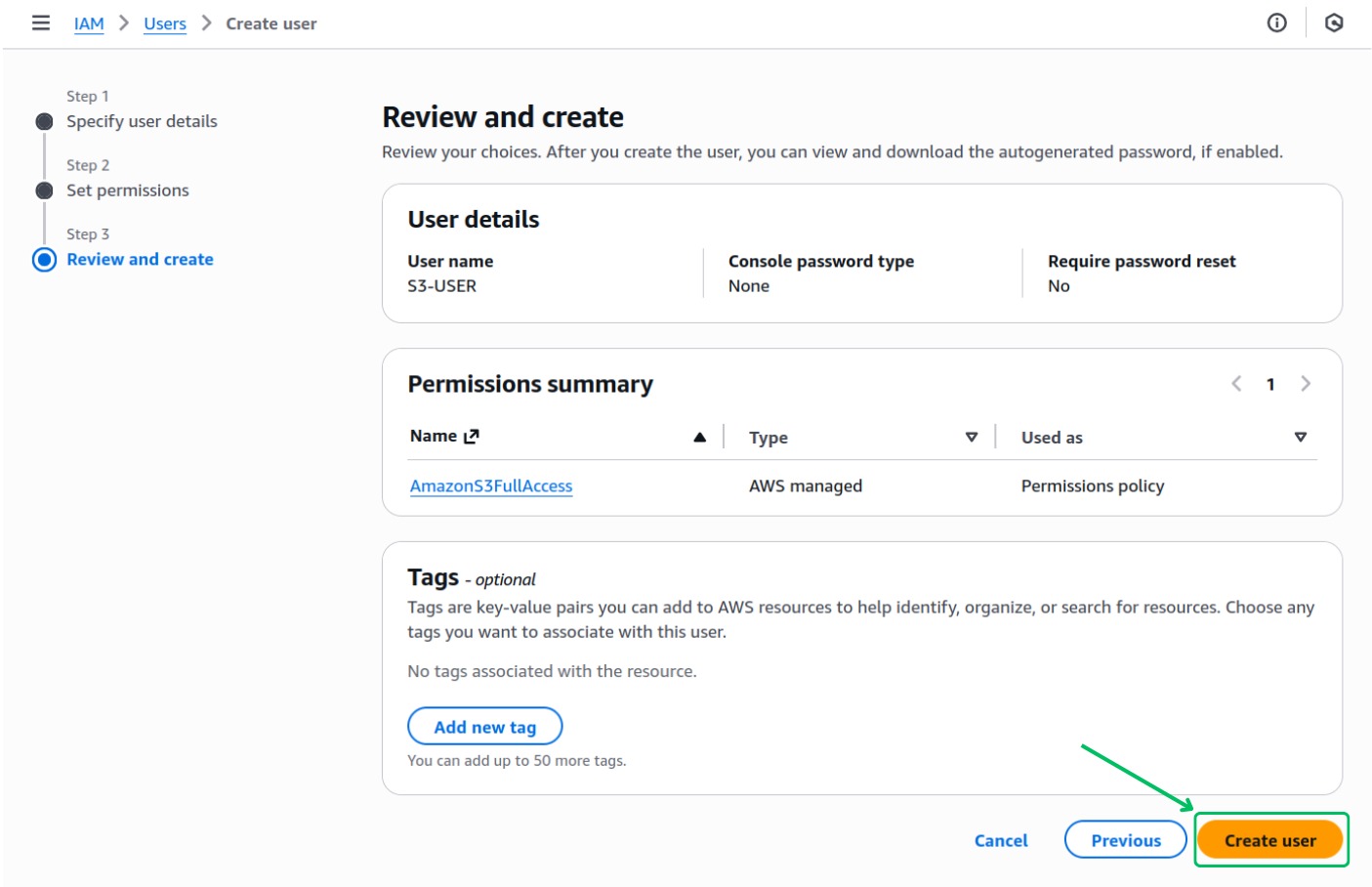
Select Next, review the details, and select Create user.
-
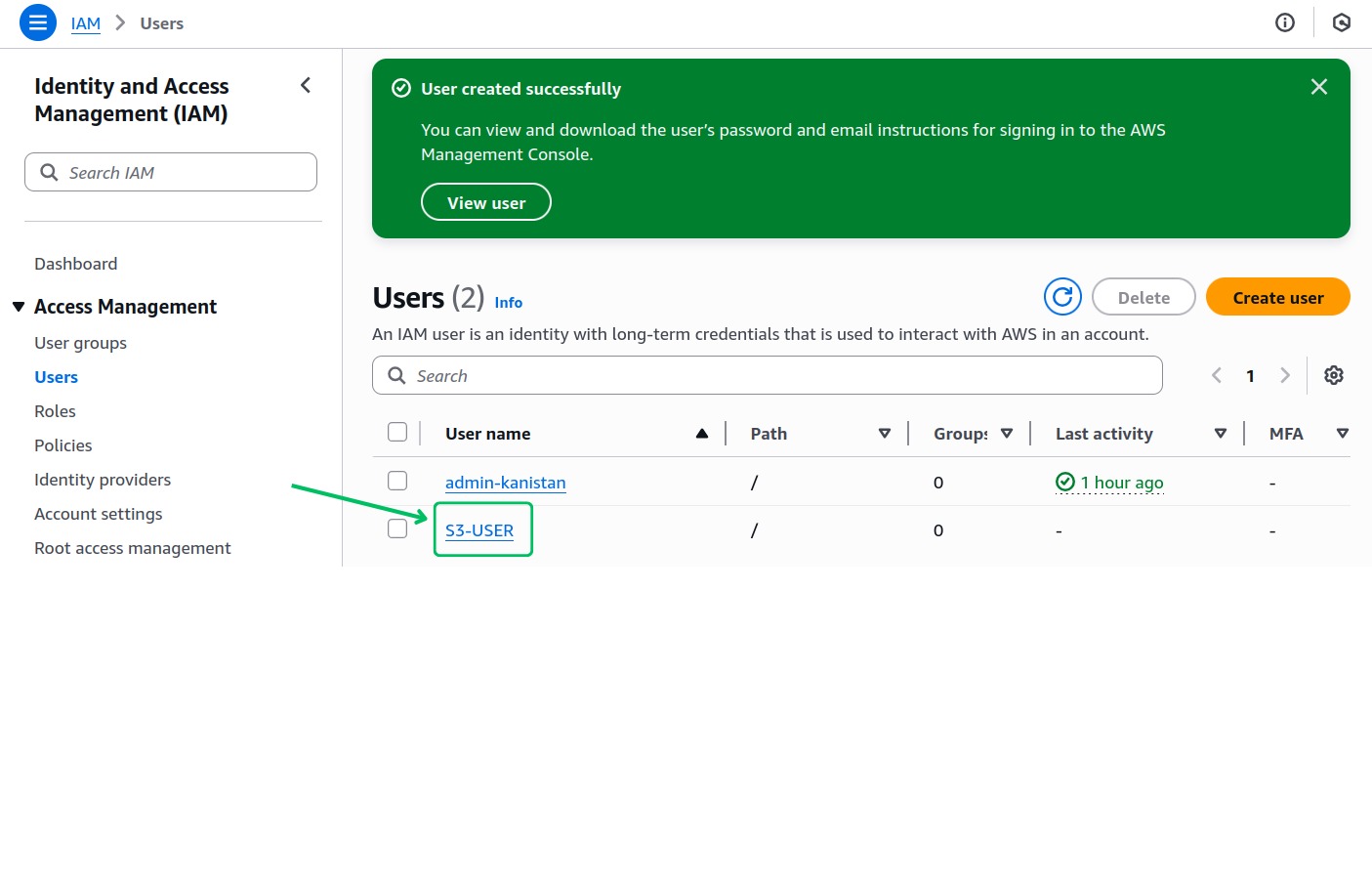
You should see a confirmation that the user was created successfully.
For production use, follow the principle of least privilege — create a custom IAM policy that grants only the specific S3 actions and resources your integration needs.
Step 3: Generate access keys
-
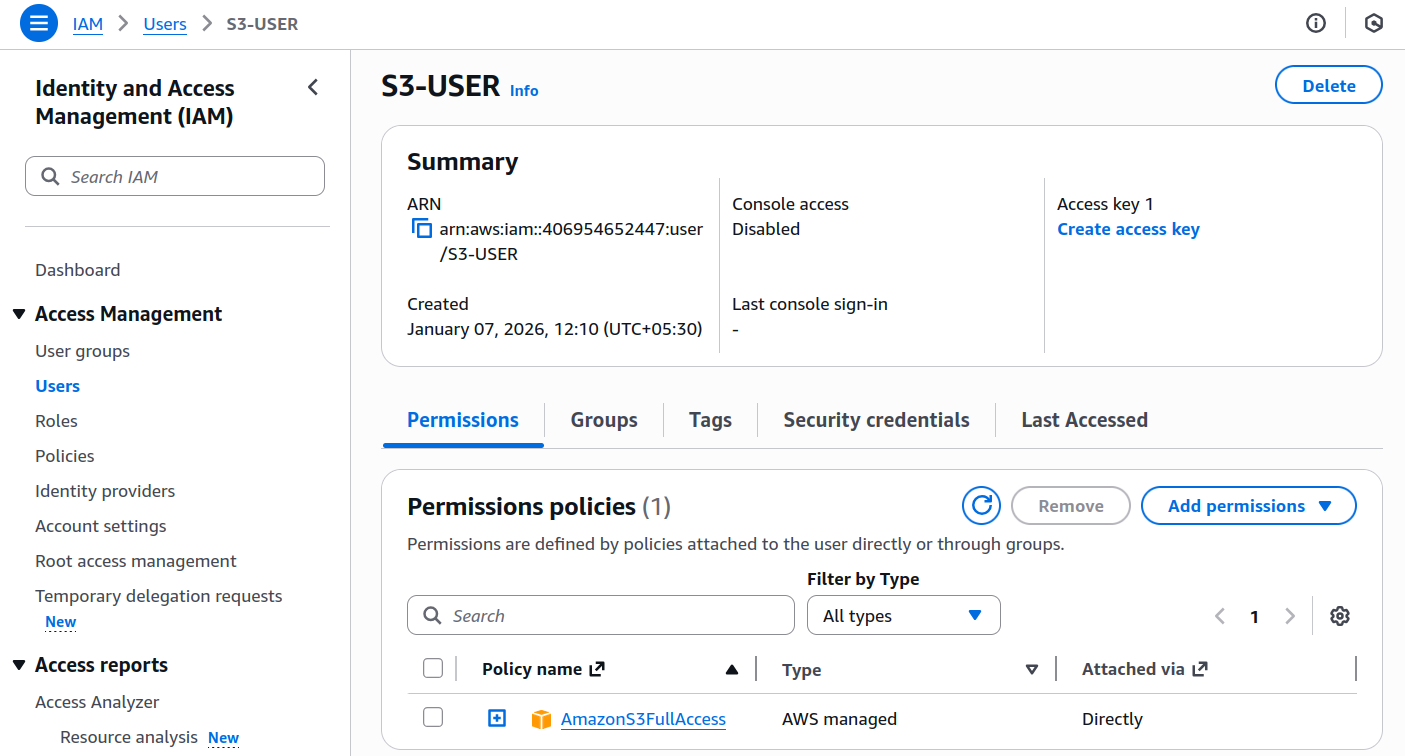
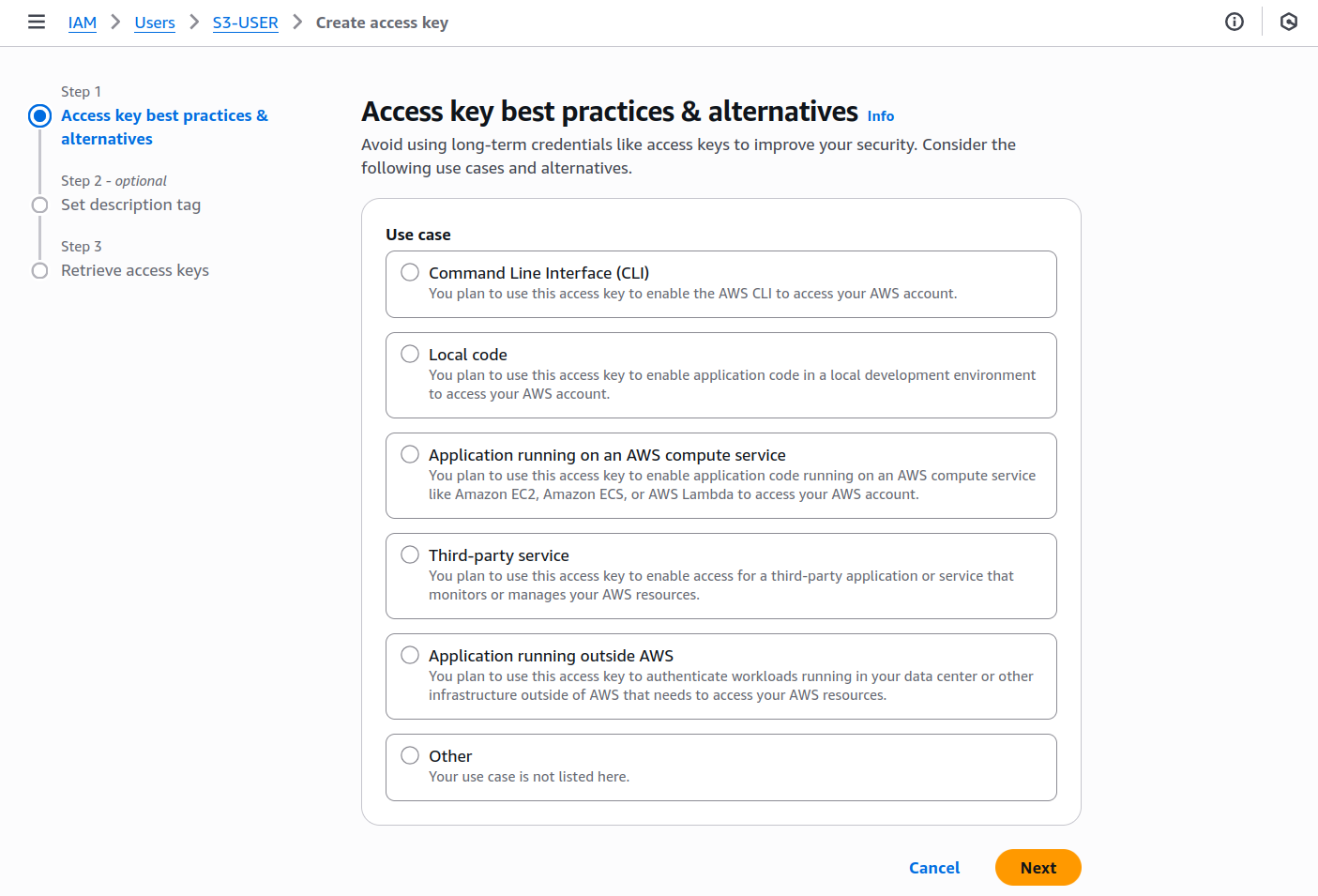
In the IAM console, select the user you just created. Under Access keys, select Create access key.
-
Select the Application running outside AWS use case, then select Next.
-
Optionally add a description tag, then select Create access key.
-
Copy the Access key ID and Secret access key — these are your
accessKeyIdandsecretAccessKey.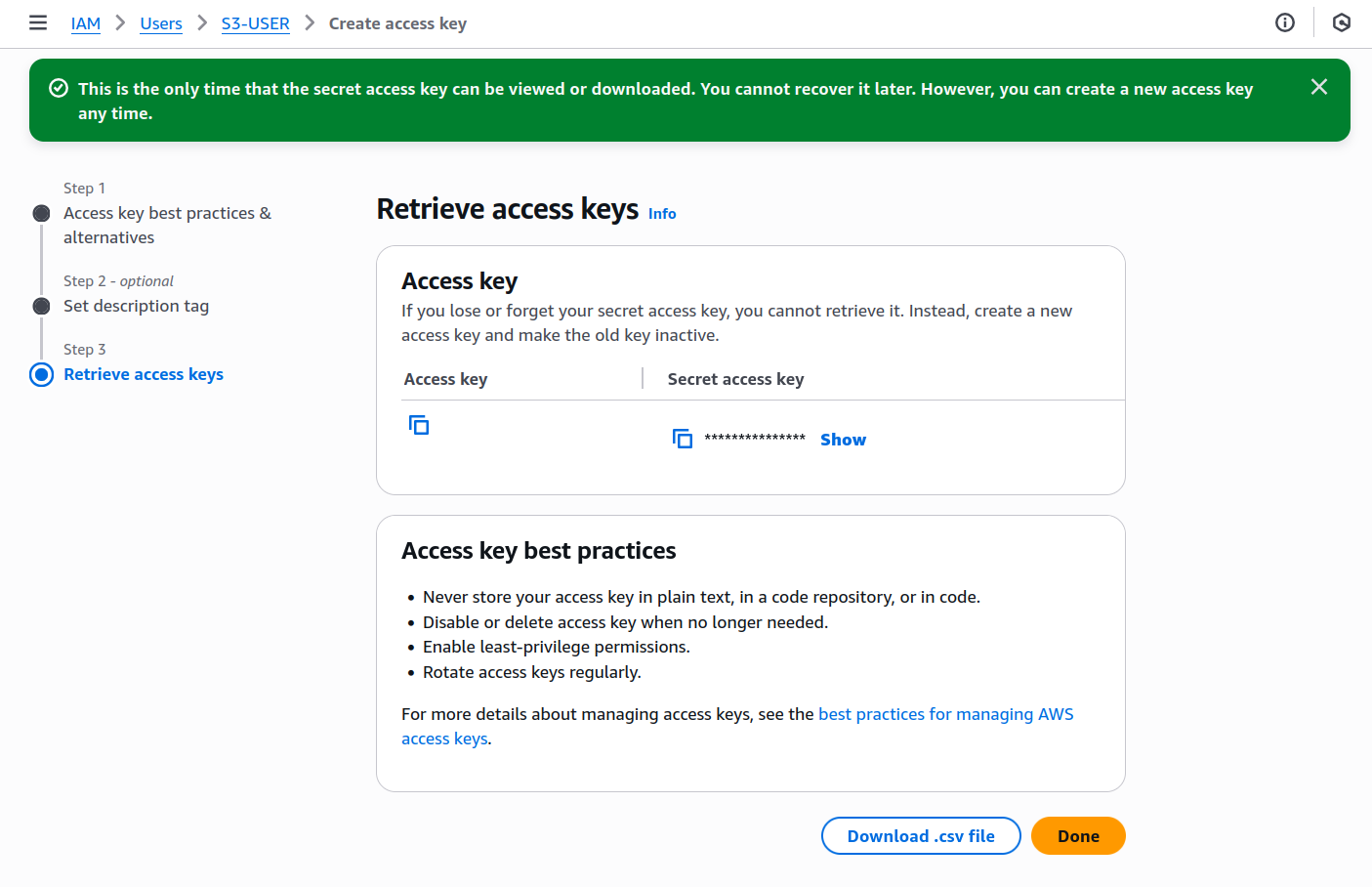
The secret access key is shown only once. Store both keys securely and do not commit them to source control. Use Ballerina's configurable feature and a Config.toml file to supply them at runtime.
Step 4: Note your AWS region
Identify the AWS Region for your S3 operations (for example, us-east-1, eu-west-1, ap-southeast-1). This value is passed as the region configuration parameter when initializing the connector.
If you do not specify a region, the connector defaults to US East (N. Virginia) (us-east-1).
What's next
- Action reference: Available operations