Example
What you'll build
This integration demonstrates how to connect to Amazon Web Services Simple Storage Service (S3) using the AWS S3 connector in WSO2 Integrator. The workflow uses an Automation entry point to invoke the createBucket operation, which creates a new S3 bucket in the specified AWS region.
Operations used:
- createBucket : creates a new Amazon S3 bucket in the specified AWS region using the provided bucket name
Architecture
Prerequisites
- An active AWS account with programmatic access enabled (IAM user with S3 permissions).
- An AWS Access Key ID and Secret Access Key with at least
s3:CreateBucketpermission. - The target AWS region where the S3 bucket will be created (e.g.,
us-east-1).
Setting up the AWS S3 integration
New to WSO2 Integrator? Follow the Create a New Integration guide to set up your integration first, then return here to add the connector.
Adding the AWS S3 connector
Step 1: Open the connector palette and select the AWS S3 connector
- Select Add Connection (or the + icon next to the Connections heading in the sidebar) to open the connector palette.
- In the palette search box, enter AWS S3.
- Select the ballerinax/aws.s3 connector card to open the connection configuration form.
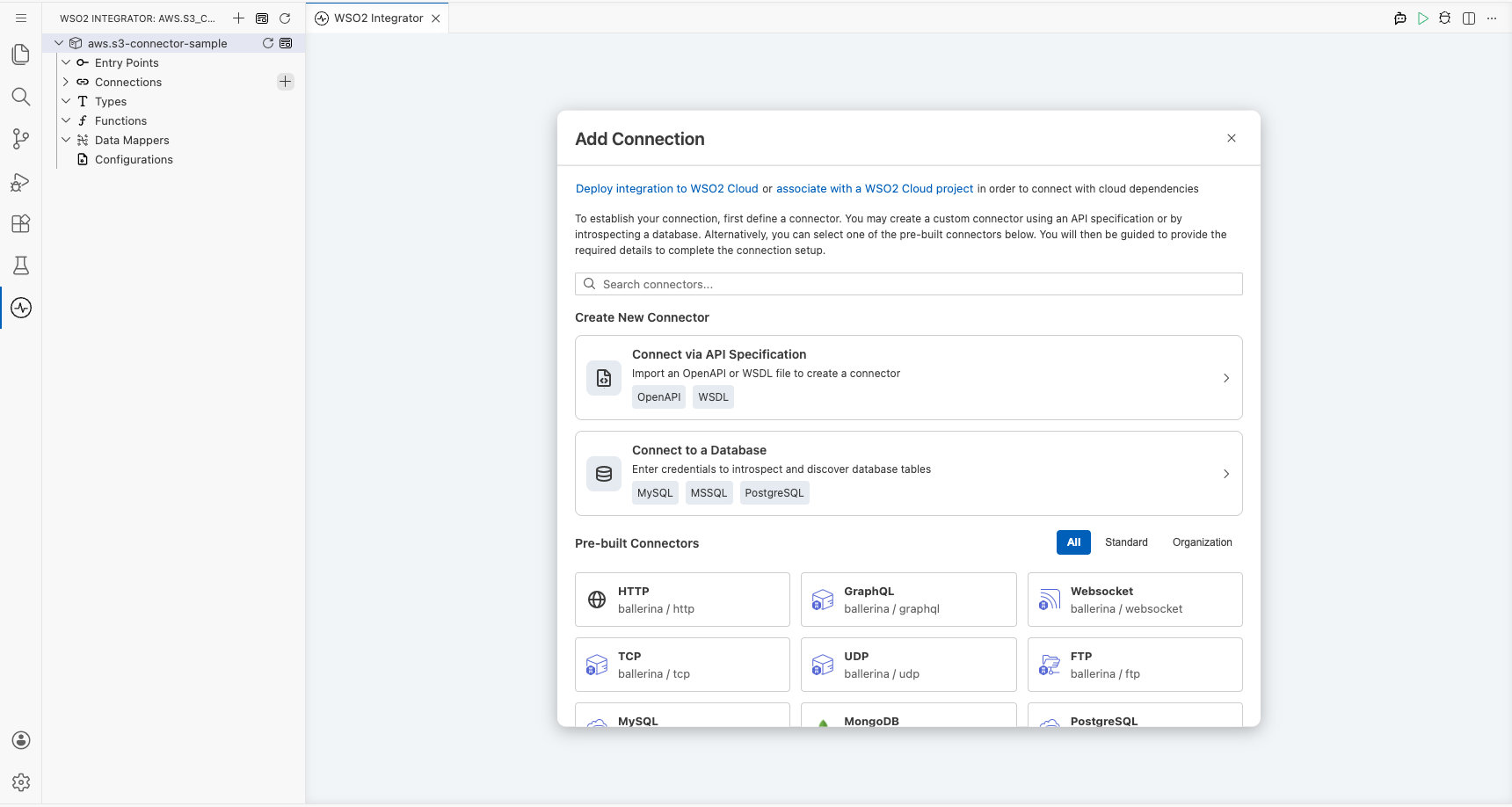
Configuring the AWS S3 connection
Step 2: Bind the AWS S3 connection parameters to configurable variables
Select the Config field, switch to Expression mode, then use the Configurables tab in the helper panel to create one variable for each connection field:
- Access Key Id (string) : the AWS IAM access key ID used to authenticate requests to Amazon S3
- Secret Access Key (string) : the AWS IAM secret access key paired with the access key ID for request signing
- Region (string) : the AWS region where S3 operations will be performed (e.g.,
us-east-1,eu-west-1). Optional: defaults tous-east-1if omitted.
After creating all three configurables, bind each connection field to its configurable variable and set Connection Name to s3Client.
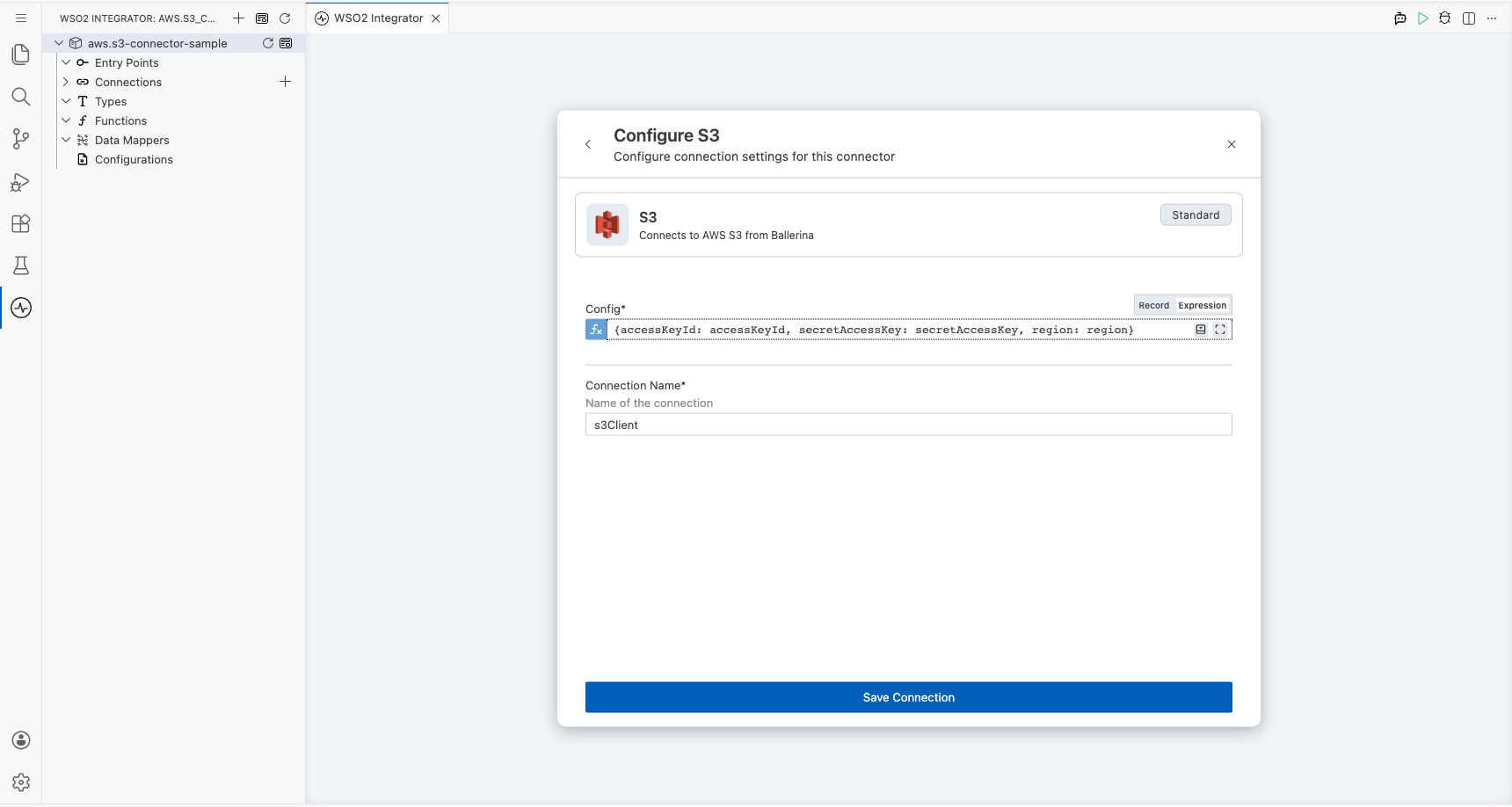
Step 3: Save the AWS S3 connection
Select Save Connection to persist the connection. The S3 connector entry (s3Client) appears on the canvas.
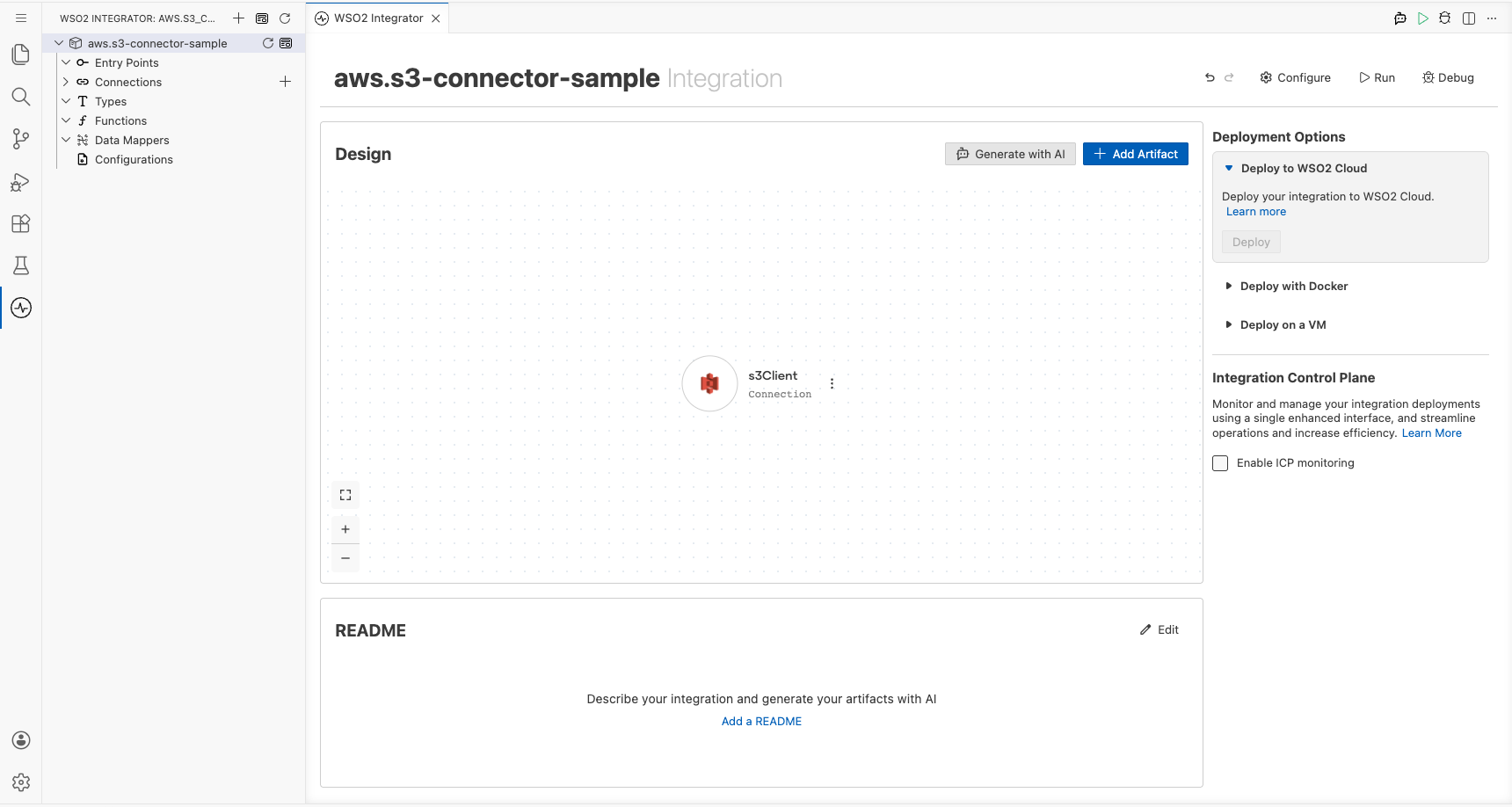
Step 4: Set actual values for your configurables
- In the left panel, select Configurations.
- Set a value for each configurable listed below.
- accessKeyId (string) : your AWS IAM access key ID
- secretAccessKey (string) : your AWS IAM secret access key
- region (string) : the target AWS region for S3 operations (e.g.,
us-east-1). Defaults tous-east-1if not set.
Configuring the AWS S3 createBucket operation
Step 5: Add an automation entry point
- Select + Add Artifact on the canvas toolbar.
- Under Automation, select the Automation tile.
- Select Create. No additional configuration is needed.
The automation entry point appears in the sidebar under Entry Points, and the canvas switches to the Automation flow editor showing a Start node.
Step 6: Select the createBucket operation and configure its parameters
- Inside the automation flow body, select the + (Add Step) button between the Start and End/Error Handler nodes to open the step-addition panel.
- In the step-addition panel, locate the Connections section and select the S3 connection entry (s3Client) to expand it and reveal all available operations.
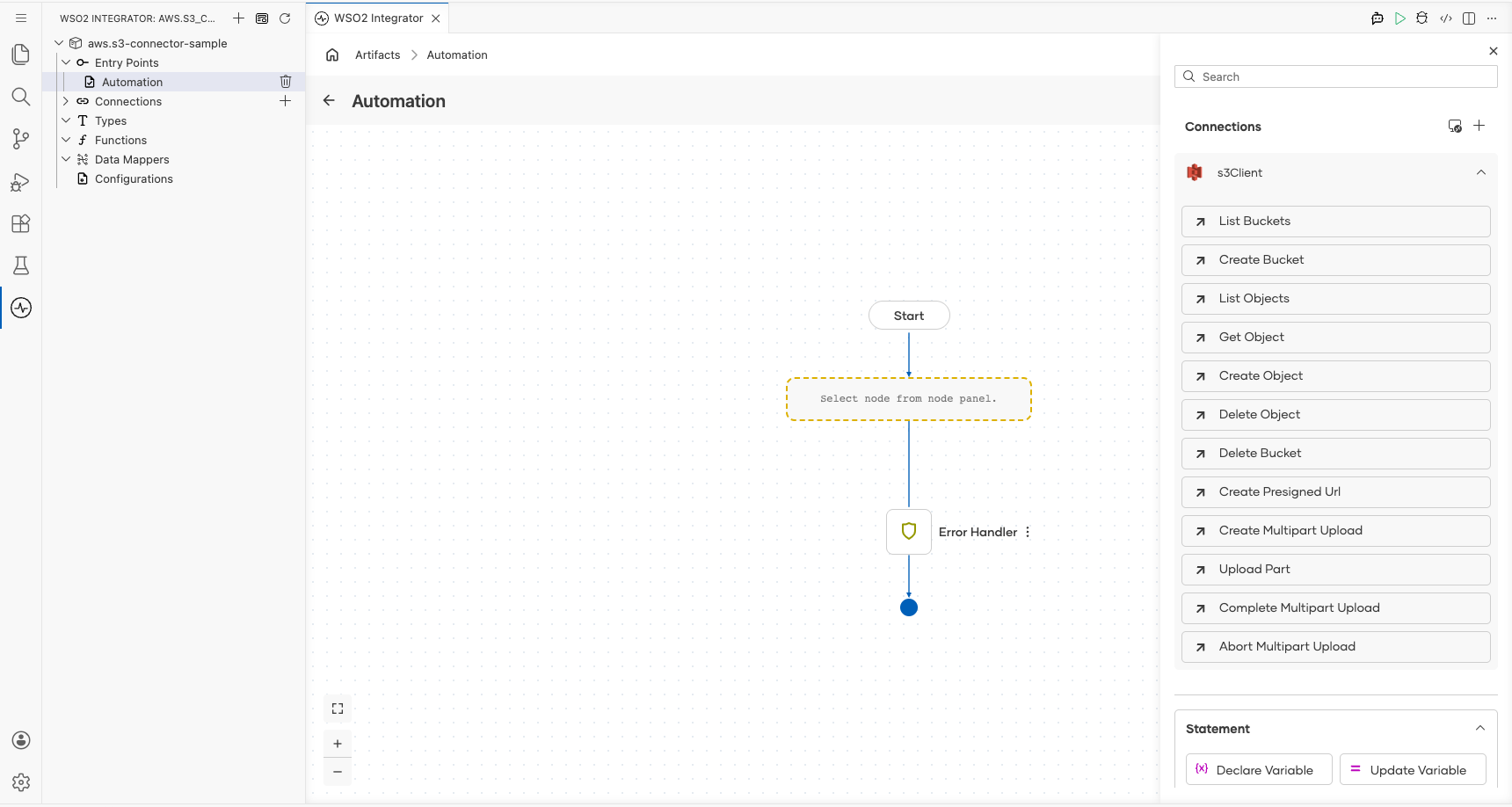
- Select Create Bucket from the list of operations to open its configuration form, then fill in the operation fields.
- Bucket Name : the name of the new Amazon S3 bucket to create
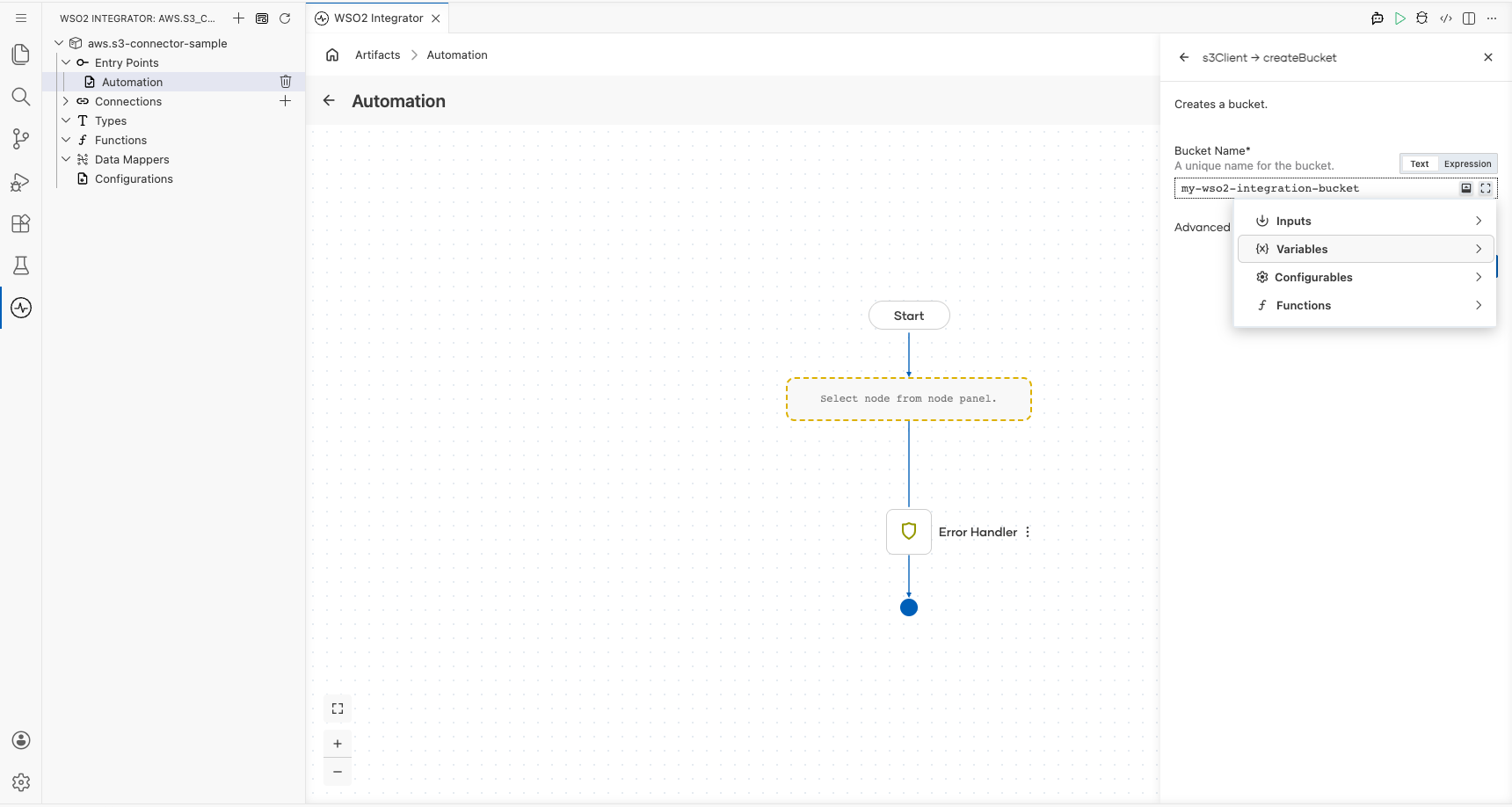
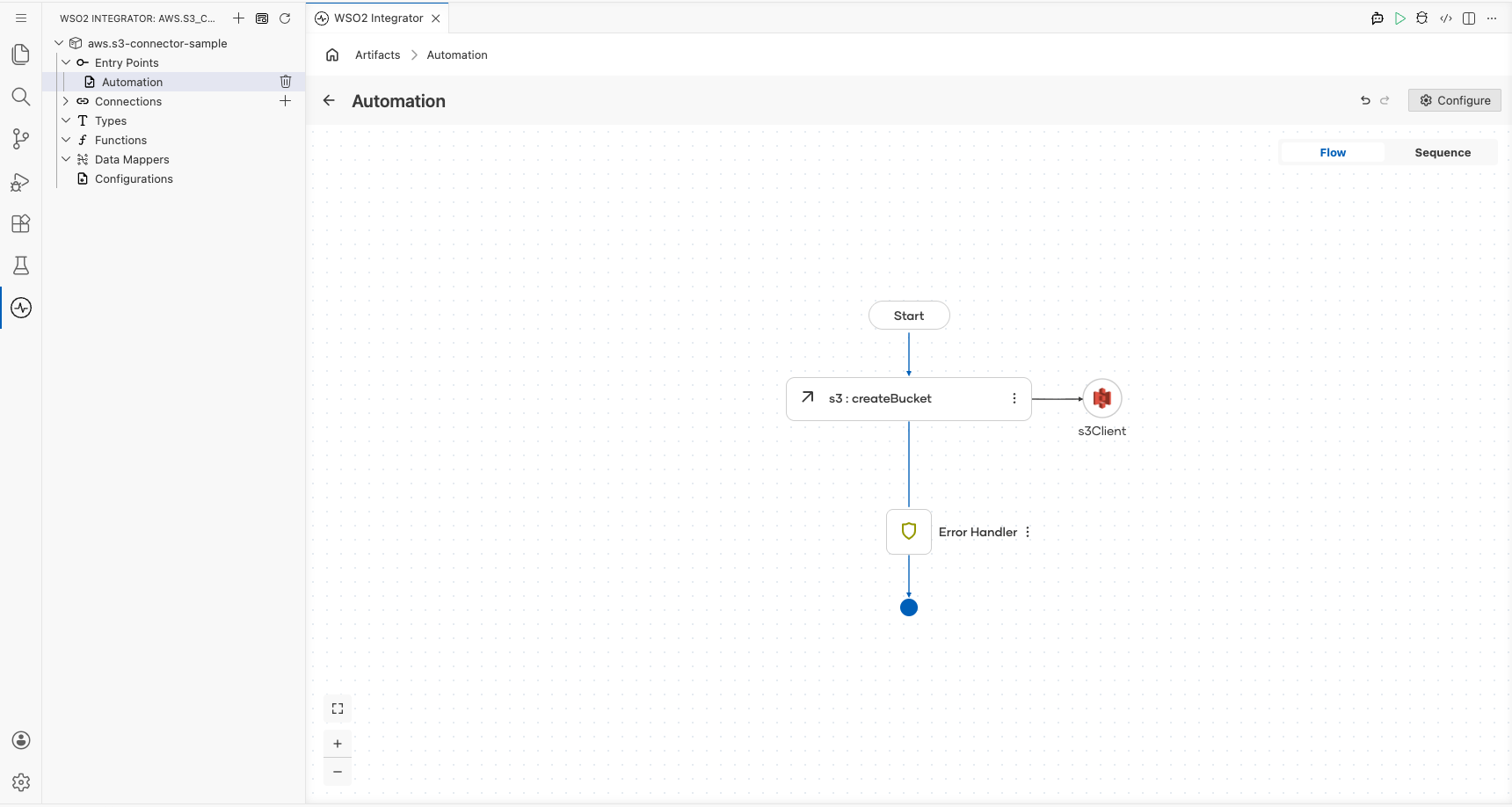
- Select Save to add the
createBucketstep to the automation flow.
Try it yourself
Try this sample in WSO2 Integration Platform.

More code examples
The ballerinax/aws.s3 connector provides practical examples illustrating usage in various scenarios. Explore these examples:
-
S3 report archiver – Implements an ETL-style workflow that reads CSV reports, transforms them, and archives the results to an S3 bucket for long-term storage.
-
FTP to S3 sync – Syncs files from an FTP server to an S3 bucket and generates a summary report of skipped or failed transfers.